2018.5 OPEL AMPERA E hold
[x] Cancel search: holdPage 61 of 273

Storage59Load compartment
Load compartment extension
The rear seat backrest is divided into
two parts. Both parts can be folded
down.
Remove the load compartment cover
if necessary 3 60.
Press and hold the catch, then push the head restraints down 3 37.
Fold up the rear armrest.
Guide the seat belts of the outer seats
into the belt guides.
Pull the release lever on one or both
outer sides and fold down the
backrests onto the seat cushion.
To fold up, raise the backrests and
guide them into an upright position
until they engage audibly.
Make sure the seat belt is in the belt guide and is not twisted or caught in
the behind of backrests.The backrests are properly engaged
when the red mark near the release
lever is no longer visible.
9 Warning
When folding up, ensure that
backrests are securely locked in
position before driving. Failure to
do so may result in personal injury or damage to the load or vehicle in the event of hard braking or a
collision.
Page 85 of 273
![OPEL AMPERA E 2018.5 Owners Manual Instruments and controls83
● Press ] to open main menu
page.
● Select a main menu page with { or }.
● Confirm a main menu page with 9.
Once a main menu page is selected,
press { or } to selec](/manual-img/37/18756/w960_18756-84.png "OPEL AMPERA E 2018.5 Owners Manual Instruments and controls83
● Press ] to open main menu
page.
● Select a main menu page with { or }.
● Confirm a main menu page with 9.
Once a main menu page is selected,
press { or } to selec")
Instruments and controls83
● Press ] to open main menu
page.
● Select a main menu page with { or }.
● Confirm a main menu page with 9.
Once a main menu page is selected,
press { or } to select subpages.
● Press [ to open the next folder of
the selected subpage.
● Press { or } to select functions
or to set a numeric value, if
required.
● Press 9 to select and confirm a
function.
Vehicle and service messages pop-
up in the Driver Information Centre
when required.
Confirm messages by pressing 9.
Vehicle messages 3 89.
Vehicle info The following list contains all possible
Vehicle info menu pages. Some may
not be available for your particular
vehicle. Depending on the display,
some functions are symbolised.
Press { or } to select a page:
● Trip
● Tyre pressure (kPa)
● Average speed
● Timer
● Traffic sign assistant
● Following distance
● Blank page
Trip
Trip odometer displays the current
distance and the current average
electrical energy economy since a
certain reset.The distance counts up to
99,999.9 km then restarts at 0.
The average electrical energy
economy displays the approximate
average kWh per 100 km (kWh/100
km).
To reset, press and hold 9.
Tyre pressure (kPa)
Checks tyre pressure of all wheels
during driving 3 233.
Average speed
Display of average speed. The
measurement can be reset at any
time.
Timer
To start and stop, press 9. To reset,
press [ and confirm reset.
Traffic sign assistant
Displays the detected traffic signs for
the current route section 3 189.
Following distance
Displays the distance in seconds to a preceding moving vehicle 3 169.
Page 91 of 273

Instruments and controls89●Hill Top Reserve : Select Off, On ,
On – home only , or On – away
only .
Regenerative braking 3 161.
● Energy summary pop-up : Set the
energy summary pop-up feature
to On or Off.
● Charge status feedback : Set the
charge status feedback feature to Horn chirps or Off.
● Charge power loss alert : This
feature allows an alert to sound
when the vehicle is charging and
loses power at the electrical
outlet. Set the charge power loss alert feature to On or Off.
● Radio power down : This allows
high voltage battery power to be conserved. Set the value for the
reminder to be displayed. To set
high voltage battery charge level
for Radio power down , touch
Energy , then Energy settings ,
then Radio power down . Select
Off , 2% , 4% , 6% , 8% , 10% .Low power mode
This allows high voltage battery power to be conserved.1. Press and hold m of the
Infotainment system.
2. Touch Yes on the Info Display.
The screen will turn off.
3. Press m again to turn the display
on.Vehicle messages
Messages are indicated in the Driver
Information Centre, in some cases
together with a warning and signal
chime.
Press 9 on the steering wheel to
confirm a message.
Vehicle and service messages
The vehicle messages are displayed
as text. Follow the instructions given
in the messages.
Page 96 of 273

94Instruments and controlsTelematics service
OnStar OnStar is a personal connectivity and
service assistant with integrated
Wi-Fi hotspot. The OnStar service is
available 24 hours a day, seven days
a week.
Note
OnStar is not available for all
markets. For further information,
contact your workshop.
Note
In order to be available and
operational, OnStar needs a valid
OnStar subscription, functioning
vehicle electrics, mobile service and GPS satellite link.
To activate the OnStar services and
set up an account, press Z and speak
with an advisor.Depending on the equipment of the vehicle, the following services are available:
● Emergency services and support
in the case of a vehicle
breakdown
● Wi-Fi hotspot
● Smartphone application
● Remote control, e.g. location of the vehicle, activation of horn and
lights, control of central locking
system
● Stolen vehicle assistance
● Vehicle diagnostics
● Destination download
Note
The OnStar module of the vehicle is
deactivated after ten days without
switching on the vehicle. Functions
requiring a data connection will be
available again after switching on
the vehicle.OnStar buttons
Privacy button
Press and hold j until a message is
heard to activate or deactivate the
transmission of the vehicle location.
Press j to answer a call or to end a
call to an advisor.
Press j to access the Wi-Fi settings.
Service button
Press Z to establish a connection to
an advisor.
Page 99 of 273

Instruments and controls97Note
The workshop notification function
can be disabled in your account.
The report contains the status of key
operating systems of the vehicle like
propulsion system, airbags, ABS, and
other major systems. It also provides
information on possible maintenance
items and tyre pressure (only with tyre
pressure monitoring system).
To look at the information in greater
detail, select the link within the email and log in to your account.
Destination download
A desired destination can be directly
downloaded to the navigation system.
Press Z to call an advisor and
describe the destination or point of
interest.
The advisor can look up any address
or point of interest and directly send
the destination to the built-in
navigation system.OnStar settings
OnStar PIN
To have full access to all OnStar
services, a four-digit PIN is required.
The PIN has to be personalised when first talking to an advisor.
To change the PIN, press Z to call an
advisor.
Account data
An OnStar subscriber has an account
where all the data is stored. To
request a change of the account
information, press Z and talk to an
advisor or log in to your account.
If the OnStar service is used on
another vehicle, press Z and request
that the account be transferred to the new vehicle.
Note
In any case, if the vehicle is disposed
of, sold or otherwise transferred,
immediately inform OnStar about
the changes and terminate the
OnStar service on this vehicle.Vehicle location
The vehicle location is transmitted to OnStar when service is requested or triggered. A message on the Info
Display informs about this
transmission.
To activate or deactivate the
transmission of the vehicle location,
press and hold j until an audio
message is heard.
The deactivation is indicated by the
status light flashing red and green for a short period of time and each time
the vehicle is started.
Note
If the transmission of the vehicle
location is deactivated, some
services are no longer available.
Note
The vehicle location always remains
accessible to OnStar in the case of
an emergency.
Find the privacy policy in your
account.
Page 105 of 273
Lighting103Activate temporary flashing by
holding the stalk just before the
resistance point. Turn lights will flash
until stalk is being released.
To activate three flashes, tap the stalk
briefly without passing the resistance
point.
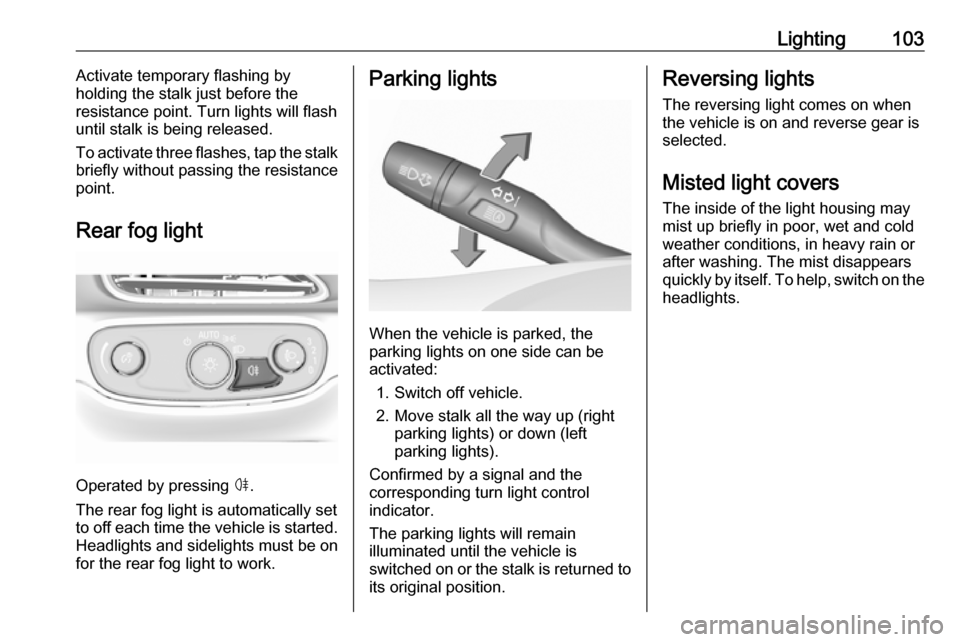
Rear fog light
Operated by pressing ø.
The rear fog light is automatically set
to off each time the vehicle is started.
Headlights and sidelights must be on
for the rear fog light to work.
Parking lights
When the vehicle is parked, the
parking lights on one side can be
activated:
1. Switch off vehicle.
2. Move stalk all the way up (right parking lights) or down (left
parking lights).
Confirmed by a signal and the
corresponding turn light control
indicator.
The parking lights will remain
illuminated until the vehicle is
switched on or the stalk is returned to
its original position.
Reversing lights
The reversing light comes on when
the vehicle is on and reverse gear is
selected.
Misted light covers
The inside of the light housing may
mist up briefly in poor, wet and cold
weather conditions, in heavy rain or after washing. The mist disappears
quickly by itself. To help, switch on the headlights.
Page 113 of 273

Infotainment system111Press and hold X. A low power
message is displayed. Confirm the
message to turn off the display.
To cancel low power mode, press X.
If the high voltage battery level of the vehicle drops below the level set in
the vehicle settings menu, the
Infotainment system suggests to turn
off display and sound.
Note
For a detailed description of how to
set the high voltage battery level
3 85.
A low power message is displayed.
Confirm the message to turn off
display and sound.
To cancel low power mode, press X.
Setting the volume
Turn X. The current setting is shown
on the display.
When the Infotainment system is
switched on, the last selected volume is set, provided that it is lower than themaximum start-up volume. For a
detailed description 3 116.Speed compensated volume
When the speed compensated
volume is activated 3 116, the
volume is adapted automatically to
make up for the road and wind noise
as you drive.
Mute
Press X to mute the Infotainment
system.
To cancel the mute function: press
X again. The last selected volume is
set again.
Full screen clock display From any screen, touch the time
indication field to display a clock in full
screen mode.
Touch u to return to the previous
screen.
Modes of operationPress p and then select 1 in the top
left corner of the screen to display the application overview screen.
Page 123 of 273
Infotainment system121Station searchAutomatic station search
Briefly press or touch t or v on the
control panel or on the screen to play the previous or next station available.
Manual station search
Press and hold t or v on the
control panel. Release when the
required frequency has almost been
reached.
A search is made for the next station that can be received and it is played
automatically.
Note
FM waveband: when the RDS
function is activated, only RDS
stations 3 123 are searched for, and
when the radio traffic service (TP) is activated, only traffic service
stations 3 123 are searched for.
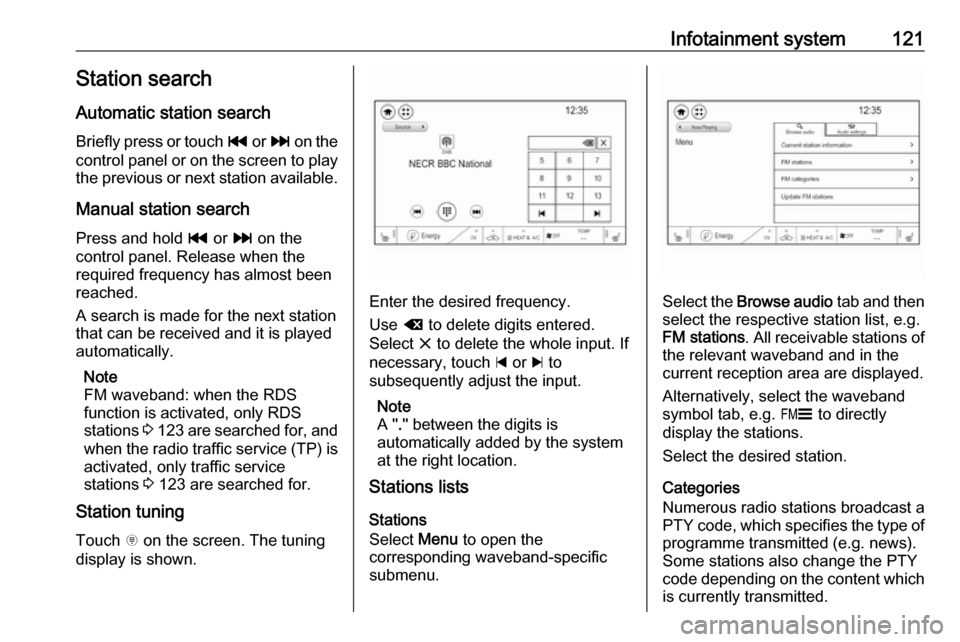
Station tuning
Touch x on the screen. The tuning
display is shown.
Enter the desired frequency.
Use { to delete digits entered.
Select x to delete the whole input. If
necessary, touch d or c to
subsequently adjust the input.
Note
A " ." between the digits is
automatically added by the system
at the right location.
Stations lists
Stations
Select Menu to open the
corresponding waveband-specific
submenu.Select the Browse audio tab and then
select the respective station list, e.g.
FM stations . All receivable stations of
the relevant waveband and in the
current reception area are displayed.
Alternatively, select the waveband
symbol tab, e.g. ~ to directly
display the stations.
Select the desired station.
Categories
Numerous radio stations broadcast a
PTY code, which specifies the type of programme transmitted (e.g. news).
Some stations also change the PTY
code depending on the content which
is currently transmitted.