2017 TOYOTA TACOMA ESP
[x] Cancel search: ESPPage 245 of 640
2454-5. Using the driving support systems
4
Driving
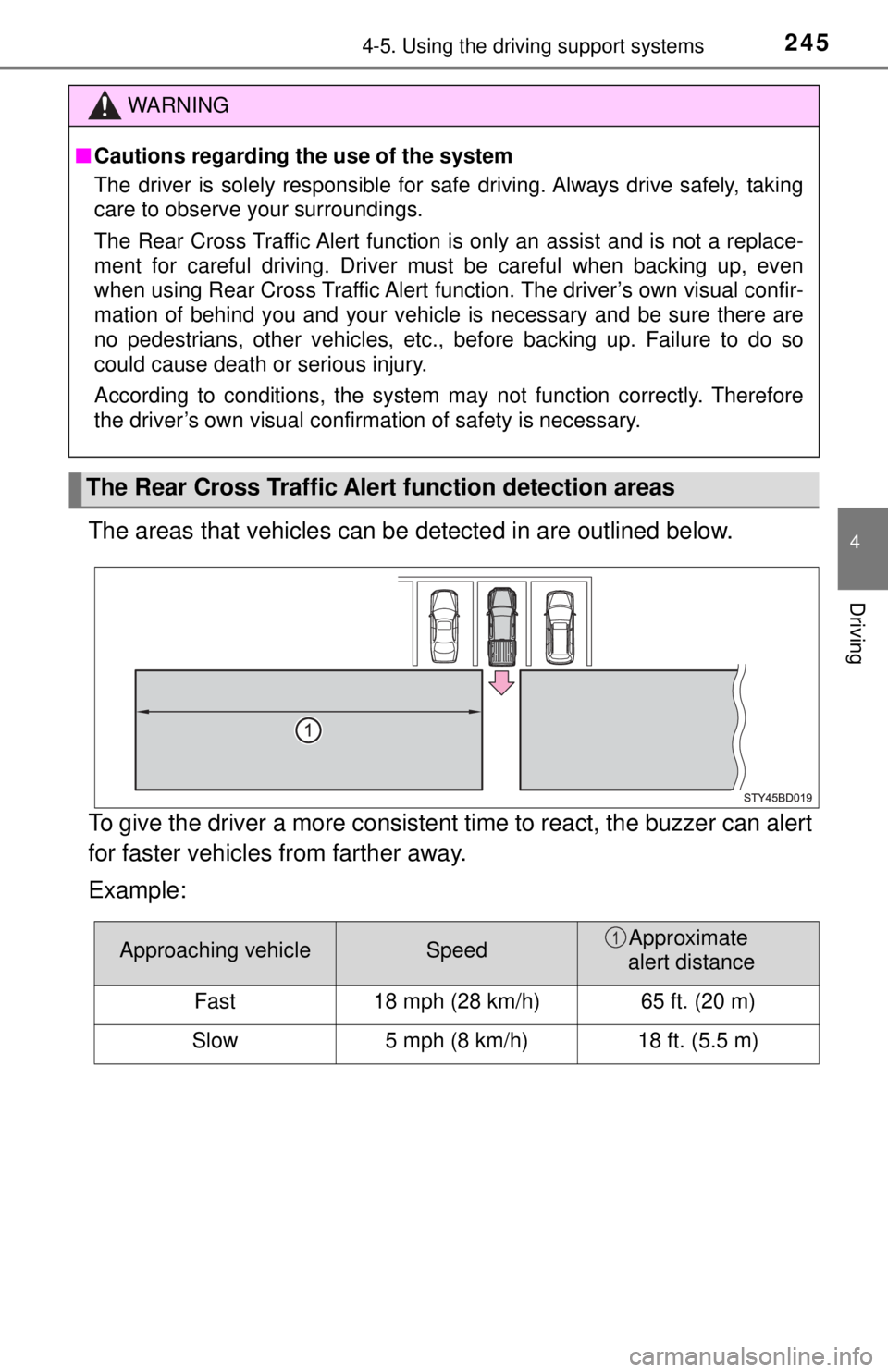
The areas that vehicles can be detected in are outlined below.
To give the driver a more consistent time to react, the buzzer can alert
for faster vehicles from farther away.
Example:
WARNING
■ Cautions regarding the use of the system
The driver is solely responsible for safe driving. Always drive safely, taking
care to observe your surroundings.
The Rear Cross Traffic Alert function is only an assist and is not a replace-
ment for careful driving. Driver must be careful when backing up, even
when using Rear Cross Traffic Alert function. The driver’s own visual confir-
mation of behind you and your vehicle is necessary and be sure there are
no pedestrians, other vehicles, etc., before backing up. Failure to do so
could cause death or serious injury.
According to conditions, the system may not function correctly. Therefore
the driver’s own visual confirmation of safety is necessary.
The Rear Cross Traffic Aler t function detection areas
Approaching vehicleSpeedApproximate
alert distance
Fast 18 mph (28 km/h) 65 ft. (20 m)
Slow 5 mph (8 km/h) 18 ft. (5.5 m)1
Page 267 of 640
2674-5. Using the driving support systems
4
Driving
Driving assist systems
◆ABS (Anti-lock Brake System)
Helps to prevent wheel lock when the brakes are applied suddenly,
or if the brakes are applied while driving on a slippery road surface
◆Multi Terrain ABS (Anti-lock Brake System) (if equipped)
Helps to prevent wheel lock when the brakes are applied suddenly,
or if the brakes are applied while driving on a slippery road surface,
or in off-road conditions (such as rough roads, sand and mud)
◆Brake assist
Generates an increased level of braking force after the brake pedal
is depressed when the system detects a panic stop situation
◆VSC (Vehicle Stability)
Helps the driver to control skidding when swerving suddenly or
turning on slippery road surfaces
◆Trailer Sway Control (if equipped)
Helps the driver to control trailer sway by selectively applying brake
pressure for individual wheels and reducing engine torque when
trailer sway is detected.
Trailer Sway Control is part of the VSC system and will not operate if
VSC system is turned off or experiences a malfunction.
◆TRAC (Traction Control)
Helps to maintain drive power and prevent the drive wheels from
spinning when starting the vehicle or accelerating on slippery roads
To help enhance driving safety and performance, the following
systems operate automatically in response to various driving
situations. Be aware, however, that these systems are supple-
mentary and should not be relied upon too heavily when operat-
ing the vehicle.
Page 271 of 640
2714-5. Using the driving support systems
4
Driving
WARNING
■The ABS does not operate effectively when
● The limits of tire gripping performance have been exceeded (such as
excessively worn tires on a snow covered road).
● The vehicle hydroplanes while driving at high speed on wet or slick roads.
■ Stopping distance when the ABS or Multi Terrain ABS is operating may
exceed that of normal conditions
The ABS and Multi Terrain ABS are not designed to shorten the vehicle’s
stopping distance. Always maintain a safe distance from the vehicle in front
of you, especially in the following situations:
● When driving on dirt, gravel or snow-covered roads
● When driving with tire chains
● When driving over bumps in the road
● When driving over roads with potholes or uneven surfaces
■ TRAC may not operat e effectively when
Directional control and power may not be achievable while driving on slip-
pery road surfaces, even if the TRAC system is operating.
Drive the vehicle carefully in conditions where stability and power may be
lost.
■ Hill-start assist control does not operate effectively when
● Do not overly rely on hill-start assist control. Hill-start assist control may
not operate effectively on steep inclines and roads covered with ice.
● Unlike the parking brake, hill-start assist control is not intended to hold the
vehicle stationary for an extended period of time. Do not attempt to use
hill-start assist control to hold the vehicle on an incline, as doing so may
lead to an accident.
■ When the VSC and Trailer Sway Control are activated
The slip indicator light flashes. Always drive carefully. Reckless driving may
cause an accident. Exercise particular care when the indicator light flashes.
■ When the TRAC/VSC/Trailer Sway Control systems ar e turned off
Be especially careful and drive at a speed appropriate to the road condi-
tions. As these are the systems to help ensure vehicle stability and driving
force, do not turn the TRAC/VSC/Trailer Sway Control systems off unless
necessary.
Page 278 of 640
2784-6. Driving tips
When driving your vehicle off-road, please observe the following pre-
cautions to ensure your driving enjoyment and to help prevent the clo-
sure of areas to off-road vehicles.
● Drive your vehicle only in areas where off-road vehicles are permit-
ted to travel.
● Respect private property. Get owner’s permission before entering
private property.
● Do not enter areas that are clos ed. Honor gates, barriers and signs
that restrict travel.
● Stay on established roads. When c onditions are wet, driving tech-
niques should be changed or trav el delayed to prevent damage to
roads.
WARNING
■ Off-road vehicle precautions
Always observe the following precautions to minimize the risk of death, seri-
ous injury or damage to your vehicle:
● In a rollover crash, an unbelted person is significantly more likely to die
than a person wearing a seat belt. Therefore, the driver and all passengers
should always fasten their seat belts.
● Avoid sharp turns or abrupt maneuvers, if at all possible.
Failure to operate this vehicle correctly may result in loss of control or
vehicle rollover causing death or serious injury.
● Avoid loading any items on the roof that will raise the vehicle’s center of
gravity.
● Always slow down in gusty crosswinds. Because of its profile and higher
center of gravity, your vehicle is more sensitive to side winds than an ordi-
nary passenger car. Slowing down will allow you to have better control.
● When driving off-road or in rugged te rrain, do not drive at excessive
speeds, jump, make sharp turns, strike objects, etc. This may cause loss
of control or vehicle rollover causing death or serious injury. You are also
risking expensive damage to your vehicle’s suspension and chassis.
● Do not drive horizontally across steep slopes. Driving straight up or
straight down is preferred. Your vehicle (or any similar off-road vehicle)
can tip over sideways much more easily than forward or backward.
Off-road driving
Page 279 of 640

2794-6. Driving tips
4
Driving
■Additional information for off-road driving
For owners in U.S. mainland, Hawaii and Puerto Rico:
To obtain additional information pertain ing to driving your vehicle off-road,
consult the following organizations.
● State and Local Parks and Recreation Departments
● State Motor Vehicle Bureau
● Recreational Vehicle Clubs
● U.S. Forest Service and Bureau of Land Management
WARNING
■Off-road driving precautions
Always observe the following precautions to minimize the risk of death, seri-
ous injury or damage to your vehicle:
● Drive carefully when off the road. Do not take unnecessary risks by driving
in dangerous places.
● Do not grip the steering wheel spokes when driving off-road. A bad bump
could jerk the wheel and injure your hands. Keep both hands and espe-
cially your thumbs on the outside of the rim.
● Always check your brakes for effectiveness immediately after driving in
sand, mud, water or snow.
● After driving through tall grass, mud, rock, sand, rivers, etc., check that
there is no grass, bush, paper, rags, stone, sand, etc., adhering or trapped
on the underbody. Clear off any such matter from the underbody. If the
vehicle is used with these materials trapped or adhering to the underbody,
a breakdown or fire could occur.
● When driving off-road or in rugged te rrain, do not drive at excessive
speeds, jump, make sharp turns, strike objects, etc. This may cause loss
of control or vehicle rollover causing death or serious injury. You are also
risking expensive damage to your vehicle’s suspension and chassis.
Page 293 of 640
2935-2. Setup
5
Multimedia
General settings
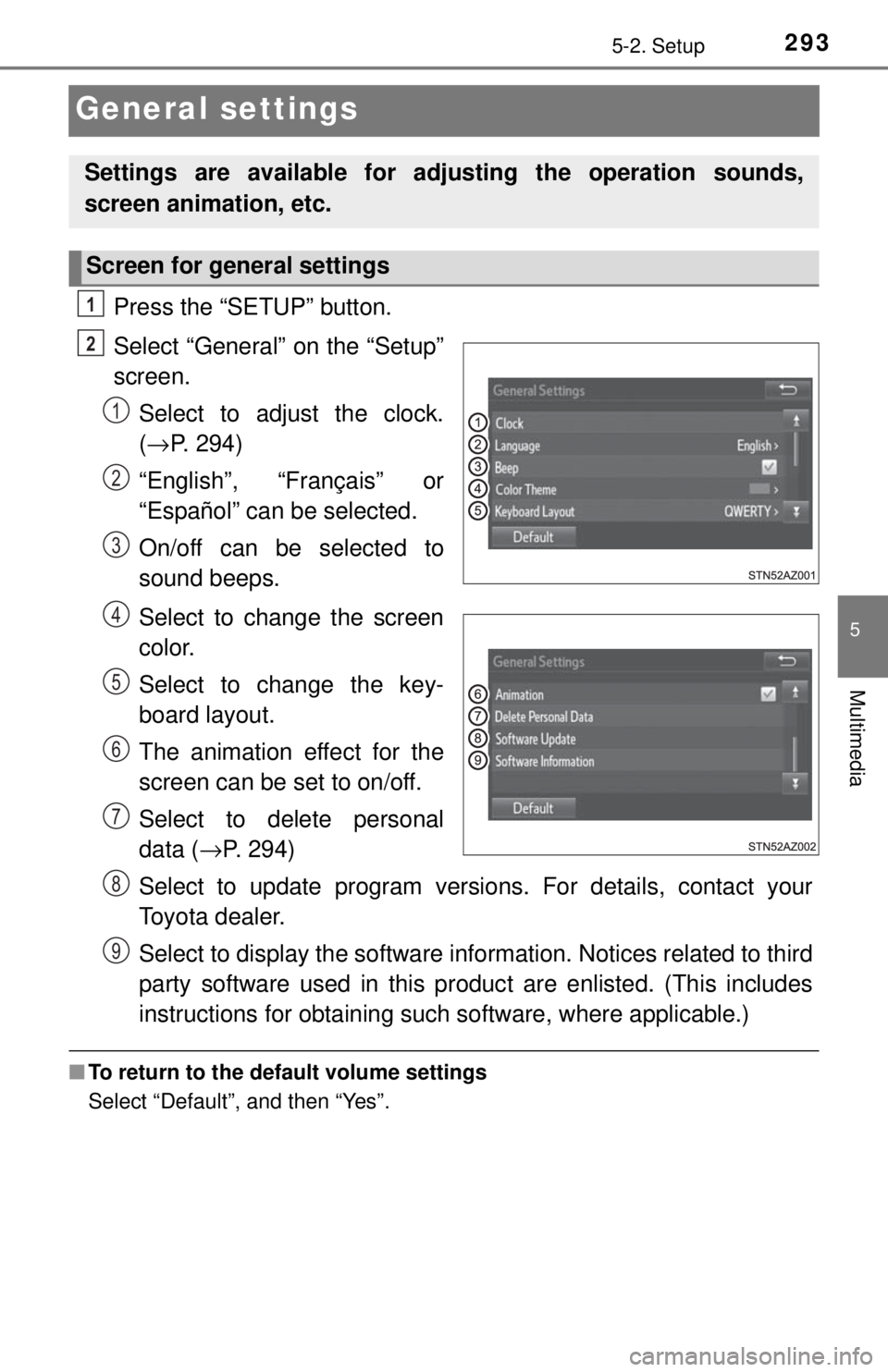
Press the “SETUP” button.
Select “General” on the “Setup”
screen.Select to adjust the clock.
(→ P. 294)
“English”, “Français” or
“Español” can be selected.
On/off can be selected to
sound beeps.
Select to change the screen
color.
Select to change the key-
board layout.
The animation effect for the
screen can be set to on/off.
Select to delete personal
data ( →P. 294)
Select to update program versions. For details, contact your
Toyota dealer.
Select to display the software info rmation. Notices related to third
party software used in this produc t are enlisted. (This includes
instructions for obta ining such software, where applicable.)
■To return to the default volume settings
Select “Default”, and then “Yes”.
Settings are available for adjusting the operation sounds,
screen animation, etc.
Screen for general settings
1
2
1
2
3
4
5
6
7
8
9
Page 310 of 640

3105-6. Using an external device
■About iPod
●“Made for iPod” and “Made for iPhone” mean that an electronic accessory
has been designed to connect specifically to iPod or iPhone respectively,
and has been certified by the developer to meet Apple performance stan-
dards.
● Apple is not responsible for the operation of this device or its compliance
with safety and regulatory standards. Please note that the use of this acces-
sory with iPod and iPhone may affect wireless performance.
● iPhone, iPod, iPod classic, iPod nano, and iPod touch are trademarks of
Apple Inc., registered in the U.S. and other countries. Lightning is a trade-
mark of Apple Inc.
■ iPod cover art
●Depending on the iPod and songs in the iPod, iPod cover art may be dis-
played.
● This function can be changed to on/off. ( →P. 295)
● It may take time to display iPod cover art, and the iPod may not be operated
while the cover art display is in process.
● Only iPod cover art that is saved in JPEG format can be displayed.
■ iPod functions
●When an iPod is connected and the audio source is changed to iPod mode,
the iPod will resume play from the same point in which it was last used.
● Depending on the iPod that is connected to the system, certain functions
may not be available. If a function is unavailable due to a malfunction (as
opposed to a system specification), disconnecting the device and recon-
necting it may resolve the problem.
● While connected to the system, the iPod cannot be operated with its own
controls. It is necessary to use the controls of the vehicle’s multimedia sys-
tem instead.
● When the battery level of an iPod is very low, the iPod may not operate. If
so, charge the iPod before use.
● Compatible models ( →P. 312)
Page 314 of 640
3145-6. Using an external device
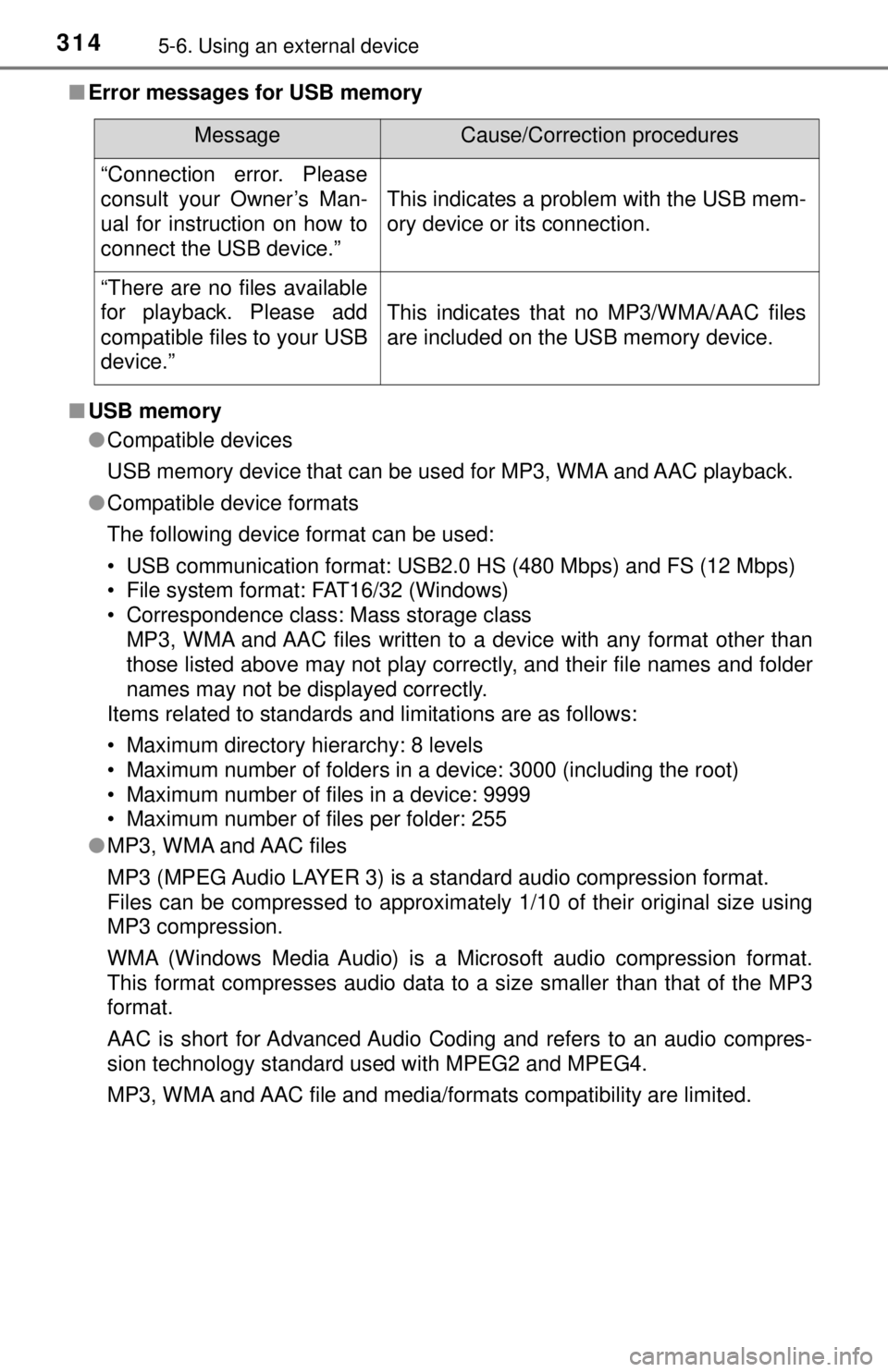
■Error messages for USB memory
■ USB memory
●Compatible devices
USB memory device that can be used for MP3, WMA and AAC playback.
● Compatible device formats
The following device format can be used:
• USB communication format: USB2.0 HS (480 Mbps) and FS (12 Mbps)
• File system format: FAT16/32 (Windows)
• Correspondence class: Mass storage class
MP3, WMA and AAC files written to a device with any format other than
those listed above may not play correctly, and their file names and folder
names may not be displayed correctly.
Items related to standards and limitations are as follows:
• Maximum directory hierarchy: 8 levels
• Maximum number of folders in a device: 3000 (including the root)
• Maximum number of files in a device: 9999
• Maximum number of files per folder: 255
● MP3, WMA and AAC files
MP3 (MPEG Audio LAYER 3) is a standard audio compression format.
Files can be compressed to approximately 1/10 of their original size using
MP3 compression.
WMA (Windows Media Audio) is a Microsoft audio compression format.
This format compresses audio data to a size smaller than that of the MP3\
format.
AAC is short for Advanced Audio Coding and refers to an audio compres-
sion technology standard used with MPEG2 and MPEG4.
MP3, WMA and AAC file and media/fo rmats compatibility are limited.
MessageCause/Correction procedures
“Connection error. Please
consult your Owner’s Man-
ual for instruction on how to
connect the USB device.”
This indicates a problem with the USB mem-
ory device or its connection.
“There are no files available
for playback. Please add
compatible files to your USB
device.”
This indicates that no MP3/WMA/AAC files
are included on the USB memory device.