Page 134 of 366
134
SIENNA_Navi+MM_OM08009U_(U)
16.01.25 16:40
7. REAR SEAT ENTERTAINMENT SYSTEM OPERATION
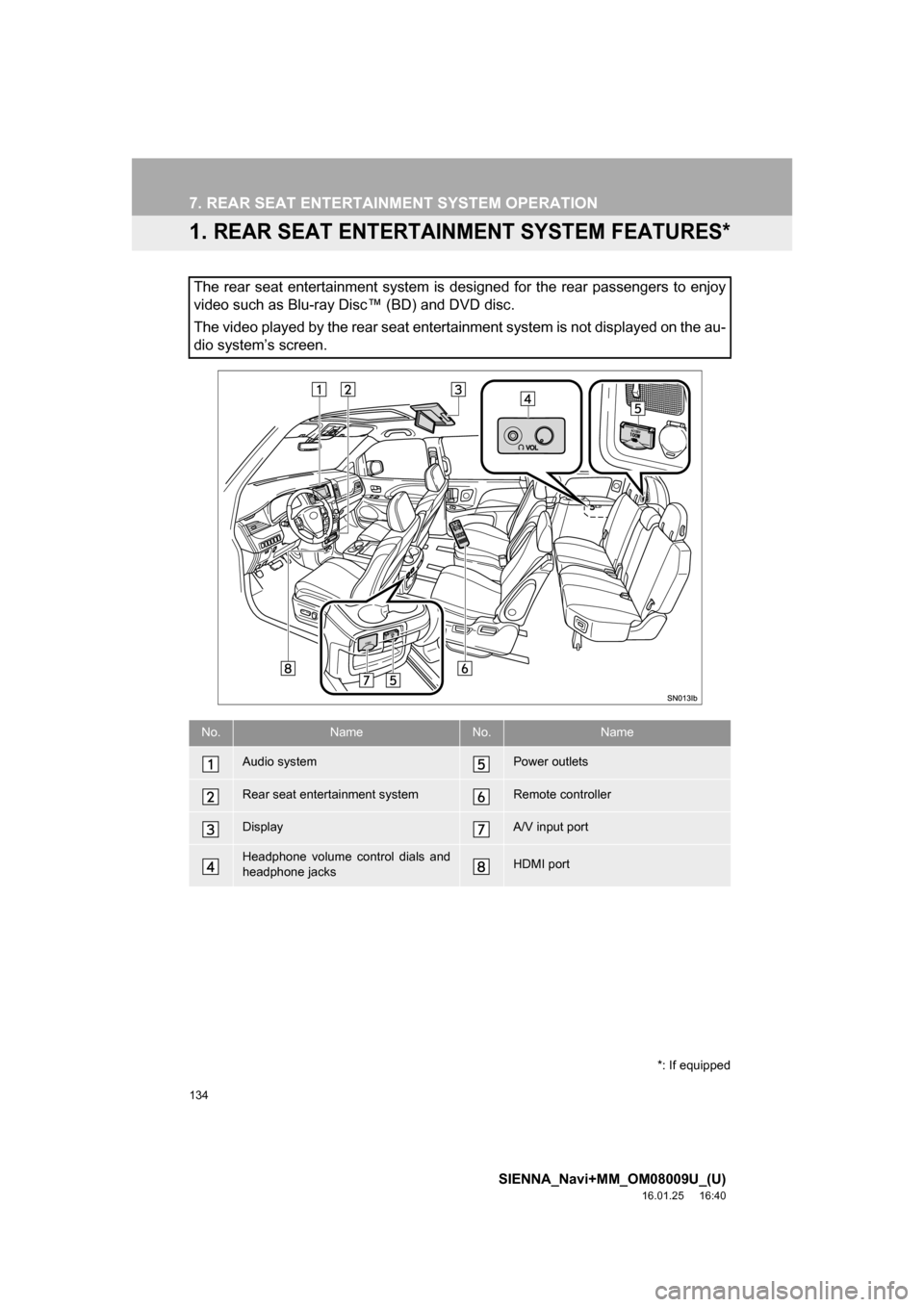
1. REAR SEAT ENTERTAINMENT SYSTEM FEATURES*
The rear seat entertainment system is designed for the rear passengers to enjoy
video such as Blu-ray Disc™ (BD) and DVD disc.
The video played by the rear seat entertainment system is not displayed on the au-
dio system’s screen.
*: If equipped
No.NameNo.Name
Audio systemPower outlets
Rear seat entertainment systemRemote controller
DisplayA/V input port
Headphone volume control dials and
headphone jacksHDMI port
Page 139 of 366

139
7. REAR SEAT ENTERTAINMENT SYSTEM OPERATION
SIENNA_Navi+MM_OM08009U_(U)
16.01.25 16:40
AUDIO/VISUAL SYSTEM
3
1Press the button to turn on the
rear seat entertainment system.
Press the button once again to turn
off the system.
1Press “+” or “-” on the “VOL” button
to adjust the volume.
When the speaker output is off, the vol-
ume cannot be adjusted.
1Press the button to turn on/off
the speaker output.
On: The sound is available from both vehi-
cle speakers and headphones.
Off: The sound is available from the head-
phones only.
1Press the “SPLIT” button.
Every time “SPLIT” button is pressed, the
screen will be changed following order.
single screen mode split screen mode
switch right and left screen single
screen mode
When the screen is switched, the current
screen is displayed on the opposite side of
the screen that is set in the left (“L”) and
right (“R”) selector switch.
1When the switch is moved to “R”, oper-
ations can be performed on the right
screen. When switch is moved to “L”,
operations can be performed on the
left screen.
1Press the “DISC”, “SD” or “INPUT”
button to change the audio/video
source.
When the audio/video device is connected
to A/V input port and HDMI port at the
same time, the mode will be switched by
pressing “INPUT” button each time.
Inputting the selected control icon
Turning on the video or HDMI mode
Changing the screen type
Turning on/off the rear seat enter-
tainment system
TURNING ON/OFF THE REAR
SEAT ENTERTAINMENT
SYSTEM
ADJUSTING THE VOLUME
TURNING ON/OFF THE
SPEAKER OUTPUT
No.FunctionUSING THE SPLIT SCREEN
MODE
CHANGING THE DISPLAY TO
BE OPERATED
CHANGING THE AUDIO/VIDEO
SOURCE
Page 143 of 366

143
7. REAR SEAT ENTERTAINMENT SYSTEM OPERATION
SIENNA_Navi+MM_OM08009U_(U)
16.01.25 16:40
AUDIO/VISUAL SYSTEM
31Lift the lid.
2Press the knob.
3Turn the knob clockwise to increase
the volume. Turn the knob counter-
clockwise to decrease the volume.
4Press the knob again.
WA R N I N G
●To prevent accidents and electric shock
• Do not disassemble or modify the
remote controller.
● When the remote controller is not used
• Stow the remote controller. Injuries
may result in the event of an accident
or sudden braking.
● Removed batteries and other parts
• Keep away from children. These parts
are small and if swallowed by a child
they can cause choking.
NOTICE
● To prevent damage to the remote con-
troller
• Keep the remote controller away from
direct sunlight, heat and high humidity.
• Do not drop or strike the remote con- troller against hard objects.
• Do not sit on or place heavy objects on the remote controller.
● For normal operation after replacing the
batteries, observe the following precau-
tions to prevent accidents.
• Always work with dry hands. Moisture
may cause the battery to rust.
• Do not touch or move any other com- ponents inside the remote controller.
• Do not bend any of the battery termi- nals.
HEADPHONE JACKS
Adjust the volume when you connect
the headphones to the jack. Loud
sounds may have a significant impact
on the human body.
No.Function
To use headphones, connect them
to the jack
To adjust the volume
Page 186 of 366
186
SIENNA_Navi+MM_OM08009U_(U)
16.01.25 16:40
1. VOICE COMMAND SYSTEM OPERATION
1. VOICE COMMAND SYSTEM
Talk switch
Press the talk switch to start the voice
command system.
To cancel voice recognition, press and
hold the talk switch.
It is unnecessary to speak directly into the
microphone when giving a command.
The voice command system enables
the audio, hands-free systems, etc. to
be operated using voice commands.
Refer to the command list for samples
of voice commands. ( P.194)
USING THE VOICE
COMMAND SYSTEM
STEERING SWITCH
MICROPHONE
Page 187 of 366

187
1. VOICE COMMAND SYSTEM OPERATION
SIENNA_Navi+MM_OM08009U_(U)
16.01.25 16:40
VOICE COMMAND SYSTEM
4
1Press the talk switch.
2Select “OK”.
3Say the tab selection command or se-
lect the desired tab.
Commands related with each function are
displayed on the screen of the each func-
tion tab. Some commonly used com-
mands are displayed on the screen of the
function tab.
INFORMATION
●The voice command system can be
operated while guidance is being spo-
ken, when “Voice Prompt Interrupt”
( P.66) is set to on. (It is not necessary
to wait for the confirmation beep before
speaking a command.)
● Voice commands may not be recognized
if:
• Spoken too quickly.
• Spoken at a low or high volume.
• The roof or windows are open.
• Passengers are talking while voice
commands are spoken.
• The air conditioning speed is set high.
• The air conditioning vents are turned towards the microphone.
● In the following conditions, the system
may not recognize the command prop-
erly and using voice commands may not
be possible:
• The command is incorrect or unclear.
Note that certain words, accents or
speech patterns may be difficult for the
system to recognize.
• There is excessive background noise, such as wind noise.
VOICE COMMAND SYSTEM
OPERATION
The voice command system is operat-
ed by selecting a tab corresponding to
each function. The tabs are found on
the upper part of the screen.
Voice guidance for the voice command
system can be skipped by pressing the
talk switch.
Page 191 of 366

191
1. VOICE COMMAND SYSTEM OPERATION
SIENNA_Navi+MM_OM08009U_(U)
16.01.25 16:40
VOICE COMMAND SYSTEM
4
1Press the talk switch.
2Say “Call
types>” .
A confirmation screen will be displayed
showing the recognition results. If multiple
matching items are found, a selection
screen will be displayed. Say “
ber>” or select the number.
VOICE COMMAND EXAMPLE:
CALL NAMEINFORMATION
●In the same manner as it is displayed on
the screen, “Call
types>”, after saying “Call a contact”
say the name, or the name and type of
phone, of a contact.
For example: “Call a contact” , “John
Smith” or “Call a contact” , “Mary
Davis”, “Mobile”
● There are 4 types of phones: Home,
Mobile, Work and Other.
● Short or abbreviated names in the con-
tacts list may not be recognized. Change
names in the contacts list to full names.
● Sometimes a voice recognition result
confirmation screen will be displayed.
After confirming the result, say “Yes” or
“No” .
● When the system recognizes multiple
names from the contacts list, a name
candidate list will be displayed on the
screen. If the desired name is not dis-
played on the top of the screen, say or
select the number of the name from the
candidate list (number 1, number 2, etc.)
to select a name from the candidate list.
● When a contact has multiple phone
numbers registered in the contacts list, a
candidate list will be displayed. If the
desired phone number is not displayed
on the top of the screen, say or select
the number of the desired phone num-
ber from the candidate list (number 1,
number 2, etc.) to select a phone num-
ber from the candidate list.
Page 192 of 366

192
1. VOICE COMMAND SYSTEM OPERATION
SIENNA_Navi+MM_OM08009U_(U)
16.01.25 16:40
1Press the talk switch.
2Say the phone number.
In the same manner as it is displayed on
the screen, “Dial ”, after saying
“Dial a number” say the phone number.
Say the phone number one digit at a time.
For example, if the phone number is
2345678:
Say “two three four five six seven
eight”
Do not say “twenty three forty five sixty
seven eight”
Calling to the following phone numbers
• 3 digit numbers (911, 411, 611)
• 7 digit numbers (Local phone numbers)
• 10 digit numbers (Area code + Local
phone number)
• 11 digit phone numbers (1 + Area code + Local phone number)
As the system cannot recognize additional
numbers, say the complete number with-
out stopping.
Calling to other phone numbers
3Say “Call” or press the switch on
the steering wheel.
VOICE COMMAND EXAMPLE:
DIAL NUMBER When the system recognizes multiple
phone numbers, a phone number candi-
date list will be displayed on the screen.
Pressing the
switch on the steering
wheel makes a call to the top entry on
the list. If the desired phone number is
not displayed on the top of the screen,
say the number of the desired phone
number from the candidate list to select
a phone number from the candidate list.
Page 193 of 366

193
1. VOICE COMMAND SYSTEM OPERATION
SIENNA_Navi+MM_OM08009U_(U)
16.01.25 16:40
VOICE COMMAND SYSTEM
4
2. CASUAL SPEECH RECOGNIZATION
Due to natural language speech recog-
nition technology, this system enables
recognition of a command when spo-
ken naturally. However, the system
cannot recognize every variation of
each command. In some situations, it
is possible to omit the command for the
procedure and directly state the de-
sired operation. Not all voice com-
mands are displayed in the function
menu.
INFORMATION
●If the command cannot be recognized
completely, the command input screen
will be displayed. (Search results will be
shown based on the part of the com-
mand that was recognized.)
EXPRESSION EXAMPLES FOR
EACH FUNCTION
CommandExpression examples
“Go Home”*Navigate to my house.
Take me home.
“Enter an
Address”*I need directions to an
address.
Give me a street.
“Find Nearby
”*
Search for a
around
here.
Find a
nearby.
“Call
”
Get me
.
Call
.
“Dial ”Call <911>.
“Play Artist
”Play the artist .
I want to hear the band
.
“Play Album
”Play album .
Play album .
*: Entune Premium Audio only