Page 25 of 366
25
3. NAVIGATION OPERATION
SIENNA_Navi+MM_OM08009U_(U)
16.01.25 16:40
QUICK GUIDE
1Select “Enter”.
Select a position for this preset
destination.
Select “OK”.
Registration of preset destinations is
complete.
Registering preset destinations in a dif-
ferent way
P.313
Editing the name, location, phone num-
ber and icon
P.314
Setting preset destinations as the desti-
nation
P.287
7
8
9
Page 29 of 366
29
4. FUNCTION INDEX
SIENNA_Navi+MM_OM08009U_(U)
16.01.25 16:40
QUICK GUIDE
1Useful functions*
InformationPage
Displaying vehicle maintenance68
Hands-free system (for cellular phone)Page
Registering/connecting Bluetooth® phone44
Making a call on a Bluetooth® phone229
Receiving a call on the Bluetooth® phone235
Voice command systemPage
Operating the system with your voice186
Peripheral monitoring systemPage
Viewing behind the rear of the vehicle206
*: Entune Premium Audio only
Page 31 of 366

2
31
SIENNA_Navi+MM_OM08009U_(U)
16.01.25 16:40
1
2
3
4
5
6
7
8
9
1. INITIAL SCREEN ........................... 32
2. CAPACITIVE TOUCH SWITCHES .................................. 34
3. TOUCH SCREEN GESTURES ...... 35
4. TOUCH SCREEN OPERATION .... 36
5. HOME SCREEN OPERATION ...... 37
6. ENTERING LETTERS AND NUMBERS/LIST SCREEN
OPERATION ................................ 38
ENTERING LETTERS AND
NUMBERS .......................................... 38
LIST SCREEN ....................................... 39
7. SCREEN ADJUSTMENT ............... 41
8. LINKING MULTI-INFORMATION DISPLAY AND NAVIGATION
SYSTEM....................................... 43 1. REGISTERING/CONNECTING
Bluetooth
® DEVICE ................... 44
REGISTERING A Bluetooth® PHONE
FOR THE FIRST TIME ........................ 44
REGISTERING A Bluetooth
® AUDIO
PLAYER FOR THE FIRST TIME......... 45
PROFILES ............................................. 46
CERTIFICATION ................................... 48
2. SETTING Bluetooth®
DETAILS ..................................... 51
“Bluetooth* Setup” SCREEN.................. 51
REGISTERING A Bluetooth®
DEVICE ............................................... 52
DELETING A Bluetooth
® DEVICE ......... 53
CONNECTING A Bluetooth® DEVICE...... 54
EDITING THE Bluetooth® DEVICE
INFORMATION ................................... 56
“System Settings” SCREEN................... 57
1. GENERAL SETTINGS .................. 59
GENERAL SETTINGS SCREEN ........... 59
2. VOICE SETTINGS ......................... 66
VOICE SETTINGS SCREEN ................. 66
3. DRIVER SETTINGS ...................... 67
MANUALLY SELECT LINKED SETTINGS .......................................... 67
4. MAINTENANCE ............................ 68
1BASIC INFORMATION BEFORE
OPERATION2Bluetooth® SETTINGS
3OTHER SETTINGS
BASIC FUNCTION
*: Bluetooth is a registered trademark of Bluetooth SIG, Inc.
Page 33 of 366
33
1. BASIC INFORMATION BEFORE OPERATION
SIENNA_Navi+MM_OM08009U_(U)
16.01.25 16:40
BASIC FUNCTION
2
1Press and hold the “PWR·VOL” knob
for 3 seconds or more.
MAINTENANCE
INFORMATION*
This system reminds users when to re-
place certain parts or components and
shows dealer information (if regis-
tered) on the screen.
When the vehicle reaches a previously
set driving distance or date specified
for a scheduled maintenance check,
the “Maintenance Reminder” screen
will be displayed when the system is
turned on.
To prevent the screen from being dis-
played again, select “Do Not Tell Me
Again” .
To register maintenance information:
P. 6 8
If is selected, the registered
phone number can be called.
*: Entune Premium Audio only
RESTARTING THE SYSTEM
When system response is extremely
slow, the system can be restarted.
Page 44 of 366

44
SIENNA_Navi+MM_OM08009U_(U)
16.01.25 16:40
2. Bluetooth® SETTINGS
1. REGISTERING/CONNECTING Bluetooth® DEVICE
1Turn the Bluetooth® connection setting
of your cellular phone on.
This function is not available when
Bluetooth® connection setting of your cel-
lular phone is set to off.
2Press the “APPS” button.
3Select “Phone” .
Operations up to this point can also be
performed by pressing the switch on
the steering wheel or switch on the
instrument panel.
4Select “Yes” to register a phone.
5When this screen is displayed, search
for the device name displayed on this
screen on the screen of your
Bluetooth
® device.
For details about operating the Bluetooth®
device, see the manual that comes with it.
To cancel the registration, select
“Cancel” .
6Register the Bluetooth® device using
your Bluetooth
® device.
A PIN-code is not required for SSP
(Secure Simple Pairing) compatible
Bluetooth
® devices. Depending on the
type of Bluetooth® device being con-
nected, a message confirming registra-
tion may be displayed on the Bluetooth
®
device’s screen. Respond and operate the
Bluetooth® device according to the confir-
mation message.
REGISTERING A Bluetooth®
PHONE FOR THE FIRST TIME
To use the hands-free system, it is
necessary to register a Bluetooth
®
phone with the system.
Once the phone has been registered, it
is possible to use the hands-free sys-
tem.
This operation cannot be performed
while driving.
For details about registering a
Bluetooth
® device: P.52
Page 46 of 366

46
2. Bluetooth® SETTINGS
SIENNA_Navi+MM_OM08009U_(U)
16.01.25 16:40
PROFILES
This system supports the following services.
Bluetooth®
DeviceSpec.FunctionRequire- mentsRecommen- dations
Bluetooth®
Phone/
Bluetooth®
Audio
Player
Bluetooth® Specification
Registering a
Bluetooth®
deviceVe r. 2 . 0Ve r. 3 . 0 +EDR
Bluetooth®
DeviceProfileFunctionRequire- mentsRecommen- dations
Bluetooth®
Phone
HFP (Hands-Free Profile)Hands-free
systemVe r. 1 . 0Ve r. 1 . 6
OPP (Object Push Profile)Transferring the
contactsVe r. 1 . 1Ve r. 1 . 2
PBAP (Phone Book
Access profile)Ve r. 1 . 0Ve r. 1 . 1
MAP (Message Access
Profile)Bluetooth®
phone messageVe r. 1 . 0
SPP (Serial Port Profile)
Connected navi-
gation*1/Entune
App Suite*2Ve r. 1 . 1
Bluetooth®
Audio
Player
A2DP (Advanced Audio
Distribution Profile)
Bluetooth® audio
systemVe r. 1 . 0Ve r. 1 . 2
AVRCP (Audio/Video
Remote Control Profile)Ve r. 1 . 0Ve r. 1 . 4
*
1: Entune Audio Plus
*2: Entune Premium Audio
INFORMATION
● If your cellular phone does not support HFP, registering the Bluetooth® phone or using
OPP, PBAP, MAP or SPP profiles in dividually will not be possible.
● If the connected Bluetooth
® device version is older than recommended or incompatible,
the Bluetooth® device function may not work properly.
● Refer to http://www.toyota.com/entune/
to find approved Bluetooth® phones for this sys-
tem.
Page 52 of 366
52
2. Bluetooth® SETTINGS
SIENNA_Navi+MM_OM08009U_(U)
16.01.25 16:40
From the phone/message settings
screen
1Press the “APPS” button.
2Select “Setup” .
3Select “Phone” .
4Select “Connect Phone” .
From the status display
1Select status display area on the
screen.
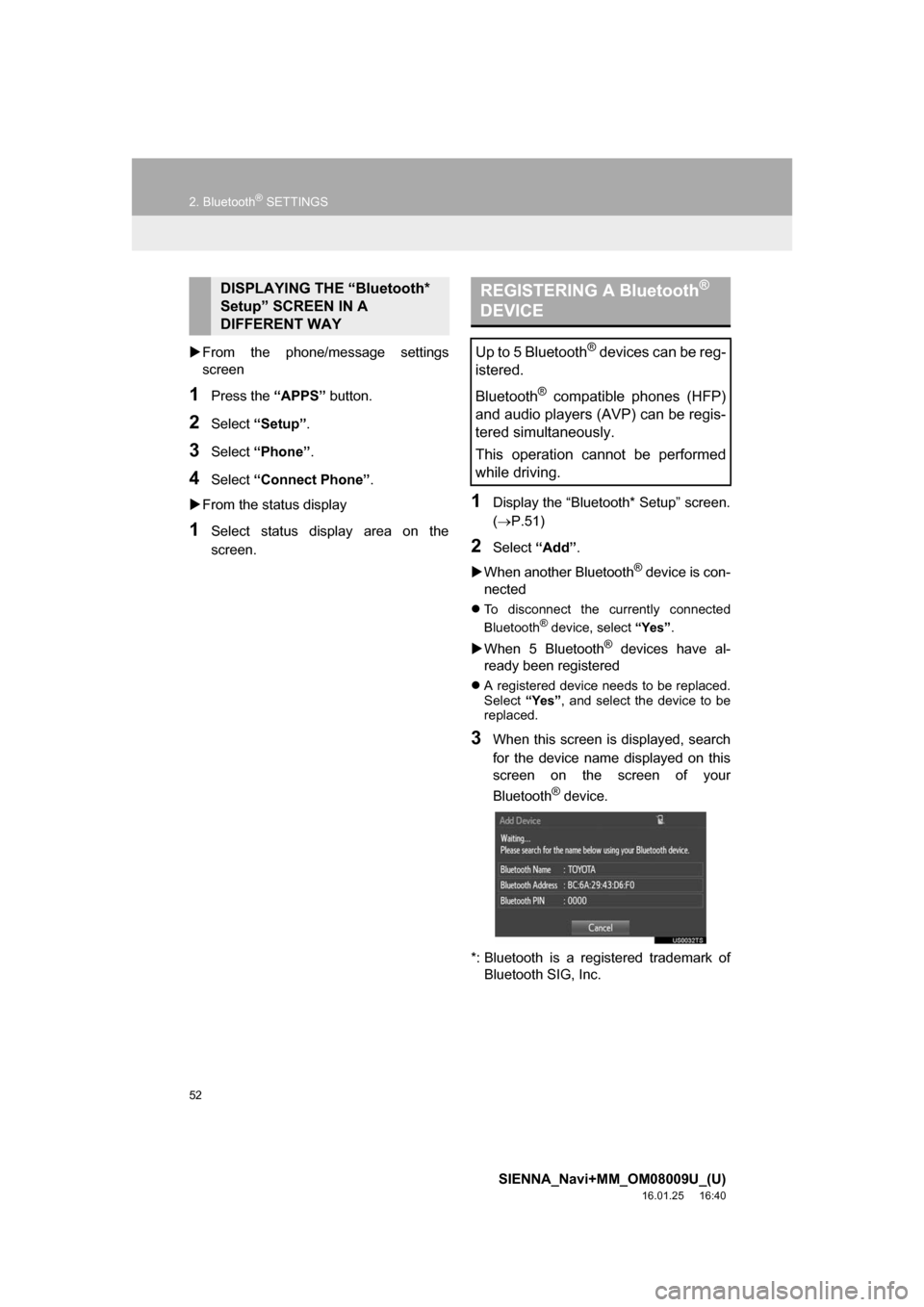
1Display the “Bluetooth* Setup” screen.
(P.51)
2Select “Add”.
When another Bluetooth
® device is con-
nected
To disconnect the currently connected
Bluetooth® device, select “Yes”.
When 5 Bluetooth® devices have al-
ready been registered
A registered device needs to be replaced.
Select “Yes”, and select the device to be
replaced.
3When this screen is displayed, search
for the device name displayed on this
screen on the screen of your
Bluetooth
® device.
*: Bluetooth is a registered trademark of Bluetooth SIG, Inc.
DISPLAYING THE “Bluetooth*
Setup” SCREEN IN A
DIFFERENT WAY REGISTERING A Bluetooth®
DEVICE
Up to 5 Bluetooth® devices can be reg-
istered.
Bluetooth
® compatible phones (HFP)
and audio players (AVP) can be regis-
tered simultaneously.
This operation cannot be performed
while driving.
Page 53 of 366

53
2. Bluetooth® SETTINGS
SIENNA_Navi+MM_OM08009U_(U)
16.01.25 16:40
BASIC FUNCTION
2
For details about operating the Bluetooth®
device, see the manual that comes with it.
To cancel the registration, select
“Cancel”.
4Register the Bluetooth® device using
your Bluetooth
® device.
A PIN-code is not required for SSP
(Secure Simple Pairing) compatible
Bluetooth
® devices. Depending on the
type of Bluetooth® device being con-
nected, a message confirming registra-
tion may be displayed on the Bluetooth
®
device’s screen. Respond and operate the
Bluetooth® device according to the confir-
mation message.
5Monitor connectivity screen and wait
for connection.
The system waits for connection requests
coming from the registered device.
At this stage, the Bluetooth
® functions are
not yet available.
6Select “OK” when the connection sta-
tus changes from “Connection wait-
ing...” to “Connected”.
If an error message is displayed, follow
the guidance on the screen to try again.
1Display the “Bluetooth* Setup” screen.
(P.51)
2Select “Remove” .
3Select the desired device.
4Select “Yes” when the confirmation
screen appears.
5Check that a confirmation screen is
displayed when the operation is com-
plete.
*: Bluetooth is a regi stered trademark of
Bluetooth SIG, Inc.
DELETING A Bluetooth®
DEVICE
INFORMATION
● When deleting a Bluetooth® phone, the
contact data will be deleted at the same
time.


