Page 380 of 741
379
RAV4_OM_OM0R005U_(U)
5-9. Bluetooth® Phone
5
Audio system
Making a phone call∗
Select “Phonebook” using the “TUNE•SCROLL” knob.
Select the desired name using the knob and press the off-hook
switch.
By pressing (Add S. Dial) and one of the speed dial buttons (from [1] to [5]) while the desired name is selected, it can be regis-
tered as a speed dial.
Press (A-Z) to display the regi stered names in alphabetical order
of the initial.
Select “Speed dials” using the “TUNE•SCROLL” knob.
Press the desired preset button (f rom [1] to [5]) and press
the off-hook switch.
To delete a registered speed dial, after selecting the desired preset
button (from [1] to [5]) press (DELETE) and then press (YES).
To overwrite a speed dial, after selecting the desired preset button
(from [1] to [5]) press (YES).
∗: If equipped
To enter the “PHONE” mode, press the off-hook switch.
Dialing by selecting a name
Speed dialing
1
2
1
2
Page 381 of 741
380
RAV4_OM_OM0R005U_(U)
5-9. Bluetooth® Phone
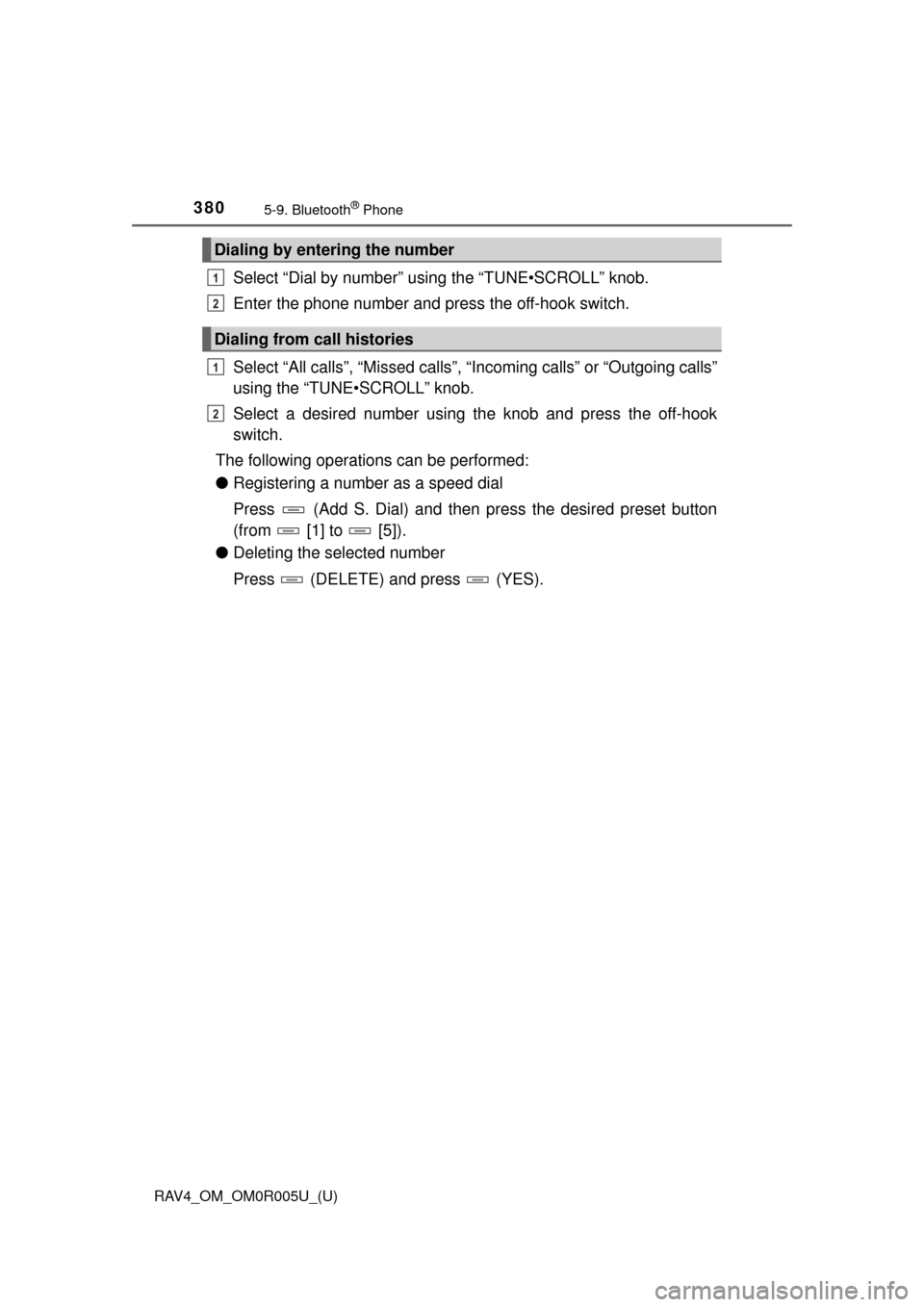
Select “Dial by number” using the “TUNE•SCROLL” knob.
Enter the phone number and press the off-hook switch.
Select “All calls”, “Missed calls”, “Incoming calls” or “Outgoing calls”
using the “TUNE•SCROLL” knob.
Select a desired number using th e knob and press the off-hook
switch.
The following operations can be performed:
● Registering a number as a speed dial
Press (Add S. Dial) and then press the desired preset button
(from [1] to [5]).
● Deleting the selected number
Press (DELETE) and press (YES).
Dialing by entering the number
Dialing from call histories
1
2
1
2
Page 393 of 741

392
RAV4_OM_OM0R005U_(U)
5-12. Basic Operations
Steering wheel audio switches
Volume switch• Increases/decreases volume
• Press and hold: Continuously increases/decreases volume
Cursor switch (“ ∧” and “ ∨”)
• AM/FM Radio
Press: Preset station/chan- nel up/down
Press and hold: Seek up/down continuously
• CD/
Bluetooth®audio/iPod/USB memory
Press: Track/file up/down
Press and hold: Fast forward/rewind
“MODE/HOLD” switch • Changes audio source
• Press and hold this switch to mute or pause the current operation To cancel the mute or pause, press and hold.
Some audio features can be controlled using the switches on
the steering wheel.
Operation may differ depending on the type of audio system or
navigation system. For details, refer to the manual provided with
the audio system or navigation system.
Operating the audio system using the steering wheel switches
1
2
3
WARNING
■ To reduce the risk of an accident
Exercise care when operating the audio switches on the steering wheel.
Page 400 of 741
399
RAV4_OM_OM0R005U_(U)
5-13. Setup
5
Audio system
Audio settings
Press the “SETUP” button.
Select “Audio” on the “Setup” screen.Number of Radio Presets
Select the number of radio
preset stations.
Display Cover Art on/off
Automatic Sound Levelizer
Select “Automatic Sound Levelizer”.
Select “High”, “Mid”, “Low” or “Off”.
■ The sound quality level is adjusted individually
The treble, mid and bass levels can be adjusted for each audio mode sepa-
rately.
■ About Automatic Sou nd Leveliser (ASL)
ASL automatically adjusts the volume and tone quality according to the vehi-
cle speed.
Settings are available for adjusting the radio operation, cover
art, etc.
Screen for audio settings
1
2
1
2
3
Automatic sound leveliser (ASL)
1
2
Page 408 of 741
407
RAV4_OM_OM0R005U_(U)
5-15. Using the radio
5
Audio system
Radio operation
Pressing the “AUDIO” button displays the audio control screen from
any screens of the selected source.
Audio source selection screen
appears
Preset stations
Select to display RBDS text
messages
*
Scanning for receivable station
Select to display a list of receiv-
able stations
Setting the sound ( →P. 406)
*:FM only
Tune in to the desired station us ing one of the following methods.
■Seek tuning
Press the “SEEK >” button or “< TRACK” button.
The radio will begin seeking up or down for a station of the nearest
frequency and will stop when a station is found.
■Manual tuning
Turn the “TUNE•SCROLL” knob.
■Preset stations
Select the desired preset station.
Select “AM” or “FM” on the audio source selection screen to
begin listening to the radio.
Audio control screen
1
2
3
4
5
Selecting a station
6
Page 409 of 741
408
RAV4_OM_OM0R005U_(U)
5-15. Using the radio
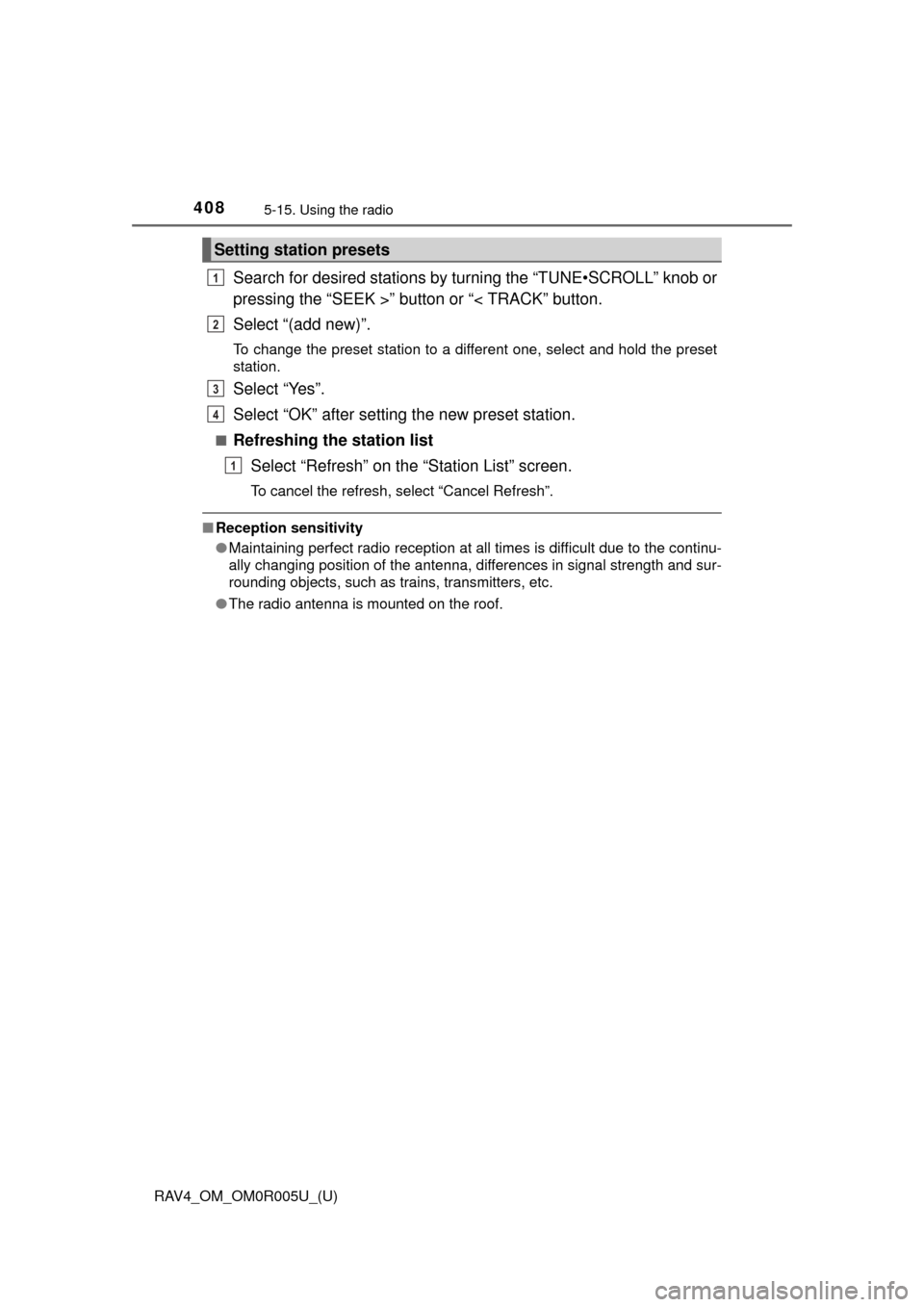
Search for desired stations by turning the “TUNE•SCROLL” knob or
pressing the “SEEK >” button or “< TRACK” button.
Select “(add new)”.
To change the preset station to a different one, select and hold the preset
station.
Select “Yes”.
Select “OK” after setting the new preset station.
■Refreshing the station listSelect “Refresh” on the “Station List” screen.
To cancel the refresh, select “Cancel Refresh”.
■Reception sensitivity
●Maintaining perfect radio reception at all times is difficult due to the continu-
ally changing position of the antenna, differences in signal strength and sur-
rounding objects, such as trains, transmitters, etc.
● The radio antenna is mounted on the roof.
Setting station presets
1
2
3
4
1
Page 420 of 741
RAV4_OM_OM0R005U_(U)
4195-17. Using an external device
5
Audio system
■iPod problems
To resolve most problems encountered when using your iPod, disconnect
your iPod from the vehicle iPod connection and reset it. For instructions on
how to reset your iPod, refer to your iPod Owner’s Manual.
■ Error messages
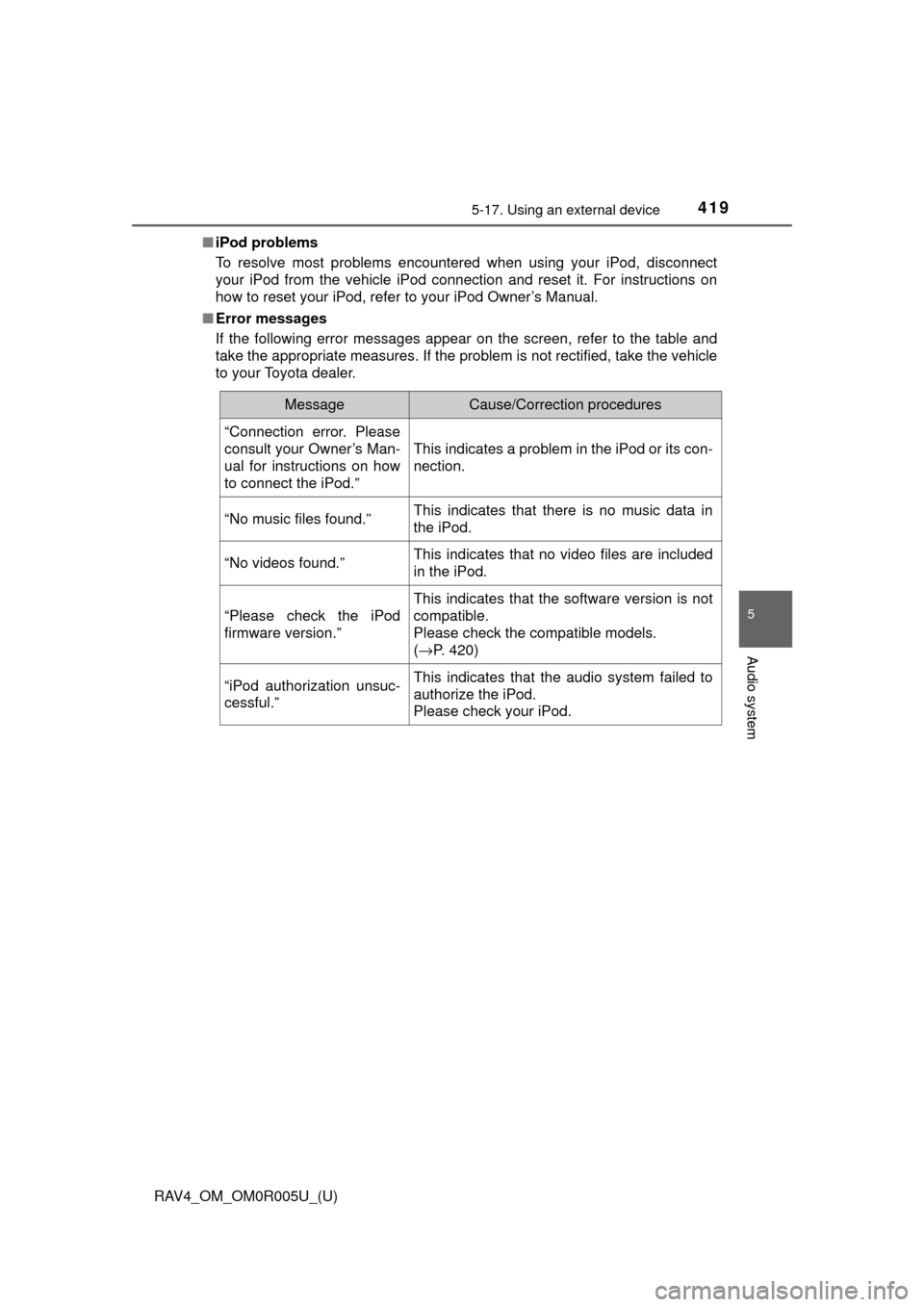
If the following error messages appear on the screen, refer to the table and
take the appropriate measures. If the problem is not rectified, take the vehicle
to your Toyota dealer.
MessageCause/Correction procedures
“Connection error. Please
consult your Owner’s Man-
ual for instructions on how
to connect the iPod.”
This indicates a problem in the iPod or its con-
nection.
“No music files found.”This indicates that there is no music data in
the iPod.
“No videos found.”This indicates that no video files are included
in the iPod.
“Please check the iPod
firmware version.”
This indicates that the software version is not
compatible.
Please check the compatible models.
(→P. 420)
“iPod authorization unsuc-
cessful.”This indicates that the audio system failed to
authorize the iPod.
Please check your iPod.
Page 459 of 741

458
RAV4_OM_OM0R005U_(U)
5-21. Phonebook
Contact/Call History Settings
Display the “Phone/Message Settings” screen. (→P. 456)
Select “Contact/Call History Settings”.
Select the desired item to be set.
For PBAP compatible
Bluetooth
® phones, select
to set “Automatic Transfer”
on/off. When set to on, the
phone’s contact data and
history are automatically
transferred.
Select to update contacts
from the connected phone.
( → P. 459)
Select to sort contacts by the
first name or last name field.
Select to add contacts to the favorites list. ( →P. 463)
Select to delete contacts from the favorites list. ( →P. 465)
Select to display contact images.
Select to clear contacts from the call history.
*
Select to add new contacts to the contact list.* ( → P. 461)
Select to edit contacts in the contact list.
* (→ P. 462)
Select to delete contacts from the contact list.
* ( → P. 463)
Select to reset all setup items.
*: For PBAP compatible Bluetooth® phones only, this function is available
when “Automatic Contact/History Transfer” is set to off.
The contact can be transferred from a Bluetooth® phone to the
system. The contact also can be added, edited and deleted.
The call history can be deleted and contact and favorites can be
changed.
“Contact/Call History Settings” screen
1
2
3
1
2
3
4
5
6
7
8
9
10
11