Page 111 of 741

RAV4_OM_OM0R005U_(U)
1113-2. Opening, closing and locking the doors
3
Operation of each component
■Switching the door unlock functi on (vehicles with smart key system)
It is possible to set which doors the entry function unlocks using the wireless
remote control.
Turn the engine switch off.
When the indicator light on the key surface is not on, press and hold ,
or for approximately 5 seconds while pressing and holding
.
The setting changes each time an operation is performed, as shown below.
(When changing the setting continuously, release the buttons, wait for at least
5 seconds, and repeat step .)
■ Impact detection door lock release system (if equipped)
In the event that the vehicle is subject to a strong impact, all the doors are
unlocked. Depending on the force of the impact or the type of accident, how-
ever, the system may not operate.
■ When all the doors are locked with the entry function (vehicles with
smart key system), wireless remote control or key
The doors cannot be unlocked with the door lock switch.
The door lock switch can be reset by unlocking all the doors with the wireless
remote control or key.
■ Conditions affecting the operation
Vehicles without smart key system
→P. 101
Vehicles with smart key system
→P. 132
■ Customization
Settings (e.g. unlocking function using a key) can be changed.
(Customizable features: →P. 696)
1
2
2
Unlocking functionBeep
Holding the driver’s door handle
unlocks only the driver’s door.
Exterior: Beeps 3 times
Interior: Pings once
Holding any of the passenger door
handles unlocks all the doors.
Holding a door handle unlocks all
the doors.Exterior: Beeps twice
Interior: Pings once
Page 144 of 741
144
RAV4_OM_OM0R005U_(U)
3-3. Adjusting the seats
Driving position memory∗
Your preferred driving position (the position of the driver’s seat) can
be recorded and recalled by pressing a button.
Two different driving positions can be recorded into memory.
■Recording procedure
Check that the shift lever is in P.
Turn the engine switch to the “ON” position (vehicles without
smart key system) or IGNITION ON mode (vehicles with smart
key system).
Adjust the driver’s seat to the desired positions.
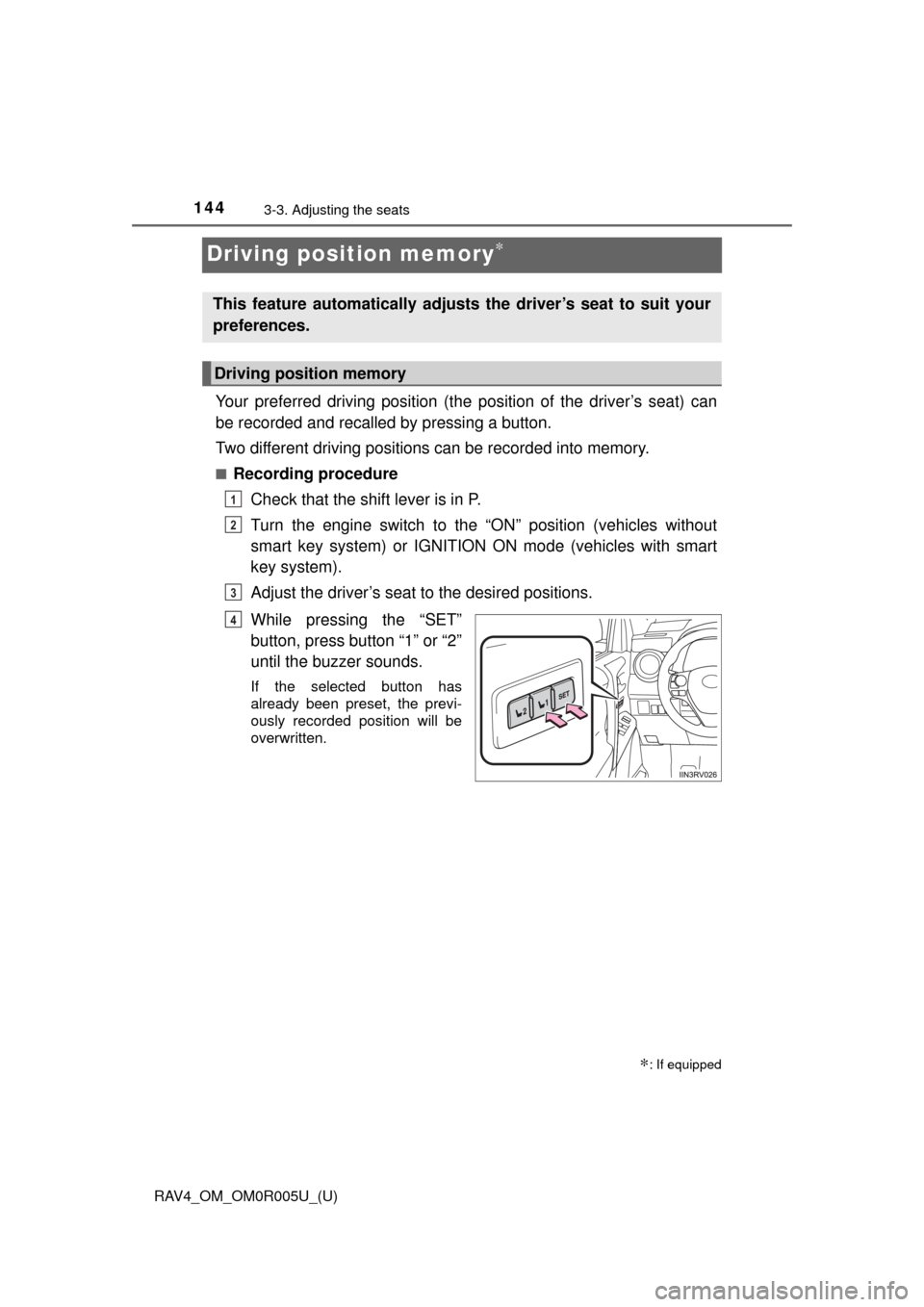
While pressing the “SET”
button, press button “1” or “2”
until the buzzer sounds.
If the selected button has
already been preset, the previ-
ously recorded position will be
overwritten.
∗: If equipped
This feature automatically adjusts the driver’s seat to suit your
preferences.
Driving position memory
1
2
3
4
Page 275 of 741

RAV4_OM_OM0R005U_(U)
2754-5. Using the driving support systems
4
Driving
■Cruise control can be set when
●The shift lever is in D or range 4 or higher of S has been selected.
● Range 4 or higher of D has been selected by using the paddle shift. (Vehi-
cles with paddle shift switch)
● Vehicle speed is above approximately 25 mph (40 km/h).
■ Accelerating after setting the vehicle speed
●The vehicle can be accelerated normally. After acceleration, the set speed
resumes.
● Even without canceling the cruise control, the set speed can be increased
by first accelerating the vehicle to the desired speed and then pushing the
lever down to set the new speed.
■ Automatic cruise co ntrol cancelation
Cruise control will stop maintaining the vehicle speed in any of the following
situations.
● Actual vehicle speed falls more than approximately 10 mph (16 km/h) below
the preset vehicle speed.
At this time, the memorized set speed is not retained.
● Actual vehicle speed is below approximately 25 mph (40 km/h).
● VSC is activated.
● TRAC is activated for a period of time.
● When the VSC or TRAC system is turned off.
■ If the warning message for the crui se control is shown on the multi-
information display
Press the “ON-OFF” button once to deactivate the system, and then press
the button again to reactivate the system.
If the cruise control speed cannot be set or if the cruise control cancels imme-
diately after being activated, there may be a malfunction in the cruise control
system. Have the vehicle inspected by your Toyota dealer.
Page 329 of 741
328
RAV4_OM_OM0R005U_(U)
5-1. Basic Operations
Press the “MODE” switch when the audio system is turned off.
Press the “MODE” switch when the audio system is turned on. The
audio source changes as follows each time the button is pressed. If a
mode cannot be used, it will be skipped.
AM→FM1→FM2 →CD mode →iPod or USB memory →
Bluetooth
® audio →AUX
Press the “+” switch to increase the volume and the “-” switch to
decrease the volume.
Hold down the switch to continue increasing or decreasing the volume.
Press and hold the “MODE” switch.
To cancel, press and hold the switch again.
Press the “MODE” switch to select the radio mode.
Press the “ ∧” or “ ∨” switch to select a preset station.
To scan for receivable stations, press and hold the switch until you hear a
beep.
Turning on the power
Changing the audio source
Adjusting the volume
Silencing a sound
Selecting a radio station
1
2
Page 335 of 741
334
RAV4_OM_OM0R005U_(U)
5-3. Using the radio
Radio operation∗
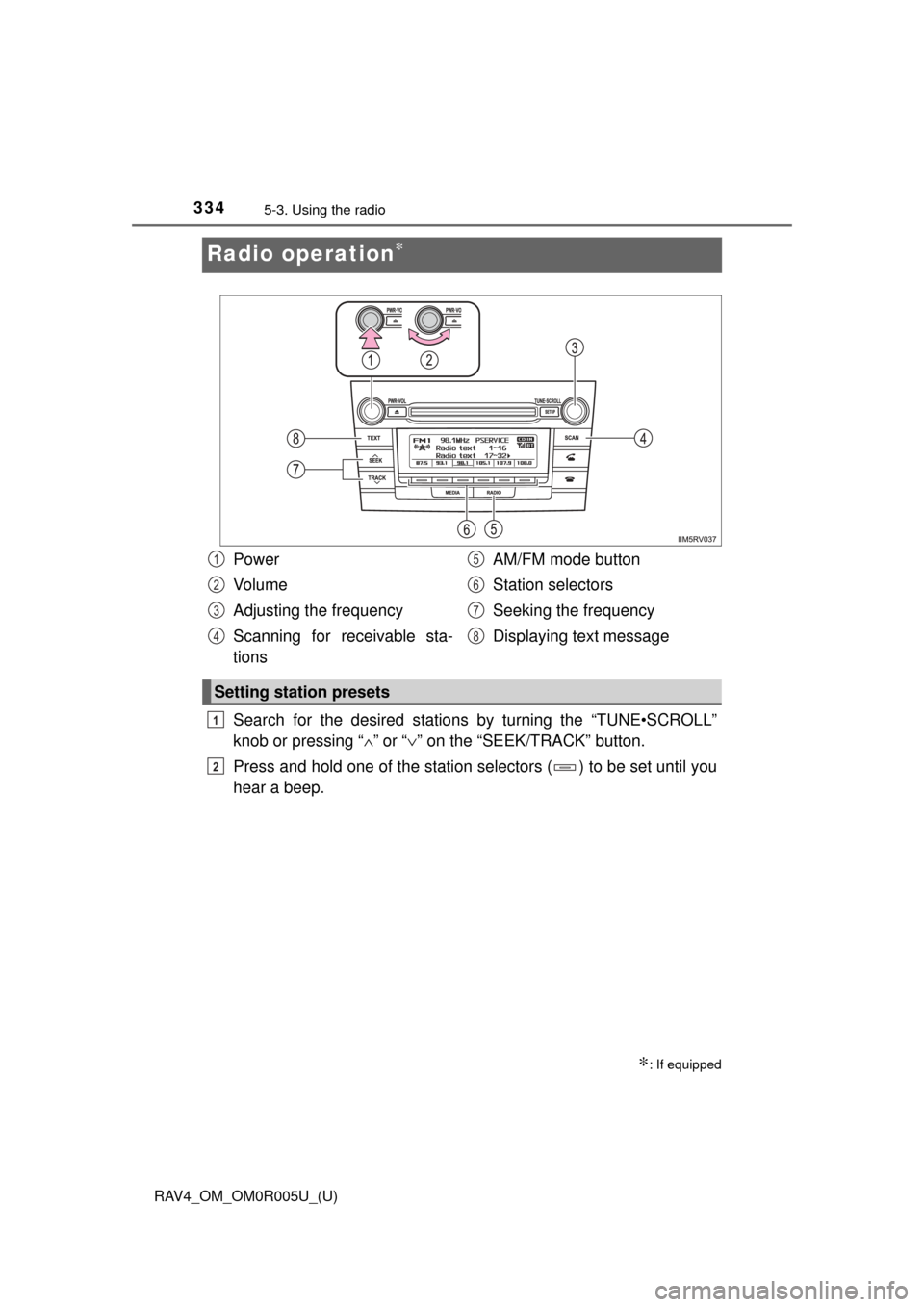
Search for the desired stations by turning the “TUNE•SCROLL”
knob or pressing “ ∧”
or “ ∨” on the “SEEK/TRACK” button.
Press and hold one of the station selectors ( ) to be set until you
hear a beep.
∗: If equipped
Power
Vo l u m e
Adjusting the frequency
Scanning for receivable sta-
tions AM/FM mode button
Station selectors
Seeking the frequency
Displaying text message
Setting station presets
1
2
3
4
5
6
7
8
1
2
Page 336 of 741
RAV4_OM_OM0R005U_(U)
3355-3. Using the radio
5
Audio system
■Scanning the preset radio stationsPress and hold the “SCAN” button until you hear a beep.
Preset stations will be played for 5 seconds each.
To cancel, press the button again.
When the desired station is reached, press the button again.
■Scanning all the radio stations within rangePress the “SCAN” button.
All the stations with reception will be played for 5 seconds each.
To cancel, press the button again.
When the desired station is reached, press the button again.
Press the “TEXT” button to display or hide the radio texts.
If there are continuing texts, is displayed.
Press the button to display the remaining texts.
■ When the battery is disconnected
Stations presets are erased.
■ Reception sensitivity
●Maintaining perfect radio reception at all times is difficult due to the continu-
ally changing position of the antenna, differences in signal strength and sur-
rounding objects, such as trains, transmitters, etc.
● The radio antenna is mounted on the roof.
Scanning radio stations
Switching the display
1
2
1
2
Page 350 of 741

RAV4_OM_OM0R005U_(U)
3495-5. Using an external device
5
Audio system
■About iPod
●“Made for iPod” and “Made for iPhone” mean that an electronic accessory
has been designed to connect specifically to iPod, or iPhone, respectively,
and has been certified by the developer to meet Apple performance stan-
dards.
● Apple is not responsible for the operation of this device or its compliance
with safety and regulatory standards. Please note that the use of this acces-
sory with iPod or iPhone may affect wireless performance.
● iPhone, iPod, iPod classic, iPod nano , iPod shuffle, and iPod touch are
trademarks of Apple Inc., registered in the U.S. and other countries.
■ iPod functions
●When an iPod is connected and the audio source is changed to iPod mode,
the iPod will resume play from the same point in which it was last used.
● Depending on the iPod that is connected to the system, certain functions
may not be available. Disconnecting the device and reconnecting it once
again may resolve some malfunctions.
● While connected to the system, the iPod cannot be operated with its own
controls. It is necessary to use the controls of the vehicle’s audio system
instead.
■ iPod problems
To resolve most problems encountered when using your iPod, disconnect
your iPod from the vehicle iPod connection and reset it.
For instructions on how to reset your iPod, refer to your iPod Owner’s Man-
ual.
■ Display
→P. 340
Page 373 of 741
372
RAV4_OM_OM0R005U_(U)
5-7. “SETUP” menu
Select “Add contacts” using the “TUNE•SCROLL” knob.
● Transferring all contacts from the cellular phone
Select “Overwrite all” using th e “TUNE•SCROLL” knob and press
(YES).
● Transferring one contact from the cellular phone
Select “Add one contact” using the “TUNE•SCROLL” knob and
press (YES).
Select “Add SD” using the “TUNE•SCROLL” knob.
Select the desired data using the knob.
Press the desired preset butt on (from [1] to [5]).
For details about setting speed dials from the call history: →P. 380
For details about deleting speed dials: →P. 3 7 9
Adding a new phone number
Setting speed dials
1
2
3