Page 446 of 796
4465-6. Using an external device
PRIUS_OM_OM47B54U_(U)
■About iPod
●“Made for iPod” and “Made for iPhone” mean that an electronic accessory
has been designed to connect specifically to iPod or iPhone, respectively,
and has been certified by the developer to meet Apple performance stan-
dards.
● Apple is not responsible for the operation of this device or its compliance
with safety and regulatory standards. Please note that the use of this acces-
sory with iPod or iPhone may affect wireless performance.
● iPhone, iPod, iPod classic, iPod nano, and iPod touch are trademarks of
Apple Inc., registered in the U.S. and other countries. Lightning is a trade-
mark of Apple Inc.
■ iPod cover art
●Depending on the iPod and songs in the iPod, iPod cover art may be dis-
played.
● This function can be changed to on/off. ( →P. 429)
● It may take time to display iPod cover art, and the iPod may not be operated
while the cover art display is in process.
● Only iPod cover art that is saved in JPEG format can be displayed.
■ iPod functions
●When an iPod is connected and the audio source is changed to iPod mode,
the iPod will resume play from the same point in which it was last used.
● Depending on the iPod that is connected to the system, certain functions
may not be available. If a function is unavailable due to a malfunction (as
opposed to a system specification), disconnecting the device and recon-
necting it may resolve the problem.
● While connected to the system, the iPod cannot be operated with its own
controls. It is necessary to use the controls of the vehicle’s audio system
instead.
● When the battery level of an iPod is very low, the iPod may not operate. If
so, charge the iPod before use.
● Compatible models ( →P. 448)
Page 455 of 796
455
PRIUS_OM_OM47B54U_(U)
5-7. Connecting Bluetooth®
5
Audio system
Preparations to use wireless communication
The following can be performed using Bluetooth® wireless com-
munication:
■A portable audio player can be operated and listened to via
audio system
■Hands-free phone calls can be made via a cellular phone
In order to use wireless communication, register and connect a
Bluetooth
® device by performing the following procedures.
Page 466 of 796
466
PRIUS_OM_OM47B54U_(U)
5-8. Bluetooth® Audio
Listening to Bluetooth® Audio
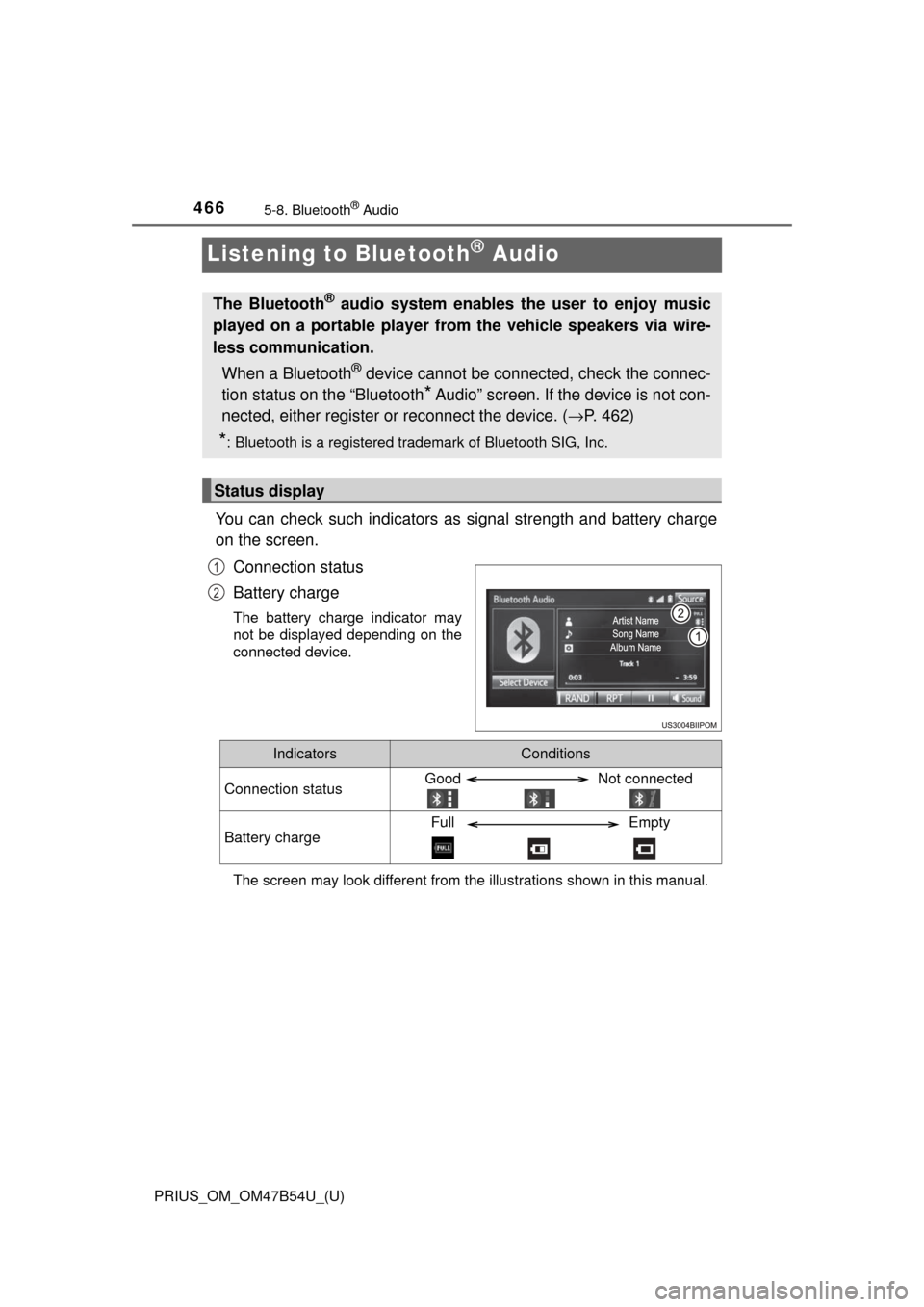
You can check such indicators as signal strength and battery charge
on the screen.
Connection status
Battery charge
The battery charge indicator may
not be displayed depending on the
connected device.
The screen may look different from t he illustrations shown in this manual.
The Bluetooth® audio system enables the user to enjoy music
played on a portable player from the vehicle speakers via wire-
less communication.
When a Bluetooth
® device cannot be connected, check the connec-
tion status on the “Bluetooth
* Audio” screen. If the device is not con-
nected, either register or reconnect the device. (→ P. 462)
*: Bluetooth is a registered trademark of Bluetooth SIG, Inc.
Status display
1
2
IndicatorsConditions
Connection statusGood Not connected
Battery chargeFull Empty
Page 468 of 796
468
PRIUS_OM_OM47B54U_(U)
5-9. Bluetooth® phone
Using a Bluetooth® Phone
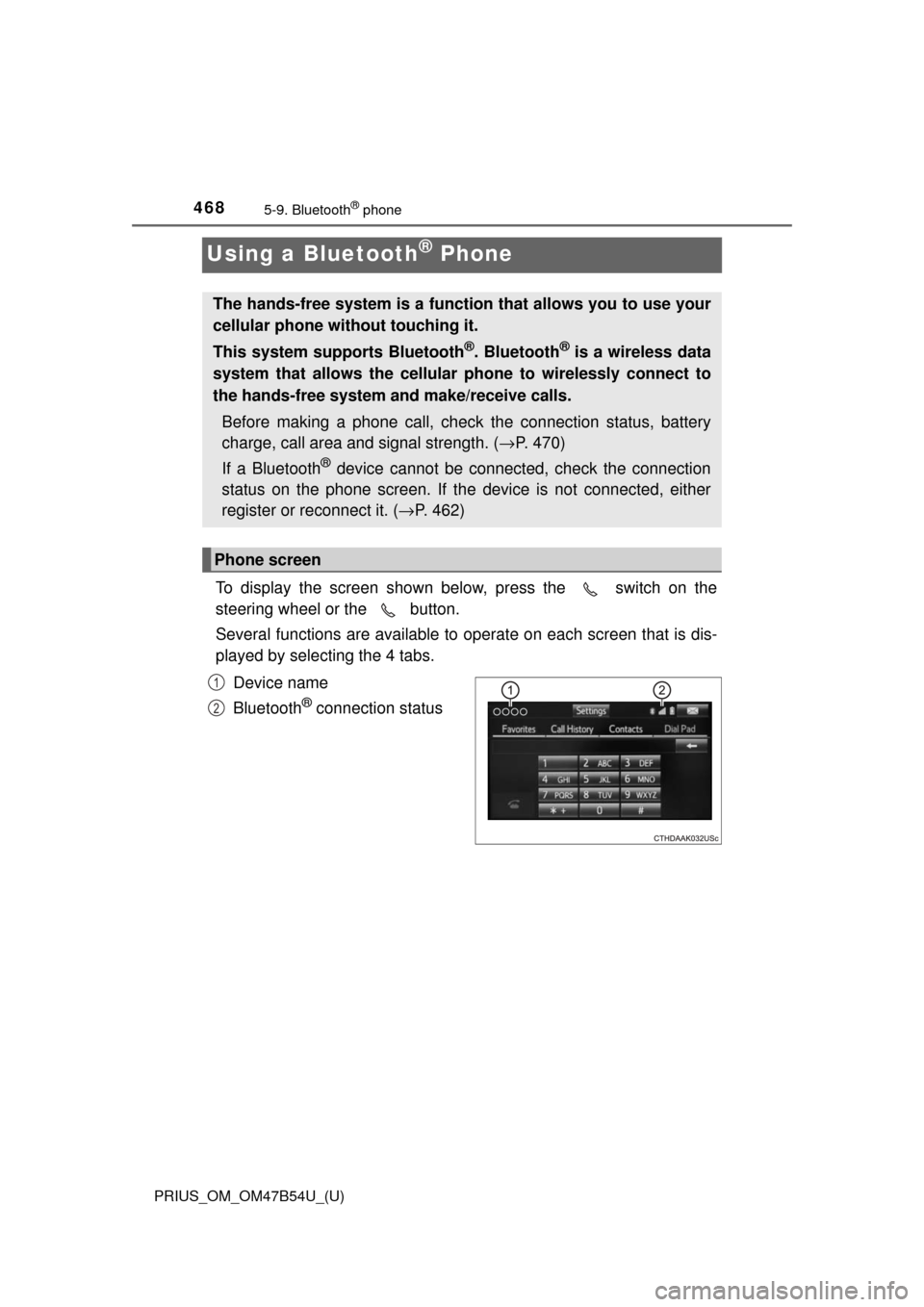
To display the screen shown below, press the switch on the
steering wheel or the button.
Several functions are available to operate on each screen that is dis-
played by selecting the 4 tabs.
Device name
Bluetooth
® connection status
The hands-free system is a function that allows you to use your
cellular phone without touching it.
This system supports Bluetooth
®. Bluetooth® is a wireless data
system that allows the cellular phone to wirelessly connect to
the hands-free system and make/receive calls.
Before making a phone call, check the connection status, battery
charge, call area and signal strength. ( →P. 470)
If a Bluetooth
® device cannot be connected, check the connection
status on the phone screen. If th e device is not connected, either
register or reconnect it. ( →P. 462)
Phone screen
1
2
Page 509 of 796

509
PRIUS_OM_OM47B54U_(U)
6Interior features
6-1. Using the air conditioning system and defogger
Automatic air conditioning system ............................ 510
Seat heaters...................... 521
6-2. Using the interior lights Interior lights list ................ 523• Front interior light .......... 524
• Front personal lights ..... 524
• Rear interior light .......... 525
6-3. Using the storage features List of storage features ..... 526• Glove box...................... 527
• Console box .................. 527
• Cup holders/bottle holders/
door pockets ................. 528
• Auxiliary boxes.............. 530
Luggage compartment features ........................... 531
6-4. Using the other interior features
Other interior features ....... 540 • Sun visors ..................... 540
• Vanity mirrors................ 540
• Power outlets ................ 541
• Wireless charger ........... 542
• Armrest ......................... 550
• Coat hooks.................... 550
• Assist grips ................... 551
Garage door opener.......... 552
Safety Connect ................. 559
Page 530 of 796
530
PRIUS_OM_OM47B54U_(U)
6-3. Using the storage features
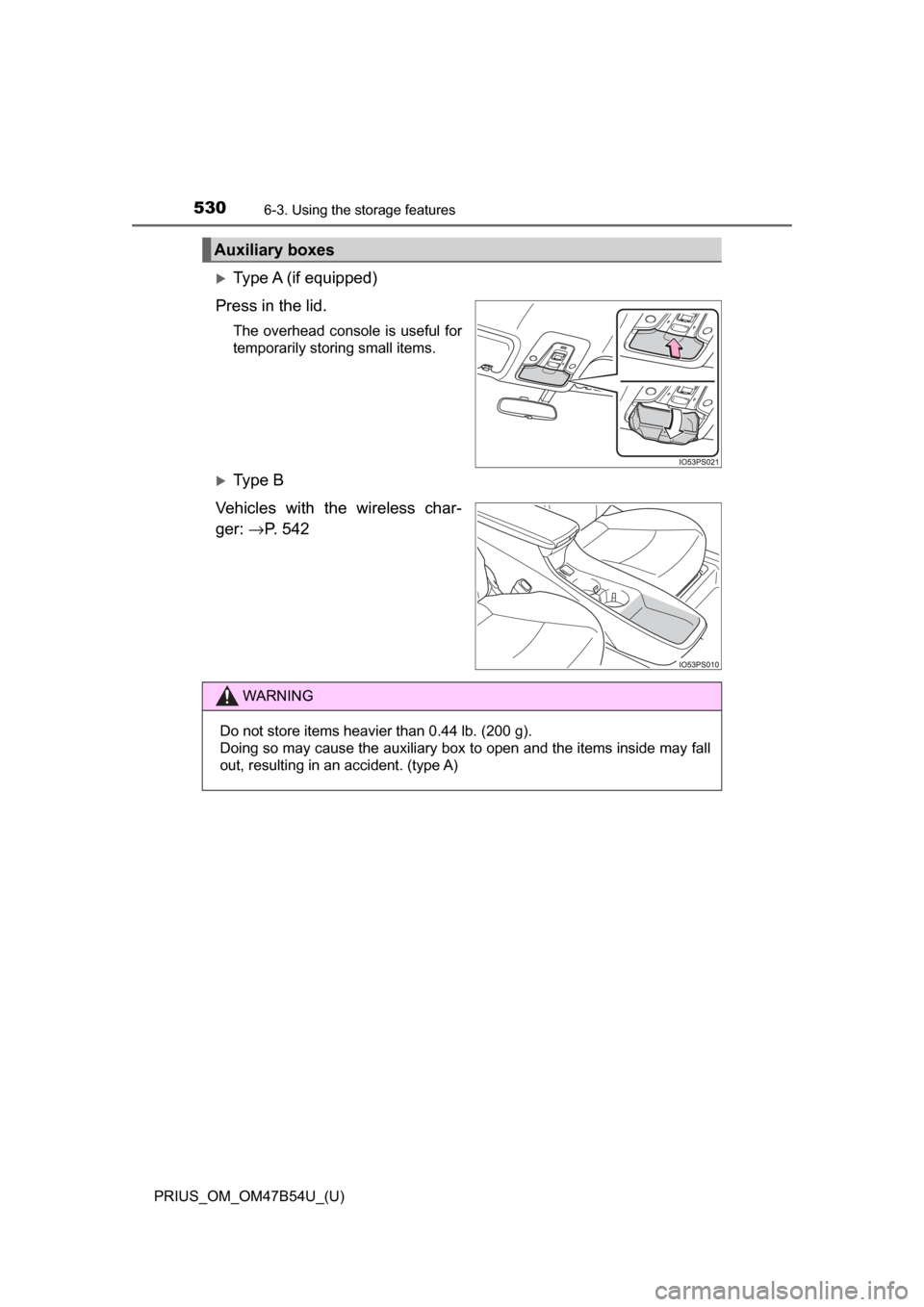
Type A (if equipped)
Press in the lid.
The overhead console is useful for
temporarily storing small items.
Ty p e B
Vehicles with the wireless char-
ger: →P. 5 4 2
Auxiliary boxes
WARNING
Do not store items heavier than 0.44 lb. (200 g).
Doing so may cause the auxiliary box to open and the items inside may fall
out, resulting in an accident. (type A)
Page 542 of 796
542
PRIUS_OM_OM47B54U_(U)
6-4. Using the other interior features
A portable device can be charged by just placing Qi standard wireless
charge compatible portable devices according to the Wireless Power
Consortium, such as smart phones an d mobile batteries, etc., on the
charge area.
This function cannot be used with portable devices that are larger
than the charging area. Also, depend ing on the portable device, it may
not operate as normal. Please read the operation manual for portable
devices to be used.
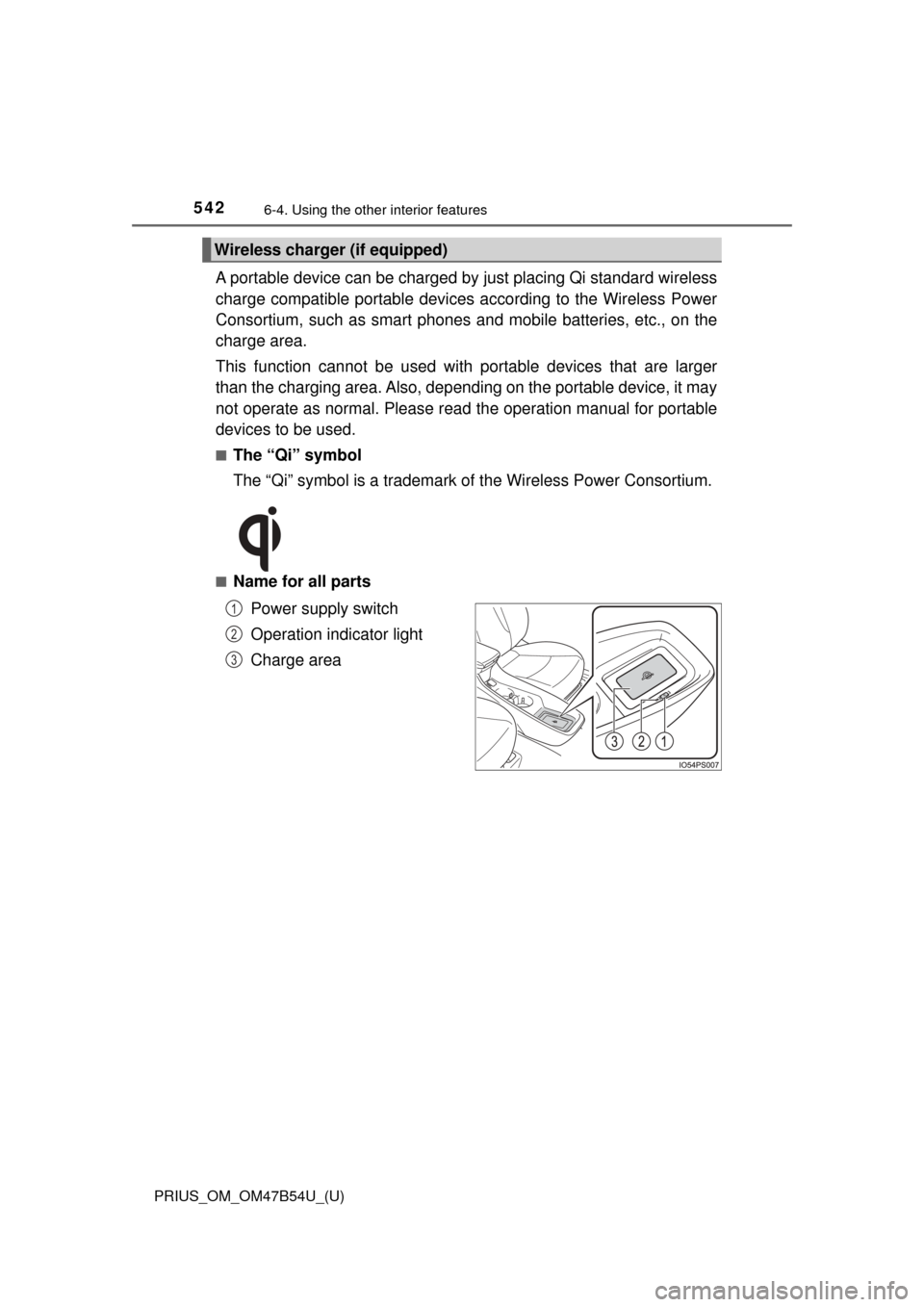
■The “Qi” symbol
The “Qi” symbol is a trademark of the Wireless Power Consortium.
■Name for all parts
Power supply switch
Operation indicator light
Charge area
Wireless charger (if equipped)
1
2
3
Page 543 of 796
PRIUS_OM_OM47B54U_(U)
5436-4. Using the other interior features
6
Interior features
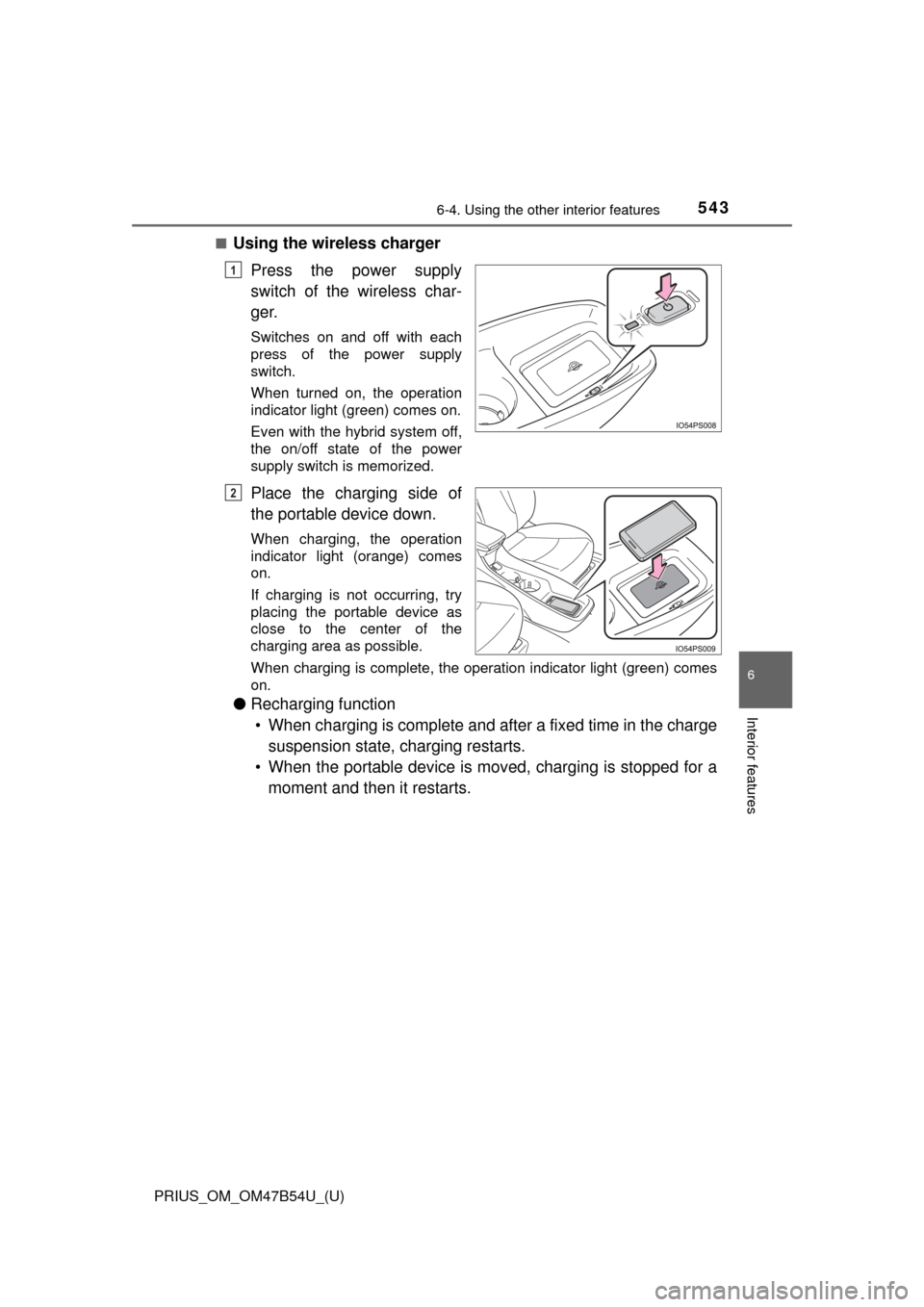
■Using the wireless chargerPress the power supply
switch of the wireless char-
ger.
Switches on and off with each
press of the power supply
switch.
When turned on, the operation
indicator light (green) comes on.
Even with the hybrid system off,
the on/off state of the power
supply switch is memorized.
Place the charging side of
the portable device down.
When charging, the operation
indicator light (orange) comes
on.
If charging is not occurring, try
placing the portable device as
close to the center of the
charging area as possible.
When charging is complete, the operation indicator light (green) comes
on.
●Recharging function
• When charging is complete and after a fixed time in the charge suspension state, charging restarts.
• When the portable device is mov ed, charging is stopped for a
moment and then it restarts.
1
2