2017 TESLA MODEL S Instrument lights
[x] Cancel search: Instrument lightsPage 3 of 188
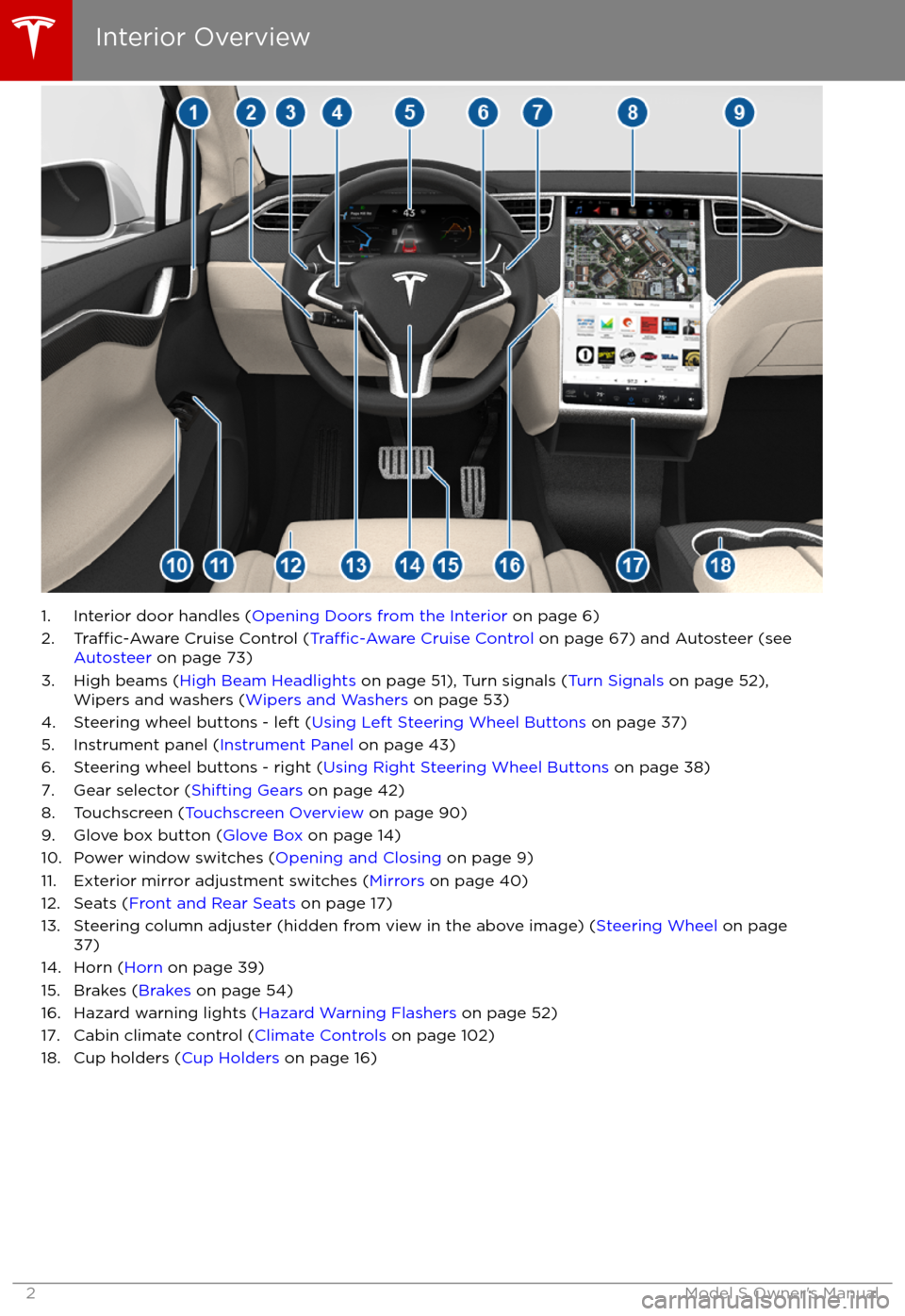
1. Interior door handles (Opening Doors from the Interior on page 6)
2.Traffic-Aware Cruise Control (Traffic-Aware Cruise Control on page 67) and Autosteer (see
Autosteer on page 73)
3. High beams ( High Beam Headlights on page 51), Turn signals ( Turn Signals on page 52),
Wipers and washers ( Wipers and Washers on page 53)
4. Steering wheel buttons - left ( Using Left Steering Wheel Buttons on page 37)
5. Instrument panel ( Instrument Panel on page 43)
6. Steering wheel buttons - right ( Using Right Steering Wheel Buttons on page 38)
7. Gear selector ( Shifting Gears on page 42)
8. Touchscreen ( Touchscreen Overview on page 90)
9. Glove box button ( Glove Box on page 14)
10. Power window switches ( Opening and Closing on page 9)
11. Exterior mirror adjustment switches ( Mirrors on page 40)
12. Seats ( Front and Rear Seats on page 17)
13. Steering column adjuster (hidden from view in the above image) ( Steering Wheel on page
37)
14. Horn ( Horn on page 39)
15. Brakes ( Brakes on page 54)
16. Hazard warning lights ( Hazard Warning Flashers on page 52)
17. Cabin climate control ( Climate Controls on page 102)
18. Cup holders ( Cup Holders on page 16)
Interior Overview
2Model S Owner
Page 50 of 188

1. If you turn on DOME lights, all interior dome (map) lights turn on when you unlock Model S,open a door upon exiting, or shift into P (Park). They turn off after 60 seconds, when you lock
Model S, or when you shift into a driving gear. If set to AUTO, dome lights turn on only when
little or no light is detected.
You can also manually turn an individual dome light on or
off by pressing its lens. If you
manually turn a dome light on, it turns off when Model S powers off. If Model S was already
powered off when you manually turned the light on, it turns off after 60 minutes.
2. If you turn on AMBIENT lights, the lights on the door armrests turn on whenever the headlights are on.
3. If you turn on AUTO HIGH BEAM, high beam headlights turn on and
off automatically based
on whether or not light is detected in front of Model S (see High Beam Headlights on page
51). This feature is available only if Model S is equipped with the optional Autopilot Tech Package.
4. Touch to turn fog lights (if equipped) on or
off. Fog lights operate only when low beam
headlights are on. Fog lights do not operate when headlights are turned off or when high
beam headlights are on.
The Front Fog indicator displays on the instrument panel whenever front fog
lights are on.
Note: Depending on the market region and vehicle options, your vehicle may not be equipped
with front and/or rear fog lights.
Note: In some regions, there is no control for the front fog lights. They operate in conjunction
with the headlights and turn on only in situations where low beam headlights are on.
Lights
Driving49
Page 52 of 188
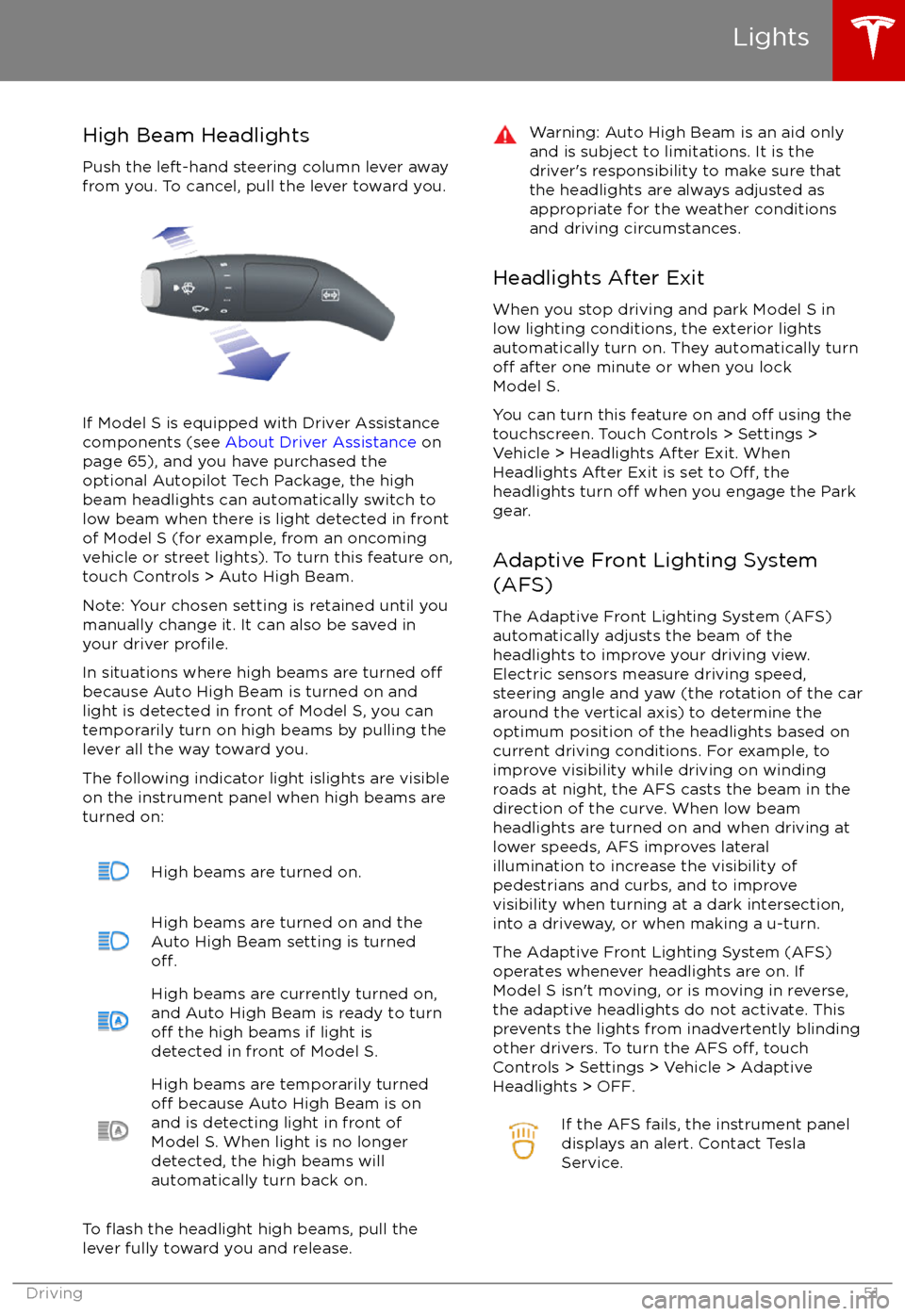
High Beam HeadlightsPush the left-hand steering column lever away
from you. To cancel, pull the lever toward you.
If Model S is equipped with Driver Assistance
components (see About Driver Assistance on
page 65), and you have purchased the
optional Autopilot Tech Package, the high
beam headlights can automatically switch to low beam when there is light detected in front
of Model S (for example, from an oncoming vehicle or street lights). To turn this feature on,touch Controls > Auto High Beam.
Note: Your chosen setting is retained until you manually change it. It can also be saved in
your driver
profile.
In situations where high beams are turned offbecause Auto High Beam is turned on and
light is detected in front of Model S, you can
temporarily turn on high beams by pulling the
lever all the way toward you.
The following indicator light islights are visible
on the instrument panel when high beams are
turned on:
High beams are turned on.High beams are turned on and the
Auto High Beam setting is turned
off.
High beams are currently turned on,
and Auto High Beam is ready to turn
off the high beams if light is
detected in front of Model S.
High beams are temporarily turnedoff because Auto High Beam is on
and is detecting light in front of
Model S. When light is no longer
detected, the high beams will
automatically turn back on.
To flash the headlight high beams, pull the
lever fully toward you and release.
Warning: Auto High Beam is an aid only and is subject to limitations. It is the
driver
Page 53 of 188
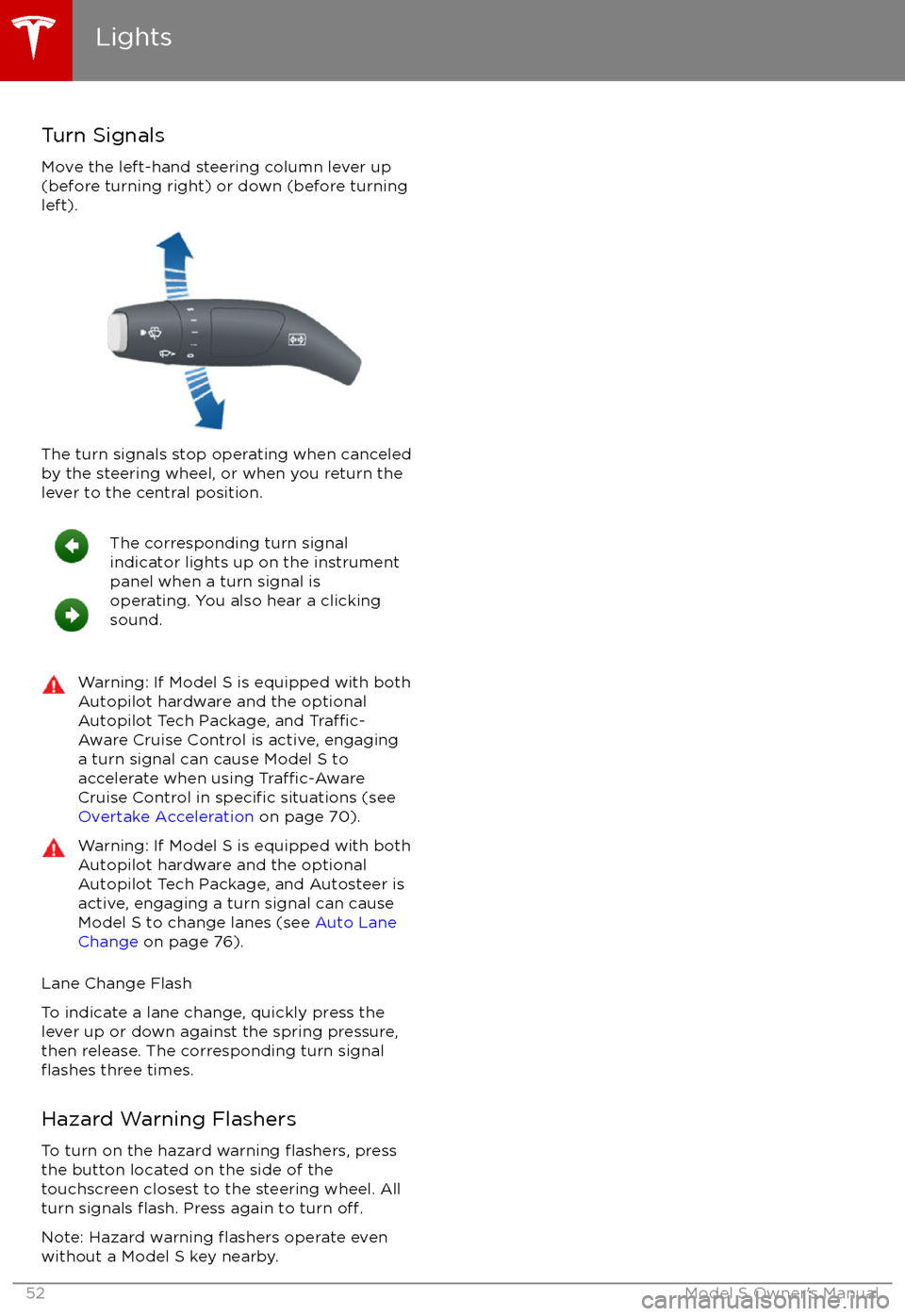
Turn Signals
Move the left-hand steering column lever up
(before turning right) or down (before turning
left).
The turn signals stop operating when canceled by the steering wheel, or when you return the
lever to the central position.
The corresponding turn signal
indicator lights up on the instrument
panel when a turn signal is
operating. You also hear a clicking
sound.Warning: If Model S is equipped with both
Autopilot hardware and the optional
Autopilot Tech Package, and
Traffic-
Aware Cruise Control is active, engaging
a turn signal can cause Model S to accelerate when using
Traffic-AwareCruise Control in specific situations (see
Overtake Acceleration on page 70).
Warning: If Model S is equipped with both
Autopilot hardware and the optional
Autopilot Tech Package, and Autosteer is active, engaging a turn signal can cause
Model S to change lanes (see Auto Lane
Change on page 76).
Lane Change Flash
To indicate a lane change, quickly press the
lever up or down against the spring pressure,
then release. The corresponding turn signal
flashes three times.
Hazard Warning Flashers To turn on the hazard warning
flashers, press
the button located on the side of the
touchscreen closest to the steering wheel. All
turn signals
flash. Press again to turn off.
Note: Hazard warning flashers operate even
without a Model S key nearby.
Lights
52Model S Owner
Page 55 of 188
Braking Systems
Model S has an anti-lock braking system
(ABS) that prevents the wheels from locking when you apply maximum brake pressure. This
improves steering control during heavy
braking in most road conditions.
During emergency braking conditions, the
ABS constantly monitors the speed of each
wheel and varies the brake pressure according to the grip available.
The alteration of brake pressure can be felt as
a pulsing sensation through the brake pedal.
This demonstrates that the ABS is operating
and is not a cause for concern. Keep
firm and
steady pressure on the brake pedal while
experiencing the pulsing.
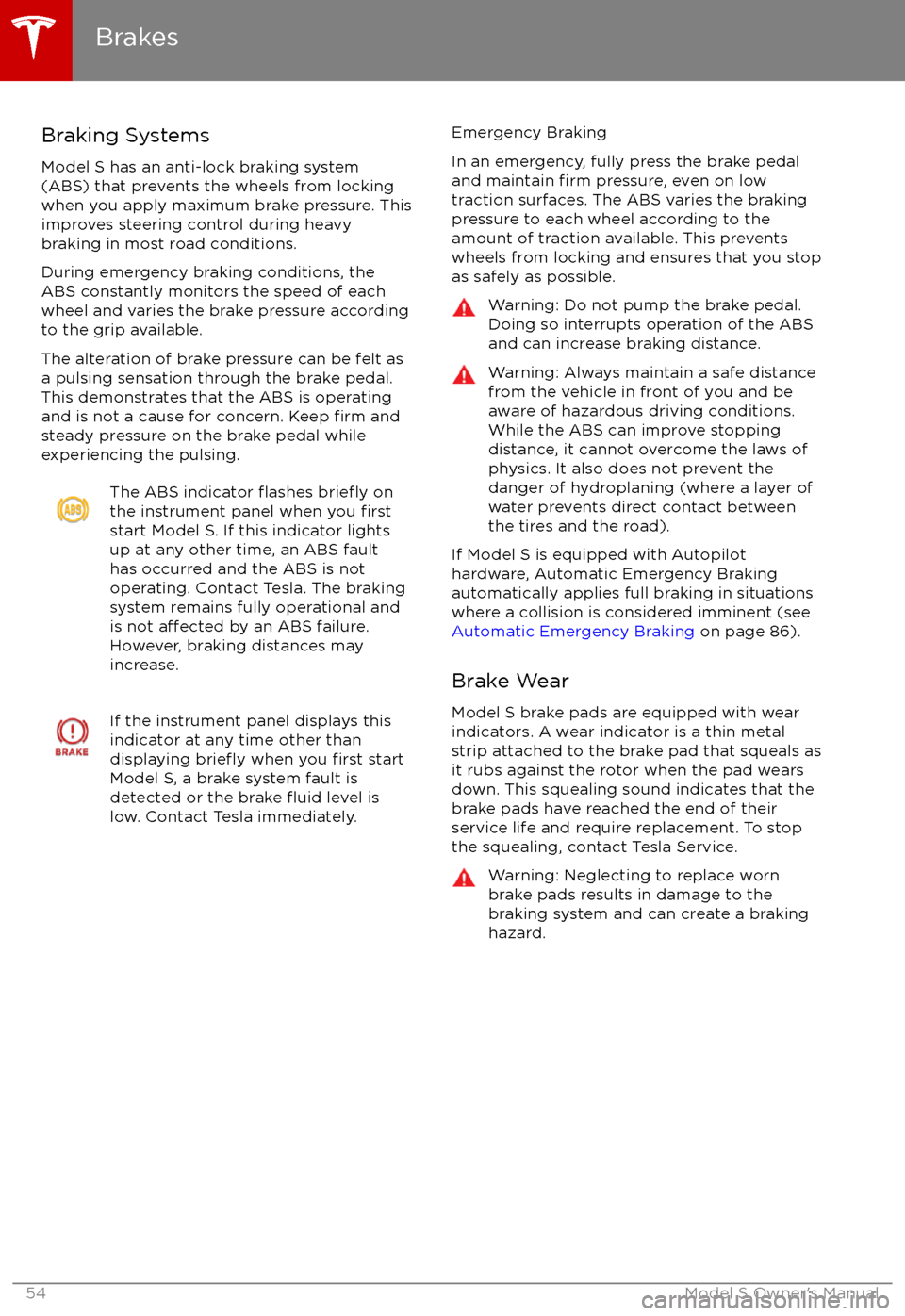
The ABS indicator flashes briefly on
the instrument panel when you firststart Model S. If this indicator lights
up at any other time, an ABS fault
has occurred and the ABS is not
operating. Contact Tesla. The braking system remains fully operational and
is not
affected by an ABS failure.
However, braking distances may increase.
If the instrument panel displays this
indicator at any time other than
displaying
briefly when you first start
Model S, a brake system fault is
detected or the brake
fluid level is
low. Contact Tesla immediately.
Emergency Braking
In an emergency, fully press the brake pedal and maintain
firm pressure, even on low
traction surfaces. The ABS varies the braking
pressure to each wheel according to the
amount of traction available. This prevents
wheels from locking and ensures that you stop
as safely as possible.
Warning: Do not pump the brake pedal.
Doing so interrupts operation of the ABS
and can increase braking distance.Warning: Always maintain a safe distance
from the vehicle in front of you and be
aware of hazardous driving conditions.
While the ABS can improve stopping
distance, it cannot overcome the laws of physics. It also does not prevent the
danger of hydroplaning (where a layer of
water prevents direct contact between the tires and the road).
If Model S is equipped with Autopilot
hardware, Automatic Emergency Braking
automatically applies full braking in situations
where a collision is considered imminent (see
Automatic Emergency Braking on page 86).
Brake Wear Model S brake pads are equipped with wear
indicators. A wear indicator is a thin metal
strip attached to the brake pad that squeals as it rubs against the rotor when the pad wears
down. This squealing sound indicates that the
brake pads have reached the end of their
service life and require replacement. To stop
the squealing, contact Tesla Service.
Warning: Neglecting to replace worn
brake pads results in damage to the
braking system and can create a braking
hazard.
Brakes
54Model S Owner
Page 56 of 188
Regenerative Braking
Whenever Model S is moving and your foot is
off the accelerator, regenerative braking slows
down Model S and feeds any surplus energy
back to the Battery.
By anticipating your stops and simply
removing pressure from the accelerator to slow down, you can take advantage ofregenerative braking to increase driving range.
Of course, this is no substitute for regular
braking when needed for safety.
Note: If regenerative braking is aggressively
slowing Model S, such as on a steep descent,
brake lights turn on to alert other road users
that you are slowing down.
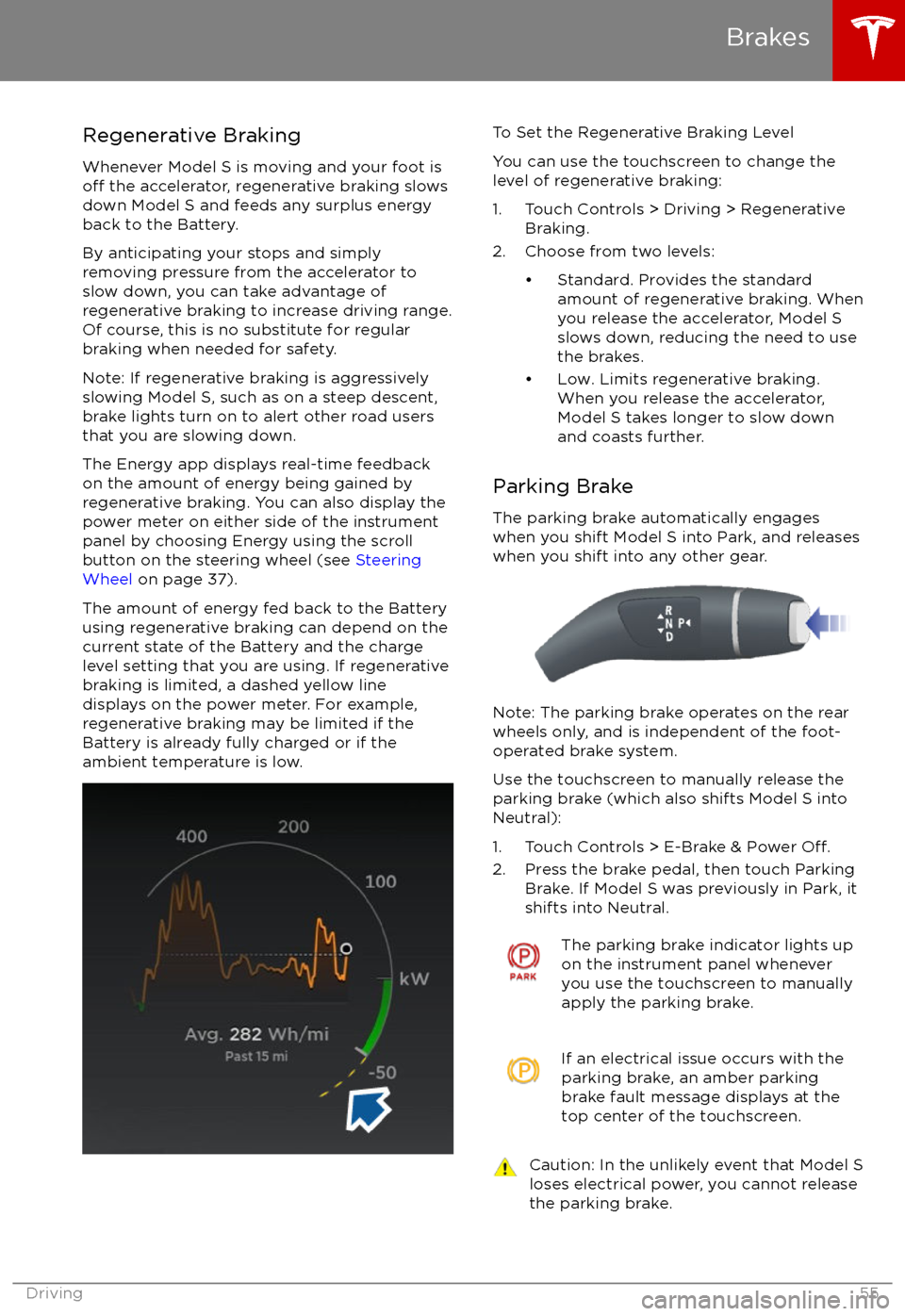
The Energy app displays real-time feedback
on the amount of energy being gained by
regenerative braking. You can also display the
power meter on either side of the instrument
panel by choosing Energy using the scroll
button on the steering wheel (see Steering
Wheel on page 37).
The amount of energy fed back to the Battery using regenerative braking can depend on the
current state of the Battery and the charge
level setting that you are using. If regenerative
braking is limited, a dashed yellow line
displays on the power meter. For example,
regenerative braking may be limited if the Battery is already fully charged or if the
ambient temperature is low.
To Set the Regenerative Braking Level
You can use the touchscreen to change the
level of regenerative braking:
1. Touch Controls > Driving > Regenerative Braking.
2. Choose from two levels:
Page 69 of 188

You can accelerate at any time when driving ata set speed using Traffic-Aware Cruise
Control. But when you release the accelerator,
Model S returns to the set speed.
When following a vehicle,
Traffic-Aware Cruise
Control remains active at low speeds, even if
Model S comes to a standstill while following a
vehicle. When
traffic is moving again, Traffic-
Aware Cruise Control resumes operating at
your currently set speed. However, if an or
object is detected in front of Model S,
Traffic-
Aware Cruise Control goes into a HOLD state
and the instrument panel displays a message
indicating that you need to resume cruise
control. To resume, press the accelerator pedal
or pull the cruise control lever toward you (see
Canceling and Resuming on page 71).
In right hand
traffic, engaging the right turn
signal when driving in the right-most lane
within 164 feet (50 meters) of an exit (on a
controlled access road only, such as a highway
or freeway), causes
Traffic-Aware Cruise
Control to assume you are exiting. As a result,
Traffic-Aware Cruise Control begins to slow
down the vehicle. Likewise in left hand traffic,when engaging the left turn signal when
driving in the left-most lane within 164 feet
(50 meters) of an exit. The onboard GPS (Global Positioning System) determines if you
are driving in a region with right or left hand
traffic. In situations where GPS data is
unavailable (for example, inadequate signal), engaging the turn signal near an exit does not
cause
Traffic-Aware Cruise Control to slow
down the vehicle.
Note: If you double-pull the cruise control
lever (or single-pull when
Traffic-Aware Cruise
Control is active), Autosteer activates and the set speed changes to either your current
driving speed, or the speed limit plus any
offset you have defined, whichever is greater
(see Cruising at the Speed Limit on page
69).
Note: When
Traffic-Aware Cruise Control is
actively slowing down Model S to maintain the
selected distance from the vehicle ahead, the brake lights turn on to alert other road users
that you are slowing down. You may also
notice slight movement of the brake pedal.
Warning: Due to limitations inherent in
the onboard GPS, you may experience
situations in which
Traffic-Aware Cruise
Control slows down the vehicle, especially
near highway exits where a curve is
detected and/or you are actively navigating to a destination and not
following the route.
Warning: Traffic-Aware Cruise Control can
not detect all objects and may not brake/
decelerate for stationary vehicles,
especially in situations when you are
driving over 50 mph (80 km/h) and a
vehicle you are following moves out of
your driving path and a stationary vehicle
or object is in front of you instead. Always
pay attention to the road ahead and stay
prepared to take immediate corrective
action. Depending on
Traffic-AwareCruise Control to avoid a collision can
result in serious injury or death. In
addition,
Traffic-Aware Cruise Control
may react to vehicles or objects that
either do not exist or are not in the lane
of travel, causing Model S to slow down
unnecessarily or inappropriately.
Warning: Traffic-Aware Cruise Control
may be unable to provide adequate
speed control because of limited braking capability and hills. It can also misjudgethe distance from a vehicle ahead. Driving
downhill can increase driving speed, causing Model S to exceed your set
speed. Never depend on
Traffic-AwareCruise Control to slow down the vehicle
enough to prevent a collision. Always
keep your eyes on the road when driving
and be prepared to take corrective action
as needed. Depending on
Traffic-AwareCruise Control to slow the vehicle down enough to prevent a collision can result in
serious injury or death.
Warning: Traffic-Aware Cruise Control
may occasionally brake Model S when not required or you are not expecting it. Thiscan be caused by closely following a
vehicle ahead, detecting vehicles or
objects in adjacent lanes (especially on curves), etc.
Adjust your following distance
To adjust the distance you want to maintain
between Model S and a vehicle traveling ahead of you, rotate the cruise control lever to
choose a setting from 1 (the closest following distance) to 7 (the longest following distance).
Each setting corresponds to a time-based
distance that represents how long it takes for
Model S, from its current location, to reach the
location of the rear bumper of the vehicle
ahead.
Traffic-Aware Cruise Control
68Model S Owner
Page 83 of 188
1. With Model S in Park, stand within 10 feet (3 meters) and press and hold the top center buttonon the key (Lock/Unlock All button) until the hazard lights blink continuously.
Note: The hazard lights
flash once as Model S locks, then within five seconds, Model S powers
on and the hazard lights flash continuously. Do not proceed to the next step until the hazard
lights are flashing. If, after five seconds, the hazard lights are not flashing, release the button
on the key, move closer to Model S, and try again. If Summon receives no further input within ten seconds, Summon cancels.
2. Press the Front Trunk (Frunk) button on the key to move Model S forward into the parking space, or press the Rear Trunk button to reverse Model S into the parking space.
Initiate Automatic Parking Before Exiting the Vehicle (U.S. and Mexico Only)
If Require Continuous Press is set to NO, you can initiate the parking maneuver from inside
Model S before exiting:
1. While sitting in Model S with the vehicle powered on, double press the Park gear. The instrument panel displays a message indicating that Summon is engaged, and the
touchscreen displays a popup window.
2. On the touchscreen, choose the direction of travel.
3. Exit Model S and close the door.
Note: All doors and trunks must be closed.
Note: To cancel the parking maneuver before exiting the vehicle, touch Cancel on the popup window.
Summon now drives Model S into the parking space according to the direction you
specified on
the touchscreen.
Stopping or Canceling Summon
You can stop Model S at any time while Summon is active by pressing any button on the key or using the mobile app. Summon also cancels when: