Page 283 of 572

.The radio automatically blends to an
HD Radio signal (if equipped) in AM or
FM where available.
!How to change the source
Select the“AM”or“FM”key on the source
select screen. Refer to“Selecting an audio
source”F5-18.
!Presetting a station
In total 18 stations can be set for the FM
band (6 each for FM1, FM2 and FM3) and
12 stations can be set for the AM band (6
each for AM1 and AM2).
1. Tune in the desired station.
2. If you touch and hold a key, the system
stores the frequency to the selected
preset channel.!Selecting a station from the list (if
equipped)
A station list can be displayed.
1. Touch the
tab.
2. Touch thetab and the station list will
appear.
3. Select the desired station.
!Update the station list
Touch the“Update Station List”key on the
station list screen and the following screen
will be displayed.
Item Function
OKSelect to execute the manual
update.
CancelSelect to cancel the manual
update.
NOTE
.The audio system sound is muted
during refresh operation.
.In some situations, it may take some
time to update the station list.
!Bookmark the list
You can store and call up the received
data (images, song titles, artist names,
etc.). The stored data is displayed as a list.
1. Touch the
tab on the station list
screen and the following screen will be
Audio/Audio set
–CONTINUED–5-29
Page 299 of 572

Audio panel
No. Function
&1Turn to adjust volume.
Press to turn the audio system on/off.
&2Press to display the sound setting
screen. Refer to“Unit settings”F5-19.
&3Press to display the station operation
screen.
Press to select an audio mode.
&4
Turn to display the next/previous con-
tent item.
Press to select an audio source. Refer
to“Selecting an audio source”F5-18.
&5Press to display the next/previous con-
tent item.
NOTE
.For safety reasons, certain func-
tions are not available while your
vehicle is in motion.
.In order to maximize signal recep-
tion, performance and precision of the
smartphone, please ensure the smart-
phone is placed as close to the system
as possible, while ensuring it is stowed
and secure while driving.
.When the ignition switch is in the
“ACC”or“ON”position, the battery of
the connected iPhone/iPod touch is
charged.
.iPhone/iPod touch may not be re-
cognized when the ignition switch is in
the“ACC”or“ON”position. In this
case, remove the iPhone/iPod touch
and reconnect it.
.The accuracy of the displayed in-
formation or the signal reception per-
formance depends on the smartphone
or the connected device, and it’s wire-
less connection.
.Since the aha application uses sig-
nals from GPS satellites and wireless
communication lines, it may not work
properly in the following locations.
–In a tunnel
–In underground parking lots
Audio/Audio set
–CONTINUED–5-45
Page 320 of 572

Audio/Bluetooth®settings
“BT Devices Connection”screen (At the
initial startup and when no device is
registered).
5. Touch the“Add”key.
When the“Add”key is selected (Waiting
for the connection request from a device).
.For details about operating the Blue-
tooth device, see the manual that
comes with it.
.To cancel the registration, touch the
“Cancel”key.
6. Register the Bluetooth device using
your Bluetooth device.
.A PIN-code is not required for SSP
(Secure Simple Pairing) compatible
Bluetooth devices. Depending on the
type of Bluetooth device being con-
nected, a message confirming regis-
tration may be displayed on the Blue-
tooth device’s screen. Respond and
operate the Bluetooth device accord-
ing to the confirmation message.
7. Check that the screen is displayed
when registration is complete.
.The system waits for connection
requests coming from the registered
device.
.At this stage, the Bluetooth func-
tions are not yet available.
!Registering a Bluetooth Audio de-
vice for the first time
To use the Bluetooth Audio, it is necessary
to register an audio device with the
system.
The device registration procedure is the
same for both the hands-free system andBluetooth audio.
1. Display the“BT Devices Connection”
screen. Refer to“Registering a Bluetooth
phone for the first time”F5-65.
2. Select the“Add”key.
The“Add”key is not displayed when five
devices are already registered.
To add another device, you need to delete
one of the registered devices.
Press the
key for the device to be
deleted, and then select the“OK”key.
3. Register the Bluetooth device using
your Bluetooth device.
.A PIN-code is not required for SSP
(Secure Simple Pairing) compatible
Bluetooth devices. Depending on the
type of Bluetooth device being con-
nected, a message confirming regis-
tration may be displayed on the Blue-
tooth device’s screen. Respond and
operate the Bluetooth device accord-
ing to the confirmation message.
4. Check that the screen is displayed
when registration is complete.
.The system waits for connection
requests coming from the registered
device.
.At this stage, the Bluetooth func-
tions are not yet available.
5-66
Page 328 of 572

Audio/Hands–free phone system
When you select an item in the history list
on the“Incoming Calls”screen, the out-
going call screen opens.
NOTE
.Up to 10 items in the incoming call
history are listed. Scroll the screen to
see items that are not on the screen.
.When making a call to the same
number continuously, only the most
recent call is listed in call history.
.When a phone number registered in
the contact list is received, the name is
displayed.
.Number-withheld calls are also
memorized in the system.
.International phone calls may not be
made depending on the type of cell
phone you have.
.The list should group together con-
secutive entries with the same phone
number and same call type.!By outgoing calls
On the phone (menu) screen, select the
“Outgoing Calls”key to open the“Out-
going Calls”screen. You can make a call
by selecting an item in the outgoing call
history list.
If there is no outgoing call history, a
message appears to indicate that there
is no outgoing call history data.
Outgoing Calls screen
No. Function
&1Open the“Incoming Calls”screen.
&2Open the“Contacts”screen.
&3Delete all outgoing call history data.
The“Delete All”key is disabled when
there is no outgoing call history.
When you select an item in the history list
on the“Outgoing Calls”screen, the out-
going call screen opens.
NOTE
.Up to 10 items in the outgoing call
history are listed. Scroll the screen to
see items that are not on the screen.
.When making a call to the same
number continuously, only the most
recent call is listed in call history.
.When a phone number registered in
the contact list is received, the name is
displayed.
.Number-withheld calls are also
memorized in the system.
.International phone calls may not be
made depending on the type of cell
phone you have.
.The list should group together con-
secutive entries with the same phone
number and same call type.
!By contacts list
On the phone (menu) screen, select the
“Contacts”key to open the phone number
list screen.
You can make a call by selecting an item
in the list (up to five phone numbers are
listed).
If there is no contact data, a message is
displayed to indicate that there is no
5-74
Page 345 of 572
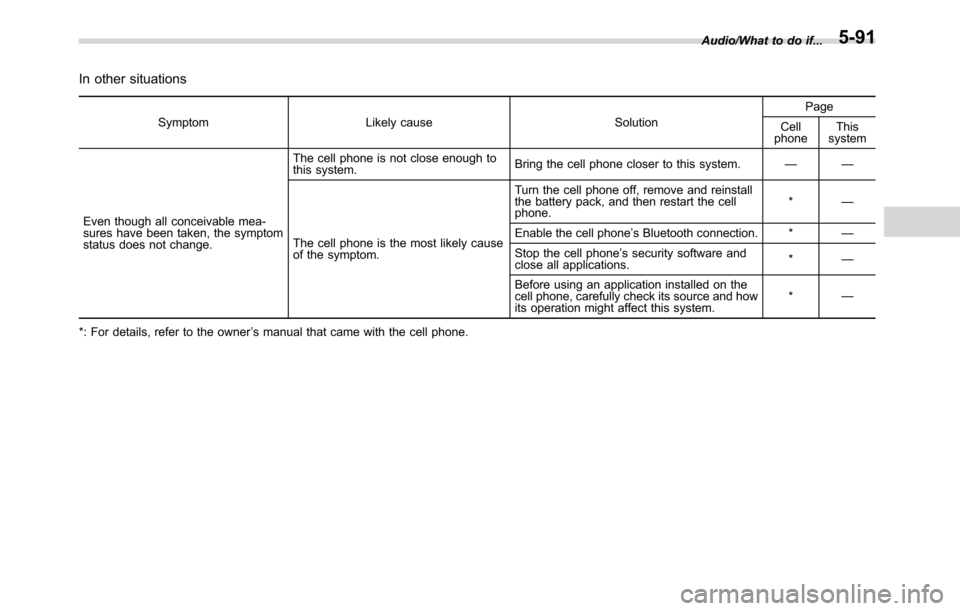
In other situations
Symptom Likely cause SolutionPage
Cell
phoneThis
system
Even though all conceivable mea-
sures have been taken, the symptom
status does not change.The cell phone is not close enough to
this system.Bring the cell phone closer to this system.——
The cell phone is the most likely cause
of the symptom.Turn the cell phone off, remove and reinstall
the battery pack, and then restart the cell
phone.*—
Enable the cell phone’s Bluetooth connection. *—
Stop the cell phone’s security software and
close all applications.*—
Before using an application installed on the
cell phone, carefully check its source and how
its operation might affect this system.*—
*: For details, refer to the owner’s manual that came with the cell phone.Audio/What to do if...
5-91
Page 358 of 572

Interior equipment/Ashtray (dealer option)
phone, that may damage the
portion of the socket’s internal
mechanism that causes a cigar-
ette lighter plug to“pop out”
after its lighter element is heated.
Therefore, do not place a cigar-
ette lighter plug in a socket that
has been used, even once, to
power a plug-in accessory. Doing
so may cause the plug to stick
and overheat, creating a potential
fire hazard.Ashtray (dealer option)
CAUTION
Observe the following precautions.
Not doing so could result in a fire.
.Always extinguish matches and
cigarettes before putting them
into the ashtray, and then close
the ashtray securely.
.Do not put flammable material in
the ashtray.
.Do not leave a lighted cigarette in
the ashtray.
.Do not leave a lot of cigarette
butts in the ashtray.
NOTE
Particles of ash and tobacco will accu-
mulate around the hinges of the ash-
tray’s inner lid. Clean them off using a
toothbrush or a similar narrow-ended
implement.
The portable ashtray can be installed in
each cup holder or bottle holder. For the
locations of the cup holders, refer to“Cup
holders”F6-7. For the locations of the
bottle holders, refer to“Bottle holders”F6-
7.
When using the ashtray, open the lid of the
ashtray. Fully close the lid after using the
ashtray to help reduce residual smoke.
6-10
Page 359 of 572
Floor mat (if equipped)
CAUTION
If the floor mat slips forward and
interferes with the movement of the
pedals during driving, it could cause
an accident. Observe the following
precautions to prevent the floor mat
from slipping forward.
.Be sure to use a genuine
SUBARU floor mat or an equiva-
lent designed with grommets in
the correct locations.
.Make sure that the driver’s floor
mat is placed in its proper loca-
tion and is correctly secured on
its retaining pins..Do not use more than one floor
mat.
Retaining pins are located on the driver’s
side floor.
The floor mat should be properly secured
using the built-in grommets, by placing the
grommets over the pins and pushing them
downward.
Coat hook
A coat hook is attached to the rear
passenger’s hand grip.
Interior equipment/Floor mat
–CONTINUED–6-11
Page 362 of 572
Interior equipment/Cargo tie–down hooks
2. Stow the cover housing in the cargo
area end.
3. Put the cargo floor board back while
hanging two retaining straps on the hooks
that are located on the rear wall of cargo
area.
&To install the cover housing
1. Shorten the cover housing.
2. Insert both ends of the cover housing
into the recesses of the retainers.
Cargo tie-down hooks (if
equipped)
The cargo area is equipped with two or
four tie-down hooks so that cargo can be
secured with a cargo net or ropes.
When using the front tie-down hooks, turn
them down out of the storing recesses.
CAUTION
The cargo tie-down hooks are de-
signed only for securing light cargo.
Never try to secure cargo that
exceeds the capacity of the hooks.
The maximum load capacity is 22
lbs (10 kg) per hook.
6-14