2017 SUBARU BRZ phone
[x] Cancel search: phonePage 272 of 334
270 Audio and Visual
How to Operate Portable Audio Devices
■Operating the Aha Application
Before performing this operation, first install the supported Aha app in
the smartphone at iTunes, an App Store or Google Play Store.
•Create an account and login to the Aha application on the
smartphone.
1Run the Aha application on your smartphone. The app
must be started on your device first, before connectivity
will be enabled on this unit.
• When the Aha application is installed on the smartphone, the
Aha icon becomes brighter.
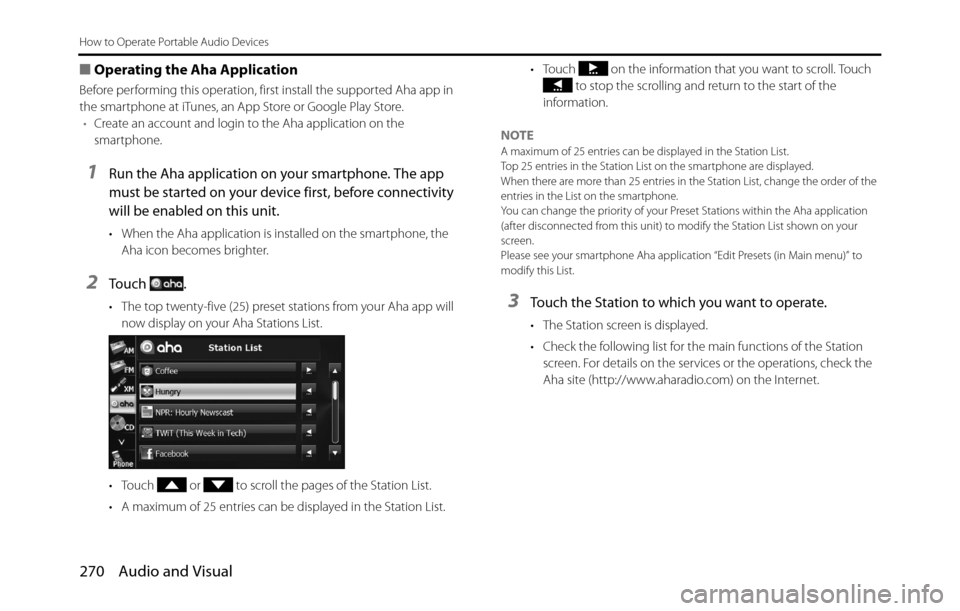
2To u c h .
• The top twenty-five (25) preset stations from your Aha app will
now display on your Aha Stations List.
• Touch or to scroll the pages of the Station List.
• A maximum of 25 entries can be displayed in the Station List.• Touch on the information that you want to scroll. Touch
to stop the scrolling and return to the start of the
information.
NOTE
A maximum of 25 entries can be displayed in the Station List.
Top 25 entries in the Station List on the smartphone are displayed.
When there are more than 25 entries in the Station List, change the order of the
entries in the List on the smartphone.
You can change the priority of your Preset Stations within the Aha application
(after disconnected from this unit) to modify the Station List shown on your
screen.
Please see your smartphone Aha application “Edit Presets (in Main menu)” to
modify this List.
3Touch the Station to which you want to operate.
• The Station screen is displayed.
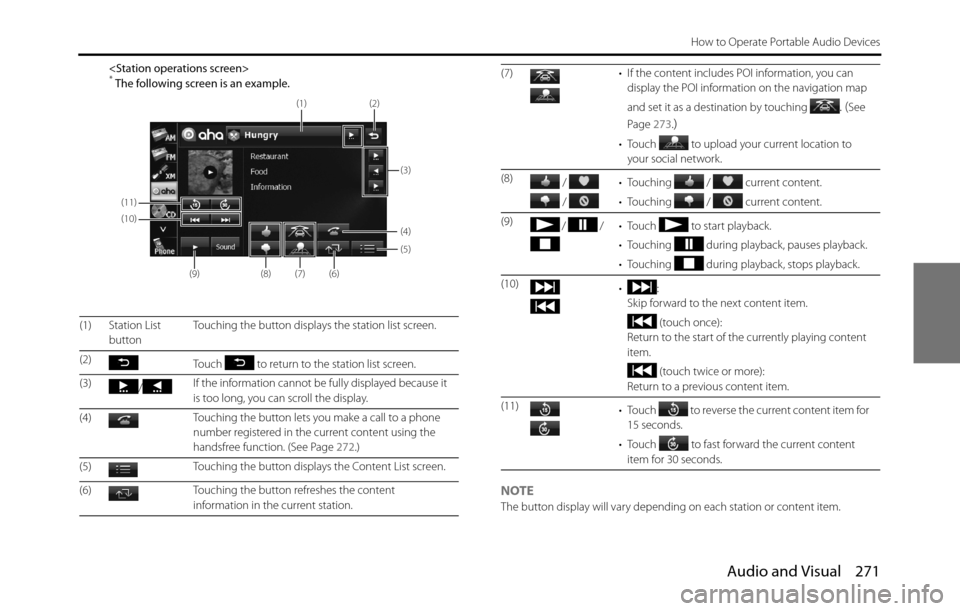
• Check the following list for the main functions of the Station
screen. For details on the services or the operations, check the
Aha site (http://www.aharadio.com) on the Internet.
Page 273 of 334
Audio and Visual 271
How to Operate Portable Audio Devices
NOTEThe button display will vary depending on each station or content item. (1) Station List
buttonTouching the button displays the station list screen.
(2)
Touch to return to the station list screen.
(3)
/If the information cannot be fully displayed because it
is too long, you can scroll the display.
(4) Touching the button lets you make a call to a phone
number registered in the current content using the
handsfree function. (See Page 272.)
(5) Touching the button displays the Content List screen.
(6) Touching the button refreshes the content
information in the current station.
(11)
(10)
(9)
(8)(7)(6)
(5) (4)
(3) (2)
(1)
(7) • If the content includes POI information, you can
display the POI information on the navigation map
and set it as a destination by touching
. (See
Page 273.
)
• Touch to upload your current location to
your social network.
(8)
/
/ • Touching / current content.
• Touching / current content.
(9)
/ / • Touch to start playback.
• Touching during playback, pauses playback.
• Touching during playback, stops playback.
(10)
•:
Skip forward to the next content item.
(touch once):
Return to the start of the currently playing content
item.
(touch twice or more):
Return to a previous content item.
(11)
• Touch to reverse the current content item for
15 seconds.
• Touch to fast forward the current content
item for 30 seconds.
Page 274 of 334
272 Audio and Visual
How to Operate Portable Audio Devices
■Selecting from the content item list
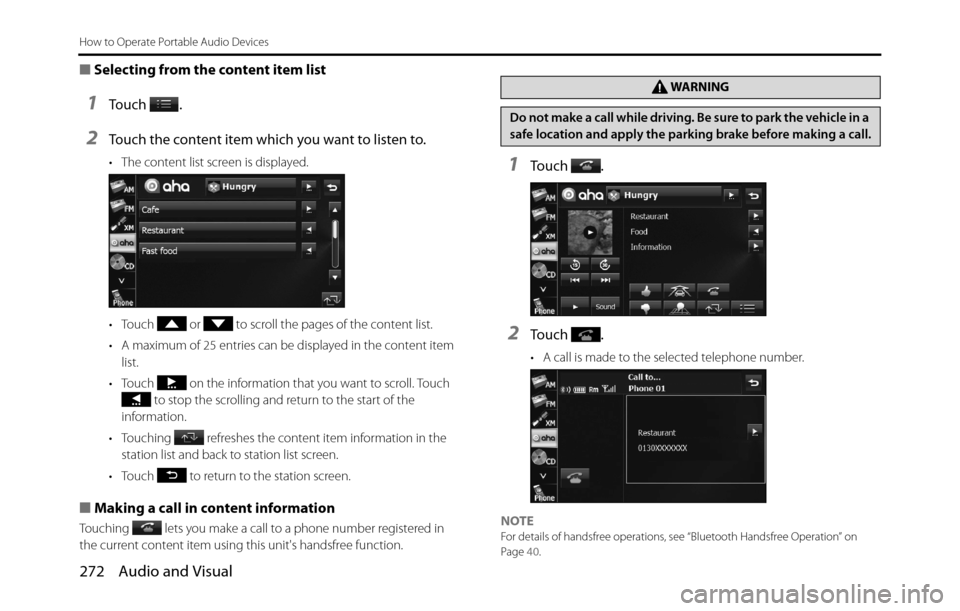
1To u c h .
2Touch the content item which you want to listen to.
• The content list screen is displayed.
• Touch or to scroll the pages of the content list.
• A maximum of 25 entries can be displayed in the content item
list.
• Touch on the information that you want to scroll. Touch
to stop the scrolling and return to the start of the
information.
• Touching refreshes the content item information in the
station list and back to station list screen.
• Touch to return to the station screen.
■Making a call in content information
Touching lets you make a call to a phone number registered in
the current content item using this unit's handsfree function.
1To u c h .
2To u c h .
• A call is made to the selected telephone number.
NOTE
For details of handsfree operations, see “Bluetooth Handsfree Operation” on
Page 40.
WA R N I N G
Do not make a call while driving. Be sure to park the vehicle in a
safe location and apply the parking brake before making a call.
Page 284 of 334
282 Other
Other Operations
MP3/WMA player
operations*1()
()File selection
buttons• Selects the next file, previous file, or start of the
current file.
• Selects the next or previous folder.Press ( ) or ( ) briefly to select the next or previous
file.
Press and hold ( ) or ( ) to select the next or previous
folder.
USB operations
*1()
()File selection
buttons• Selects the next file, previous file, or start of the
current file.
• Selects the next or previous folder.Press ( ) or ( ) briefly to select the next or previous
file.
Press and hold ( ) or ( ) to select the next or previous
folder.
iPod and
BT-Audio
operations
*1
()
()Track selection
buttons• Selects the next track, previous track, or start of the
current track.
• Fast forwarding or fast reversingPress ( ) or ( ) briefly to select the next or previous
track.
Press and hold ( ) or ( ) to fast forward or fast reverse
the track.
Bluetooth
handsfree
operations
*1
()On Hook • Ending a call.
• Canceling a call.
• Refuse the incoming call.
• Holding the incoming call.
*2
Press briefly to end a call or cancel a call.
Press and hold to end the all call.
When in incoming call, press briefly to hold the
incoming call.
()Off Hook • Selects the telephone mode.
• Making a call.
• Receiving the incoming call.
• Connecting the call on hold.Press briefly to make or receive a call. When in a
different mode, changes to the telephone mode.
On the incoming call on hold, press briefly to
receive a call.
*1 Enabled only when operation is possible
*2 The Holding function is only available on the operation on the cell phone side.
Operation Button Name Function Explanation of operation
Page 285 of 334

Other 283
Other Operations
Voice Control System Operations
About the Voice Control System
By using the voice control system (voice input microphone and
button), you can perform navigation and audio operation by saying
voice commands. This enables you to use functions that are usually
inoperable while driving.
The voice control system may not recognize the voice command if you
do not say it correctly.
Be aware of the following points that will assist correct recognition.
•Speak after you hear the “beep”. If you speak before or at the same
time as the “beep”, your command will not be recognized.
•Speak in a loud and clear voice.
•Some voices may be difficult to recognize.
•Keep the windows closed as much as possible while speaking. Noise
such as wind or other external sounds may prevent correct
recognition. Also, if the air conditioner fan is too loud, it may prevent
correct recognition.
•The system does not support regional variations or alternative
phrases. Be sure to say the specified phrases.Under the following conditions, the voice recognition mode will be
turned off:
•Within 8 seconds after guidance, talkback or help voice finishes
playing, no voice is recognized.
( When the screen is operated, counting of 8 seconds starts again
after the screen is touched.)
•The voice recognition button is pressed and held.
•The Steering button or Hard button (excluding the Voice
Recognition button) is pressed.
•A call is received.
NOTE
When voice recognition is started, the current audio output is muted or paused.
Page 288 of 334

286 Other
Other Operations
• (Next):
Display the next page of the command list.
(AV Operation):
Display the command list for the current audio operation. (Only
when an audio source is being used.)
(AV Source):
Display the audio source command list.
(Phone):
Display the handsfree operation command list. (Only during
handsfree connection.)
(Navigation):
Display the navigation operation command list.
3Check the command that you want to use in the
command list.
• You can perform the operation by saying the displayed
command.
Examples of Using the Voice Control System
This section describes examples of operating the voice control system.
For the voice commands, see “Voice Command Lists” on Page 290.
The notations used in the commands are as follows.
•
•J ccc: Names to be spoken
■Changing the audio mode
1Perform a voice input for the audio mode to which you
want to change. (USB in this example.)
• Say “USB”.
• The mode changes to USB.
■Changing the radio frequency
1Say “Seek up“.
• The current frequency switches to the next receivable
frequency.
• Saying “Seek down“ switches the current frequency to the
previous receivable frequency.
Next
AV Operation
AV Source
Phone
Navigation
Page 290 of 334
288 Other
Other Operations
■Specifying a folder
(Switching USB folders)
1Say “Folder”.
• After you hear “Folder” spoken back to you, the current mode
changes to the folder specification mode.
( The screen also changes.)
2After the voice guidance, say the name of the folder that
you want to play.
• Starting from the first track of the specified folder, all tracks in
the folder will be switched from one to the next after your voice
command.
* iPod mode allows you to specify the desired music track from artist,
genre or playlist.
* A maximum of 1000 music tracks can be specified (when specifying
from genre or playlist, a maximum of 100).
■ Making a call with the phone book
1Say “Phone”.
• After you hear “Handsfree” spoken back to you, the current
mode changes to the handsfree menu mode.
( The screen also changes.)
2After the voice guidance, say “Call
• If there are multiple candidates, follow the voice guidance and
say a list number.
• If there are multiple telephone numbers, follow the voice
guidance and say a location.
• Under the following conditions, some of registered names and
telephone numbers will be deleted from the multiple
candidates.
- When multiple registered names of completely identical characters
are found, the first name to be found will be the candidate.
- When there are multiple identical locations registered in one phone
book, the first location to be found will be the candidate.
3After notifying the name of the person you want to call
by the voice guidance, if you hear the name of the right
person spoken back to you, say “Yes”.
• A call is made to the selected person's telephone number.
• If the name of the selected person is wrong, say “No”.
Page 292 of 334

290 Other
Other Operations
Voice Command Lists
The navigation or audio control function enables you to operate the
navigation or audio system by voice, using the voice input microphone
and button. This section shows the voice command lists for voice
control operations.
The notations used in the commands are as follows.
•[ ]: Commands that need not to be spoken
•
•Jccc: Commands to be spoken after the voice guidance
■Commands for changing the audio mode
Enabled in all screens.
■Command for changing to the handsfree mode
Enabled in all screens.
■Command for changing to the navigation mode
Enabled in all screens.
Voice
commandPhrase Function
AM [ ] AMSets to AM mode
FM [ ] FMSets to FM mode
SAT [ ] Satellite radioSets to XM mode
Aha
*[] Aha, []
Aha RadioSets to Aha mode
CD
*[] CDSets to CD mode
USB*[] USBSets to USB mode
iPod*[] iPodSets to iPod mode
BTA [ ] Bluetooth
audio, [] BTASets to Bluetooth audio mode
AUX
*[] Auxiliary,
[] ox, [] AUXSets to AUX mode
Play
Play
Play
PlayPlay
Play
Play
Play
PlayPlay
PlayPlayPlay
Audio OFFAudio offTurns the audio system off
RadioRadioSets to radio mode (Changes to
the last mode used: FM, AM, or
satellite radio.)
* Enabled only when operation is possible
Voice
commandPhrase Function
PhoneHandsfree, PhoneSets to handsfree mode
Voice
commandPhrase Function
NavigationNavigationChanges to the Navigation screen Voice
commandPhrase Function