2017 RENAULT TALISMAN air
[x] Cancel search: airPage 8 of 130

1.2
GENERAL DESCRIPTION (1/2)
Home screens
A Time.
B “Connectivity” shortcut: access to in- formation about the R-Link Store and
the Bluetooth devices connected.
C “Audio sources” shortcut: access to the screen of the audio source cur-
rently in use.
D Page indicator: quickly swipe the content area to change page.
Menu
A
B
H
G
ED
Camille
F
H Access to options (pop-up menu):
– “Change home pages”: refer to
the section on “Add, manage widg-
ets”;
– “Change profile”;
– “Change theme”: you can change
the clock style;
– “Date and time”;
– “Black screen”: the multimedia
system screen goes black but is still
active.
I Information and access to the air conditioning settings menu.
Please refer to the driver’s hand- book for further information.
J Access to main menu.
K Selected user profile. To configure the user profile, refer to the section
entitled “System”.
L Page content.
Note: You can change the configura-
tion of the home page as well as the
clock format. For further information on
configuration, please refer to the sec-
tion on “Add, manage widgets”.
Menu
ADF
HJII
Camille
LL
G20
K
J
CBC
K
E Notifications (telephone and apps).
Press E to view the notifications list.
F Telephone information (network and battery): press area F for direct
access to the telephone menu.
G Exterior temperature.
I
Page 19 of 130
1.13
OPERATING PRINCIPLES (5/5)
12
Menu
Phone Multimedia
Apps
Navigation
Vehicle System
Log In
Presentation of the
instructions provided with
your multimedia system
You can view the instructions for your
“R-Link 2” multimedia system from
the multimedia screen by pressing the
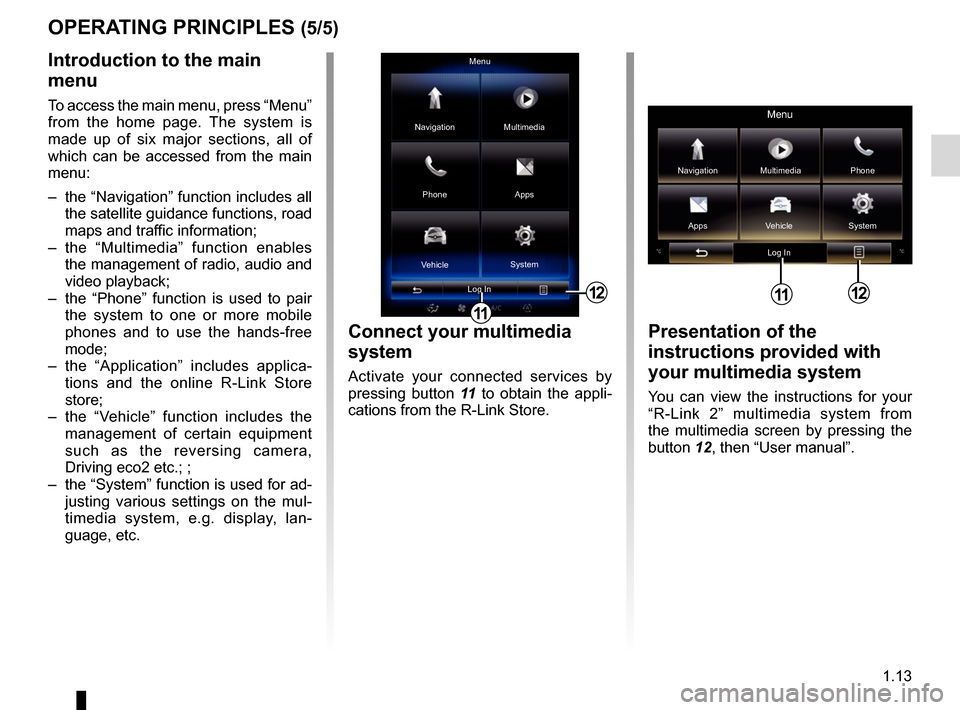
button 12, then “User manual”.
Menu
Navigation Multimedia
Phone
Apps Vehicle System
Log In
12
Introduction to the main
menu
To access the main menu, press “Menu”
from the home page. The system is
made up of six major sections, all of
which can be accessed from the main
menu:
– the “Navigation” function includes all the satellite guidance functions, road
maps and traffic information;
– the “Multimedia” function enables the management of radio, audio and
video playback;
– the “Phone” function is used to pair the system to one or more mobile
phones and to use the hands-free
mode;
– the “Application” includes applica- tions and the online R-Link Store
store;
– the “Vehicle” function includes the management of certain equipment
such as the reversing camera,
Driving eco2 etc.; ;
– the “System” function is used for ad- justing various settings on the mul-
timedia system, e.g. display, lan-
guage, etc.
Connect your multimedia
system
Activate your connected services by
pressing button 11 to obtain the appli-
cations from the R-Link Store.
11
11
Page 40 of 130
2.8
“Points of interest”
A point of interest (POI) is a serv-
ice, establishment or even a tour-
ist area close to a location (start
point, destination city, en route,
etc.).
Points of Interest are listed by cat-
egory: restaurants, museums, car
parks, etc.
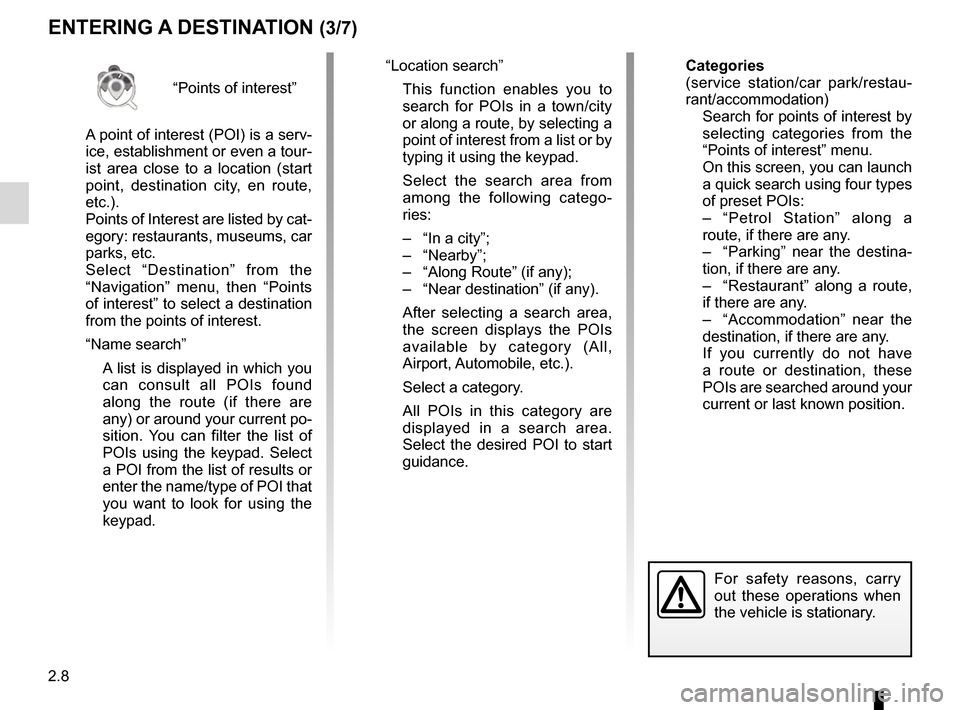
Select “Destination” from the
“Navigation” menu, then “Points
of interest” to select a destination
from the points of interest.
“Name search”
A list is displayed in which you can consult all POIs found
along the route (if there are
any) or around your current po-
sition. You can filter the list of
POIs using the keypad. Select
a POI from the list of results or
enter the name/type of POI that
you want to look for using the
keypad.
ENTERING A DESTINATION (3/7)
For safety reasons, carry
out these operations when
the vehicle is stationary.
“Location search”
This function enables you to search for POIs in a town/city
or along a route, by selecting a
point of interest from a list or by
typing it using the keypad.
Select the search area from among the following catego-
ries:
– “In a city”;
– “Nearby”;
– “Along Route” (if any);
– “Near destination” (if any).
After selecting a search area, the screen displays the POIs
available by category (All,
Airport, Automobile, etc.).
Select a category.
All POIs in this category are displayed in a search area.
Select the desired POI to start
guidance. Categories
(service station/car park/restau-
rant/accommodation)
Search for points of interest by
selecting categories from the
“Points of interest” menu.
On this screen, you can launch a quick search using four types
of preset POIs:
– “Petrol Station” along a route, if there are any.
– “Parking” near the destina- tion, if there are any.
– “Restaurant” along a route, if there are any.
– “Accommodation” near the destination, if there are any.
If you currently do not have a route or destination, these
POIs are searched around your
current or last known position.
Page 73 of 130

4.1
Phone
Pairing/unpairing a telephone . . . . . . . . . . . . . . . . . . . . . . . . . . . . . . . . . . . .\
. . . . . . . . . . . . . . . . . . 4.2
Connecting/disconnecting a telephone . . . . . . . . . . . . . . . . . . . . . . . . . . . . . . . . . . . . \
. . . . . . . . . . . 4.4
Phone call . . . . . . . . . . . . . . . . . . . . . . . . . . . . . . . . . . . .\
. . . . . . . . . . . . . . . . . . . . . . . . . . . . . . . . . 4.6
Phonebook . . . . . . . . . . . . . . . . . . . . . . . . . . . . . . . . . . . .\
. . . . . . . . . . . . . . . . . . . . . . . . . . . . . . . . 4.8
Call log. . . . . . . . . . . . . . . . . . . . . . . . . . . . . . . . . . . . \
. . . . . . . . . . . . . . . . . . . . . . . . . . . . . . . . . . . . 4.9
Dial number . . . . . . . . . . . . . . . . . . . . . . . . . . . . . . . . . . . . \
. . . . . . . . . . . . . . . . . . . . . . . . . . . . . . . . 4.10
SMS . . . . . . . . . . . . . . . . . . . . . . . . . . . . . . . . . . . . \
. . . . . . . . . . . . . . . . . . . . . . . . . . . . . . . . . . . . . . 4.11
Voice mail . . . . . . . . . . . . . . . . . . . . . . . . . . . . . . . . . . . .\
. . . . . . . . . . . . . . . . . . . . . . . . . . . . . . . . . 4.12
Phone Settings . . . . . . . . . . . . . . . . . . . . . . . . . . . . . . . . . . . .\
. . . . . . . . . . . . . . . . . . . . . . . . . . . . . 4.13
Page 74 of 130
4.2
PAIRING, UNPAIRING A TELEPHONE (1/2)
– select your phone on the proposed list.
Your phone is now paired to the multi-
media system.
Depending on the model, and if
the system so requests, enter the
Bluetooth® code on your telephone to
pair it to the multimedia system, or con-
firm the pairing request.
Your phone may ask for authorisation
to share your contacts, call logs and
media.
Accept sharing to find this information
on the multimedia system.
"Discovery mode"
When the multimedia system searches
for a telephone, press the button
Discovery mode to make the multime-
dia system visible to other Bluetooth®
devices for a short period of time. This
function enables your phone to be
paired to the multimedia system via
your phone.
For more information about activating
the visible status of your phone, please
refer to your telephone instructions.
Searching device
No
To use the hands-free features, you need to establish a Bluetooth connection between
your phone and your system. Do you want to do that now ?
OK
For safety reasons, carry
out these operations when
the vehicle is stationary.
Pairing the first telephone
To use your hands-free system, pair
your Bluetooth® mobile phone with the
vehicle. Check that the Bluetooth® of
your mobile phone is activated and set
its status to “visible”.
From the main menu of your multime-
dia system:
– press “Phone”.
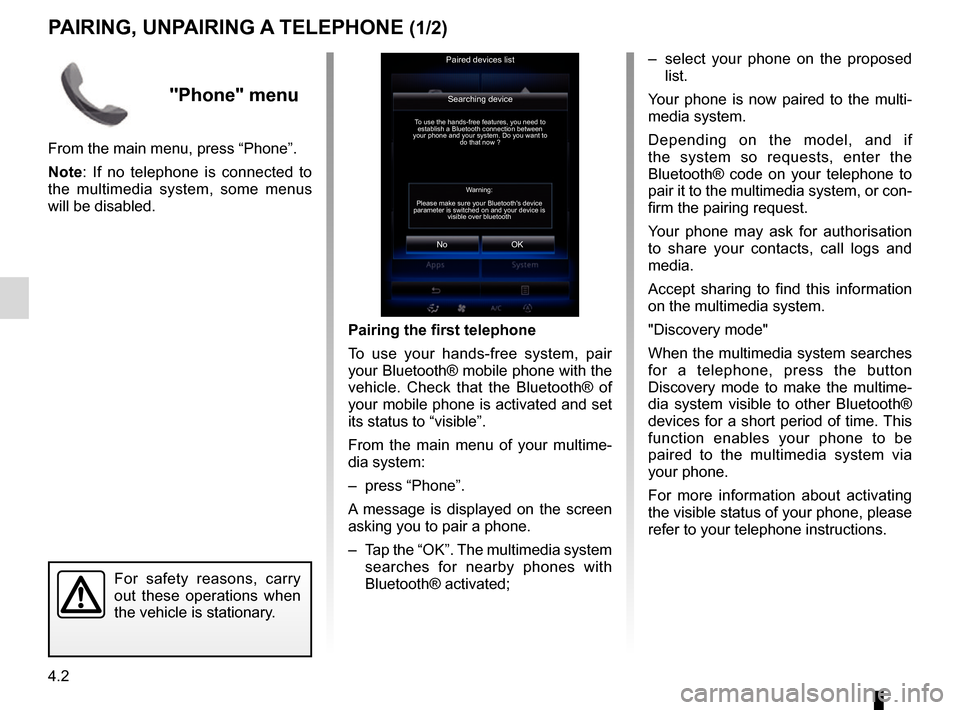
A message is displayed on the screen
asking you to pair a phone.
– Tap the “OK”. The multimedia system
searches for nearby phones with
Bluetooth® activated;
Paired devices list
Warning:
Please make sure your Bluetooth's device
parameter is switched on and your device is visible over bluetooth
"Phone" menu
From the main menu, press “Phone”.
Note: If no telephone is connected to
the multimedia system, some menus
will be disabled.
Page 75 of 130
4.3
Pairing another telephone
To pair a new telephone to the system:
– Activate the Bluetooth® connection on your telephone and set its status
to “visible”.
– From the main menu of the mul- timedia system, press “Phone”,
“Settings”, “Paired devices list” then
“Add device” at the bottom of the
screen.
A message is displayed on the screen
asking you to confirm the device search.
– Confirm by pressing “OK”.
The multimedia system searches for
nearby phones with Bluetooth® acti-
vated.
– Select your telephone from the list of devices detected.
Your phone is now paired to the multi-
media system.
Depending on the model, and if
the system so requests, enter the
Bluetooth® code on your telephone to
pair it to the multimedia system, or con-
firm the pairing request.
PAIRING, UNPAIRING A TELEPHONE (2/2)
Unpairing a phone
To unpair a telephone from the multi-
media system:
– from the main menu select “Phone”, “Settings” then “Paired devices list”.
– From the list of paired telephones on the “Paired devices list” menu, press
the pop-up menu button and select
“Delete devices”.
– Select the device(s) to delete a telephone from the list then press
“Delete”.
Note: If you want to delete all the paired
devices, press the pop-up menu button,
then "Select All" and "Delete".
Your phone may ask for authorisation
to share your contacts, call logs and
media. Accept sharing to find this infor-
mation on the multimedia system.
Note: The multimedia system can save
up to six telephones.
You can pair two phones simulta-
neously: one for multimedia and an-
other for calling.
Page 76 of 130
4.4
Note: Upon the automatic connec-
tion of your telephone to the multime-
dia system, data downloads (phone-
book, music, contacts, etc.) will only be
enabled if you previously allowed data
sharing when pairing your telephone to
the multimedia system. For further in-
formation, please refer to the section on
“Pairing and unpairing a telephone”.
CONNECTING/DISCONNECTING A TELEPHONE (1/2)
Connecting a telephone
No phone can be connected to the
hands-free phone system if it has not
first been paired. For further informa-
tion, please refer to the section on
“Pairing and unpairing a telephone”.
Your phone must be connected to the
hands-free phone system in order to
use all its functions.
Automatic connection
Once the multimedia system is started,
the hands-free phone system searches
for any paired phones with Bluetooth®
activated nearby. The system auto-
matically downloads the data for the
last telephone connected (phonebook,
music, etc.).
Note: if a call is ongoing while the tele-
phone is being connected, it will auto-
matically be transferred to the vehicle
loudspeakers.
Changing a connected telephone
To change the connected telephone,
you will first have to pair more than one
telephone.
– Select Phone from the main menu, Settings then Paired devices list;
– Press on the telephone you wish to connect.
You will find the list of phones already
paired.
Note: for more information on com-
patible phones, contact an authorised
dealer or visit the manufacturer’s web-
site if available.
Page 77 of 130
4.5
CONNECTING/DISCONNECTING A TELEPHONE (2/2)Disconnect a phone
From the “Phone” menu, press
“Settings” then press “Paired devices
list”.
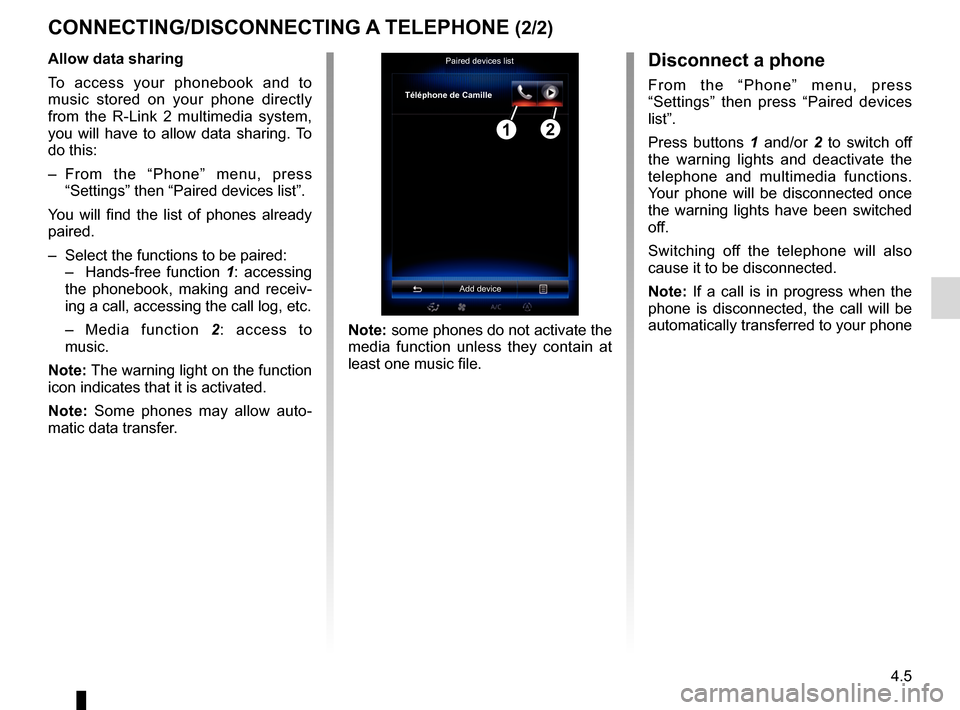
Press buttons 1 and/or 2 to switch off
the warning lights and deactivate the
telephone and multimedia functions.
Your phone will be disconnected once
the warning lights have been switched
off.
Switching off the telephone will also
cause it to be disconnected.
Note: If a call is in progress when the
phone is disconnected, the call will be
automatically transferred to your phone
Note: some phones do not activate the
media function unless they contain at
least one music file.
Allow data sharing
To access your phonebook and to
music stored on your phone directly
from the R-Link 2 multimedia system,
you will have to allow data sharing. To
do this:
– From the “Phone” menu, press
“Settings” then “Paired devices list”.
You will find the list of phones already
paired.
– Select the functions to be paired:
– Hands-free function 1: accessing
the phonebook, making and receiv-
ing a call, accessing the call log, etc.
– Media function 2: access to
music.
Note: The warning light on the function
icon indicates that it is activated.
Note: Some phones may allow auto-
matic data transfer.Paired devices list
Téléphone de Camille
Add device
12