Page 54 of 130
2.22
“Visual guidance”
This menu displays information relating
to your route on the navigation screen.
“Data fields”
The data fields in the corner of the
navigation screen can be custom-
ised. Select this option and choose the
values you want to see. The values
can differ depending on whether you
are following a route or whether you
are travelling without a set destination.
You can choose to display the remain-
ing distance to your destination/next
waypoint, the remaining time until you
reach your destination/next waypoint,
or the estimated arrival time for your
destination/next waypoint. “Signposts”
Whenever relevant information is avail-
able, such as information similar to that
displayed on road signs, it will be dis-
played in the upper section of the map.
You can turn this feature on or off.
“Junction view”
If you are approaching a motorway
junction or a complex crossroads and
the necessary information exists, the
map is replaced with a 3D view of the
junction. You can activate this function
or keep the standard display through-
out your route.
NAVIGATION SETTINGS (4/4)
For safety reasons, carry
out these operations when
the vehicle is stationary.
“Tunnel view”
When entering a tunnel, the surface
roads and buildings can count as a dis-
turbance. This feature shows a generic
image of a tunnel instead of the map.
A top-down overview of the tunnel and
the remaining distance to the tunnel
exit are also displayed.
To reset your data and go back
to the default settings, press the
pop-up menu button, then Reset.
Page 71 of 130
3.17
“Sound”
This menu allows you to configure
the different sound settings.
“Sound ambiance”
This function enables you to select a
musical environment from the follow-
ing presets:
– “Neutral”;
– “Live”;
– “Club”;
– “Lounge”.
Note: You can launch a demonstra-
tion mode that allows you to hear the
sound without Arkamys sound en-
hancement treatment.
“Bass Boost”
This function increases the bass.
Balance / Fader
centered Front Manual
1
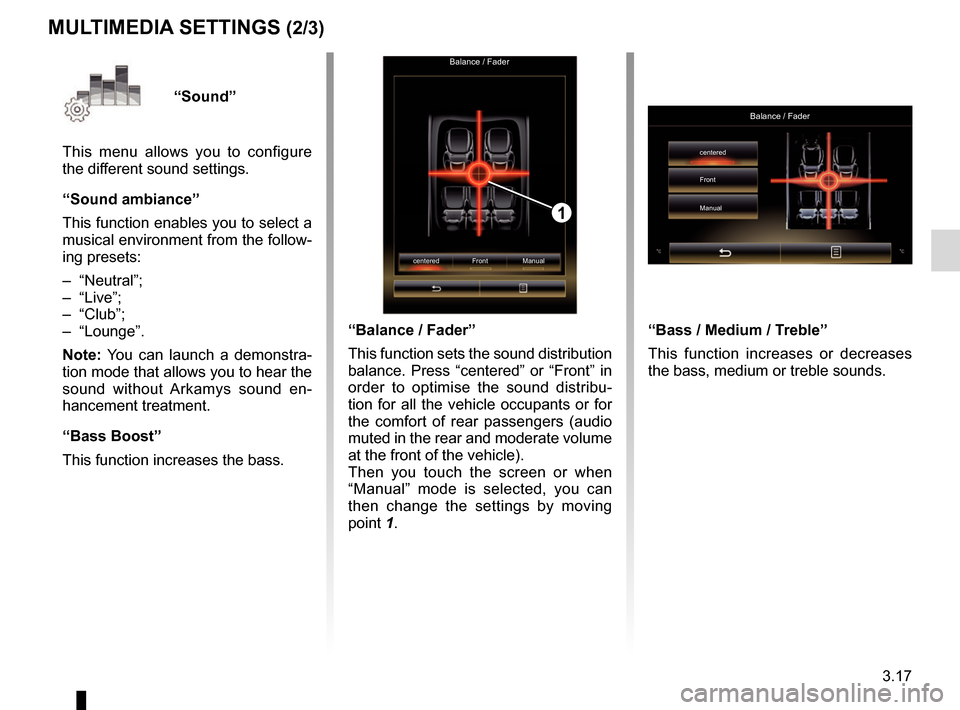
“Balance / Fader”
This function sets the sound distribution
balance. Press “centered” or “Front” in
order to optimise the sound distribu-
tion for all the vehicle occupants or for
the comfort of rear passengers (audio
muted in the rear and moderate volume
at the front of the vehicle).
Then you touch the screen or when
“Manual” mode is selected, you can
then change the settings by moving
point 1.
MULTIMEDIA SETTINGS (2/3)
“Bass / Medium / Treble”
This function increases or decreases
the bass, medium or treble sounds.
Balance / Fader
centered
Front
Manual
Page 100 of 130
6.4
SEATS (2/3)
One-touch foldingAll
FoldSettings
Courtesy for passenger seat
Position On
On
“One-touch folding”
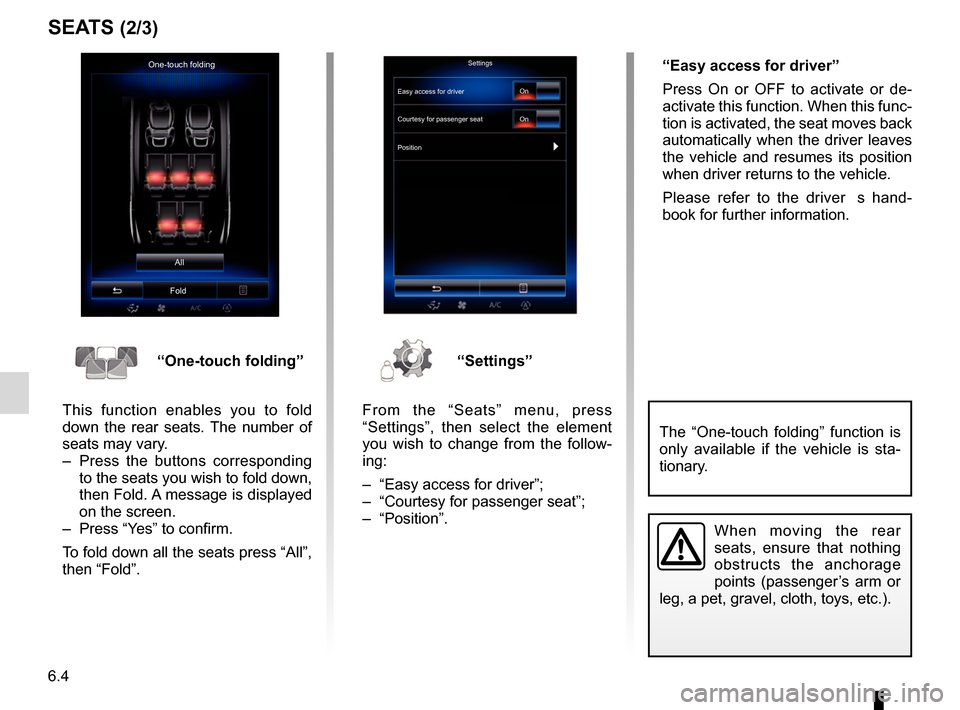
This function enables you to fold
down the rear seats. The number of
seats may vary.
– Press the buttons corresponding to the seats you wish to fold down,
then Fold. A message is displayed
on the screen.
– Press “Yes” to confirm.
To fold down all the seats press “All”,
then “Fold”.“Settings”
From the “Seats” menu, press
“Settings”, then select the element
you wish to change from the follow-
ing:
– “Easy access for driver”;
– “Courtesy for passenger seat”;
– “Position”. “Easy access for driver”
Press On or OFF to activate or de-
activate this function. When this func-
tion is activated, the seat moves back
automatically when the driver leaves
the vehicle and resumes its position
when driver returns to the vehicle.
Please refer to the driver�s hand-
book for further information.
When moving the rear
seats, ensure that nothing
obstructs the anchorage
points (passenger’s arm or
leg, a pet, gravel, cloth, toys, etc.).
The “One-touch folding” function is
only available if the vehicle is sta-
tionary.
Easy access for driver