2017 RENAULT TALISMAN set point
[x] Cancel search: set pointPage 29 of 130
1.23
USING VOICE RECOGNITION (6/9)
“Points of interest”
To search for a point of interest using
voice control:
– press the voice control button to dis-play the main voice control menu;
– say “Destination” after the beep;
– after a second bleep, say “points of interest”;
– search for a point of interest (petrol station, car park etc.);
– search for the place where the place of interest is.
For further information about using
points of interest, please refer to the
section on “Entering a destination”.Using favourites with voice
recognition
The favourite contacts added to your
home pages with a saved telephone
number or address can be called di-
rectly using voice recognition. To do
this:
– press the voice control button to dis- play the main voice control menu;
– say “Display my favourites” after the beep.
The system displays the saved
favourite(s).
– Say the “favourite” you want to use (e.g.: if the “Favourites” saved is
“Jane”, say “Call Jane” or “Go to
Jane”).
Controlling radio with voice
recognition
You can activate the radio using the
voice control included in your multime-
dia system. To do this:
– press the voice control button to dis-play the main voice control menu;
– say “Radio” after the beep, then the radio band you wish to listen to (FM
or AM):
– “FM";
– “AM";
– “DR".
– Say the desired frequency (for exam- ple “Listen to 94.4”) or your choice
of search mode to find a radio sta-
tion: stations (not available for AM)
or "Presets” (for example “Listen to
preset 1”);
To change the band while listening, say
“change band” in the radio menu.
Page 36 of 130
2.4
– “Vehicle gallery”: you can change the default position
marker. Scroll through the different
markets (3D vehicles) by pressing
the left and right arrows located at
the top of the screen.
To select a marker, press “Back” below the required vehicle.
– “Landmarks”: when this func- tion is activated, the map shows
3D representations of landmarks,
3D artistic representations or 3D
models of prominent or well-known
sites.
– “Buildings”: when this function is activated, the map shows town/
cities in 3D as well as artistic rep-
resentations in 3D or 3D block rep-
resentations of all urban buildings
including the actual building size
and position on the map.
– “Elevations”: when this function is activated, the map shows a 3D
representation of the surrounding
area.
MAP (3/4)
For safety reasons, carry
out these operations when
the vehicle is stationary.
Route preferences
The route preferences are restric-tions which affect the route calcu-
lation.
You can activate or deactivate the following elements in the Route
menu:
– “Motorways”: whether to in- clude or exclude motorways along
the route.
– “Toll roads”: whether to include or exclude roads where you have
to pay tolls using toll gates or simi-
lar solutions.
– “Period charge”: whether to in- clude or exclude roads along the
route which have a periodic charge
valid for a certain amount of time.
– “Ferries”: whether to include or exclude ferries (including motorail
trains) along the route.
– “Car shuttle train”: whether or not to include rail freight (transpor-
tation by rail) along the route.
– “Unpaved roads”: whether to include or exclude unpaved roads
along the route. “Map settings”
This menu lets you set the following
items:
– “Route summary”: when acti-
vated, this function allows users
to zoom out and get an overview
of their surroundings when an up-
coming manoeuvre is some dis-
tance away. When you are ap-
proaching the next change of
direction the system returns to the
normal view mode.
– “Automatic motorway view”: choose to activate or disable the
display of the motorway signs.
– “Viewpoint”: select the view re- quired during navigation (“Low”,
“Normal” or “High”).
– “Map colour”: select the re- quired map display mode (“Auto”,
“Day” or “Night”).
Page 40 of 130
2.8
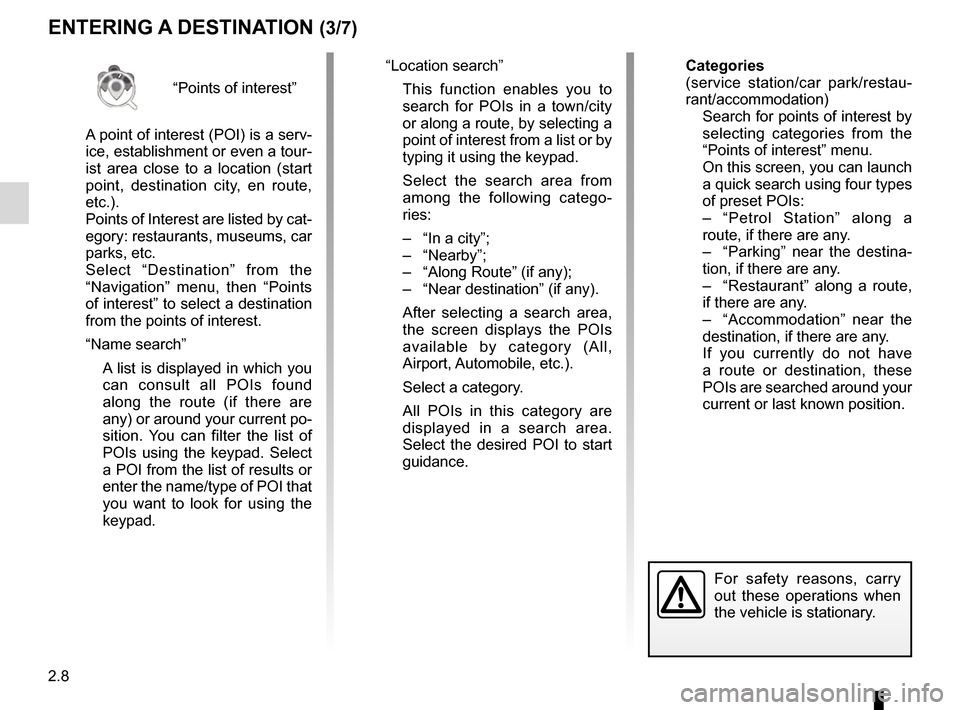
“Points of interest”
A point of interest (POI) is a serv-
ice, establishment or even a tour-
ist area close to a location (start
point, destination city, en route,
etc.).
Points of Interest are listed by cat-
egory: restaurants, museums, car
parks, etc.
Select “Destination” from the
“Navigation” menu, then “Points
of interest” to select a destination
from the points of interest.
“Name search”
A list is displayed in which you can consult all POIs found
along the route (if there are
any) or around your current po-
sition. You can filter the list of
POIs using the keypad. Select
a POI from the list of results or
enter the name/type of POI that
you want to look for using the
keypad.
ENTERING A DESTINATION (3/7)
For safety reasons, carry
out these operations when
the vehicle is stationary.
“Location search”
This function enables you to search for POIs in a town/city
or along a route, by selecting a
point of interest from a list or by
typing it using the keypad.
Select the search area from among the following catego-
ries:
– “In a city”;
– “Nearby”;
– “Along Route” (if any);
– “Near destination” (if any).
After selecting a search area, the screen displays the POIs
available by category (All,
Airport, Automobile, etc.).
Select a category.
All POIs in this category are displayed in a search area.
Select the desired POI to start
guidance. Categories
(service station/car park/restau-
rant/accommodation)
Search for points of interest by
selecting categories from the
“Points of interest” menu.
On this screen, you can launch a quick search using four types
of preset POIs:
– “Petrol Station” along a route, if there are any.
– “Parking” near the destina- tion, if there are any.
– “Restaurant” along a route, if there are any.
– “Accommodation” near the destination, if there are any.
If you currently do not have a route or destination, these
POIs are searched around your
current or last known position.
Page 41 of 130
2.9
ENTERING A DESTINATION (4/7)
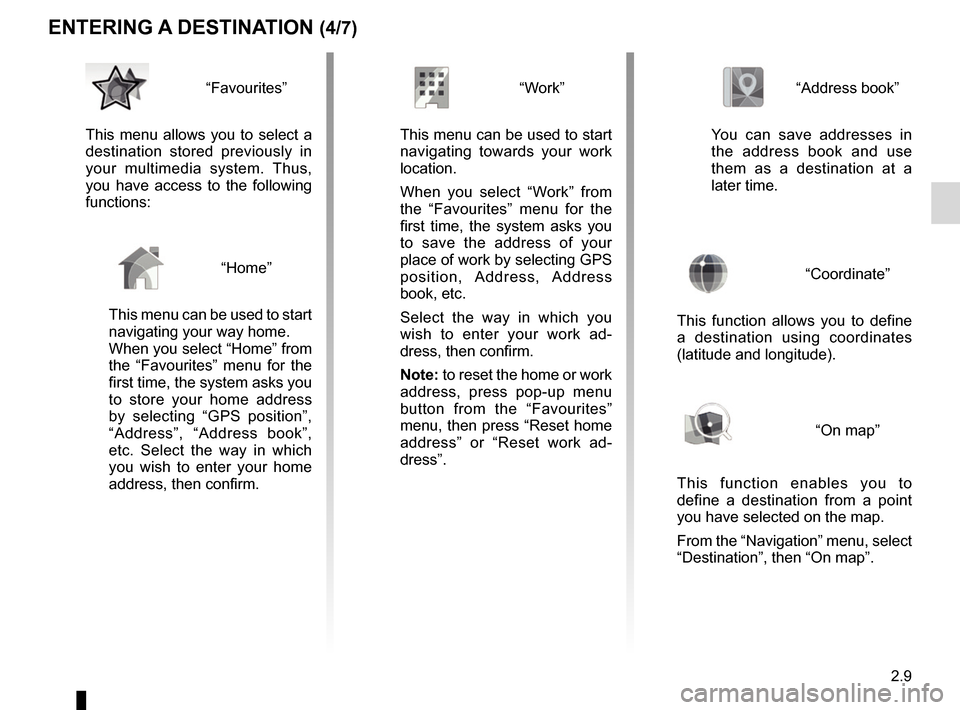
“Address book”
You can save addresses in
the address book and use
them as a destination at a
later time.
“Coordinate”
This function allows you to define
a destination using coordinates
(latitude and longitude).
“On map”
This function enables you to
define a destination from a point
you have selected on the map.
From the “Navigation” menu, select
“Destination”, then “On map”.
“Work”
This menu can be used to start navigating towards your work
location.
When you select “Work” from
the “Favourites” menu for the
first time, the system asks you
to save the address of your
place of work by selecting GPS
position, Address, Address
book, etc.
Select the way in which you
wish to enter your work ad-
dress, then confirm.
Note: to reset the home or work
address, press pop-up menu
button from the “Favourites”
menu, then press “Reset home
address” or “Reset work ad-
dress”.“Favourites”
This menu allows you to select a
destination stored previously in
your multimedia system. Thus,
you have access to the following
functions:
“Home”
This menu can be used to start
navigating your way home.
When you select “Home” from
the “Favourites” menu for the
first time, the system asks you
to store your home address
by selecting “GPS position”,
“Address”, “Address book”,
etc. Select the way in which
you wish to enter your home
address, then confirm.
Page 42 of 130

2.10
ENTERING A DESTINATION (5/7)
Confirming the destination
Once your destination information has
been entered, the system displays a
route summary for confirmation. Press
Select at the bottom of the screen to
confirm. The system will make the cal-
culation.
Note: The calculation criteria can be
modified in the route settings.
At the end of the calculation, the system
displays a navigation summary.
Note: if you do not touch the screen,
this page will close after ten seconds
and guidance will start automatically
if there is no restriction affecting your
journey.
To confirm your destination and acti-
vate guidance, press button Go.
On mapSelect
2
For safety reasons, carry
out these operations when
the vehicle is stationary.
Move around the map to position
the cursor on your destination,
then confirm by pressing “Select”:
the system calculates the route.
Pop-up menu 2
Select a destination as described
previously and then press 2 to
access the following functions:
– “Places around the cursor”;
– “Add to address book”;
– “Information”. “Places around cursor”
This function enables you to find
points of interest around the se-
lected position. You can search,
filter, sort and view all the results
found by the system on the map.
“Add to address book”
This function allows you to save
the selected position in the ad-
dress book.
“Information”
This function enables you to fund
details (address, latitude and lon-
gitude) on the selected position.
Page 47 of 130
2.15
ROUTE (1/4)
Edit route
Current GPS Position
Add
Precautions regarding
navigation
Use of the navigation
system does not in any way
replace the responsibility or vigi-
lance of the driver when driving the
vehicle.
Add
Add
Go
1
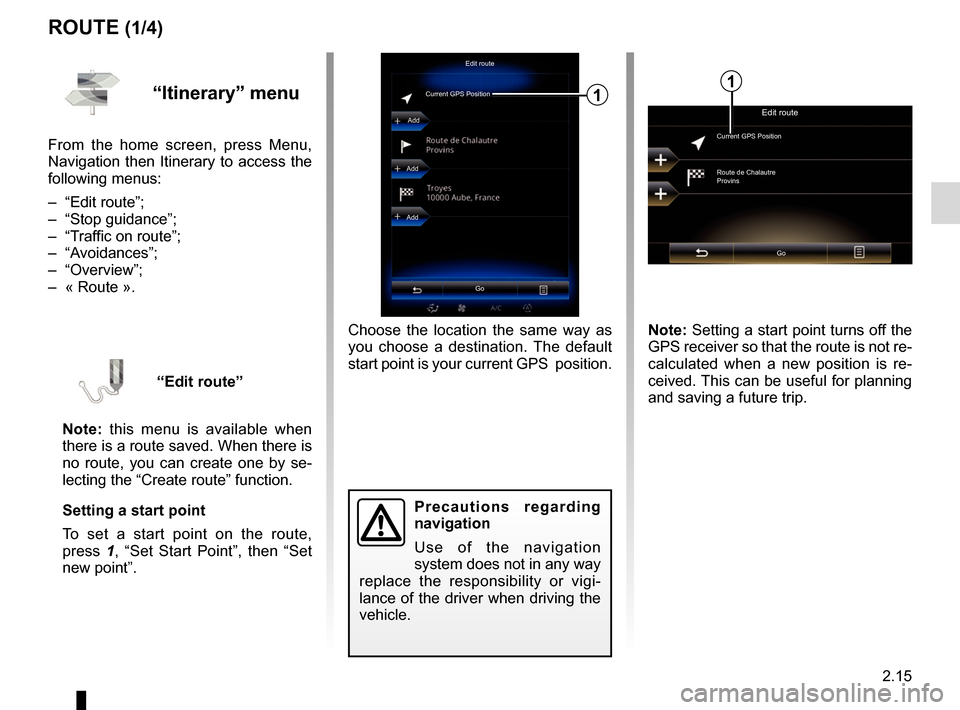
Choose the location the same way as
you choose a destination. The default
start point is your current GPS position.
“Itinerary” menu
From the home screen, press Menu,
Navigation then Itinerary to access the
following menus:
– “Edit route”;
– “Stop guidance”;
– “Traffic on route”;
– “Avoidances”;
– “Overview”;
– « Route ».
“Edit route”
Note: this menu is available when
there is a route saved. When there is
no route, you can create one by se-
lecting the “Create route” function.
Setting a start point
To set a start point on the route,
press 1, “Set Start Point”, then “Set
new point”.
Edit route
Current GPS Position
Route de Chalautre
Provins
Go
Note: Setting a start point turns off the
GPS receiver so that the route is not re-
calculated when a new position is re-
ceived. This can be useful for planning
and saving a future trip.
1
Page 48 of 130
2.16
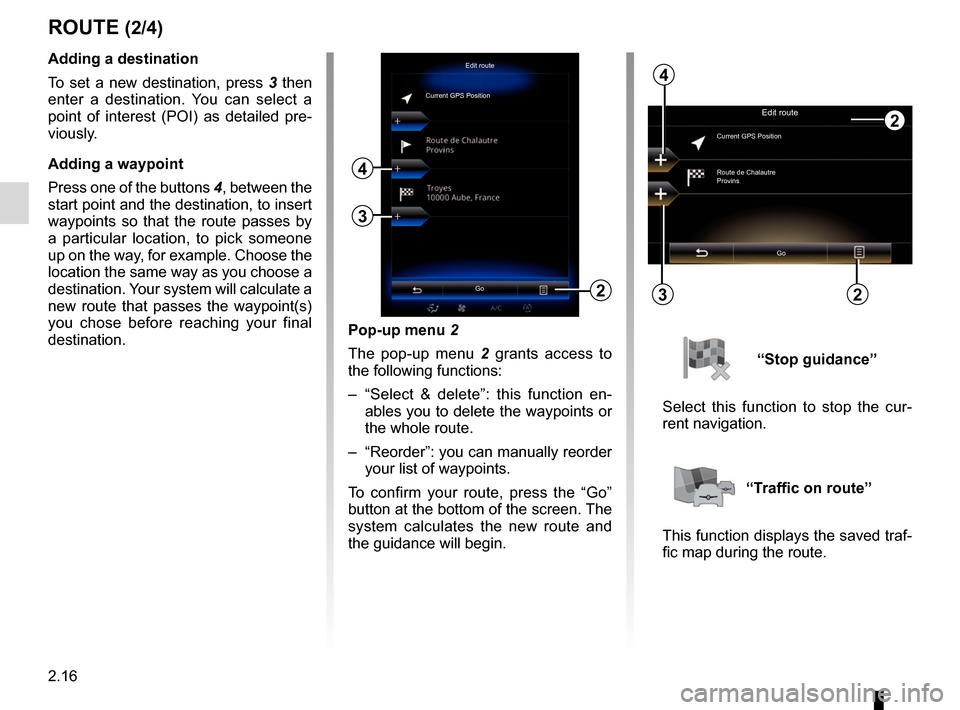
Pop-up menu 2
The pop-up menu 2 grants access to
the following functions:
– “Select & delete”: this function en- ables you to delete the waypoints or
the whole route.
– “Reorder”: you can manually reorder your list of waypoints.
To confirm your route, press the “Go”
button at the bottom of the screen. The
system calculates the new route and
the guidance will begin.
ROUTE (2/4)
2
Edit route
Current GPS PositionAdding a destination
To set a new destination, press 3 then
enter a destination. You can select a
point of interest (POI) as detailed pre-
viously.
Adding a waypoint
Press one of the buttons 4, between the
start point and the destination, to insert
waypoints so that the route passes by
a particular location, to pick someone
up on the way, for example. Choose the
location the same way as you choose a
destination. Your system will calculate a
new route that passes the waypoint(s)
you chose before reaching your final
destination.
3
4
Edit route
Current GPS Position
Route de Chalautre
Provins
Go
3
4
“Stop guidance”
Select this function to stop the cur-
rent navigation.
“Traffic on route”
This function displays the saved traf-
fic map during the route.
Go22
Page 52 of 130
2.20
NAVIGATION SETTINGS (2/4)
“Speed warning”
Maps may contain information about
the speed limits of the road segments.
The navigation system is able to warn
you if you exceed the current limit. This
information may not be available for
your region, or may not be fully correct
for all roads on the map.
The following warning types are avail-
able:
– “Speed limit always visible”: acti-vate this function so that the speed
limit for the section of road taken is
always displayed on the navigation
screen.
– “Speed warning”: the current speed limit is displayed in red and flashes
on the map when you exceed it.
– “Overspeed warning sound”: a beep sounds when you exceed the speed
limit.“Safety warnings”
This function enables you to get a beep
and/or visual warning when you ap-
proach sensitive areas such as near
schools, level crossings, hazardous
areas, etc.
You can programme the navigation
system so that it displays these in-
creased vigilance points on the map,
and so that you can be warned by a
beep when you approach these areas.
For some of these areas, there is a
legal or recommended speed limit. The
beep may differ depending on whether
you are driving under or over the speed
limit.
Choose to be warned when approach-
ing these increased vigilance areas or
only when you are exceeding the speed
limit.
Precautions regarding
navigation
Use of the navigation
system does not in any way
replace the responsibility or vigi-
lance of the driver while driving the
vehicle.
In certain countries it is illegal to ac-
tivate the camera warning option
and this could lead to prosecution.
“Warning sign alerts”
Activate this function to be informed
when approaching specific sections of
road (obstacles, tight corners, cross-
ings, etc.) by road sign displays on
the map screen. For each category
of warning sign, set the warning type
(audio and/or visual) and the distance
from the hazard from which you want to
receive a warning.