2017 RENAULT MEGANE Eco
[x] Cancel search: EcoPage 57 of 96
GB.55
Text information (Radio text)
Some DR radio stations broadcast
text information relating to their pro-
grammes (e.g. song titles).
Note: this information is only available
for certain radio stations.
Digital radio services
From the pop-up menu, press “Digital
radio devices” to access the following
services:
– EPG;
– Intellitext;
– Slideshow.
LISTENING TO THE RADIO (4/5)Radio settings
FM
From one of the three modes, press “+”
then “Radio” to access the radio set-
tings menu. From the radio settings,
you can set the following elements:
– following an FM station;
– activate/deactivate traffic informa-tion;
– activate/deactivate the programme type search;
– update the list of radio stations.
Following a station FM (RDS-AF)
The frequency of an FM radio station
may change depending on the geo-
graphical area.
In order to keep listening to the same
radio station when driving, activate the
RDS-AF function so that your audio
system can automatically retune the
frequency.
EPG (DR) program guide
When this feature is activated, your
audio system will display the station’s
upcoming programs of the day.
Note: This information is only available
for the selected station’s next three
time slots.
Intellitext (DR) function
This feature allows access to text in-
formation recorded on some radio sta-
tions. You can scroll through the text to
display new updates on business, poli-
tics, health, weather and sports.
Slideshow
This function runs through all the photos
as a slideshow.
Page 64 of 96
GB.62
PAIRING AND UNPAIRING A TELEPHONE (1/2)
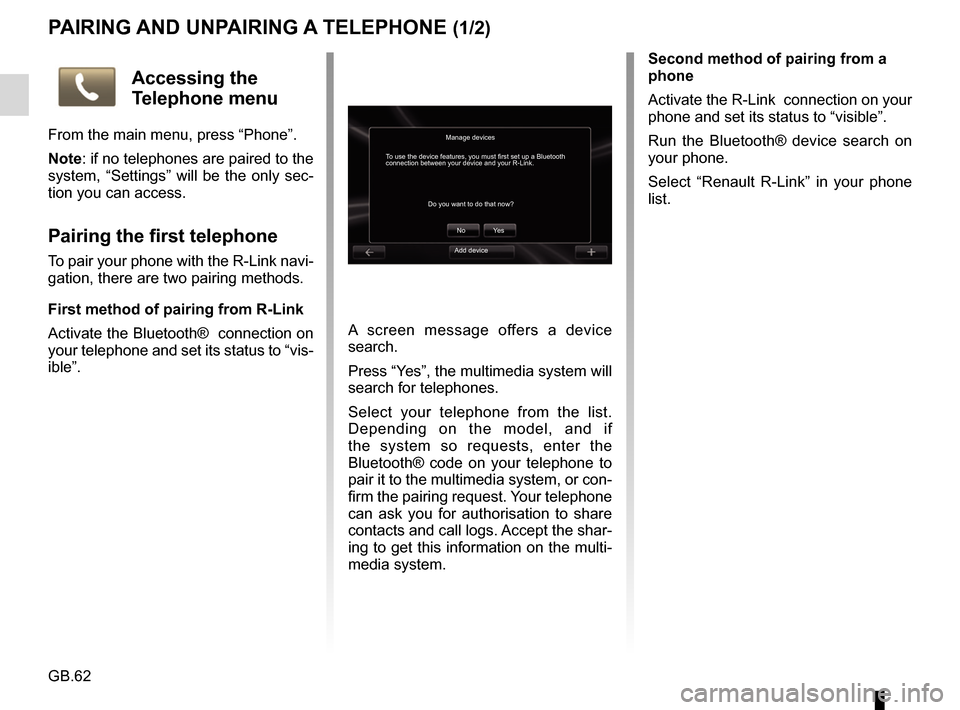
A screen message offers a device
search.
Press “Yes”, the multimedia system will
search for telephones.
Select your telephone from the list.
Depending on the model, and if
the system so requests, enter the
Bluetooth® code on your telephone to
pair it to the multimedia system, or con-
firm the pairing request. Your telephone
can ask you for authorisation to share
contacts and call logs. Accept the shar-
ing to get this information on the multi-
media system.Second method of pairing from a
phone
Activate the R-Link connection on your
phone and set its status to “visible”.
Run the Bluetooth® device search on
your phone.
Select “Renault R-Link” in your phone
list.
Manage devices
No
Do you want to do that now?
To use the device features, you must first set up a Bluetooth
connection between your device and your R-Link.
Ye s
Accessing the
Telephone menu
From the main menu, press “Phone”.
Note: if no telephones are paired to the
system, “Settings” will be the only sec-
tion you can access.
Pairing the first telephone
To pair your phone with the R-Link navi-
gation, there are two pairing methods.
First method of pairing from R-Link
Activate the Bluetooth® connection on
your telephone and set its status to “vis-
ible”.Add device
Page 66 of 96
GB.64
CONNECTING, DISCONNECTING A TELEPHONE
Connecting a paired phone
No phone can be connected to the
hands-free phone system if it has not
first been paired. Please refer to the
information on “Pairing a telephone”
in the “Pairing,unpairing a telephone”
section.
Your phone must be connected to the
hands-free phone system in order to
use all its functions.
For more information on compatible
phones, contact an authorised dealer
or visit the manufacturer’s website if
available.
Automatic connection
Once the ignition is switched on, the
hands-free phone system searches
for paired phones in the vicinity (if the
Bluetooth® connection is activated).
Searching starts with the last paired
telephone.
Note: You are recommended to accept
automatic device recognition.Manual connection (changing the
phone connected)
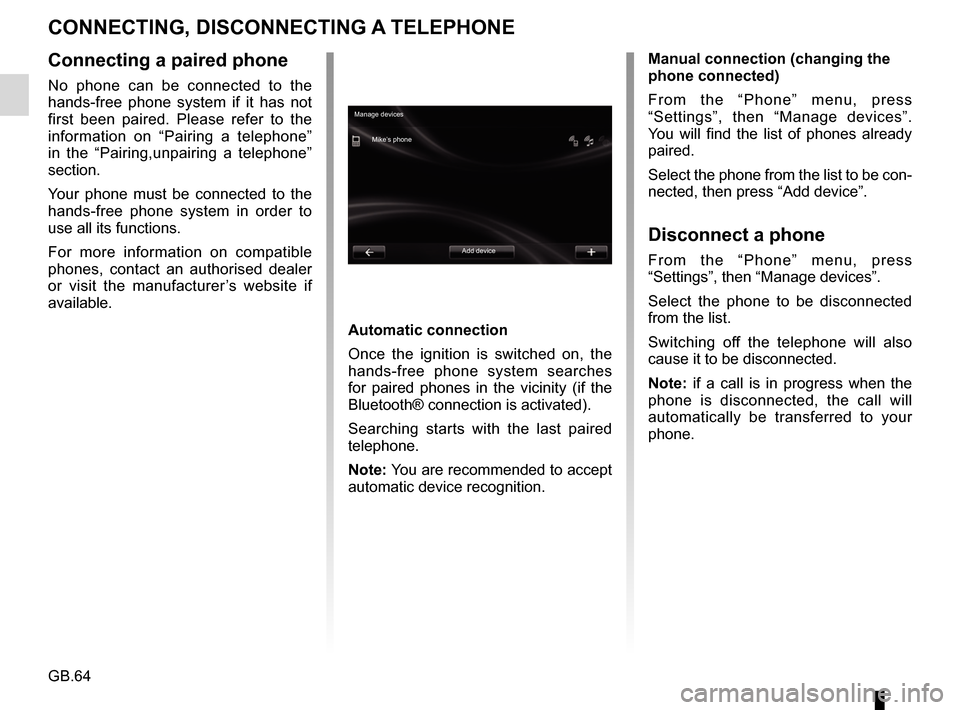
From the “Phone” menu, press
“Settings”, then “Manage devices”.
You will find the list of phones already
paired.
Select the phone from the list to be con-
nected, then press “Add device”.
Disconnect a phone
From the “Phone” menu, press
“Settings”, then “Manage devices”.
Select the phone to be disconnected
from the list.
Switching off the telephone will also
cause it to be disconnected.
Note: if a call is in progress when the
phone is disconnected, the call will
automatically be transferred to your
phone.
Manage devices
Mike’s phone
Add device
Page 68 of 96
GB.66
MAKING/RECEIVING A CALL (1/2)
From the “Phone” menu, you can make
a call by selecting:
– a contact from the phonebook;
– a number from the call log;
– the keypad to dial the number.
Note: From the welcome screen, press
“Favourites” to access your favourite
numbers.
Note: For safety reasons, favour the
voice recognition system
. Refer to
the Section entitled “Using voice recog-
nition”.
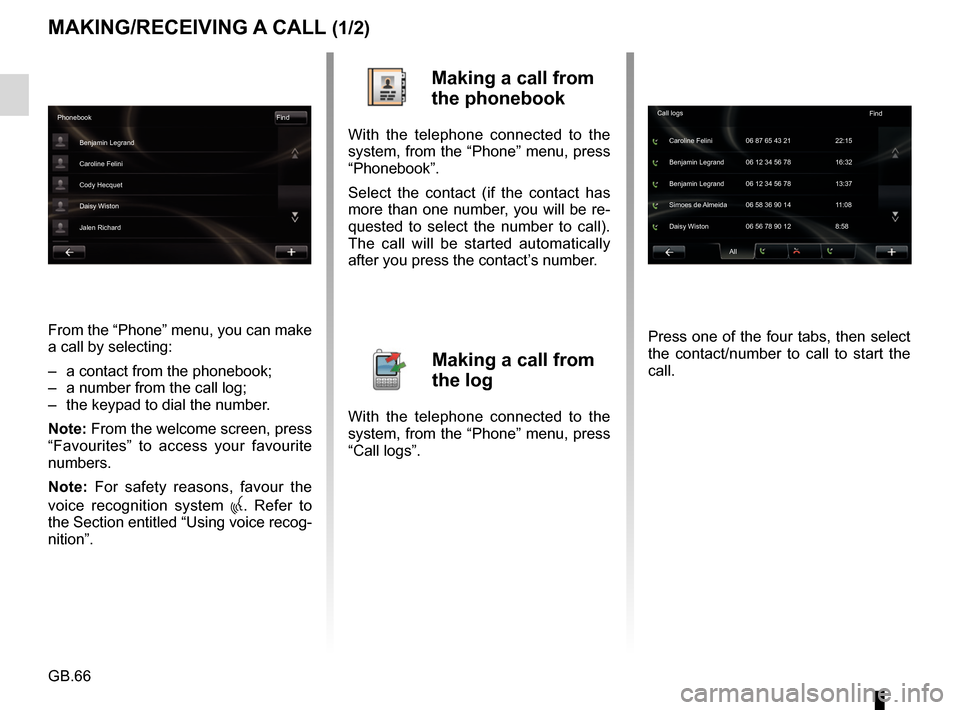
Making a call from
the phonebook
With the telephone connected to the
system, from the “Phone” menu, press
“Phonebook”.
Select the contact (if the contact has
more than one number, you will be re-
quested to select the number to call).
The call will be started automatically
after you press the contact’s number.
Making a call from
the log
With the telephone connected to the
system, from the “Phone” menu, press
“Call logs”. Press one of the four tabs, then select
the contact/number to call to start the
call.
Phonebook
Find
Benjamin Legrand
Caroline Felini
Cody Hecquet
Daisy Wiston
Jalen Richard
All
Caroline Felini
Call logs
06 87 65 43 21 22:15
Benjamin Legrand 06 12 34 56 78 13:37 Benjamin Legrand 06 12 34 56 78 16:32
Simoes de Almeida 06 58 36 90 14 11:08
Daisy Wiston 06 56 78 90 12 8:58 Find
Page 73 of 96

GB.71
DRIVING ECO²
Eco-coaching
This menu monitors your driving style,
and provides you with advice to best
reduce your fuel consumption, as nec-
essary.
To access this menu, press “Eco-
coaching” and carefully read the
advice, scroll through the pages by
pressing the scroll arrows.Access the Driving
Eco² menu
From the main menu, press “Vehicle”,
then “Driving Eco²”.
The “Driving Eco²” menu grants
access to the following information:
– Trip report;
– My prefered trips;
– Eco-coaching.
Trip report
This menu shows you the data saved
from your last journey:
– average fuel consumption;
– average speed;
– total consumption;
– recovered energy or mileage com- pleted;
– average environmental driving per- formance;
– braking anticipation;
– ability to manage vehicle speed. To save your data, press “Save”, then
select the type of journey taken from
the following list:
– “Home-work”;
– “Holidays”;
– “Weekends”;
– “Ride”;
– “Personal”.
To reset your data, press “Reset”. A
message will ask you to confirm the
data reset. Press “Yes” to confirm or
“No” to cancel.
My prefered trips
Once you have saved a specific journey
(see information on “Journey record”),
this menu will show you the changes in
your driving style from amongst the fol-
lowing categories:
– “Last journey”;
– “Home-work”;
– “Weekends”;
– “Ride”;
– “Personal”.
Page 76 of 96

GB.74
“Energy flow”
This menu shows you a diagram of the
vehicle, and indicates the points where
the vehicle is consuming energy or is
generating energy to recharge the trac-
tion battery.“Consumption details”
This menu shows you a diagram of the
vehicle, and indicates the points where
the vehicle is consuming energy (when
the vehicle is consuming energy or
generating energy to recharge the trac-
tion battery) and compares it to the last
15 minutes of driving.
The following appear on the right-hand
side of the screen:
1 energy consumed;
2 energy consumption of accessories (air-conditioning, radio, etc);
3 recovered energy.
ELECTRIC VEHICLE (1/2)
Access the
Electrical vehicle
menu
From the main menu, press “Vehicle”,
then “Electrical vehicle”.
This menu shows the following informa-
tion for electric vehicles only:
– “Energy flow”;
– “Consumption details”;
– “Charge scheduler”;
– “Comfort timer”.
flowConsumption details
Used energy :
Energy recovered :1
2
3
Page 77 of 96
GB.75
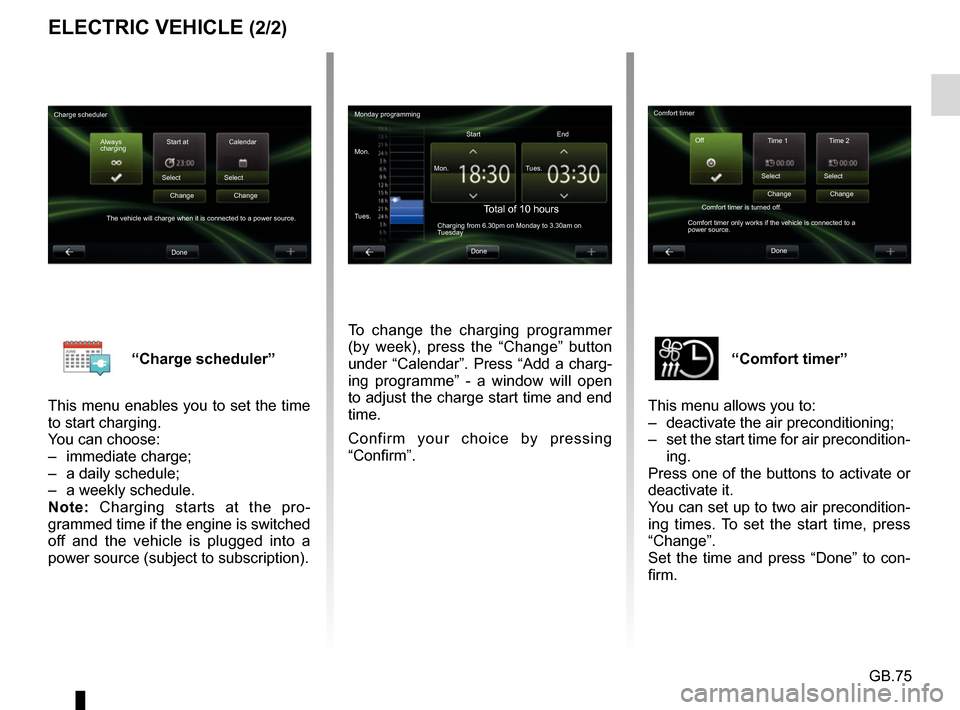
“Comfort timer”
This menu allows you to:
– deactivate the air preconditioning;
– set the start time for air precondition- ing.
Press one of the buttons to activate or
deactivate it.
You can set up to two air precondition-
ing times. To set the start time, press
“Change”.
Set the time and press “Done” to con-
firm.“Charge scheduler”
This menu enables you to set the time
to start charging.
You can choose:
– immediate charge;
– a daily schedule;
– a weekly schedule.
Note: Charging starts at the pro-
grammed time if the engine is switched
off and the vehicle is plugged into a
power source (subject to subscription).
ELECTRIC VEHICLE (2/2)
To change the charging programmer
(by week), press the “Change” button
under “Calendar”. Press “Add a charg-
ing programme” - a window will open
to adjust the charge start time and end
time.
Confirm your choice by pressing
“Confirm”.
Monday programming
Mon. Mon.Start
Total of 10 hoursCharging from 6.30pm on Monday to 3.30am on
Tuesday
Tues. Tues.
End
Done
Charge scheduler Always
charging Start at
Select
The vehicle will charge when it is connected to a power source. Change
Done Calendar
Select Change Comfort timer
Time 1 Time 2
Select
Comfort timer is turned off.
Comfort timer only works if the vehicle is connected to a
power source. Change
Done Select
Change
Off
Page 80 of 96
GB.78
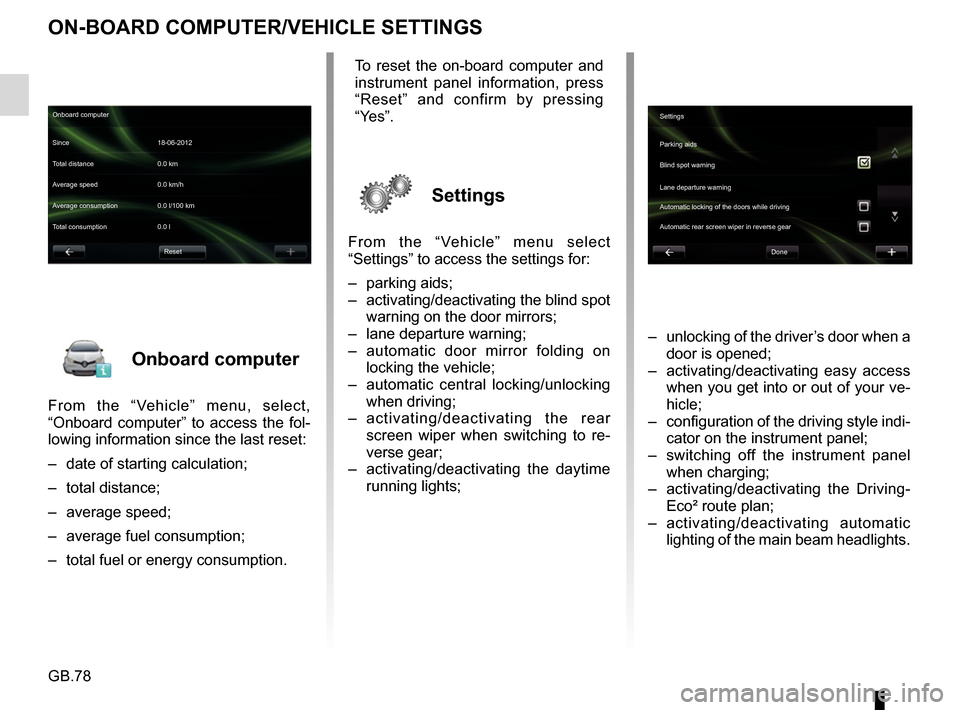
Onboard computer
From the “Vehicle” menu, select,
“Onboard computer” to access the fol-
lowing information since the last reset:
– date of starting calculation;
– total distance;
– average speed;
– average fuel consumption;
– total fuel or energy consumption.
ON-BOARD COMPUTER/VEHICLE SETTINGS
– unlocking of the driver’s door when a door is opened;
– activating/deactivating easy access when you get into or out of your ve-
hicle;
– configuration of the driving style indi- cator on the instrument panel;
– switching off the instrument panel when charging;
– activating/deactivating the Driving- Eco² route plan;
– activating/deactivating automatic lighting of the main beam headlights.
Onboard computer
Since 18-06-2012
Average speed 0.0 km/h Total distance 0.0 km
Average consumption 0.0 l/100 km
Total consumption 0.0 l
Reset
To reset the on-board computer and
instrument panel information, press
“Reset” and confirm by pressing
“Yes”.
Settings
From the “Vehicle” menu select
“Settings” to access the settings for:
– parking aids;
– activating/deactivating the blind spot warning on the door mirrors;
– lane departure warning;
– automatic door mirror folding on locking the vehicle;
– automatic central locking/unlocking when driving;
– activating/deactivating the rear
screen wiper when switching to re-
verse gear;
– activating/deactivating the daytime running lights;
Settings
Parking aids
Blind spot warning
Lane departure warning
Automatic locking of the doors while driving
Done
Automatic rear screen wiper in reverse gear