Page 83 of 96

GB.81
Pay using My Renault account
Enter the e-mail address and pass-
word for your My Renault account, then
press “OK”.
Choose a credit or debit card from
those already linked to your My Renault
account, or add a new one.
Enter the card details, then press
“Confirm”.
Your application download will begin
immediately. Once the application has
been downloaded, its icon will be dis-
played in the “Services” menu.
Note: the download time for the appli-
cation can vary depending on the size
of the application and on the reception
quality on the mobile network.
Note: to use this type of payment,
you must first create a My Renault ac-
count. Please see the information on
“Creating an account in My Renault”
open the next page.
DOWNLOADING AND INSTALLING APPLICATIONS (2/4)
Paying by credit or debit card
Enter a valid e-mail address, then press
“OK”.
Enter the card details, then press
“Done”.
Your application download will begin
immediately. Once the application is
downloaded, its icon is displayed in the
“Services” menu.
Note: the download time for the appli-
cation can vary depending on the size
of the application and on the reception
quality on the mobile network.
Note: The card details you enter in
the system when making a purchase
may be saved. To delete them from the
system, please see the information on
“Deleting card details”.
Press “Purchase” to choose the type of
payment.
The multimedia system system offers
two types of payment: by My Renault
account or by credit or debit card.
Select one of the two options, tick the
box to accept the general conditions of
sale for R-Link Store, then go on to pay-
ment.
Note: it is mandatory to enter an e-mail
address. An invoice will be sent to this
address, along with the user and instal-
lation instructions, depending on the
application purchased.
Product detailsBuy
Read all your content using this application!
Please note: this application only works in France
and is subject to an annual subscription with
our supplier.
Reader
Category: reader
Version: 1.0 Size: 0.98 MB
Author: Reader
For safety reasons, carry
out these operations when
the vehicle is stationary.
Page 84 of 96
GB.82
Downloading and installing
applications from a computer
You can also download applications
from a computer connected to the
Internet (particularly useful for large
files). You can also manage your prod-
ucts from your computer and transfer
them to your multimedia system via the
system SD card.
Note: some products can only be pur-
chased from a computer connected to
the Internet, from the www.renault.com
website.Searching for updates
– Log in to your account My Renault
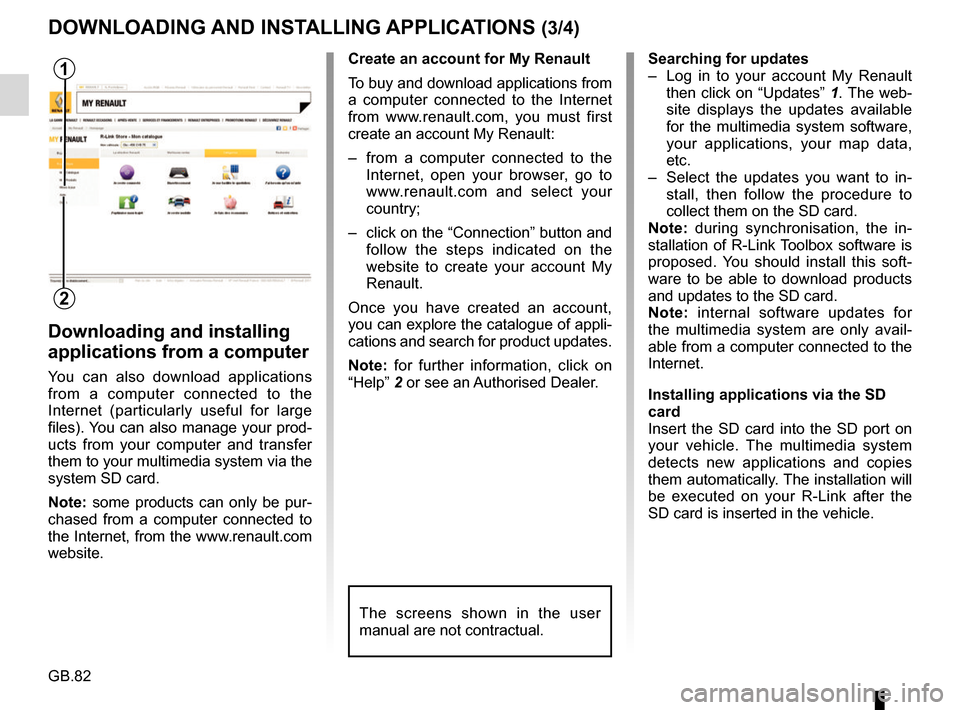
then click on “Updates” 1. The web-
site displays the updates available
for the multimedia system software,
your applications, your map data,
etc.
– Select the updates you want to in- stall, then follow the procedure to
collect them on the SD card.
Note: during synchronisation, the in-
stallation of R-Link Toolbox software is
proposed. You should install this soft-
ware to be able to download products
and updates to the SD card.
Note: internal software updates for
the multimedia system are only avail-
able from a computer connected to the
Internet.
Installing applications via the SD
card
Insert the SD card into the SD port on
your vehicle. The multimedia system
detects new applications and copies
them automatically. The installation will
be executed on your R-Link after the
SD card is inserted in the vehicle.
DOWNLOADING AND INSTALLING APPLICATIONS (3/4)
The screens shown in the user
manual are not contractual.
1
2
Create an account for My Renault
To buy and download applications from
a computer connected to the Internet
from www.renault.com, you must first
create an account My Renault:
– from a computer connected to the Internet, open your browser, go to
www.renault.com and select your
country;
– click on the “Connection” button and follow the steps indicated on the
website to create your account My
Renault.
Once you have created an account,
you can explore the catalogue of appli-
cations and search for product updates.
Note: for further information, click on
“Help” 2 or see an Authorised Dealer.
Page 90 of 96
GB.88
OPERATING FAULTS (1/3)
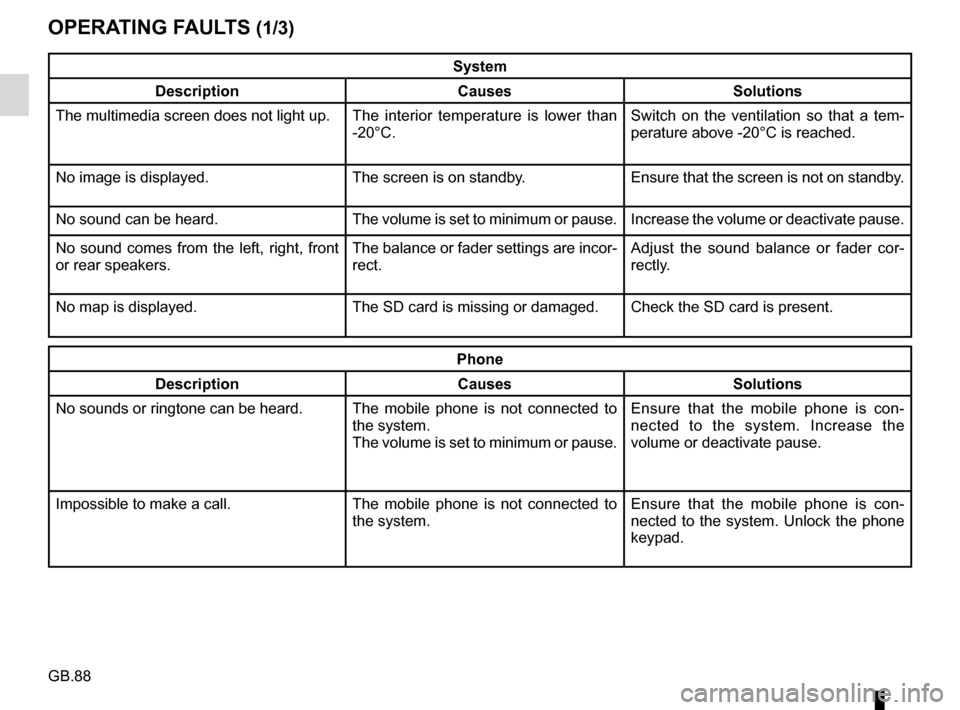
System
Description Causes Solutions
The multimedia screen does not light up. The interior temperature is lower than
-20°C. Switch on the ventilation so that a tem-
perature above -20°C is reached.
No image is displayed. The screen is on standby. Ensure that the screen is not on standby.
No sound can be heard. The volume is set to minimum or pause. Increase the volume or deactivate pause.
No sound comes from the left, right, front
or rear speakers. The balance or fader settings are incor-
rect.Adjust the sound balance or fader cor-
rectly.
No map is displayed. The SD card is missing or damaged. Check the SD card is present.
Phone
Description Causes Solutions
No sounds or ringtone can be heard. The mobile phone is not connected to
the system.
The volume is set to minimum or pause.Ensure that the mobile phone is con-
nected to the system. Increase the
volume or deactivate pause.
Impossible to make a call. The mobile phone is not connected to
the system.Ensure that the mobile phone is con-
nected to the system. Unlock the phone
keypad.