Page 62 of 96
GB.60
MULTIMEDIA SETTINGS (1/2)
Accessing
multimedia
settings
From the “Multimedia” menu, press
“Settings”, then select the element you
wish to modify:
– Sound;
– Radio;
– Media;
– Pictures;
– Video.
Radio
This menu enables you to adjust the
radio settings:
– activate/deactivate searching for alternative frequencies;
– activate/deactivate i-traffic;
– activate/deactivate programme type;
– update list of saved radio sta- tions.
Media
This menu allows you to adjust the mul-
timedia settings:
– activate/deactivate track repeat;
– activate/deactivate shuffle;
– activate/deactivate album image display;
– manage Bluetooth® devices connected.
Sound
This menu allows you to configure dif-
ferent sound settings:
– Spatialisation , for setting sound
distribution in the vehicle;
– “Bass Treble” , to set the treble
and bass levels. Once you have
made the adjustments, press
“Confirm” to confirm your set-
tings.
– Bass Boost Arkamys - to acti-
vate/deactivate bass amplifica-
tion.
– “ AGC Arkamys ”, to achieve an
even sound volume between two
audio tracks.
Page 63 of 96
GB.61
MULTIMEDIA SETTINGS (2/2)
Pictures
This menu allows you to adjust the mul-
timedia settings:
– set the timing of each picture in the slideshow;
– configure the default view for pic- tures.Video
This menu enables you to set the
type of video display:
– “Normal view”;
– “Full screen”.
Page 64 of 96
GB.62
PAIRING AND UNPAIRING A TELEPHONE (1/2)
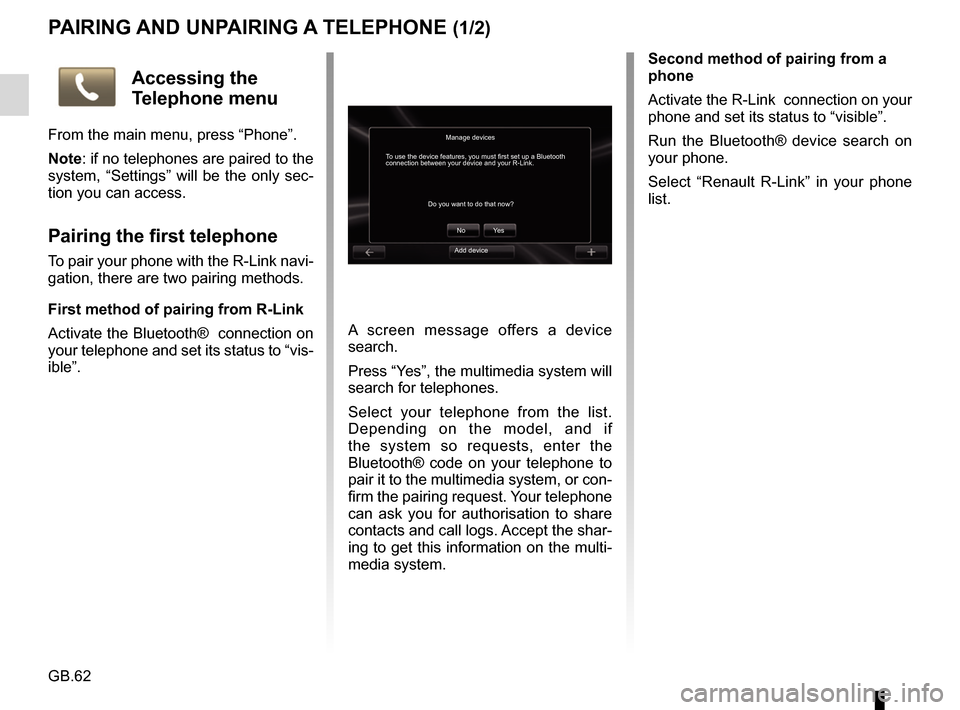
A screen message offers a device
search.
Press “Yes”, the multimedia system will
search for telephones.
Select your telephone from the list.
Depending on the model, and if
the system so requests, enter the
Bluetooth® code on your telephone to
pair it to the multimedia system, or con-
firm the pairing request. Your telephone
can ask you for authorisation to share
contacts and call logs. Accept the shar-
ing to get this information on the multi-
media system.Second method of pairing from a
phone
Activate the R-Link connection on your
phone and set its status to “visible”.
Run the Bluetooth® device search on
your phone.
Select “Renault R-Link” in your phone
list.
Manage devices
No
Do you want to do that now?
To use the device features, you must first set up a Bluetooth
connection between your device and your R-Link.
Ye s
Accessing the
Telephone menu
From the main menu, press “Phone”.
Note: if no telephones are paired to the
system, “Settings” will be the only sec-
tion you can access.
Pairing the first telephone
To pair your phone with the R-Link navi-
gation, there are two pairing methods.
First method of pairing from R-Link
Activate the Bluetooth® connection on
your telephone and set its status to “vis-
ible”.Add device
Page 65 of 96
GB.63
PAIRING, UNPAIRING A TELEPHONE (2/2)
Pairing another telephone
From your telephone, activate the
Bluetooth® connection.
From the “Telephone” menu, press
“Settings”, then “Manage devices”.
From the list of paired phones in the
“Manage devices” menu, press the
“Add device” button to add a phone to
the list.
For safety reasons, carry
out these operations when
the vehicle is stationary.
Unpairing a phone
From the main menu, select
“Telephone”, “Settings”, then “Manage
devices”.
From the list of paired telephones in
the “Manage devices” menu, press
the button on the pop-up menu, then
“Delete device(s)”. Select the device
you want to unpair on the multimedia
system screen, then press “Delete”.
Page 67 of 96
GB.65
MANAGING THE PHONEBOOK
Downloading the phone
memory
By default, when pairing and connect-
ing a telephone, the contacts are syn-
chronised automatically.
To deactivate automatic synchronisa-
tion, please refer to the “Telephone set-
tings” section in this document.
The system memory is restricted and
it is possible that all your contacts may
not be imported from your phone.
Adding a contact to the
Favourites page
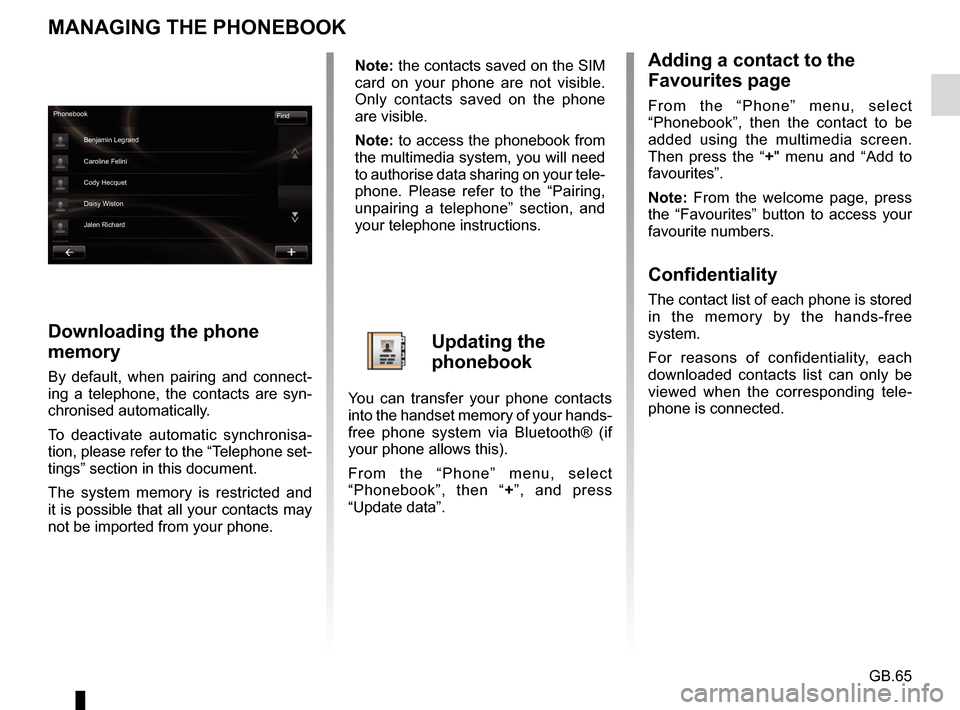
From the “Phone” menu, select
“Phonebook”, then the contact to be
added using the multimedia screen.
Then press the “+" menu and “Add to
favourites”.
Note: From the welcome page, press
the “Favourites” button to access your
favourite numbers.
Confidentiality
The contact list of each phone is stored
in the memory by the hands-free
system.
For reasons of confidentiality, each
downloaded contacts list can only be
viewed when the corresponding tele-
phone is connected.
Phonebook Find
Benjamin Legrand
Caroline Felini
Cody Hecquet
Daisy Wiston
Jalen Richard
Note: the contacts saved on the SIM
card on your phone are not visible.
Only contacts saved on the phone
are visible.
Note: to access the phonebook from
the multimedia system, you will need
to authorise data sharing on your tele-
phone. Please refer to the “Pairing,
unpairing a telephone” section, and
your telephone instructions.
Updating the
phonebook
You can transfer your phone contacts
into the handset memory of your hands-
free phone system via Bluetooth® (if
your phone allows this).
From the “Phone” menu, select
“Phonebook”, then “ +”, and press
“Update data”.
Page 72 of 96
GB.70
Accessing
telephone settings
From the “Phone” menu, press
“Settings”.
The following choices are offered:
– Manage devices;
– Sound levels;
– Voice mail;
– Turn Bluetooth on;
– Automatically download phone data.
PHONE SETTINGS
Turn Bluetooth on
Tick this option to activate or deacti-
vate the Bluetooth® on the hands-free
system.
Automatically download phone data
Tick this option to activate or deacti-
vate the automatic download of data
from the telephone to the multimedia
system.
settingsManaging devices
Voicemail Sound levels
Activating Bluetooth
Automatically download telephone data
Confirm
Manage devices
Refer to the information on “Pairing/un-
pairing a phone”.
Sound levels
This option allows you to adjust the
audio level of the hands-free system
and the ringtone.
Voice mail
Please refer to the information on
“Configuring voicemail” in the “Making,
Receiving a call” section.
Page 81 of 96

GB.79
INTRODUCTION TO THE SERVICES MENU
Access the “My
services” menu
From the main menu, press “My serv-
ices”.
The “My services” menu gives you
access to the following:
– “R-Link Store”;
– “Navigation services”;
– “Settings”;
– “R-Link E-guide”;
– “Email”;
– “User profiles”;
– “Renault Assistance”;
– your apps.
Some services are accessible for
free during the trial period. You can
extend the subscription online at www.
MyRenault.com or through your coun-
try’s R-Link Store .
Introduction to “R-Link
Store”
R-Link Store is the applications store
for your multimedia system. Here you
can buy applications or subscriptions
to services through a secure online
system.
Please refer to the “Downloading and
installing applications from R-Link
Store” section for more information.
“Navigation services”
Please refer to the “Navigation serv-
ices” section.
“Settings”
This menu brings together the manage-
ment tools for applications and con-
nections. Please refer to the “Services
Settings” section for more information.
“R-Link E-guide”
This menu brings together all the in-
structions. They can be consulted from
your multimedia system.
“Email”
This menu allows you to view your
emails, only with the vehicle stationary.
“User profiles”
This menu enables you to customise
your user profile.
“Renault Assistance”
This menu gives you access to
RENAULT assistance.
Page 82 of 96
GB.80
DOWNLOADING AND INSTALLING APPLICATIONS (1/4)
R-Link Store is an online store enabling
you to buy applications, services and
content. R-Link Store can be accessed
directly from your multimedia system
or from a computer connected to the
Internet.
You must install R-Link Toolbox soft-
ware on your computer to be able to
download applications and map up-
dates on the SDcard. Please refer to
"Downloading and installing applica-
tions from a computer" in this section.
Note: some products can only be pur-
chased via a computer connected to
the Internet on the R-Link Store. If so, a
message will be displayed to notify you.
Please refer to “Downloading and in-
stalling applications from a computer”.
Note: some applications are paid. For
further information about buying appli-
cations, please see the general condi-
tions of sale.
Downloading and installing
applications from R-Link
Store
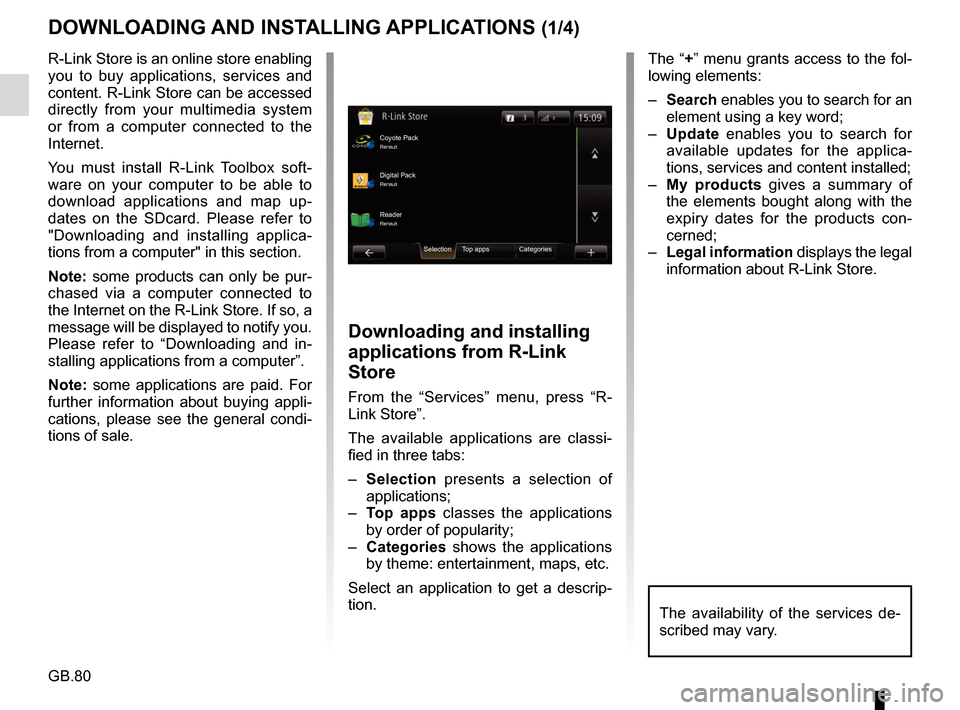
From the “Services” menu, press “R-
Link Store”.
The available applications are classi-
fied in three tabs:
– Selection presents a selection of
applications;
– Top apps classes the applications
by order of popularity;
– Categories shows the applications
by theme: entertainment, maps, etc.
Select an application to get a descrip-
tion.
The “+” menu grants access to the fol-
lowing elements:
– Search enables you to search for an
element using a key word;
– Update enables you to search for
available updates for the applica-
tions, services and content installed;
– My products gives a summary of
the elements bought along with the
expiry dates for the products con-
cerned;
– Legal information displays the legal
information about R-Link Store.
Coyote PackRenault
Reader Digital Pack
Selection Top apps CategoriesRenault Renault
The availability of the services de-
scribed may vary.


