Page 361 of 392
359
308_en_Chap10c_RD45_ed01-2016
PeugeOt Connect Sound (RD5)
Audio system / Bluetooth®
Contents
First steps
3 60
Steering mounted controls
3
61
Menus
3
62
Radio
362
DAB (Digital Audio Broadcasting) radio
3
64
Media
366
te
lephone
370
Screen menu map(s)
3
72
Frequently asked questions
3
75
Your P
e
uge
Ot
Connect Sound (RD5) is coded in such a way
that it will only operate in your vehicle. As a safety measure, the driver must only carry out operations
which require prolonged attention while the vehicle is stationary.
When the engine is switched off and to prevent discharging of the
battery, the audio equipment may switch off after a few minutes.
.
Audio and telematics
Page 362 of 392
360
308_en_Chap10c_RD45_ed01-2016
First steps
On/off, volume setting.
Display the list of local stations.
Long press: CD tracks or MP3
folders (CD / u
S
B).
Select source:
Radio; audio CD / MP3 CD;
u
S
B;
Jack connection; Streaming; A
uX
.
Select wavebands FM, DAB and AM. Audio settings: front/rear fader, left/
right balance, bass/treble, loudness,
audio ambiences.
tA (tr
affic Announcements) on/off. Select the screen display mode:
date, audio functions, telephone,
Bluetooth, personalisation-
configuration.
Select next frequency down/up.
Select previous/next MP3 folder.
Select previous/next folder / genre /
artist / playlist (
uS
B).
Abandon the current operation. Confirm.
Buttons 1 to 6:
Select a pre-set radio station.
Long press: pre-set a station. Automatic frequency search down/up.
Select previous/next CD, MP3 or
uS
B track.
Display main menu.
Audio and telematics
Page 363 of 392
361
308_en_Chap10c_RD45_ed01-2016
Steering mounted controls
Radio: select the previous/next
pre-set station.
uS
B: select genre / artist / folder
from the classification list.
Select the previous/next item in a
menu.
Volume decrease.
Radio: automatic search for a higher
frequency.
CD / MP3 /
u
S
B: select the next
track.
CD /
u
S
B: continuous press: fast
forward.
Move in the list.
Mute: press the volume increase and
decrease buttons simultaneously.
th
e sound is restored by pressing
one of the two volume buttons. Radio: automatic search for a lower
frequency.
CD / MP3 /
u
S
B: select the previous
track.
CD /
u
S
B: continuous press: rewind.
Move in the list.
Change audio source.
Confirm a selection.
Call/end call on the telephone.
Press for more than 2 seconds:
telephone main menu. Volume increase.
.
Audio and telematics
Page 364 of 392
362
308_en_Chap10c_RD45_ed01-2016
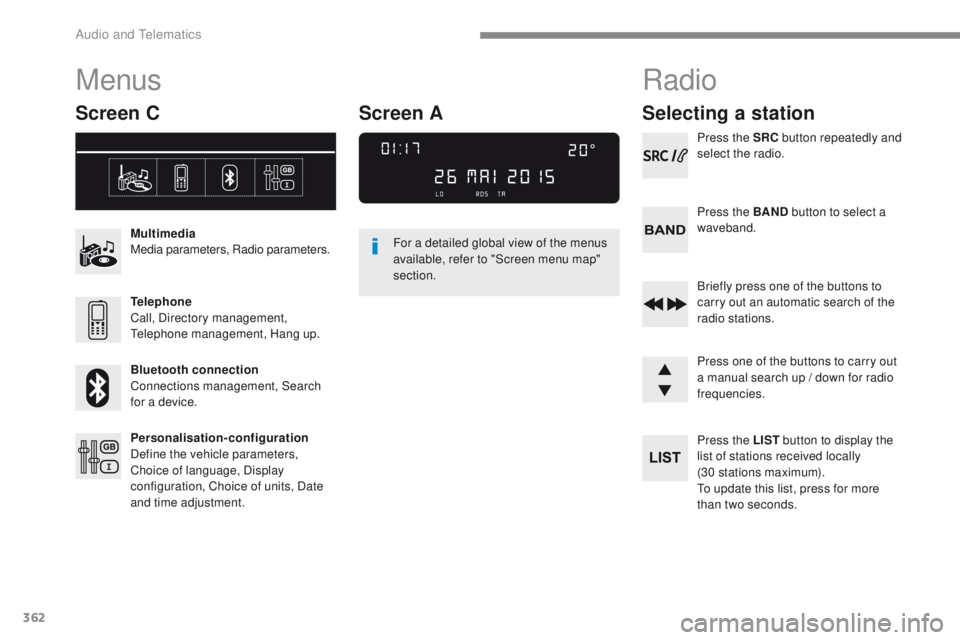
Menus
Screen C
Multimedia
Media parameters, Radio parameters.
Telephone
Call, Directory management,
te
lephone management, Hang up.
Bluetooth connection
Connections management, Search
for a device.
Personalisation-configuration
Define the vehicle parameters,
Choice of language, Display
configuration, Choice of units, Date
and time adjustment. For a detailed global view of the menus
available, refer to "Screen menu map"
section.
Radio
Selecting a station
Press the SRC
button repeatedly and
select the radio.
Press the BAND button to select a
waveband.
Briefly press one of the buttons to
carry out an automatic search of the
radio stations.
Press one of the buttons to carry out
a manual search up / down for radio
frequencies.
Press the LIST button to display the
list of stations received locally
(30 stations maximum).
to u
pdate this list, press for more
than two seconds.
Screen A
Audio and telematics
Page 371 of 392

369
308_en_Chap10c_RD45_ed01-2016
use only uS B memory sticks formatted FAt3 2
(File Allocation ta ble).
It is recommended that you use
genuine Apple
® uSB cables for correct
operation.
to p
rotect the system, do not use a
uS
B hub.
*
I
n certain cases, play of the audio files must
be initiated from the keypad.
** If the telephone supports the function.
Bluetooth® audio streaming
Streaming allows music files on the telephone
to be played via the audio system.
Connect the telephone: see the " Telephone"
section.
Select in the " Bluetooth: Telephone - Audio "
menu the telephone to be connected.
th
e audio system connects to a newly paired
telephone automatically.
Control of tracks to be played is via the buttons
on the audio system control panel and the
steering mounted controls**.
t
h
e contextual
information can be displayed in the screen. Activate the streaming source by
pressing the SOURCE
* button.
Connecting Apple® players
Connect the Apple® player to the uSB port
using a suitable cable (not supplied).
Play starts automatically.
Control is via the audio system.
th
e classifications available are those of the
portable device connected (artists / albums /
genres / playlists / audiobooks / podcasts).
th
e version of software in the audio system
may not be compatible with the generation of
your Apple
® p l aye r.
.
Audio and telematics
Page 372 of 392

370
308_en_Chap10c_RD45_ed01-2016
telephone
Pairing a Bluetooth® telephone
Screen C
(Available according to model and version)
As a safety measure and because they
require prolonged attention on the part
of the driver, the operations for pairing
of the Bluetooth mobile telephone with
the Bluetooth hands-free system of
your audio equipment must be carried
out with the vehicle stationary and the
ignition on.
go
to www.peugeot.co.uk for more information
(compatibility, more help, ...).
Activate the telephone's Bluetooth function
and ensure that it is "visible to all" (telephone
configuration).
Press the MENU button. In the menu, select:
-
"Bluetooth : Telephone - Audio "
-
"Bluetooth configuration "
-
"Perform a Bluetooth search "
A window is displayed with a message that a
search is in progress.
the
services available depend on
the network, the SIM card and the
compatibility of the Bluetooth device
used.
Consult your telephone's manual and
your operator to find out which services
are available to you.
* If your telephone is fully compatible.
th
e first 4 telephones recognised are displayed
in this window.
th
e "Telephone " menu permits access to the
following functions in particular: " Directory" *,
" Calls list ", "Consult the paired equipment ".Select the telephone to be connected from the
list. Only one telephone can be connected at
a time.
A virtual keypad is displayed in the screen:
enter a code with at least 4 digits.
Confirm by pressing OK.
A message in the screen indicates the telephone
chosen.
t
o
accept the pairing, enter the same
code on the telephone, then confirm with OK.
If pairing fails, the number of attempts is not
limited.
A message that the pairing has been
successful appears in the screen.
th
e automatic connection authorised is only
active after the telephone has been configured.
th
e directory and the call list can be accessed
after the necessary synchronisation period.
Audio and telematics
Page 373 of 392

371
308_en_Chap10c_RD45_ed01-2016
Receiving a call
An incoming call is announced by a ring and a
superimposed display in the screen.Select the YES tab on the display
using the buttons.
Confirm by pressing OK.
Press this button at the steering
mounted controls to accept the call.
Making a call
From the " Bluetooth : Telephone - Audio "
menu.
Select " Manage the telephone call".
Select " Call".
Or
Select " Calls list ".
Or
Select " Directory ".
Press this button for more than two
seconds for access to your directory,
then navigate using the thumbwheel.
Or
to d
ial a number, use your telephone's keypad,
with the vehicle stationary.
Ending a call
During a call, press this button for
more than 2 seconds.
Confirm with OK to end the call.
th
e system accesses the telephone's
contacts directory, depending on its
compatibility, and while it is connected
by Bluetooth.
With certain telephones connected by
Bluetooth you can send a contact to the
directory of the audio system.
Contacts imported in this way are
saved in a permanent directory
visible to all, whatever the telephone
connected.
th
e menu for the directory is not
accessible if it is empty.
.
Audio and telematics
Page 375 of 392
373
308_en_Chap10c_RD45_ed01-2016
Media parameters
MEDIA
TELEPHONE
Choice of playback mode
Choice of track listingNormal
By folders Random all
By genres Random
By artists Repeat
By playlists
3
3
3
3
3
3
3
3
1
2
2
Call
Radio parameters
Directory
Calls list
Voice mail box Dial
Directory management
Telephone management
Hang up Connections management
BLUETOOTH CONNECTION
Search for a device
Delete an entry
Delete all entries Consult an entr y
Telephone status
1
1
1
1
1
2
2
2
2
1
1
2
2
2
2
Screen C
.
Audio and telematics