2017 NISSAN TITAN light
[x] Cancel search: lightPage 342 of 671
Repeat Modes
To access the repeat mode options, press the
REPEAT button on the remote control. The re-
peat mode options are as follows:●
REPEAT ALL: Repeat the entire disc
(default) .
●
REPEAT ONE: Repeat the current
track.
● REPEAT OFF: Playback stops after the disc
in its entirety.
Random Mode
You can choose what order the tracks will be
played. To access the random play mode, press
the RANDOM button on the remote control. All
tracks on the disc will playback in random order.
Press RANDOM again to cancel random mode.
Direct Track Access
Press the number keys on the remote control
(0–9) to access a track directly. For example, to
go to track 14, press “1”,”4”, then ENTER on the
remote control.
PLAYING AUDIO FILES
MP3 and WMA are formats for storing digital
audio. A CD quality song can be compressed into
the MP3 or WMA format with very little loss of
quality, while talking up much less storage space.
Encoded discs and USB devices that include
MP3 or WMA audio files can be played on this
system.
Insert a disc or USB device into the unit and
select monitor A mode (if using monitor A) or
monitor B (if using monitor B) using the front
panel controls or the remote control.
Using a USB Device
Insert a USB device into the USB connection
port. When inserting a USB device, the top side
of the devices should face upwards.
When an MP3/WMA encoded disc or USB de-
vice is inserted, the information screen appears
automatically and playback will begin.
Display
During audio file playback, press the DISPLAY
button on the remote control to select between
the file list and currently playing file.
Selecting Files
1. To change files when a file is playing, press
the
orbuttons on the re-
mote control to display the file list, and then
press the
orbuttons to
select the desired file.
2. Once the desired file is highlighted, press the ENTER button on the remote control to
select it.
LHA3865
Monitor, climate, audio, phone and voice recognition systems4-105
Page 343 of 671
Selecting Folders
1. To select folders when a file is playing, pressthe
button on the remote control
to display the list. Press the
orbuttons to select the desired
folder.
2. Press the
button to access the
previous level (go up one level) or, press
the
button to access the next level
(go down one level) .
3. Once the desired folder is highlighted, press the ENTER button on the remote control to
select it.
Skipping Files
Press the NEXT button on the remote control to
select to the next file. Press the PREV button one
time to select the beginning of the current file.
Press the PREV button two times to select the
previous file.
Repeat Modes
To access the repeat mode options, press the
REPEAT button on the remote control. The re-
peat mode options are as follows:
●
REPEAT ALL: Repeat the entire disc
or USB device (default) . ●
REPEAT FOLDER: Repeat the cur-
rent folder
●
REPEAT ONE: Repeat the current
file.
● REPEAT OFF: Playback stops after the disc
or USB device is played in its entirety.
Random Mode
You can choose what order the files will be
played. To access the random play mode, press
the RANDOM button on the remote control. The
files in the current folder will playback in random
order. Press RANDOM again to cancel random
mode.
Direct File Access
Press the number keys on the remote control
(0–9) to access a file directly. For example, to go
to track 14, press “1”,”4”, then ENTER on the
remote control.
PLAYING IMAGE FILES
Insert a disc or USB device into the unit and
select monitor A mode (if using monitor A) or
monitor B (if using monitor B) using the front
panel controls or the remote control.
Using a USB Device
Insert a USB device into the USB connection
port. When inserting a USB device, the top side
of the devices should face upwards.
When a disc or USB device with JPG files is
inserted, the slideshow will begin automatically.
LHA3866
4-106Monitor, climate, audio, phone and voice recognition systems
Page 344 of 671
When a disc or USB device with mixed
audio/video/image files is inserted, the file list
screen may appear first.
Selecting Files
1. To select files during the slideshow, pressthe MENU button remote control to access
the file list. Press the
orbuttons on the remote control to select the
desired file.
2. Once the desired file is highlighted, press the ENTER button on the remote control to
select it.
Selecting Folders
1. To select folders during the slideshow, pressthe MENU button on the remote control to
access the list.
2. Press the
button to access the
previous level (go up one level) or, press
the
button to access the next level
(go down one level) .
3. Once the desired folder is highlighted, press the ENTER button on the remote control to
select it.
Repeat Modes
To access the repeat mode options, press the
REPEAT button on the remote control. The re-
peat mode options are as follows:
●
REPEAT ALL: Repeat the entire disc
or USB device (default) .
●
REPEAT FOLDER: Repeat the cur-
rent folder
●
REPEAT ONE: Repeat the current
file.
● REPEAT OFF: Playback stops after the disc
or USB device is played in its entirety.
Thumbnail Views
1. Press the STOP button on the remote con- trol during the slideshow to display images
in thumbnail mode. Press the
orand theorbuttons on the remote control to select the
desired language.
2. Once the desired image is highlighted, press the ENTER button on the remote con-
trol to select it.
Rotating Images
During the slideshow, press thebutton
on the remote control to rotate the image 90°
clockwise. Press the
button to rotate
the image 90° counter-clockwise.
Inverting Images
During the slideshow, press thebutton
on the remote control to invert the image (Up-
Down) .
Mirroring Images
During the slideshow, press thebutton
on the remote control to mirror the image (Left-
Right) .
Direct File Access
Press the number keys on the remote control
(0–9) to access a file directly. For example, to go
to track 14, press “1”,”4”, then ENTER on the
remote control.
Monitor, climate, audio, phone and voice recognition systems4-107
Page 345 of 671
PLAYING VIDEO FILES
Insert a disc or USB device into the unit and
select monitor A mode (if using monitor A) or
monitor B (if using monitor B) using the front
panel controls or the remote control.
Using a USB Device
Insert a USB device into the USB connection
port. When inserting a USB device, the top side
of the device should face upwards.
When a disc or USB device with video files is
inserted, playback will begin automatically. Whena disc or USB device with mixed
audio/video/image files is inserted, the file list
screen may appear first.
Selecting Files
1. To select files during the video playback,
press the MENU button on the remote con-
trol to access the file list. Press the
orbuttons on the remote control to
select the desired file.
2. Once the desired file is highlighted, press the ENTER button on the remote control to
select it.
Selecting Folders
1. To select folders during video playback,press the MENU button on the remote con-
trol to access the list.
2. Press the
button to access the
previous level (go up one level) or, press
the
button to access the next level
(go down one level) .
3. Once the desired folder is highlighted, press the ENTER button on the remote control to
select it.
Skipping Files
Press the NEXT button on the remote control to
select to the next file. Press the PREV button one
time to select the beginning of the current file.
Press the PREV button two times to select the
previous file.
Repeat Modes
To access the repeat mode options, press the
REPEAT button on the remote control. The re-
peat mode options are as follows:
●
REPEAT ALL: Repeat the entire disc
or USB device (default) .
●
REPEAT FOLDER: Repeat the cur-
rent folder
●
REPEAT ONE: Repeat the current
file.
● REPEAT OFF: Playback stops after the disc
or USB device is played in its entirety.
Direct File Access
Press the number keys on the remote control
(0–9) to access a file directly. For example, to go
to track 14, press “1”,”4”, then ENTER on the
remote control.
LHA3867
4-108Monitor, climate, audio, phone and voice recognition systems
Page 348 of 671
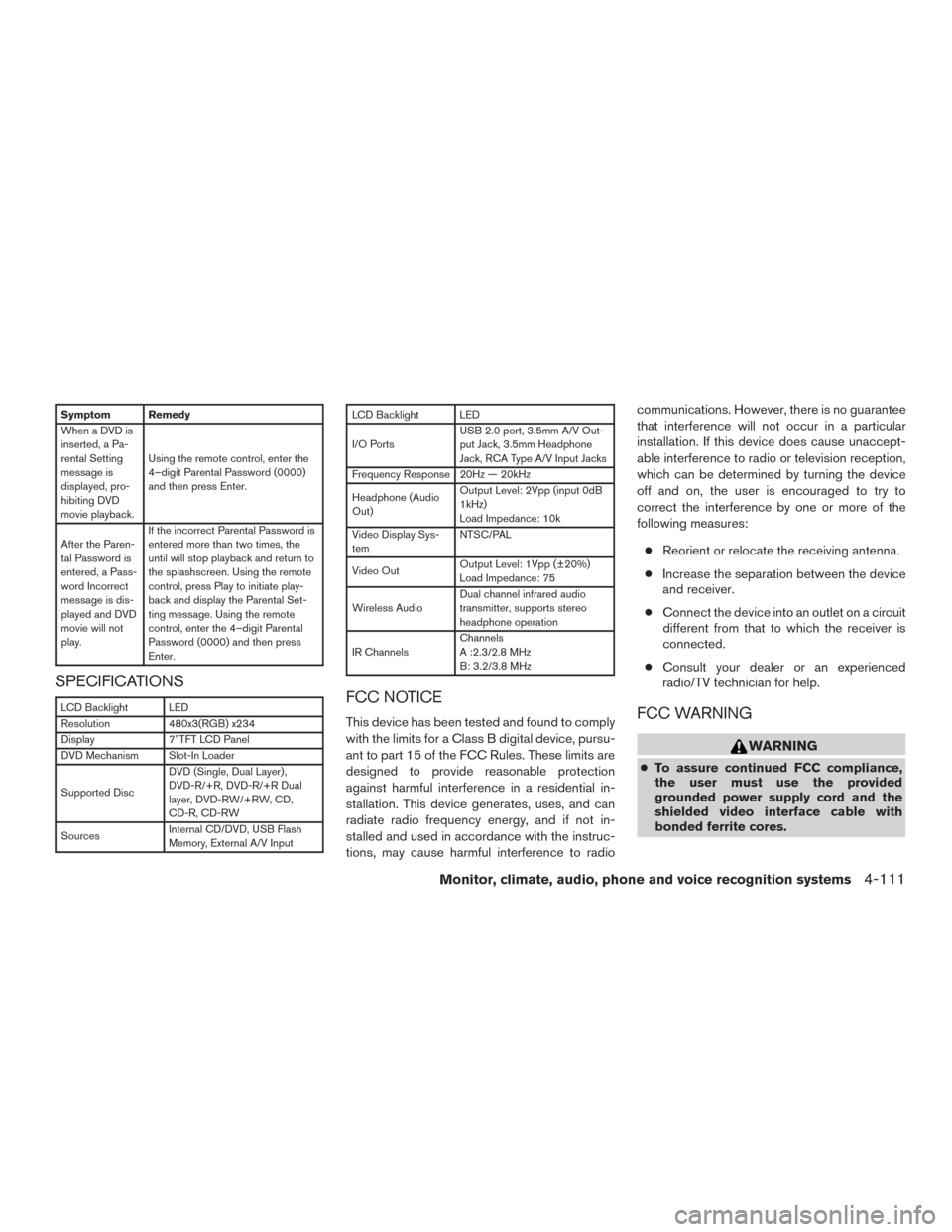
Symptom Remedy
When a DVD is
inserted, a Pa-
rental Setting
message is
displayed, pro-
hibiting DVD
movie playback.Using the remote control, enter the
4–digit Parental Password (0000)
and then press Enter.
After the Paren-
tal Password is
entered, a Pass-
word Incorrect
message is dis-
played and DVD
movie will not
play. If the incorrect Parental Password is
entered more than two times, the
until will stop playback and return to
the splashscreen. Using the remote
control, press Play to initiate play-
back and display the Parental Set-
ting message. Using the remote
control, enter the 4–digit Parental
Password (0000) and then press
Enter.
SPECIFICATIONS
LCD Backlight LED
Resolution
480x3(RGB) x234
Display 7”TFT LCD Panel
DVD Mechanism Slot-In Loader
Supported Disc DVD (Single, Dual Layer) ,
DVD-R/+R, DVD-R/+R Dual
layer, DVD-RW/+RW, CD,
CD-R, CD-RW
Sources Internal CD/DVD, USB Flash
Memory, External A/V Input
LCD Backlight LED
I/O PortsUSB 2.0 port, 3.5mm A/V Out-
put Jack, 3.5mm Headphone
Jack, RCA Type A/V Input Jacks
Frequency Response 20Hz — 20kHz
Headphone (Audio
Out) Output Level: 2Vpp (input 0dB
1kHz)
Load Impedance: 10k
Video Display Sys-
tem NTSC/PAL
Video Out Output Level: 1Vpp (±20%)
Load Impedance: 75
Wireless Audio Dual channel infrared audio
transmitter, supports stereo
headphone operation
IR Channels Channels
A :2.3/2.8 MHz
B: 3.2/3.8 MHz
FCC NOTICE
This device has been tested and found to comply
with the limits for a Class B digital device, pursu-
ant to part 15 of the FCC Rules. These limits are
designed to provide reasonable protection
against harmful interference in a residential in-
stallation. This device generates, uses, and can
radiate radio frequency energy, and if not in-
stalled and used in accordance with the instruc-
tions, may cause harmful interference to radio communications. However, there is no guarantee
that interference will not occur in a particular
installation. If this device does cause unaccept-
able interference to radio or television reception,
which can be determined by turning the device
off and on, the user is encouraged to try to
correct the interference by one or more of the
following measures:
● Reorient or relocate the receiving antenna.
● Increase the separation between the device
and receiver.
● Connect the device into an outlet on a circuit
different from that to which the receiver is
connected.
● Consult your dealer or an experienced
radio/TV technician for help.FCC WARNING
WARNING
● To assure continued FCC compliance,
the user must use the provided
grounded power supply cord and the
shielded video interface cable with
bonded ferrite cores.
Monitor, climate, audio, phone and voice recognition systems4-111
Page 381 of 671
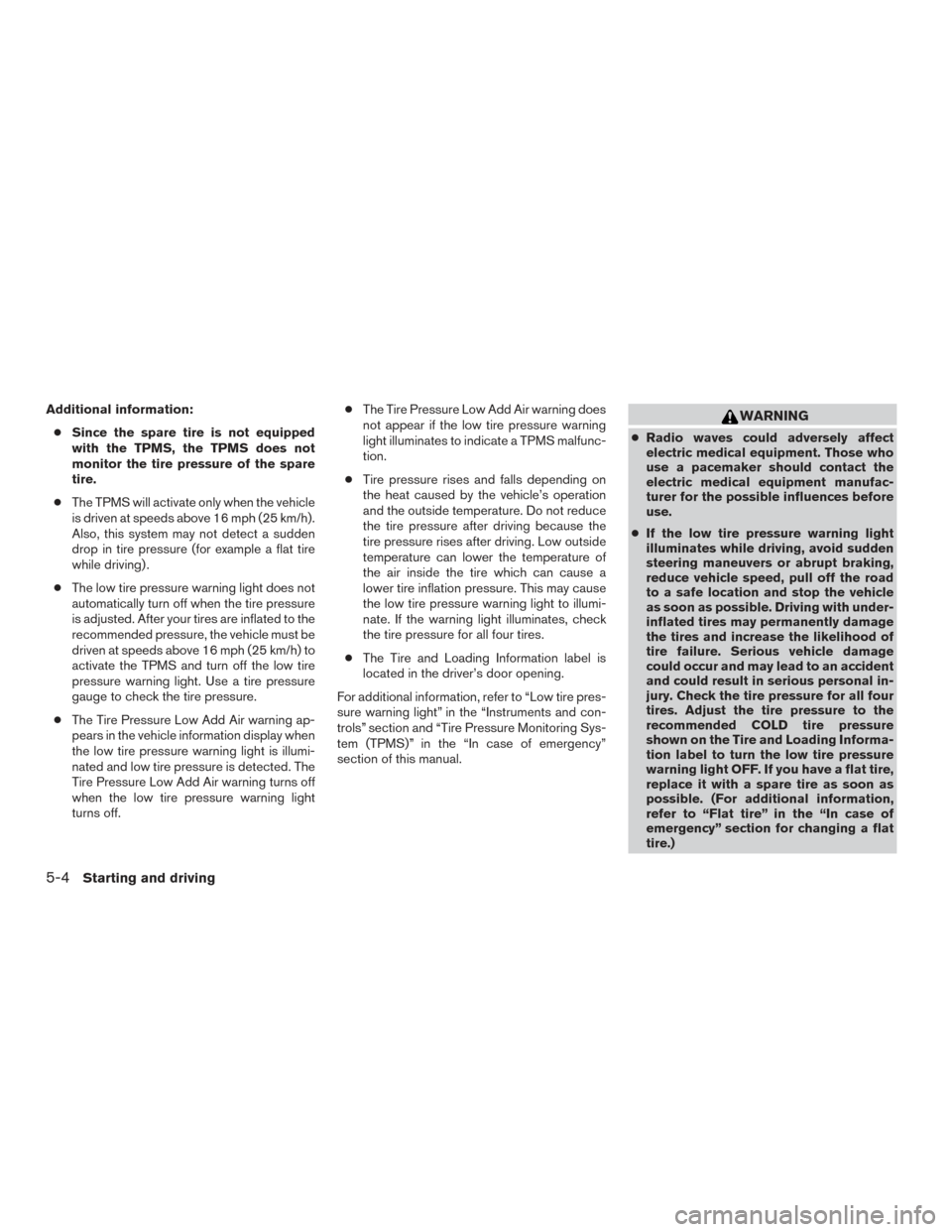
Additional information:● Since the spare tire is not equipped
with the TPMS, the TPMS does not
monitor the tire pressure of the spare
tire.
● The TPMS will activate only when the vehicle
is driven at speeds above 16 mph (25 km/h).
Also, this system may not detect a sudden
drop in tire pressure (for example a flat tire
while driving) .
● The low tire pressure warning light does not
automatically turn off when the tire pressure
is adjusted. After your tires are inflated to the
recommended pressure, the vehicle must be
driven at speeds above 16 mph (25 km/h) to
activate the TPMS and turn off the low tire
pressure warning light. Use a tire pressure
gauge to check the tire pressure.
● The Tire Pressure Low Add Air warning ap-
pears in the vehicle information display when
the low tire pressure warning light is illumi-
nated and low tire pressure is detected. The
Tire Pressure Low Add Air warning turns off
when the low tire pressure warning light
turns off. ●
The Tire Pressure Low Add Air warning does
not appear if the low tire pressure warning
light illuminates to indicate a TPMS malfunc-
tion.
● Tire pressure rises and falls depending on
the heat caused by the vehicle’s operation
and the outside temperature. Do not reduce
the tire pressure after driving because the
tire pressure rises after driving. Low outside
temperature can lower the temperature of
the air inside the tire which can cause a
lower tire inflation pressure. This may cause
the low tire pressure warning light to illumi-
nate. If the warning light illuminates, check
the tire pressure for all four tires.
● The Tire and Loading Information label is
located in the driver’s door opening.
For additional information, refer to “Low tire pres-
sure warning light” in the “Instruments and con-
trols” section and “Tire Pressure Monitoring Sys-
tem (TPMS)” in the “In case of emergency”
section of this manual.WARNING
● Radio waves could adversely affect
electric medical equipment. Those who
use a pacemaker should contact the
electric medical equipment manufac-
turer for the possible influences before
use.
● If the low tire pressure warning light
illuminates while driving, avoid sudden
steering maneuvers or abrupt braking,
reduce vehicle speed, pull off the road
to a safe location and stop the vehicle
as soon as possible. Driving with under-
inflated tires may permanently damage
the tires and increase the likelihood of
tire failure. Serious vehicle damage
could occur and may lead to an accident
and could result in serious personal in-
jury. Check the tire pressure for all four
tires. Adjust the tire pressure to the
recommended COLD tire pressure
shown on the Tire and Loading Informa-
tion label to turn the low tire pressure
warning light OFF. If you have a flat tire,
replace it with a spare tire as soon as
possible. (For additional information,
refer to “Flat tire” in the “In case of
emergency” section for changing a flat
tire.)
5-4Starting and driving
Page 382 of 671
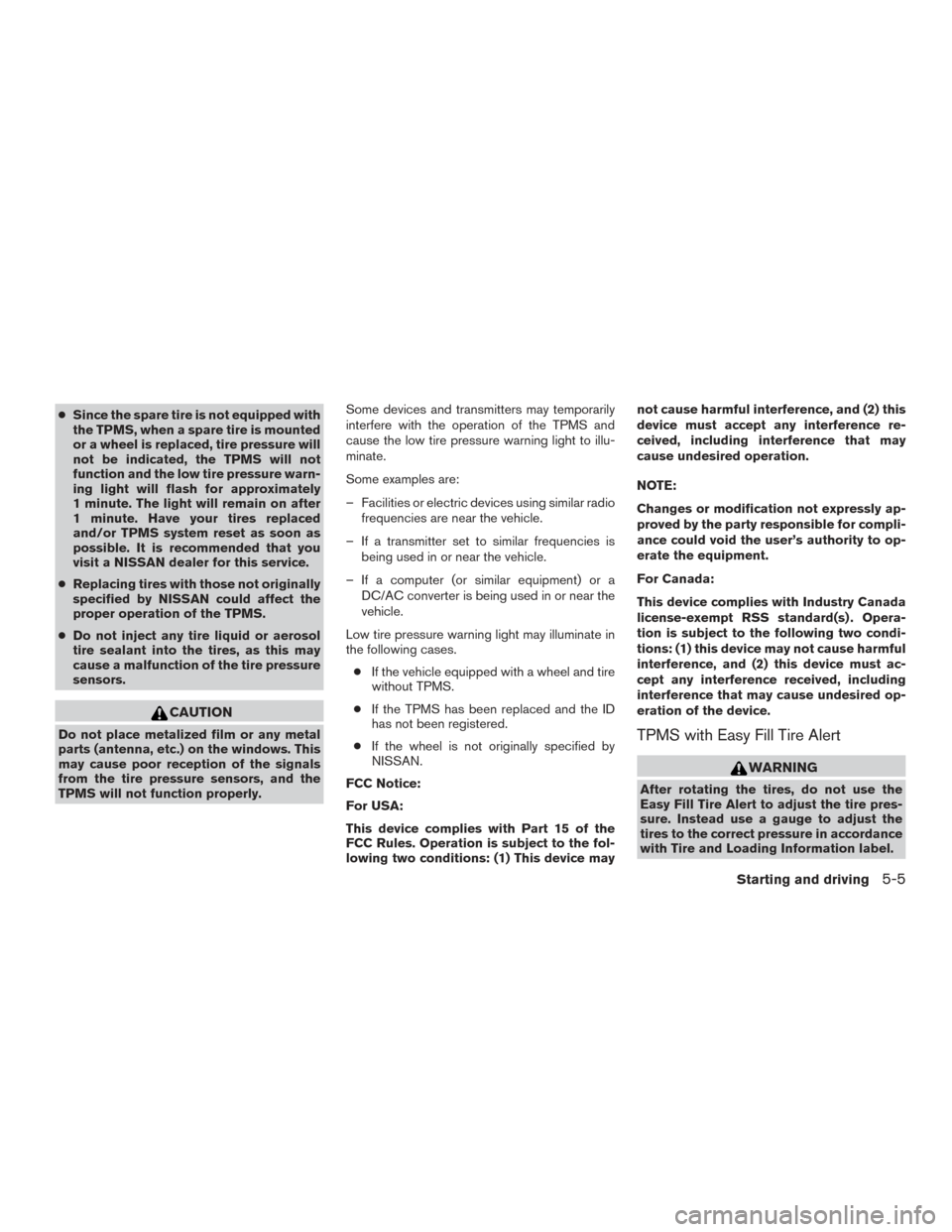
●Since the spare tire is not equipped with
the TPMS, when a spare tire is mounted
or a wheel is replaced, tire pressure will
not be indicated, the TPMS will not
function and the low tire pressure warn-
ing light will flash for approximately
1 minute. The light will remain on after
1 minute. Have your tires replaced
and/or TPMS system reset as soon as
possible. It is recommended that you
visit a NISSAN dealer for this service.
● Replacing tires with those not originally
specified by NISSAN could affect the
proper operation of the TPMS.
● Do not inject any tire liquid or aerosol
tire sealant into the tires, as this may
cause a malfunction of the tire pressure
sensors.
CAUTION
Do not place metalized film or any metal
parts (antenna, etc.) on the windows. This
may cause poor reception of the signals
from the tire pressure sensors, and the
TPMS will not function properly. Some devices and transmitters may temporarily
interfere with the operation of the TPMS and
cause the low tire pressure warning light to illu-
minate.
Some examples are:
– Facilities or electric devices using similar radio
frequencies are near the vehicle.
– If a transmitter set to similar frequencies is being used in or near the vehicle.
– If a computer (or similar equipment) or a DC/AC converter is being used in or near the
vehicle.
Low tire pressure warning light may illuminate in
the following cases. ● If the vehicle equipped with a wheel and tire
without TPMS.
● If the TPMS has been replaced and the ID
has not been registered.
● If the wheel is not originally specified by
NISSAN.
FCC Notice:
For USA:
This device complies with Part 15 of the
FCC Rules. Operation is subject to the fol-
lowing two conditions: (1) This device may not cause harmful interference, and (2) this
device must accept any interference re-
ceived, including interference that may
cause undesired operation.
NOTE:
Changes or modification not expressly ap-
proved by the party responsible for compli-
ance could void the user’s authority to op-
erate the equipment.
For Canada:
This device complies with Industry Canada
license-exempt RSS standard(s) . Opera-
tion is subject to the following two condi-
tions: (1) this device may not cause harmful
interference, and (2) this device must ac-
cept any interference received, including
interference that may cause undesired op-
eration of the device.TPMS with Easy Fill Tire Alert
WARNING
After rotating the tires, do not use the
Easy Fill Tire Alert to adjust the tire pres-
sure. Instead use a gauge to adjust the
tires to the correct pressure in accordance
with Tire and Loading Information label.
Starting and driving5-5
Page 385 of 671
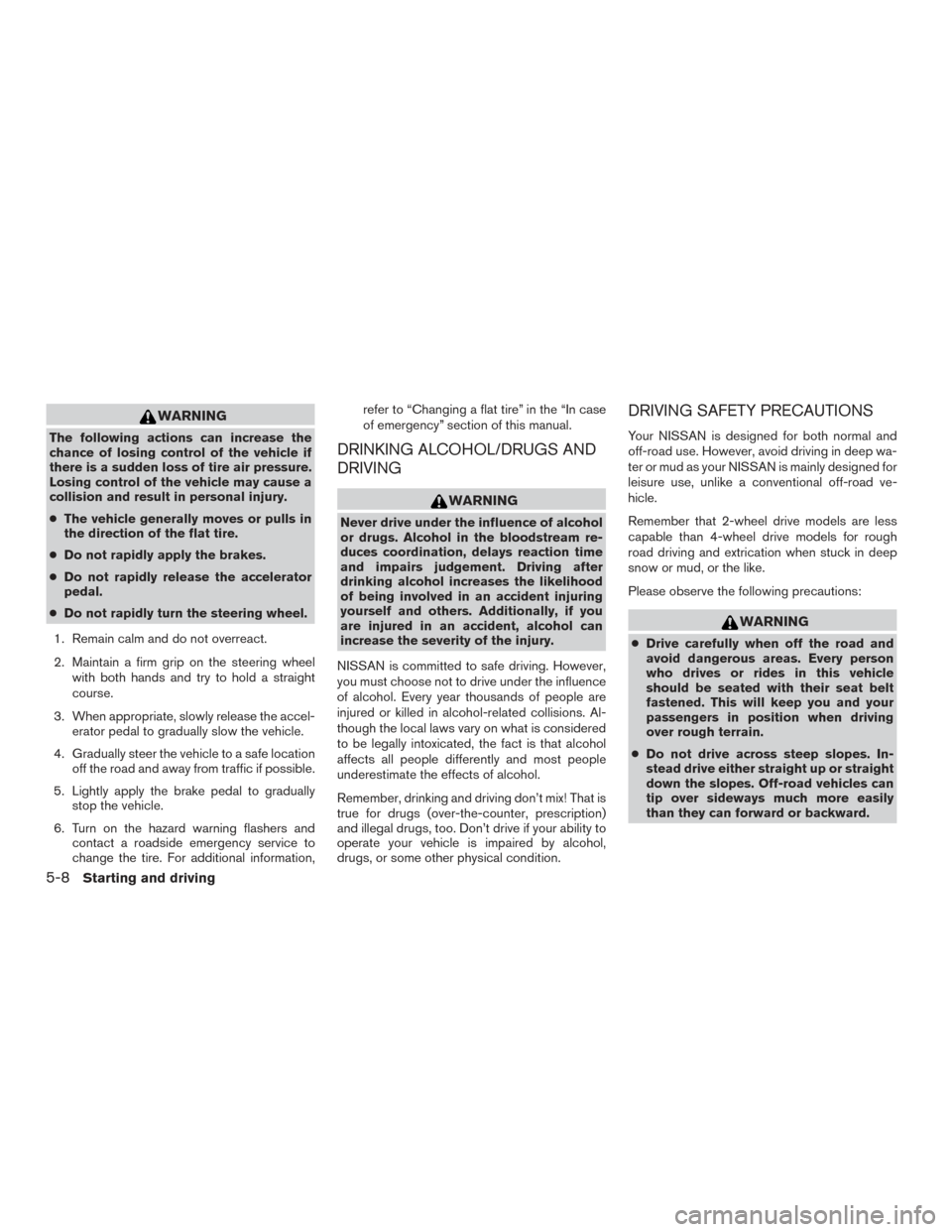
WARNING
The following actions can increase the
chance of losing control of the vehicle if
there is a sudden loss of tire air pressure.
Losing control of the vehicle may cause a
collision and result in personal injury.
●The vehicle generally moves or pulls in
the direction of the flat tire.
● Do not rapidly apply the brakes.
● Do not rapidly release the accelerator
pedal.
● Do not rapidly turn the steering wheel.
1. Remain calm and do not overreact.
2. Maintain a firm grip on the steering wheel with both hands and try to hold a straight
course.
3. When appropriate, slowly release the accel- erator pedal to gradually slow the vehicle.
4. Gradually steer the vehicle to a safe location off the road and away from traffic if possible.
5. Lightly apply the brake pedal to gradually stop the vehicle.
6. Turn on the hazard warning flashers and contact a roadside emergency service to
change the tire. For additional information, refer to “Changing a flat tire” in the “In case
of emergency” section of this manual.DRINKING ALCOHOL/DRUGS AND
DRIVING
WARNING
Never drive under the influence of alcohol
or drugs. Alcohol in the bloodstream re-
duces coordination, delays reaction time
and impairs judgement. Driving after
drinking alcohol increases the likelihood
of being involved in an accident injuring
yourself and others. Additionally, if you
are injured in an accident, alcohol can
increase the severity of the injury.
NISSAN is committed to safe driving. However,
you must choose not to drive under the influence
of alcohol. Every year thousands of people are
injured or killed in alcohol-related collisions. Al-
though the local laws vary on what is considered
to be legally intoxicated, the fact is that alcohol
affects all people differently and most people
underestimate the effects of alcohol.
Remember, drinking and driving don’t mix! That is
true for drugs (over-the-counter, prescription)
and illegal drugs, too. Don’t drive if your ability to
operate your vehicle is impaired by alcohol,
drugs, or some other physical condition.
DRIVING SAFETY PRECAUTIONS
Your NISSAN is designed for both normal and
off-road use. However, avoid driving in deep wa-
ter or mud as your NISSAN is mainly designed for
leisure use, unlike a conventional off-road ve-
hicle.
Remember that 2-wheel drive models are less
capable than 4-wheel drive models for rough
road driving and extrication when stuck in deep
snow or mud, or the like.
Please observe the following precautions:
WARNING
● Drive carefully when off the road and
avoid dangerous areas. Every person
who drives or rides in this vehicle
should be seated with their seat belt
fastened. This will keep you and your
passengers in position when driving
over rough terrain.
● Do not drive across steep slopes. In-
stead drive either straight up or straight
down the slopes. Off-road vehicles can
tip over sideways much more easily
than they can forward or backward.
5-8Starting and driving