2017 NISSAN QUEST light
[x] Cancel search: lightPage 219 of 520
4-30Monitor, heater, air conditioner, audio, phone and voice recognition systems
REARVIEW MONITOR SYSTEM LIM-
ITATIONS
WARNING
Listed below are the system limitations
for RearView Monitor. Failure to oper-
ate the vehicle in accordance with these
system limitations could result in ser-
ious injury or death.
.The system cannot completely elim-
inate blind spots and may not show
every object.
. Underneath the bumper and the
corner areas of the bumper cannot
be viewed on the RearView Monitor
because of its monitoring range
limitation. The system will not show
small objects below the bumper,
and may not show objects close to
the bumper or on the ground.
. Objects viewed in the RearView
Monitor differ from actual distance
because a wide-angle lens is used.
. Objects in the RearView Monitor
will appear visually opposite com-
pared to when viewed in the rear
view and outside mirrors. .
Use the displayed lines as a refer-
ence. The lines are highly affected
by the number of occupants, fuel
level, vehicle position, road condi-
tions and road grade.
. Make sure that the liftgate is se-
curely closed when backing up.
. Do not put anything on the rearview
camera. The rearview camera is
installed above the license plate.
. When washing the vehicle with
high-pressure water, be sure not to
spray it around the camera. Other-
wise, water may enter the camera
unit causing water condensation on
the lens, a malfunction, fire or an
electric shock.
. Do not strike the camera. It is a
precision instrument. Otherwise, it
may malfunction or cause damage
resulting in a fire or an electric
shock.
The following are operating limitations and do
not represent a system malfunction:
. When the temperature is extremely high or
low, the screen may not clearly display
objects. .
When strong light is directly coming on the
camera, objects may not be displayed
clearly.
. Vertical lines may be seen in objects on the
screen. This is due to strong reflected light
from the bumper.
. The screen may flicker under fluorescent
light.
. The colors of objects on the RearView
Monitor may differ somewhat from the actual
color of objects.
. Objects on the monitor may not be clear in a
dark environment.
. If dirt, rain or snow accumulates on the
camera, the RearView Monitor may not
display objects clearly. Clean the camera.
. Do not use wax on the camera window.
Wipe off any wax with a clean cloth
dampened with mild detergent diluted with
water.
Page 223 of 520
4-34Monitor, heater, air conditioner, audio, phone and voice recognition systems
.Objects in the monitor will appear
visually opposite compared to when
viewed in the rear view and outside
mirrors.
. Use the mirrors or actually look to
properly judge distances to other
objects.
. The distance between objects
viewed in the rear view differs from
actual distance because a wide-
angle lens is used.
. On a snow-covered or slippery road,
there may be a difference between
the predictive course line and the
actual course line.
. The vehicle width and predictive
course lines are wider than the
actual width and course.
. The displayed lines on the rear view
will appear slightly off to the right
because the rear view camera is not
installed in the rear center of the
vehicle.
SAA1840
Front view
SAA1896Rear view
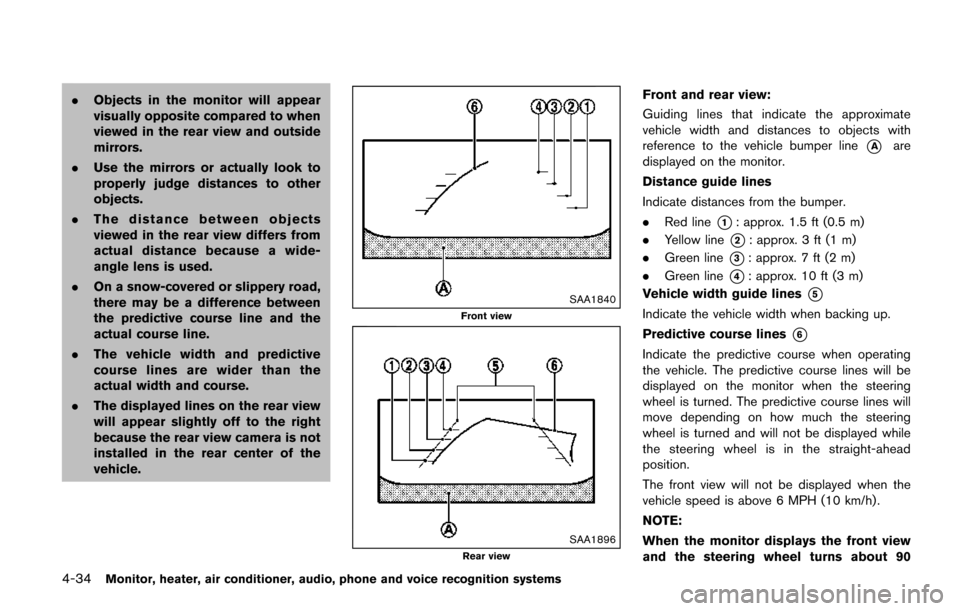
Front and rear view:
Guiding lines that indicate the approximate
vehicle width and distances to objects with
reference to the vehicle bumper line
*Aare
displayed on the monitor.
Distance guide lines
Indicate distances from the bumper.
. Red line
*1: approx. 1.5 ft (0.5 m)
. Yellow line
*2: approx. 3 ft (1 m)
. Green line
*3: approx. 7 ft (2 m)
. Green line
*4: approx. 10 ft (3 m)
Vehicle width guide lines
*5
Indicate the vehicle width when backing up.
Predictive course lines
*6
Indicate the predictive course when operating
the vehicle. The predictive course lines will be
displayed on the monitor when the steering
wheel is turned. The predictive course lines will
move depending on how much the steering
wheel is turned and will not be displayed while
the steering wheel is in the straight-ahead
position.
The front view will not be displayed when the
vehicle speed is above 6 MPH (10 km/h) .
NOTE:
When the monitor displays the front view
and the steering wheel turns about 90
Page 224 of 520
degrees or less from the straight ahead
position, both the right and left predictive
course lines
*6are displayed. When the
steering wheel turns about 90 degrees or
more, a line is displayed only on the
opposite side of the turn.
JVH0337X
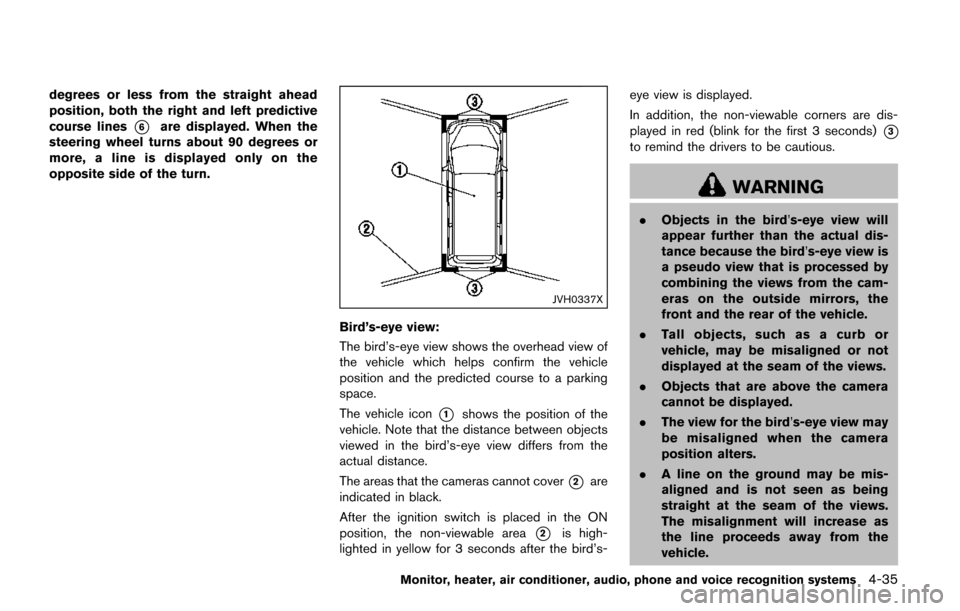
Bird’s-eye view:
The bird’s-eye view shows the overhead view of
the vehicle which helps confirm the vehicle
position and the predicted course to a parking
space.
The vehicle icon
*1shows the position of the
vehicle. Note that the distance between objects
viewed in the bird’s-eye view differs from the
actual distance.
The areas that the cameras cannot cover
*2are
indicated in black.
After the ignition switch is placed in the ON
position, the non-viewable area
*2is high-
lighted in yellow for 3 seconds after the bird’s- eye view is displayed.
In addition, the non-viewable corners are dis-
played in red (blink for the first 3 seconds)
*3
to remind the drivers to be cautious.
WARNING
.
Objects in the bird’s-eye view will
appear further than the actual dis-
tance because the bird’s-eye view is
a pseudo view that is processed by
combining the views from the cam-
eras on the outside mirrors, the
front and the rear of the vehicle.
. Tall objects, such as a curb or
vehicle, may be misaligned or not
displayed at the seam of the views.
. Objects that are above the camera
cannot be displayed.
. The view for the bird’s-eye view may
be misaligned when the camera
position alters.
. A line on the ground may be mis-
aligned and is not seen as being
straight at the seam of the views.
The misalignment will increase as
the line proceeds away from the
vehicle.
Monitor, heater, air conditioner, audio, phone and voice recognition systems4-35
Page 225 of 520
4-36Monitor, heater, air conditioner, audio, phone and voice recognition systems
.Tire angle display does not indicate
the actual tire angle.
JVH1141X
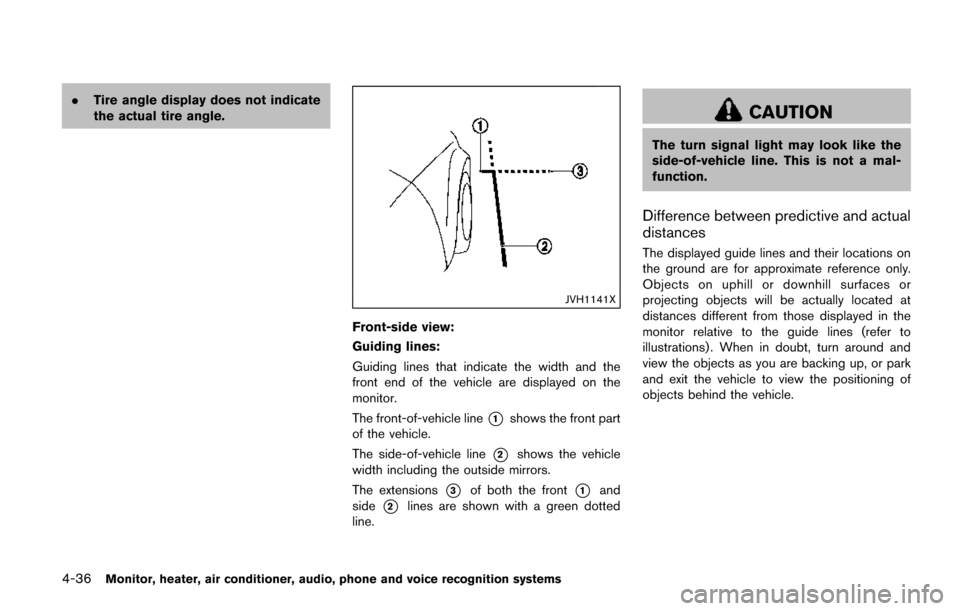
Front-side view:
Guiding lines:
Guiding lines that indicate the width and the
front end of the vehicle are displayed on the
monitor.
The front-of-vehicle line
*1shows the front part
of the vehicle.
The side-of-vehicle line
*2shows the vehicle
width including the outside mirrors.
The extensions
*3of both the front*1and
side
*2lines are shown with a green dotted
line.
CAUTION
The turn signal light may look like the
side-of-vehicle line. This is not a mal-
function.
Difference between predictive and actual
distances
The displayed guide lines and their locations on
the ground are for approximate reference only.
Objects on uphill or downhill surfaces or
projecting objects will be actually located at
distances different from those displayed in the
monitor relative to the guide lines (refer to
illustrations) . When in doubt, turn around and
view the objects as you are backing up, or park
and exit the vehicle to view the positioning of
objects behind the vehicle.
Page 229 of 520
4-40Monitor, heater, air conditioner, audio, phone and voice recognition systems
water may enter the camera unit
causing water condensation on the
lens, a malfunction, fire or an elec-
tric shock.
. Do not strike the cameras. They are
precision instruments. Doing so
could cause a malfunction or cause
damage resulting in a fire or an
electric shock.
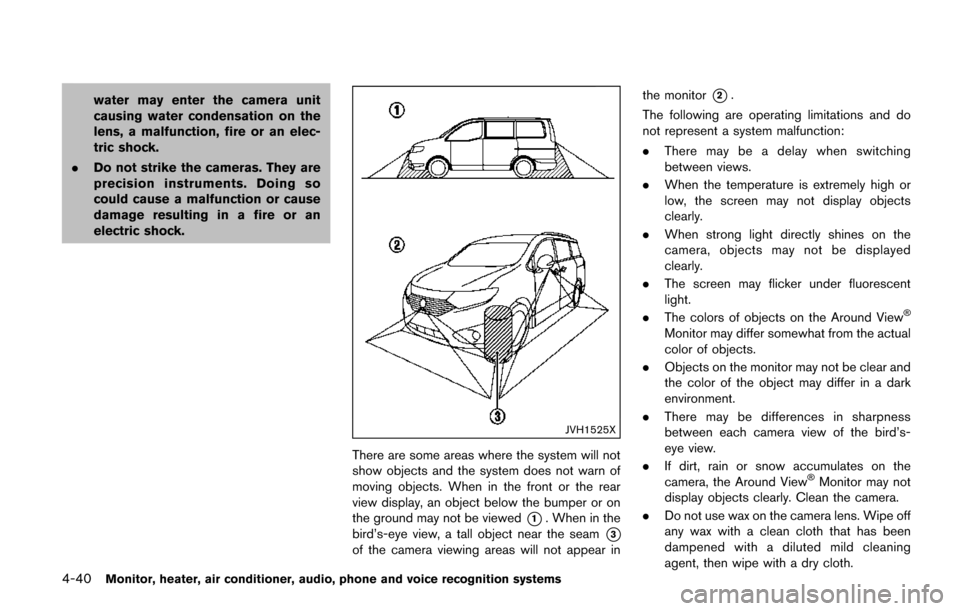
JVH1525X
There are some areas where the system will not
show objects and the system does not warn of
moving objects. When in the front or the rear
view display, an object below the bumper or on
the ground may not be viewed
*1. When in the
bird’s-eye view, a tall object near the seam
*3
of the camera viewing areas will not appear in the monitor
*2.
The following are operating limitations and do
not represent a system malfunction:
. There may be a delay when switching
between views.
. When the temperature is extremely high or
low, the screen may not display objects
clearly.
. When strong light directly shines on the
camera, objects may not be displayed
clearly.
. The screen may flicker under fluorescent
light.
. The colors of objects on the Around View
Š
Monitor may differ somewhat from the actual
color of objects.
. Objects on the monitor may not be clear and
the color of the object may differ in a dark
environment.
. There may be differences in sharpness
between each camera view of the bird’s-
eye view.
. If dirt, rain or snow accumulates on the
camera, the Around View
ŠMonitor may not
display objects clearly. Clean the camera.
. Do not use wax on the camera lens. Wipe off
any wax with a clean cloth that has been
dampened with a diluted mild cleaning
agent, then wipe with a dry cloth.
Page 234 of 520
.The MOD system performance will
be limited according to environmen-
tal conditions and surrounding ob-
jects such as:
— When there is low contrast be-
tween background and the mov-
ing objects.
— When there is blinking source of light.
— When strong light such as an- other vehicle’s headlight or sun-
light is present.
— When camera orientation is not in its usual position, such as
when mirror is folded.
— When there is dirt, water drops or snow on the camera lens.
— When the position of the moving objects in the display is not
changed.
. The MOD system might detect flow-
ing water droplets on the camera
lens, white smoke from the muffler,
moving shadows, etc.
. The MOD system may not function
properly depending on the speed,
direction, distance or shape of the moving objects.
. If your vehicle sustains damage to
the parts where the camera is
installed, leaving it misaligned or
bent, the sensing zone may be
altered and the MOD system may
not detect objects properly.
. When the temperature is extremely
high or low, the screen may not
display objects clearly. This is not a
malfunction.
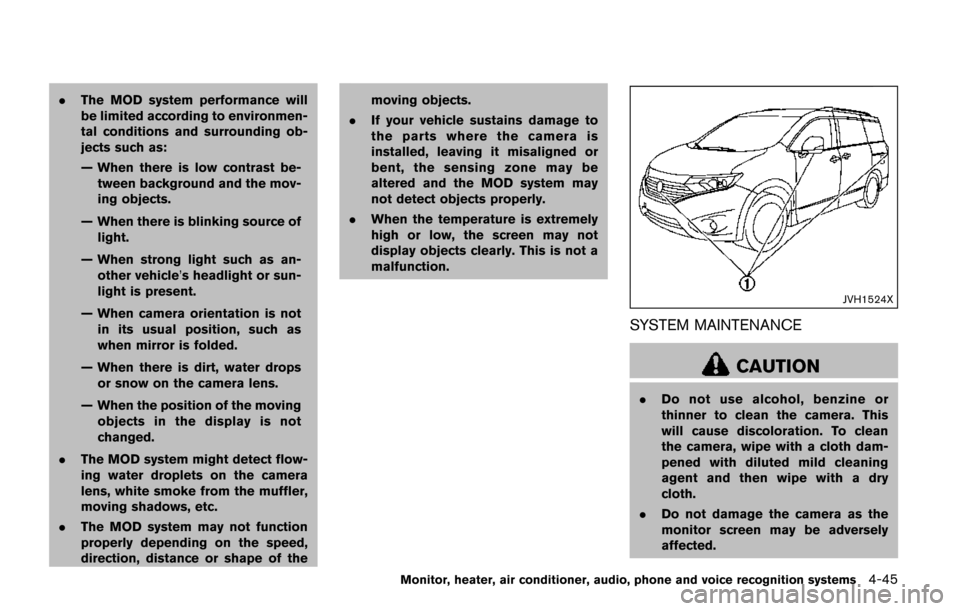
JVH1524X
SYSTEM MAINTENANCE
CAUTION
.Do not use alcohol, benzine or
thinner to clean the camera. This
will cause discoloration. To clean
the camera, wipe with a cloth dam-
pened with diluted mild cleaning
agent and then wipe with a dry
cloth.
. Do not damage the camera as the
monitor screen may be adversely
affected.
Monitor, heater, air conditioner, audio, phone and voice recognition systems4-45
Page 238 of 520
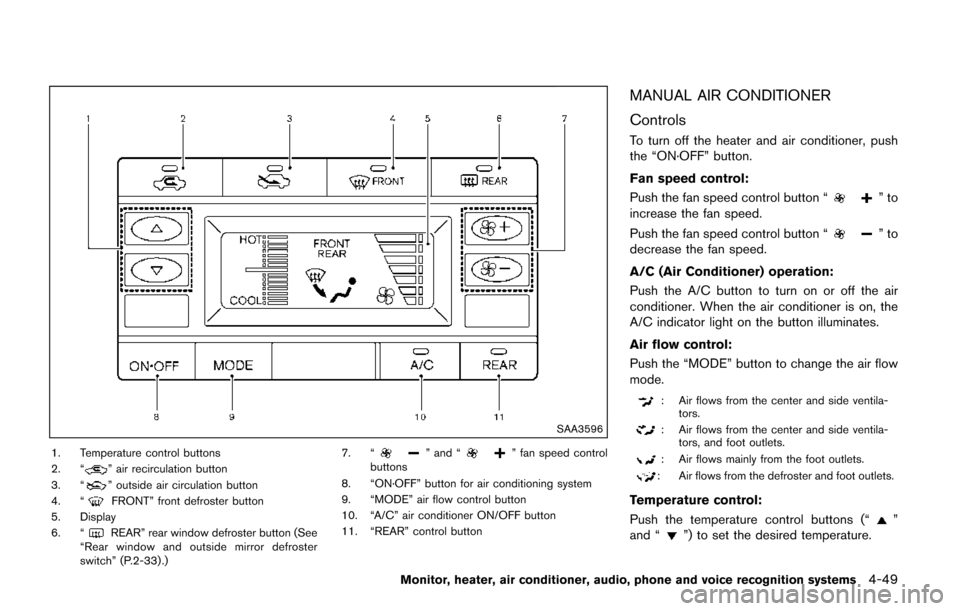
SAA3596
1. Temperature control buttons
2. “” air recirculation button
3. “” outside air circulation button
4. “FRONT” front defroster button
5. Display
6. “
REAR” rear window defroster button (See
“Rear window and outside mirror defroster
switch” (P.2-33) .) 7. “
” and “” fan speed control
buttons
8. “ON·OFF” button for air conditioning system
9. “MODE” air flow control button
10. “A/C” air conditioner ON/OFF button
11. “REAR” control button
MANUAL AIR CONDITIONER
Controls
To turn off the heater and air conditioner, push
the “ON·OFF” button.
Fan speed control:
Push the fan speed control button “
”to
increase the fan speed.
Push the fan speed control button “
”to
decrease the fan speed.
A/C (Air Conditioner) operation:
Push the A/C button to turn on or off the air
conditioner. When the air conditioner is on, the
A/C indicator light on the button illuminates.
Air flow control:
Push the “MODE” button to change the air flow
mode.
: Air flows from the center and side ventila- tors.
: Air flows from the center and side ventila-tors, and foot outlets.
: Air flows mainly from the foot outlets.
: Air flows from the defroster and foot outlets.
Temperature control:
Push the temperature control buttons (“
”
and “”) to set the desired temperature.
Monitor, heater, air conditioner, audio, phone and voice recognition systems4-49
Page 239 of 520
4-50Monitor, heater, air conditioner, audio, phone and voice recognition systems
Air recirculation:
Push the air recirculation “
” button to
recirculate interior air inside the vehicle. The
indicator light on the air recirculation “
”
button will illuminate.
The air recirculation mode cannot be activated
when the air conditioner is in the front defrosting
mode.
Outside air circulation:
Push the outside air circulation “
” button to
draw outside air into the passenger compart-
ment. The indicator light on the outside air
circulation “
” button will turn on.
Heater operation
Heating:
This mode is used to direct heated air to the foot
outlets.
1. Push the outside air circulation “
” button
to switch to the outside air circulation mode.
(The indicator light turns on.)
2. Push the air flow control button to change to the
mode.
3. Push the fan speed control buttons to set the desired fan speed.
4. Push the temperature control buttons to set the desired temperature between the middle
and the hot position. Ventilation:
This mode directs outside air to the side and
center ventilators.
1. Push the outside air circulation “
” button
to switch to the outside air circulation mode.
(The indicator light turns on.)
2. Push the air flow control button to change to the
mode.
3. Push the fan speed control
buttons to
set the desired position.
Bi-level heating:
This mode directs cool air from the side and
center vents and warm air from the foot outlets.
When the temperature is set to the maximum hot
or cool position, the air between the ventilators
and the foot outlets is the same temperature.
1. Push the outside air circulation “
” button
to switch to the outside air circulation mode.
(The indicator light turns on.)
2. Push the air flow control button to change to the
mode.
3. Push the fan speed control buttons to set the desired fan speed.
4. Push the temperature control buttons to set the desired temperature. Heating and defogging:
This mode heats the interior and defogs the
windows.
1. Push the air flow control button to change to
the
mode.
2. Push the fan speed control
buttons to
set the desired fan speed.
3. Push the temperature control buttons to set the desired temperature.
When the
mode is selected, the air
conditioner will automatically turn on. This will
dehumidify the air and help to defog the
windows.
Air conditioner operation
The air conditioner system should be operated
for approximately 10 minutes at least once a
month. This helps prevent damage to the air
conditioner system due to the lack of lubrication.
Cooling:
This mode is used to cool and dehumidify the air.
1. Push the outside air circulation “
” button
to switch to the outside air circulation mode.
(The indicator light turns on.)
2. Push the air flow control button to change to the
mode.