2017 NISSAN JUKE display
[x] Cancel search: displayPage 10 of 28
8
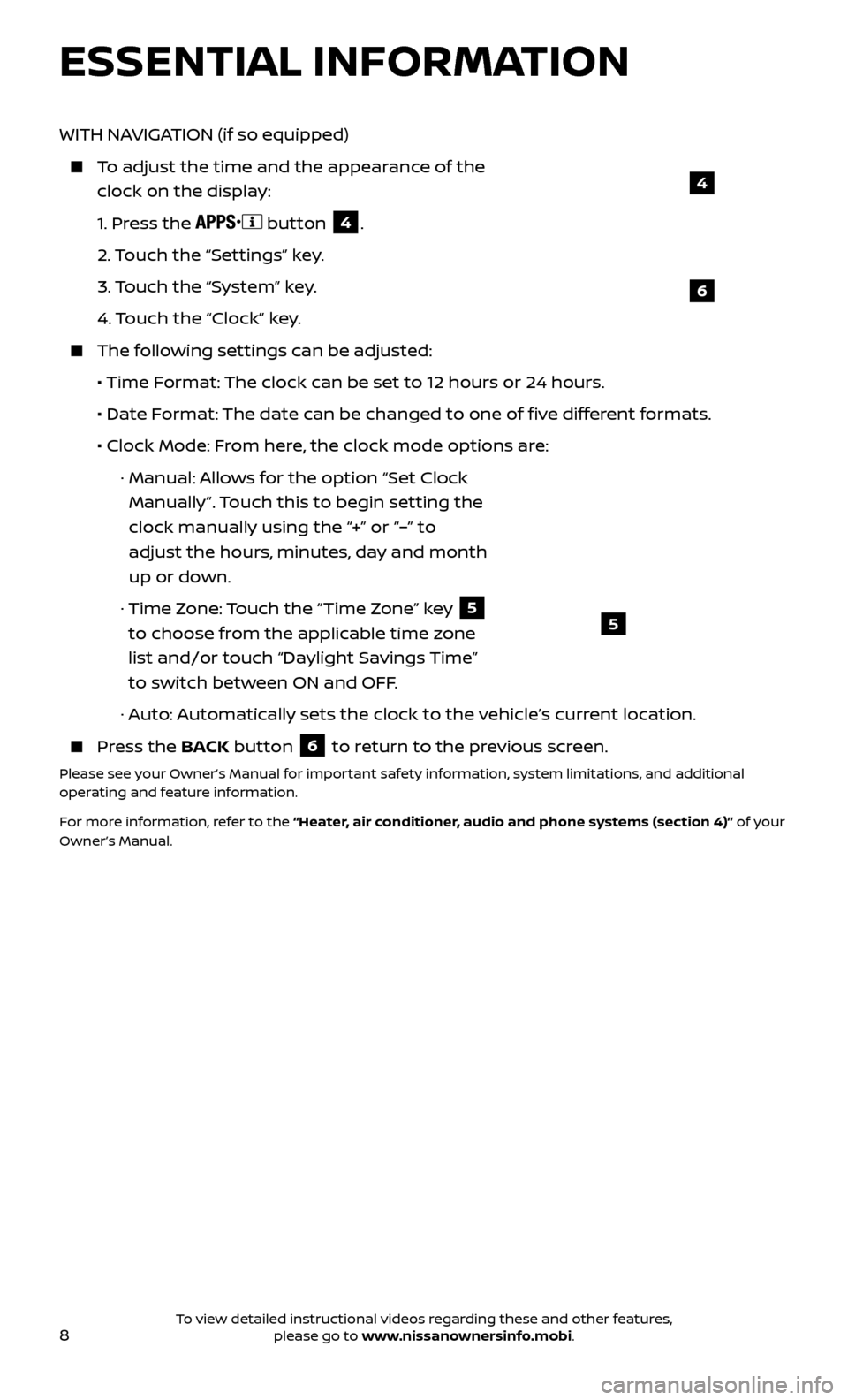
WITH NAVIGATION (if so equipped)
To adjust the time and the appearance of the clock on the display:
1.
Press the
button
4.
2.
Touch the “Settings” key.
3.
Touch the “System” key.
4.
Touch the “Clock” key.
The following settings can be adjusted:
• Time F
ormat: The clock can be set to 12 hours or 24 hours.
•
Date F
ormat: The date can be changed to one of five different formats.
•
Clock Mode:
From here, the clock mode options are:
·
Manual
: Allows for the option “Set Clock
Manually”. Touch this to begin setting the
clock manually using the “+” or “–” to
adjust the hours, minutes, day and month
up or down.
· Time Z
one: Touch the “Time Zone” key
5
to choose from the applicable time zone
list and/or touch “Daylight Savings Time”
to switch between ON and OFF.
·
A
uto: Automatically sets the clock to the vehicle’s current location.
Press the B ACK button 6 to return to the previous screen.
Please see your Owner’s Manual for important safety information, system limitations, and additional
operating and feature information.
For more information, refer to the “Heater, air conditioner, audio and phone systems (section 4)” of your
Owner’s Manual.
6
4
5
ESSENTIAL INFORMATION
To view detailed instructional videos regarding these and other features, please go to www.nissanownersinfo.mobi.
Page 16 of 28
14
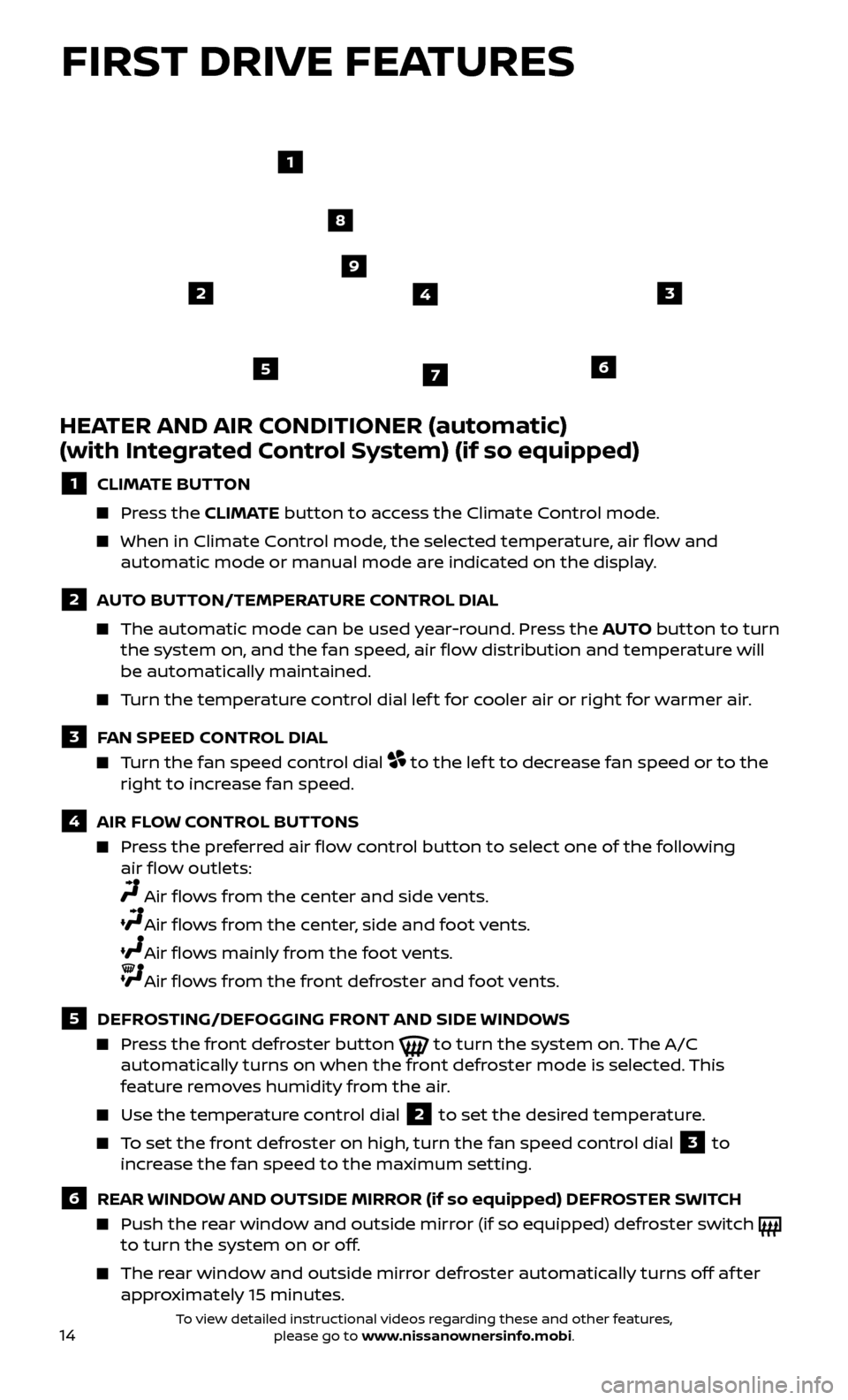
HEATER AND AIR CONDITIONER (automatic)
(with Integrated Control System) (if so equipped)
1 CLIMATE BUTTON
Press the CLIMATE button to access the Climate Control mode.
When in Climate Control mode, the selected temperature, air flow and
automatic mode or manual mode are indicated on the display.
2 AUTO BUTTON/TEMPERATURE CONTROL DIAL
The automatic mode c an be used year-round. Press the AUTO button to turn
the system on, and the fan speed, air flow distribution and temperature will
be automatically maintained.
Turn the temperature control dial lef t for cooler air or right for warmer air.
3 FAN SPEED CONTROL DIAL
Turn the fan speed control dial to the lef t to decrease fan speed or to the
right to increase fan speed.
4 AIR FLOW CONTROL BUTTONS
Press the preferred air flow control button to select one of the following air flow outlets:
Air flows from the center and side vents.
Air flows from the center, side and foot vents.
Air flows mainly from the foot vents.
Air flows from the front defroster and foot vents.
5 DEFROSTING/DEFOGGING FRONT AND SIDE WINDOWS
Press the front defroster button to turn the system on. The A/C
automatically turns on when the front defroster mode is selected. This
feature removes humidity from the air.
Use the temper ature control dial 2 to set the desired temperature.
To set the front defroster on high, turn the fan speed control dial 3 to
increase the fan speed to the maximum setting.
6 REAR WINDOW AND OUTSIDE MIRROR (if so equipped) DEFROSTER SWITCH
Push the r ear window and outside mirror (if so equipped) defroster switch
to turn the system on or off.
The rear window and outside mirror defroster automatically turns off af ter approximately 15 minutes.
32
1
8
9
756
4
FIRST DRIVE FEATURES
To view detailed instructional videos regarding these and other features, please go to www.nissanownersinfo.mobi.
Page 17 of 28

15
2
1
3
4
DRIVE MODE (with Integrated Control System) (if so equipped)
1 DRIVE MODE SELECT BUTTON Press the
D-MODE button 1 to switch the display to the Drive mode. While
in the Drive mode, set-up functions, drive information and ECO information
can be displayed and adjusted.
Your vehicle’s Integrated Control System allows vehicle performance to be
adjusted by selecting from three drive modes: NORMAL, SPORT or ECO .
NORMAL
2 drive mode is recommended for normal, everyday driving.
SPORT
3 drive mode is recommended for an enhanced performance feel.
Fuel economy may be reduced.
ECO
4 drive mode is recommended for maximum fuel economy.
Performance may be reduced.
Please see your Owner’s Manual for important safety information, system limitations, and additional
operating and feature information.
For more information, refer to the “Instruments and controls (section 2)”, the “Heater, air conditioner,
audio and phone systems (section 4)” and the “Starting and driving (section 5)” of your Owner’s Manual.
7 AIR INT AKE BUTTON Press the air intake button to change the air circulation from the air
recirculation mode to the outside air circulation mode.
When the air r ecirculation indicator light illuminates, the flowing air is
recirculated inside the vehicle. This system is used to avoid outside odors and
to help adjust the inside vehicle temperature more effectively.
The air recirculation mode cannot be activated when the climate control system is in the front defroster mode or the front defroster and foot
outlet mode .
When the outside air cir culation indicator light
illuminates, the flowing
air is drawn from outside the vehicle.
8 A/C BUTTON Press the A/C button to manually turn the A/C on or off.
9 OFF BUTTON Press the OFF button to turn the climate control system off.
Please see your Owner’s Manual for important safety information, system limitations, and additional
operating and feature information.
For more information, refer to the “Instruments and controls (section 2)”, the “Heater, air conditioner,
audio and phone systems (section 4)” and the “Starting and driving (section 5)” of your Owner’s Manual.
To view detailed instructional videos regarding these and other features, please go to www.nissanownersinfo.mobi.
Page 18 of 28
16
21
56
3
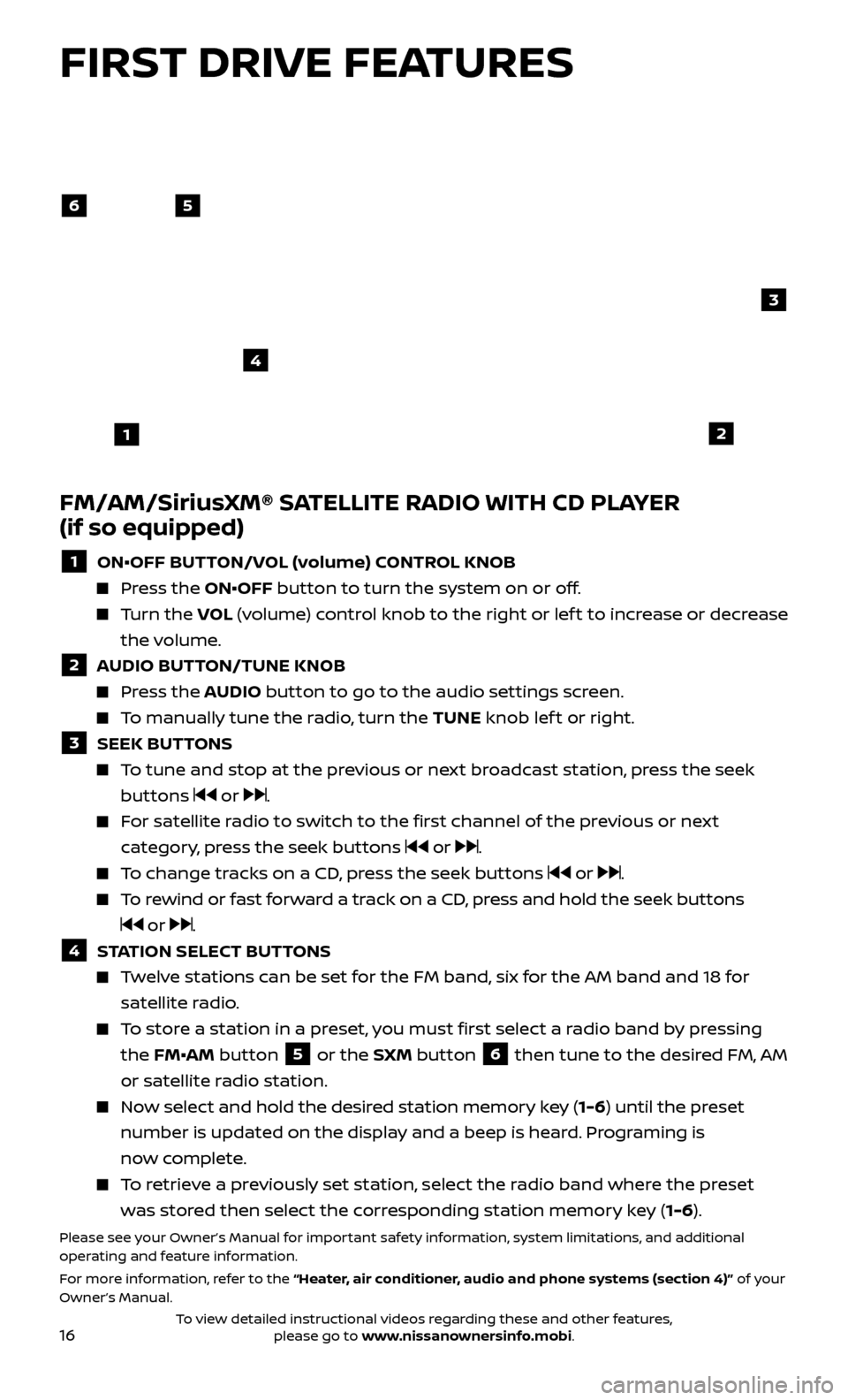
FM/AM/SiriusXM® SATELLITE RADIO WITH CD PLAYER
(if so equipped)
1 ON•OFF BUTTON/VOL (volume) CONTROL KNOB
Press the ON•OFF button to turn the system on or off.
Turn the V OL (volume) control knob to the right or lef t to increase or decrease
the volume.
2 AUDIO BUTTON/TUNE KNOB
Press the AUDIO button to go to the audio settings screen.
To manually tune the radio, turn the TUNE knob lef t or right.
3 SEEK BUT TONS
To tune and stop at the previous or next broadcast station, press the seek
buttons
or .
For satellite radio to switch to the first channel of the previous or next category, press the seek buttons
or .
To change tracks on a CD, press the seek buttons or .
To rewind or fast forward a track on a CD, press and hold the seek buttons
or .
4 STATION SELECT BUTTONS
Twelve stations can be set for the FM band, six for the AM band and 18 for
satellite radio.
To store a station in a preset, you must first select a radio band by pressing the FM•AM button
5 or the SXM button 6 then tune to the desired FM, AM
or satellite radio station.
Now select and hold the desired station memory key (1-6) until the preset number is updated on the display and a beep is heard. Programing is
now complete.
To retrieve a previously set station, select the radio band where the preset was stored then select the corresponding station memory key (1-6).
Please see your Owner’s Manual for important safety information, system limitations, and additional
operating and feature information.
For more information, refer to the “Heater, air conditioner, audio and phone systems (section 4)” of your
Owner’s Manual.
4
FIRST DRIVE FEATURES
To view detailed instructional videos regarding these and other features, please go to www.nissanownersinfo.mobi.
Page 20 of 28

18
TRIP COMPUTER
With the ignition switch in the ON position, trip
computer
1 modes can be selected by pushing
the trip computer mode switch
2 on the
instrument panel. The following modes can be
selected in the display:
Trip A – measures the distance of one specific trip.
Trip B – measures the distance of a second specific trip.
Current Fuel Consumption – displays the current fuel consumption.
Distance to Empty (dte ) – displays the estimated distance to empty the vehicle
can be driven before refueling.
Average Fuel Consumption – displays the average fuel consumption since the
last reset.
Torque Vectoring AWD (AWD model) – displays the current amount of torque distributed to each wheel.
Push the trip computer mode switch
2 for approximately 1 second to reset the
currently displayed trip odometer to zero.
Please see your Owner’s Manual for important safety information, system limitations, and additional
operating and feature information.
For more information, refer to the “Instruments and controls (section 2)” of your Owner’s Manual.
SYSTEM GUIDE
TEXT MESSAGING*
This system al lows for sending and receiving
text messages through the vehicle’s interface.
Using predefined or custom messages, send a text to an entry stored in your Bluetooth®
Hands-free Phone System.
Once enabled, the text message, sender and delivery time are shown on the control panel
display when the vehicle speed is less than 5 mph (8 km/h).
Text messages have the option of being read aloud at all vehicle speeds.
Many cellular phones may require special permission to enable text messaging. Check the cellular phone’s screen during Bluetooth® pairing. For some cellular
phones, you need to enable “Notifications” in the cellular phone’s Bluetooth®
menu for text messages to appear on the touch-screen display. For more
information and instructions, refer to your cellular phone’s Owner’s Manual.
Text message integration requires that the celllular phone support Message Access Profile (MAP) for both receiving and sending text messages. Some cellular
phones may not support all text messaging features. Please see
www.NissanUSA.com/bluetooth for compatibility information as well as your
device’s Owner’s Manual.
* Laws in some jurisdictions may restrict the use of “Text-to-Speech”. Some of the applications and features, such as social networking and texting, may also be restricted. Check local regulations for any
requirements before using these features.
Please see your Owner’s Manual for important safety information, system limitations, and additional
operating and feature information.
For more information, refer to the “Heater, air conditioner, audio and phone systems (section 4)” of your
Owner’s Manual.
2
1
To view detailed instructional videos regarding these and other features, please go to www.nissanownersinfo.mobi.
Page 21 of 28

19
NISSANCONNECTSM MOBILE APPS (if so equipped)
Your vehicle may be equipped with NissanConnectSM Mobile Apps, allowing you
to control various compatible smartphone applications through the vehicle’s
display screen. A basic package is included for a period of time from the original
in-service date of the vehicle.
To enroll in NissanConnectSM Mobile Apps:
1.
Cr
eate a Nissan Owner Portal account at owners.nissanusa.com.
•
Mak
e sure to include your vehicle’s VIN when creating your account.
2. Under the NissanConnect Mobile Apps tab, select the red button next to
Manage Subscription to enroll.
3.
Ne
xt, download the NissanConnect
SM Mobile Apps companion app from
Google Play or the Apple App Store. Log into the companion app using your
Nissan Owner Portal ID and password.
4.
Launch the app
, select “United States”, and accept the Terms and Conditions.
5
.
Selec
t “Sign In”, then sign in with the email username and password you
created when registering on the Nissan Owner Portal website.
Pair your cellular phone to the vehicle.
•
F
or Android® devices, the smartphone must be connected through the
Bluetooth® Hands-free Phone system.
•
F
or iPhone® on vehicles WITH Navigation, the device must be connected to
the vehicle’s USB port using your cellular phone’s USB cable.
You can select which apps you want activated in the vehicle from the
NissanConnectSM Mobile Apps companion app by selecting “Manage My Apps”.
Some apps shown in the companion app may not appear in your vehicle
depending on availability for your model.
Some applications require you to have the app downloaded and installed
on your cellular phone, while others require you to enter your username and
password to log in. Not all apps shown on the NissanConnect app site are
available on all models.
To help identify specific apps available for your vehicle or to contact a specialist
via chat, please visit www.NissanUSA.com/connect/support.
Your available apps will only appear on the screen when your smartphone is
connected to both the vehicle and the Internet. For additional information on
connecting your device, see your Owner’s
Manual or visit
www.NissanUSA.com/bluetooth.
The NissanConnectSM app must be running
on your device and the Connected icon
1
must be green before using your apps. If the
Disconnected icon
2 is displayed, press the
APPS button 3 multiple times to ensure the
connection is established.
To access your apps with the vehicle controls,
start your vehicle and then press the APPS
button
3 on the control panel. The system may take a few seconds to boot up
before the APPS button
3 is enabled. This is normal. If available, your apps can be accessed once the vehicle and cellular phone are
connected through the NissanConnectSM Mobile Apps companion app.Please see your Owner’s Manual for important safety information, system limitations, and additional
operating and feature information.
For more information, refer to the “Heater, air conditioner, audio and phone systems (section 4)” of your
Owner’s Manual.
3
1
2
To view detailed instructional videos regarding these and other features, please go to www.nissanownersinfo.mobi.
Page 24 of 28
22
BLUETOOTH® SYSTEM WITH NAVIGATION* (if so equipped)
Send predefined or custom text messages through your vehicle’s Bluetooth® system.
Receive texts through your vehicle’s Bluetooth® system that can be read to you.
Bluetooth® S treaming Audio allows you to
use a compatible Bluetooth® cellular phone
to play audio files on your device. Your
compatible cellular phone can be connected
to the vehicle’s audio system, allowing audio
files to play through the vehicle’s speakers.
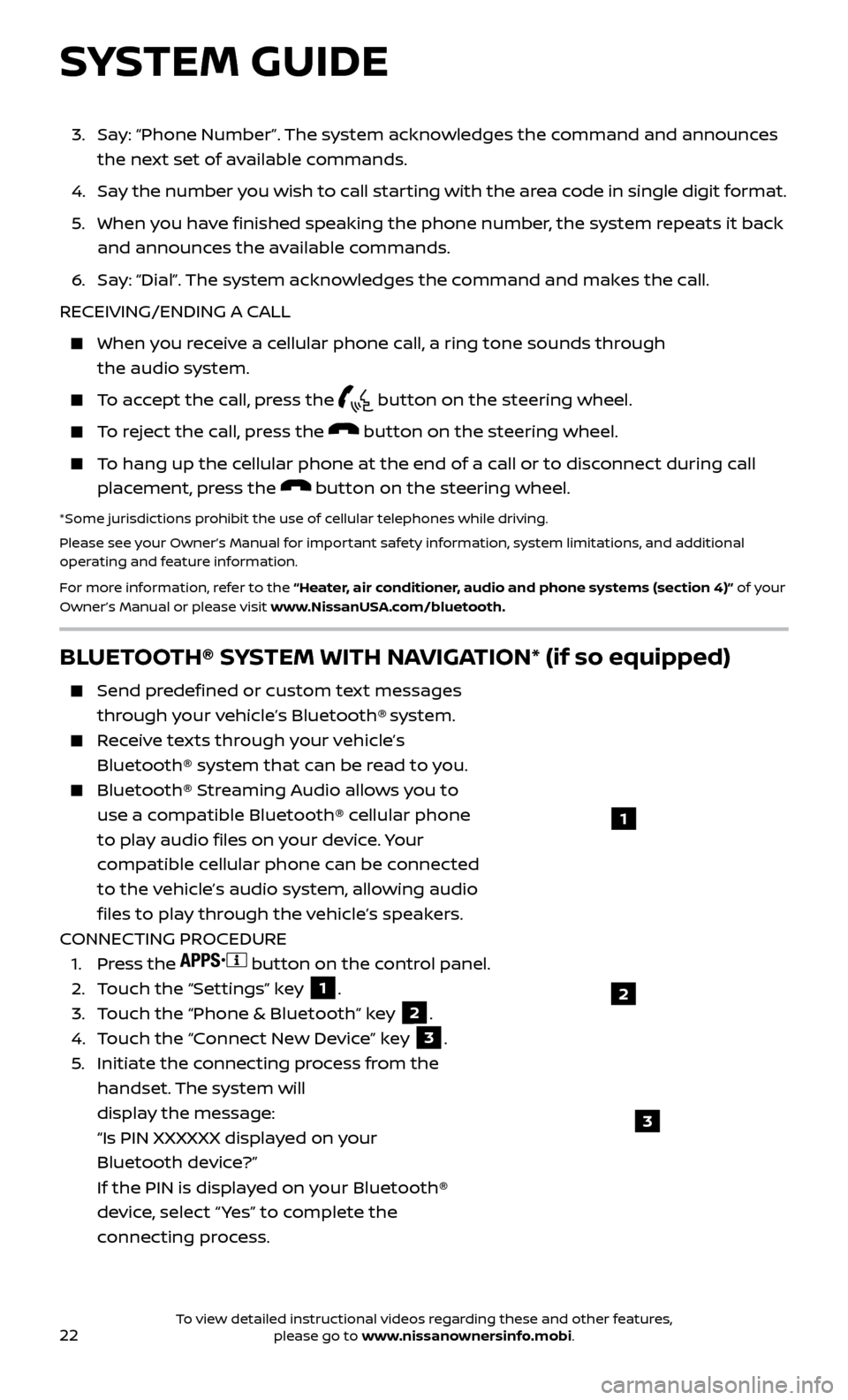
CONNECTING PROCEDURE
1. Pr
ess the
button on the control panel.
2.
T
ouch the “Settings” key
1.
3.
T
ouch the “Phone & Bluetooth” key
2.
4.
T
ouch the “Connect New Device” key
3.
5
.
Initiate the c
onnecting process from the
handset. The system will
display the message:
“Is PIN XXXXXX displa
yed on your
Bluetooth device?”
If the PIN is displa
yed on your Bluetooth®
device, select “ Yes” to complete the
connecting process.
1
3. Say: “Phone Number”. The system acknowledges the command and announces the next set of available commands.
4. Sa
y the number you wish to call starting with the area code in single digit format.
5
.
When y
ou have finished speaking the phone number, the system repeats it back
and announces the available commands.
6
.
Sa
y: “Dial”. The system acknowledges the command and makes the call.
RECEIVING/ENDING A CALL
When you receive a cellular phone call, a ring tone sounds through the audio system.
To accept the call, press the button on the steering wheel.
To reject the call, press the button on the steering wheel.
To hang up the cellular phone at the end of a call or to disconnect during call placement, press the
button on the steering wheel.
*Some jurisdictions prohibit the use of cellular telephones while driving.
Please see your Owner’s Manual for important safety information, system limitations, and additional
operating and feature information.
For more information, refer to the “Heater, air conditioner, audio and phone systems (section 4)” of your
Owner’s Manual or please visit www.NissanUSA.com/bluetooth.
SYSTEM GUIDE
3
2
To view detailed instructional videos regarding these and other features, please go to www.nissanownersinfo.mobi.
Page 25 of 28
23
VEHICLE PHONEBOOK
To access the vehicle phonebook:
1. Pr
ess the
button on the control panel.
2. T
ouch the “Phonebook” key
4.
3.
Choose the desir
ed entry from the
displayed list.
MAKING A CALL
1.
Press the
button on the control panel. The
“PHONE” screen
5 will appear on the display.
2.
Selec
t one of the following options to make a call:
“Phonebook”: Select the name from an entry stored in the vehicle phonebook.
“Call Lists”: Select the name from the incoming, outgoing or missed call history.
“Redial”: Dial the last outgoing call from the vehicle.
: Input the phone number manually using the keypad displayed on
the screen.
RECEIVING/ENDING A CALL
To accept the incoming call, either:
•
Pr
ess the
button on the steering
wheel, or
• Selec
t the
icon on the screen.
To reject the incoming call, either:
•
Pr
ess the
button on the steering
wheel, or
• Select the
icon on the screen.
To end a cellular phone call, either:
•
Pr
ess the
button on the steering wheel, or
• Selec
t the
icon on the screen.*Some jurisdictions prohibit the use of cellular telephones while driving.
Please see your Owner’s Manual for important safety information, system limitations, and additional
operating and feature information.
For more information, refer to the “Heater, air conditioner, audio and phone systems (section 4)” of your
Owner’s Manual or visit www.NissanUSA.com/bluetooth.
4
5
To view detailed instructional videos regarding these and other features, please go to www.nissanownersinfo.mobi.