2017 NISSAN JUKE width
[x] Cancel search: widthPage 167 of 416
4-8Heater, air conditioner, audio and phone systems
HOW TO USE BRIGHTNESS CON-
TROL BUTTON
To change the display brightness, push thebutton. Pushing the button again will change the
display to the day or the night display.
If no operation is performed, the display will
return to the previous display.
Push and hold the
button to turn the display
off. Push the button again to turn the display on.
HOW TO USE THE ON·OFF BUTTON/
VOLUME CONTROL KNOB
Push the ON·OFF button to turn audio function
on and off. Turn the volume control knob to
adjust audio volume.
HOW TO USE THE CAMERA BUTTON
For more information regarding the CAMERA
button, see “Around ViewŠMonitor (AVM)
(models with navigation system)” (P.4-13).
WARNING
Failure to follow the warnings and
instructions for proper use of the Rear-
View Monitor could result in serious
injury or death.
. The RearView Monitor is a conve-
nience but it is not a substitute for
proper backing. Always turn and
look out the windows, and check
mirrors to be sure that it is safe to
move before operating the vehicle.
Always back up slowly.
. The system is designed as an aid to
the driver in showing large station-
ary objects directly behind the vehi-
cle, to help avoid damaging the
vehicle.
. The distance guide line and the
vehicle width line should be used
as a reference only when the vehicle
is on a level paved surface. The
distance viewed on the monitor is
for reference only and may be
different than the actual distance
between the vehicle and displayed
objects.
CAUTION
Do not scratch the camera lens when
cleaning dirt or snow from the front of
the camera.
The RearView Monitor system automatically
shows a rear view of the vehicle when the shift
lever is placed in the “R” (Reverse) position.
The radio can still be heard while the RearView
Monitor is active.
REARVIEW MONITOR (models
without navigation system)
Page 168 of 416

JVH1219X
To display the rear view, the RearView Monitor
system uses a camera located just above the
vehicle’s license plate
*1.
REARVIEW MONITOR SYSTEM OP-
ERATION
With the ignition switch in the ON position,
move the shift lever to the “R” (Reverse) position
to operate the RearView Monitor.
SAA2776
HOW TO READ THE DISPLAYED
LINES
Guiding lines which indicate the vehicle width
and distances to objects with reference to the
bumper line
*Aare displayed on the monitor.
Distance guide lines:
Indicate distances from the bumper.
. Red line
*1: approx. 1.5 ft (0.5 m)
. Yellow line
*2: approx. 3 ft (1 m)
. Green line
*3: approx. 7 ft (2 m)
. Green line
*4: approx. 10 ft (3 m)
Vehicle width guide lines
*5:
Indicate the vehicle width when backing up.
Difference between predictive and actual
distances
The displayed guidelines and their locations on
the ground are for approximate reference only.
Objects on uphill or downhill surfaces or
projecting objects will be actually located at
distances different from those displayed in the
monitor relative to the guidelines (refer to
illustrations) . When in doubt, turn around and
view the objects as you are backing up, or park
and exit the vehicle to view the positioning of
objects behind the vehicle.
Heater, air conditioner, audio and phone systems4-9
Page 169 of 416

4-10Heater, air conditioner, audio and phone systems
JVH1159X
Backing up on a steep uphill:
When backing up the vehicle up a hill, the
distance guide lines and the vehicle width guide
lines are shown closer than the actual distance.
Note that any object on the hill is farther than it
appears on the monitor.
JVH1160X
Backing up on a steep downhill:
When backing up the vehicle down a hill, the
distance guide lines and the vehicle width guide
lines are shown farther than the actual distance.
Note that any object on the hill is closer than it
appears on the monitor.
SAA3440
Backing up near a projecting object:
The vehicle may seem to nearly clear the object
in the display. However, the vehicle may hit the
object if it projects over the actual backing up
course.
Page 174 of 416
Available views
WARNING
.The distance guide lines and the
vehicle width lines should be used
as a reference only when the vehicle
is on a paved, level surface. The
distance viewed on the monitor is
for reference only and may be
different than the actual distance
between the vehicle and displayed
objects.
. Use the displayed lines and the
bird’s-eye view as a reference. The
lines and the bird’s-eye view are
greatly affected by the number of
occupants, fuel level, vehicle posi-
tion, road condition and road grade.
. If the tires are replaced with differ-
ent sized tires, the predictive course
lines and the bird’s-eye view may be
displayed incorrectly.
. When driving the vehicle up a hill,
objects viewed in the monitor are
farther than they appear. When
driving the vehicle down a hill,
objects viewed in the monitor are
closer than they appear. .
Objects in the monitor will appear
visually opposite compared to when
viewed in the rear view and outside
mirrors.
. Use the mirrors or actually look to
properly judge distances to other
objects.
. The distance between objects
viewed in the rear view differs from
actual distance because a wide-
angle lens is used.
. On a snow-covered or slippery road,
there may be a difference between
the predictive course line and the
actual course line.
. The vehicle width and predictive
course lines are wider than the
actual width and course.
. The displayed lines on the rear view
will appear slightly off to the right
because the rear view camera is not
installed in the rear center of the
vehicle.
SAA1840
Front view
SAA1896Rear view
Heater, air conditioner, audio and phone systems4-15
Page 175 of 416

4-16Heater, air conditioner, audio and phone systems
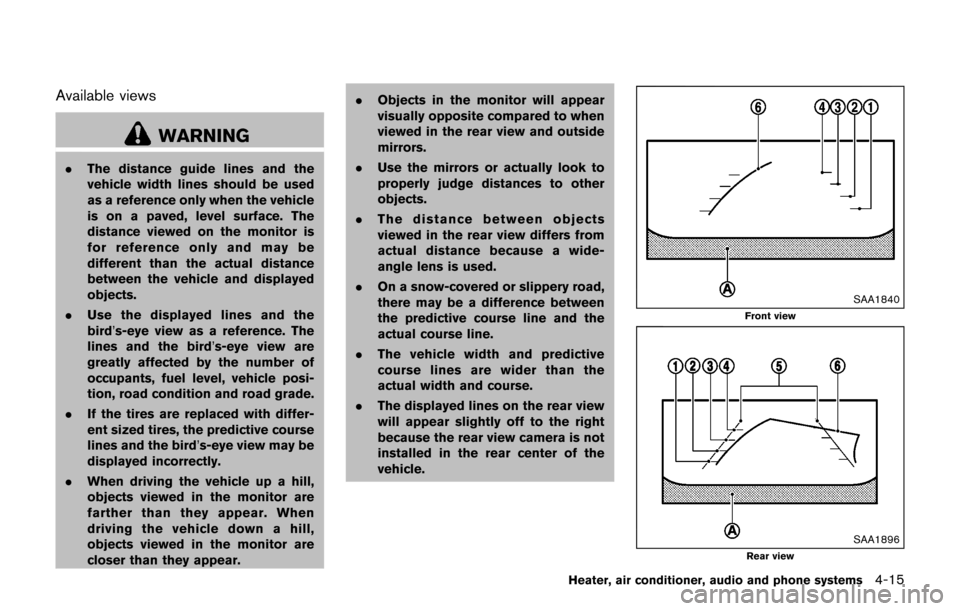
Front and rear view:
Guiding lines, which indicate the vehicle width
and distances to objects with reference to the
vehicle body line
*A, are displayed on the
monitor.
Distance guide lines:
Indicate distances from the vehicle body.
. Red line
*1: approx. 1.5 ft (0.5 m)
. Yellow line
*2: approx. 3 ft (1 m)
. Green line
*3: approx. 7 ft (2 m)
. Green line
*4: approx. 10 ft (3 m)
Vehicle width guide lines
*5:
Indicate the vehicle width when backing up.
Predictive course lines
*6:
Indicate the predictive course when operating
the vehicle. The predictive course lines will be
displayed on the monitor when the steering
wheel is turned. The predictive course lines will
move depending on how much the steering
wheel is turned and will not be displayed while
the steering wheel is in the straight ahead
position.
The front view will not be displayed when the
vehicle speed is above 6 MPH (10 km/h) .
NOTE:
. When the monitor displays the front
view and the steering wheel turns about 90 degrees or less from the
straight ahead position, both the right
and left predictive course lines
*6are
displayed. When the steering wheel
turns about 90 degrees or more, the
predictive course line is displayed only
on the opposite side of the turn.
JVH1037X
Bird’s-eye view:
The bird’s-eye view shows the overhead view of
the vehicle which helps confirm the vehicle
position and the predicted course to a parking
space.
The vehicle icon
*1shows the position of the
vehicle. Note that the distance between objects
viewed in the bird’s-eye view differs from the
actual distance.
The areas that the cameras cannot cover
*2are
indicated in black.
After the ignition switch is placed in the ON
position, the non-viewable area
*2is high-
lighted in yellow for 3 seconds after the bird’s-
Page 176 of 416
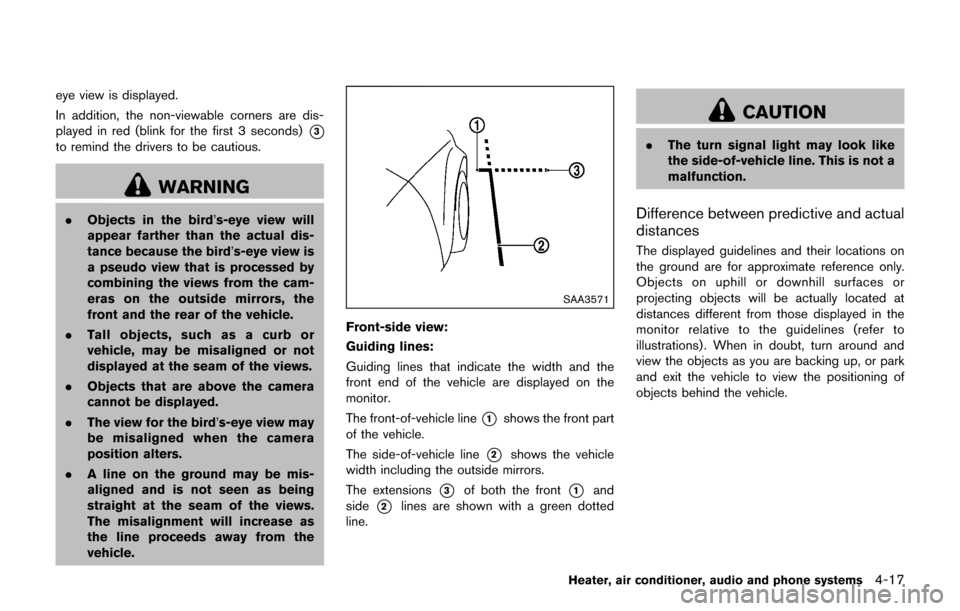
eye view is displayed.
In addition, the non-viewable corners are dis-
played in red (blink for the first 3 seconds)
*3
to remind the drivers to be cautious.
WARNING
.Objects in the bird’s-eye view will
appear farther than the actual dis-
tance because the bird’s-eye view is
a pseudo view that is processed by
combining the views from the cam-
eras on the outside mirrors, the
front and the rear of the vehicle.
. Tall objects, such as a curb or
vehicle, may be misaligned or not
displayed at the seam of the views.
. Objects that are above the camera
cannot be displayed.
. The view for the bird’s-eye view may
be misaligned when the camera
position alters.
. A line on the ground may be mis-
aligned and is not seen as being
straight at the seam of the views.
The misalignment will increase as
the line proceeds away from the
vehicle.
SAA3571
Front-side view:
Guiding lines:
Guiding lines that indicate the width and the
front end of the vehicle are displayed on the
monitor.
The front-of-vehicle line
*1shows the front part
of the vehicle.
The side-of-vehicle line
*2shows the vehicle
width including the outside mirrors.
The extensions
*3of both the front*1and
side
*2lines are shown with a green dotted
line.
CAUTION
. The turn signal light may look like
the side-of-vehicle line. This is not a
malfunction.
Difference between predictive and actual
distances
The displayed guidelines and their locations on
the ground are for approximate reference only.
Objects on uphill or downhill surfaces or
projecting objects will be actually located at
distances different from those displayed in the
monitor relative to the guidelines (refer to
illustrations) . When in doubt, turn around and
view the objects as you are backing up, or park
and exit the vehicle to view the positioning of
objects behind the vehicle.
Heater, air conditioner, audio and phone systems4-17
Page 177 of 416

4-18Heater, air conditioner, audio and phone systems
JVH1159X
Backing up on a steep uphill:
When backing up the vehicle up a hill, the
distance guide lines and the vehicle width guide
lines are shown closer than the actual distance.
Note that any object on the hill is farther than it
appears on the monitor.
JVH1160X
Backing up on a steep downhill:
When backing up the vehicle down a hill, the
distance guide lines and the vehicle width guide
lines are shown farther than the actual distance.
Note that any object on the hill is closer than it
appears on the monitor.
SAA1923
Backing up near a projecting object:
The predictive course lines
*Ado not touch the
object in the display. However, the vehicle may
hit the object if it projects over the actual
backing up course.
Page 179 of 416
4-20Heater, air conditioner, audio and phone systems
SAA1898
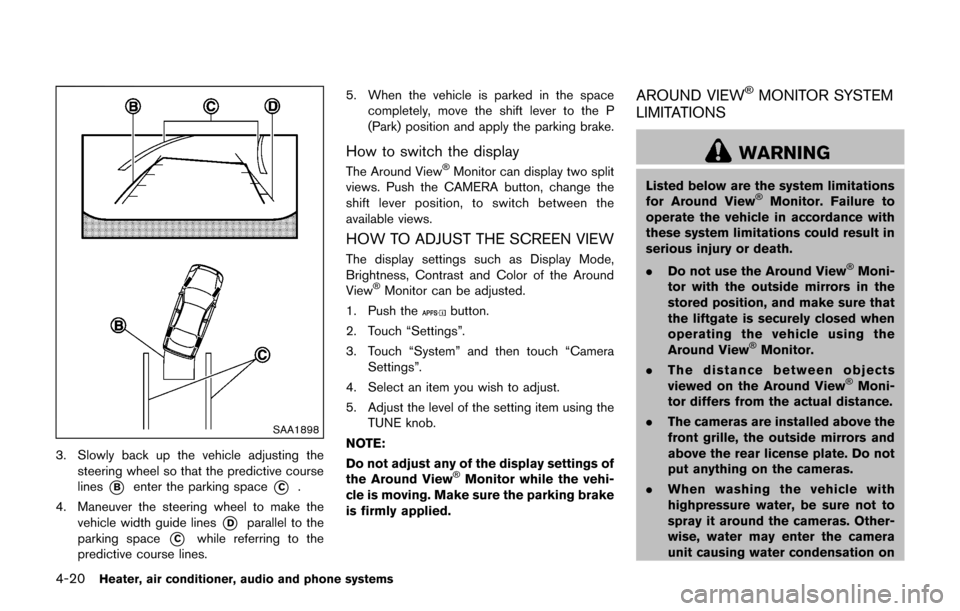
3. Slowly back up the vehicle adjusting thesteering wheel so that the predictive course
lines
*Benter the parking space*C.
4. Maneuver the steering wheel to make the vehicle width guide lines
*Dparallel to the
parking space
*Cwhile referring to the
predictive course lines. 5. When the vehicle is parked in the space
completely, move the shift lever to the P
(Park) position and apply the parking brake.
How to switch the display
The Around ViewŠMonitor can display two split
views. Push the CAMERA button, change the
shift lever position, to switch between the
available views.
HOW TO ADJUST THE SCREEN VIEW
The display settings such as Display Mode,
Brightness, Contrast and Color of the Around
View
ŠMonitor can be adjusted.
1. Push the
button.
2. Touch “Settings”.
3. Touch “System” and then touch “Camera Settings”.
4. Select an item you wish to adjust.
5. Adjust the level of the setting item using the TUNE knob.
NOTE:
Do not adjust any of the display settings of
the Around View
ŠMonitor while the vehi-
cle is moving. Make sure the parking brake
is firmly applied.
AROUND VIEWŠMONITOR SYSTEM
LIMITATIONS
WARNING
Listed below are the system limitations
for Around ViewŠMonitor. Failure to
operate the vehicle in accordance with
these system limitations could result in
serious injury or death.
. Do not use the Around View
ŠMoni-
tor with the outside mirrors in the
stored position, and make sure that
the liftgate is securely closed when
operating the vehicle using the
Around View
ŠMonitor.
. The distance between objects
viewed on the Around View
ŠMoni-
tor differs from the actual distance.
. The cameras are installed above the
front grille, the outside mirrors and
above the rear license plate. Do not
put anything on the cameras.
. When washing the vehicle with
highpressure water, be sure not to
spray it around the cameras. Other-
wise, water may enter the camera
unit causing water condensation on