Page 231 of 248
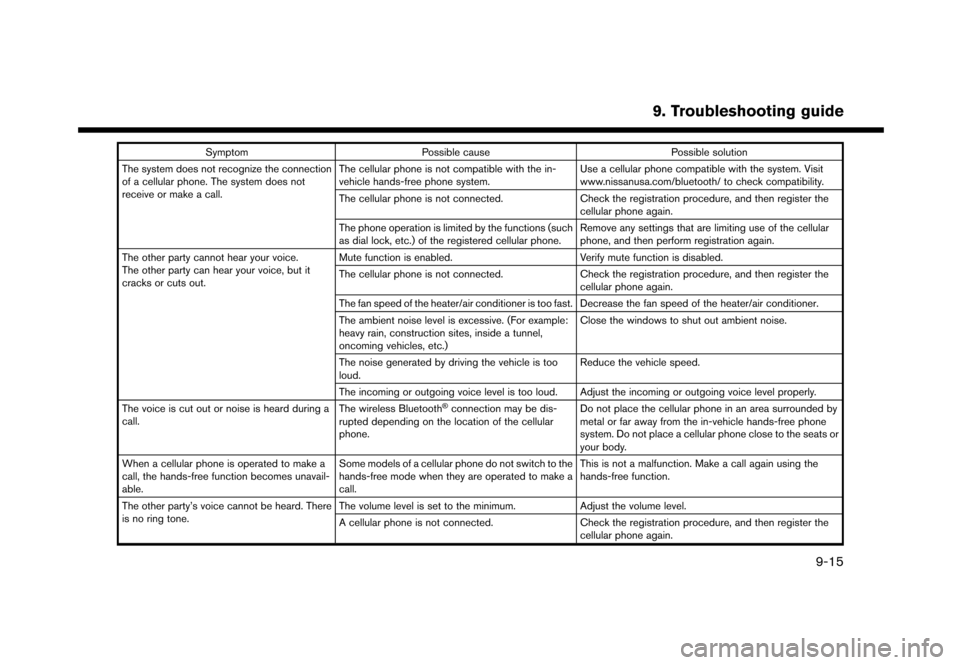
SymptomPossible cause Possible solution
The system does not recognize the connection
of a cellular phone. The system does not
receive or make a call. The cellular phone is not compatible with the in-
vehicle hands-free phone system.
Use a cellular phone compatible with the system. Visit
www.nissanusa.com/bluetooth/ to check compatibility.
The cellular phone is not connected. Check the registration procedure, and then register the
cellular phone again.
The phone operation is limited by the functions (such
as dial lock, etc.) of the registered cellular phone. Remove any settings that are limiting use of the cellular
phone, and then perform registration again.
The other party cannot hear your voice.
The other party can hear your voice, but it
cracks or cuts out. Mute function is enabled.
Verify mute function is disabled.
The cellular phone is not connected. Check the registration procedure, and then register the
cellular phone again.
The fan speed of the heater/air conditioner is too fast. Decrease the fan speed of the heater/air conditioner.
The ambient noise level is excessive. (For example:
heavy rain, construction sites, inside a tunnel,
oncoming vehicles, etc.) Close the windows to shut out ambient noise.
The noise generated by driving the vehicle is too
loud. Reduce the vehicle speed.
The incoming or outgoing voice level is too loud. Adjust the incoming or outgoing voice level properly.
The voice is cut out or noise is heard during a
call. The wireless Bluetooth
Šconnection may be dis-
rupted depending on the location of the cellular
phone. Do not place the cellular phone in an area surrounded by
metal or far away from the in-vehicle hands-free phone
system. Do not place a cellular phone close to the seats or
your body.
When a cellular phone is operated to make a
call, the hands-free function becomes unavail-
able. Some models of a cellular phone do not switch to the
hands-free mode when they are operated to make a
call. This is not a malfunction. Make a call again using the
hands-free function.
The other party’s voice cannot be heard. There
is no ring tone. The volume level is set to the minimum.
Adjust the volume level.
A cellular phone is not connected. Check the registration procedure, and then register the
cellular phone again.
9. Troubleshooting guide
9-15
Page 232 of 248
9. Troubleshooting guide
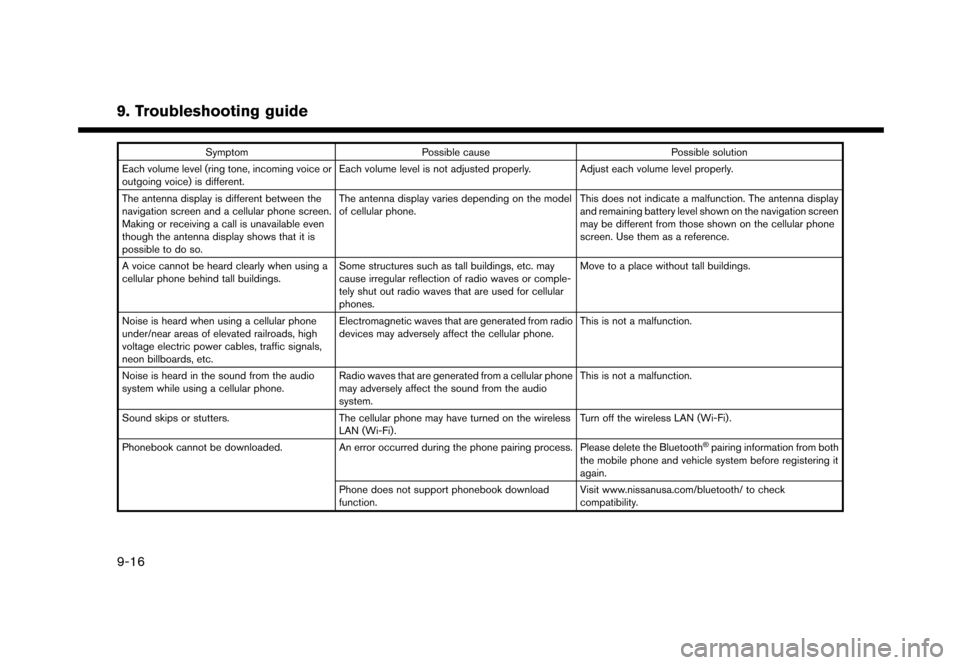
SymptomPossible cause Possible solution
Each volume level (ring tone, incoming voice or
outgoing voice) is different. Each volume level is not adjusted properly. Adjust each volume level properly.
The antenna display is different between the
navigation screen and a cellular phone screen.
Making or receiving a call is unavailable even
though the antenna display shows that it is
possible to do so. The antenna display varies depending on the model
of cellular phone.
This does not indicate a malfunction. The antenna display
and remaining battery level shown on the navigation screen
may be different from those shown on the cellular phone
screen. Use them as a reference.
A voice cannot be heard clearly when using a
cellular phone behind tall buildings. Some structures such as tall buildings, etc. may
cause irregular reflection of radio waves or comple-
tely shut out radio waves that are used for cellular
phones. Move to a place without tall buildings.
Noise is heard when using a cellular phone
under/near areas of elevated railroads, high
voltage electric power cables, traffic signals,
neon billboards, etc. Electromagnetic waves that are generated from radio
devices may adversely affect the cellular phone.
This is not a malfunction.
Noise is heard in the sound from the audio
system while using a cellular phone. Radio waves that are generated from a cellular phone
may adversely affect the sound from the audio
system. This is not a malfunction.
Sound skips or stutters. The cellular phone may have turned on the wireless
LAN (Wi-Fi). Turn off the wireless LAN (Wi-Fi).
Phonebook cannot be downloaded. An error occurred during the phone pairing process. Please delete the Bluetooth
Špairing information from both
the mobile phone and vehicle system before registering it
again.
Phone does not support phonebook download
function. Visit www.nissanusa.com/bluetooth/ to check
compatibility.
9-16
Page 240 of 248
9. Troubleshooting guide
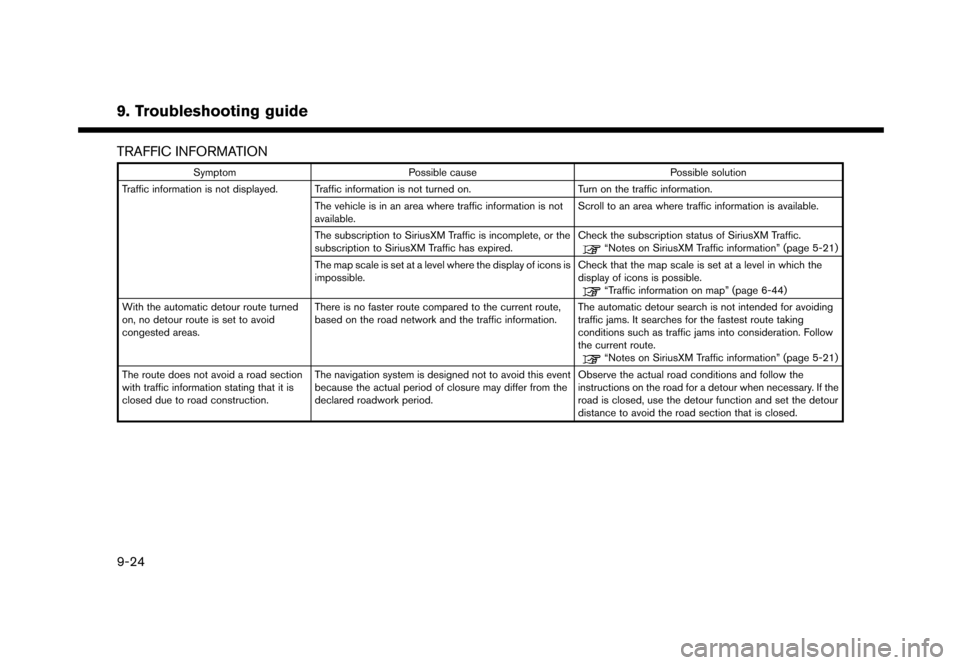
TRAFFIC INFORMATION
SymptomPossible cause Possible solution
Traffic information is not displayed. Traffic information is not turned on. Turn on the traffic information.
The vehicle is in an area where traffic information is not
available. Scroll to an area where traffic information is available.
The subscription to SiriusXM Traffic is incomplete, or the
subscription to SiriusXM Traffic has expired. Check the subscription status of SiriusXM Traffic.
“Notes on SiriusXM Traffic information” (page 5-21)
The map scale is set at a level where the display of icons is
impossible. Check that the map scale is set at a level in which the
display of icons is possible.
“Traffic information on map” (page 6-44)
With the automatic detour route turned
on, no detour route is set to avoid
congested areas. There is no faster route compared to the current route,
based on the road network and the traffic information.
The automatic detour search is not intended for avoiding
traffic jams. It searches for the fastest route taking
conditions such as traffic jams into consideration. Follow
the current route.
“Notes on SiriusXM Traffic information” (page 5-21)
The route does not avoid a road section
with traffic information stating that it is
closed due to road construction. The navigation system is designed not to avoid this event
because the actual period of closure may differ from the
declared roadwork period. Observe the actual road conditions and follow the
instructions on the road for a detour when necessary. If the
road is closed, use the detour function and set the detour
distance to avoid the road section that is closed.
9-24