2017 MITSUBISHI OUTLANDER phone
[x] Cancel search: phonePage 234 of 521
Rear-view camera (if so equipped)
Features and controls 5-153
5
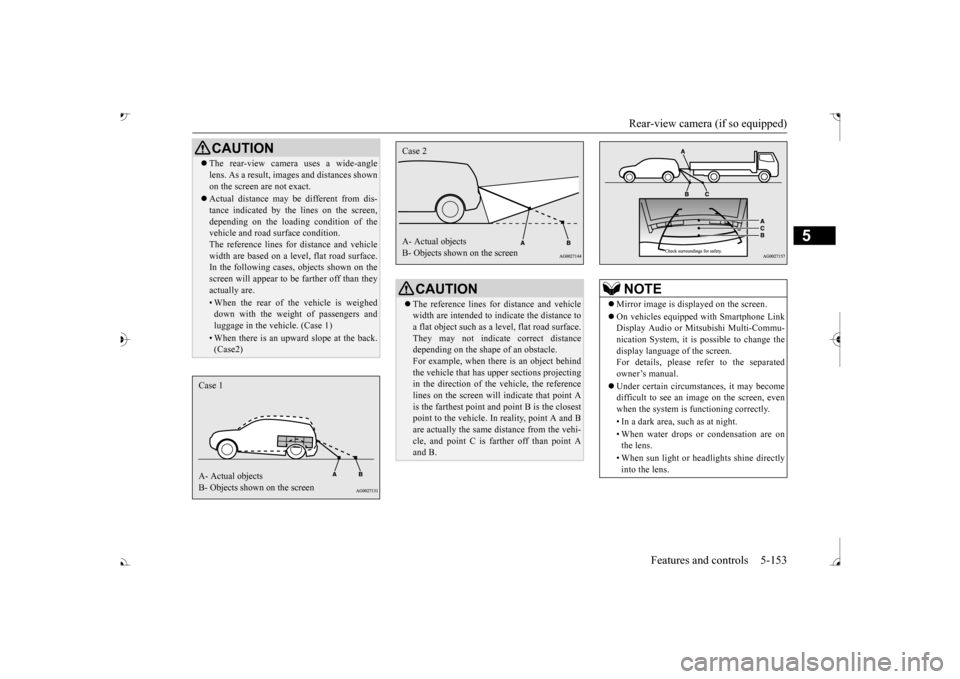
CAUTION The rear-view camera uses a wide-angle lens. As a result, imag
es and distances shown
on the screen are not exact. Actual distance may be different from dis- tance indicated by the
lines on the screen,
depending on the loadi
ng condition of the
vehicle and road surface condition. The reference lines for
distance and vehicle
width are based on a level, flat road surface. In the following cases, objects shown on the screen will appear to
be farther off than they
actually are.• When the rear of th
e vehicle is weighed
down with the weight of passengers and luggage in the vehicle. (Case 1)• When there is an upward slope at the back.(Case2)
Case 1 A- Actual objects B- Objects shown on the screen
CAUTION The reference lines for
distance and vehicle
width are intended to i
ndicate the distance to
a flat object such as a level, flat road surface. They may not indicate correct distance depending on the shape of an obstacle.For example, when there is an object behind the vehicle that has u
pper sections projecting
in the direction of the
vehicle, the reference
lines on the screen will indicate that point A is the farthest point a
nd point B is the closest
point to the vehicle. In
reality, point A and B
are actually the same distance from the vehi- cle, and point C is fa
rther off than point A
and B.Case 2 A- Actual objects B- Objects shown on the screen
NOTE
Mirror image is displayed on the screen. On vehicles equipped with Smartphone Link Display Audio or Mitsubishi Multi-Commu- nication System, it is
possible to change the
display language of the screen. For details, please refer to the separated owner’s manual. Under certain circumst
ances, it may become
difficult to see an image on the screen, evenwhen the system is functioning correctly. • In a dark area, such as at night. • When water drops or condensation are on the lens. • When sun light or he
adlights shine directly
into the lens.
BK0239700US.book 153 ページ 2016年6月16日 木曜日 午前10時58分
Page 235 of 521
Multi Around Monitor (if so equipped)
5
N00587200042
The Multi Around Monitor system uses 4 cameras, “Front-view camera”, “Side-viewcameras (right and le
ft)” and “Rear-view
camera”, and displays
composite views from
those cameras on a screen in the inside rear-view mirror, the DISPLAY AUDIO, the Smartphone Link Display Audio or the Mit- subishi Multi-Comm
unication System.
The Multi Around Monitor
system wi
ll assist
the driver to park the vehicle in a narrow orparallel parking space. Multi Around Monitor
(if so
equipped) Before using the Multi Around Monitor system, read this entire section to fully understand the limitations of this system. Failure to follow instructions could resultin an accident. The Multi Around Monitor system is an aid system to help observe around the vehicle. It is not a substitute for your visual confirmation. Never rely solely on the Multi Around Monitor system. The view on the screen islimited, and objects
outside the view can-
not be seen on the screen.
CAUTION Before using the Multi Around Monitor, make sure that all doors and the liftgate areclosed and the outside mirrors are unfolded.If an outside mirror is folded and/or if a front door and/or the liftgate
is open, the areas dis-
played on the Multi Around Monitor will notbe appropriate.
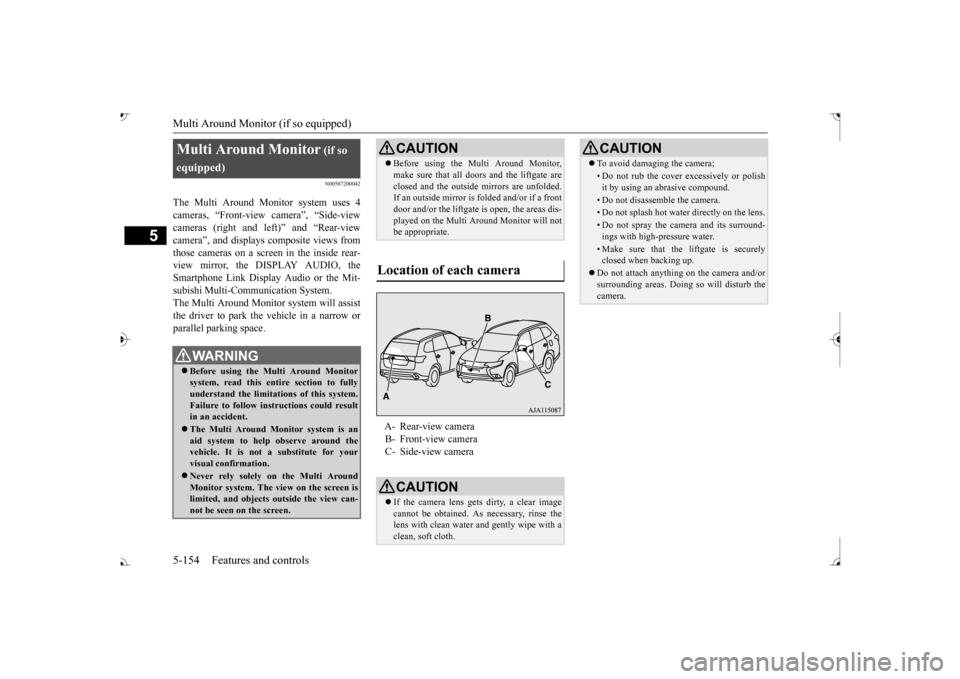
Location of each camera
A- Rear-view camera B- Front-view camera C- Side-view cameraCAUTION If the camera lens gets
dirty, a clear image
cannot be obtained. As necessary, rinse the lens with clean water and gently wipe with aclean, soft cloth.
To avoid damaging the camera;• Do not rub the cover excessively or polish it by using an abrasive compound.• Do not disassemble the camera.• Do not splash hot wate
r directly on the lens.
• Do not spray the camera and its surround- ings with high-pressure water.• Make sure that the liftgate is securelyclosed when backing up.
Do not attach anythi
ng on the camera and/or
surrounding areas. Doing
so will disturb the
camera.CAUTION
BK0239700US.book 154 ページ 2016年6月16日 木曜日 午前10時58分
Page 238 of 521
Multi Around Monitor (if so equipped)
Features and controls 5-157
5
N00587500032
The Multi Around Monitor can only be used when the operation mode is put in ON. When you move the selector lever to the “R” view/rear-view is disp
layed on the screen of
the inside rearview mirror, the DISPLAY AUDIO, the Smartphone Link Display Audio or the Mitsubishi Multi-communication Sys-
tem. When you move the selector lever to any other position, the
display disappears.
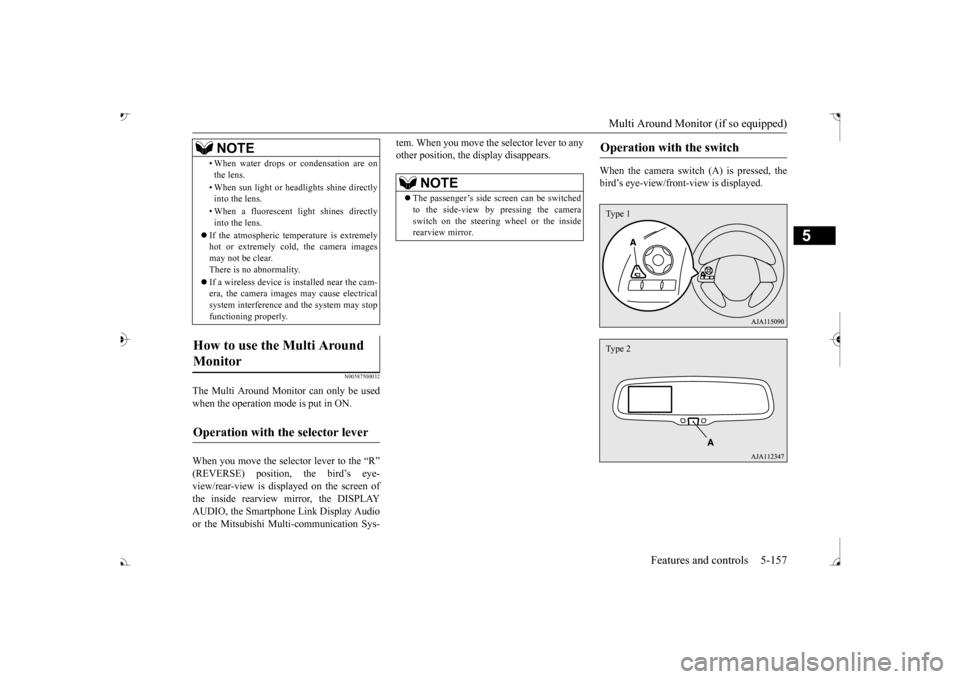
When the camera switch (A) is pressed, the bird’s eye-view/front
-view is displayed.
• When water drops or
condensation are on
the lens. • When sun light or he
adlights shine directly
into the lens. • When a fluorescent li
ght shines directly
into the lens.
If the atmospheric temperature is extremely hot or extremely cold, the camera images may not be clear.There is no abnormality. If a wireless device is installed near the cam- era, the camera images may cause electrical system interference and the system may stop functioning properly.
How to use the Multi Around Monitor
Operation with the selector lever
NOTE
NOTE
The passenger’s side sc
reen can be switched
to the side-view by pressing the camera switch on the steering wheel or the inside rearview mirror.
Operation with the switch
Type 1Type 2
BK0239700US.book 157 ページ 2016年6月16日 木曜日 午前10時58分
Page 321 of 521

Bluetooth® 2.0 interface 5-240 Features and controls
5
Refer to “USB input terminal” on page 5-263. Refer to “Listen to an iPod” on page 7-32.Refer to “Listen to Audio Files on a USB Device” on page 7-34. Refer to “To play iPod/USB memory devicetracks via voice opera
tion” on page 7-37.
Refer to “Listen to Bl
uetooth Audio” on page
7-40. Bluetooth
® is a registered trademark of
BLUETOOTH SIG, INC.
N00563801070
You have acquired a device
that includes soft-
ware licensed to Mits
ubishi Motors Corpora-
tion from Visteon Corporation, and their subsequent 3rd party
suppliers. For a com-
plete list of these 3rd party products and theirend user license agreem
ents, please go to the
following website. http://www.jciblueconnect.com/faq/fulldis-closure.pdf
N00563901345
The Bluetooth
® 2.0 interface allows for mak-
ing/receiving hands-free
calls in the vehicle
using a Bluetooth
® compatible cellular
phone. It also allows the user to play music, saved in a Bluetooth
® music player, from the
vehicle’s speakers. The system is equipped with a voice recogni- tion function, which allows you to makehands-free calls by simple switch operations and voice command
operations using a
defined voice tree. The Bluetooth
® 2.0 interface can be used
when the ignition switch or the operation mode is in ON or ACC. Before you can use the Bluetooth
® 2.0 inter-
face, you must pair the Bluetooth
® device
and Bluetooth
® 2.0 interface. Refer to “Con-
necting the Bluetooth
® 2.0 interface and
Bluetooth
® device” on page 5-247.
Bluetooth
® is a registered trademark of
BLUETOOTH SIG, INC.
Link System End User License Agreement Bluetooth
® 2.0 interface
WA R N I N G Although the Bluetooth
® 2.0 interface
allows you to make ha
nds-free calls, if you
choose to use the cellular phone while driving, you must not allow yourself to bedistracted from the sa
fe operation of your
vehicle. Anything, including cellular phone usage, that distracts you from thesafe operation of your vehicle increases your risk of an accident. Refer to and comply with all state and local laws in your area regarding cellular phone usage wh
ile driving.
NOTE
If the ignition switch
or the operation mode
is left in ACC, the accessory power willautomatically turn off after a certain period of time and you will no
longer be able to use
the Bluetooth
® 2.0 interface. The accessory
power comes on again if
the ignition switch
or the engine switch is operated. Refer to“ACC power auto-cutout function” on page 5-20 and 5-64. The Bluetooth
® 2.0 interface cannot be used
if the Bluetooth
® device has a dead battery
or the device power is turned off. Hands-free calls
will not be possible if your
phone does not have
service available.
BK0239700US.book 240 ページ 2016年6月16日 木曜日 午前10時58分
Page 322 of 521

Bluetooth® 2.0 interface
Features and controls 5-241
5
Steering control switch and microphone P.5-241 Voice recognition function
P.5-243
Useful voice commands
P.5-244
Speaker enrollment function
P.5-245
Connecting the Bluetooth
® 2.0 interface and
the Bluetooth
® device
P.5-247
Operating a music player connected via Blue- tooth
® P.5-253
How to make or receive hands-free calls P.5-253 Phonebook function
P.5-255
N00564001109
Press this button to increase the volume.
If you place the Bluetooth
® device in the
vehicle’s third seat or luggage compartment, you may not be able to use the Bluetooth
®
2.0 interface. Some Bluetooth
® devices are not compatible
with the Bluetooth
® 2.0 interface.
You can confirm the Link System software version by pressing the HANG-UP button 3 times (press and hold 2 times and then press briefly) within 10 seconds. For detail of the Bluetooth
® 2.0 interface,
refer to the following website: [For vehicles sold in U.S.A.] You can access the Mitsubishi Motors NorthAmerica website. [For vehicles sold in Canada and Mexico] You can access the Mitsubishi Motors web-site. Please read and agree to the “Warning about Links to the Web Sites of Other Companies”,the websites mentioned above may connect you to websites other than the Mitsubishi Motors website.http://www.mitsubishi-motors.com/en/prod- ucts/index.html Software updates by ce
llular phone/digital
audio device manufacturers may change/alter devi
ce connectivity.
NOTE
Steering control switch and microphone 1- Volume up button 2- Volume down button 3- SPEECH button4- PICK-UP button 5- HANG-UP button 6- MicrophoneVolume up button
BK0239700US.book 241 ページ 2016年6月16日 木曜日 午前10時58分
Page 323 of 521

Bluetooth® 2.0 interface 5-242 Features and controls
5
Press this button to decrease the volume. Press this button to ch
ange to voice recog-
nition mode.While the system is in voice recognition mode, “Listening” will appear on the audio display. If you press the button briefly while in voice recogniti
on mode, it will interrupt
prompting and allow voice commandinput. Pressing the button lo
nger will deactivate
the voice recognition mode. Pressing this button briefly during a call will enable voice
recognition and allow
voice command input.
Press this button when an incoming call is received to answer the telephone. When another call is received during a call, press this button to put the first caller on hold and talk to the new caller. • In such circumstance
s, you can press the
button briefly to switch between callers. You will switch to the first caller and theother caller will
be put on hold.
• To establish a three-way call in such situ- ations, press the SPEECH button to entervoice recognition mode and then say “Join calls.”
Press this button when an incoming call is received to refuse the call. Press this button during a call to end the current call.When another call is on hold, you will switch to that call.
If this button is presse
d in the voice recog-
nition mode, the voi
ce recognition mode
will be deactivated.
Your voice will be
recognized by a micro-
phone in the overhead console, allowing youto make hands-free ca
lls with voice com-
mands.
Volume down button SPEECH button
NOTE
On vehicles equipped
with the Mitsubishi
Multi-Communication System, pressing the SPEECH button will ac
tivate the voice rec-
ognition mode (a beep will sound when suc- cessfully activated)
. To use the voice
recognition of the Bluetooth
® 2.0 interface,
press the PICK-UP button.
PICK-UP button
NOTE
When not receiving in
coming calls, pressing
the PICK-UP button on
vehicles equipped
with the Mitsubishi Multi-Communication System, will activate
the voice recognition of
the Bluetooth
® 2.0 interface.
HANG-UP button
NOTE
When you press the SPEECH button (except for vehicles with Mitsubishi Multi-Commu-nication System) or
PICK-UP button (for
vehicles with Mitsubishi Multi-Communica- tion System) to enter
voice recognition mode
with a cellular phone paired to the system, current information on the cellular phone, such as “remaining ba
ttery life,” “signal
strength” or “roaming,” the audio display.
*
* : Some cellular phones will not send this information to the Bluetooth
® 2.0 interface.
Call waiting and three-
way calls can be used
by the Bluetooth
® 2.0 interface, only if it is
possible to use those services with your cel- lular phone.
Microphone
BK0239700US.book 242 ページ 2016年6月16日 木曜日 午前10時58分
Page 324 of 521

Bluetooth® 2.0 interface
Features and controls 5-243
5
N00564101113
The Bluetooth
® 2.0 interface is equipped
with a voice recognition function. Simply say voice commands and you can per- form various operations and make or receivehands-free calls. With the Bluetooth
® 2.0 interface, voice rec-
ognition is possible fo
r US English, North
American Spanish, Canadian French and Jap-anese. The factory se
tting is “English.”
vehicles with Mitsubishi Multi-Commu- nication System) or
PICK-UP button (for
vehicles with Mitsubishi Multi-Commu-nication System). 2. Say “Setup.” 3. Say “Language.”4. The voice guide wi
ll say “Select a lan-
guage: English, Spanis
h, French or Japa-
nese.” Say the desired language.(Example: “English”)
5. The voice guide will say “English (Span- ish, French or Japanese) selected. Is thiscorrect?” Say “Yes.” Step 4. 6. When the voice guide says “English (Spanish, French or Japanese) selected,” the language change process will be com- pleted and the system will return to themain menu.
NOTE
If a cellular phone is within close proximity of the microphone, it may distort the soundquality. In this case, place the cellular phoneas far as possible from the microphone.
Voice recognition function
NOTE
If the voice command that you say differs from the predefined command or cannot be recognised due to ambient noise or some other reason, the Bluetooth
® 2.0 interface
will ask you for the voice command again up to 3 times.
For best performance and further reduction of ambient noise, the vehicle windowsshould be closed, lower the blower speed andrefrain from conversat
ion with your passen-
gers while engaging
the voice recognition
function. Some voice commands have alternative commands. Depending on the sele
cted language, some
functions may not
be available.
Language can be change
d by using the audio
control panel besides
the following proce-
dure. For details, refer to
“System settings” on
page 7-44. For DISPLAY AUDIO and Mit-subishi Multi-Communication System, refer to the separate owner’s manuals.
Selecting the language
NOTE
NOTE
The voice guide will
repeat the same mes-
sage twice. The first message is in the cur- rent language, and the
second message is in
the selected language. If many entries are registered in the vehicle phonebook, changing th
e language will take
a longer time. Changing the language
deletes the mobile
phonebook imported to the Bluetooth
® 2.0
interface. If you wish to use it, you will have to import it again.
BK0239700US.book 243 ページ 2016年6月16日 木曜日 午前10時58分
Page 326 of 521

Bluetooth® 2.0 interface
Features and controls 5-245
5
7. When the registration of the passcode is completed, the voice
guide will say “Pass-
code is enabled” and the system will return to the main menu.
If a passcode has been
set and the security
function is enabled, the voice guide will say “Hands-free system is
locked. State the pass-
code to continue” when the SPEECH button (except for vehicles with Mitsubishi Multi- Communication System) or PICK-UP button(for vehicles with Mitsubishi Multi-Commu- nication System) is pres
sed to enter voice rec-
ognition mode. Say th
e 4-digit passcode
number to enter the passcode. If the entered passcode is wrong, the voice guide will say “<4-digit passcode>, Incorrect
passcode. Please try again.” Enter the correct passcode. Use the following procedure to turn off the security function by di
sabling the passcode.
1. Press the SPEECH button (except for vehicles with Mitsubishi Multi-Commu- nication System) or
PICK-UP button (for
vehicles with Mitsubishi Multi-Commu-nication System). 2. Say “Setup.” 3. Say “Passcode.”4. The voice guide will say “Passcode is enabled. Would you like to disable it?” Answer “Yes.” the passcode and return to the main menu.
5. When the disabling of the passcode is completed, the voice
guide will say “Pass-
code is disabled”
and the system will
return to the main menu.
N00564700011
The Bluetooth
® 2.0 interface can use the
speaker enrollment function to create a voice model for one person per language. This makes it easier for the Bluetooth
® 2.0
interface to recognise
voice commands said
by you. You can turn a voice model registered with the speaker enrollment function on and offwhenever you want.
N00564801181
It takes about 2 to 3 mi
nutes to complete the
speaker enrollment process. To ensure the best results, run through the process while in the driver’s seat, in an envi-ronment that is as quiet as possible (when there is no rain or strong winds and the vehi- cle windows are closed).
Please turn off your
phone while in speaker enrollment to prevent interruption of the process. Use the following procedure for speakerenrollment.
NOTE
Passcode will be requi
red to access the sys-
tem after the next ignition cycle. It is required for a little time after engine stop that the entered
passcode is actually
recorded in the system.If the ignition switch
or the operation mode
is made to ACC or
ON or the engine is
started immediately afte
r engine stop, there
is a case when the entered passcode is not recorded in the system. At this time, please try to enter the passcode again.
Entering the passcode
NOTE
You can reenter the passcode as many times as you want. If you have forgotten your passcode, say “Cancel” to quit the voice input mode and then check with an authorized Mitsubishi Motors dealer.
Disabling the passcode
NOTE
System must be unlocked to disable the pass- code.
Speaker enrollment function Speaker enrollment
BK0239700US.book 245 ページ 2016年6月16日 木曜日 午前10時58分