2017 MERCEDES-BENZ S-Class MAYBACH light
[x] Cancel search: lightPage 58 of 230
If the volume of a background media source
exceeds a threshold, the speech amplification is
stopped. The threshold is designed for relaxed
conversation with background music. If the
threshold value is not exceeded, the voice
amplification is continued with a slight time
delay.
Voice amplification is paused during active tele-
phone calls or when using the Voice Control
System. A message will appear in the display.
You can assign these functions to the favorites
button (
Ypage 46).
Requirements
RYour vehicle is equipped with the Burmester®
surround sound system or the Burmester®
high-end 3D surround sound system.
RThe ignition is switched on.
RDoors, side windows and the panorama roof
with power tilt/sliding panel are closed.
iIf these conditions are not met, a corre-
sponding message will appear in the display.
Closing the side windows (see the vehicle Oper-
ator's Manual).
Closing the panorama roof with power tilt/slid-
ing panel (see the vehicle Operator's Manual).
Activating/deactivating voice amplifi-
cation
XCall up Vehicle Settings(Ypage 51).
XTo select Voice Amplification: turn and
press the controller.
The function switches on or off, depending on
the previous setting.
Seats
Overview
Using the Tbutton next to the controller or
the seat settings menu item in the vehicle menu,
you can call up the following adjustment func-
tions:
RBackrest side bolsters
RLumbar
RShoulder area
RMassage
RDynamics
RSeat heating balance
iYou also can save and recall the current set-
tings of a seat function using the memory
button and the corresponding memory posi-
tion switch. You can find further information
on the memory function in the vehicle Oper-
ator's Manual.
Selecting the adjustment function
and seat
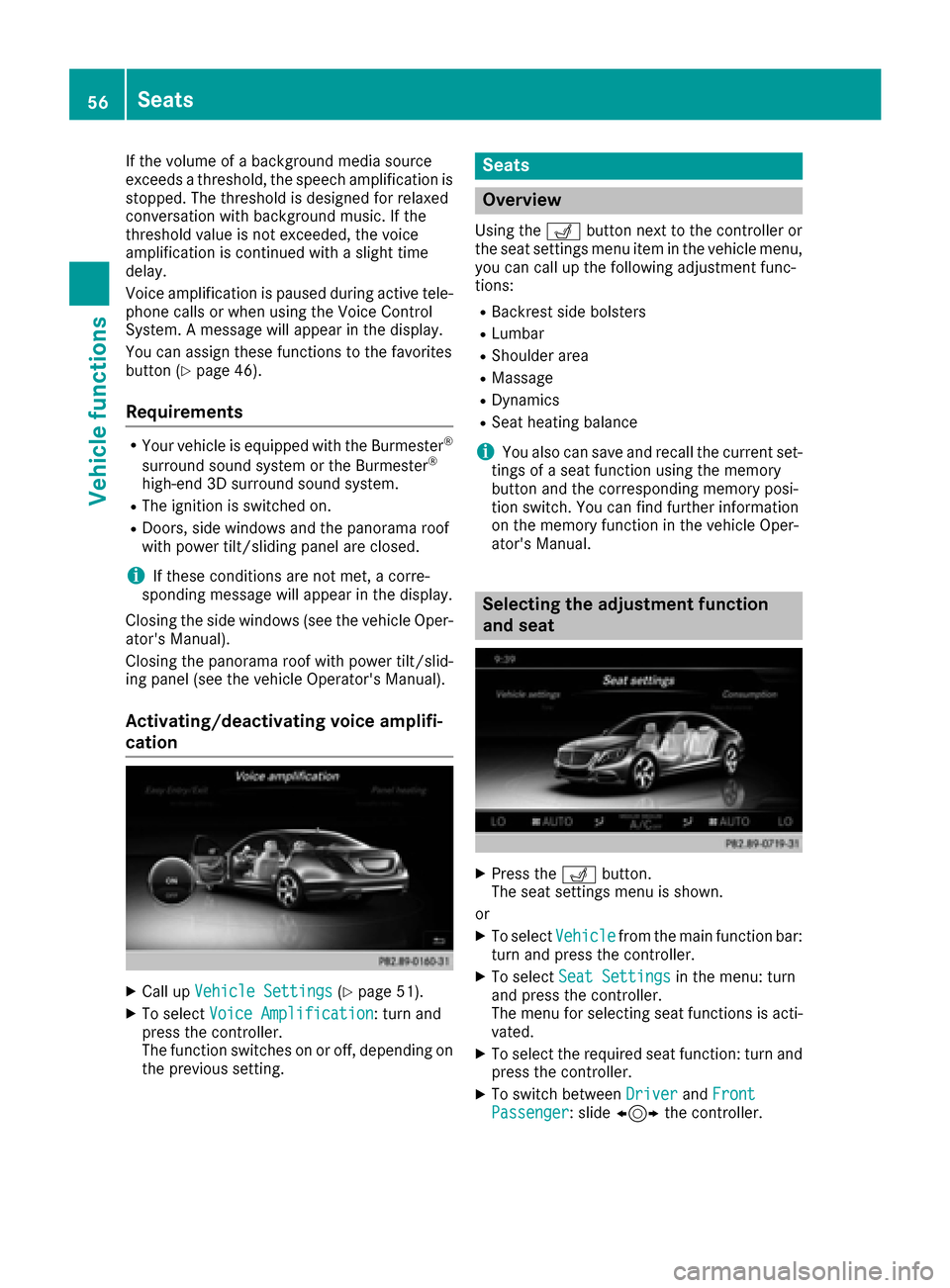
XPress the Tbutton.
The seat settings menu is shown.
or
XTo select Vehiclefrom the main function bar:
turn and press the controller.
XTo select Seat Settingsin the menu: turn
and press the controller.
The menu for selecting seat functions is acti-
vated.
XTo select the required seat function: turn and
press the controller.
XTo switch between DriverandFrontPassenger: slide 1 the controller.
56Seats
Vehicle functions
Page 68 of 230

Your multimediasystem equipment
These operating instructions describe all the
standard and optional equipment of your multi-
media system, as available at the time of going
to press. Country-specifi cdifferences are pos-
sible. Bear in mind that your vehicle may not
feature all functions described here. This also
applies to safety-relevant systems andfunc-
tions.
Read the information on qualified specialist
workshop s in the vehicle Operator's Manual.
Introduction
Important safety notes
GWARNING
If you operate information systems and com-
munication equipment integrated in the vehi-
cl e while driving, you will be distracted from
traffic conditions. You could also lose control
of th e vehicle. There is a risk of an accident.
Only operate the equipment when the traffic
situation permits. If you are not sure that this
is possible, park the vehicle paying attention
to traffic condition s and operatethe equip-
ment when the vehicle is stationary.
You must observe the legal requirements for the
country in which you are currently driving when
operating the multimedia system.
The multimedia system calculates the routeto
th edestination without taking accoun tof th e
following, for example:
Rtraffic lights
Rstop and yield signs
Rmerging lanes
Rparking or stopping in a no parking/no stop-
ping zone
Rother road and traffic rules and regulations
Rnarrow bridges
The multimedia system can give incorrect navi-
gation commands if the actual street/traffic sit-
uation does notcorrespon d withthe digital
map's data. Digital maps do not cover all areas
no r all routes in an area. For example, a
route
may have been diverted or the direction of a one-
way street may have changed. Fo
rthis reason , you must always observe road
and traffic rules and regulations during your
journey. Road and traffic rules and regulations
always have priority over the system's driving
recommendations.
Navigation announcements are intended to
direct you while driving without diverting your
attention from th e road anddriving.
Please always use this feature instead of con-
sulting the map display for directions. Looking
at the icons or map display can distract you from
traffic conditions and driving, and increase the
risk of an accident.
General notes
Operational readiness of the navigation syste m
The navigation system must determine the posi-
tion of the vehicle before first use or whenever
operational status is restored. Therefore, you
may have to drive fo rawhile before precise
rout e guidance is possible.
GPS reception
Amon g other things, correct functioning of the
navigation system depends on GPS reception. In
certain situations, GPS reception may be
impaired, there may be interference or there
may be no reception at all, e.g. in tunnels or
parking garages.
Using roof carriers may impair th ecorrect func-
tioning of a roof antenna (phone, satellite radio,
GPS).
Entry restriction
In certain countries, dat a entry is restricted if
th e vehicle is traveling at more than approx-
imately 3 mph (5 km/h). The restriction is deac- tivated as soo n as the vehicle speed drops
below about 2 mph (3 km/h).
When the restriction is active, certain entries
canno t be made. This will be indicated by the
fact that certain menu items are grayed out and
canno t be selected.
The following entries are not possible, for exam-
ple:
Rentering thedestination city an d street
Renteringadestination via the map
66Introduction
Navigation
Page 69 of 230

Rentering POIs in the vicinity of a city or via a
name search
Rediting entries
Rdirect entry via the telephone keypad (if avail-able) Other entries are possible, such as entering
points of interest in the vicinity of the destina-
tion or current position.
Switching to navigation mode
XPress the
ßbutton.
If route guidance is active, the map is shown in full-screen mode. The map shows the vehicle's
current position.
If no route guidance is active, the menu is also displayed. Destination
is highlighted.
Additional activation option:
XTo activate the menu: slide 5the controller (e.g. in radio mode).
XTo select Navi: turn and press the controller.
Access within navigation:
XFrom any menu, press the ßbutton.
The navigation menu appears.
XPress the controller.
The map shows the vehicle's current position.
Showing/hiding the menu
Using the menu, you can make a destination entry or select the navigation settings, for example.
If no route guidance is active, the menu appears automatically after the navigation system is
switched on. Destination
is highlighted.
XTo show:slide6the controller when the map is shown in full-screen mode.
or
XSwipe down the touchpad with one finger.
If there has been no route calculated, Destinationis marked.
If a route has been calculated, yis marked.
Introduction67
Navigation
Z
Page 71 of 230

Basic settings
Selecting the route type
XTo switch to navigation mode:press the
Ø button.
XTo show the menu: slide6the controller.
XTo select Options: turn and press the con-
troller.
XSelect Route Settings.
XSelect a route type.
A filled circle indicates the current selection.
RWith active route guidance, the multimedia
system calculates a new route.
Route guidance active: a destination has
been entered and the route has been cal-
culated.
RIf there has been no route calculated, the
multimedia system uses the selection as
the new basic setting.
FastRouteThe multimedia system cal-
culates a route with a short
travel time.
DynamicTrafficRoute
Based on the Fast Routeroute type and includes traf-
fic reports on the route for the
route guidance.
You can receive real-time
traffic reports via satellite
radio (
Ypage 96).
Eco RouteThe multimedia system cal-
culates an economical route.
The journey may take slightly
longer compared to taking
the fast route.
ShortRouteThe multimedia system cal-
culates a short distance
route.
XTo calculate alternative routes: select
Calculate Alternative Routes
.
Switch the function on Oor off ª.
Function activated: after each route calcula-
tion, route alternatives are offered that cor-
respond to the local conditions (
Ypage 93).
If desired, you can have the navigation system calculate alternative routes even during route
guidance (
Ypage 93).
Setting route options
XTo switch to navigation mode: press the
Ø button.
XTo show the menu: slide6the controller.
XTo select Options: turn and press the con-
troller.
XSelect Route Settings.
XTo avoid/use route options: selectAvoid
Options.
A menu appears.
XSelect one of the options.
O: using or avoiding route options is enabled
ª: using or avoiding route options is disabled
RAvoid Area(Ypage 105)
It is possible to avoid areas you do not wish to
drive through.
RAvoid Highways
RAvoid Ferries
RAvoid Auto Trains
RAvoid Tunnels
RAvoid Unpaved Roads
The function is not available in all countries.
RUse Toll Roads
The route calculation includes roads which
require you to pay a usage fee (toll).
RUse Carpool Lanes
Basic settings69
Navigation
Z
Page 72 of 230

If your vehicle meets the access conditions
for carpool lanes, you can use this function.
Navigation includes carpool lanes if the car-
pool lanes option is activated.
Depending on local conditions, the multimedia
system may not always be able to include all
route options. A route may include a ferry, for
instance, even though Avoid Ferries
is ena-
bled. The multimedia system will notify you of
this visually as well as through a navigation mes-
sage.
XTo use toll roads: turn and press the con-
troller.
A menu appears.
XSelect an option.
The options include using roads that require
cash payment or electronic billing, or switch-
ing off the function.
XTo exit a menu: slide1 the controller.
Selecting announcements
XTo switch to navigation mode: press the
Ø button.
XTo show the menu: slide6the controller.
XTo select Options: turn and press the con-
troller.
XSelect Settings.
A menu appears.
XSelect an option.
Switch the option on Oor off ª.
AnnounceStreetNames
The multimedia system
announces the name of the
road onto which the upcoming
change of direction leads.
The function is not available in
all countries.
AudioFadeoutThe volume of an active media
source is automatically
reduced during a navigation
announcement.
Gas onReserveFunction activated: once the
reserve fuel tank level is
reached, a message appears in
the multimedia system to help
you start the search for a gas
station.
Atten‐tionAssist
Function activated: if ATTEN-
TION ASSIST displays a warn-
ing in the multifunction display,
a message appears in the mul-
timedia system to help you
start the search for a rest stop.
If a route contains highways, a
rest stop search is started in
the vicinity. The map is shown
with the message: Searching
For a Rest Area in theVicinity…. If service stations
are found, the nearest service
station is highlighted on the
map.
Further information about
ATTENTION ASSIST can be
found in the vehicle Operator's
Manual.
Using car pool lanes
You can include carpool lanes (HOV or car shar-
ing lanes) in the route calculation.
If you use HOV or carpool lanes, please observe
the applicable laws as well as the local and time
limitation conditions.
Carpool lanes may only be used under certain
conditions. They can normally be used when
there are two people in the vehicle. However,
70Basic settings
Navigation
Page 78 of 230

Exact hits are shown at the very top of the list.
Hits are listed alphabetically. The search term
is highlighted in orange for exact matches.
XSelect an entry: turn and press the controller.
The address entry menu appears, showing the
destination address.
XTo start route calculation: select Start(Ypage 74).
XTo select a POI:selectPOIsintheVicin‐
ityorAll POIsby turning and pressing the
controller.
A list appears.
XSelect a POI.
The POI is shown.
XTo start route calculation: select Start(Ypage 74).
XTo use online search:selectOnline
Search.
The search switches to the online functions.
Online search requirement (USA): mbrace
must be activated for Internet access
(
Ypage 142).
Requirement for the online map display (Can-
ada): a mobile phone is connected to the mul-
timedia system via Bluetooth
®(Ypage 113)
or USB (Ypage 183).
Selecting search options
XTo switch to navigation mode: press the
Ø button.
XTo show the menu: slide6the controller.
XTo select Destination: turn and press the
controller.
XSelect Keyword Search.
XTo select Search Options: slide5, turn
and press the controller.
XSelect Fuzzy SearchorPOI Search.
Switch the setting on Oor off ª.
The error-tolerant search is useful if parts of
the address are incomplete or the spelling is
unclear.
The POI search takes into account points of
interest in the search.
Selecting a state/province
XTo switch to navigation mode: press the
Ø button.
XTo show the menu: slide6the controller.
XTo select Destination: turn and press the
controller.
XSelect Keyword Search.
XTo select State/Province: slide5, turn
and press the controller.
States/provinces are sorted alphabetically.
XTo select a state/province: turn and press the
controller.
Using online search
Requirement (USA): mbrace must be activated
for Internet access (Ypage 142).
Requirement (Canada): a mobile phone is con-
nected to the multimedia system via Bluetooth
®
(Ypage 113) or USB (Ypage 183).
XTo switch to navigation mode: press the
Ø button.
XTo show the menu: slide6the controller.
XTo select Destination: turn and press the
controller.
XSelect Keyword Search.
XTo select OnlineSearch: slide5, turn and
press the controller.
The search switches to the online functions.
Selecting a destination from the list of
last destinations
The last 50 destinations are stored automati-
cally.
XTo switch to navigation mode: press the
Ø button.
XTo show the menu: slide6the controller.
XTo select Destination: turn and press the
controller.
XSelect From Previous Destinations.
76Destination entry
Navigation
Page 83 of 230

then initiated in the area around the vehicle
position.
XAfter selectingOther, select one of the des-
tination entry options.
SelectionStep
AddressEntryXEnter a destination by
address (Ypage 72).
KeywordSearchXSelect a destination
using a keyword search
(
Ypage 75).
From Previ‐ous Destina‐tions
XSelect a destination
from the list of last des-
tinations (
Ypage 76).
FromContactsXSelect a contact from
the address book as the
destination (
Ypage 77).
From POIsXSelect a point of interest (Ypage 77).
Using MapXEnter a destination using
the map (Ypage 80).
From MemoryCardXSelect a personal POI
(Ypage 85).
FromMercedes-Benz Apps
XEnter a destination from
Mercedes-Benz Apps
(
Ypage 82).
Using Geo-CoordinatesXEnter a destination using
the geo-coordinates
(
Ypage 83).
XTo select a POI: turn the controller and pressto confirm.
After selecting a POI or entering a destination,
the address of the intermediate destination is
displayed. After entering a destination using the map,
the address entry menu is displayed.
Start
is
highlighted.
XTo call up a map: selectMapby turning and
pressing the controller.
You can move the map and select the desti-
nation.
XTo make a call: selectCall.
If the intermediate destination has a tele-
phone number and a mobile phone is con-
nected to the multimedia system
(
Ypage 113), the call is connected.
XTo load data from the Internet: selectwww.
If an Internet address is available, data is loa- ded from the Internet.
XTo store an intermediate destination in
the destination memory: selectSave
(Ypage 99).
XTo accept an intermediate destination:
selectOK
by pressing the controller.
The immediate destination is entered into
position 1 of the intermediate destinations
menu.
XTo enter another intermediate destina-
tion: slide5the controller and highlight
Add New:
.
XPress the controller.
XProceed as described above.
Editing intermediate destinations
You can perform the following functions:
Rchange intermediate destinations
Rswitch the sequence of the intermediate des-
tinations in the intermediate destinations
menu
Rdelete intermediate destinations
iYou cannot edit POIs.
Destination entry81
Navigation
Z
Page 86 of 230

Alert when approaching
Requirements: an SD card with personal POIs is
inserted (Ypage 170). The SD card has theFAT
data system format (e.g. FAT32).
If th e vehicle is approachingapersonal POI, this
is highlighted on the map and/or an audible sig-
nal sounds.
Fo r this purpose both thecorresponding func-
tion "Alert when approaching" and the category
containing the personal POI must be activated.
XTo switch to navigation mode: press the
ß button.
XTo sho wthemenu: slide6thecontroller.
XTo select Options: turnand press th econ-
troller.
XSelect Personal POI s.
XSelectApproaching POI Cue.
The menu displays the categories available on
th e SD card.
XSelect Audibl eorOptica l.
The function is switched on Oor off ª,
depending on the previous status.
XTo select a category: turn the controller and
press to confirm .
The function is switched on Oor off ª, for
all personal POIs of this category, depending
on the previous setting .
Saving personal POIs and routes
Gene ral notes
Personal POIs and routes are geodata which are
saved in open GPX format ( GPSE xchange for-
mat) on the SD card.
Requirements: the SD card has the FAT data
system format (e.g. FAT32).
Personal POI from current vehicle posi-
ti on or crosshair position
XInser tth eSD memory car d(Ypage 170).
XTo switch to navigation mode: press the
ß button.
XWhen the map is displayed, press the con-
troller until a message appears.
The current vehicle position is saved to the
Not Classifie d
category on the SD card
and also stored in the "Last destinations"
memory.
If th e "Move map" function is selected
(
Ypage 68), the crosshair position is saved.
iIf no SD car d is inserted, the personal POI
will only be stored in the "Last destinations"
memory.
Personal POI from destination address
XInser tth eSD memory car d(Ypage 170).
XTo switch to navigation mode: press the
ß button.
XCall up the address entry menu and enter the
destination address (Ypage 72).
XTo select Save: slide 6thecontroller.
XTurn and press th econtroller.
XTo select To Memory Car d: turnand press
th econtroller.
XEnte raname.
XSelectacategory.
The current address is saved as a personal
POI on the SD card.
iYou can select a destination from the FromPreviousDestinationsorFro mContactsmemories and save it on the SD card.
RFromPrevious Destinations(Ypage 76)
RFro mContacts(Ypage 77)
Personal rou te from a tour including
intermediate destinations
XInser tth eSD memory car d(Ypage 170).
XTo switch to navigation mode: press the
ß button.
XEnteradestination, e.g. by address
(Ypage 72).
XStart route calculation (Ypage 74).
84Personal POIs and routes
Navigation