2017 MERCEDES-BENZ S-Class MAYBACH warning
[x] Cancel search: warningPage 211 of 230

Your multimediasystem equipment
These operating instructions describe all the
standard and optional equipment of your multi-
media system, as available at the time of going
to press. Country-specifi cdifferences are pos-
sible. Bear in mind that your vehicle may not
feature all functions described here. This also
applies to safety-relevant systems andfunc-
tions.
Read the information on qualified specialist
workshop s in the vehicle Operator's Manual.
Rear Seat Entertainment System
overview
Important safety notes
GWARNING
The CD/DVD drive is a class1 laser product.
If you ope nth e housing of the CD/DVD drive,
there is a risk of exposure to invisible laser
radiation. This laser radiation could damage
your retina. There is a risk of injury.
Never open the housing. Always have main-
tenanc e and repair work carried out at a quali-
fied specialist workshop.
GWARNING
If objects such as headphones/headsets or
external audio/video sources are not secured
in the passenger compartment, they can be
flung around and hit vehicle occupants. There
is a risk of injury, fo r example in the event of
sudden braking or a sudden change in direc-
tion .
Always stow these items or similar objects
carefully so that they cannot be flung around,
fo r example in a lockable vehicle stowage
compartment.
Components
The Rear Seat Entertainment System includes:
Rtwoscreens fo rth e rear behind the front-seat
head restraints
Rtw oremot econtrols fo rth e rear compart -
ment
Ra CD/DVD drive in th e rearcompartmen t
RAUXjack s
RtwoUS B ports
Rtwo sets of cordless headphones
General notes
RYou can only adjust the volume forth e head-
phone s supplied, directly on the headphones.
RIf media from differentsources are used,they
can be used separately from each of theoper-
ating positions. Example: a film from theDV D
drive is played on the rear right-hand operat-
ing position. This means that another film
from th e same DVDcanno t be played sepa-
rately on the rear left-hand operating position. However, all other media sources (e.g. radio,
Media Interface ) or the online and Internet
function s can be used.
RIf you use th e same medium on both sides,
you can both carry out the respective set-
tings. The "last one wins" principle applies
here, i.e. the last setting activated is favored.
RThe Internet can be used separately at all
operating positions.
RThe Internet can only be used if it is set up and
connecte d via a telephone(Ypage 142).
Rear-compartment screens
:Display
;Brightness sensor
Rear Seat Entertainment System overview209
Rear Seat Entertainment System
Z
Page 217 of 230

Selecting the screen for the head-
phones
XSet switch:toL(left-hand screen) or R
(right-hand screen).
Connecting additional headphones
Up to two cordless headphones can be used at
the same time for each screen.
You can also connect one additional set of cor-
ded headphones to each of the two rear-com-
partment screens (
Ypage 209). The socket is
designed for headphones with a 3.5 mm stereo
jack plug and an impedance of 32 ohms.
Replacing batteries
Notes
GWARNING
Batteries contain toxic and corrosive substan- ces. If batteries are swallowed, it can result in
severe health problems. There is a risk of fatalinjury.
Keep batteries out of the reach of children. If
a battery is swallowed, seek medical attention immediately.
HEnvironmental note
Batteries contain dangerous
substances. It is against the
law to dispose of them with
the household rubbish. They
must be collected separatelyand recycled to protect the
environment.
Dispose of batteries in an
environmentally friendly
manner. Take discharged
batteries to a qualified spe-
cialist workshop or a special
collection point for used bat-
teries.
Batteries are required for the remote control
and for the two sets of cordless headphones.
The batteries can be replaced.
HEnvironmental note
Dispose of discharged batteries in an envi-
ronmentally responsible manner.
Replacing the batteries of the remote
control
:Battery compartment
;Catch tab
=Battery compartment cover
?Retaining lugs
ABatteries
Rear Seat Entertainment System overview215
Rear Seat Entertainment System
Z
Page 223 of 230
XPress theÕbutton on the remote control.
XTo show the menu: press the :button on
the remote control.
XTo select Devices: press the :=;
buttons on the remote control.
The discs/devices available are shown. The #
dot indicates the current setting.
XSelect the device/disc using the :9
buttons and press the 9button to confirm.
If the device/disc contains music or video
files, these will be played.
Music search
XSelect the preferred media source.
XPress the :button on the remote control.
The menu is shown.
XSelect Searchusing the =; buttons
on the remote control and press the 9but-
ton.
Further information on the music search
(
Ypage 173).
Audio/video mode
Important safety notes
GWARNING
The CD/DVD drive is a class 1 laser product.
If you open the housing of the CD/DVD drive,
there is a risk of exposure to invisible laser
radiation. This laser radiation could damage
your retina. There is a risk of injury.
Never open the housing. Always have main-
tenance and repair work carried out at a quali- fied specialist workshop.
General notes
You will find information on the following topics
in the Audio section:
RNotes on CD/DVD discs (Ypage 167)
RNotes on MP3 mode (Ypage 166)
RNotes on copyright (Ypage 167)
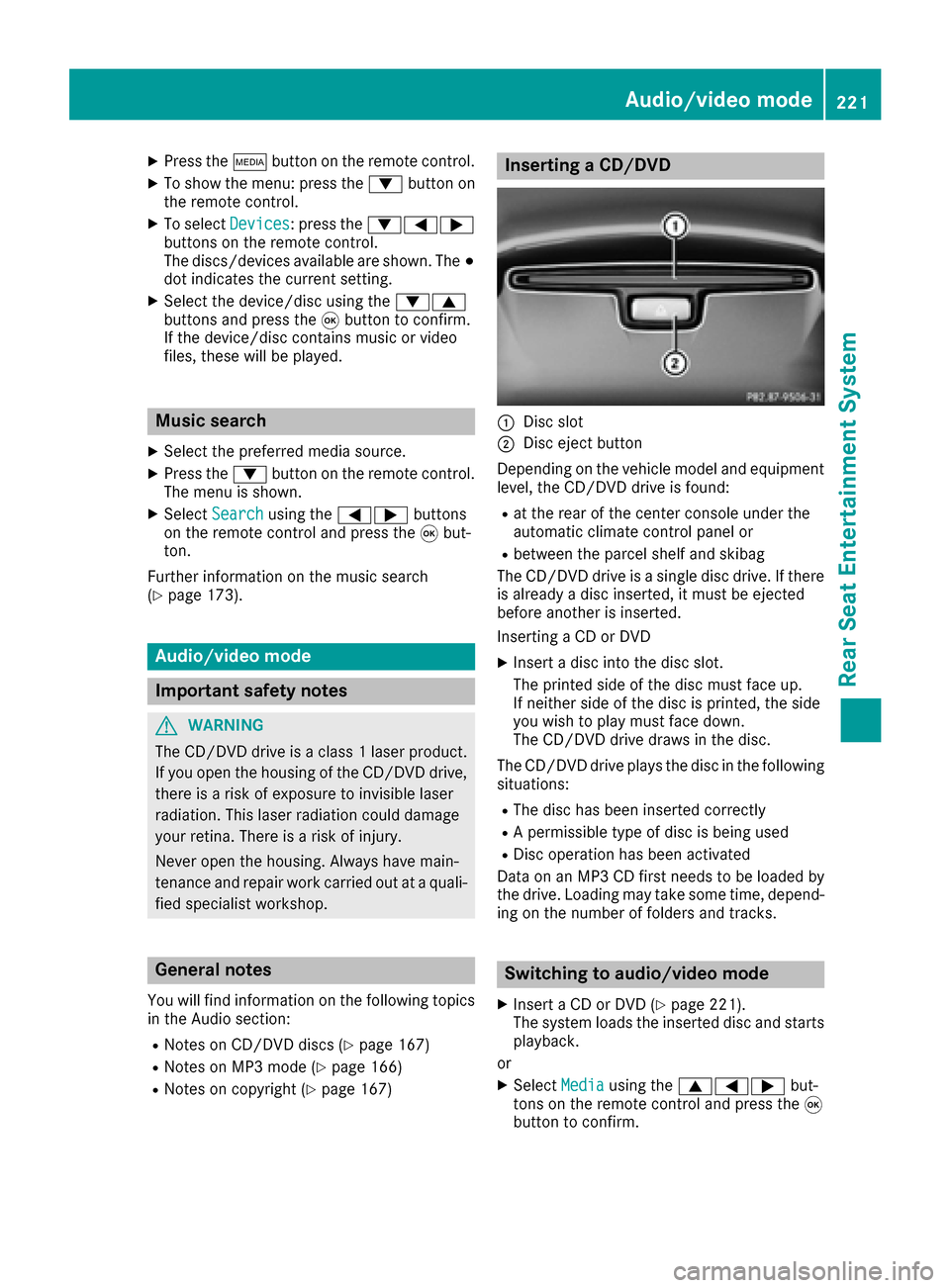
Inserting a CD/DVD
:Disc slot
;Disc eject button
Depending on the vehicle model and equipment
level, the CD/DVD drive is found:
Rat the rear of the center console under the
automatic climate control panel or
Rbetween the parcel shelf and skibag
The CD/DVD drive is a single disc drive. If there
is already a disc inserted, it must be ejected
before another is inserted.
Inserting a CD or DVD
XInsert a disc into the disc slot.
The printed side of the disc must face up.
If neither side of the disc is printed, the side
you wish to play must face down.
The CD/DVD drive draws in the disc.
The CD/DVD drive plays the disc in the following situations:
RThe disc has been inserted correctly
RA permissible type of disc is being used
RDisc operation has been activated
Data on an MP3 CD first needs to be loaded by
the drive. Loading may take some time, depend- ing on the number of folders and tracks.
Switching to audio/video mode
XInsert a CD or DVD (Ypage 221).
The system loads the inserted disc and starts
playback.
or
XSelect Mediausing the 9=; but-
tons on the remote control and press the 9
button to confirm.
Audio/video mode221
Rear Seat Entertainment System
Z
Page 225 of 230

Pausing/continuing playback
XTo pause playback:press the;orË
button on the remote control.
The Ë display changes to Ì.
XTo continue playback: press the;/
Ë button.
The Ì display changes to Ë.
Selecting playback options
XSelectOptionsusing the :=;
buttons and press the 9button.
XThe options list appears. The #dot indicates
the option currently selected.
XSelect Normal Track Sequence,RandomTrack Listor Random Mediumusing the
9: buttons and press the 9button to
confirm.
The option is switched on. For all options
except Normal Track Sequence
, you will
see a corresponding display in the display or
selection window.
iIf you switch the data carrier which you are
currently listening to, the Normal Track
Sequenceoption is activated automatically. If
an option is selected, it remains selected after
the system is switched on or off.
Switching track information on/off
When the function is switched on, information
such as track, artist and album are displayed (if available). If the function is switched off, the
names of the files and folders on the disc are
shown.
XSelect Optionsusing the :=;
buttons and press the 9button.
XSelect Show Track Informationusing the
9: buttons and press the 9button.
The function is switched on Oor off ª,
depending on the previous status.
Video DVD mode
Important safety notes
GWARNING
The CD/DVD drive is a class 1 laser product.
If you open the housing of the CD/DVD drive,
there is a risk of exposure to invisible laser
radiation. This laser radiation could damage
your retina. There is a risk of injury.
Never open the housing. Always have main-
tenance and repair work carried out at a quali- fied specialist workshop.
General notes
DVD playback conditions
Playback problems may occur when playing
copied discs. There is a large variety of discs,
DVD authoring software, writing software and
writers available. This variety means that there
is no guarantee that the system will be able to
play video DVDs you have copied yourself.
More information on the playback criteria
(
Ypage 187).
Function restrictions
Depending on the DVD, certain functions or
actions may be temporarily blocked or not func- tion at all. As soon as you try to activate these
functions, you will see the Ksymbol in the dis-
play.
Switching on video DVD mode
XInsert a video DVD.
The system loads the disc.
If disc mode was the last mode selected, it will
now be active.
XTo manually switch to video DVD mode: press
the Õ button on the remote control
repeatedly until the video DVD mode is
switched on.
If the video DVD fulfills the playback criteria,
the film starts automatically or the DVD menu
Video DVD mode223
Rear Seat Entertainment System
Z