2017 MERCEDES-BENZ S-Class MAYBACH USB port
[x] Cancel search: USB portPage 125 of 230

mation on the voice recognition service; see the
manufacturer's operating instructions.
To start the mobile phone voice recognition:
XConnect the mobile phone to the multimedia
system (Ypage 113).
XPress and hold theóbutton on the multi-
function steering wheel for more than one
second.
You can now use the mobile phone voice rec- ognition.
To end the mobile phone voice recognition:
XPress ñon the multifunction steering
wheel.
The mobile phone voice recognition is stop-
ped.
Phone book
Introduction
The phone book displays the contacts from the
address book which have a phone number.
The phone book of the mobile phone is auto-
matically displayed in the multimedia system
after the connection is established (default set-
ting). You can deactivate automatic calling up
(
Ypage 140).
In the telephone book, you can:
RCreate new contacts (Ypage 125)
RAdd information to contacts (Ypage 125)
RSearch for contacts (Ypage 124)
RStore contacts (Ypage 125)
RDelete contacts (Ypage 126)
Further information on importing contacts
(
Ypage 140).
When you import, save, edit or add contacts,
they will be permanently saved in the multime-
dia system. These contacts will remain available
even when you connect the multimedia system
to a different mobile phone. You can view these contacts even without a mobile phone.
Calling up the phone book
XTo call up the telephone menu: press the
% button.
XTo select Namein the telephone menu: turn
and press the controller.
If the phone book contains contacts, they will
be displayed in alphabetical order. The char-
acter bar at the bottom of the display is active.
You can now search for a contact
(
Ypage 124).
Further information on the symbols shown
(
Ypage 123).
iYou can also call up the phone book with the
multifunction steering wheel; see the Vehi-
cles Operator's Manual.
Symbol overview
Sym-
bolExplanation
ÆContact that has been entered, edi-
ted or saved in the multimedia sys-
tem
\Contact with voice tag
These contacts have also been
assigned a voice tag. For more infor-
mation, see the separate operating
instructions.
ÃContact that was called up from a
mobile phone
¯Contact imported from the SD mem-
ory card or USB device
®Contact imported via the Bluetooth®
interface
Phone book123
Telephone
Z
Page 137 of 230

XEnter characters using the controller
(Ypage 34), the telephone keypad or the
touchpad (Ypage 31), depending on the vehi-
cle's equipment.
XTo finish the entry: select OK.
The new contact has been created.
Saving the sender of an e-mail
XTo call up the menu when an e-mail is dis-
played: press the controller.
XTo select SaveSender'sE-MailAddress:
turn and press the controller.
XTo select NewEntry: turn and press the con-
troller.
XSelect a category, e.g. Home.
XSelectContinue.
The input line for the name of the new contact
is displayed. The input line for the e-mail
address is filled in automatically.
XEnter characters using the controller
(Ypage 34), the telephone keypad or the
touchpad (Ypage 31), depending on the vehi-
cle's equipment.
XTo finish the entry: select OK.
The new contact has been created.
Adding the sender to an address book
entry
Storing the sender of a text message
XTo call up the menu when a text message is
displayed: press the controller.
XTo select Save Number: turn and press the
controller.
XTo select AddPhoneNumber: turn and press
the controller.
XTo select a category for the number, e.g.
Home: turn the controller and press to confirm.
XTo select a telephone category, e.g. MobilePhone: turn the controller and press to con-
firm.
XTo select Continue: turn and press the con-
troller.
The address book is displayed.
XSearch for the desired entry (Ypage 136).
XPress the controller when you have finished
searching.
The telephone number has been added. A maximum of five telephone numbers can be
saved for one contact.
Saving the sender of an e-mail
Up to two e-mail addresses can be saved for one
contact.
XTo call up the menu when an e-mail is dis-
played: press the controller.
XTo select
SaveSender'sE-MailAddress:
turn and press the controller.
XTo select Add: turn and press the controller.
The address book is displayed.
XSearch for the desired entry (Ypage 136).
XPress the controller when you have finished
searching.
The e-mail address has been added.
Deleting messages
XCall up the message folder (Ypage 131).
XTo select the message: turn the controller.
XTo select G: slide 9the controller.
XTo select Delete: turn and press the control-
ler.
XTo select Yes: turn and press the controller.
The message is deleted.
iThis delete function is not supported by all
mobile phones. The Delete failed.mes-
sage then appears.
Address book
Introduction
Always pay attention to traffic conditions.
Familiarize yourself with the address book func-
tions before beginning your journey.
You can use the multimedia system when the
road and traffic conditions permit. You could
otherwise become involved in an accident in
which you or others could be injured.
The address book displays all the contacts from
the various sources (mobile phone, memory
card, USB device, the phone book of the multi-
media system, navigation).
You can use the contacts to make telephone
calls, navigate and to write messages.
Address book135
Telephone
Z
Page 142 of 230

Automatically importing contacts
from the phone
Depending on the mobile phone used, you can
set whether the contacts should be called up
automatically after the mobile phone is connec-
te dto th e multimedia system.
XConnect a mobile phone (Ypage 113).
XCall up the address book (Ypage 136).
XTo show the menu bar: slide 6thecontrol -
ler.
XTo select Options: turnand press th econ-
troller.
XTo select Automaticall yImport Con ‐tacts fromPhone: turn and press th econ-
troller.
You can allow Oor suppress ªthe auto-
matic download.
Saving a contact
Saved contact s are indicated in the phone book
by different symbols (Ypage 123).
XCall up the address book (Ypage 136).
XTo select a contact: turnand press th econ-
troller.
The details for the contact are displayed.
XTo select G: slide 9thecontroller.
XTo select Save: turn and press th econtroller.
The contact has now been saved.
iIf th e saved address book entry containsa
phone number, the entry is also displayed in
th e phone book.
Saving or editing the contact data in the mul-
timedia system does not changeth econtact s
on the mobile phone. If automatic download-
ing of phone contacts is activated, the multi-
media system displays the copy¥with the
changed data. To add additional data, such as additional phone numbers or e-mail
addresses, select this contact. In this way,
you avoid creating additional copies of the
mobile phone entry.
Deleting a name
XCall up the address book (Ypage 136).
XSearc h for a contact (Ypage 136).
XTo select G: slide 9thecontroller.
XTo select Delete Entry: turnand press th e
controller.
XTo select Yes: turnand press th econtroller.
The contact is deleted.
Importing contacts
Informati on and requirements
Contacts can be imported as vCards (vcf files). A
vCard is an electronic business card. A memory
card, USB device or a Bluetooth
®connection
can be used for importing.
iUp to 2000 entries can be imported into the
address book.Amessage notifies you when
th e maximum number is reached. In order to
be able to then import new contacts, you have
to delete existing contact s(
Ypage 140).
SourceRequirements
Memory cardThe SD card is inserted. It
contains importable contact
details.
USB deviceThe USB device is inserted
into theUS B port. It contains
importable contact details.
Bluetooth®
connection
If th e sending of vCards is
supported via Bluetooth®,
vCards can be received on
mobile phones or netbooks,
for example.
Bluetooth
®must be activa-
te d in the multimedia system
and on the respective device;
see th e manufacturer's oper-
ating instructions.
Importing from the memorycard or USB
device
Contacts imported from the memory card or
from aUS B device are identified by the ¯
symbol.
The following conditions must be fulfilled in
order to import vCards:
RvCards (vcf files) may be located in the main
directory or in folders. The multimedia system
140Address book
Telephone
Page 143 of 230

allows for a targeted selection of the corre-
sponding directories.
RvCards must have the file extension "vcf".
iThe multimedia system supports vCards in
versions 2.1 and 3.0.
XTo switch to the menu bar in the telephone
menu or the address book: slide 6the con-
troller.
XTo select Options: turn and press the con-
troller.
XTo select Download Contacts: turn and
press the controller.
XTo select From Memory CardorFrom USBdevice: turn and press the controller.
Receiving vCards via Bluetooth®
Multimedia system
XTo switch to the menu bar in the telephone
menu or the address book: slide 6the con-
troller.
XTo select Options: turn and press the con-
troller.
XTo select Download Contacts: turn and
press the controller.
XTo select FromBluetoothDevice: turn and
press the controller.
If the multimedia system is connected to a
mobile phone, the connection is terminated. vCards can now be received by a device (PC,
mobile phone) via Bluetooth
®.
External device
XStart the data transfer; see the manufactur-
er's operating instructions.
The number of vCards received is displayed in the multimedia system.
Multimedia system
XTo end reception: press the controller or the
% button.
If a mobile phone was connected, the con-
nection to the mobile phone is established
again.
Received vCards are identified by the ®
symbol in the address book.
iIf you switch to another main function, e.g.
navigation, while receiving vCards, the recep-
tion of vCards will be terminated.
Deleting imported contacts
XTo change to the menu bar when in the
address book or the telephone menu: slide
6 the controller.
XTo select Options: turn and press the con-
troller.
XTo select Delete Contacts: turn and press
the controller.
XSelect one of the following options:
RInternal Contacts
RImported from Storage Device
RImported from Bluetooth Devices
RDownloaded from Phone
Turn and press the controller.
XTo select Yes: turn and press the controller.
The contacts are deleted.
iIf automatic calling up of the contacts is
deactivated (Ypage 140), the Downloadedfrom Phoneoption is available.
Closing the address book
XPress the%button.
Address book141
Telephone
Z
Page 144 of 230

Your multimediasystem equipment
These operating instructions describe all the
standard and optional equipment of your multi-
media system, as available at the time of going
to press. Country-specifi cdifferences are pos-
sible. Bear in mind that your vehicle may not
feature all functions described here. This also
applies to safety-relevant systems andfunc-
tions.
Read the information on qualified specialist
workshop s in the vehicle Operator's Manual.
Important safety notes
GWARNING
If you operate information systems and com-
munication equipment integrated in the vehi-
cl e while driving, you will be distracted from
traffic conditions. You could also lose control
of th e vehicle. There is a risk of an accident.
Only operate the equipment when the traffic
situation permits. If you are not sure that this
is possible, park the vehicle paying attention
to traffic condition s and operatethe equip-
ment when the vehicle is stationary.
You must observe the legal requirements for the
country in which you are driving when operating
th esystem.
General notes
Connection difficulties while the vehi-
cle is in motion
The connection may be lost if:
Rth e mobile phone network coverage is insuf-
ficient
Rth e vehicle has moved into a mobile phone
cell with no free channels
Rth eSI M card used is not compatible with the
network available
Function restrictions
You will not be able to use the Mercedes-Benz
Apps and Internet connection , or will no longer
be able to use them, or may have to wait before
using them, in th e following situations:
Rif the mobile phone is switched off
Rif your mobile phone has not been enabled for
Internet access
Rif the Bluetooth®function is switched off on
th e multimedia system and the desired phone
is supposed to be connecte d via Bluetooth
®
Rif the Bluetooth®function is switched off on
th e mobile phone and thephone is supposed
to be connecte d via Bluetooth
®
Rif the mobile phone is not connectedvia US B
and thephone is supposed to be connected
via US B
Rif neither the mobile phone network north e
mobile phone allow simultaneous use of a
phone and an Internet connection
Rif the mobile phone has not been enabled for
Internet access via Bluetoot h®and/or USB
The driver is not permitted to call up websites
while driving and use of the Mercedes-Benz
Apps is restricted.
iIt is possible that you may not be able to
receive calls when an Internet co nnection is
active. This depends on the mobile phone and
th e mobile phone network used.
Conditions for access
USA: to use Mercedes-Benz Apps and Internet
access, mbrace must be activated and opera-
tional. Furthermore, mbrace must be activated
fo rMercedes-Benz Apps and Internet access.
Take note of th e connection priorities. An emer-
gency cal lhas th e highest priority. Whenaser-
vice call, e.g. a breakdown service call or the MB
Info Call, is active, an emergency call can still be
initiated. A service call, on the other hand, has
priority over a current Internet connection.
Therefore, you cannot establish an Internet con-
nection duringaservice call.
Canada: a mobile phone must be connected via
Bluetooth
®(Ypage 113) or USB(Ypage 183)
with the multimedia system. Furthermore, you
need a valid mobile service contract withadata
142Conditions for access
Online and Internet functions
Page 145 of 230
option, which is used to calculate the associated
connection costs.
Conditions for a Bluetooth
®connection
RThe mobile phone supports at least one of the
Bluetooth®profiles DUN (Dial-Up Network-
ing) or PAN (Personal AreaNetwork).
The Bluetooth
®profiles DUN and PAN enable
the Internet connection of the mobile phone
to be made available to the system.
Conditions for a USB connection
RThe mobile phone supports at least one of the
USB classes:
-RNDIS (Remote Network DriverInterface
Specification)
-CDC/NCM (Network ControlModel)
-CDC/ECM (Ethernet ControlModel)
-CDC/ACM (Access ControlModel)
The USB classes enable the mobile phone
Internet connection to be made available to
the system.
The terms of use are shown when the system is
used for the first time and then once a year
thereafter. Only read and accept the terms of
use when the vehicle is stationary.
The driver is not permitted to call up websites
while driving and use of the Mercedes-Benz
Apps is restricted.
iThe availability of individual Mercedes-Benz
Apps may vary depending on the country.
Setting up an Internet connection
(Canada)
Procedure and general information
In order to set up a mobile phone for Internet
access, your mobile phone must be connected
to the multimedia system via Bluetooth
®
(Ypage 113) or USB (Ypage 170).
If you are using Internet access for the first time,
you must enable the connected mobile phone
for Internet access (
Ypage 143). If the con-
nected mobile phone supports the Bluetooth®
PAN profile or the USB classes RNDIS,
CDC/NCM or CDC/ECM, you do not need to
make additional settings. The Internet connec-
tion is established. If the connected mobile
phone does not support the named Bluetooth
®
profile or the named USB classes, predefined (
Ypage 144) or manual access data
(Ypage 144) must be set.
While initializing the mobile phone for the Inter-
net connection, access data which is already on
the mobile phone may be overwritten. You
should therefore check the settings on the
mobile phone (see the manufacturer's operating
instructions).
Enabling the mobile phone for Inter-
net access
XTo display the main function bar: slide 5the
controller.
XTo select ®: turn and press the controller.
The menu with the Internet functions is dis-
played.
XTo switch to the menu bar: slide 6the con-
troller.
XTo select Settings: turn and press the con-
troller.
XTo select Configure Internet Settings:
turn and press the controller.
A message is displayed telling you that the
settings for the Internet functions depend on
your mobile phone network provider and your
mobile phone.
If a mobile phone has already been enabled,
the device list is displayed.
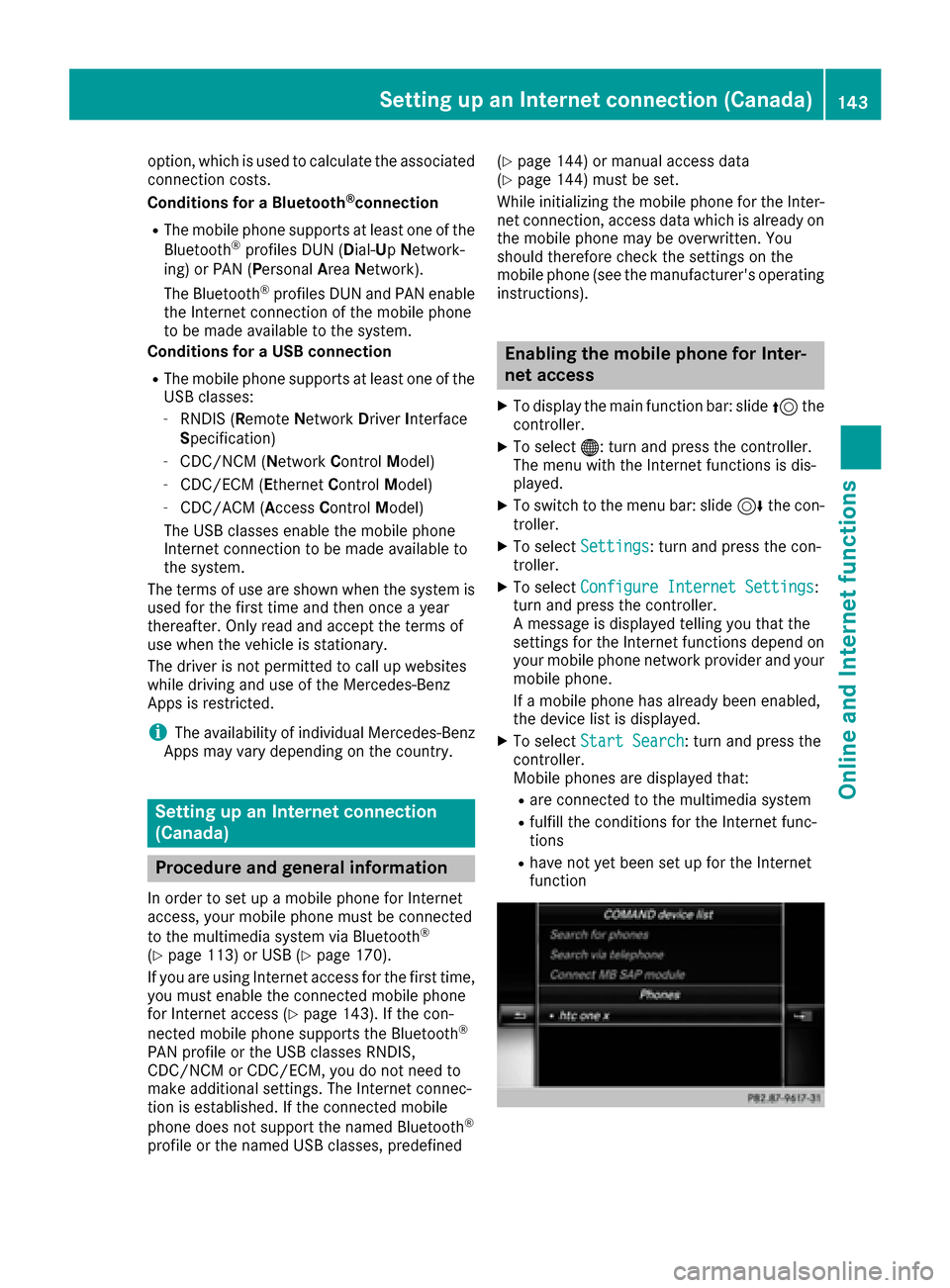
XTo select Start Search: turn and press the
controller.
Mobile phones are displayed that:
Rare connected to the multimedia system
Rfulfill the conditions for the Internet func-
tions
Rhave not yet been set up for the Internet
function
Setting up an Internet connection (Canada)143
Online and Internet functions
Z
Page 146 of 230

XTo select a mobile phone from the device list:turn the controller and press to confirm.
If the mobile phone supports the Bluetooth
®
PAN profile or the USB classes RNDIS, CDC/
NCM or CDC/ECM, Internet access is set up.
You can use the Internet functions.
If the connected mobile phone does not sup-
port the named Bluetooth
®profile or the
named USB classes, predefined (Ypage 144)
or manual access data (Ypage 144) must be
set.
Setting access data of the mobile
phone network provider
Selecting the predefined access data of
the mobile phone network provider
XTo select Predefined Settings: turn and
press the controller.
A list of countries appears.
If the mobile phone network provider provides
multiple access data options, the relevant
access data still has to be selected. This
depends on the data package used, for example.
To check whether the predetermined dial-in
data corresponds with the dial-in data provided by your mobile phone network provider, pro-
ceed as follows (
Ypage 145) and select Man‐ual Settings. The access data is displayed.
The access data for the mobile phone network
provider is selected once for the mobile phone
connected and is loaded again each time the
mobile phone is connected. Establishing a con-
nection (
Ypage 146).
You must set the access data of the mobile
phone network provider who provides the SIM
card and the associated data package (access
settings) for the connected mobile phone. The
access data remains the same when you are in a different country (roaming). The access data of
another network is
notselected.
Manually setting the access data of the
mobile phone network provider
XTo select Manual Settings: turn and press
the controller.
An overview of the provider settings appears.
XSet access data (Ypage 144).
XTo confirm settings: select Confirm Set‐tingsand turn and press the controller.
The access data for the mobile phone network
provider is selected once for the mobile phone
connected and is loaded again each time the
mobile phone is connected. Establishing a con-
nection (
Ypage 146).
You must set the access data of the mobile
phone network provider who provides the SIM
card and the associated data package (access
settings) for the connected mobile phone. The
access data remains the same when you are in a
different country (roaming). The access data of
another network is notselected.
Setting access data
Set the access data in accordance with your
data package. You can contact your mobile
phone network provider to obtain the precise
access data.
144Setting up an Internet connection (Canada)
Online and Internet functions
Page 166 of 230
Your multimediasystem equipment
These operating instructions describe all the
standard and optional equipment of your multi-
media system, as available at the time of going
to press. Country-specifi cdifferences are pos-
sible. Bear in mind that your vehicle may not
feature all functions described here. This also
applies to safety-relevant systems andfunc-
tions.
Read the information on qualified specialist
workshop s in the vehicle Operator's Manual.
Activating media mode
General notes
There are several ways to activate media sour-
ce s using the multimedia system.
The relevant sections of the Operator's Manual
describe the simplest way to activateamedia
source. Thi s section describes all options for
activating media sources. If you wish to play
external media sources, the default display
must already be turned on.
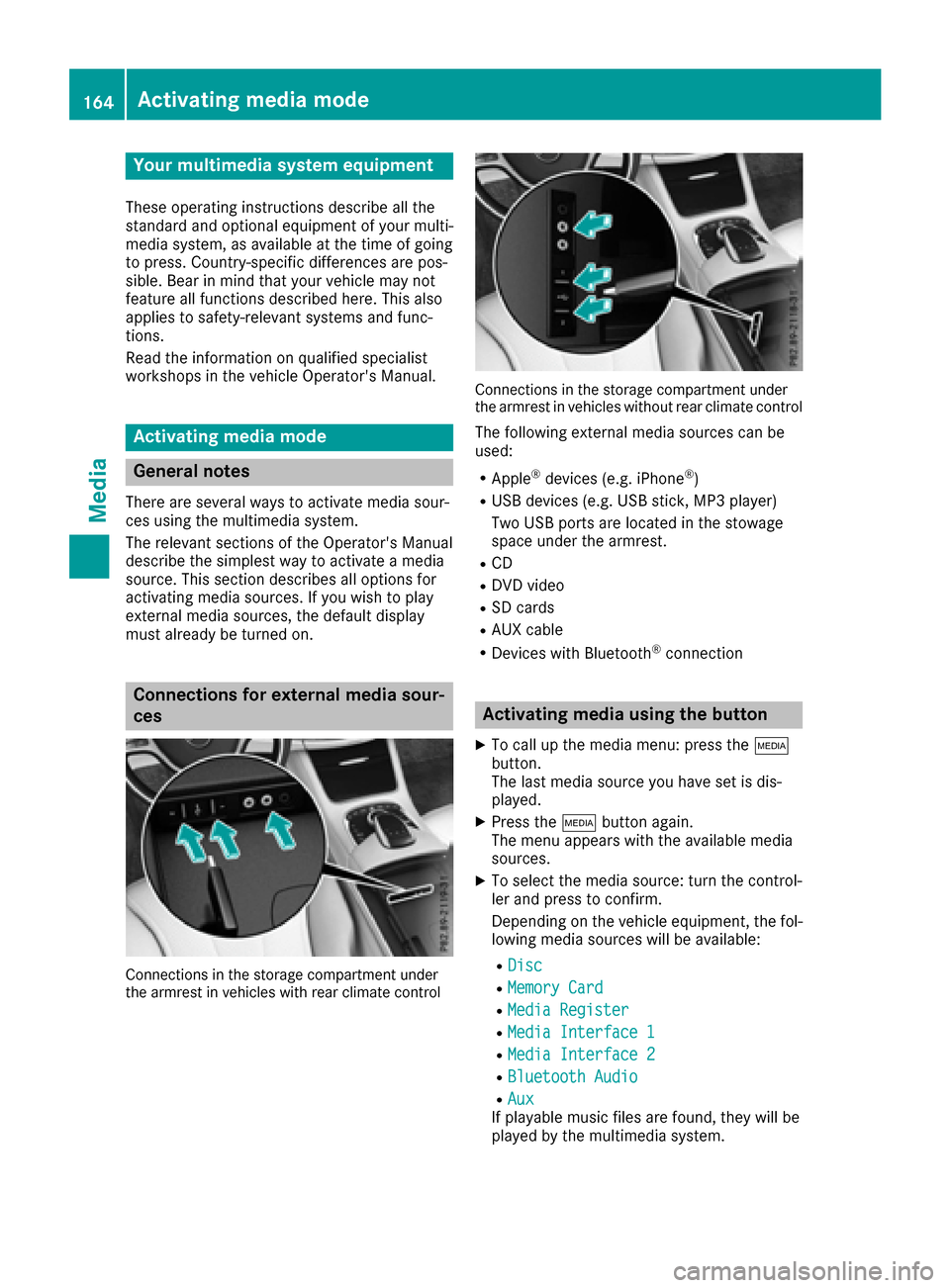
Connections for external media sour-
ces
Connection s in thestorage compartmen t under
th earmres t in vehicles with rearclimate contro l
Connections in thestorage compartmen t under
th earmres t in vehicles without rearclimate contro l
The following external media sources can be
used:
RApple®devices (e.g. iPhone®)
RUSB devices (e.g. USB stick, MP3 player)
Two USB ports are located in the stowage
space under the armrest.
RCD
RDVD video
RSD cards
RAU X cable
RDevices with Bluetooth®connection
Activating media using the button
XTo call up the media menu: press the Õ
button.
The last media source you have set is dis-
played.
XPress the Õbutton again.
The menu appears with the available media
sources.
XTo select themedia source: turn th econtrol-
ler and press to confirm .
Depending on the vehicle equipment, thefol-
lowing media sources will be available:
RDisc
RMemory Card
RMedi aRegister
RMedi aInterfac e1
RMediaInterfac e2
RBluetoothAudi o
RAuxIf playable music files are found, they will be
played by the multimedia system.
164Activating media mode
Media