2017 MERCEDES-BENZ GLC-Class apps
[x] Cancel search: appsPage 4 of 178

Index....................................................... 4
Introduction......................................... 15
Operating safety .................................... 15
Data stored in the vehicle ...................... 16
Information on copyright ...................... .18
Your multimedia system equipment ...... 18
Overview and operation .....................19
Overview ................................................ 19
Touchpad .............................................. .23
Basic functions ...................................... 28
Character entry (telephony) ................... 30
Character entry (navigation) .................. 31
Favorites ................................................ 33
System settings .................................. 35
Your multimedia system equipment ...... 35
Important safety notes .......................... 35
Display settings ..................................... 35
Time settings .........................................3 6
Text reader settings ...............................3 8
Voice Control System settings ............... 38
Wi-Fi ...................................................... 38
Bluetooth
®settings ............................... 40
Automatic volume adjustment ............... 40
Setting the system language .................4 1
Callin g up and editing the Favorites
function ................................................ .41
Importing/exporting data ...................... 42
Reset function ....................................... 43
Vehicle functions ................................ 44
Your multimedia system equipment ...... 44
Important safety notes .......................... 44
Vehicle settings .....................................4 4
360° camera ......................................... 46
Rear view camera .................................. 47
Climate control settings ........................ 47
DYNAMIC SELECT .................................. 50
Navigation ........................................... 53
Your multimedia system equipment ...... 53
Introduction ...........................................5 3Basic settings ........................................ 55
Destination entry ................................... 57
Personal POIs and routes ...................... 67
Route guidance ...................................... 71
Real-time traffic reports ......................... 77
Storing destinations ............................... 80
Map functions ........................................ 82
Navigation functions .............................. 87
Problems with the navigation system .... 89
Telephone
............................................ 91
Your multimedia system equipment ...... 91
Important safety notes .......................... 91
General notes ........................................ 91
Telephone menu .................................... 92
Connecting/disconnecting a mobile
phone .................................................... 92
Reception and transmission volume ...... 96
Using the telephone .............................. 97
Mobile phone voice recognition ........... 100
Phone book ......................................... 101
Address book ...................................... 104
Call lists ............................................... 110
Speed dial lists .................................... 112
Messages (text messages and e-
mails) ................................................... 113
Online and Internet functions ..........120
Your multimedia system equipment .... 120
Important safety notes ........................ 120
General notes ...................................... 120
Conditions for access .......................... 120
Setting up an Internet connection
(Canada) .............................................. 121
Establishing/ending the connection .... 124
Mercedes-Benz Apps ........................... 125
Mercedes-Benz Companion ................. 125
Web browser .......................................1 27
Radio.................................................. 132
Your multimedia system equipment .... 132
Switching on the radio ......................... 132
Overview .............................................. 132
Setting the waveband .......................... 132
Station ................................................. 133
Tagging music tracks ........................... 135
2Contents
Page 8 of 178

Setting ............................................. 35
Contacts
Deleting ......................................... 108
Importing ....................................... 109
Controller ............................................. 22
Copying music files
see Media Register
Copying/renaming/deleting files
see Media Register
D
Date format, setting ............................ 37
Day design, setting ............................. 35
Delayed switch-off time
Setting (COMAND) ........................... 45
Deleting
Call lists ......................................... 112
Destination (navigation)
Editing a previous destination .......... 81
Entering a destination by address .... 57
Entering a destination using the
map ................................................. 64
Entering a point of interest .............. 61
Entering using geo-coordinates ....... 67
Entering using Mercedes-Benz
Apps ................................................ 66
General notes .................................. 57
Keyword search ............................... 59
Personal POIs and routes ................. 67
Saving .............................................. 80
Saving to the SD card. ..................... 81
Selecting an address book con-
tact as a destination ........................ 61
Selecting from the list of last des-
tinations ........................................... 61
Storing in the address book. ............ 80
Dialing a number (telephone) ............. 97
Display
Selecting the design ........................ 35
Switching on/off .............................. 36
Display COMAND
see COMAND display
Displaying current position (navi-
gation) .................................................. 76
Displaying the artist and track
Radio ............................................. 135 Distance
see Route (navigation)
DVD
Notes on discs ............................... 143
see Audio CD/DVD and MP3 mode
DVD video
Operating DVD functions ............... 163
DYNAMIC SELECT
Configuration via the DYNAMIC
SELECT switch ................................. 50
Configuring individual drive pro-
gram ................................................ 50
Displaying engine data ..................... 51
Displaying vehicle data .................... 51
Individual configuration setting
options ............................................. 51
E
E-mailAnswering ...................................... 117
Calling up the settings menu ......... 113
Changing the name of the e-mail
account .......................................... 114
Configuring an e-mail account ....... 114
Configuring the e-mails displayed .. 114
Deactivating the e-mail function .... 114
Deleting ......................................... 119
Displaying details ........................... 116
Downloading e-mails manually ...... 114
Editing text templates .................... 118
Forwarding ..................................... 117
Inbox .............................................. 115
Reading .......................................... 115
Saving the sender in the address
book .............................................. 119
Settings ......................................... 113
Storing the sender as a new entryin the address book ....................... 118
Using a phone number in the text .. 118
Using text templates ...................... 117
Writing ........................................... 117
EASY-ENTRY/EXIT feature
Activating/deactivating
(COMAND) ....................................... 44
Entering the city .................................. 57
6Index
Page 10 of 178

Elevation modeling ........................... 84
Map heading up ............................... 82
Map settings .................................... 82
Moving ............................................. 54
North orientation ............................. 82
Notes ............................................... 82
Rotating the 3D map ........................ 84
Selecting POI symbols on the
map .................................................83
Selecting text information on the
map ................................................. 83
Showing the map version ................. 84
Switching highway information
on/off .............................................. 83
Updating .......................................... 86
Map functions ...................................... 82
Media Interface
Basic display .................................. 157
Playback options ........................... 159
Search ........................................... 158
Selecting a music file ..................... 158
Supported devices ......................... 157
Supported file formats ................... 158
Switching to Media Interface ......... 157
Video function ............................... 159
Media mode
Bluetooth
®Audio ........................... 152
Connections for external media
sources .......................................... 141
Switching on .................................. 141
Media Register
Basic display .................................. 149
Calling up memory space informa-
tion ................................................ 152
Copying files .................................. 149
Deleting all files ............................. 151
Renaming/deleting files ................ 151
Selecting a playback mode ............ 152
Switching on .................................. 149
Media search
By folder ........................................ 148
Category list .................................. 148
Current track list ............................ 148
General notes ................................ 147
Keyword search ............................. 149
Music genres ................................. 148
Selecting by cover ......................... 148
Starting the media search .............. 147 Mercedes-Benz Apps
Calling up ....................................... 125
Mercedes-Benz Companion
Authorizing .................................... 126
Displaying vehicle data .................. 127
Door-to-door navigation (transfer-
ring a destination from an exter nal
d
evice) ........................................... 126
Door-to-door navigation (transfer-
ring a destination from the vehi-
cle) ................................................ 126
Introduction ................................... 125
Navigating to the vehicle ............... 127
Requirements ................................ 125
Microphone, switching on/off ........... 99
Mobile phone
Authorizing ....................................... 94
Connecting (Bluetooth
®inter-
face) ................................................ 92
Connecting another mobile
phone .............................................. 95
De-authorizing ................................. 96
Displaying Bluetooth
®connection
details .............................................. 96
Enabling for Internet access .......... 121
Monitor
see COMAND display
MP3
Copyright ....................................... 143
Stop and playback function ........... 146
see Audio CD/DVD and MP3 mode
Multimedia system
see Display
Music
see Audio CD/DVD and MP3 mode
MUSIC REGISTER
General notes ................................ 149
My address
Saving .............................................. 58
N
NavigationAdjusting the volume of the navi-
gation announcements .................... 28
Alternative route .............................. 75
Avoiding an area .............................. 85
Basic settings .................................. 55
8Index
Page 11 of 178

Blocking a route section affected
by a traffic jam ................................. 76
Calling up the compass display ........ 88
Calling up the menu ......................... 87
Canceling/continuing route guid-
ance ................................................. 74
Displaying current position .............. 76
Drive Information ............................. 88
Entering a destination ...................... 57
Entering a destination using geo-
coordinates ...................................... 67
Entering a destination using
Mercedes-Benz Apps ....................... 66
Entering a destination using the
map ................................................. 64
Entering a point of interest .............. 61
Entering characters (character
bar) .................................................. 31
Entering intermediate destina-
tions ................................................. 64
Entry restriction ............................... 53
First use ........................................... 53
General notes .................................. 53
GPS reception .................................. 53
Important safety notes .................... 53
Info on navigation ............................ 88
Lane recommendation .....................72
Map functions ..................................8 2
Moving the map ...............................5 4
Off-road/Off-map (off-road desti-
nation) ............................................. 76
Online map display .......................... 87
Personal POIs and routes ................. 67
Problems ......................................... 89
Reading out traffic reports ............... 79
Repeating announcements .............. 74
Route flight ...................................... 88
Route information ............................ 75
Saving destinations .......................... 80
Saving home address ....................... 58
Selecting a destination from the
list of last destinations ..................... 61
Setting route options (avoiding:
highways, toll roads, tunnels, fer-
ries) ................................................. 55
Setting the announcements vol-
ume ................................................. 74 Setting the route type (short
route, fast route, dynamic route
or
e
conomic route) ............................... 55
Showing/hiding the menu ............... 54
Starting route calculation ................ 59
Switching announcements
on/off .............................................. 74
Switching to ..................................... 54
Traffic jam function .......................... 76
Updating the digital map .................. 86
Navigation announcements
Switching off .................................... 29
North orientation (navigation) ........... 82
O
Off-road................................................ 76
Off-road program
Setting (COMAND) ........................... 50
Online and Internet functions
Calling up ....................................... 124
Calling up the device list ................ 123
Enabling a mobile phone for Inter-
net access ..................................... 121
Ending the connection ................... 125
Establishing a connection .............. 124
Managing all Internet devices ........ 124
Manually setting the access data
of the mobile phone network pro-
vider .............................................. 122
Mercedes-Benz Apps ..................... 125
Selecting the access data of the
mobile phone network provider ..... 122
Setting automatic disconnection
of the Internet connection ............. 124
Setting up an Internet connection .. 121
Web browser .................................. 127
Own address (navigation)
see Home address
P
Pause functionVideo DVD ..................................... 163
Perfume atomizer
Setting the perfume intensity
(COMAND) ....................................... 49
Index9
Page 12 of 178

Personal POIs and routesAlert when approaching (personal
POI) .................................................. 68
General notes ..................................6 7
Importing via Mercedes-Benz
Apps ................................................ 69
Recording the route .........................7 0
Saving .............................................. 68
Selecting and editing ....................... 69
Settings for personal POIs ............... 67
Phone book
Adding a new contact .................... 102
Adding information to a contact .... 103
Calling up ....................................... 101
Deleting a contact ......................... 103
Displaying the details of an entry ... 102
Entering characters ......................... 30
Saving a contact ............................ 103
Searching for a contact ................. 101
Symbol overview ............................ 101
Phone call
Dialing .............................................. 97
Picture viewer
Changing view ............................... 164
Displaying pictures ........................ 164
Exiting the picture viewer .............. 164
General notes ................................ 163
Starting a slide show ..................... 164
PIN protection
Activating/deactivating ................... 42
POI (navigation)
Calling up the menu ......................... 61
Category .......................................... 62
Defining the position for the POI
search .............................................. 62
Entering ........................................... 61
Rotating 3D POI ............................... 63
Selecting .......................................... 63
Previous destinations (navigation) .... 81
Q
Quick access for audio and tele-
phone
Changing the station/music
track ................................................ 28
Sending DTMF tones ........................ 28
R
RadioActivating/deactivating the sta-
tion presets display ....................... 135
Deleting a station .......................... 134
Displaying information ................... 135
Displaying station information ....... 135
Displaying the artist and track ....... 135
Overview ........................................ 132
Setting the waveband .................... 132
Sound settings (balance, bass,
treble) ............................................ 135
Station list ..................................... 134
Storing stations ............................. 134
Switching on .................................. 132
Tagging music tracks (download-
ing/purchasing tracks from the
iTunes Store
®) ............................... 135
Radio station
Storing ........................................... 134
Read-aloud function
Automatic ........................................ 80
Read-aloud function for e-mails ....... 115
Reading out
Traffic reports on the route .............. 79
Real-time traffic reports ..................... 77
Rear view camera
Displaying the image ........................ 47
Object detection .............................. 47
Opening the camera cover for
cleaning (COMAND) ......................... 47
Switching object detection
on/off .............................................. 47
Switching on/off (COMAND) ........... 47
Receiving vCards ............................... 109
Redialing (telephone) .......................... 97
Reducing the volume
Switching announcements on/off
(COMAND) ....................................... 56
Reserve fuel level
Switching announcements on/off(COMAND) ....................................... 56
Resetting (factory settings) ............... 43
Road map
see Map (navigation)
Route (navigation)
Selecting an alternative route .......... 75
10Index
Page 22 of 178

RNavigation system
-Navigation via the hard drive
-Destination entry using keyword search
-Realistic 3D map with textured city models
-Personal POIs and routes using SD memory
card
-Navigation functions, e.g. Drive Informa-
tion
-Dynamic route guidance with traffic reports
via SIRIUS satellite radio
RCommunication
-Messaging functions (text messages,
email)
-Address book
-Internet browser
-Mercedes-Benz Apps with online search,
Facebook, stock prices, news and much
more
-Mercedes-Benz Mobile Website
-Wi-Fi interface for the connection of a
smartphone to the multimedia system
RSIRIUS Weather
-Weather data as an information chart (cur-
rent forecast, 5-day preview, detailed infor-
mation)
-Weather data on the weather map, e.g. rain
radar data, storm characteristics and the
track of tropical cyclones (hurricanes,
typhoons)
RVehicle functions
-Vehicle settings, such as ambient lighting,
belt adjustment and tow-away alarm
-360° camera
-Rear view camera
-Climate control functions, such as climate
mode, perfume atomizer and auxiliary heat-
ing
-DYNAMIC SELECT (individual drive pro-
gram)
RFavorites button
Fast access to favorites functionsusi
ng the
favorites button on the controller or on the
touchpad
Display
General notes
!Avoid any direct contact with the display
surface. Pressure on the display surface may
result in impairments to the display, which
could be irreversible.
Wearing polarized sunglasses may impair your
ability to read the display.
The display has an automatic temperature-con-
trolled switch-off feature. The brightness is
automatically reduced if the temperature is too
high. The display may then temporarily switch
off completely.
Overview
:Status bar with displays
;Cover view (if available)
=Main display field
?Climate control status display
The example shows media playback in SD mem-
ory card mode.
Cleaning instructions
!Do not touch the display. The display has a
very sensitive high-gloss surface; there is a
risk of scratching. If you have to clean the
screen, however, use a mild cleaning agent
and a soft, lint-free cloth.
The display must be switched off and have
cooled down before you start cleaning. Clean
the display screen, when necessary, with a com- mercially available microfiber cloth and cleaning
agent for TFT and LCD displays. Do not apply
pressure to the display surface when cleaning it,
as this could cause irreversible damage to the
display. Then, dry the surface with a dry micro-
fiber cloth.
20Overview
Overview and operation
Page 67 of 178
SelectionStep
From POIsXSelect a point of interest(Ypage 61).
Using MapXEnter a destination using
the map (Ypage 64).
From MemoryCardXSelect a personal POI
(Ypage 69).
FromMercedes-Benz Apps
XEnter a destination from
Mercedes-Benz Apps
(
Ypage 66).
Using Geo-CoordinatesXEnter a destination using
the geo-coordinates
(
Ypage 67).
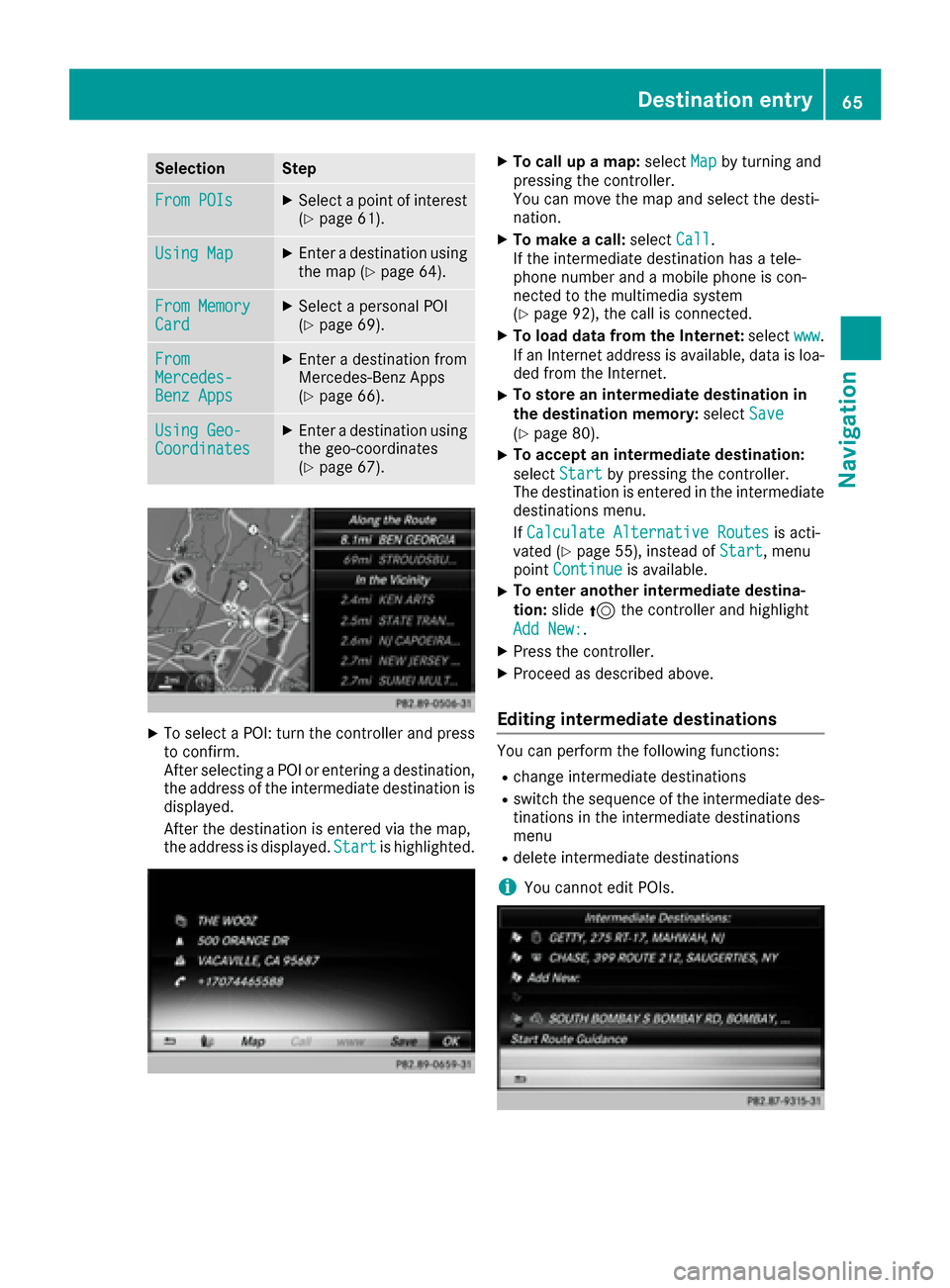
XTo select a POI: turn the controller and pressto confirm.
After selecting a POI or entering a destination,
the address of the intermediate destination is
displayed.
After the destination is entered via the map,
the address is displayed. Start
is highlighted.
XTo call up a map:selectMapby turning and
pressing the controller.
You can move the map and select the desti-
nation.
XTo make a call: selectCall.
If the intermediate destination has a tele-
phone number and a mobile phone is con-
nected to the multimedia system
(
Ypage 92), the call is connected.
XTo load data from the Internet: selectwww.
If an Internet address is available, data is loa- ded from the Internet.
XTo store an intermediate destination in
the destination memory: selectSave
(Ypage 80).
XTo accept an intermediate destination:
selectStart
by pressing the controller.
The destination is entered in the intermediate
destinations menu.
If Calculate Alternative Routes
is acti-
vated (Ypage 55), instead of Start, menu
point Continueis available.
XTo enter another intermediate destina-
tion:slide5the controller and highlight
Add New:
.
XPress the controller.
XProceed as described above.
Editing intermediate destinations
You can perform the following functions:
Rchange intermediate destinations
Rswitch the sequence of the intermediate des-
tinations in the intermediate destinations
menu
Rdelete intermediate destinations
iYou cannot edit POIs.
Destination entry65
Navigation
Z
Page 68 of 178
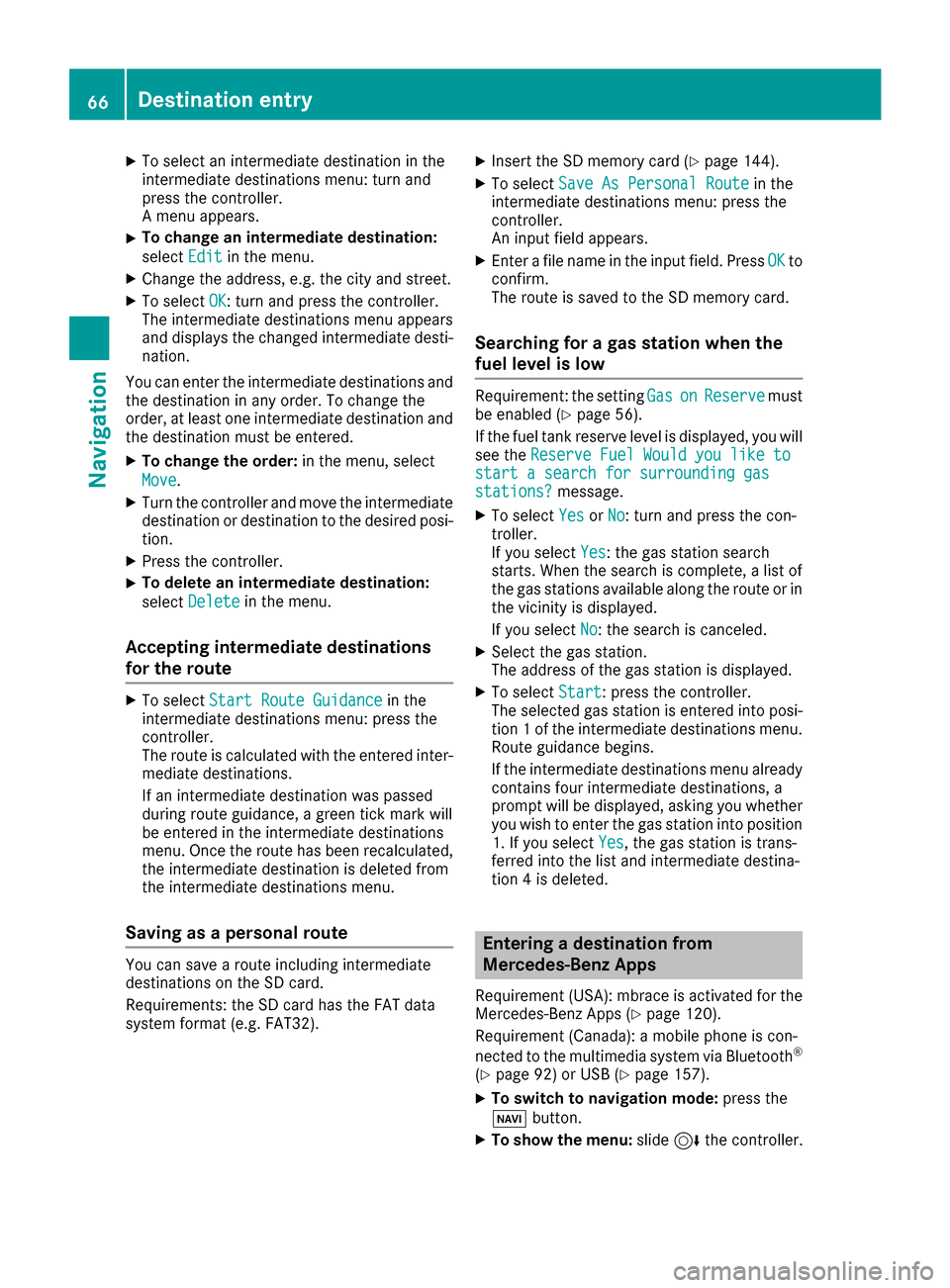
XTo select an intermediate destination in the
intermediate destinations menu: turn and
press the controller.
A menu appears.
XTo change an intermediate destination:
selectEdit
in the menu.
XChange the address, e.g. the city and street.
XTo select OK: turn and press the controller.
The intermediate destinations menu appears
and displays the changed intermediate desti-
nation.
You can enter the intermediate destinations and
the destination in any order. To change the
order, at least one intermediate destination and
the destination must be entered.
XTo change the order: in the menu, select
Move
.
XTurn the controller and move the intermediate destination or destination to the desired posi-
tion.
XPress the controller.
XTo delete an intermediate destination:
select Delete
in the menu.
Accepting intermediate destinations
for the route
XTo select Start Route Guidancein the
intermediate destinations menu: press the
controller.
The route is calculated with the entered inter-
mediate destinations.
If an intermediate destination was passed
during route guidance, a green tick mark will
be entered in the intermediate destinations
menu. Once the route has been recalculated,
the intermediate destination is deleted from
the intermediate destinations menu.
Saving as a personal route
You can save a route including intermediate
destinations on the SD card.
Requirements: the SD card has the FAT data
system format (e.g. FAT32).
XInsert the SD memory card (Ypage 144).
XTo select Save As Personal Routein the
intermediate destinations menu: press the
controller.
An input field appears.
XEnter a file name in the input field. Press OKto
confirm.
The route is saved to the SD memory card.
Searching for a gas station when the
fuel level is low
Requirement: the setting GasonReservemust
be enabled (Ypage 56).
If the fuel tank reserve level is displayed, you will
see the Reserve Fuel Would you like to
start a search for surrounding gasstations?message.
XTo select YesorNo: turn and press the con-
troller.
If you select Yes
: the gas station search
starts. When the search is complete, a list of
the gas stations available along the route or in
the vicinity is displayed.
If you select No
: the search is canceled.
XSelect the gas station.
The address of the gas station is displayed.
XTo selectStart: press the controller.
The selected gas station is entered into posi-
tion 1 of the intermediate destinations menu.
Route guidance begins.
If the intermediate destinations menu already
contains four intermediate destinations, a
prompt will be displayed, asking you whether you wish to enter the gas station into position
1. If you select Yes
, the gas station is trans-
ferred into the list and intermediate destina-
tion 4 is deleted.
Entering a destination from
Mercedes-Benz Apps
Requirement (USA): mbrace is activated for the
Mercedes-Benz Apps (Ypage 120).
Requirement (Canada): a mobile phone is con-
nected to the multimedia system via Bluetooth
®
(Ypage 92) or USB (Ypage 157).
XTo switch to navigation mode: press the
Ø button.
XTo show the menu: slide6the controller.
66Destination entry
Navigation