Page 326 of 532

2.
Remove the jack and tools assembly tray
from the compartment by turning the
wing-nut counterclockwise. Remove the
bag from the jack and tools assembly tray
by loosening the strap.
3. Unsnap the wheel lug nut wrench, jack extension and handle from the plastic
tray.
4. Remove the hack from the tray assembly.
Removing the Spare Tire
1. Remove the jack handle and winch extension from the tray and assemble
them. 2. Open the spare tire winch access plug
at the bottom of the compartment for the
jack and tools tray.
3. Insert the winch extension tool assembly
through the access hole in the floor and
engage the winch. 4.
To remove the spare tire, turn the handle
counterclockwise until the tire is lowered
to the ground and the cable is slightly
slack.
5. Slide the retainer through the center of the spare tire wheel and remove the
spare tire. Jacking the Vehicle
Note:
Jack at the specified locations to avoid
damaging your vehicle. Front jacking point
323
Navigator (TB5) Canada/United States of America, enUSA, First Printing Wheels and TiresE208640 E208655 E208656
Page 327 of 532
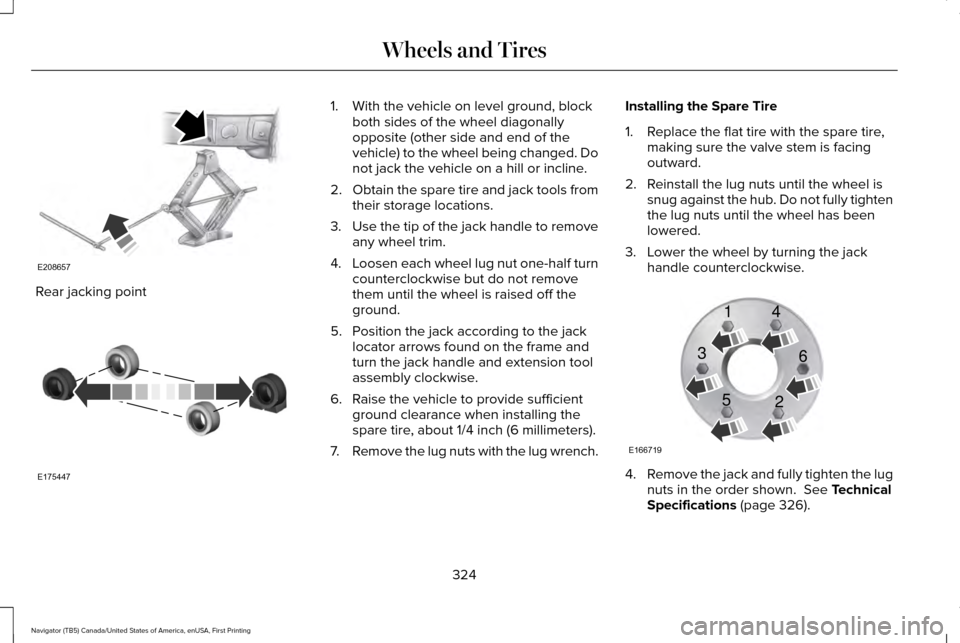
Rear jacking point 1. With the vehicle on level ground, block
both sides of the wheel diagonally
opposite (other side and end of the
vehicle) to the wheel being changed. Do
not jack the vehicle on a hill or incline.
2. Obtain the spare tire and jack tools from
their storage locations.
3. Use the tip of the jack handle to remove
any wheel trim.
4. Loosen each wheel lug nut one-half turn
counterclockwise but do not remove
them until the wheel is raised off the
ground.
5. Position the jack according to the jack locator arrows found on the frame and
turn the jack handle and extension tool
assembly clockwise.
6. Raise the vehicle to provide sufficient ground clearance when installing the
spare tire, about 1/4 inch (6 millimeters).
7. Remove the lug nuts with the lug wrench. Installing the Spare Tire
1. Replace the flat tire with the spare tire,
making sure the valve stem is facing
outward.
2. Reinstall the lug nuts until the wheel is snug against the hub. Do not fully tighten
the lug nuts until the wheel has been
lowered.
3. Lower the wheel by turning the jack handle counterclockwise. 4.
Remove the jack and fully tighten the lug
nuts in the order shown. See Technical
Specifications (page 326).
324
Navigator (TB5) Canada/United States of America, enUSA, First Printing Wheels and TiresE208657 E175447 E166719
1
3
5 4
6
2
Page 328 of 532

Stowing the Flat or Spare Tire
1.
Lay the tire on the ground, near the rear
of the vehicle, with the valve stem side
facing up.
2. Slide the wheel partially under the vehicle and install the retainer through
the wheel center. If equipped, you may
have to remove the wheel center cap
prior to pushing the retainer through the
center of the wheel. To remove the
center cap, press it off with the jack tool
from the inner side of the wheel. Pull on
the cable to align the components at the
end of the cable. 3. Assemble the jack handle and winch
extension, then insert the winch
extension through the access hole
behind the third row seat and engage
the winch.
4. Turn the jack handle clockwise until the tire is raised to its stowed position
underneath the vehicle. The wrench will
become harder to turn and the spare tire
winch will rachet or slip when the tire is
raised to maximum tightness. A clicking
sound will be heard from the winch
indicating that the tire is properly stowed. 5. Disassembly the jack tool and winch
extension and snap them back into the
tool tray.
6. Reinstall the jack bag properly around the jack and tool assembly tray, making
sure the strap is fastened.
7. Close the access hole with the rubber plug.
8. Reinstall the tray into the vehicle and secure it with the wing nut.
325
Navigator (TB5) Canada/United States of America, enUSA, First Printing Wheels and Tires
Page 340 of 532
Specification
Name
WSH-M17B19-A
A/C refrigerant (Mexico):
Motorcraft® R-134a Refrigerant
MYN-19
WSH-M1C231-B
A/C refrigerant compressor oil:
Motorcraft® PAG Refrigerant Compressor Oil
YN-12-D
CRCSL3151ESB
Multi-purpose grease:
ESB-M1C93-B
Motorcraft® Multi-Purpose Grease Spray
XL-5
--
Lock cylinders (U.S.):
Penetrating and Lock Lubricant
XL-1
--
Lock cylinders (Canada):
Penetrating Fluid
CXC-51-A
--
Lock cylinders (Mexico):
Penetrating and Lock Lubricant
MXL-1
337
Navigator (TB5) Canada/United States of America, enUSA, First Printing Capacities and Specifications
Page 346 of 532

VOL: Adjust radio volume.
A
MEDIA:
Scroll through available audio system modes.
B
Rear audio display:
See displayed time, radio frequency, Sirius radio channel or CD track.
C
CLOCK:
Press to display the current time in 12-hour format. The time displays \
for a few seconds or you can press the CLOCK button
again to switch immediately back to the last media state.
D
SEEK:
Select the next or previous stored radio frequency station, Sirius radi\
o channel or CD track.
E
SATELLITE RADIO
(If Equipped)
SIRIUS® broadcasts a variety of music, news,
sports, weather, traffic and entertainment
satellite radio channels. For more information
and a complete list of SIRIUS satellite radio
channels, visit www.siriusxm.com in the
United States, www.siriusxm.ca in Canada,
or call SIRIUS at 1-888-539-7474. Note:
This receiver includes the eCos
real-time operating system. eCos is
published under the eCos License.
343
Navigator (TB5) Canada/United States of America, enUSA, First Printing Audio System
Page 348 of 532

For more information on extended
subscription terms (a service fee is required),
the online media player and a complete list
of SIRIUS satellite radio channels, and other
features, please visit www.siriusxm.com in
the United States, www.siriusxm.ca in
Canada, or call SIRIUS at 1-888-539-7474.
Satellite Radio Electronic Serial
Number (ESN)
You need your ESN to activate, modify or
track your satellite radio account. When in
satellite radio mode, tune to channel 0.
Troubleshooting Action
Condition
Message
No action required. This message should
disappear shortly.
Radio requires more than two seconds to
produce audio for the selected channel.
Acquiring…
If this message does not clear shortly, or with
an ignition key cycle, your receiver may have
a fault. See an authorized dealer for service.
There is an internal module or system failure
present.
Satellite antenna fault
SIRIUS system failure
Tune to another channel or choose another
preset.
The channel is no longer available.
Invalid Channel
Contact SIRIUS at 1-888-539-7474 to subscribe
to the channel, or tune to another channel.
Your subscription does not include this
channel.
Unsubscribed Channel
The signal is blocked. When you move into an
open area, the signal should return.
The signal is lost from the SIRIUS satellite or
SIRIUS tower to your vehicle antenna.
No Signal
No action required. The process may take up
to three minutes.
Update of channel programming in progress.
Updating…
345
Navigator (TB5) Canada/United States of America, enUSA, First Printing Audio System
Page 349 of 532
Action
Condition
Message
Contact SIRIUS at 1-888-539-7474 to resolve
subscription issues.
Your satellite service is no longer available.
Questions? Call
1-888-539-7474
Use the channel guide to turn off the Lock or
Skip function on that station.
All the channels in the selected category are
either skipped or locked.
None found
Check Channel Guide
No action required.
SIRIUS has updated the channels available
for your vehicle.
Subscription Updated
346
Navigator (TB5) Canada/United States of America, enUSA, First Printing Audio System
Page 353 of 532

Action and Description
Menu Item
Item
This bar displays icons and messages pertaining to current system activi\
ties including climate
settings, voice commands and phone functions such as text messages.
Status Bar
A
This button is available on the main screens. Pressing it takes you to the home screen view.
Home
B
This shows the current time. You can set the clock manually or have it controlled by the vehicle's
GPS location. See Settings (page 417).
Clock
C
This displays the current outside temperature.
Outside Temperature
D
You can touch any of the buttons on this bar to select a feature.
Feature Bar
E
The touchscreen allows you quick access to
all of your comfort, navigation,
communication and entertainment options.
Using the status and feature bar you can
quickly select the feature you want to use. Note:
Your system is equipped with a feature
that allows you to access and control audio
features for 10 minutes after you switch the
ignition off (and no doors open). The Status Bar
Additional icons also display in the status bar
depending on market, vehicle options and
current operation. If a feature is not active,
the icon does not display. Certain icons may
move to the left or right depending on what
options are active.
350
Navigator (TB5) Canada/United States of America, enUSA, First Printing SYNC™ 3

