2017 LINCOLN MKZ HYBRID ad blue
[x] Cancel search: ad bluePage 416 of 546

PHONE
WARNING
Driving while distracted can result in
loss of vehicle control, crash and injury.
We strongly recommend that you use
extreme caution when using any device that
may take your focus off the road. Your
primary responsibility is the safe operation
of your vehicle. We recommend against the
use of any hand-held device while driving
and encourage the use of voice-operated
systems when possible. Make sure you are
aware of all applicable local laws that may
affect the use of electronic devices while
driving. Hands-free calling is one of the main features
of the system. Once you pair your cell phone,
you can access many options using the
touchscreen or voice commands. While the
system supports a variety of features, many
are dependent on your cell phone
’s
functionality. Pairing Your Cell Phone for the First
Time
Pair your Bluetooth-enabled phone with the
system before using the functions in
hands-free mode.
Switch on Bluetooth on your device to begin
pairing. See your phone
’s manual if
necessary.
To add a phone, select: Menu Item
Add Phone
1. Follow the on-screen instructions.
2. A prompt alerts you to search for the system on your phone.
3. Select your vehicle's make and model as
it displays on your phone.
4. Confirm that the six-digit number appearing on your phone matches the
six-digit number on the touchscreen.
5. The touchscreen indicates when the pairing is successful. 6. Your phone may prompt you to give the
system permission to access information.
To check your phone ’s compatibility, see
your phone ’s manual or visit the website.
Alternatively, to add a phone, select: Menu Item
Add Phone
Then select:
Discover Other Bluetooth Devices
1. Follow the on-screen instructions.
2. A prompt alerts you to search for the system on your phone.
3. Select your phone's name when it appears on the touchscreen.
4. Confirm that the six-digit number appearing on your phone matches the
six-digit number on the touchscreen.
5. The touchscreen indicates when the pairing is successful.
413
MKZ Hybrid (CC9) Hybrid Electric Vehicle (HEV), Canada/United States of America, enUSA, First Printing SYNC™ 3
Page 417 of 546

6. Your phone may prompt you to give the
system permission to access information.
To check your phone ’s compatibility, see
your phone ’s manual or visit the website.
At a minimum, most cell phones with
Bluetooth wireless technology support the
following functions:
• Answering an incoming call.
• Ending a call.
• Dialing a number. •
Call waiting notification.
• Caller identification.
Other features, such as text messaging using
Bluetooth and automatic phonebook
download, are phone-dependent features.
To check your phone ’s compatibility, see
your phone ’s manual or visit the website: Websites
owner.lincoln.com Websites
www.syncmyride.ca
www.syncmaroute.ca
Phone Menu
This menu becomes available when a phone
is paired and connected.
414
MKZ Hybrid (CC9) Hybrid Electric Vehicle (HEV), Canada/United States of America, enUSA, First Printing SYNC™ 3
Page 422 of 546

Item
Immediately end a
phone call. You can
also press the button
on the steering
wheel.
End Call
Press this to access
the phone keypad.
Keypad Item
Mute You can switch the
microphone off so
the caller does not
hear you.
Transfer the call to
the cell phone or
back to SYNC 3.
Privacy Text Messaging
Note:
Downloading and sending text
messages using Bluetooth are cell
phone-dependent features.
Note: Certain features in text messaging are
speed-dependent and not available when
your vehicle is traveling at speeds over
3 mph (5 km/h).
Receiving a Text Message
When a new message arrives, an audible tone sounds and the screen displa\
ys a pop-up with the caller name and ID, if supported by
your cell phone. You can select: Action and Description
Menu Item
Have SYNC 3 read the message to you.
Hear It
View the text on the touchscreen.
View
To call the sender.
Call
You can select from 15 preset messages. Press the message that you would \
like to use and confirm
to send the message. SYNC 3 confirms when the message is sent successfully.
Reply
To exit the screen.
Close
419
MKZ Hybrid (CC9) Hybrid Electric Vehicle (HEV), Canada/United States of America, enUSA, First Printing SYNC™ 3
Page 439 of 546

Description
Item
Callout
Shows the direction of power flow between the engine and the electric mo\
tor. The
direction indicates if the engine is providing power to the high-voltage\
electrical
system, or if the high-voltage electrical system is providing power to c\
ontrol or start
the engine.
Motor-to-Engine Flow
K
Represents the gasoline engine. It illuminates only when the gasoline engine is on.
The higher the engine power is, the larger the circle around this node.
Engine
L
Shows the direction of the power flow between the engine and the wheels.\
Engine-to-Wheels Flow
M
Represents the power going to the wheels. The higher the wheel power is, \
the larger
the circle around this node. When the engine is off, drive power displays in blue.
When the engine is on, drive power displays in grey.
Drive
N
1 The battery-to-motor flow includes battery
power the vehicle is using for acceleration.
It does not include energy the vehicle is
using for accessories (such as air
conditioning, headlights and radio). This
screen displays accessories and climate
usage separately. 2
Accessories indicates electrical power
demands from your vehicle ’s accessory
systems. Accessories use power but do not
contribute to making the vehicle move. The
power flow displays power usage from the
climate control system and other accessories
separately. 3
The climate control system may determine
A/C is necessary even when you turn it off.
In this case, you may see some climate
power when the A/C is off.
436
MKZ Hybrid (CC9) Hybrid Electric Vehicle (HEV), Canada/United States of America, enUSA, First Printing SYNC™ 3
Page 441 of 546

Privacy Notice for GPS Mapping with
MyLincoln Mobile
MyLincoln Mobile allows for GPS mapping
when a vehicle is registered to a MyLincoln
Mobile account. To remove the vehicle from
the account, thereby removing GPS mapping
ability, a Master Reset can be performed in
the vehicle. See Settings (page 442).
Before transferring ownership of a vehicle,
owners may choose to execute a Master
Reset or Factory Reset (completed via the
MyLincoln Mobile website). Either method
removes the vehicle from all MyLincoln
Mobile accounts.
It is recommended that new owners conduct
a Master Reset upon taking possession of
the vehicle to remove it from any existing
MyLincoln Mobile accounts. The new owner
can activate a MyLincoln Mobile account by
completing registration process on the
website. Website
owner.lincoln.com
www.syncmyride.ca Website
www.syncmaroute.ca
APPS
The system enables voice, steering wheel,
and touch screen control of SYNC 3 AppLink
enabled smartphone apps. Once an app is
running through AppLink, you can control
main features of the app through voice
commands and steering wheel controls.
Note: Available AppLink enabled apps will
vary by market.
Note: You must pair and connect your
smartphone via Bluetooth to SYNC 3 to
access AppLink.
Note: iPhone users need to connect the
phone to the USB port.
Note: For information on available apps,
supported smartphone devices and
troubleshooting tips please visit: Websites
owner.lincoln.com
www.syncmyride.ca
www.syncmaroute.ca
Note: Make sure you have an active account
for the app that you have downloaded. Some
apps will work automatically with no setup.
Other apps will want you to configure your
personal settings and personalize your
experience by creating stations or favorites.
We recommend you do this at home or
outside of your vehicle.
Note: We encourage you to review the
smartphone app ’s terms of service and
privacy policies because Ford is not
responsible for your app or its use of data.
438
MKZ Hybrid (CC9) Hybrid Electric Vehicle (HEV), Canada/United States of America, enUSA, First Printing SYNC™ 3
Page 446 of 546

Media Player
This button is available when a media device
such as a Bluetooth Stereo or USB device is
the active audio source. Pressing the button
allows you to access the following options
for active devices only. Action and Description
Menu Item
For some Apple devices, SYNC 3 can adjust the playback speed of podcasts. When a podcast is playi\
ng,
you can choose:
Podcast Speed
Faster
Normal
Slower
For some Apple devices, SYNC 3 can adjust the playback speed of audiobooks. When an audiobook is
playing, you can choose:
Audiobook Speed
Faster
Normal
Slower
Cover art displays from your device ’s music files. If no cover art for the files
exists on the device, then the Gracenote Database provides cover art.
Media Player
Cover Art Priority
The Gracenote Database supplied cover art is used for your music files.
This overrides any cover art from your device.
Gracenote®
Erase the stored media information in order to re-index.
Reset Media
This allows you to view the version level of the Gracenote Database.
Gracenote® Database Info
This allows you to view the manufacturer and model number of your media \
device.
Device Information
443
MKZ Hybrid (CC9) Hybrid Electric Vehicle (HEV), Canada/United States of America, enUSA, First Printing SYNC™ 3
Page 447 of 546
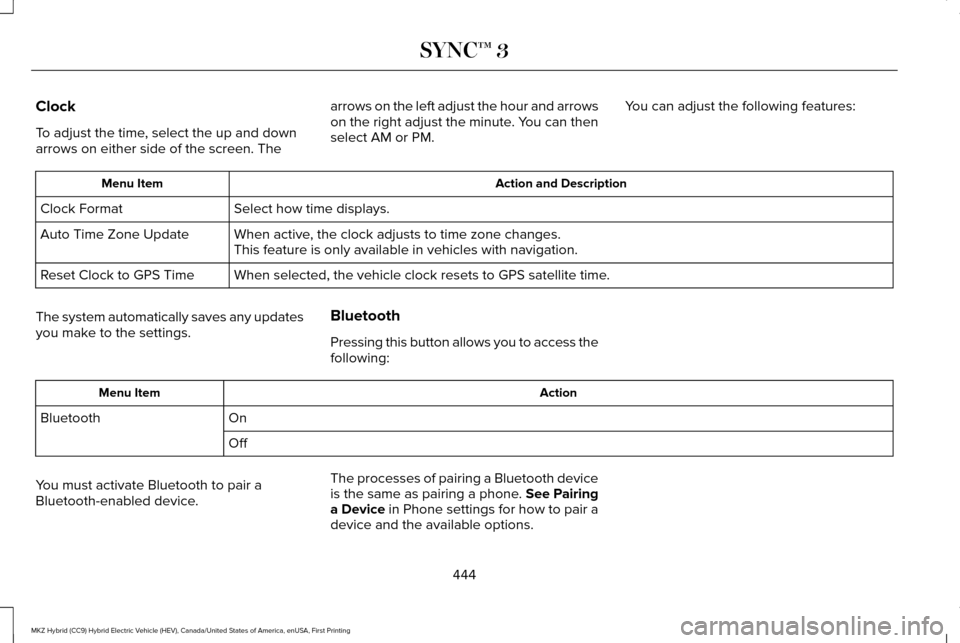
Clock
To adjust the time, select the up and down
arrows on either side of the screen. The
arrows on the left adjust the hour and arrows
on the right adjust the minute. You can then
select AM or PM.
You can adjust the following features: Action and Description
Menu Item
Select how time displays.
Clock Format
When active, the clock adjusts to time zone changes.
Auto Time Zone Update
This feature is only available in vehicles with navigation.
When selected, the vehicle clock resets to GPS satellite time.
Reset Clock to GPS Time
The system automatically saves any updates
you make to the settings. Bluetooth
Pressing this button allows you to access the
following: Action
Menu Item
On
Bluetooth
Off
You must activate Bluetooth to pair a
Bluetooth-enabled device. The processes of pairing a Bluetooth device
is the same as pairing a phone. See Pairing
a Device in Phone settings for how to pair a
device and the available options.
444
MKZ Hybrid (CC9) Hybrid Electric Vehicle (HEV), Canada/United States of America, enUSA, First Printing SYNC™ 3
Page 448 of 546

Phone
Pair your Bluetooth-enabled phone with the
system before using the functions in
hands-free mode.
Switch on Bluetooth on your device to begin
pairing. See your phone
’s manual if
necessary.
To add a phone, select: Menu Item
Add Phone
1. Follow the on-screen instructions.
2. A prompt alerts you to search for the system on your phone.
3. Select your vehicle's make and model as
it displays on your phone.
4. Confirm that the six-digit number appearing on your phone matches the
six-digit number on the touchscreen. 5. The touchscreen indicates when the
pairing is successful.
6. Your phone may prompt you to give the system permission to access information.
To check your phone ’s compatibility, see
your phone ’s manual or visit the website.
Alternatively, to add a phone, select: Menu Item
Add Phone
Then select:
Discover Other Bluetooth Devices
1. Follow the on-screen instructions.
2. A prompt alerts you to search for the system on your phone.
3. Select your phone's name when it appears on the touchscreen.
4. Confirm that the six-digit number appearing on your phone matches the
six-digit number on the touchscreen. 5. The touchscreen indicates when the
pairing is successful.
6. Your phone may prompt you to give the system permission to access information.
To check your phone ’s compatibility, see
your phone ’s manual or visit the website.
Other features, such as text messaging using
Bluetooth and automatic phonebook
download, are phone-dependent features.
Once you have paired a device you can
adjust the following options.
To check your phone ’s compatibility, see
your phone ’s manual or visit the website: Website
owner.lincoln.com
www.syncmyride.ca
www.syncmaroute.ca
Once you have paired a device you can
adjust the following options.
445
MKZ Hybrid (CC9) Hybrid Electric Vehicle (HEV), Canada/United States of America, enUSA, First Printing SYNC™ 3