2017 LINCOLN MKX Vin
[x] Cancel search: VinPage 458 of 587

To call a number in your contacts, select:
Action and Description
Menu Item
You can then select the
name of the contact you
want to call. Any numbers
stored for that contact
display along with any
stored contact photos. You
can then select the number
that you want to call. The
system begins the call.
Contacts
To call a number from your recent calls,
select: Action and Description
Menu Item
You can then select an entry
that you want to call. The
system begins the call.
Recent Call
List
To call a number that is not stored in your
phone, select: Action and Description
Menu Item Action and Description
Menu Item
Select the digits of the
number you wish to call.
Phone
Keypad
The system begins the call.
Call
Pressing the backspace button deletes the
last digit you typed.
Receiving Calls
During an incoming call, an audible tone
sounds. Caller information appears in the
display if it is available.
To accept the call, select: Menu Item
Accept
Note: You can also accept the call by
pressing the phone button on the steering
wheel. To reject the call, select: Menu Item
Reject
Note: You can also reject the call by
pressing the phone button on the steering
wheel.
Ignore the call by doing nothing. SYNC 3
logs it as a missed call.
During a Phone Call
During a phone call, the contacts name and
number display on the screen along with the
call duration.
The phone status items are also visible:
• Signal Strength.
• Battery.
• 911 Assist (United States and Canada
Only). See Settings (page 472).
You can select any of the following during
an active phone call:
455
MKX (CD9) Canada/United States of America, enUSA, First Printing SYNC™ 3
Page 459 of 587
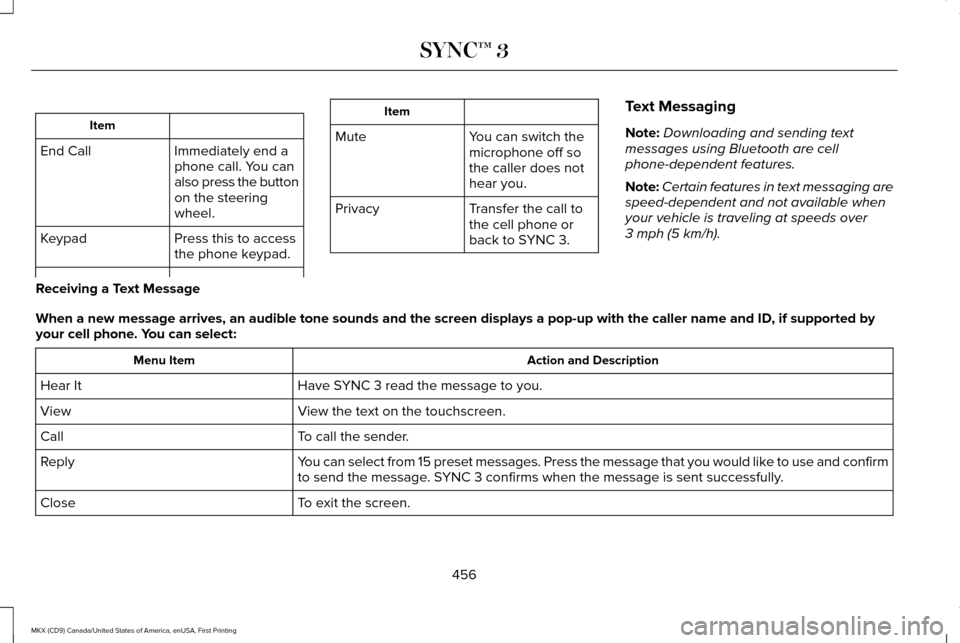
Item
Immediately end a
phone call. You can
also press the button
on the steering
wheel.
End Call
Press this to access
the phone keypad.
Keypad Item
Mute You can switch the
microphone off so
the caller does not
hear you.
Transfer the call to
the cell phone or
back to SYNC 3.
Privacy Text Messaging
Note:
Downloading and sending text
messages using Bluetooth are cell
phone-dependent features.
Note: Certain features in text messaging are
speed-dependent and not available when
your vehicle is traveling at speeds over
3 mph (5 km/h).
Receiving a Text Message
When a new message arrives, an audible tone sounds and the screen displa\
ys a pop-up with the caller name and ID, if supported by
your cell phone. You can select: Action and Description
Menu Item
Have SYNC 3 read the message to you.
Hear It
View the text on the touchscreen.
View
To call the sender.
Call
You can select from 15 preset messages. Press the message that you would \
like to use and confirm
to send the message. SYNC 3 confirms when the message is sent successfully.
Reply
To exit the screen.
Close
456
MKX (CD9) Canada/United States of America, enUSA, First Printing SYNC™ 3
Page 466 of 587

Description
Menu Item
Along Route
Near Destination
In a City
Once you have chosen your destination, press: Action and Description
Menu Item
This saves the destination to your favorites.
Save
This shows you a map of your entire route. You can then choose your route from three different options.
Start
Uses the fastest moving roads possible.
Fastest
Uses the shortest distance possible.
Shortest
Uses the most fuel-efficient route.
Economical Route
The time and distance for each route also displays.
On the route screen, you can choose to cancel the current navigation. Th\
e system asks for confirmation then
returns you to the map mode screen.
Cancel
463
MKX (CD9) Canada/United States of America, enUSA, First Printing SYNC™ 3
Page 472 of 587

Websites
www.syncmaroute.ca
Note: Make sure you have an active account
for the app that you have downloaded. Some
apps will work automatically with no setup.
Other apps will want you to configure your
personal settings and personalize your
experience by creating stations or favorites.
We recommend you do this at home or
outside of your vehicle.
Note: We encourage you to review the
smartphone app ’s terms of service and
privacy policies because Ford is not
responsible for your app or its use of data.
Note: AppLink is a native SYNC system
feature. Accessing mobile apps through
AppLink is only possible when Android Auto
or Apple CarPlay are disabled. Some apps
may only be accessible in the car through
Applink and others only through Android
Auto or Apple CarPlay. Please refer to the
Smartphone Connectivity information to
disable Android Auto or Apple CarPlay. Note:
In order to use an app with SYNC 3,
the App needs to be running in the
background of your phone. If you shut down
the app on your phone, it shuts down the
app on SYNC 3 as well.
Note: If a SYNC 3 AppLink compatible app
is not shown in the Apps Domain, make sure
the required app is running on the mobile
device. Action and Descrip-
tion
Menu Item
SYNC 3 will search
and connect to
compatible app(s)
running on your
mobile device.
Connect Mobile
Apps
Enabling SYNC 3 Mobile Apps
In order to enable mobile apps, SYNC 3
requires user consent to send and receive
app authorization information and updates
using the data plan associated with the
connected device. The connected device sends data to Ford in
the United States. The information is
encrypted and includes your VIN, SYNC 3
module number, odometer, usage statistics
and debugging information. We retain this
data for only as long as necessary to provide
this service, troubleshoot, and improve
products and services and to offer you
products and services that may interest you
where allowed by law.
Note:
You must enable mobile apps for each
connected device the first time you select a
mobile app using the system.
Note: Ford reserves the right to limit
functionality or deactivate mobile apps at
any time.
Note: Standard data rates apply. Ford is not
responsible for any additional charges you
may receive from your service provider,
when your vehicle sends or receives data
through the connected device. This includes
any additional charges incurred due to
driving in areas when roaming out of a home
network.
You can enable and disable apps through
settings. See Settings (page 472).
469
MKX (CD9) Canada/United States of America, enUSA, First Printing SYNC™ 3
Page 473 of 587

App Permissions
The system organizes the App permissions
into groups. You can grant these group
permissions individually. You can change a
permission group status any time when not
driving, by using the settings menu. While in
the settings menu, you can also see the data
included in each group.
When you launch an app using SYNC 3, the
system may ask you to grant certain
permissions, for example Vehicle information,
Driving characteristics, GPS and Speed,
and/or Push notifications. You can enable all
groups or none of them during the initial app
permissions prompts. The settings menu
offers individual group permission control.
Note:
You are only prompted to grant
permissions the first time you use an app
with SYNC 3.
Note: If you disable group permissions, apps
will still be enabled to work with SYNC 3
unless you deactivate All Apps in the settings
menu. SiriusXM Traffic and Travel Link (If
Equipped) WARNING
Driving while distracted can result in
loss of vehicle control, crash and injury.
We strongly recommend that you use
extreme caution when using any device that
may take your focus off the road. Your
primary responsibility is the safe operation
of your vehicle. We recommend against the
use of any hand-held device while driving
and encourage the use of voice-operated
systems when possible. Make sure you are
aware of all applicable local laws that may
affect the use of electronic devices while
driving. Note:
SiriusXM Traffic and Travel Link may
not be available in all markets.
Note: In order to use SiriusXM Traffic and
Travel Link, your vehicle must have
navigation. Note:
A paid subscription is required to
access and use these features. Go to
www.siriusxm.com/travellink for more
information.
Note: Visit www.siriusxm.com/traffic and click
on Coverage map and details for a complete
listing of all traffic areas covered by SiriusXM
Traffic and Travel Link.
Note: Neither Sirius nor Ford is responsible
for any errors or inaccuracies in the SiriusXM
Traffic and Travel Link services or its use in
vehicles.
When you subscribe to SiriusXM Traffic and
Travel Link, it can help you locate the best
gas prices, find movie listings, get current
traffic alerts, view the current weather map,
get accurate ski conditions and see scores
to current sports games.
470
MKX (CD9) Canada/United States of America, enUSA, First Printing SYNC™ 3
Page 485 of 587

Navigation Preferences
Action and Description
Menu Item
Navigation Preferences You can adjust how the system provides prompts.
Guidance Prompts
Then select any of the following:
Voice and Tones
Voice Only
Tones Only
Mobile Apps
You can enable the control of compatible
mobile apps running on your Bluetooth or
USB device on SYNC 3. In order to enable
mobile apps, SYNC 3 requires user consent
to send and receive app authorization
information and updates using the data plan
associated with the connected device. The connected devices sends data to Ford
in the United States. The encrypted
information includes your VIN, SYNC 3
module number, anonymous usage statistics
and debugging information. Updates may
take place automatically.
Note:
Not all Mobile Apps are compatible
with the system. Note:
Standard data rates will apply. Ford
is not responsible for any additional charges
you may receive from your service provider,
when your vehicle sends or receives data
through the connected device. This includes
any additional charges incurred due to
driving in areas when roaming out of a home
network.
482
MKX (CD9) Canada/United States of America, enUSA, First Printing SYNC™ 3
Page 492 of 587

Cell phone issues
Possible solution
Possible cause
Issue
Refer to your device's manual about audio adjustments.
The audio control settings on your cell
phone may be affecting SYNC 3
performance.
There is background noise
during a phone call.
Try switching your cell phone off, resetting it or removing the battery,
then try again.
Possible cell phone malfunction.
During a call, I can hear the
other person but they
cannot hear me.
Make sure that the microphone for SYNC 3 is not set to off. Look for
the microphone icon on the phone screen.
To restart your system, shut down the engine, open and close the
door, and then lock the door and wait for 2-3 minutes. Make sure that
your SYNC 3 screen is black and the lighted USB port is off.
The system may need to be restarted.
During a call, I cannot hear
the other person and they
cannot hear me.
Check your cell phone's compatibility.
This is a cell phone-dependent feature.
SYNC 3 is not able to
download my phonebook. Make sure you allow SYNC 3 to retrieve contacts from your phone.
Refer to your cell manual.
Possible cell phone malfunction. You must switch on your cell phone and the automatic phonebook
download feature on SYNC 3.
Try switching your cell phone off, resetting it or removing the battery,
then try again.
489
MKX (CD9) Canada/United States of America, enUSA, First Printing SYNC™ 3
Page 493 of 587

Cell phone issues
Possible solution
Possible cause
Issue
Make sure you allow SYNC 3 to retrieve contacts from your phone.
Refer to your cell manual.
Limitations on your cell phone's capab-
ility.
The system says "Phone-
book downloaded" but my
SYNC 3 phonebook is
empty or is missing
contacts. If the missing contacts are stored on your SIM card, move them to
your cell phone's memory.
You must switch on your cell phone and the automatic phonebook
download feature on SYNC 3.
Check your cell phone's compatibility.
This is a cell phone-dependent feature.
I am having trouble
connecting my cell phone
to SYNC 3. Try switching your cell phone off, resetting it or removing the battery,
then try again.
Possible cell phone malfunction. Try deleting your device from SYNC 3 and deleting SYNC from your
device, then trying again.
Always check the security and auto accept prompt settings relative
to the SYNC 3 Bluetooth connection on your cell phone.
Update your cell phone's firmware.
Switch the auto download setting off.
Check your cell phone's compatibility.
This is a cell phone-dependent feature.
Text messaging is not
working on SYNC 3. Try switching your cell phone off, resetting it or removing the battery,
then try again.
Possible cell phone malfunction.
490
MKX (CD9) Canada/United States of America, enUSA, First Printing SYNC™ 3