Page 348 of 640
3485-1. Basic Operations
RC300h_EE(OM24740E)
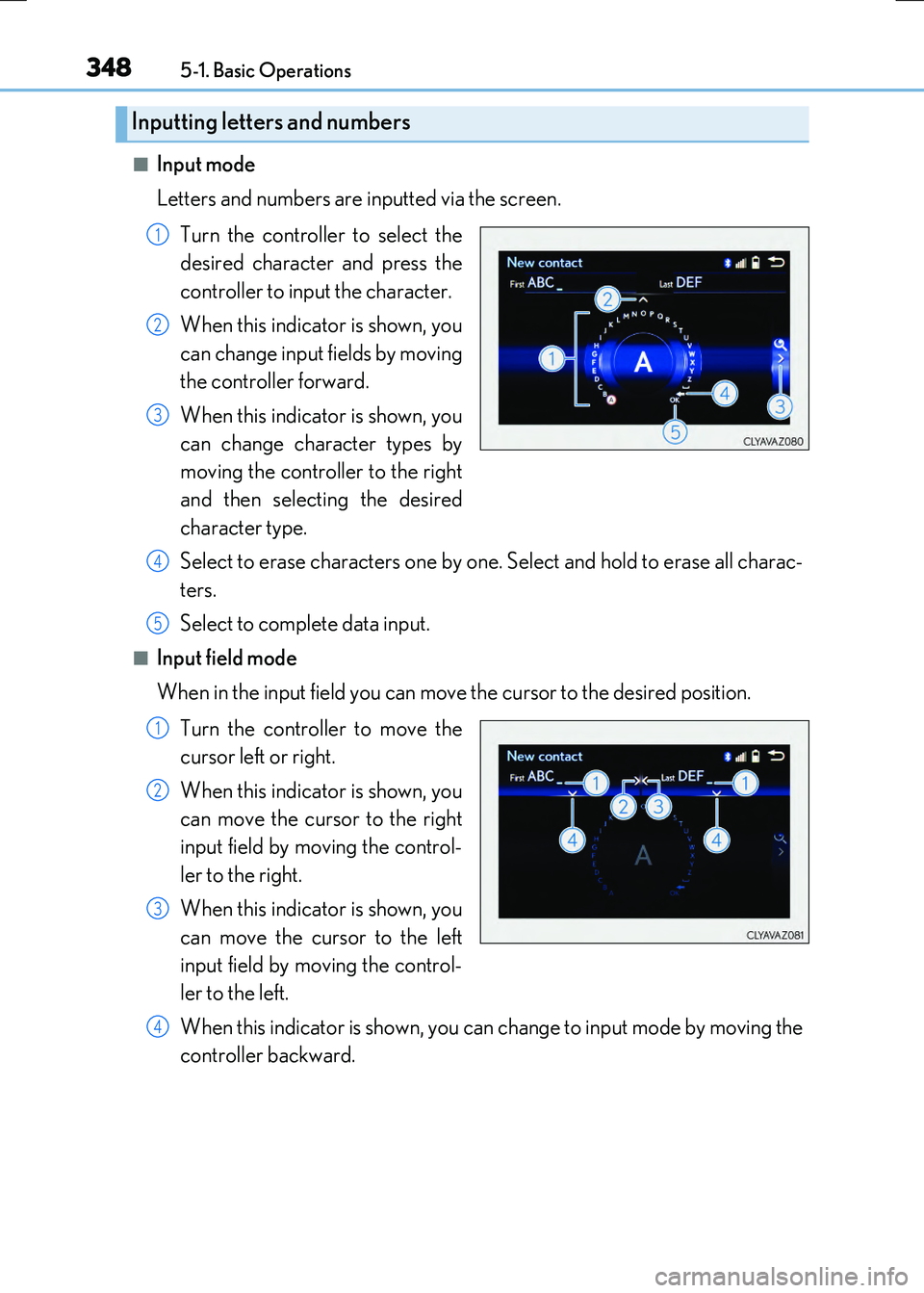
■Input mode
Letters and numbers are inputted via the screen.
Turn the controller to select the
desired character and press the
controller to input the character.
When this indicator is shown, you
can change input fields by moving
the controller forward.
When this indicator is shown, you
can change character types by
moving the controller to the right
and then selecting the desired
character type.
Select to erase characters one by one. Select and hold to erase all charac-
ters.
Select to complete data input.
■Input field mode
When in the input field you can move the cursor to the desired position.
Turn the controller to move the
cursor left or right.
When this indicator is shown, you
can move the cursor to the right
input field by moving the control-
ler to the right.
When this indicator is shown, you
can move the cursor to the left
input field by moving the control-
ler to the left.
When this indicator is shown, you can change to input mode by moving the
controller backward.
Inputting letters and numbers
1
2
3
4
5
1
2
3
4
Page 350 of 640

3505-1. Basic Operations
RC300h_EE(OM24740E)
Volume switch
• Increases/decreases volume
• Press and hold: Continuously
increases/decreases volume
Radio mode:
• Press (except manual mode):
Select a radio station
• Press (manual mode): Seek up/
down
• Press and hold (manual mode): Continuously seek up/down
CD, MP3/WMA/AAC disc, Bluetooth®, iPod or USB mode:
• Press: Select a track/file/song/video
• Press and hold: Select a folder/album (MP3/WMA/AAC disc or USB)
“MODE” switch
• Turns the power on, selects audio source
• Press and hold this switch to mute or pause the current operation. To can-
cel the mute or pause, press and hold.
Steering wheel audio switches
Some audio features can be controlled using the switches on the steering
wheel.
Operation may differ depending on the type of audio system or navigation
system. For details, refer to the manual provided with the audio system or nav-
igation system.
Operating the audio system us ing the steering wheel switches
1
2
WARNING
■To reduce the risk of an accident
Exercise care when operating the audio switches on the steering wheel.
3
Page 351 of 640
3515-1. Basic Operations
5
Lexus Display Audio system
RC300h_EE(OM24740E)
■iPod
Open the cover and connect an
iPod using an iPod cable.
Turn on the power of the iPod if it is not turned on.
■USB memory
Open the cover and connect the USB memory device.
Turn on the power of the USB memory device if it is not turned on.
■Portable audio player
Open the cover and connect the portable audio player.
Turn on the power of the portable audio player if it is not turned on.
USB/AUX ports
Connect an iPod, USB memory device or portable audio player to the USB/
AUX port as indicated below. Select “iPod”, “USB”, “AUX” or “A/V” on the
audio source selection screen and the device can be operated via the Lexus
Display Audio system.
Connecting using the USB/AUX port
Page 357 of 640
3575-2. Setup
5
Lexus Display Audio system
RC300h_EE(OM24740E)
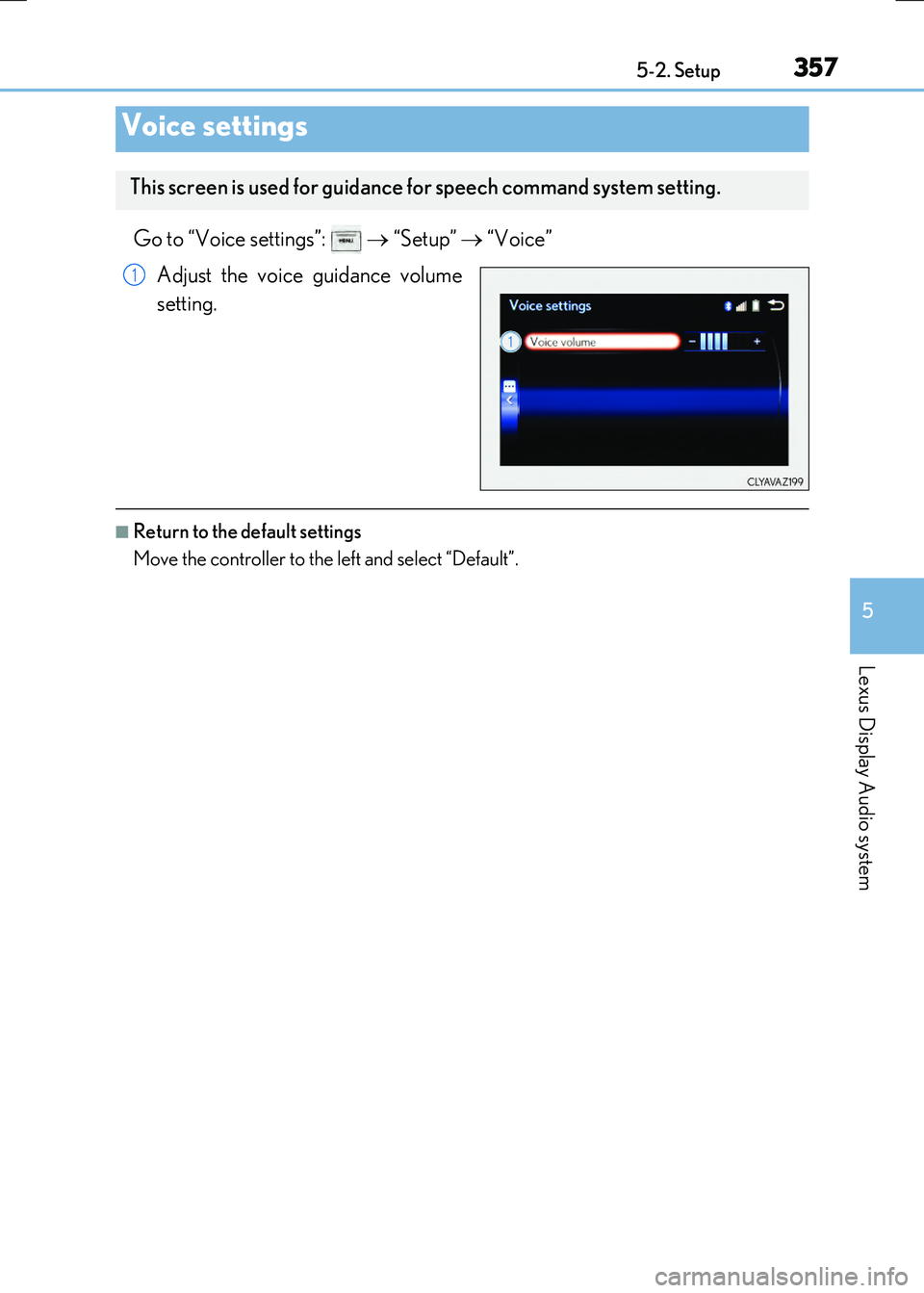
Go to “Voice settings”: “Setup” “Voice”
Adjust the voice guidance volume
setting.
■Return to the default settings
Move the controller to the left and select “Default”.
Voice settings
This screen is used for guidance for speech command system setting.
1
Page 358 of 640
3585-2. Setup
RC300h_EE(OM24740E)
Go to “Display”: “Display”
Turn off screen.
Adjust screen quality.
Adjust screen quality of the Lexus
parking assist monitor camera. (if
equipped)
Change to day mode.
This setting turns the screen off. To turn it on, press any button such as or .
If a screen off image has been se t, the set image will be displayed.
When the headlights are turned on, the screen dims.
However, the screen can be switched to day mode by selecting “Day mode”.
The screen will stay in day mode when the headlights are turned on until “Day mode”
is selected again.
Display settings
Settings are available for adjusting the contrast and brightness of the screen.
The display can also be turned off.
Screen for display settings
1
2
3
4
Screen off
Day mode
Page 359 of 640
3595-2. Setup
5
Lexus Display Audio system
RC300h_EE(OM24740E)
Select “General” or “Camera” on the “Display” screen or select “Display” on
each audio menu screen. ( P. 366)
Adjust the display as desired by turning the controller clockwise (+) or
counterclockwise (-).
To select “Contrast”, “Brightness”, “Colour” or “Tone”, move the controller to the left. (“Colour” and “Tone” are available when “Display” on each audio menu screen or theaudio settings screen for each audio source is selected.)
■Changing the sample image (when “General” is selected)
Move the controller to the right and select the desired sample image.
Adjusting the screen quality
1
2
Page 360 of 640
360
RC300h_EE(OM24740E)
5-3. Using the audio system
Press the button to display the “Source” screen.
If the “Source” screen is not displayed, press the button again.
Select the desired audio source.
The audio source can be selected by pressing the “RADIO” or “MEDIA” button.
Press the “MODE” switch when the audio system is turned on. The audio source
changes each time the “MODE” switch is pressed.
■Rearranging the list
The listing order of the source list can be rearranged.
Move the controller to the left while on the “Source” screen.
Select “Audio source select”.
Select an item you wish to move and then select where to move the item to.
Selecting the audio source
Switching between audio sources such as radio and CD are explained in this
section.
Changing audio source
Using the steering wheel switches to change audio sources
1
2
1
2
3
Page 369 of 640
369
5
Lexus Display Audio system
RC300h_EE(OM24740E)
5-4. Using the radio
Pressing the “RADIO” button displays the radio top screen from any screen of
the selected source.
■Menu screen
P. 366
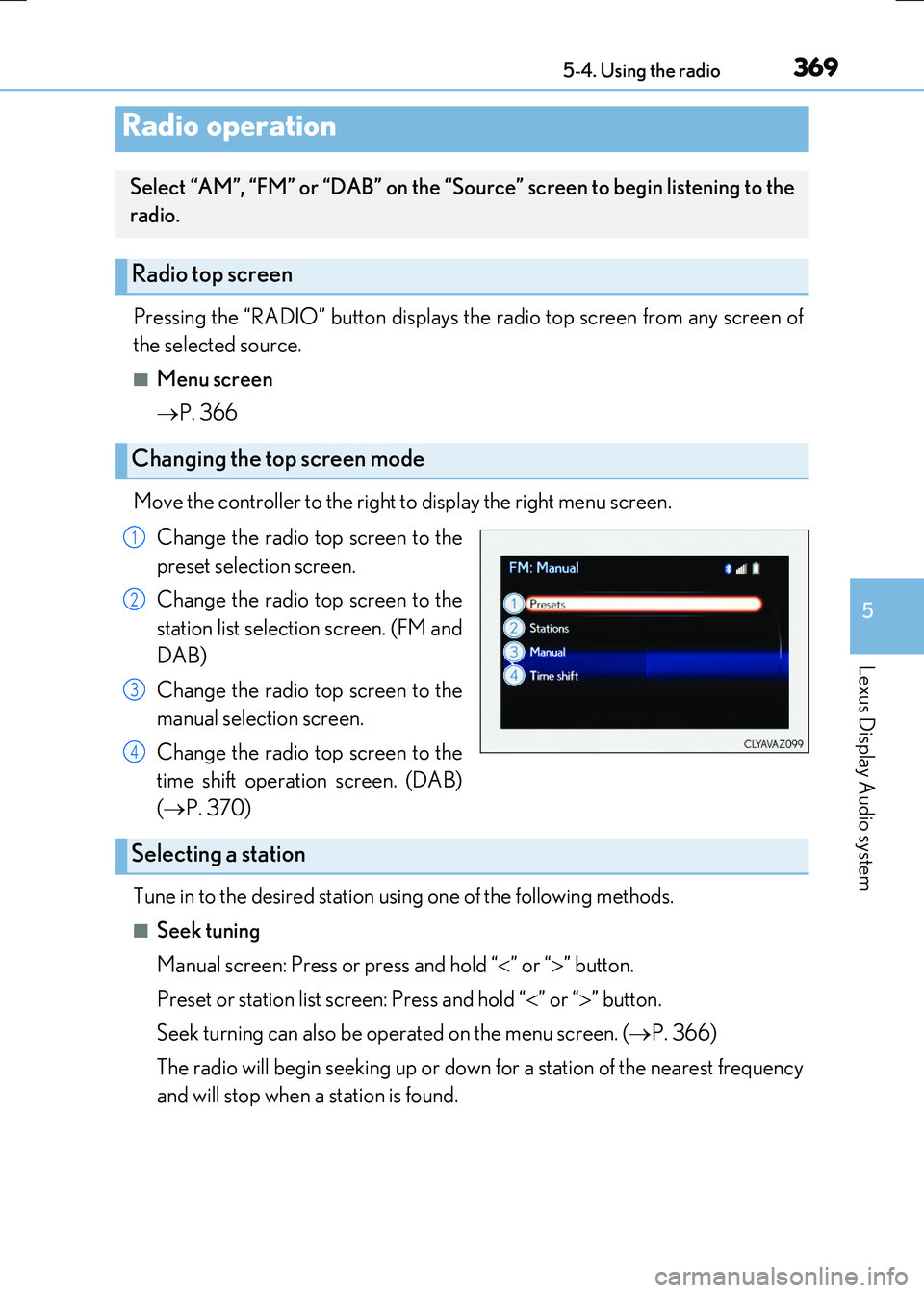
Move the controller to the right to display the right menu screen.
Change the radio top screen to the
preset selection screen.
Change the radio top screen to the
station list selection screen. (FM and
DAB)
Change the radio top screen to the
manual selection screen.
Change the radio top screen to the
time shift operation screen. (DAB)
( P. 370)
Tune in to the desired station using one of the following methods.
■Seek tuning
Manual screen: Press or press and hold “ ” or “” button.
Preset or station list screen: Press and hold “ ” or “” button.
Seek turning can also be operated on the menu screen. ( P. 366)
The radio will begin seeking up or down for a station of the nearest frequency
and will stop when a station is found.
Radio operation
Select “AM”, “FM” or “DAB” on the “Source” screen to begin listening to the
radio.
Radio top screen
Changing the top screen mode
1
2
3
4
Selecting a station