2017 KIA SOUL radio
[x] Cancel search: radioPage 284 of 589

Audio system
549
Steering wheel remote control
❈The actual features in the vehicle
may differ from the illustration.
(1) MODE
Press the button to change the mode in the following order: Radio
➟ Media.
Press and hold the button to turn off.
(2) VOLUME
Press to adjust the volume.
(3) UP/DOWN
Press the button in radio mode to search Presets. Press and hold the button in radio
mode to search frequencies.
Press the button in media mode to change the current song.
Press and hold the button in media mode to quick search through
songs.
(4) VOICE
Pressing the button - If Siri is not active: Starts Siri.
- If Siri is active: Re-starts Siri.
Pressing and holding the button: Siri is deactivated.
(5) CALL
Pressing the button - If not in
Bluetooth®Wireless
Technology Handsfree mode or
receiving a phone call.
First press: Display Dial Number
screen.
Second press: Automatically dis-
play the most recently Dialed call
number.
Third press: Dial the phone num-
ber entered. - Press in the Incoming Call notifi-
cation screen to accept the
phone call.
- Press in
Bluetooth®Wireless
Technology Handsfree mode to
switch to the waiting call.
Pressing and holding the button - If not in
Bluetooth®Wireless
Technology Handsfree mode or
receiving a phone call, the most
recently Dialed Call number is
dialed.
- Press in
Bluetooth®Wireless
Technology Handsfree mode to
transfer the call to your cell
phone.
- Press in cell phone mode to switch to
Bluetooth®Wireless
Technology Handsfree mode.
(6) END
Press in
Bluetooth®Wireless
Technology Handsfree mode to
end the phone call.
Press in the incoming call screen to reject the call.
Page 288 of 589
Audio system
553
Radio
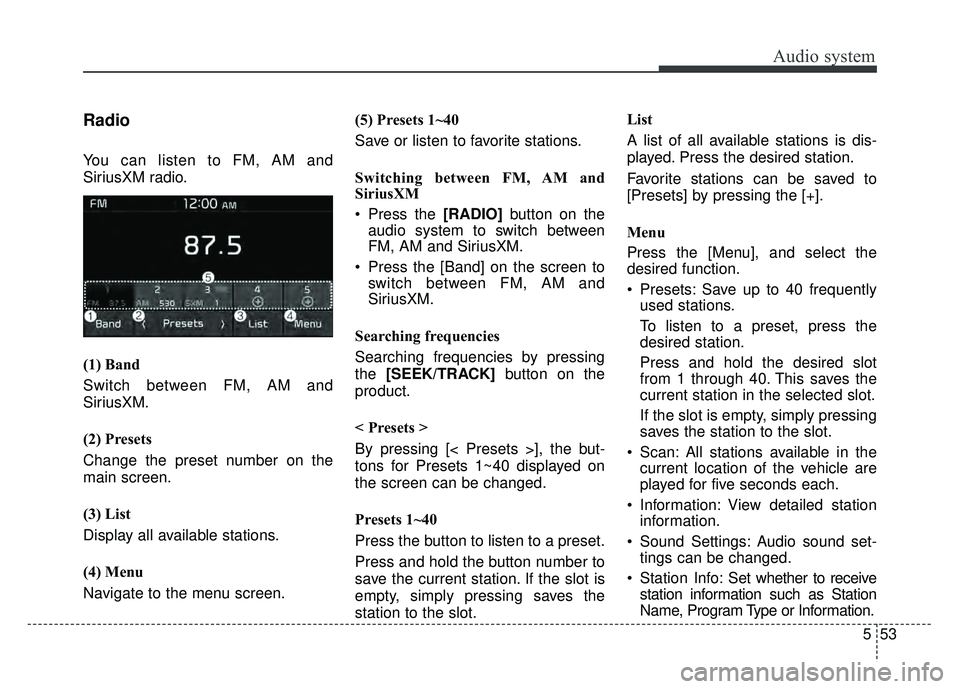
You can listen to FM, AM and
SiriusXM radio.
(1) Band
Switch between FM, AM and
SiriusXM.
(2) Presets
Change the preset number on the
main screen.
(3) List
Display all available stations.
(4) Menu
Navigate to the menu screen.(5) Presets 1~40
Save or listen to favorite stations.
Switching between FM, AM and
SiriusXM
Press the [RADIO]
button on the
audio system to switch between
FM, AM and SiriusXM.
Press the [Band] on the screen to switch between FM, AM and
SiriusXM.
Searching frequencies
Searching frequencies by pressing
the [SEEK/TRACK] button on the
product.
< Presets >
By pressing [< Presets >], the but-
tons for Presets 1~40 displayed on
the screen can be changed.
Presets 1~40
Press the button to listen to a preset.
Press and hold the button number to
save the current station. If the slot is
empty, simply pressing saves the
station to the slot. List
A list of all available stations is dis-
played. Press the desired station.
Favorite stations can be saved to
[Presets] by pressing the [+].
Menu
Press the [Menu], and select the
desired function.
Presets: Save up to 40 frequently
used stations.
To listen to a preset, press the
desired station.
Press and hold the desired slot
from 1 through 40. This saves the
current station in the selected slot.
If the slot is empty, simply pressing
saves the station to the slot.
Scan: All stations available in the current location of the vehicle are
played for five seconds each.
Information: View detailed station information.
Sound Settings: Audio sound set- tings can be changed.
Station Info: Set whether to receive
station information such as Station
Name, Program Type or Information.
Page 289 of 589
Audio system
54
5
✽
✽
NOTICE - SiriusXM®Satellite
Radio information
• Satellite Radio channels: Enjoy SiriusXM Satellite Radio
with a 3-month trial subscription
to the Sirius Select package. You’ll
get over variable channels, includ-
ing commercialfree music, plus all
your favorite sports, exclusive
talk, entertainment, and a selec-
tion of premium programming.
For more information and a com-
plete list of SiriusXM channels,
visit siriusxm.com in the United
States, siriusxm.ca in Canada, or
call SiriusXM at 1-888-539-7474.
• Satellite Radio reception factors: To receive the satellite signal, your
vehicle has been equipped with a
satellite radio antenna located on
the roof of your vehicle. The vehi-
cle roof provides the best location
for an unobstructed, open view of
the sky, a requirement of a satellite
radio system. Like AM/FM, there
are several factors that can affect
satellite radio reception perform-
ance: (Continued)(Continued)
- Antenna obstructions: For opti-mal reception performance, keep
the antenna clear of snow and
ice build-up and keep luggage
and other material as far away
from the antenna as possible.
• SiriusXM Satellite Radio service: SiriusXM is a subscription-based
satellite radio service that broad-
casts music, sports, news and
entertainment programming to
radio receivers, which are avail-
able for installation in motor vehi-
cles or factory installed, as well as
for the home, portable and wire-
less devices, and through an Internet
connection on a personal computer.
Vehicles that are equipped with a
factory installed SiriusXM Satellite
Radio system include:
- Hardware and an introductorytrial subscription term, which
begins on the date of sale or lease
of the vehicle.
- For a small upgrade fee, access to SiriusXM music channels, and
other select channels over the
Internet using any computer con-
nected to the Internet (U.S. cus-
tomers only).
(Continued)(Continued)
• SiriusXM services require a sub-
scription sold separately, or as a
package, by Sirius XM Radio Inc.
If you decide to continue service
after your trial, the subscription
plan you choose will automatically
renew thereafter and you will be
charged according to your chosen
payment method at then-current
rates. Fees and taxes apply. To
cancel you must call SiriusXM at
1-866-635-2349. See SiriusXM
Customer Agreement for complete
terms at www.siriusxm.com.
SiriusXM U.S. satellite and data
services are available only in the
48 contiguous states, DC and
Puerto Rico (with coverage limita-
tions). SiriusXM satellite service is
also available in Canada; see
www.siriusxm. ca. All fees and
programming subject to change.
Sirius, XM and all related marks
and logos are trademarks of Sirius
XM Radio Inc.
Page 290 of 589
Audio system
555
SiriusXM
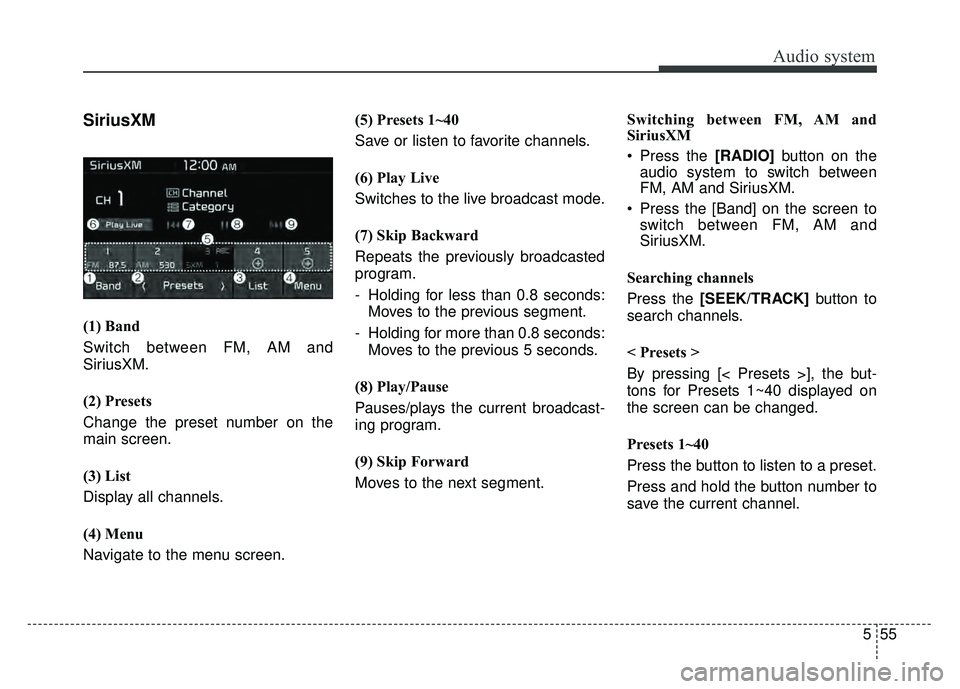
(1) Band
Switch between FM, AM and
SiriusXM.
(2) Presets
Change the preset number on the
main screen.
(3) List
Display all channels.
(4) Menu
Navigate to the menu screen.(5) Presets 1~40
Save or listen to favorite channels.
(6) Play Live
Switches to the live broadcast mode.
(7) Skip Backward
Repeats the previously broadcasted
program.
- Holding for less than 0.8 seconds:
Moves to the previous segment.
- Holding for more than 0.8 seconds: Moves to the previous 5 seconds.
(8) Play/Pause
Pauses/plays the current broadcast-
ing program.
(9) Skip Forward
Moves to the next segment. Switching between FM, AM and
SiriusXM
Press the [RADIO]
button on the
audio system to switch between
FM, AM and SiriusXM.
Press the [Band] on the screen to switch between FM, AM and
SiriusXM.
Searching channels
Press the [SEEK/TRACK] button to
search channels.
< Presets >
By pressing [< Presets >], the but-
tons for Presets 1~40 displayed on
the screen can be changed.
Presets 1~40
Press the button to listen to a preset.
Press and hold the button number to
save the current channel.
Page 306 of 589
Audio system
571
Pandora
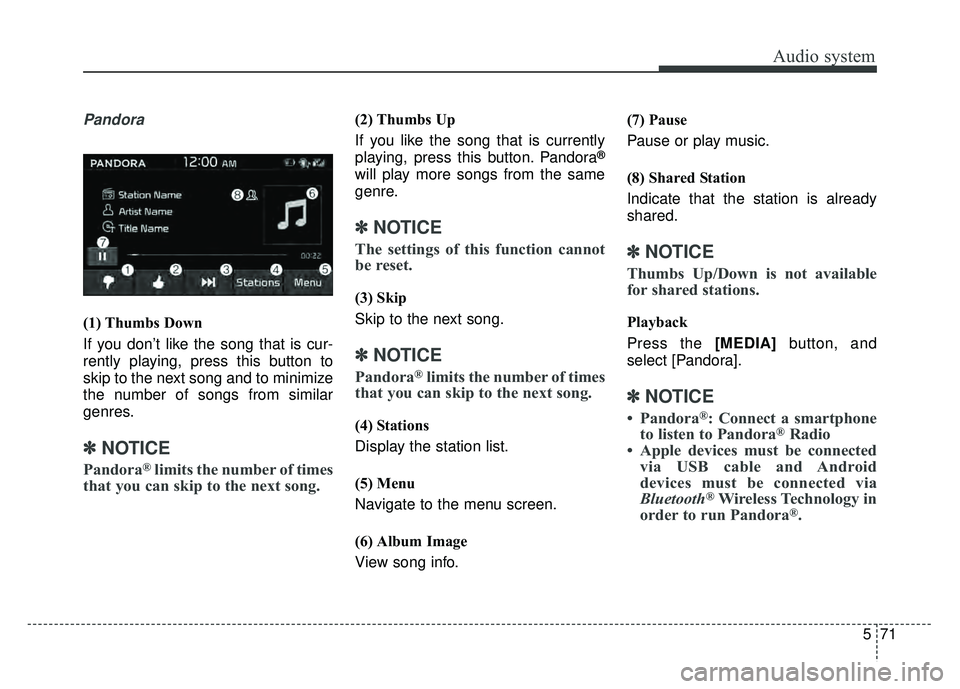
(1) Thumbs Down
If you don’t like the song that is cur-
rently playing, press this button to
skip to the next song and to minimize
the number of songs from similar
genres.
✽ ✽NOTICE
Pandora®limits the number of times
that you can skip to the next song.
(2) Thumbs Up
If you like the song that is currently
playing, press this button. Pandora
®
will play more songs from the same
genre.
✽ ✽ NOTICE
The settings of this function cannot
be reset.
(3) Skip
Skip to the next song.
✽ ✽NOTICE
Pandora®limits the number of times
that you can skip to the next song.
(4) Stations
Display the station list.
(5) Menu
Navigate to the menu screen.
(6) Album Image
View song info. (7) Pause
Pause or play music.
(8) Shared Station
Indicate that the station is already
shared.
✽ ✽
NOTICE
Thumbs Up/Down is not available
for shared stations.
Playback
Press the [MEDIA] button, and
select [Pandora].
✽ ✽ NOTICE
• Pandora®: Connect a smartphone
to listen to Pandora®Radio
• Apple devices must be connected via USB cable and Android
devices must be connected via
Bluetooth
®Wireless Technology in
order to run Pandora®.
Page 316 of 589
Audio system
581
Siri
✽
✽NOTICE - Using Siri
• If you want to use Siri, you have to
connect your iOS device to multi-
media system through Bluetooth
®
Wireless Technology. (Please
check whether your iOS device
supports Siri and turning Siri On)
• If the iOS version is changed, the functions and response may be dif-
ferent according to the iOS device
and the latest version.
• Siri automatically stops in the fol- lowing events.
1) Outgoing and incoming phone calls.
2) Media (USB, etc.) is connected. (Siri mode is maintained when
iPod
®s are connected)
3) Rear camera is activated (option).
4) Vehicle is started or engine is turned off.
5) Screen transition buttons, such as RADIO or MEDIA, are
selected. (Continued)(Continued)
6) When a pop-up message is dis- played on the screen due to
accidental execution of Siri.
• The microphone is located above the driver’s seat. To ensure proper
Siri, state your voice while main-
taining proper driving posture.
Starting Siri
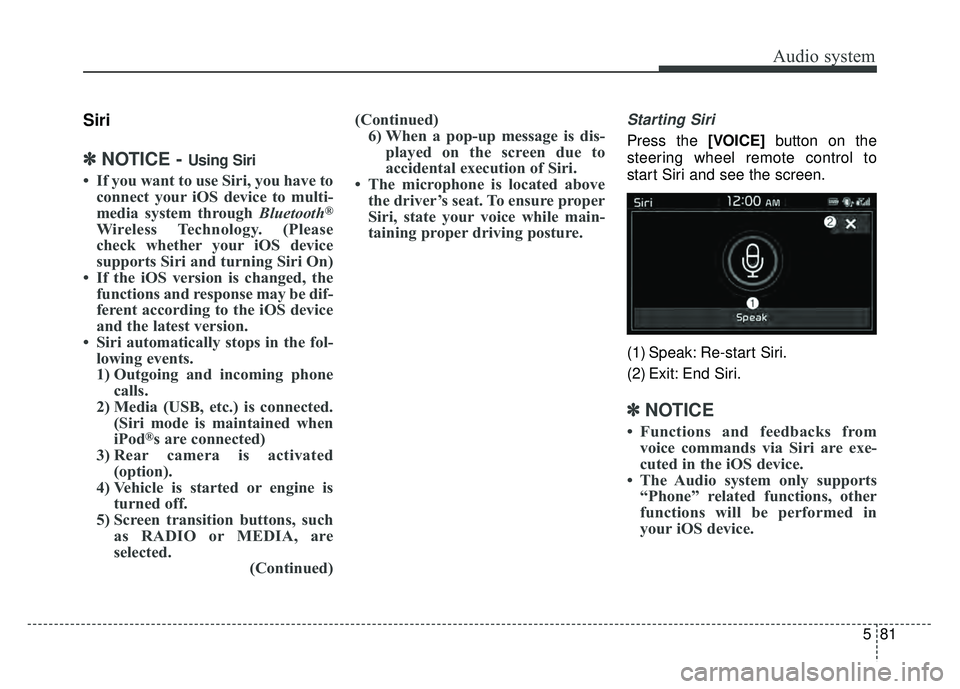
Press the [VOICE] button on the
steering wheel remote control to
start Siri and see the screen.
(1) Speak: Re-start Siri.
(2) Exit: End Siri.
✽ ✽ NOTICE
• Functions and feedbacks from
voice commands via Siri are exe-
cuted in the iOS device.
• The Audio system only supports “Phone” related functions, other
functions will be performed in
your iOS device.
Page 319 of 589
Audio system
84
5
FCC
This equipment has been tested and found to comply with the limits for a Class B digital device, pursuant to part 15
of the FCC Rules. These limits are designed to provide reasonable protection against harmful interference in a resi-
dential installation.
This equipment generates, uses and can radiate radio frequency energy and, if not installed and used in accordance
with the instructions, may cause harmful interference to radio communications. However, there is no guarantee that
interference will not occur in a particular installation. If this equipment does cause harmful interference to radio or tel-
evision reception, which can be determined by turning the equipment off and on, the user is encouraged to try to cor-
rect the interference by one or more of the following measures:
Reorient or relocate the receiving antenna.
Increase the separation between the equipment and receiver.
Connect the equipment into an outlet on a circuit different from that to which the receiver is connected.
Consult the dealer or an experienced radio/TV technician for help.
Caution: Any changes or modifications to this device not explicitly approved by manufacturer could void
your authority to operate this equipment.
This device complies with part 15 of the FCC Rules. Operation is subject to the following two conditions:
(1) This device may not cause harmful interference, and (2) this device must accept any interference received, includ-
ing interference that may cause undesired operation.
This equipment complies with FCC radiation exposure limits set forth for an uncontrolled environment.
This equipment should be installed and operated with minimum 20cm between the radiator and your body. This trans-
mitter must not be collocated or operating in conjunction with any other antenna or transmitter unless authorized to
do so by the FCC.
Declaration of Conformity
Page 417 of 589
What to do in an emergency
12
7
The TPMS malfunction indicator
may blink for approximately 1
minute and then remain continuous-
ly illuminated if the vehicle is moving
around electric power supply cables
or radios transmitters such as at
police stations, government and
public offices, broadcasting sta-
tions, military installations, airports,
or transmitting towers, etc. This can
interfere with normal operation of
the Tire Pressure Monitoring
System (TPMS).
The TPMS malfunction indicator may blink for approximately 1
minute and then remain continuous-
ly illuminated if snow chains are
used or some separate electronic
devices such as notebook comput-
er, mobile charger, remote starter or
navigation etc., are used in the vehi-
cle. This can interfere with normal
operation of the Tire Pressure
Monitoring System (TPMS).Changing a tire with TPMS
If you have a flat tire, the Low Tire
Pressure telltale will come on. Have
the flat tire repaired by an authorized
Kia dealer as soon as possible or
replace the flat tire with the spare tire.
Each wheel is equipped with a tire
pressure sensor mounted inside the
tire behind the valve stem. You must
use TPMS specific wheels. It is rec-
ommended that you always have
your tires serviced by an authorized
Kia dealer. Even if you replace the low pressure
tire with the spare tire, the Low Tire
Pressure telltale will remain on until
the low pressure tire is repaired and
placed on the vehicle.
After you replace the low pressure
tire with the spare tire, the TPMS
malfunction indicator may illuminate
after a few minutes because the
TPMS sensor mounted on the spare
wheel is not initiated.
Once the low pressure tire is reinflat-
ed to the recommended pressure
and installed on the vehicle or the
TPMS sensor mounted on the
replaced spare wheel is initiated by
an authorized Kia dealer, the TPMS
malfunction indicator and the low tire
pressure telltale will extinguish within
a few minutes of driving.
If the indicator is not extinguished
after a few minutes of driving, please
visit an authorized Kia dealer.
CAUTION- Repair Agents
Never use a puncture-repairing
agent not approved by Kia torepair and/or inflate a low pres-sure tire. The tire sealant notapproved by Kia may damagethe tire pressure sensor.