2017 KIA Soul EV Range
[x] Cancel search: RangePage 146 of 470
Features of your vehicle
76
4
The Parking Assist System is not a
substitute for proper and safe park-
ing and backing-up procedures.
Always drive safely and use caution
when parking. The Parking Assist
System may not detect every object
behind or in front of the vehicle. The parking assist system assists
the driver during movement of the
vehicle by chiming if any object is
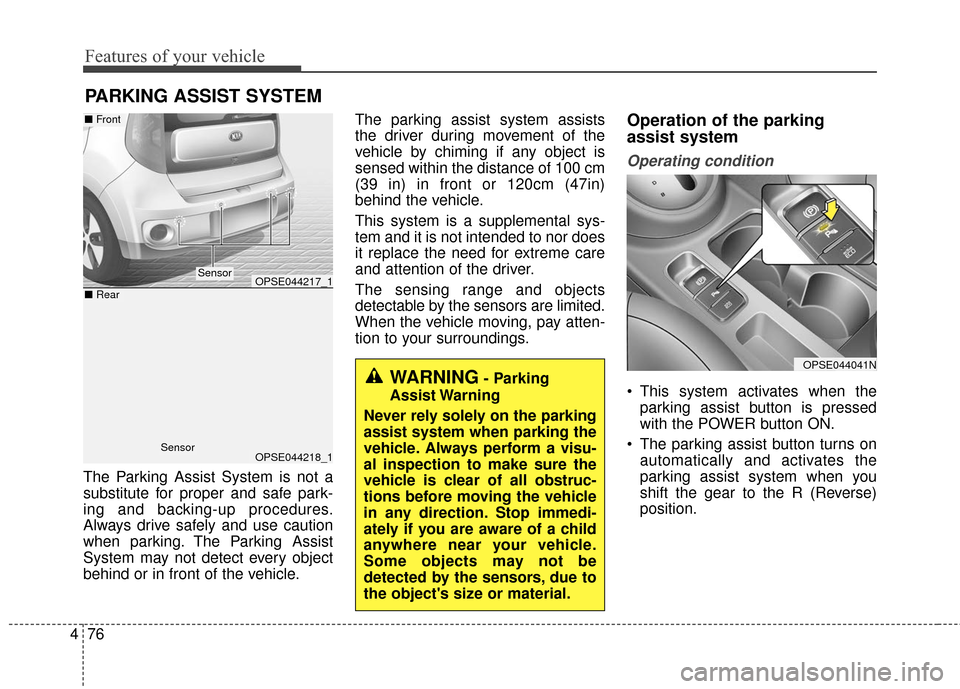
sensed within the distance of 100 cm
(39 in) in front or 120cm (47in)
behind the vehicle.
This system is a supplemental sys-
tem and it is not intended to nor does
it replace the need for extreme care
and attention of the driver.
The sensing range and objects
detectable by the sensors are limited.
When the vehicle moving, pay atten-
tion to your surroundings.
Operation of the parking
assist system
Operating condition
This system activates when the
parking assist button is pressed
with the POWER button ON.
The parking assist button turns on automatically and activates the
parking assist system when you
shift the gear to the R (Reverse)
position.
PARKING ASSIST SYSTEM
OPSE044217_1
OPSE044218_1
Sensor
■ Front
■ Rear
Sensor
OPSE044041NWARNING- Parking
Assist Warning
Never rely solely on the parking
assist system when parking the
vehicle. Always perform a visu-
al inspection to make sure the
vehicle is clear of all obstruc-
tions before moving the vehicle
in any direction. Stop immedi-
ately if you are aware of a child
anywhere near your vehicle.
Some objects may not be
detected by the sensors, due to
the object's size or material.
Page 148 of 470

Features of your vehicle
78
4
Non-operational conditions of
parking assist system
Parking assist system may not
operate normally when:
1. Moisture is frozen to the sensor. (It will operate normally when moisture
melts.)
2. Sensor is covered with foreign matter, such as snow or water, or
the sensor cover is blocked. (It will
operate normally when the materi-
al is removed or the sensor is no
longer blocked.)
3. Sensor is stained with foreign mat- ter such as snow or water. (Sensing
range will return to normal when
removed.)
4. The parking assist button is off.
There is a possibility of parking assist system malfunction when:
1. Driving on uneven road surfaces such as unpaved roads, gravel,
bumps, or gradient.
2. Objects generating excessive noise such as vehicle horns, loud motor-
cycle engines, or truck air brakes
can interfere with the sensor.
3. Heavy rain or water spray.
4. Wireless transmitters or mobile phones present near the sensor.
5. Sensor is covered with snow.
Detecting range may decrease when:
1. Outside air temperature is extremely hot or cold.
2. Undetectable objects smaller than 1 m (39 in) and narrower than 14
cm (5.5 in) in diameter.
The following objects may not be
recognized by the sensor:
1. Sharp or slim objects such as ropes, chains or small poles.
2. Objects, which tend to absorb sen- sor frequency such as clothes,
spongy material or snow.
Page 149 of 470

479
Features of your vehicle
✽ ✽NOTICE
1. The warning may not sound
sequentially depending on the
speed and shapes of the objects
detected.
2. The parking assist system may malfunction if the vehicle bumper
height or sensor installation has
been modified. Any non-factory
installed equipment or accessories
may also interfere with the sensor
performance.
3. Sensor may not recognize objects less than 30 cm (12 in) from the
sensor, or it may sense an incor-
rect distance. Use with caution.
4. When the sensor is frozen or stained with snow or water, the
sensor may be inoperative until
the stains are removed using a
soft cloth.
5. Do not push, scratch or strike the sensor with any hard objects that
could damage the surface of the
sensor. Sensor damage could occur.
✽ ✽NOTICE
This system can only sense objects
within the range and location of the
sensors, it can not detect objects in
other areas where sensors are not
installed. Also, small or slim objects,
or objects located between sensors
may not be detected.
Always visually check in front and
behind the vehicle when driving.
Be sure to inform any drivers in the
vehicle that may be unfamiliar with
the system regarding the system’s
capabilities and limitations.
Self-diagnosis
If you don’t hear an audible warning
sound or if the buzzer sounds inter-
mittently when shifting the shift lever
into the R (Reverse) position, this
may indicate a malfunction in the
parking assist system. If this occurs,
have the system checked by an
authorized Kia dealer.
Your new vehicle warranty does not
cover any accidents or damage to the
vehicle or injuries to its occupants
related to a parking assist system.
Always drive safely and cautiously.
Page 203 of 470
4133
Features of your vehicle
USING THE USB DEVICE
To use an external USB device,make sure the device is not con-
nected when starting up the
vehicle. Connect the device after
starting up.
If you start the engine when the USB device is connected, it may
damage the USB device. (USB
flashdrives are very sensitive to
electric shock.)
If the engine is started up or turned off while the external USB
device is connected, the external
USB device may not work.
The System may not play unau- thenticated MP3 or WMA files.
1) It can only play MP3 files with the compression rate
between 8Kbps ~ 320Kbps.
2) It can only play WMA music files with the compression
rate between 8Kbps ~
320Kbps.
Take precautions for static elec- tricity when connecting or discon-
necting the external USB device.
(Continued)(Continued)
An encrypted MP3 PLAYER is
not recognizable.
Depending on the condition of the external USB device, the
connected external USB device
can be unrecognizable.
When the formatted byte/sector setting of external USB device is
not either 512BYTE or
2048BYTE, then the device will
not be recognized.
Use only a USB device format- ted to FAT 12/16/32.
USB devices without USB I/F authentication may not be recog-
nizable.
Make sure the USB connection terminal does not come in con-
tact with the human body or
other objects.
If you repeatedly connect or dis- connect the USB device in a
short period of time, it may break
the device.
(Continued)(Continued)
You may hear a strange noise
when connecting or disconnect-
ing a USB device.
If you disconnect the external USB device during playback in
USB mode, the external USB
device can be damaged or may
malfunction. Therefore, discon-
nect the external USB device
when the audio is turned off or in
another mode. (e.g, Radio)
Depending on the type and capacity of the external USB
device or the type of the files
stored in the device, there is a
difference in the time for recogni-
tion the device.
Do not use the USB device for purposes other than playing
music files.
Playing videos through the USB is not supported.
Use of USB accessories such as rechargers or heaters using USB
I/F may lower performance or
cause trouble.
(Continued)
Page 220 of 470
Features of your vehicle
150
4
Media
MP3
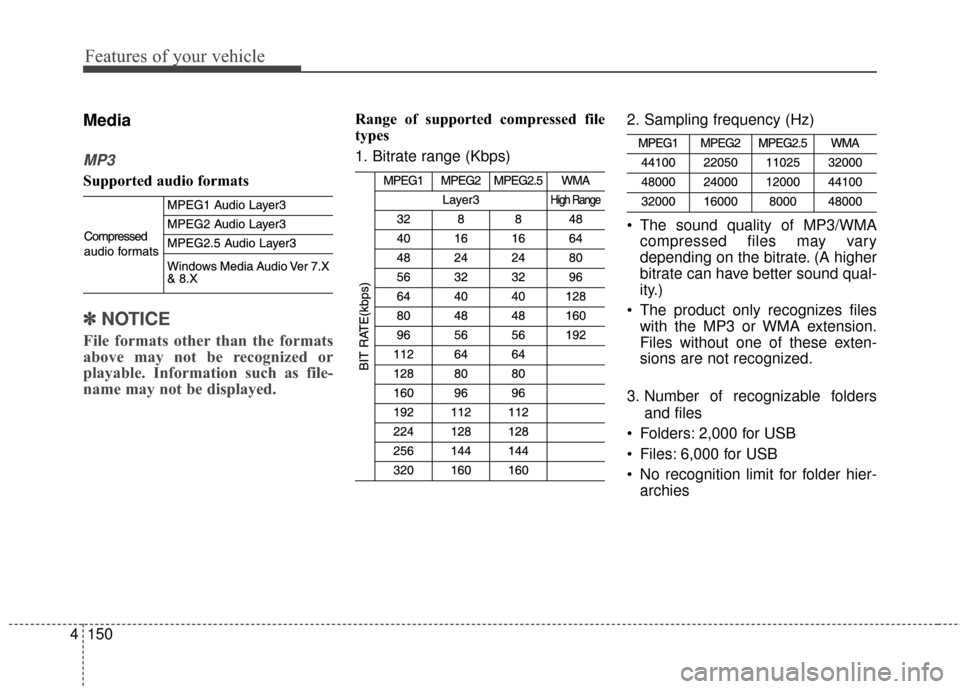
Supported audio formats
✽ ✽
NOTICE
File formats other than the formats
above may not be recognized or
playable. Information such as file-
name may not be displayed.
Range of supported compressed file
types
1. Bitrate range (Kbps) 2. Sampling frequency (Hz)
The sound quality of MP3/WMA
compressed files may vary
depending on the bitrate. (A higher
bitrate can have better sound qual-
ity.)
The product only recognizes files with the MP3 or WMA extension.
Files without one of these exten-
sions are not recognized.
3. Number of recognizable folders and files
Folders: 2,000 for USB
Files: 6,000 for USB
No recognition limit for folder hier- archies
Page 221 of 470
Features of your vehicle
4151
4. Character display range (Unicode)
Filenames: Up to 64 English char-acters (64 Korean characters)
Foldernames: Up to 32 English characters (32 Korean characters)
Languages supported (Unicode sup-
port)
Korean: 2,604 characters
English: 94 characters
Common Chinese characters: 4,888 characters
Special symbols: 986 characters
✽ ✽ NOTICE
Japanese/Simplified Chinese char-
acters are not supported.
Page 235 of 470
Features of your vehicle
4165
Precautions when connecting Bluetooth®
Wireless Technologydevices
The vehicle supports the following
Bluetooth®Wireless Technology
functions. Some
Bluetooth®
Wireless Technology devices may
not support some functions.
1)
Bluetooth®Wireless Technology
Handsfree phone calls
2) Operations during a call (Private, Switch, Out Vol. controls)
3) Download call history saved to the
Bluetooth®Wireless Technology
device
4) Download contacts saved to the
Bluetooth®Wireless Technology
device
5) Automatic contacts/call history download when
Bluetooth®
Wireless Technology is connected
6) Automatic
Bluetooth®Wireless
Technology device connection
when the vehicle is started
7)
Bluetooth®Wireless Technology
audio streaming playback
Before connecting the audio sys- tem to your device, make sure your
device supports
Bluetooth®Wireless
Technology. Even if your device supports
Bluetooth®Wireless Technology, a
Bluetooth®Wireless Technology
connection cannot be established
if the device’s
Bluetooth®Wireless
Technology function is switched off.
Search and connect with the
Bluetooth®
Wireless Technology function enabled.
Pair or connect
Bluetooth®Wireless
Technology devices to the audio
system with the vehicle at a standstill.
If a
Bluetooth®Wireless Technology
connection is lost due to abnormal
conditions while a
Bluetooth®
Wireless Technology device is connect-
ed (communication range exceed-
ed, device power OFF, communi-
cation errors, etc.), the disconnect-
ed
Bluetooth®Wireless Technology
device is searched for and auto-
matically reconnected.
If you want to disable the
Bluetooth®
Wireless Technology device auto-
connect function, turn the
Bluetooth®Wireless Technology
function OFF on your device.
Consult the user manuals for indi-
vidual devices to see whether
Bluetooth®Wireless Technology is
supported. Handsfree call quality and volume
may vary depending on the type of
Bluetooth®Wireless Technology
device.
Some
Bluetooth®Wireless Technology
devices are subject to intermittent
Bluetooth®Wireless Technology
connection failures. In this case,
use the following method.
1) Turn the
Bluetooth®Wireless
Technology function off on your
Bluetooth®Wireless Technology
device ➟Turn it on and try
again.
2) Delete the paired device from both the audio system and
Bluetooth®Wireless Technology
device, then pair again.
3) Power down your
Bluetooth®
Wireless Technology device ➟
Turn it on and try again.
4) Completely remove the battery from your
Bluetooth®Wireless
Technology device; reinsert it,
reboot, and attempt connection.
5) Restart the vehicle and reat- tempt connection.
Page 251 of 470
Driving your vehicle
65
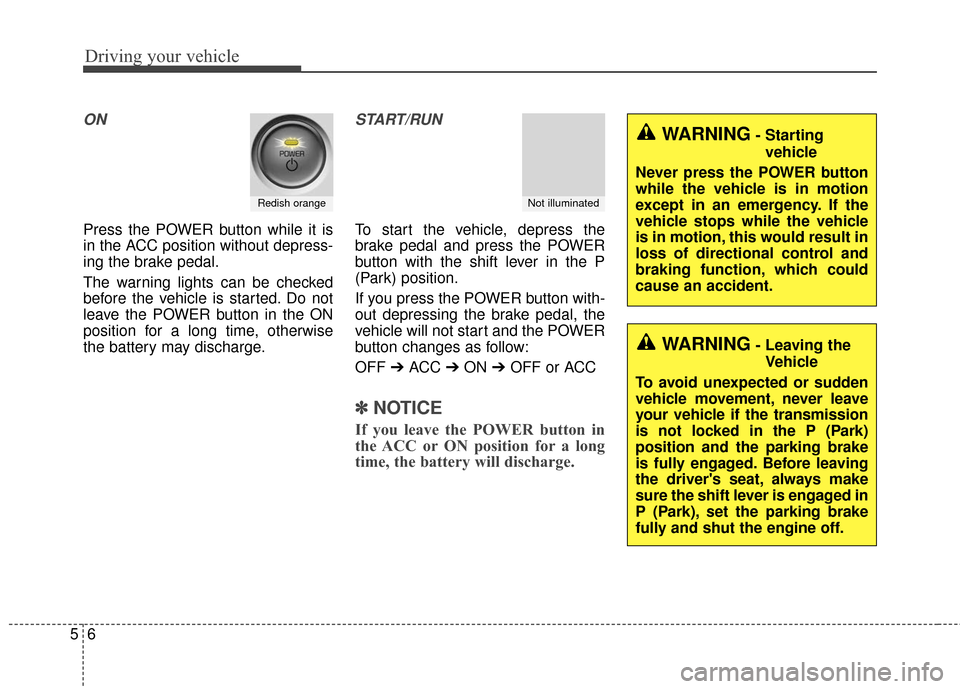
ON
Press the POWER button while it is
in the ACC position without depress-
ing the brake pedal.
The warning lights can be checked
before the vehicle is started. Do not
leave the POWER button in the ON
position for a long time, otherwise
the battery may discharge.
START/RUN
To start the vehicle, depress the
brake pedal and press the POWER
button with the shift lever in the P
(Park) position.
If you press the POWER button with-
out depressing the brake pedal, the
vehicle will not start and the POWER
button changes as follow:
OFF ➔ACC ➔ON ➔OFF or ACC
✽ ✽
NOTICE
If you leave the POWER button in
the ACC or ON position for a long
time, the battery will discharge.
Redish orangeNot illuminated
WARNING- Starting
vehicle
Never press the POWER button
while the vehicle is in motion
except in an emergency. If the
vehicle stops while the vehicle
is in motion, this would result in
loss of directional control and
braking function, which could
cause an accident.
WARNING- Leaving the Vehicle
To avoid unexpected or sudden
vehicle movement, never leave
your vehicle if the transmission
is not locked in the P (Park)
position and the parking brake
is fully engaged. Before leaving
the driver's seat, always make
sure the shift lever is engaged in
P (Park), set the parking brake
fully and shut the engine off.