2017 KIA Carens steering
[x] Cancel search: steeringPage 271 of 625

Audio system
Audio system . . . . . . . . . . . . . . . . . . . . . . . . . . . . . . . 5-2
• Antenna . . . . . . . . . . . . . . . . . . . . . . . . . . . . . . . . . . . . \
. 5-2
• Steering wheel audio control . . . . . . . . . . . . . . . . . . . . 5-3
• How vehicle audio works . . . . . . . . . . . . . . . . . . . . . . . 5-4
Audio (Without Touch Screen) . . . . . . . . . . . . . . . 5-15
• Feature of Your Audio. . . . . . . . . . . . . . . . . . . . . . . . . 5-16
• Setup . . . . . . . . . . . . . . . . . . . . . . . . . . . . . . . . . . . . \
. . . 5-19
• Radio : FM, AM or SiriusXM . . . . . . . . . . . . . . . . . . 5-23
• Media mode . . . . . . . . . . . . . . . . . . . . . . . . . . . . . . . . . 5-28
• Phone . . . . . . . . . . . . . . . . . . . . . . . . . . . . . . . . . . . . \
. . 5-37
• Bluetooth
®Wireless Technology . . . . . . . . . . . . . . . . . 5-44
• Voice recognition . . . . . . . . . . . . . . . . . . . . . . . . . . . . . 5-50
Audio (With Touch Screen) . . . . . . . . . . . . . . . . . . 5-59
• Feature of Your Audio. . . . . . . . . . . . . . . . . . . . . . . . . 5-60
• Radio Mode . . . . . . . . . . . . . . . . . . . . . . . . . . . . . . . . . 5-73
• SiriusXM Radio Mode . . . . . . . . . . . . . . . . . . . . . . . . 5-76
• Media Mode . . . . . . . . . . . . . . . . . . . . . . . . . . . . . . . . . 5-78
• Phone Mode . . . . . . . . . . . . . . . . . . . . . . . . . . . . . . . . . 5-93
• Bluetooth
®Wireless Technology . . . . . . . . . . . . . . . . . 5-94
• Voice Recognition Mode . . . . . . . . . . . . . . . . . . . . . . 5-101
• Setup Mode . . . . . . . . . . . . . . . . . . . . . . . . . . . . . . . . 5-109
Declaration of Conformity. . . . . . . . . . . . . . . . . . 5-118
• IC . . . . . . . . . . . . . . . . . . . . . . . . . . . . . . . . . . . . \
. . . . . 5-118
5
Page 273 of 625

Audio system
53
Steering wheel audio control
(if equipped)
The steering wheel may incorporate
audio control buttons. These buttons
are installed to promote safe driving.
VOLUME (VOL + / - ) (1)
• Push the lever upward (+) toincrease the volume.
Push the lever downward (-) to decrease the volume.
SEEK/PRESET ( / ) (2)
The SEEK/PRESET button has dif-
ferent functions based on the system
mode. For the following functions the
button should be pressed for 0.8 sec-
onds or more.
RADIO mode
It will function as the AUTO SEEK
select button.
CD/USB/ iPod
®mode
It will function as the FF/REW button.
If the SEEK/PRESET button is
pressed for less than 0.8 seconds, it
will work as follows in each mode. RADIO mode
It will function as the PRESET STA-
TION buttons.
CD/USB/ iPod
®mode
It will function as TRACK UP/DOWN
button.
MODE (3)
Press the button to change audio
source.
- FM(1~2)
➟AM➟SAT(1~3)➟CD➟
USB AUX(iPod®) FM...
MUTE (4)
Press the button to mute the sound.
Press the button to turn off the microphone during a telephone
call.
Detailed information for audio control
buttons are described in the following
pages in this section.
CAUTION
Do not operate audio remote control buttons simultaneously.
ORP046190N
Page 291 of 625
![KIA Carens 2017 3.G Owners Manual Audio system
521
CLOCK SETTINGS
Press the key Select [Clock]
through TUNE knob or key
Select menu through TUNE knob
Sound Settings
This menu is used to set the time.
Select [Clock Settings] Set th](/manual-img/2/2982/w960_2982-290.png "KIA Carens 2017 3.G Owners Manual Audio system
521
CLOCK SETTINGS
Press the key Select [Clock]
through TUNE knob or key
Select menu through TUNE knob
Sound Settings
This menu is used to set the time.
Select [Clock Settings] Set th")
Audio system
521
CLOCK SETTINGS
Press the key Select [Clock]
through TUNE knob or key
Select menu through TUNE knob
Sound Settings
This menu is used to set the time.
Select [Clock Settings] Set throughTUNE knob Press TUNE knob
❈Adjust the number currently in
focus to set the [hour] and press
the tune knob to set the [minute]
and [AM/FM].
Calendar Settings
This menu is used to set the date.
Select [Calendar Settings] Set through TUNE knob Press TUNE knob
❈Adjust the number currently in
focus to make the settings and
press the tune knob to move to the
next setting.
Time Format
This function is used to set the 12/24
hour time format of the audio system.
Select [Time Format] Set 12Hr / 24Hr
through TUNE knob.
Clock Display when Power is OFF
Select [Clock Disp.(Pwr Off)] Set
/through TUNEknob
: Displays time/date on screen
: Turn off.
Off
On
OffOn
3
SETUPCLOCK
WARNING- Clock Setting Distraction
Do not adjust the clock while
driving. You may lose your
steering control and cause
severe personal injury or acci-
dents.
Page 307 of 625

Audio system
537
PHONE
Before using the Bluetooth®Wireless
Technology phone features
In order to use
Bluetooth®Wireless
Technology phone, you must first
pair and connect the
Bluetooth®
Wireless Technology mobile phone.
If the mobile phone is not paired or connected, it is not possible to
enter Phone mode. Once a phone
is paired or connected, the guid-
ance screen will be displayed.
If Priority is set upon vehicle igni- tion (IGN/ACC ON), the
Bluetooth®
Wireless Technology phone will be
automatically connected. Even if
you are outside, the
Bluetooth®
Wireless Technology phone will be
automatically connected once you
are in the vicinity of the vehicle. If
you do not want automatic
Bluetooth®Wireless Technology
phone connection, set the
Bluetooth®Wireless Technology
power to OFF
Making a call using the
Steering-wheel mount controls
(1) MUTE key : Mutes the micro-
phone during a call.
(2) VOLUME key : Raises or lowers speaker volume.
(3) key : Activates voice recogni- tion.
(4) key : Places and transfers calls.
(5) key : Ends calls or cancels functions. Check call history and making call
- Shortly press (under 0.8 seconds)
the key on the steering
remote controller.
- The call history list will be dis- played on the screen.
- Press the key again to con- nect a call to the selected number.
Redialing the most recently called number
- Press and hold (over 0.8 seconds) the key on the steering
remote controller.
- The most recently called number is redialed.
❈ If call history does not exist, a
screen asking whether to down-
load call history is displayed. (The
download feature may not be sup-
ported in some mobile phones)
Page 308 of 625
Audio system
38
5
Bluetooth®Wireless Technology
Pairing a
Bluetooth®Wireless
Technology Device
What is Bluetooth®Wireless
Technology Pairing?
Pairing refers to the process of syn-
chronizing your
Bluetooth®Wireless
Technology phone or device with the
car audio system for connection.
Pairing is necessary to connect and
use the
Bluetooth®Wireless
Technology feature.
The Bluetooth
®word mark and logos
are registered trademarks owned by
Bluetooth
®SIG, Inc. and any use of
such marks by Kia is under license.
Other trademarks and trade names
are those of their respective owners.
A Bluetooth
® enabled cell phone is
required to use
Bluetooth®Wireless
Technology.
Pairing key / key
on the Steering Remote
Controller
When No Devices have been
Paired
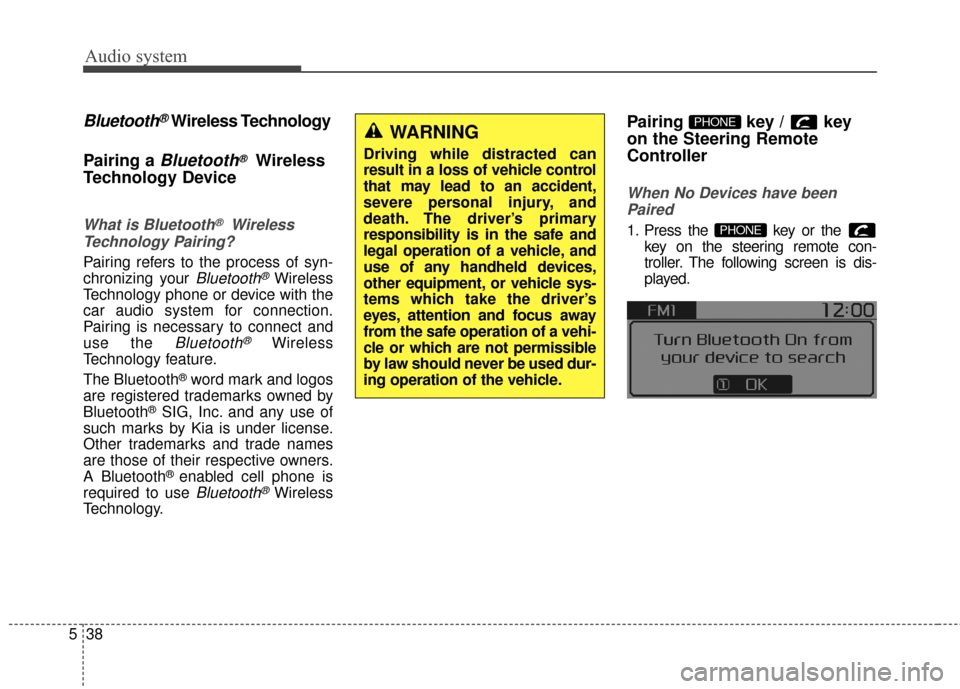
1. Press the key or the key on the steering remote con-
troller. The following screen is dis-
played.PHONE
PHONEWARNING
Driving while distracted can
result in a loss of vehicle control
that may lead to an accident,
severe personal injury, and
death. The driver’s primary
responsibility is in the safe and
legal operation of a vehicle, and
use of any handheld devices,
other equipment, or vehicle sys-
tems which take the driver’s
eyes, attention and focus away
from the safe operation of a vehi-
cle or which are not permissible
by law should never be used dur-
ing operation of the vehicle.
Page 309 of 625
![KIA Carens 2017 3.G Owners Manual Audio system
539
2. Select [OK] button to enter thePair Phone screen.
1) Vehicle Name : Name of device as shown when searching from your
Bluetooth®Wireless Technology
device
2) Passkey : Passkey used](/manual-img/2/2982/w960_2982-308.png "KIA Carens 2017 3.G Owners Manual Audio system
539
2. Select [OK] button to enter thePair Phone screen.
1) Vehicle Name : Name of device as shown when searching from your
Bluetooth®Wireless Technology
device
2) Passkey : Passkey used")
Audio system
539
2. Select [OK] button to enter thePair Phone screen.
1) Vehicle Name : Name of device as shown when searching from your
Bluetooth®Wireless Technology
device
2) Passkey : Passkey used to pair the device
3. From your
Bluetooth®Wireless
Technology device (i.e. Mobile
Phone), search and select your
car audio system. [Non SSP supported device]
(SSP: Secure Simple Pairing)
4. After a few moments, a screen is
displayed where the passkey is
entered. Hear, enter the passkey
"0000" to pair your
Bluetooth®
Wireless Technology device with
the car audio system.
[SSP supported device]
4 After a few moments, a screen is displayed 6 digits passkey. Hear,
check the passkey on your
Bluetooth®Wireless Technology
device and confirm.
5. Once pairing is complete, the fol- lowing screen is displayed. Some phones (i.e., iPhone
®, Android
and Blackberry phones) may offer an
option to allow acceptance of all
future Bluetooth connection requests
by default.
Bluetooth®Wireless Technology
devices are paired but none are
currently connected, pressing the key or the key on the
steering wheel displays the follow-
ing screen. Select [Pair] button to
pair a new device or select
[Connect] to connect a previously
paired device.
PHONE
Page 314 of 625
Audio system
44
5
USING Bluetooth®Wireless
Technology
Phone Menu Screen
Phone Menus
With a Bluetooth®Wireless
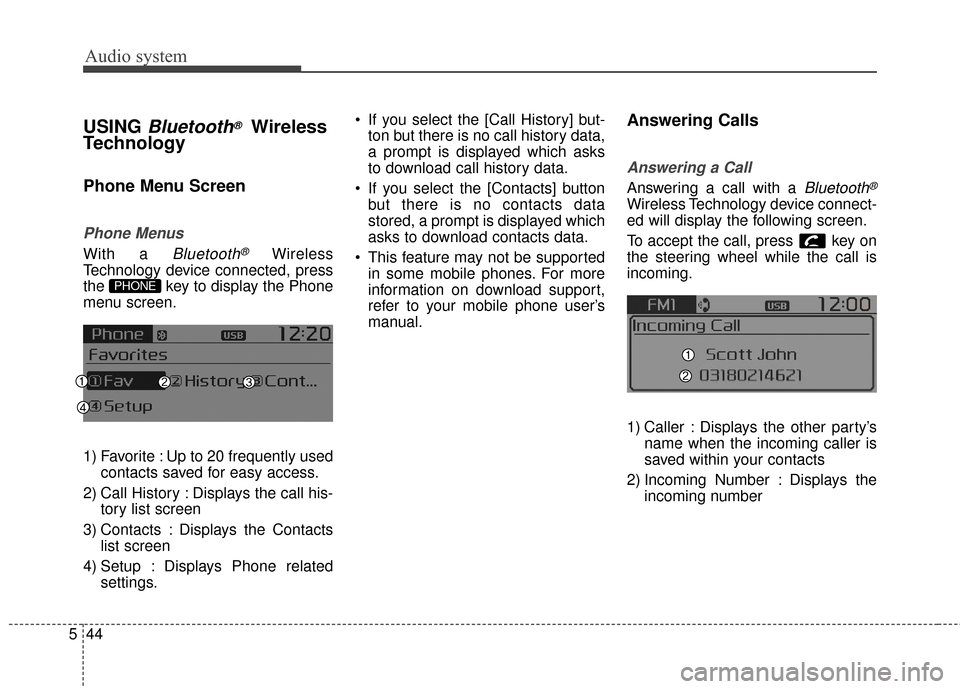
Technology device connected, press
the key to display the Phone
menu screen.
1) Favorite : Up to 20 frequently used contacts saved for easy access.
2) Call History : Displays the call his- tory list screen
3) Contacts : Displays the Contacts list screen
4) Setup : Displays Phone related settings. If you select the [Call History] but-
ton but there is no call history data,
a prompt is displayed which asks
to download call history data.
If you select the [Contacts] button but there is no contacts data
stored, a prompt is displayed which
asks to download contacts data.
This feature may not be supported in some mobile phones. For more
information on download support,
refer to your mobile phone user’s
manual.
Answering Calls
Answering a Call
Answering a call with a Bluetooth®
Wireless Technology device connect-
ed will display the following screen.
To accept the call, press key on
the steering wheel while the call is
incoming.
1) Caller : Displays the other party’s name when the incoming caller is
saved within your contacts
2) Incoming Number : Displays the incoming number
PHONE
Page 320 of 625
![KIA Carens 2017 3.G Owners Manual Audio system
50
5
VOICE RECOGNITION
Using Voice Recognition
Starting Voice Recognition
Shortly press the key on the
steering wheel. Say a command
If prompt feedback is in [ON], then
the system will](/manual-img/2/2982/w960_2982-319.png "KIA Carens 2017 3.G Owners Manual Audio system
50
5
VOICE RECOGNITION
Using Voice Recognition
Starting Voice Recognition
Shortly press the key on the
steering wheel. Say a command
If prompt feedback is in [ON], then
the system will")
Audio system
50
5
VOICE RECOGNITION
Using Voice Recognition
Starting Voice Recognition
Shortly press the key on the
steering wheel. Say a command
If prompt feedback is in [ON], then
the system will say “Please say a
command after the beep (BEEP)”
If prompt feedback is in [OFF]
mode, then the system will only
say “(BEEP)”
To change Prompt Feedback [On]/[Off], go to [System][Prompt Feedback]
For proper recognition, say the command after the voice instruc-
tion and beep tone.
Contact List Best Practices
1)Do not store single-name entries(e.g., “Bob”, “Mom”, “Kim”, etc.).
Instead, always use full names
(including first and last names) for
all contacts (e.g., use “Jacob
Stevenson” instead of “Dad”).
2)Do not use abbreviations (i.e., use “Lieutenant” instead of “Lt.” or
“Sergeant” instead of “Sgt.”).
3)Do not use acronyms (i.e., use “County Finance Department”
instead of “CFD”).
4)Do not use special characters (e.g., “@”, “hyphen -“, “asterisk *”,
ampersand &”).
5)If a name is not recognized from the contact list, change it to a more
descriptive name (e.g., use
“Grandpa Joseph” instead of “Pa
Joe”).
Skipping Prompt Messages
While prompt message is being stat-
ed Shortly press the key on the
steering remote controller
The prompt message is immediately
ended and the beep tone will sound.
After the “beep”, say the voice com-
mand.
Re-starting Voice Recognition
While system waits for a command
Shortly press the key on the
steering remote controller
The command wait state is immedi-
ately ended and the beep ton will
sound. After the “beep”, say the voice
command.
SETUPCLOCK