Page 311 of 625
Audio system
541
After pairing is complete, a con-tacts download request is sent
once to the mobile phone. Some
mobile phones may require confir-
mation upon receiving a download
request, ensure your mobile phone
accepts the connection. Refer to
your phones user’s manual for
additional information regarding
phone pairing and connections.Connecting a Device
Press the key Select
[Phone] Select [Phone List]
1) Connected Phone : Device that is currently connected
2) Paired Phone : Device that is paired but not connected From the paired phone list, select the
device you want to connect and
select [Connect].SETUPCLOCK
Page 313 of 625
Audio system
543
Disconnecting a Device
Press the key Select
[Phone] Select [Phone List]
From the paired phone list, select the
currently connected device and
select [Disconnect] button.
Deleting a Device
Press the key Select
[Phone] Select [Phone List]
From the paired phone list, select the
device you want to delete and select
[Delete] button. When deleting the currently con-
nected device, the device will auto-
matically be disconnected to pro-
ceed with the deleting process.
If a paired
Bluetooth®Wireless
Technology device is deleted, the
device’s call history and contacts
data will also be deleted.
To re-use a deleted device, you must pair the device again.
SETUPCLOCKSETUPCLOCK
Page 317 of 625
Audio system
547
Bluetooth®Wireless
Technology Setting
The Bluetooth®word mark and logos
are registered trademarks owned by
Bluetooth SIG, Inc. and any use of
such marks by Kia is under license.
Other trademarks and trade names
are those of their respective owners.
A
Bluetooth®enabled cell phone is
required to use
Bluetooth®Wireless
Technology.
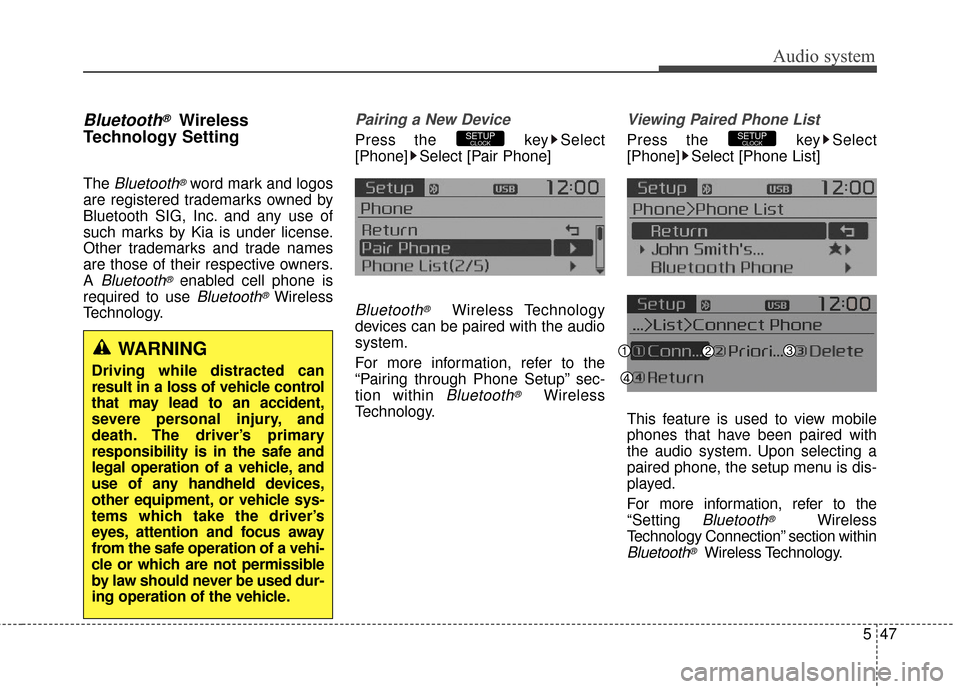
Pairing a New Device
Press the key Select
[Phone] Select [Pair Phone]
Bluetooth®Wireless Technology
devices can be paired with the audio
system.
For more information, refer to the
“Pairing through Phone Setup” sec-
tion within
Bluetooth®Wireless
Technology.
Viewing Paired Phone List
Press the key Select
[Phone] Select [Phone List]
This feature is used to view mobile
phones that have been paired with
the audio system. Upon selecting a
paired phone, the setup menu is dis-
played.
For more information, refer to the
“Setting
Bluetooth®Wireless
Technology Connection” section within
Bluetooth®Wireless Technology.
SETUPCLOCKSETUPCLOCK
WARNING
Driving while distracted can
result in a loss of vehicle control
that may lead to an accident,
severe personal injury, and
death. The driver’s primary
responsibility is in the safe and
legal operation of a vehicle, and
use of any handheld devices,
other equipment, or vehicle sys-
tems which take the driver’s
eyes, attention and focus away
from the safe operation of a vehi-
cle or which are not permissible
by law should never be used dur-
ing operation of the vehicle.
Page 318 of 625

Audio system
48
5 1) Connect/Disconnect Phone :
Connect/ disconnects currently
selected phone
2) Change Priority : Sets currently selected phone to highest connec-
tion priority
3) Delete : Deletes the currentlyselected phone
4) Return : Moves to the previous screen
To learn more about whether your mobile phone supports contacts
downloads, refer to your mobile
phone user’s manual.
The contacts for only the connect- ed phone can be downloaded.
Downloading Contacts
Press the key Select
[Phone] Select [Contacts Download]
As the contacts are downloaded
from the mobile phone, a download
progress bar is displayed.
Upon downloading phone con-tacts, the previous corresponding
data is deleted.
This feature may not be supported in some mobile phones.
Voice Recognition may not operate while contacts are being down-
loaded.
Outgoing Volume
Press the key Select
[Phone] Select [Outgoing Volume]
Use TUNE knob to adjust the out-
going volume level.
While on a call, the volume can be
changed by using the
/key.
TRACKSEEK
SETUPCLOCKSETUPCLOCK
Page 319 of 625
Audio system
549
Turning Bluetooth System Off
Press the key Select
[Phone] Select [Bluetooth System
Off]
Once
Bluetooth®Wireless
Technology is turned off,
Bluetooth®
Wireless Technology related features
will not be supported within the audio
system.
To turn
Bluetooth®Wireless
Technology back on, go to [Phone] and select “Yes”.SETUPCLOCK
SETUPCLOCK
Page 320 of 625
![KIA Carens 2017 3.G Owners Manual Audio system
50
5
VOICE RECOGNITION
Using Voice Recognition
Starting Voice Recognition
Shortly press the key on the
steering wheel. Say a command
If prompt feedback is in [ON], then
the system will](/manual-img/2/2982/w960_2982-319.png "KIA Carens 2017 3.G Owners Manual Audio system
50
5
VOICE RECOGNITION
Using Voice Recognition
Starting Voice Recognition
Shortly press the key on the
steering wheel. Say a command
If prompt feedback is in [ON], then
the system will")
Audio system
50
5
VOICE RECOGNITION
Using Voice Recognition
Starting Voice Recognition
Shortly press the key on the
steering wheel. Say a command
If prompt feedback is in [ON], then
the system will say “Please say a
command after the beep (BEEP)”
If prompt feedback is in [OFF]
mode, then the system will only
say “(BEEP)”
To change Prompt Feedback [On]/[Off], go to [System][Prompt Feedback]
For proper recognition, say the command after the voice instruc-
tion and beep tone.
Contact List Best Practices
1)Do not store single-name entries(e.g., “Bob”, “Mom”, “Kim”, etc.).
Instead, always use full names
(including first and last names) for
all contacts (e.g., use “Jacob
Stevenson” instead of “Dad”).
2)Do not use abbreviations (i.e., use “Lieutenant” instead of “Lt.” or
“Sergeant” instead of “Sgt.”).
3)Do not use acronyms (i.e., use “County Finance Department”
instead of “CFD”).
4)Do not use special characters (e.g., “@”, “hyphen -“, “asterisk *”,
ampersand &”).
5)If a name is not recognized from the contact list, change it to a more
descriptive name (e.g., use
“Grandpa Joseph” instead of “Pa
Joe”).
Skipping Prompt Messages
While prompt message is being stat-
ed Shortly press the key on the
steering remote controller
The prompt message is immediately
ended and the beep tone will sound.
After the “beep”, say the voice com-
mand.
Re-starting Voice Recognition
While system waits for a command
Shortly press the key on the
steering remote controller
The command wait state is immedi-
ately ended and the beep ton will
sound. After the “beep”, say the voice
command.
SETUPCLOCK
Page 331 of 625
Audio system
561
(7) DISP
(8) CLOCK
When pressed briefly: Display time screen.
When pressed and held: Move to the time setting mode. (9)
SCAN
Radio mode: Previews all receiv- able broadcasts for 5 seconds
each.
Media (CD/USB/My Music) modes: Previews each song (file) for 10
seconds each.
(10) SETUP
Changes to Setup mode.
(11) TUNE knob
Radio mode: Turn to change broadcast frequencies.
Media (CD/USB/iPod®/My Music)
modes: Turn to search Tracks/
chan nels/files.
(12) CAT/FOLDER
SiriusXM Radio: Category Search.
MP3 CD/USB mode: Search Folder. (13)
RESET
Forced system termination and system restart.
Page 336 of 625

Audio system
66
5
(Continued)
• Charging through the USB may
not work for some mobile devices.
• The device may not support nor- mal operation when using a typi-
cal USB memory device (minia-
ture, keychain, etc.). For best
results, use a typical USB device
that has a metal case.
• The device may not support nor- mal operation when using formats
such as HDD Type, CF, or SD
Memory.
• The device will not support files locked by DRM (Digital Rights
Management.).
• USB memory sticks used by con- necting an Adaptor (SD Type or
CF Type) may not be properly rec-
ognized.
• The device may not operate prop- erly when using USB HDDs or
USBs subject to connection fail-
ures caused by vehicle vibrations.
(e.g. i-stick type) (Continued)(Continued)
• Avoid use of USB
memory products that
can also be used as key
chains or mobile phone
accessories. Use of such products
may cause damage to the USB
jack.
• Connecting an MP3 device or phone through various channels,
such as AUX/BT or Audio/ USB
mode may result in pop noises or
abnormal operation.

![KIA Carens 2017 3.G Owners Manual Audio system
543
Disconnecting a Device
Press the key Select
[Phone] Select [Phone List]
From the paired phone list, select the
currently connected device and
select [Disconnect] button.
Deleting a D](/manual-img/2/2982/w960_2982-312.png "KIA Carens 2017 3.G Owners Manual Audio system
543
Disconnecting a Device
Press the key Select
[Phone] Select [Phone List]
From the paired phone list, select the
currently connected device and
select [Disconnect] button.
Deleting a D")
![KIA Carens 2017 3.G Owners Manual Audio system
549
Turning Bluetooth System Off
Press the key Select
[Phone] Select [Bluetooth System
Off]
Once
Bluetooth®Wireless
Technology is turned off,
Bluetooth®
Wireless Technology related f](/manual-img/2/2982/w960_2982-318.png "KIA Carens 2017 3.G Owners Manual Audio system
549
Turning Bluetooth System Off
Press the key Select
[Phone] Select [Bluetooth System
Off]
Once
Bluetooth®Wireless
Technology is turned off,
Bluetooth®
Wireless Technology related f")
