Page 326 of 642
4-63
Multimedia System
4
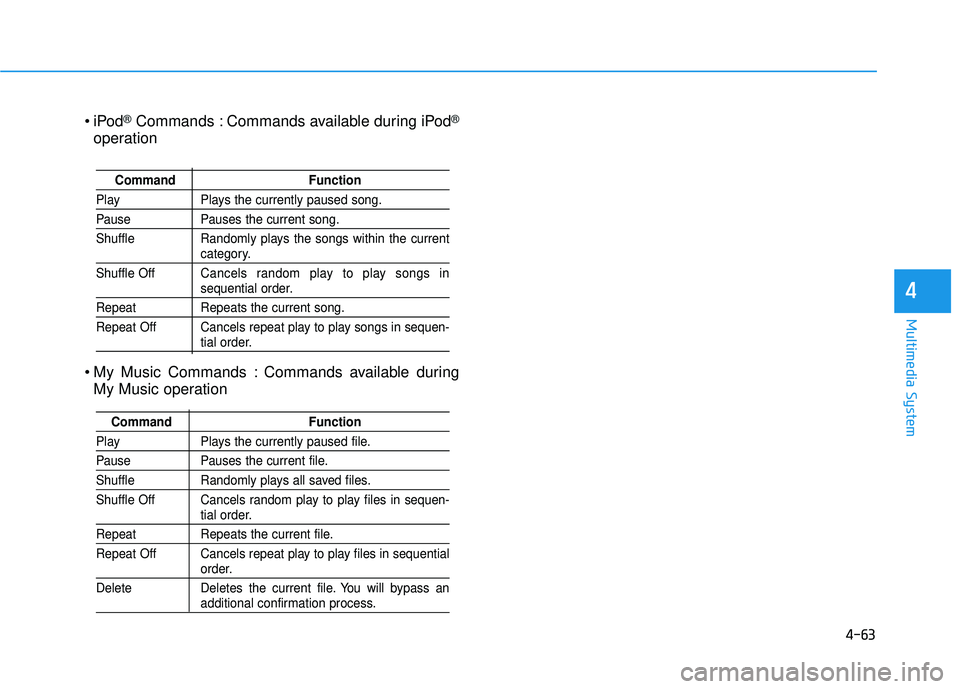
®Commands : Commands available during iPod®
operation
My Music Commands : Commands available during My Music operation
Command Function
Play Plays the currently paused song.
Pause Pauses the current song.
Shuffle Randomly plays the songs within the current
category.
Shuffle Off Cancels random play to play songs in
sequential order.
Repeat Repeats the current song.
Repeat Off Cancels repeat play to play songs in sequen-
tial order.
Command Function
Play Plays the currently paused file.
Pause Pauses the current file.
Shuffle Randomly plays all saved files.
Shuffle Off Cancels random play to play files in sequen-
tial order.
Repeat Repeats the current file.
Repeat Off Cancels repeat play to play files in sequential
order.
Delete Deletes the current file. You will bypass an
additional confirmation process.
Page 327 of 642
4-64
Multimedia System
SSeettuu pp
Starting Mode
Press the key to display the Setup screen.
You can select and control options
related to [Display], [Sound], [Clock/Calendar], [Phone] and [System].
Display Settings
Adjusting the Brightness
Press the key Select
[Display] Select [Brightness]
Use the , buttons to adjust the
screen brightness or set the
Brightness on Automatic, Day, or
Night mode.
Press the button to reset.
1) Automatic : Adjusts the brightness
automatically
2) Day : Always maintains the bright- ness on high
3) Night : Always maintains the brightness on low
Mode Pop up
Press the key Select
[Display] Select [Mode Pop up]
This feature is used to display the
Mode Pop up screen when entering
radio and media modes.
When this feature is turned on, pressing the or key
will display the Mode Pop up screen.
Information
The media Mode Pop up screen can be
displayed only when two or more
media modes have been connected.
i
MEDIA RADIO
SETUP
Default
SETUPSETUP
Page 328 of 642
4-65
Multimedia System
4
MP3 Information Display
Press the key Select
[Display] Select [Media Display]
This feature is used to change the
information displayed within USB
and MP3 CD modes.
1) Folder/File : Displays file nameand folder name
2) Album/Artist/Song : Displays album name/artist name/song
Sound Settings
Sound Settings
Press the key Select
[Sound] Select [Sound Setting] Use the , , , buttons to
adjust the Fader/Balance settings.
Use the , buttons to adjust the
Bass/Middle/Treble settings.
Press the button to reset.DefaultSETUP
SETUP
Page 329 of 642
4-66
Multimedia System
SDVC (Speed DependentVolume Control)
Press the key Select [Sound] Select [Speed Dependent Vol.]
The volume level is controlled auto-
matically according to the vehicle
speed. SDVC can be set by selecting
from On / Off.
Voice Recognition Volume
Press the key Select
[Sound] Select [Voice Recognition Vol.]
Turn the TUNE knob to adjust the
Voice Recognition volume.
Touch Screen Beep
Press the key Select
[Sound] Select [Touch Screen Beep]
This feature is used to turn the touch
screen beep on/off.SETUPSETUP
SETUP
Page 330 of 642
4-67
Multimedia System
4
Clock/Calendar Setting
Clock Settings
Press the key Select [Clock
/Calendar] Select [Clock Settings]
Use the , buttons to set the
Hour, Minutes and AM/PM setting.
Press and hold the key
(over 0.8 seconds) to display the
Clock /Calendar screen.
Calendar Settings
Press the key Select
[Clock/Calendar] Select [CalendarSettings]
Use the , buttons to set the
Day, Month and Year setting.
Time Format
Press the key Select
[Clock/Calendar] Select [Time Format]
This feature is used to change the
clock format between 12hr or 24hr.SETUPSETUP
CLOCK
NOTICE
SETUP
Page 331 of 642
4-68
Multimedia System
Clock Display
Press the key Select [Clock
/Calendar] Select [Clock Display
(Power off)]
This feature is used to display a clock on the screen when the audio sys-
tem is turned off.
System Setting
Memory Information
Press the key Select
[System] Select [Memory Information]
This feature displays information
related to system memory.
1) Using : Displays capacity currentlyin use
2) Capacity : Displays total capacity
Prompt Feedback
Press the key Select
[System] Select [Prompt Feedback]
This feature is used to select the
desired prompt feedback option from
ON and OFF.
1) ON : When using voice recogni- tion, provides detailed guidance prompts
2) OFF : When using voice recogni- tion, omits some guidancepromptsSETUP
SETUP
SETUP
Page 332 of 642
![HYUNDAI TUCSON LIMITED 2017 Owners Manual 4-69
Multimedia System
4
Language
Press the key Select
[System] Select [Language] ❈This feature is used to change the
system and voice recognition lan-
guage.
❈ if the language is changed, the](/manual-img/35/56197/w960_56197-331.png "HYUNDAI TUCSON LIMITED 2017 Owners Manual 4-69
Multimedia System
4
Language
Press the key Select
[System] Select [Language] ❈This feature is used to change the
system and voice recognition lan-
guage.
❈ if the language is changed, the")
4-69
Multimedia System
4
Language
Press the key Select
[System] Select [Language] ❈This feature is used to change the
system and voice recognition lan-
guage.
❈ if the language is changed, the
system will restart and apply the
selected language.
RReeaarr VV iiee ww CC aamm eerraa
The system has been equipped
with a rear view camera for ease
and convenience by allowing the
driver to view the rear of the vehi-
cle through the A/V display.
The rear view camera will automat- ically operate when the ignition key
is turned ON and the shift lever is
set to R (Reverse).
The rear view camera will automat- ically stop operating when the gear
shift lever is shifted out of R
(reverse) into a different gear or
into the P (Park) position.SETUP
The rear view camera has been equipped with an optical lens to
provide a wider field of view
when viewing the rear of the
vehicle. Objects may appear
distorted when viewed through
the A/V display. Use caution
when backing up your vehicle.
For added safety, directly check
the rear view and left and right
sides by turning your head
when backing up your vehicle.
CAUTION
Page 333 of 642
4-70
Multimedia System
Information
iPod®is a registered trademark of
Apple Inc. iPod®mobile digital device
sold separately. The Bluetooth®word
mark and logos are registered trade-
marks owned by Bluetooth SIG, Inc.
and any use of such marks by
Hyundai is under license. SiriusXM
services require a subscription sold
separately, or as a package, by Sirius
XM Radio Inc. If you decide to con-
tinue service after your trial, the sub-
scription plan you choose will auto-
matically renew thereafter and you
will be charged according to your cho-
sen payment method at then-current
rates. Fees and taxes apply. To cancel
you must call SiriusXM at 1-866-635-
2349. See SiriusXM Customer
Agreement for complete terms at
www.siriusxm.com. SiriusXM U.S.
satellite and data services are avail-
able only in the 48 contiguous USA,
DC and PR (with coverage limita-
tions). SiriusXM satellite service is
also available in Canada; see www.sir-
iusxm.ca. All fees and programming
subject to change.
(Continued)(Continued)
Sirius, XM and all related marks and
logos are trademarks of Sirius XM
Radio Inc. Android™ is a trademark
of Google, Inc. BlackBerry is a regis-
tered trademark of Research In
Motion Limited (RIM). All other
marks, channel names and logos are
the property of their respective own-
ers. All rights reserved.
i
![HYUNDAI TUCSON LIMITED 2017 Owners Manual 4-64
Multimedia System
SSeettuu pp
Starting Mode
Press the key to display the Setup screen.
You can select and control options
related to [Display], [Sound], [Clock/Calendar], [Phone] and [System].](/manual-img/35/56197/w960_56197-326.png "HYUNDAI TUCSON LIMITED 2017 Owners Manual 4-64
Multimedia System
SSeettuu pp
Starting Mode
Press the key to display the Setup screen.
You can select and control options
related to [Display], [Sound], [Clock/Calendar], [Phone] and [System].")
![HYUNDAI TUCSON LIMITED 2017 Owners Manual 4-65
Multimedia System
4
MP3 Information Display
Press the key Select
[Display] Select [Media Display]
This feature is used to change the
information displayed within USB
and MP3 CD modes.
1) Fo](/manual-img/35/56197/w960_56197-327.png "HYUNDAI TUCSON LIMITED 2017 Owners Manual 4-65
Multimedia System
4
MP3 Information Display
Press the key Select
[Display] Select [Media Display]
This feature is used to change the
information displayed within USB
and MP3 CD modes.
1) Fo")
![HYUNDAI TUCSON LIMITED 2017 Owners Manual 4-66
Multimedia System
SDVC (Speed DependentVolume Control)
Press the key Select [Sound] Select [Speed Dependent Vol.]
The volume level is controlled auto-
matically according to the vehicle
speed.](/manual-img/35/56197/w960_56197-328.png "HYUNDAI TUCSON LIMITED 2017 Owners Manual 4-66
Multimedia System
SDVC (Speed DependentVolume Control)
Press the key Select [Sound] Select [Speed Dependent Vol.]
The volume level is controlled auto-
matically according to the vehicle
speed.")
![HYUNDAI TUCSON LIMITED 2017 Owners Manual 4-67
Multimedia System
4
Clock/Calendar Setting
Clock Settings
Press the key Select [Clock
/Calendar] Select [Clock Settings]
Use the , buttons to set the
Hour, Minutes and AM/PM setting.
Press](/manual-img/35/56197/w960_56197-329.png "HYUNDAI TUCSON LIMITED 2017 Owners Manual 4-67
Multimedia System
4
Clock/Calendar Setting
Clock Settings
Press the key Select [Clock
/Calendar] Select [Clock Settings]
Use the , buttons to set the
Hour, Minutes and AM/PM setting.
Press")
![HYUNDAI TUCSON LIMITED 2017 Owners Manual 4-68
Multimedia System
Clock Display
Press the key Select [Clock
/Calendar] Select [Clock Display
(Power off)]
This feature is used to display a clock on the screen when the audio sys-
tem is turne](/manual-img/35/56197/w960_56197-330.png "HYUNDAI TUCSON LIMITED 2017 Owners Manual 4-68
Multimedia System
Clock Display
Press the key Select [Clock
/Calendar] Select [Clock Display
(Power off)]
This feature is used to display a clock on the screen when the audio sys-
tem is turne")