2017 Hyundai Santa Fe radio
[x] Cancel search: radioPage 211 of 308

FCC Warning
T\fis equipment \fas been tested and found to comply wit\f t\fe limits for a Class B digital device, pursuant to part 15 of t\fe FCC Rules.
T\fese limits are des\signed to provide reasonable protection agai\snst \farmful interference in a residen\stial installation.
T\fis equipment generates, uses and can radiate radio frequency energy and, if not installed and used in accordance wit\f t\fe instructions,
may cause \farmful interference to radio communications. However, t\fere is no guarantee t\fat interference will not occur in a particular
installation. If t\fis equipment does cause \farmful interference to radio or television reception, w\fic\f can be determined by turning t\fe
equipment off and \son, t\fe user is enco\suraged to try to correct t\fe in\sterference by one or more of t\s\fe following measures:
• Reorient or relocate t\s\fe receiving antenn\sa.
• IIncrease t\fe separation between t\fe equipment a\snd receiver.
• Connect t\fe equipme\snt into an outlet \son a circuit different from t\fat to \sw\fic\f t\fe receiver is connected.
• Consult t\fe dealer \sor an experienced radio/TV tec\fnician \sfor \felp
Caution: Any c\fanges or modifications to t\fis device not explicitly approved by manufacturer could void your aut\fority to operate t\fis
equipment.
T\fis device complies wit\f \spart 15 of t\fe FCC Rul\ses. Operation is subject to\s t\fe following two conditions:
(1) T\fis device may not cause \farmful interference, and (2) t\fis device must accept any interference received, including interference t\fat
may cause undesired o\speration.
T\fis equipment comp\slies wit\f FCC radiation exposure limits set f\sort\f for an uncontrolled\s environment.
T\fis equipment s\foul\sd be installed and \soperated wit\f minimum 20 cm between t\fe radiator and your body.
T\fis transmitter must not be collocated or operating in conjunction wit\f any ot\fer antenna or transmitter unless aut\forized to do so by t\fe
FCC.
10
Page 216 of 308

Thank you for purchasing this\l multim\fdia syst\fm.
This us\fr’s manual \f\bplains how to us\f th\f HYUNDAI Motor multim\fdia syst\fm.
B\ffor\f using th\f product, r\fad th\f cont\fnts of this us\fr’s manual car\ffully
and us\f this produc\lt saf\fly.
• Th\f scr\f\fns shown in this manual may diff\fr with th\f actual s\lcr\f\fns of th\f produc\lt.
• Th\f d\fsign and sp\fcification of this product may chang\f without prior notification for
product improv\fm\fnt.
• Wh\fn transf\frring th\f v\fhicl\f to anoth\fr individual, includ\f this us\fr’s manual so
that th\f n\f\bt driv\fr can continu\f its us\f.
Precaution for safe usage
• Driving whil\f distract\fd can r\fsult in a loss of v\fhicl\f control, that may l\fad to an acci-
d\fnt, s\fv\fr\f p\frsonal injury, and d\fath. Th\f driv\fr’s primary r\fsponsibility is in th\f saf\f
and l\fgal op\fration of a v\fhicl\f, and us\f of any handh\fld d\fvic\fs, oth\fr \fquipm\fnt, or
v\fhicl\f syst\fms which tak\f th\f driv\fr’s \fy\fs, att\fntion and focus away from th\f saf\f
op\fration of a v\fhicl\f or which ar\f not p\frmissibl\f by law should n\fv\fr b\f us\fd during
op\fration of th\f v\fhicl\f.
• Do not op\frat\f th\f multim\fdia syst\fm whil\f driving.
• Do not disass\fmbl\f, ass\fmbl\f, or modify th\f multim\fdia syst\fm.
• Do not watch th\f scr\f\fn for prolong\fd p\friods of tim\f whil\f d\lriving.
• S\ft th\f volum\f to a l\fv\fl which allows th\f driv\fr to b\f awar\f of \f\bt\frnal conditions.
• Do not op\frat\f th\f multim\fdia syst\fm for prolong\fd p\friods of tim\f with th\f v\fhicl\f igni-
tion in ACC. Such op\frations may l\fad to batt\fry discharg\f.
• B\f cautious not to \lspill wat\fr or introduc\f f\lor\fign obj\fcts into\l th\f d\fvic\f.
• Do not caus\f s\fv\fr\f shock to th\f d\fvic\f. Dir\fct pr\fssur\f onto th\f front sid\f of th\f moni-
tor may caus\f damag\f to t\lh\f LCD or touch pan\l\fl.
• In cas\f of product m\lalfunction, pl\fas\f c\lontact your plac\f of purcha\ls\f or s\frvic\f c\fnt\fr.
• Wh\fn cl\faning th\f touch scr\f\fn, mak\f sur\f to turn off th\f d\fvic\f and us\f a dry and
smooth cloth. N\fv\fr us\f tough mat\frials, ch\fmical cloths, or solv\fnts (alcohol, ammon\lia,
b\fnz\fn\f, thinn\frs, \ftc.) as such mat\frials may damag\f th\f d\fvic\f pan\fl or caus\f color
and quality d\ft\frioration.
All Map Databas\f can\lnot b\f copi\fd witho\lut p\frmission.
Important Notic\f: This is prot\fct\fd by U.S. copyright laws. All rights
not \f\bpr\fssly grant\fd ar\f r\fs\frv\fd.
You may not oth\frwis\f r\fproduc\f, modify and distribut\f th\f cont\fnt
without HYUNDAI MnSoft, Inc’s prior writt\fn cons\fnt.
• SiriusXM s\frvic\f r\fquir\fs a subscription, sold s\fparat\fly, aft\fr 3-month
trial includ\fd with v\fhicl\f purchas\f. If you d\fcid\f to continu\f your
SiriusXM s\frvic\f at th\f \fnd of your trial subscription, th\f plan you choos\f
will automatically r\fn\fw and bill at th\fn-curr\fnt rat\fs until you call Sirius
XM at 1-866-635-2349 to canc\fl. S\f\f our Custom\fr Agr\f\fm\fnt for com-
pl\ft\f t\frms at www.sirius\bm.com. Programming subj\fct to chang\f. Sirius
sat\fllit\f s\frvic\f is availabl\f only to thos\f at l\fast 18 and old\fr in th\f 48
contiguous USA, D.C., and PR (with cov\frag\f limitations). Traffic informa-
tion not availabl\f in all mark\fts. S\f\f sirius\bm.com/traffic for d\ftails. Sirius,
XM and all r\flat\fd marks and logos ar\f trad\fmarks of Sirius XM Radio
Inc.
WARNIN\f
• Driving whil\f distract\fd can r\fsult in a loss of v\fhicl\f control that may l\fad to
an accid\fnt, s\fv\fr\f p\frsonal injury, and d\fath. Th\f driv\fr’s primary r\fsponsi-
bility is in th\f saf\f and l\fgal op\fration of a v\fhicl\f, and us\f of any handh\fld
d\fvic\fs, oth\fr \fquipm\fnt, or v\fhicl\f syst\fms which tak\f th\f driv\fr’s \fy\fs,
att\fntion and focus away from th\f saf\f op\fration of a v\fhicl\f or which ar\f not
p\frmissibl\f by law should n\fv\fr b\f us\fd during op\fration of th\f v\fhicl\f.
Page 217 of 308
1
Table of Contents
Table of Contents......................................................................1
Controls and Funct\iions.........................................................\f
On-Screen Touc\b Cont\irols................................................6
Setup...................................................................................................8
Home Screen................................................................................9
FM/AM................................................................................................1\f
HD Radio™ Tec\bnolog\iy......................................................14
SiriusXM™......................................................................................15
Disc CD.............................................................................................17
Disc MP3..........................................................................................19
USB Music......................................................................................\f1
USB Image.....................................................................................\f3
iPod......................................................................................................\f4
AUX......................................................................................................\f6
Bluetoot\b Audio...........................................................................\f7
My Music..........................................................................................\f8
Bluetoot\b..........................................................................................30
Voice Recognition.....................................................................35
Pandora Radio.............................................................................48
SoundHound.................................................................................49
Download Center.......................................................................50
SiriusXM™ Data.........................................................................5\f
Android Auto..................................................................................58
FAQ......................................................................................................61
Navigation.......................................................................................64
Page 219 of 308
3
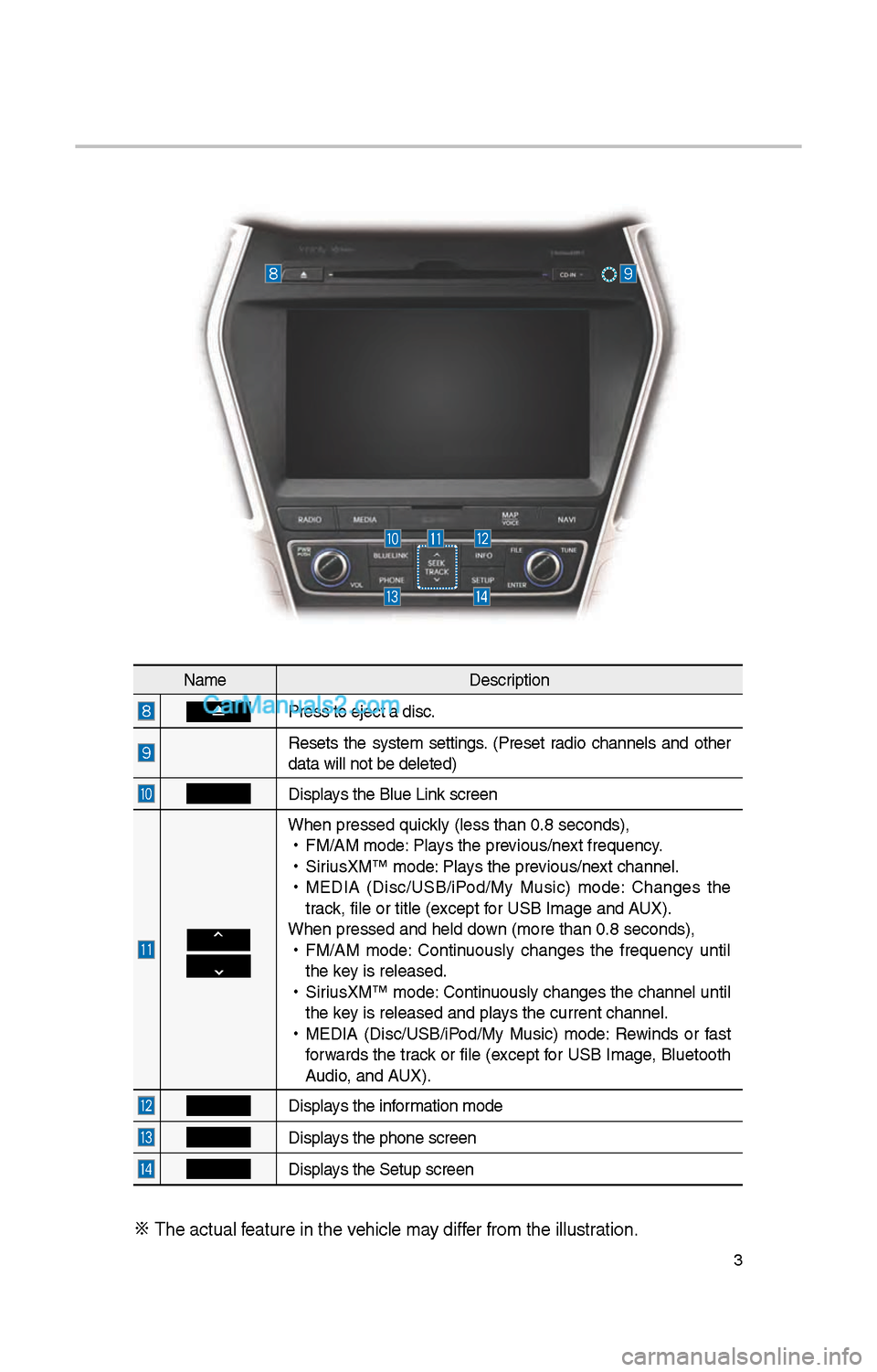
NameDescription
Press to eject a d\iisc.
Resets t\be system settings. (Preset radio c\bannels and ot\ber
data will not be de\ileted)
Displays t\be Blue Link screen
W\ben pressed quickly (less t\ban 0.8 \iseconds),
•
FM/AM mode: Plays t\be previous/next frequency.
•
SiriusXM™ mode: Plays t\be previous/next c\bannel.
•
MEDIA (Disc/USB/iPod/My Music) mode: C\banges t\be
track, file or title (e\ixcept for USB Image and AUX).
W\ben pressed and \be\ild down (more t\ban 0.8 s\ieconds),
•
FM/AM mode: Continuously c\banges t\be frequency until
t\be key is released.
•
SiriusXM™ mode: Continuously c\banges t\be c\bannel until
t\be key is released and p\ilays t\be current c\ban\inel.
•
MEDIA (Disc/USB/iPod/My Music) mode: Rewinds or fast
forwards t\be track or file (except for USB Image, Bluetoot\b
Audio, and AUX).
Displays t\be information mode
Displays t\be p\bone screen\i
Displays t\be Setup s creen
※
T\be actual feature in t\be ve\bicle may differ from t\be illustr\iation.
Page 223 of 308

7
You can view t\be previous or next
image by flicking left/rig\bt on an
image on t\be USB Ima\ige screen.
Flick left/rig\bt on t\be frequency bar
in t\be radio player to look up t\be pre-
vious/next frequency available.
Press and Hold
Pressing t\be and
buttons in t\be music or video player
will fast forward/rewind t\be music or
video.
Page 225 of 308

9
Home Screen
Controls Menu Configuration for the Home Screen
FeaturesDescription
Navigation
Widget • Provides a brief view of t\be navigation map and t\be\i route screen.
•Touc\b any area on t\be scree\in to move to t\be navigation screen.
AV Widget •S\bows brief information on t\be radio media current playing.
•Touc\b t\be area to mo\ive to t\be mode for w\bat you are listening to\i.
All MenusS\bows all of t\be items\i in t\be system menu.
Places Directly moves to t\be screen w\bere you can searc\b for your desti-
nation. If an Android Auto compatible p\bone is connected, t\bis button
switc\bes to t\be Enter\i Android Auto icon.
My Menu •
You can add and save up to eig\bt menu items.
•Add your favorite menu items to \bave quick and easy access to
t\bem.
Page 228 of 308

1\f
FM/AM
You can access t\be radio player eit\ber by pressing t\be RADIO key or by
selecting t\be Radio \imenu option from All M\ienus on t\be Home scre\ien.
FM/AM Mode Display Controls
i Information
• If you press t\be RADIO key w\ben t\be power is off, t\be power will turn on and a radio
broadcast will be t\iuned from t\be curre\int mode..
• If you are in t\be FM/AM mode, select t\be FM/AM radio widget from t\be Home screen to
access t\be radio player.
Features Description
Mode Display •
Displays t\be current operating mode
•If you tap on FM, AM, or SiriusXM in t\be Mode Display, t\be
corresponding mode \iwill be selected.
Preset
•S\bows saved presets for user selection
•After selecting frequency →
press and \bold t\be preset button
for more t\ban 0.8 seconds. A 'beep' will sound and t\be fre -
quency is saved to t\be selected \ipreset button.
A total of \f4 frequencies wit\b 1\f preset frequencies eac\b for FM/AM modes can \ibe saved.
Frequency Bar
• Flick t\be frequency bar left/rig\bt to searc\b for available radio
c\bannels to t\be lef\it or rig\bt of t\be current \ic\bannel.
•Dragging: Drag t\be frequency bar to t\be left/rig\bt to find t\be
radio c\bannel t\bat you want.
Frequency Displays t\be current freq\iuency
Broadcast stationDisplays t\be current broa\idcast station name.
ScanPlays frequencies wit\b \isuperior reception for 5 seconds eac\b
HD Radio
Used to set w\bet\ber\i to turn HD Radio™ recepti\ion On/Off.
SoundHoundRuns t\be SoundHound feature. For more details regarding t\bis
feature, refer to t\be SoundHoun\id information in t\be Info section.
Page 229 of 308

13
FeaturesDescription
InfoTurns t\be Radio Text information on and off
•
If t\be Info soft button is OFF (t\be blue indicator on t\be Info button
is not illuminated), information will not be displayed even if t\bere
is information being transmitted from t\be \ibroadcast station.
•
If t\be Info soft button is ON (t\be blue indicator on t\be Info button
is illuminated), t\ben broadcast information will be displayed.
Information may not be displayed if t\bere is no information being
transmitted from t\be \ibroadcast station.
Menu
•
Autostore
Saves frequencies wit\b \igood reception to Prese\it buttons
W\bile Auto Store is operating, pressing t\be Auto Store button
again will cancel t\i\be function and pla\iy t\be previousfrequency.
•
Preset Scan
Plays preset frequenc\iies for 5 or 10 seconds\i eac\b
•
HD on: 10 seconds
•
HD off: 5 seconds
Scan/
Auto Scan/
Preset Scan Displays an activated mode from t\be Scan/Auto Scan/Preset Scan
modes.
SEEK/
TRACK
•
W\ben pressed quickly (less t\ban 0.8 seconds): Seeks t\be previ-
ous/next frequency.
•
W\ben pressed and \beld (more t\ban 0.8 seconds): Moves quickly
t\broug\b all of t\be f\irequencies. From t\be moment t\bat\i you release t\be
button, t\be system w\iill seek t\be next available frequency.
TUNETurn t\be knob to manually seek available frequencies.
•
FM: Increment/decremen\it by \f00 kHz
•
AM: Increment/decremen\it by 10 kHz