2017 Hyundai Ioniq Hybrid USB port
[x] Cancel search: USB portPage 13 of 553
1-6
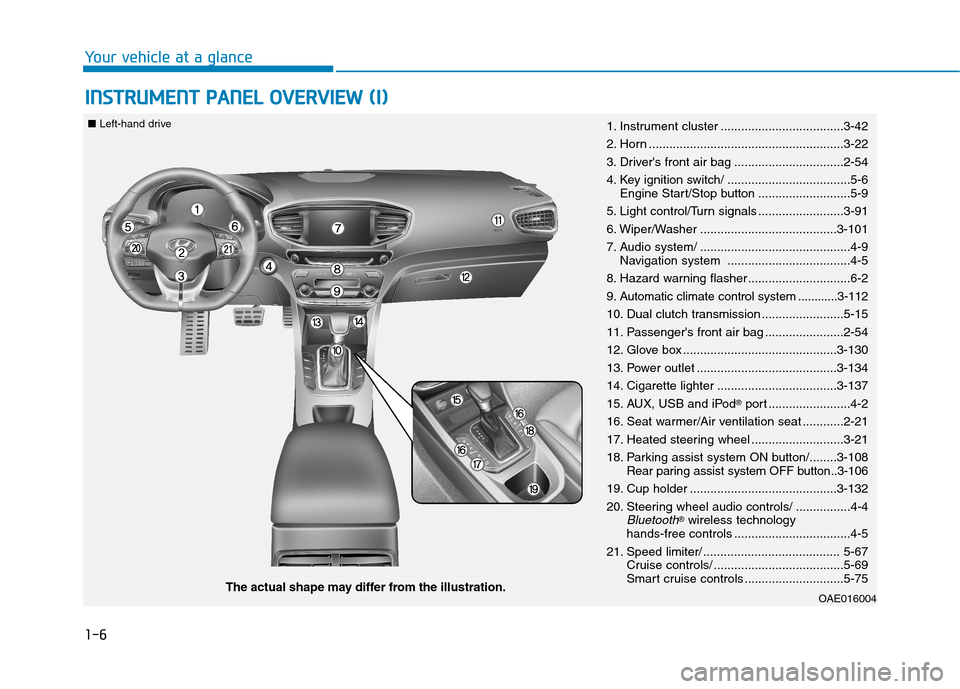
IINN SSTT RR UU MM EENN TT PP AA NN EELL OO VVEERR VV IIEE WW (( II))
Your vehicle at a glance
OAE016004The actual shape may differ from the illustration.
■
Left-hand drive
1. Instrument cluster ....................................3-42
2. Horn .........................................................3-22
3. Driver's front air bag ................................2-54
4. Key ignition switch/ ....................................5-6
Engine Start/Stop button ...........................5-9
5. Light control/Turn signals .........................3-91
6. Wiper/Washer ........................................3-101
7. Audio system/ ............................................4-9 Navigation system ....................................4-5
8. Hazard warning flasher ..............................6-2
9. Automatic climate control system ............3-112
10. Dual clutch transmission ........................5-15
11. Passenger's front air bag .......................2-54
12. Glove box .............................................3-130
13. Power outlet .........................................3-134
14. Cigarette lighter ...................................3-137
15. AUX, USB and iPod ®
port ........................4-2
16. Seat warmer/Air ventilation seat ............2-21
17. Heated steering wheel ...........................3-21
18. Parking assist system ON button/........3-108 Rear paring assist system OFF button..3-106
19. Cup holder ...........................................3-132
20. Steering wheel audio controls/ ................4-4
Bluetooth® wireless technology
hands-free controls ..................................4-5
21. Speed limiter/ ........................................ 5-67 Cruise controls/ ......................................5-69
Smart cruise controls .............................5-75
Page 14 of 553
1-7
Your vehicle at a glance
1
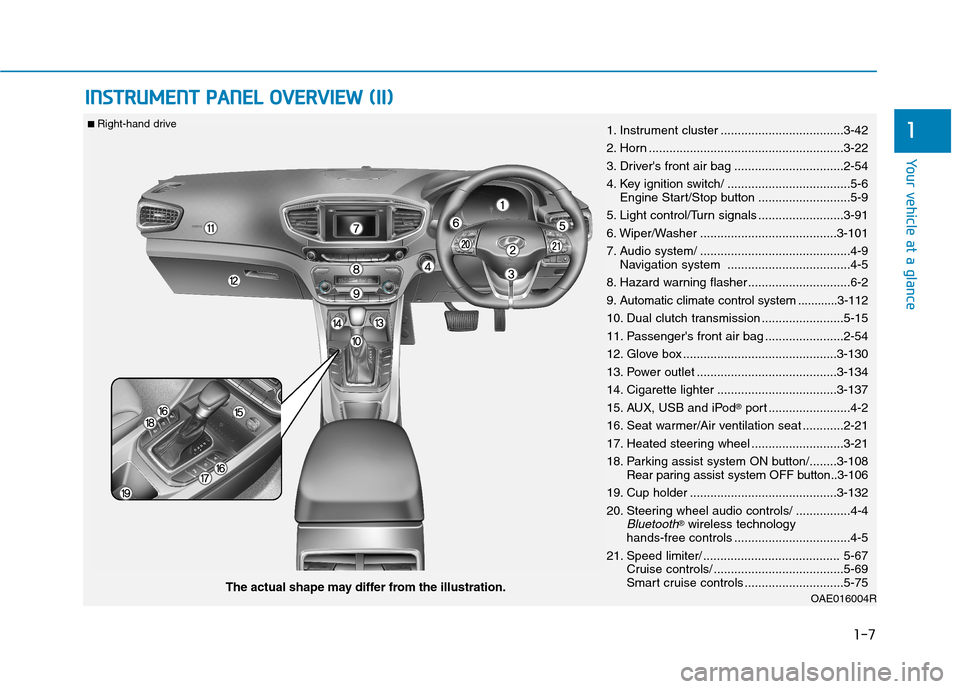
IINN SSTT RR UU MM EENN TT PP AA NN EELL OO VVEERR VV IIEE WW (( IIII))
OAE016004RThe actual shape may differ from the illustration.
■
Right-hand drive
1. Instrument cluster ....................................3-42
2. Horn .........................................................3-22
3. Driver's front air bag ................................2-54
4. Key ignition switch/ ....................................5-6
Engine Start/Stop button ...........................5-9
5. Light control/Turn signals .........................3-91
6. Wiper/Washer ........................................3-101
7. Audio system/ ............................................4-9 Navigation system ....................................4-5
8. Hazard warning flasher ..............................6-2
9. Automatic climate control system ............3-112
10. Dual clutch transmission ........................5-15
11. Passenger's front air bag .......................2-54
12. Glove box .............................................3-130
13. Power outlet .........................................3-134
14. Cigarette lighter ...................................3-137
15. AUX, USB and iPod ®
port ........................4-2
16. Seat warmer/Air ventilation seat ............2-21
17. Heated steering wheel ...........................3-21
18. Parking assist system ON button/........3-108 Rear paring assist system OFF button..3-106
19. Cup holder ...........................................3-132
20. Steering wheel audio controls/ ................4-4
Bluetooth® wireless technology
hands-free controls ..................................4-5
21. Speed limiter/ ........................................ 5-67 Cruise controls/ ......................................5-69
Smart cruise controls .............................5-75
Page 237 of 553
3-135
Convenient features of your vehicle
3
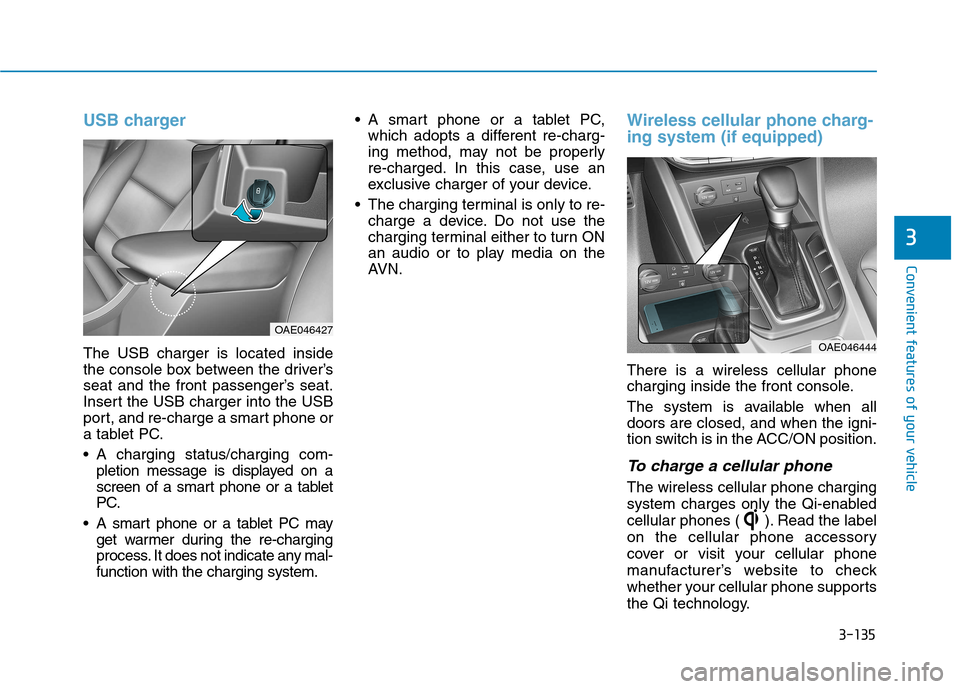
USB charger
The USB charger is located inside
the console box between the driver’s
seat and the front passenger’s seat.
Insert the USB charger into the USB
port, and re-charge a smart phone or
a tablet PC.
A charging status/charging com-pletion message is displayed on a
screen of a smart phone or a tablet
PC.
A smart phone or a tablet PC may get warmer during the re-charging
process. It does not indicate any mal-function with the charging system. A smart phone or a tablet PC,
which adopts a different re-charg-
ing method, may not be properly
re-charged. In this case, use an
exclusive charger of your device.
The charging terminal is only to re- charge a device. Do not use the
charging terminal either to turn ON
an audio or to play media on the
AVN.
Wireless cellular phone charg- ing system (if equipped)
There is a wireless cellular phone
charging inside the front console.
The system is available when all doors are closed, and when the igni-
tion switch is in the ACC/ON position.
To charge a cellular phone
The wireless cellular phone charging
system charges only the Qi-enabled
cellular phones ( ). Read the label
on the cellular phone accessory
cover or visit your cellular phone
manufacturer’s website to check
whether your cellular phone supports
the Qi technology.
OAE046444
OAE046427
Page 242 of 553
Multimedia System
Multimedia system .................................................4-2Aux, USB and iPod ®®
port ................................................4-2
Antenna ...............................................................................4-2
Steering wheel audio control .........................................4-3
Bluetooth®®Wireless Technology hands-free ..........4-4
Audio / Video / Navigation system (AVN) ..................4-5
How vehicle radio works .................................................4-5
Audio (Without touch screen) .............................4-8 Feature of your audio......................................................4-9Radio .................................................................................4-16
Media..................................................................................4-18
Phone .................................................................................4-32
Setup ..................................................................................4-40
Declaration of conformity ..................................4-42 CE for EU ..........................................................................4-42
NCC for Taiwan ................................................................4-43
4
Page 243 of 553

4-2
Multimedia System
Information
If you install an aftermarket HID headlamp, your vehicle’s audio and
electronic device may malfunction.
Prevent chemicals such as perfume, cosmetic oil, sun cream, hand clean-
er, and air freshener from contacting
the interior parts because they may
cause damage or discoloration.AUX, USB and iPod ®
port
You can use an AUX port to connect
audio devices and an USB port to plug
in an USB and also in an iPod ®
port.
Information
When using a portable audio device
connected to the power outlet, noise
may occur during playback. If this
happens, use the power source of the
portable audio device. ❈ iPod ®
is a trademark of Apple Inc.
Antenna
Roof antenna (Type A)
The roof antenna receives both AM
and FM broadcast signals.Rotate the roof antenna in a counter-
clockwise direction to remove it.
Rotate it in a clockwise direction toreinstall it.
i
OAE046439
i
MM UULLTT IIMM EEDD IIAA SS YY SSTT EEMM
OAE046481L
Page 262 of 553

4-21
Multimedia System
4
2. Sampling frequency (Hz)
The sound quality of MP3/WMAcompressed files may vary depend-
ing on the bitrate. (A higher bitrate
can have better sound quality.)
The product only recognizes files with the MP3 or WMA extension.
Files without one of these exten-
sions are not recognized.
3. Number of recognizable folders and files
Folders: 2,000 for USB
Files: 6,000 for USB
No recognition limit for folder hier- archies 4. Character display range (Unicode)
Filenames: Up to 64 English char-
acters (64 Korean characters)
Foldername: Up to 32 English characters (32 Korean characters)
The scroll feature can be used to
display file and folder names that
are too long to display on the
screen. (if equipped)
Languages supported (Unicode sup-
port)
Korean: 2,604 characters
English: 94 characters
Common Chinese characters: 4,888 characters
Special symbols: 986 characters
Japanese/Simplified Chinese char-
acters are not supported.
Disc MP3 (Type B, Type C)
(1) Repeat
Enable/disable repeat.
(2) Shuffle
Enable/disable shuffle play.
(3) List
View a list of all songs.
(4) Menu
Navigate to the menu screen.
(5) Album Image
View song info.
NOTICE
NOTICE
MPEG1MPEG2MPEG2.5WMA
44100220501102532000
48000240001200044100
3200016000800048000
Page 264 of 553

4-23
Multimedia System
4
(Continued)
Some USB devices are not recog-nized due to compatibility issues.
Do not touch the USB connections.
Connecting and disconnecting USB devices rapidly over a short period
of time can cause equipment failure.
Abnormal sounds may be audible when the USB device is disconnected.
Turn the audio off before connecting or disconnecting external USB
devices.
Recognition may take longer depending on the type, capacity or
file format of the external USB
device. This is not a product mal-
function.
Use of USB devices for purposes other than playing music files is pro-
hibited.
Image display and video playback are not supported.
(Continued)(Continued)
Use of USB accessories, including
charge and heat though the USB I/F,
can lead to reduced product per-
formance or malfunctions. Do not
use USB devices or accessories for
these purposes.
Use of aftermarket USB hubs and extension cables can result in the
vehicle’s audio system failing to rec-
ognize your USB device. Connect
the USB device directly to the multi-
media port of your vehicle.
When using high-capacity USB devices with logical drive divisions,
only files saved on the highest level
logical drive can be played.
If applications are loaded on a USB
drive, file playback may fail.
Some MP3 players, cell phones, dig- ital cameras, etc. (USB devices that
are not recognized as mobile stor-
age) may not operate normally
when connected.
USB charging may not be supported by some mobile devices.
(Continued)(Continued)
Operation is guaranteed only for
standard (Metal Cover Type) USB
Memory drives.
Operation of HDD, CF, SD and memory stick devices is not guaran-
teed.
DRM (Digital Rights Management) files cannot be played.
SD-type USB memory, CF-type USB memory, and other USB mem-
ory devices that require adapters
for connection are not supported.
Proper operation of USB HDDs or USB drives with connectors that
loosen due to vehicle vibrations is
not guaranteed. (iStick, etc.)
USB products that are used as key chains or
cell phone accessories
may damage the USB
jack and affect proper file playback.
Please refrain from use. Use only
products with plug connectors, as
shown in the following illustration.
When MP3 devices or cell phones are connected simultaneously
through AUX, BT Audio and USB
modes, a popping noise or malfunc-
tion may occur.
Page 265 of 553
4-24
Multimedia System
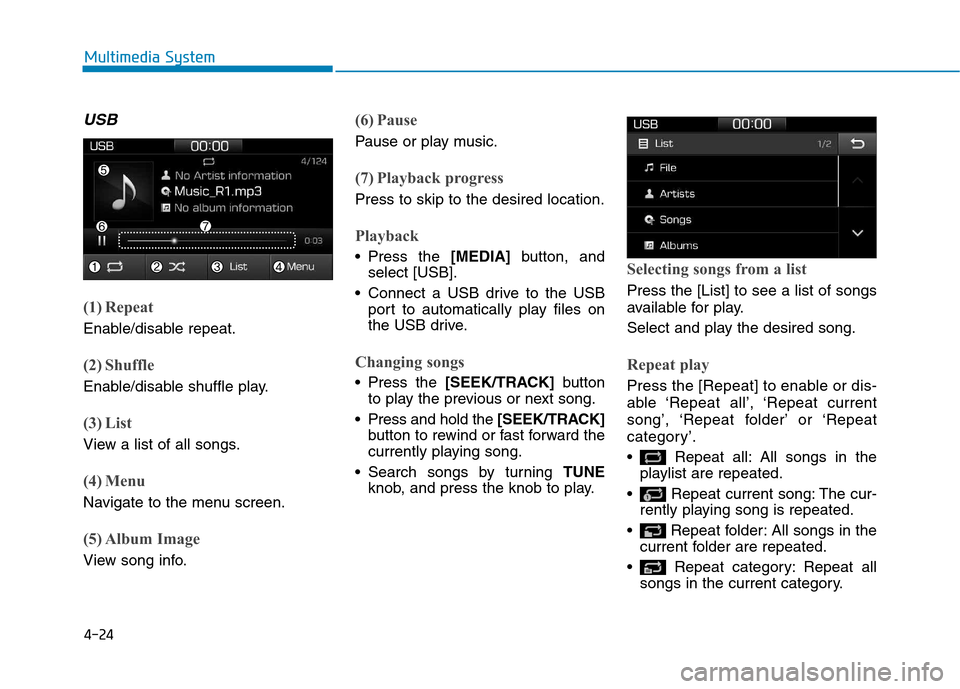
USB
(1) Repeat
Enable/disable repeat.
(2) Shuffle
Enable/disable shuffle play.
(3) List
View a list of all songs.
(4) Menu
Navigate to the menu screen.
(5) Album Image
View song info.
(6) Pause
Pause or play music.
(7) Playback progress
Press to skip to the desired location.
Playback
Press the [MEDIA]button, and
select [USB].
Connect a USB drive to the USB port to automatically play files on
the USB drive.
Changing songs
Press the [SEEK/TRACK] button
to play the previous or next song.
Press and hold the [SEEK/TRACK]
button to rewind or fast forward the
currently playing song.
Search songs by turning TUNE
knob, and press the knob to play.
Selecting songs from a list
Press the [List] to see a list of songs
available for play.
Select and play the desired song.
Repeat play
Press the [Repeat] to enable or dis-
able ‘Repeat all’, ‘Repeat current
song’, ‘Repeat folder’ or ‘Repeat
category’.
Repeat all: All songs in the playlist are repeated.
Repeat current song: The cur- rently playing song is repeated.
Repeat folder: All songs in the current folder are repeated.
Repeat category: Repeat all songs in the current category.