2017 HYUNDAI ELANTRA SE Type A
[x] Cancel search: Type APage 277 of 586
4-25
Multimedia System
4
Information
- Using Compact Discs
• If the temperature inside the car is too high, open the car windows to
ventilate before using the system.
• It is illegal to copy and use MP3/WMA files without permis-
sion. Use CDs that are created only
by lawful means.
• Do not apply volatile agents, such as benzene or thinner, use normal
cleaners and magnetic sprays made
for CDs.
• To prevent the disc surface from getting damaged, hold CDs by the
edges or the center hole only.
• Clean the disc surface with a piece of soft cloth before playback (wipe it
from the center to the outside edge).
• Do not damage the disc surface or attach pieces of sticky tape or paper.
• Make certain only CDs are inserted into the CD player (Do not insert
more than one CD at a time).
• Keep CDs in their cases after use to protect them from scratches or dirt.
(Continued)(Continued)
• Depending on the type of CD-R/CD-
RW CDs, certain CDs may not oper-
ate normally depending on manu-
facturing company or recording
methods.
Information
- Playing an IncompatibleCopy Protected Audio CD
Some copy protected CDs, which do
not comply with international audio
CD standards (Red Book), may not
play on your car audio. Please note
that inabilities to properly play a copy
protected CD may indicate that the
CD is defective, not the CD player.
NOTE:
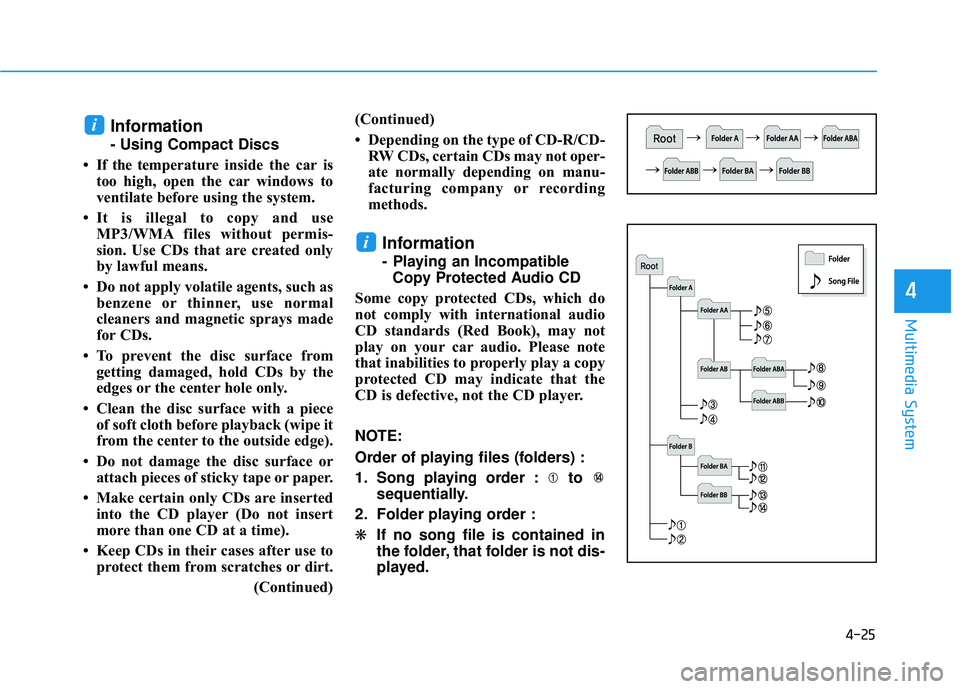
Order of playing files (folders) :
1. Song playing order : to sequentially.
2. Folder playing order :
❋ If no song file is contained in
the folder, that folder is not dis-
played.
i
i
Page 280 of 586
4-28
Multimedia System
(Continued)
• An encrypted MP3 PLAYER is not recognizable.
• Depending on the condition of the external USB device, the connected
external USB device can be unrec-
ognizable.
• When the formatted byte/sector set- ting of External USB device is not
either 512BYTE or 2048BYTE, then
the device will not be recognized.
• Use only a USB device formatted to FAT 12/16/32.
• USB devices without USB I/F authentication may not be recogniz-
able.
• Make sure the USB connection ter- minal does not come in contact with
the human body or other objects.
• If you repeatedly connect or discon- nect the USB device in a short peri-
od of time, it may break the device.
(Continued)(Continued)
• You may hear a strange noise when
connecting or disconnecting a USB
device.
• If you disconnect the external USB device during playback in USB
mode, the external USB device can
be damaged or may malfunction.
Therefore, disconnect the external
USB device when the audio is
turned off or in another mode. (e.g,
Radio)
• Depending on the type and capacity of the external USB device or the
type of files stored in the device,
there is a difference in the time for
recognition the device.
• Do not use the USB device for pur- poses other than playing music files.
• Playing videos through the USB is not supported.
• Use of USB accessories such as rechargers or heaters using USB I/F
may lower performance or cause
trouble.
(Continued)(Continued)
• If you use devices such as a USB hub
purchased separately, the vehicle’s
audio system may not recognize the
USB device. In this case, connect the
USB device directly to the multime-
dia terminal of the vehicle.
• If the USB device is divided by logi- cal drives, only the music files on the
highest-priority drive are recog-
nized by car audio.
• Devices such as MP3 Player/ Cellular phone/Digital camera can
be unrecognizable by standard USB
I/F.
• Charging through the USB may not be supported in some mobile
devices.
• USB HDD or USB types liable to connection failures due to vehicle
vibrations are not supported. (i-stick
type)
• Some non-standard USB devices (METAL COVER TYPE USB) can
be unrecognizable.
(Continued)
Page 281 of 586
4-29
Multimedia System
4
(Continued)
• Some USB flash memory readers(such as CF, SD, micro SD, etc.) or
external-HDD type devices can be
unrecognizable.
• Music files protected by DRM (DIGI- TAL RIGHTS MANAGEMENT) are
not recognizable.
• The data in the USB memory may be lost while using this audio.
Always back up important data on a
personal storage device.
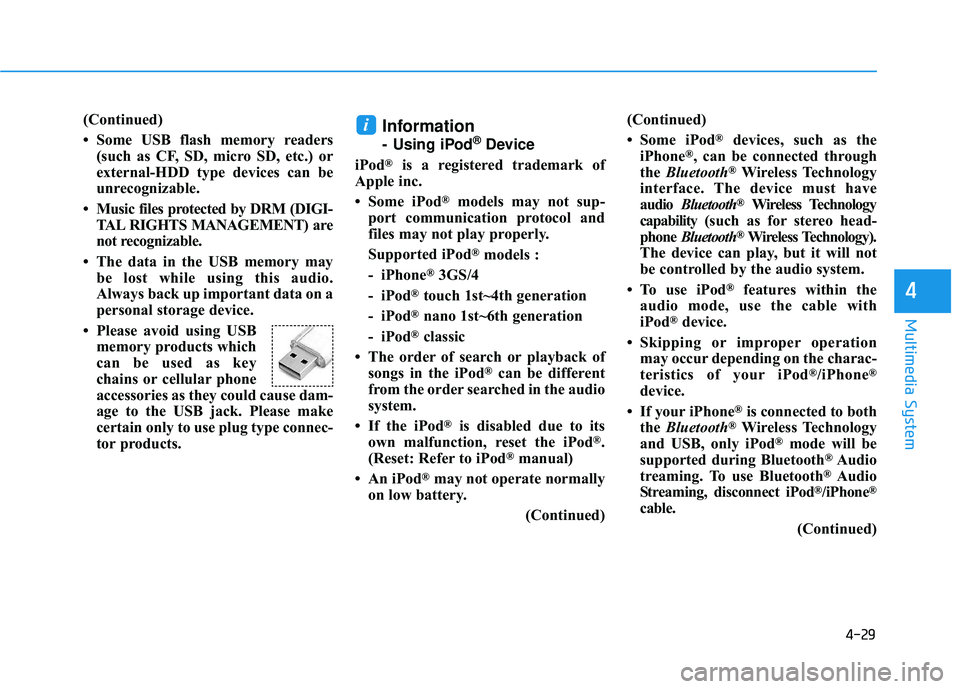
• Please avoid using USB memory products which
can be used as key
chains or cellular phone
accessories as they could cause dam-
age to the USB jack. Please make
certain only to use plug type connec-
tor products.Information
- Using iPod®Device
iPod
®is a registered trademark of
Apple inc.
• Some iPod
®models may not sup-
port communication protocol and
files may not play properly.
Supported iPod
®models :
- iPhone
®3GS/4
- iPod
®touch 1st~4th generation
- iPod
®nano 1st~6th generation
- iPod
®classic
• The order of search or playback of songs in the iPod
®can be different
from the order searched in the audio
system.
• If the iPod
®is disabled due to its
own malfunction, reset the iPod®.
(Reset: Refer to iPod®manual)
• An iPod
®may not operate normally
on low battery.
(Continued)(Continued)
• Some iPod
®devices, such as the
iPhone®, can be connected through
the Bluetooth®Wireless Technology
interface. The device must have
audio Bluetooth
®Wireless Technology
capability (such as for stereo head-
phone Bluetooth
®Wireless Technology).
The device can play, but it will not
be controlled by the audio system.
• To use iPod
®features within the
audio mode, use the cable with
iPod
®device.
• Skipping or improper operation may occur depending on the charac-
teristics of your iPod
®/iPhone®
device.
• If your iPhone
®is connected to both
the Bluetooth®Wireless Technology
and USB, only iPod®mode will be
supported during Bluetooth®Audio
treaming. To use Bluetooth®Audio
Streaming, disconnect iPod®/iPhone®
cable.
(Continued)
i
Page 303 of 586
4-51
Multimedia System
4
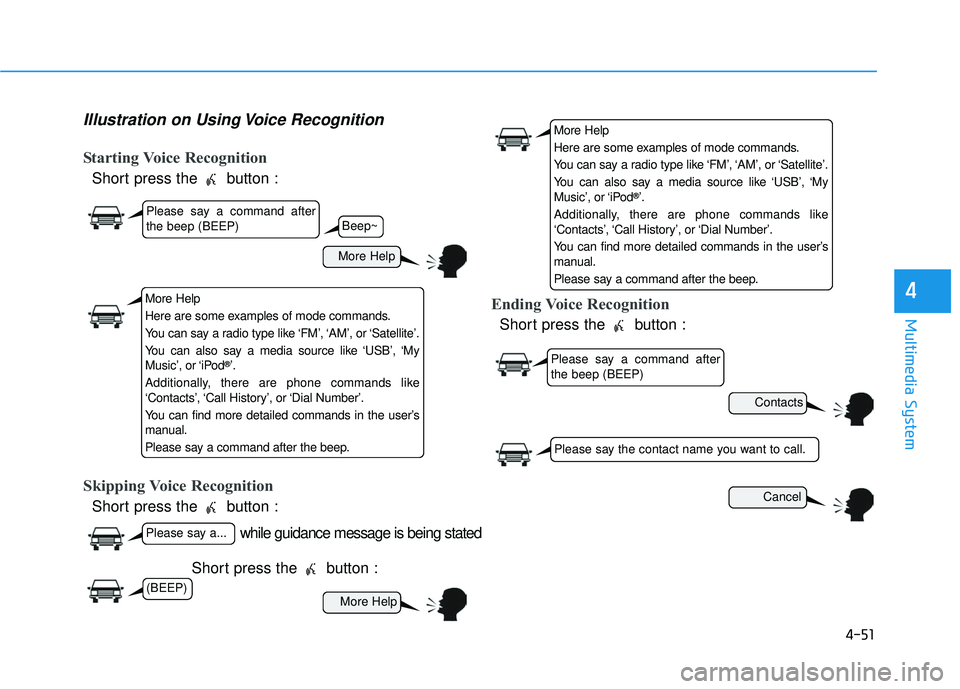
Illustration on Using Voice Recognition
Starting Voice Recognition
Short press the button :
Skipping Voice Recognition
Short press the button :Short press the button :
Ending Voice Recognition
Short press the button :
while guidance message is being stated
More Help
Contacts
Cancel
More Help
Please say a command after
the beep (BEEP)
Please say a...
Please say the contact name you want to call.
Beep~
More Help
Here are some examples of mode commands.
You can say a radio type like ‘FM’, ‘AM’, or ‘Satellite’.
You can also say a media source like ‘USB’, ‘My
Music’, or ‘iPod
®’.
Additionally, there are phone commands like
‘Contacts’, ‘Call History’, or ‘Dial Number’.
You can find more detailed commands in the user’s
manual.
Please say a command after the beep.
More Help
Here are some examples of mode commands.
You can say a radio type like ‘FM’, ‘AM’, or ‘Satellite’.
You can also say a media source like ‘USB’, ‘My
Music’, or ‘iPod
®’.
Additionally, there are phone commands like
‘Contacts’, ‘Call History’, or ‘Dial Number’.
You can find more detailed commands in the user’s
manual.
Please say a command after the beep.
Please say a command after
the beep (BEEP)
(BEEP)
Page 354 of 586
5-34
Driving your vehicle
If the Cruise Control was in use when the ESC activates, the
Cruise Control automatically disen-
gages. The Cruise Control can be
reengaged when the road condi-
tions allow. See "Cruise Control
System" later in this chapter. (if
equipped)
When moving out of the mud or driving on a slippery road, the
engine RPM (revolutions per
minute) may not increase even if
you press the accelerator pedal
deeply. This is to maintain the sta-
bility and traction of the vehicle and
does not indicate a problem.
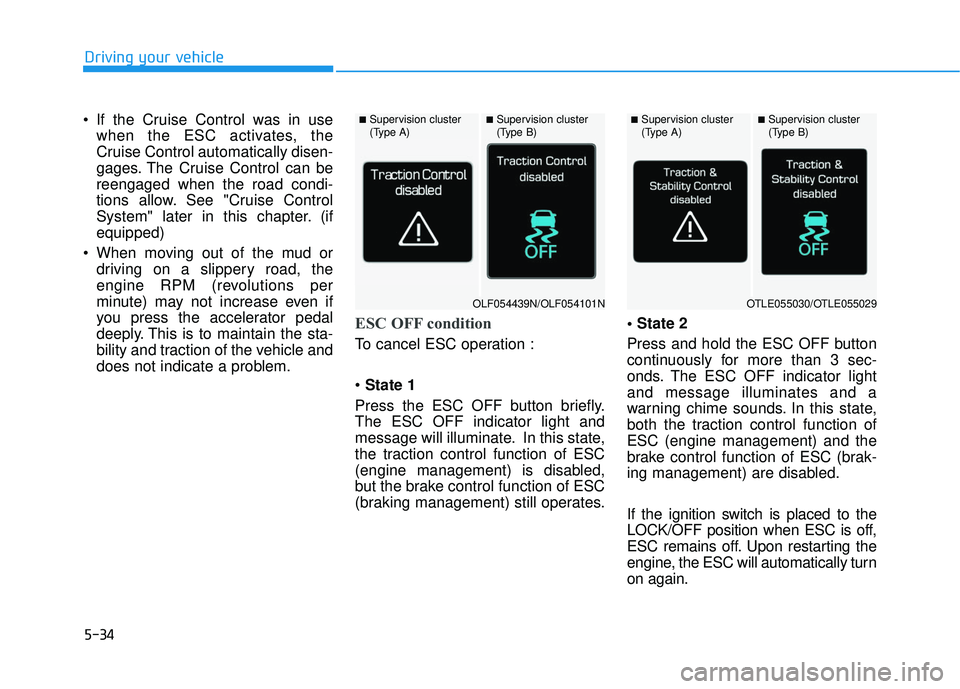
ESC OFF condition
To cancel ESC operation :
State 1
Press the ESC OFF button briefly.
The ESC OFF indicator light and
message will illuminate. In this state,
the traction control function of ESC
(engine management) is disabled,
but the brake control function of ESC
(braking management) still operates.
Press and hold the ESC OFF button
continuously for more than 3 sec-
onds. The ESC OFF indicator light
and message illuminates and a
warning chime sounds. In this state,
both the traction control function of
ESC (engine management) and the
brake control function of ESC (brak-
ing management) are disabled.
If the ignition switch is placed to the
LOCK/OFF position when ESC is off,
ESC remains off. Upon restarting the
engine, the ESC will automatically turn
on again.
■Supervision cluster
(Type A)■Supervision cluster
(Type B)■Supervision cluster
(Type A)■Supervision cluster
(Type B)
OLF054439N/OLF054101NOTLE055030/OTLE055029
Page 364 of 586
5-44
Driving your vehicle
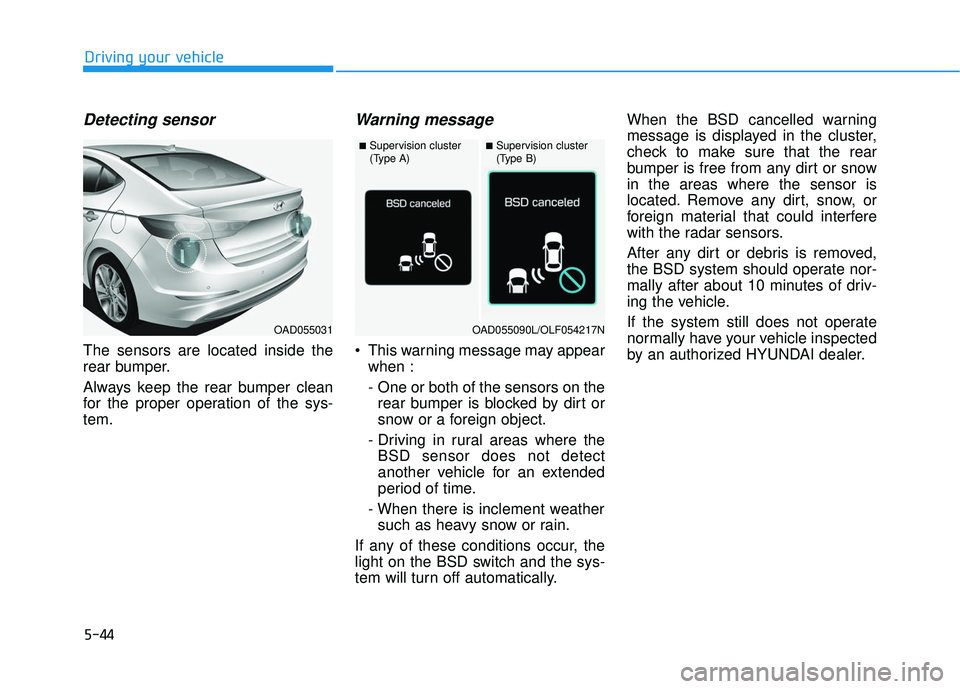
Detecting sensor
The sensors are located inside the
rear bumper.
Always keep the rear bumper clean
for the proper operation of the sys-
tem.
Warning message
This warning message may appearwhen :
- One or both of the sensors on therear bumper is blocked by dirt or
snow or a foreign object.
- Driving in rural areas where the BSD sensor does not detect
another vehicle for an extended
period of time.
- When there is inclement weather such as heavy snow or rain.
If any of these conditions occur, the
light on the BSD switch and the sys-
tem will turn off automatically. When the BSD cancelled warning
message is displayed in the cluster,
check to make sure that the rear
bumper is free from any dirt or snow
in the areas where the sensor is
located. Remove any dirt, snow, or
foreign material that could interfere
with the radar sensors.
After any dirt or debris is removed,
the BSD system should operate nor-
mally after about 10 minutes of driv-
ing the vehicle.
If the system still does not operate
normally have your vehicle inspected
by an authorized HYUNDAI dealer.
OAD055031
■Supervision cluster
(Type A)■Supervision cluster
(Type B)
OAD055090L/OLF054217N
Page 365 of 586
5-45
Driving your vehicle
5
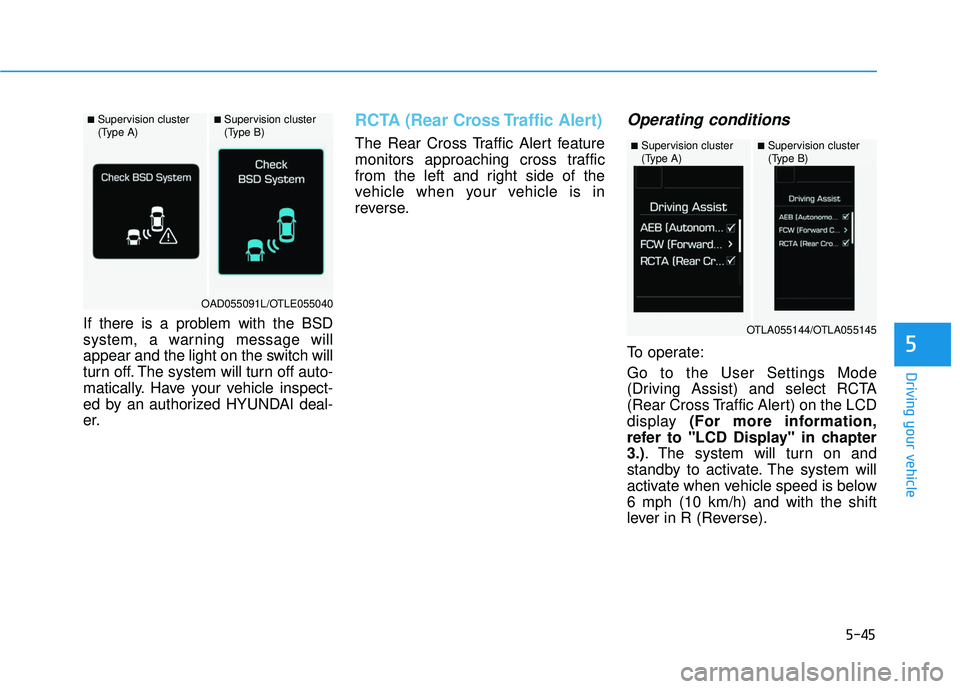
If there is a problem with the BSD
system, a warning message will
appear and the light on the switch will
turn off. The system will turn off auto-
matically. Have your vehicle inspect-
ed by an authorized HYUNDAI deal-
er.
RCTA (Rear Cross Traffic Alert)
The Rear Cross Traffic Alert feature
monitors approaching cross traffic
from the left and right side of the
vehicle when your vehicle is in
reverse.
Operating conditions
To operate:
Go to the User Settings Mode
(Driving Assist) and select RCTA
(Rear Cross Traffic Alert) on the LCD
display (For more information,
refer to "LCD Display" in chapter
3.). The system will turn on and
standby to activate. The system will
activate when vehicle speed is below
6 mph (10 km/h) and with the shift
lever in R (Reverse).
■Supervision cluster
(Type A)■Supervision cluster
(Type B)
OAD055091L/OTLE055040
■Supervision cluster
(Type A)■Supervision cluster
(Type B)
OTLA055144/OTLA055145
Page 366 of 586
5-46
Driving your vehicle
Information
The Rear Cross Traffic Alert (RCTA)
detecting range is approximately 1 -
65 ft (0.5 – 20 m). An approaching
vehicle will be detected if their vehicle
speed is within 2.5 - 22.5 mph (4 - 36
km/h).
Note that the detecting range may
vary under certain conditions. As
always, use caution and pay close
attention to your surroundings when
backing up your vehicle.
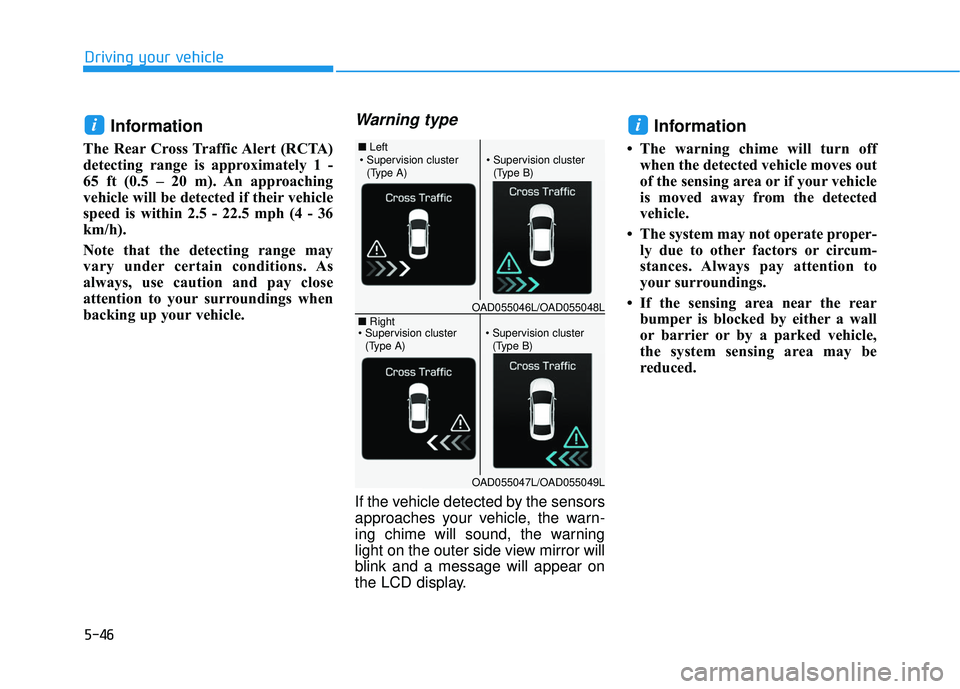
Warning type
If the vehicle detected by the sensors
approaches your vehicle, the warn-
ing chime will sound, the warning
light on the outer side view mirror will
blink and a message will appear on
the LCD display.
Information
• The warning chime will turn offwhen the detected vehicle moves out
of the sensing area or if your vehicle
is moved away from the detected
vehicle.
• The system may not operate proper- ly due to other factors or circum-
stances. Always pay attention to
your surroundings.
• If the sensing area near the rear bumper is blocked by either a wall
or barrier or by a parked vehicle,
the system sensing area may be
reduced.
ii
■ Left
■ Right
(Type A)(Type B)
OAD055046L/OAD055048L
OAD055047L/OAD055049L
(Type A)(Type B)