Page 122 of 637

3-27
Convenient features of your vehicle
3
Electric Chromic Mirror (ECM)
(if equipped)
The electric rearview mirror automati-
cally controls the glare from the head-
lamp of the car behind you in night-
time or low light driving conditions.
When the engine is running, the
glare is automatically controlled by
the sensor mounted in the rearview
mirror. The sensor detects the light
level around the vehicle, and auto-
matically adjusts to control the head-
lamp glare from vehicles behind you.
Whenever the shift lever is placed in
R (Reverse), the mirror will automat-
ically go to the brightest setting in
order to improve the drivers view
behind the vehicle.
To operate the electric rearview
mirror:
• Press the ON/OFF button (1) to
turn the automatic dimming func-
tion off. The mirror indicator light
will turn off.
Press the ON/OFF button (1) to
turn the automatic dimming func-
tion on. The mirror indicator light
will illuminate.
• The mirror defaults to the ON posi-
tion whenever the ignition switch or
the Engine Start/Stop button is in
the ON position.
Outside rearview mirror
Be sure to adjust mirror angles
before driving.
Your vehicle is equipped with both
left-hand and right-hand outside
rearview mirrors.
The mirror can be adjusted remotely
with the remote switch.
The mirror heads can be folded to
prevent damage during an automatic
car wash or when passing through a
narrow street.
OAD045010
OAD045014
I I
n n
d d
i i
c c
a a
t t
o o
r r
Page 185 of 637
3-90
Convenient features of your vehicle
Conventional cluster
The trip computer is a microcomput-
er-controlled driver information sys-
tem that displays information related
to driving.
Information
Some driving information stored in the
trip computer (for example Average
Vehicle Speed) resets if the battery is
disconnected.
Trip modes
To change the trip mode, press the
TRIP button on the steering wheel.
i
TRIP COMPUTER
• Tripmeter [A]
• Average Vehicle Speed [A]
• Elapsed Time [A]
TRIP A
• Tripmeter [B]
• Average Vehicle Speed [B]
• Elapsed Time [B]
TRIP B
• Distance To Empty
• Average Fuel Economy
• Instant Fuel Economy
FUEL ECONOMY
Service Information
Digital Speed ON/OFF
OAD045450N
Page 189 of 637
3-94
Convenient features of your vehicle
Supervision cluster
The trip computer is a microcomput-
er-controlled driver information sys-
tem that displays information related
to driving.
Information
Some driving information stored in the
trip computer (for example Average
Vehicle Speed) resets if the battery is
disconnected.
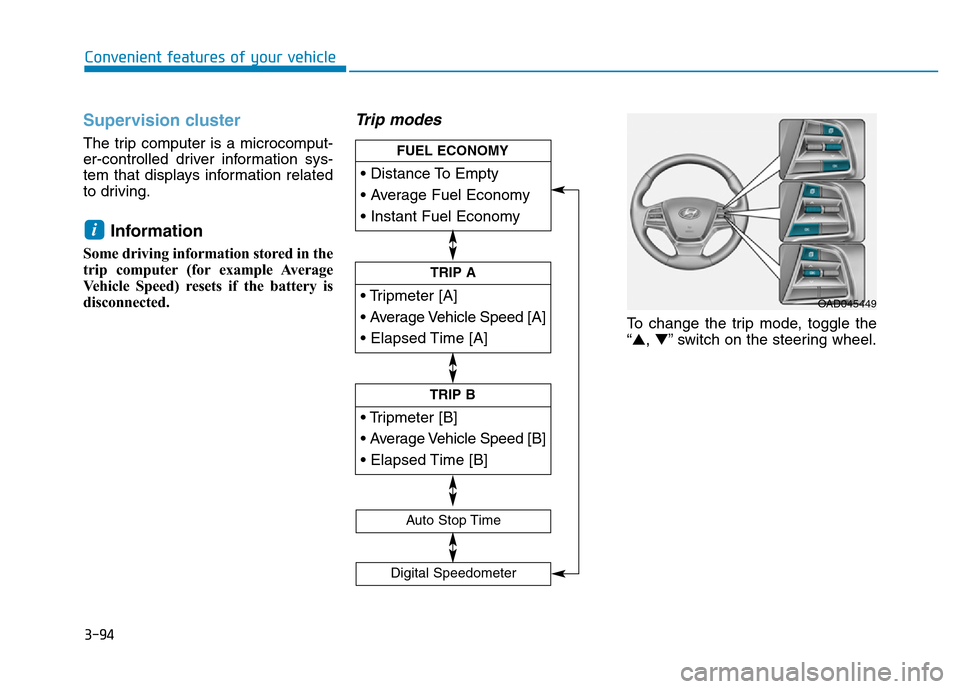
Trip modes
To change the trip mode, toggle the
“▲,▼” switch on the steering wheel.
i
• Tripmeter [A]
• Average Vehicle Speed [A]
• Elapsed Time [A]
TRIP A
• Tripmeter [B]
• Average Vehicle Speed [B]
• Elapsed Time [B]
TRIP B
• Distance To Empty
• Average Fuel Economy
• Instant Fuel Economy
FUEL ECONOMY
Digital Speedometer
Auto Stop Time
OAD045449
Page 259 of 637
4-2
Multimedia System
Information
• If you install an aftermarket HID
headlamp, your vehicle’s audio and
electronic device may malfunction.
• Prevent chemicals such as perfume,
cosmetic oil, sun cream, hand clean-
er, and air freshener from contacting
the interior parts because they may
cause damage or discoloration.
AUX, USB and iPod®port
You can use an AUX port to connect
audio devices and an USB port to plug
in an USB and also in an iPod
®port.
Information
When using a portable audio device
connected to the power outlet, noise
may occur during playback. If this
happens, use the power source of the
portable audio device.
❈iPod
®is a trademark of Apple Inc.
i
OAD045427
i
MULTIMEDIA SYSTEM
Page 262 of 637
Audio / Video / Navigation sys-
tem (AVN)(if equipped)
Detailed information for the AVN sys-
tem is described in a separately sup-
plied manual.
Bluetooth®Wireless Technology
hands-free (if equipped)
You can use the phone wirelessly by
using the
Bluetooth®Wireless
Technology.(1) Call / Answer button
(2) Call end button
(3) Microphone
• Audio : For detailed information,
refer to “AUDIO” in this chapter.
• AVN : Detailed information for the
Bluetooth® Wireless Technology
hands-free is described in the man-
ual supplied separately.
OAD045445L
OAD045430
4-5
Multimedia System
4
■Type A
■Type B
Page 279 of 637
• Operating the device while driving
could lead to accidents due to a
lack of attention to external sur-
roundings. First park the vehicle
before operating the device.
• Adjust the volume to levels that
allow the driver to hear sounds
from outside of the vehicle.
Driving in a state where external
sounds cannot be heard may lead
to accidents.
• Pay attention to the volume set-
ting when turning the device on. A
sudden output of extreme volume
upon turning the device on could
lead to hearing impairment.
(Adjust the volume to a suitable
levels before turning off the
device.)
• If you want to change the position
of device installation, please
inquire with your place of pur-
chase or service maintenance
center. Technical expertise is
required to install or disassemble
the device.
(Continued)(Continued)
• Turn on the car ignition before
using this device. Do not operate
the audio system for long periods
of time with the ignition turned off
as such operations may lead to
battery discharge.
• Do not subject the device to
severe shock or impact. Direct
pressure onto the front side of the
monitor may cause damage to the
LCD or touch screen.
• When cleaning the device, make
sure to turn off the device and use
a dry and smooth cloth. Never use
tough materials, chemical cloths,
or solvents (alcohol, benzene,
thinners, etc.) as such materials
may damage the device panel or
cause color/quality deterioration
• Do not place beverages close to
the audio system. Spilling bever-
ages may lead to system malfunc-
tion.
• In case of product malfunction,
please contact your place of pur-
chase or After Service center.
• Placing the audio system within
an electromagnetic environment
may result in noise interference.
NOTICE
4-22
Multimedia System
Driving while distracted can
result in a loss of vehicle con-
trol that may lead to an acci-
dent, severe personal injury,
and death. The driver’s primary
responsibility is in the safe and
legal operation of a vehicle, and
use of any handheld devices,
other equipment, or vehicle sys-
tems which take the driver’s
eyes, attention and focus away
from the safe operation of a
vehicle or which are not permis-
sible by law should never be
used during operation of the
vehicle.
WARNING
Page 281 of 637

4-24
Multimedia System
(Continued)
• Use of USB accessories such as
rechargers or heaters using USB I/F
may lower performance or cause
trouble.
• If you use devices such as a USB hub
purchased separately, the vehicle’s
audio system may not recognize the
USB device. In that case, connect
the USB device directly to the multi-
media terminal of the vehicle.
• If the USB device is divided by logi-
cal drives, only the music files on the
highest-priority drive are recog-
nized by car audio.
• Devices such as MP3 Player/
Cellular phone/Digital camera can
be unrecognizable by standard USB
I/F can be unrecognizable.
• Charging through the USB may not
be supported in some mobile
devices.
• USB HDD or USB types liable to
connection failures due to vehicle
vibrations are not supported. (i-
stick type)
(Continued)(Continued)
• Some non-standard USB devices
(METAL COVER TYPE USB) can
be unrecognizable.
• Some USB flash memory readers
(such as CF, SD, micro SD, etc.) or
external-HDD type devices can be
unrecognizable.
• Music files protected by DRM
(DIGITAL RIGHTS MANAGE-
MENT) are not recognizable.
• The data in the USB memory may
be lost while using this audio.
Always back up important data on a
personal storage device.
• Please avoid using USB
memory products which
can be used as key
chains or cellular phone
accessories as they could cause dam-
age to the USB jack. Please make
certain only to use plug type connec-
tor products.
Information
- Using the iPod®Device
• Some iPod
®models may not sup-
port communication protocol and
files may not properly play.
Supported iPod
®models :
- iPhone
®3GS/4
- iPod
®touch 1st~4th generation
- iPod
®nano 1st~6th generation
- iPod
®classic
• The order of search or playback of
songs in the iPod
®can be different
from the order searched in the audio
system.
• If the iPod
®disabled due to its own
malfunction, reset the iPod®. (Reset:
Refer to iPod®manual)
• An iPod
®may not operate normally
on low battery.
(Continued)
i
Page 295 of 637

4-38
Multimedia System
Phone Mode (if equipped)
Making a call using the Steering
wheel controls
❈The actual features in the vehicle
may differ from the illustration.
(1) Mutes the microphone during a call.
(2) Press the button to change audio
source.
(With RDS)
FM1 ➟FM2 ➟FMA ➟AM ➟AMA ➟
CD ➟USB(i Po d
®) ➟AUX ➟My
Music ➟BT Audio.
(Without RDS)
FM1 ➟FM2➟AM ➟CD ➟
USB(i Po d
®) ➟AUX ➟My Music ➟
BT Audio.(3) Raises or lowers speaker volume.
(4) Places and transfers calls.
• Check call history and making call
- Shortly press the [CALL] button
on the steering wheel controls.
- The call history list will be dis-
played on the screen.
- Press the [CALL] button again to
connect a call to the selected
number.
• Redialing the most recently called
number
- Press and hold the [CALL] but-
ton on the steering wheel con-
trols.
- The most recently called number
is redialed.
(5) Ends calls or cancels functions.
MENU : Phone
(Type A-1, Type A-3)
Press the [PHONE]button to display
three menus (Call History, Phone
Book, Phone Setup).
History : [1]Button
The call history is displayed and can
be used to select a number and
make a call.
If call history does not exist, a screen
asking whether to download call his-
tory is displayed. (The download fea-
ture may not be supported in some
mobile phones)