Page 342 of 637
![Hyundai Elantra 2017 Owners Manual 4-85
Multimedia System
4
With the iPod®Mode
Playing/Pausing iPod®Songs
Once an iPod®is connected, the
mode will automatically start and
begin playing an iPod
®song.
While playing, press the [
II]](/manual-img/35/14543/w960_14543-341.png "Hyundai Elantra 2017 Owners Manual 4-85
Multimedia System
4
With the iPod®Mode
Playing/Pausing iPod®Songs
Once an iPod®is connected, the
mode will automatically start and
begin playing an iPod
®song.
While playing, press the [
II]")
4-85
Multimedia System
4
With the iPod®Mode
Playing/Pausing iPod®Songs
Once an iPod®is connected, the
mode will automatically start and
begin playing an iPod
®song.
While playing, press the [
II] button to
pause and press [
�] button to play.
iPod
®s with unsupported communi-
cation protocols may not properly
operate in the audio system.
Changing Songs
Press the [SEEK TRACK]button to
move to the previous or next song.
Pressing the [
SEEK TRACK
∨]but-
ton after the song has been playing
for 2 seconds will start the current
song from the beginning.
Pressing the [
SEEK TRACK
∨]but-
ton before the song has been playing
for 1 second will start the previous
song.
Slight time differences may exist
depending your iPod
®product.
Rewinding / Fast-forwarding Songs
While playing, press and hold the
[SEEK TRACK]button to rewind or
fast-forward the current song.Searching Categories
Turn the TUNEknob left/right to
search for the desired category.
Once you find the desired category,
press the TUNEknob to select and
play.
There are eight categories that can be
searched, including Playlists, Artists,
Albums, Genres, Songs, Composers,
Audiobooks and Podcasts.
Category Menu
(1) Displays the play screen.
(2) Moves to the iPod
®root category
screen.
(3) Moves to the previous category.
If the search mode is accessed while
playing a song, the most recently
searched category is displayed.
Search steps upon initial connection
may differ depending on the type of
iPod
®device.
■ Type B-5, Type B-6
■ Type B-1, Type B-2, Type B-3, Type B-4
Page 344 of 637
4-87
Multimedia System
4
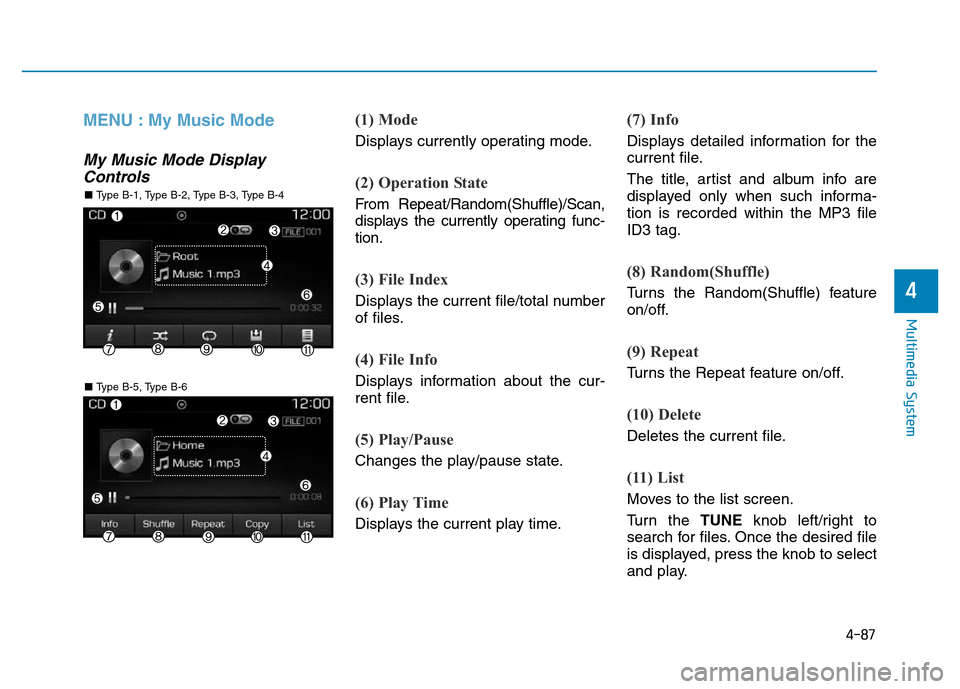
MENU : My Music Mode
My Music Mode Display
Controls
(1) Mode
Displays currently operating mode.
(2) Operation State
From Repeat/Random(Shuffle)/Scan,
displays the currently operating func-
tion.
(3) File Index
Displays the current file/total number
of files.
(4) File Info
Displays information about the cur-
rent file.
(5) Play/Pause
Changes the play/pause state.
(6) Play Time
Displays the current play time.
(7) Info
Displays detailed information for the
current file.
The title, artist and album info are
displayed only when such informa-
tion is recorded within the MP3 file
ID3 tag.
(8) Random(Shuffle)
Turns the Random(Shuffle) feature
on/off.
(9) Repeat
Turns the Repeat feature on/off.
(10) Delete
Deletes the current file.
(11) List
Moves to the list screen.
Turn the TUNEknob left/right to
search for files. Once the desired file
is displayed, press the knob to select
and play.
■ Type B-5, Type B-6
■ Type B-1, Type B-2, Type B-3, Type B-4
Page 345 of 637
![Hyundai Elantra 2017 Owners Manual 4-88
Multimedia System
With the My Music Mode
Playing/Pausing My Music Files
While playing, press the [
II] button to
pause and press [
�] button to play.
If there are no files saved within My
Music,](/manual-img/35/14543/w960_14543-344.png "Hyundai Elantra 2017 Owners Manual 4-88
Multimedia System
With the My Music Mode
Playing/Pausing My Music Files
While playing, press the [
II] button to
pause and press [
�] button to play.
If there are no files saved within My
Music,")
4-88
Multimedia System
With the My Music Mode
Playing/Pausing My Music Files
While playing, press the [
II] button to
pause and press [
�] button to play.
If there are no files saved within My
Music, the [My Music] button will be
disabled.
Changing Files
Press the [SEEK TRACK]button to
move to the previous or next file.
Pressing the [
SEEK TRACK
∨]but-
ton after the file has been playing for
2 seconds will start the current file
from the beginning.
Pressing the [
SEEK TRACK
∨]but-
ton before the file has been playing
for 1 second will start the previous
file.
Selecting from the List
Turn the TUNEknob left/right to search
for the desired file.
Once you find the desired file, press the
TUNEknob to start playing.
From the List screen, it is possible to
delete files you previously saved into
My Music.
List Menu
(1) Moves to the previous screen.
(2) Selects all files.
(3) Deselects all selected files.
(4) Deletes selected files.
After selecting the files you want to
delete, press the [Delete] button to
delete the selected files.
If there is memory available, up to
6,000 files can be saved. Identical
files cannot be copied more than
1,000 times.
To check memory information, go to
[SETUP]
�[System]
�[Memory
Information]
Rewinding / Fast-forwarding Files
While playing, press and hold the
[SEEK TRACK]button to rewind or
fast-forward the current file.
■ Type B-5, Type B-6
■ Type B-1, Type B-2, Type B-3, Type B-4