Page 298 of 637
![Hyundai Elantra 2017 Owners Manual 4-41
Multimedia System
4
Select [Audio Settings] �Select
menu
• Return : While adjusting values, re-
pressing the TUNEknob will
restore the parent menu.
• Bass, Middle, Treble : Selects the
sound](/manual-img/35/14543/w960_14543-297.png "Hyundai Elantra 2017 Owners Manual 4-41
Multimedia System
4
Select [Audio Settings] �Select
menu
• Return : While adjusting values, re-
pressing the TUNEknob will
restore the parent menu.
• Bass, Middle, Treble : Selects the
sound")
4-41
Multimedia System
4
Select [Audio Settings] �Select
menu
• Return : While adjusting values, re-
pressing the TUNEknob will
restore the parent menu.
• Bass, Middle, Treble : Selects the
sound tone.
• Fader, Balance : Moves the sound
fader and balance.
• Default : Restores default settings.
Speed Dependent Volume Control
This feature is used to automatically
control the volume level according to
the speed of the vehicle.
Select [Speed Dependent Vol.] �
Set [Off/On]
With the Clock Button
Press the [SETUP/CLOCK] button �
Select [Clock]
Clock Settings
This menu is used to set the time.
Select [Clock Settings]
Adjust the number currently in focus
to set the [hour] and press the TUNE
knob to set the [minute].
Day Settings
This menu is used to set the date.
Select [Day Settings]
Adjust the number currently in focus
to make the settings and press the
TUNEknob to move to the next set-
ting.
Time Format
This function is used to set the 12/24
hour time format of the audio system.
Select [Time Format] �Set 12hr/
24hr.
Page 304 of 637
4-47
Multimedia System
4
Text Scroll
[Text Scroll] �Set [On/Off]
• [On] : Maintains scroll
• [Off] : Scrolls only one (1) time.
Media Display
When playing an MP3 file, select the
desired display info from ‘Folder/File’
or ‘Album/Artist/Song’.
With the Sound Button
Press the [SETUP/CLOCK]button
�Select [Sound]
Sound Settings
This menu allows you to set the
‘Bass, Middle, Treble’ and the Sound
Fader and Balance.Select [Sound Settings]�Select menu
• Return : While adjusting values, re-
pressing the TUNEknob will
restore the parent menu.
• Bass, Middle, Treble : Selects the
sound tone.
• Fader, Balance : Moves the sound
fader and balance.
• Default : Restores default settings.
Speed Dependent Volume Control
This feature is used to automatically
control the volume level according to
the speed of the vehicle.
Select [Speed Dependent Vol.] �
Set [Off/On]
Page 305 of 637
4-48
Multimedia System
With the Clock Button
Press the [SETUP/CLOCK]button�
Select [Clock]
Clock Settings
This menu is used to set the time.
Select [Clock Settings]
Adjust the number currently in focus
to set the [hour] and press the TUNE
knob to set the [minute].
Calendar Settings
This menu is used to set the date.
Select [Calendar Settings]
Adjust the number currently in focus to
make the settings and press the TUNE
knob to move to the next setting.
Clock Display when Power is OFF
Select [Clock Disp.(Pwr Off)] �Set
[On/Off]
•[On]: Displays time/date on screen
•
[Off]: Turn off.
Page 313 of 637
4-56
Multimedia System
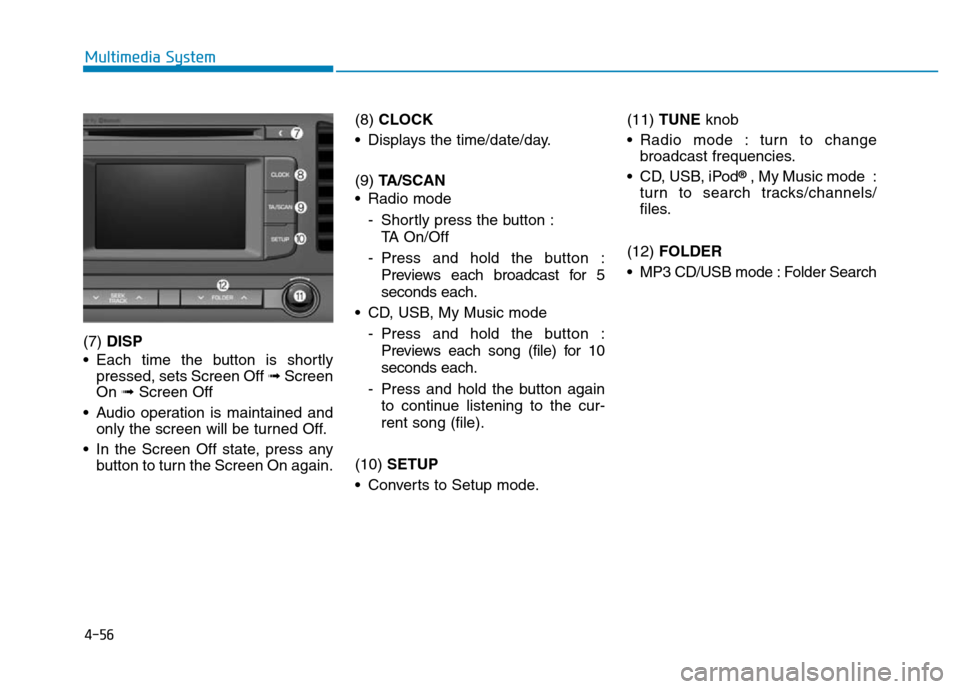
(7) DISP
• Each time the button is shortly
pressed, sets Screen Off ➟Screen
On ➟Screen Off
• Audio operation is maintained and
only the screen will be turned Off.
• In the Screen Off state, press any
button to turn the Screen On again.(8) CLOCK
• Displays the time/date/day.
(9) TA/SCAN
• Radio mode
- Shortly press the button :
TA On/Off
- Press and hold the button :
Previews each broadcast for 5
seconds each.
• CD, USB, My Music mode
- Press and hold the button :
Previews each song (file) for 10
seconds each.
- Press and hold the button again
to continue listening to the cur-
rent song (file).
(10) SETUP
• Converts to Setup mode.(11) TUNE knob
• Radio mode : turn to change
broadcast frequencies.
• CD, USB, iPod
®, My Music mode :
turn to search tracks/channels/
files.
(12) FOLDER
• MP3 CD/USB mode : Folder Search
Page 316 of 637
4-59
Multimedia System
4
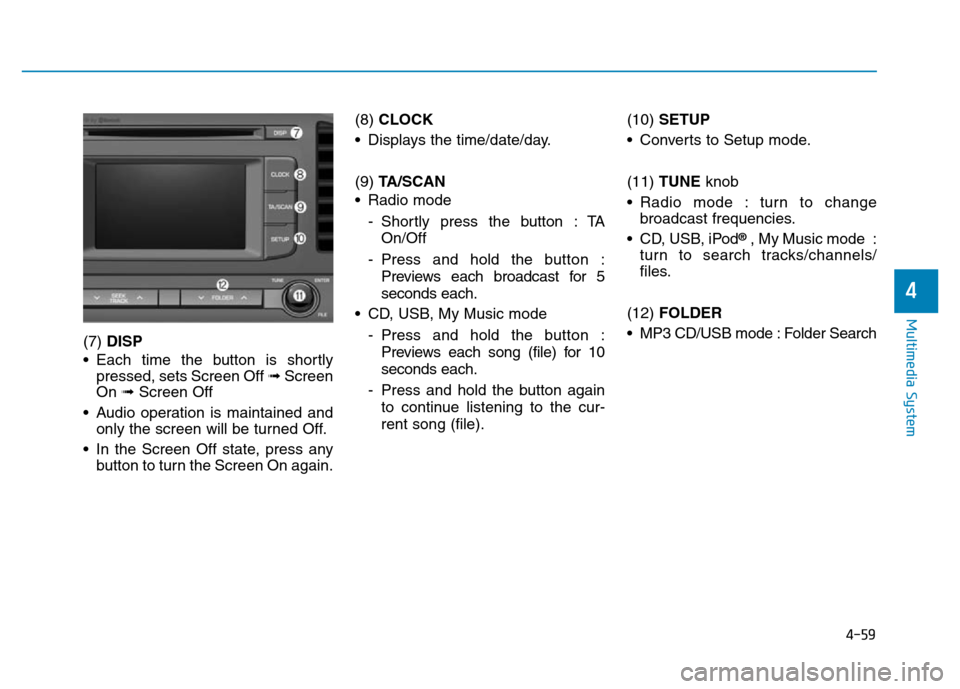
(7) DISP
• Each time the button is shortly
pressed, sets Screen Off ➟Screen
On ➟Screen Off
• Audio operation is maintained and
only the screen will be turned Off.
• In the Screen Off state, press any
button to turn the Screen On again.(8) CLOCK
• Displays the time/date/day.
(9) TA/SCAN
• Radio mode
- Shortly press the button : TA
On/Off
- Press and hold the button :
Previews each broadcast for 5
seconds each.
• CD, USB, My Music mode
- Press and hold the button :
Previews each song (file) for 10
seconds each.
- Press and hold the button again
to continue listening to the cur-
rent song (file).(10) SETUP
• Converts to Setup mode.
(11) TUNE knob
• Radio mode : turn to change
broadcast frequencies.
• CD, USB, iPod
®, My Music mode :
turn to search tracks/channels/
files.
(12) FOLDER
• MP3 CD/USB mode : Folder Search
Page 319 of 637
4-62
Multimedia System
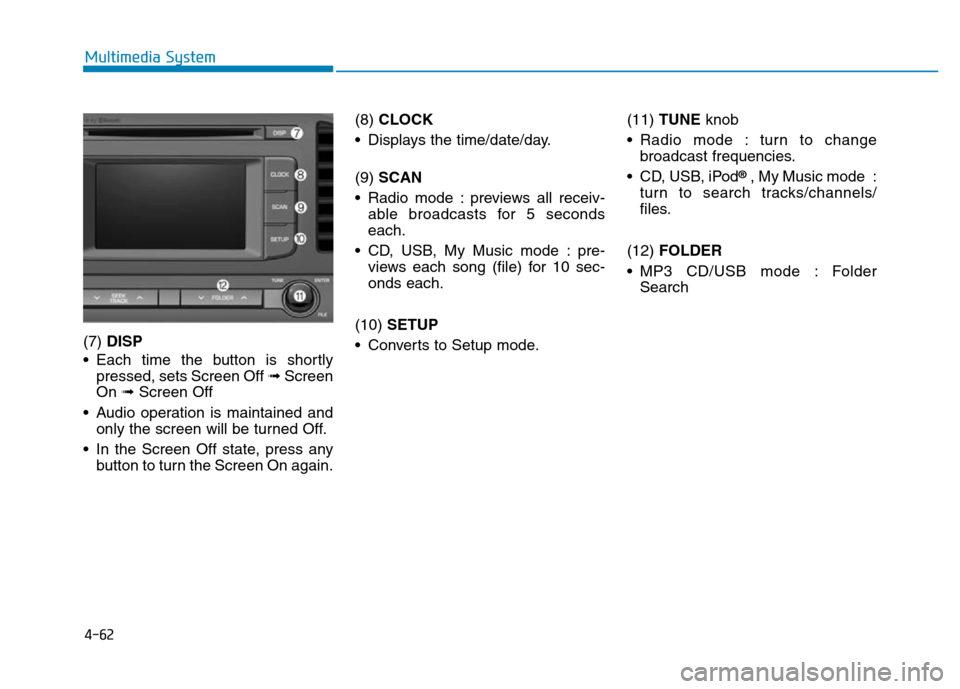
(7) DISP
• Each time the button is shortly
pressed, sets Screen Off ➟Screen
On ➟Screen Off
• Audio operation is maintained and
only the screen will be turned Off.
• In the Screen Off state, press any
button to turn the Screen On again.(8) CLOCK
• Displays the time/date/day.
(9) SCAN
• Radio mode : previews all receiv-
able broadcasts for 5 seconds
each.
• CD, USB, My Music mode : pre-
views each song (file) for 10 sec-
onds each.
(10) SETUP
• Converts to Setup mode.(11) TUNE knob
• Radio mode : turn to change
broadcast frequencies.
• CD, USB, iPod
®, My Music mode :
turn to search tracks/channels/
files.
(12) FOLDER
• MP3 CD/USB mode : Folder
Search
Page 329 of 637
Radio Mode
(Type B-1, Type B-2,Type B-3,
Type B-4)
Radio Mode Display Controls
(1) Mode Display
Displays currently operating mode.
(2) Frequency
Displays the current frequency.
(3) Preset
Displays current preset number [1] ~
[6].
(4) Preset Display
Displays saved presets.
(5) Auto store
Automatically saves frequencies with
superior reception to Preset buttons.
(6) RDS Menu
Displays the RDS Menu.
(7) RDS Info
Displays RDS broadcast information.
With the Radio Mode Button
Pressing the [RADIO]button will
change the operating mode in order
of FM1 ➟FM2 ➟FMA ➟AM ➟
AMA.
If [Pop-up Mode] is turned on within
[SETUP]�[Display], then pressing
the [RADIO]button will display the
Radio Pop-up Mode screen.
Turn the TUNEknob to move the
focus. Press the knob to select.
SEEK
Press the [SEEK TRACK]button to
play the previous/next frequency.
TUNE
Turn the TUNEknob to select the
desired frequency.
4-72
Multimedia System
Page 331 of 637
4-74
Multimedia System
Radio Mode
(Type B-5, Type B-6)
Radio Mode Display Controls
(1) Mode Display
Displays currently operating mode.
(2) Frequency
Displays the current frequency.
(3) Preset
Displays current preset number [1] ~
[6].
(4) Preset Display
Displays preset buttons.
(5) Auto store
Automatically saves frequencies with
superior reception to Preset buttons.
With the Radio Mode Button
Pressing the [RADIO]button will
change the operating mode in order
of FM1
➟FM2 ➟AM.If [Mode Pop-up] is turned on within
[SETUP]�[Display], then pressing
the [RADIO]button will display the
Radio Mode Pop-up screen.
Turn the TUNEknob to move the
focus. Press the knob to select.
SEEK
Press the [SEEK TRACK]button to
play the previous/next frequency.
TUNE
Turn the TUNEknob to select the
desired frequency.
Selecting /Saving Presets
Press the [Preset] button to display
the broadcast information for the fre-
quency saved to each button.