2017 HONDA RIDGELINE phone
[x] Cancel search: phonePage 3 of 85

TABLE OF CONTENTS
INTRODUCTION
This Owner’s Guide is intended to help you quickly get acquainted with your 2017
Honda Ridgeline. It provides basic information and instructions on technology and
convenience features, as well as emergency procedures and how to get ass\
istance.
This guide is for vehicles sold in the United States and Canada. It cove\
rs all models, so you may find descriptions of features and equipment that are not in yo\
ur vehicle. Images throughout this guide are from U.S. vehicles and represent features and \
equipment that
are available on some, but not all, models.
This guide is not intended to be a substitute for the Owner’s Manual. The Owner Information CD enclosed in your glove box kit includes the Owner’s Manual, Navigation Manual, and vehicle and tire warranties in electronic format. This infor\
mation can be
viewed on a computer (PC or Mac platform) and saved or printed for you\
r reference.
You can also visit owners.honda.com (U.S.) or myhonda.ca (Canada) to view the complete and most current information.
If you are the first registered owner of your vehicle, you may request\
a complimentary printed copy of the Owner’s Manual, Navigation Manual, or Vehicle Warranty within the first six months of vehicle purchase. To request a copy, visit owners.honda.com and
create or log in to your account. In Canada, please request a copy from \
your Honda dealer.
American Honda Motor Company strives to be proactive in protecting our e\
nvironment and natural resources. By using electronic delivery for a considerable p\
ortion of the information typically found in a vehicle Owner’s Manual, we are further reducing our
impact on the environment.
Honda Automobile Customer Service
Your authorized Honda dealer should be able to answer any questions you h\
ave about your vehicle. However, if you are dissatisfi ed with the information you receive, you can
call Honda Automobile Customer Service (see page 157).
Call (800) 999-1009 (U.S.) or (888) 946-6329 (Canada)
Honda Roadside Assistance
24-hour emergency road service is available to you in the United States \
and Canada throughout your 3-year/36,000-mile warranty term. Services include jump starting,
flat tire and lockout assistance, towing, and more (limitations apply\
).
Call (866) 864-5211 (U.S.) or (800) 465-7587 (Canada)
VISUAL INDEX .............................................................. 1
Steering Wheel and Nearby Controls ................... 1
Dashboard and Nearby Controls ............................ 3
PHONE PAIRING QUICK START
................................. 4
HANDS-FREE PHONE QUICK START
........................ 5
VOICE RECOGNITION QUICK START
........................ 6
SAFETY INFORMATION
.............................................. 7
Important Safety Information .................................. 7
Seat Belts ................................................................... 9
Airbags ...................................................................... 12
Child Safety .............................................................. 18
Safety Label Locations ........................................... 25
Reporting Safety Defects....................................... 25
INSTRUMENT PANEL
................................................ 26
Malfunction Indicators .......................................... 26
Condition Indicators ............................................... 28
On/Off Indicators ..................................................... 29
Multi-Information Display (MID).......................... 30
VEHICLE CONTROLS
.................................................. 31
Using the Remote Transmitter .............................. 31
Smart Entry System ................................................. 32
Tailgate and Trunk Operation ............................... 33
In-Bed Conveniences ............................................. 34
Door Operation ........................................................ 35
Power Window Operation .................................... 36
Power Moonroof Operation* ................................ 37
Interior and Exterior Lights ................................... 38
One-Touch Turn Signal .......................................... 39
Auto High Beam System* ...................................... 40
Wiper Operation ...................................................... 41
Adjusting the Seats ................................................ 43
Rear Seats ................................................................ 46
Driving Position Memory System* ...................... 47
Adjusting the Steering Wheel .............................. 47
Adjusting the Mirrors ............................................. 48
Homelink® Garage Opener* .................................. 49
Air Conditioning System* ..................................... 50
Climate Control System* ...................................... 51
Seat Heaters* .......................................................... 53
Customized Features .............................................. 54
Setting the Clock. .................................................... 55AUDIO AND CONNECTIVITY
....................................
56
Color Audio System ................................................ 60
FM/AM Radio ........................................................ 61
iPod® ...................................................................... 62
USB Flash Drive .................................................... 63
Bluetooth® Audio .................................................. 64
Touchscreen Operation ......................................... 65
HondaLink® ........................................................... 67
Wi-Fi Connection .................................................. 68
Apple CarPlay® ........................................................................\
....................... 69
Android Auto™ .....................................................70
FM/AM Radio ....................................................... 72
SiriusXM® Radio* ................................................. 73
Compact Disc (CD)* ............................................ 74
iPod® ...................................................................... 75
USB Flash Drive .................................................... 76
Bluetooth® Audio ................................................. 77
Pandora®* ............................................................. 78
Truck Bed Audio System* ................................... 79
BLUETOOTH
® HANDSFREELINK® (HFL) ................. 80
Color Audio System ................................................ 80
Basic HFL Operation ............................................ 80
Pairing a Phone .................................................... 81
Making a Call ........................................................ 82
Touchscreen ............................................................ 83
Basic HFL Operation ............................................ 83
Pairing a Phone .................................................... 85
Making a Call ........................................................ 86
HondaLink Assist .................................................. 87
SMS Text Messaging and E-Mail* .................... 88
Siri™ Eyes Free ...................................................... 89
NAVIGATION*
............................................................. 90
Entering a Destination ........................................... 92
Routing ...................................................................... 95
*if equipped
Page 5 of 85

VISUAL INDEX
2 || 3
V
ISUAL INDEX
Dashboard and Nearby Controls
u v w x y z
uVehicle Stability Assist (VSA®) OFF
button p. 110
Parking sensor system button* p. 118
Collision Mitigation Braking System
(CMBS) OFF button* p. 117
Road Departure Mitigation (RDM)
button* p. 116
Heated windshield button* p. 52
AC power outlet button* p. 34
Bed light button p. 39
vAudio controls p. 56
wHeated steering wheel button* p. 52
xVoice recognition button p. 80, p. 90
Phone/Back buttons p. 80
yHorn
zINFO/RESET buttons p. 30
Lane Keeping Assist System (LKAS)*
button p. 115
Cruise control* p. 111
Adaptive Cruise Control (ACC)* p. 112
}ENGINE START/STOP button p. 106
uPower window switches p. 36
Door lock switches p. 35
vDriving Position Memory System* p. 47
wFuel fill door button p. 123
xColor audio system* p. 60
Touchscreen* p. 65
Navigation system* p. 90
ySeat heater/ventilation buttons* p. 53
zClimate control system p. 51
Hood release handle p. 140
Parking brake p. 108
}Shifter p. 107
Intelligent Traction Management
button p. 109
~USB port p. 56
Accessory power socket p. 57
AUX input (in console) p. 57
u v w x y z
} ~
*if equipped *if equipped
}
Page 6 of 85
 your smartphone to the vehicle to use the vehic\
le’s hands-free
phone function. Pairing can be done only whe")
QUICK START
4 || 5
Q
UICK START
PHONE PAIRING QUICK START
You must connect (pair) your smartphone to the vehicle to use the vehic\
le’s hands-free
phone function. Pairing can be done only when the vehicle is stopped.
Follow these steps to pair the first phone (no other phones have been\
paired).
1. Prepare Your Phone
HANDS-FREE PHONE QUICK START
Once a phone has been paired and its phonebook imported (see page 4), \
use audio-
unit controls, steering-wheel controls or voice recognition to operate t\
he HandsFreeLink
(HFL) phone system.
Follow these steps to learn how to place a call.
For iPhone
®, begin here
(iOS® 7 and newer).
1.
Tap Settings (in the dock)
2.
Tap Bluetooth
3.
Ensure Bluetooth is turned on
Keep the Bluetooth screen open For Android
™, begin here
(Version 4 and newer).
1.
Tap the App Drawer (on the home
screen)
2.
Tap Settings
3.
Tap Bluetooth
Ensure Bluetooth is turned on
For audio systems like this, begin here.
v
u
1. Press the Phone button u
Rotate/push the selector knob v
for the remaining steps
2.
Select Yes
3.
Select OK
4.
Select your phone in the list
Compare the pairing codes on the
audio system and your phone. They
should match
5.
Complete the pairing from your phone
Some phones will ask to transfer your
address book to the vehicle
See page 80 for expanded instructions.
For audio systems like this, begin here.
1. Select Settings (on the home screen)
2.
Select Phone
3.
Select Bluetooth Device List
4.
Select Add Bluetooth Device
5.
Select Continue
6.
Select your phone in the list.
Compare the pairing codes on the
audio system and your phone. They
should match
6.
Complete the pairing from your phone
7.
(Optional) Enable options: HondaLink
Assist: see page 87 Phone
Synchronization: Select On to import
contacts and call history
8.
Select HOME to exit the menu
See page 83 for expanded instructions.
2. Pair the Phone to the Audio System
For audio systems like this, begin here.
1. Press the Phone button
2.
Select Phonebook
3.
Select the person’s initial
4.
Select the name
5.
Select a number
The system will then dial
There are other ways to dial,
including by voice (requires setup)
See page 82 for expanded instructions.
For audio systems like this, begin here.
1. Select Phone (on the home screen)
2.
Select Phonebook
3.
Select a name
Select Search to search by letter
Use the keyboard to enter a name
4.
Select a number
The system will then dial
There are other ways to dial,
including by voice
See page 86 for expanded instructions.
Page 7 of 85

QUICK START
6 || 7
S
AFETY
VOICE RECOGNITION QUICK START
Depending on how your car is equipped, you can use voice recognition to \
place phone
calls, adjust the audio and climate-control systems, work with the avail\
able navigation
system and more.
Use these tips for better voice recognition.
• Push the Talk button before giving a command
•
Microphones are near the rear-view mirror
•
Recognition works best in a quiet environment with windows closed
•
Speak in a clear, natural voice, while seated normally and looking ahead
For audio systems like this, begin here.
You can place phone calls using speed
dial with stored voice tags. To learn how
to create a speed dial entry, follow these
steps.
1.
Press the Phone button
2.
Select Phone Setup
3.
Select Speed Dial
4.
Select Add New
5.
Select an entry method
6.
Follow the prompts to create
a voice tag
See page 82 for expanded instructions
For audio systems like this, begin here.
1. Press the Talk button
The Voice Portal will appear on the
display
The portal displays the available
categories and commands
2.
Say one of the displayed items
You may have to drill down through
a category or two until you get to the
commands
See page 159 for expanded instructions
SAFETY INFORMATION
Your safety—and the safety of others—is very important and operatin\
g this vehicle
safely is an important responsibility. While we strive to help you make informed
decisions about safety, it is not practical or possible to warn you about all the hazards
associated with operating or maintaining your vehicle. Therefore, you mu\
st use your own good judgment.
Important Safety Information
This guide explains many of your vehicle’s safety features and how to use them. Please read this information carefully. Following the instructions below will also help to keep
you and your passengers safe.
n
Important Safety Precautions •
Always wear your seat belt.
•
Secure all children in the proper restraint system.
•
Be aware of airbag hazards.
•
Don’t drink and drive.
•
Pay appropriate attention to the task of driving safely.
•
Control your speed.
•
Keep your vehicle in safe condition.
Engaging in cell phone conversation or other activities that keep you fr\
om paying
close attention to the road, other vehicles, and pedestrians could lead \
to a crash. Remember, situations can change quickly, and only you can decide when it is safe to
divert some attention away from driving.
n
Important Handling Information
Your vehicle has higher ground clearance than a passenger vehicle designe\
d for use only on pavement. Higher ground clearance has many advantages for off-hi\
ghway
driving. It allows you to travel over bumps, obstacles, and rough terrai\
n. It also provides good visibility so you can anticipate problems earlier.
These advantages come at some cost. Because your vehicle is taller and rides higher off the ground, it has a higher center of gravity making it more \
su
sceptible
to tipping or roll over if you make abrupt turns. Utility vehicles have \
a significantly
higher rollover rate than other types of vehicles. In a rollover crash, \
an unbelted
person is significantly more likely to die than a person wearing a sea\
t belt. As a reminder, make sure you and your passengers always wear seat belts.
Follow these steps to access the voice-recognition system.
Page 32 of 85

AUDIO AND CONNECTIVITY
56 || 57
A
UDIO AND CONNECTIVITY
AUDIO AND CONNECTIVITY
Learn how to operate the vehicle’s audio system.
Basic Audio Operation
Connect audio devices and operate buttons and displays for the audio sys\
tem.
n
USB Port
Connect a USB flash drive or other audio device, such as an iPod or iP\
hone. Install
the flash drive or cable connector to the USB port.
Models with color audio system
The USB port is located inside the center console and
is for playing audio and charging devices.
Models with touchscreen
There is one USB port in the front console. It is for
playing audio, charging devices, and connecting Apple
CarPlay or Android Auto.
There is one USB port inside the center console. It is
for playing audio and/or charging devices.
There are two USB ports on the back of the center
console. They are for charging only.
iPod and iPhone are trademarks of Apple, Inc.
Applicable laws may prohibit the operation
of handheld electronic devices while operating a vehicle.
n Auxiliary Input Jack
Connect standard audio devices with a 1/8-inch (3.5
mm) stereo miniplug.
1.
Open the AUX cover.
2.
Insert the miniplug attached to the audio device
into the jack. The audio system switches to
AUX
mode. Use the device to control the audio.
n Accessory Power Socket
Open the socket cover to use power when the vehicle
is on.
Power sockets are located in the front console and
inside the center console.
Do not insert an automotive type cigarette lighter element. This can ove\
rheat the
power socket.
NOTICE
Page 36 of 85

AUDIO AND CONNECTIVITY
64 || 65
A
UDIO AND CONNECTIVITY
Bluetooth® Audio
Play streaming or stored audio from your compatible phone through the ve\
hicle’s audio
system. Visit handsfreelink.com (U.S.) or handsfreelink.ca (Canada) to check phone
compatibility. Standard data rates apply with your phone service provider. Connect your
phone to Bluetooth HandsFreeLink (see page 80).
Preset button 1:
Resume audio.
Preset button 2:
Pause audio. Selector knob:
Press to enter
the music
search list.
Seek/Skip
buttons: Change
tracks. CD/AUX button:
Play Bluetooth
Audio.
n Searching for Music
Use the selector knob to search for tracks stored on the device.
1.
From the audio screen, press the selector knob.
2.
Select a category.
3.
Select the track you want to play.
Notes: •
Make sure the volume on your phone is properly adjusted.
•
You may need to enable additional settings on your phone for playback.
•
The resume/pause function and remote audio controls are not supported on\
all
phones.
Touchscreen Operation
Use simple gestures—including touching, swiping, and scrolling—to \
operate certain
audio functions.
Some items may be grayed out during driving to reduce the potential for \
distraction. You
can select them when the vehicle is stopped or use voice commands.
Wearing gloves may limit or prevent touchscreen response.
You can use the microfiber cleaning cloth included in the glovebox kit \
to remove dust or
fingerprints from the touchscreen.
Power: Turn audio
on or off.
HOME (shown)
MENU: Display menu
items for the selected
screen.
BACK: Go back to the
previous screen.
button: Change
screen brightness. Settings: In
Settings, choose
Audio for options.
HondaLink®:
View HondaLink
Connect features.
Volume
Truck Bed
Audio*: Play
music for outside
listening.
Applicable laws may prohibit the operation of
handheld electronic devices while operating a vehicle.
Launch streaming audio on your phone only when it is safe to do so. *if equipped
Audio: Display
current audio
information.
Smartphone
Connection: Use
Apple CarPlay or
Android Auto.
Page 37 of 85
AUDIO AND CONNECTIVITY
66 || 67
A
UDIO AND CONNECTIVITY
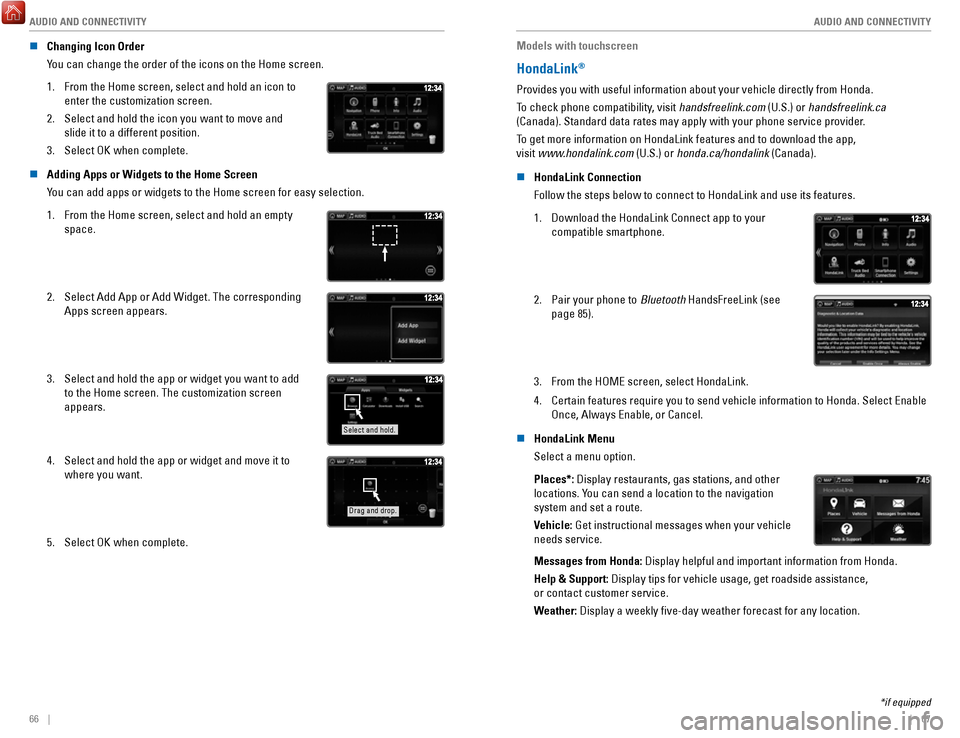
n Changing Icon Order
You can change the order of the icons on the Home screen.
1.
From the Home screen, select and hold an icon to
enter the customization screen.
2.
Select and hold the icon you want to move and
slide it to a different position.
3.
Select OK when complete.
n Adding Apps or Widgets to the Home Screen
You can add apps or widgets to the Home screen for easy selection.
1.
From the Home screen, select and hold an empty
space.
2. Select Add App or Add Widget. The corresponding
Apps screen appears.
3. Select and hold the app or widget you want to add
to the Home screen. The customization screen
appears.
Select and hold.
4. Select and hold the app or widget and move it to
where you want.
Drag and drop.
5. Select OK when complete. Models with touchscreen
HondaLink®
Provides you with useful information about your vehicle directly from Ho\
nda.
To check phone compatibility, visit handsfreelink.com (U.S.) or handsfreelink.ca
(Canada). Standard data rates may apply with your phone service provid\
er.
To get more information on HondaLink features and to download the app,
visit www.hondalink.com (U.S.) or honda.ca/hondalink (Canada).
n
HondaLink Connection
Follow the steps below to connect to HondaLink and use its features.
1.
Download the HondaLink Connect app to your
compatible smartphone.
2. Pair your phone to Bluetooth HandsFreeLink (see
page 85).
3. From the HOME screen, select HondaLink.
4.
Certain features require you to send vehicle information to Honda. Selec\
t Enable
Once, Always Enable, or Cancel.
n
HondaLink Menu
Select a menu option.
Places*: Display restaurants, gas stations, and other
locations. You can send a location to the navigation
system and set a route.
Vehicle: Get instructional messages when your vehicle
needs service.
Messages from Honda: Display helpful and important information from Honda.
Help & Support: Display tips for vehicle usage, get roadside assistance,
or contact customer service.
Weather: Display a weekly five-day weather forecast for any location.
*if equipped
Page 38 of 85

AUDIO AND CONNECTIVITY
68 || 69
A
UDIO AND CONNECTIVITY
Models with touchscreen
Wi-Fi Connection
You can connect the audio system to the internet using Wi-Fi and use onli\
ne services
through the touchscreen. If your compatible phone has hotspot capabiliti\
es, the system
can be tethered to the phone. Follow the steps below to set up Wi-Fi whe\
n the vehicle is
stopped. Standard data rates apply with your phone service provider.
1.
From the Home screen, select Settings.
2.
Select Bluetooth/Wi-Fi. Select the Wi-Fi tab.
3.
Select Wi-Fi On/Off Status, and select On.
4.
Select Wi-Fi Network List. Make sure your phone’s
Wi-Fi setting is in access point (tethering) mode.
5.
Select the network you want to connect to the system.
If the phone you want to connect does not appear,
select Scan.
6.
Select Connect.
7.
Enter a password for your phone. Select OK.
The Wi-Fi symbol is displayed on the list when
connection is successful.
Models with touchscreen
Apple CarPlay®
Connect an Apple CarPlay-compatible iPhone to the system. You can use the
touchscreen to make a phone call, listen to music, and more. Visit the A\
pple CarPlay
website for more information.
Park in a safe place before connecting your iPhone and launching any com\
patible apps.
1.
Connect the iPhone to the USB port (see page
56).
2.
Apple CarPlay requires you to send vehicle
information to Honda. Select Enable Once, Always
Enable, or Cancel. Your phone may prompt you to
allow access for CarPlay to be launched.
3.
From the HOME screen, select Apple CarPlay.
HOME screen
Apple CarPlay
4. Select a menu option.
Phone: Access your contacts, make phone calls,
or listen to voicemail. While connected to Apple
CarPlay, calls can only be made through Apple
CarPlay, not through Bluetooth
HandsFreeLink.
Music: Play music stored on your iPhone.
Maps: View a map and operate navigation. You
can only use Apple CarPlay or the pre-installed
navigation system to set a destination with routing
guidance.
Messages: View and reply to text messages, or
have messages read to you aloud by the system. Apple CarPlay menu
Return
to HOME
screen
Return to Apple CarPlay menu screen
Once connected, press and hold the Talk button on the steering wheel to operate the
system using voice commands with Siri® Eyes Free (see page 89).
Depending on use, Apple CarPlay can share certain vehicle information (\
e.g., vehicle location,
speed, and other operating conditions) with the connected iPhone. See A\
pple’s privacy policy for
details regarding Apple’s use and handling of data uploaded by CarPlay. Use of CarPlay is at user’s
own risk, and is subject to agreement to the CarPlay terms of use, which\
are included as part of
the Apple iOS terms of use. CarPlay vehicle integration is provided “\
as is,” and Honda cannot
guarantee CarPlay operability or functionality now or in the future due \
to, among other conditions,
changes in CarPlay software/Apple iOS, service interruptions, or incompa\
tibility or obsolesce of
vehicle-integrated hardware or software. See dealer for details. Only us\
e CarPlay when conditions
allow you to do so safely. See your Owner’s Manual on the Owner Information CD or at owners.
honda.com (U.S.) or myhonda.ca (Canada) for further license and warr\
anty terms.