Page 262 of 565
261
uuAudio System Basic Operation uPlaying Internet Radio
Features
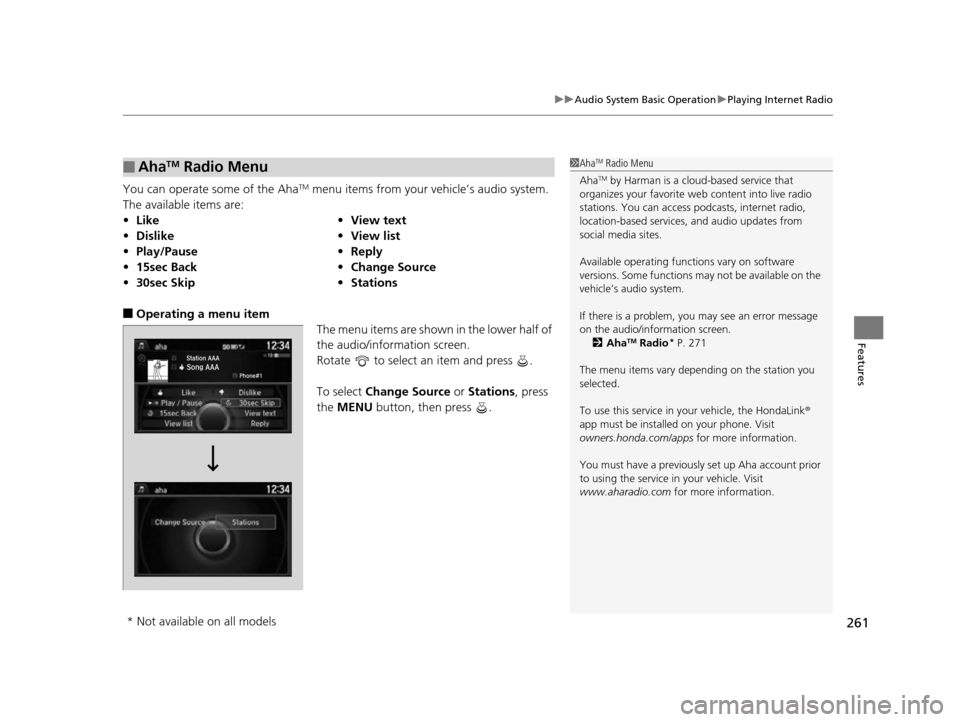
You can operate some of the AhaTM menu items from your vehicle’s audio system.
The available items are:
■Operating a menu item The menu items are shown in the lower half of
the audio/information screen.
Rotate to select an item and press .
To select Change Source or Stations , press
the MENU button, then press .
■AhaTM Radio Menu
•Like •View text
• Dislike •View list
• Play/Pause •Reply
• 15sec Back •Change Source
• 30sec Skip •Stations
1AhaTM Radio Menu
Aha
TM by Harman is a clou d-based service that
organizes your favorite we b content into live radio
stations. You can access podcasts, internet radio,
location-based services , and audio updates from
social media sites.
Available operating functi ons vary on software
versions. Some functions ma y not be available on the
vehicle’s audio system.
If there is a problem, you may see an error message
on the audio/information screen. 2 Aha
TM Radio* P. 271
The menu items vary depending on the station you
selected.
To use this service in y our vehicle, the HondaLink ®
app must be installed on your phone. Visit
owners.honda.com/apps for more information.
You must have a previously set up Aha account prior
to using the service in your vehicle. Visit
www.aharadio.com for more information.
* Not available on all models
17 US ODYSSEY (KA KC)-31TK86600.book 261 ページ 2016年10月24日 月曜日 午後4時2分
Page 266 of 565
265
uuAudio System Basic Operation uPlaying Bluetooth ® Audio
Continued
Features
Playing Bluetooth ® Audio
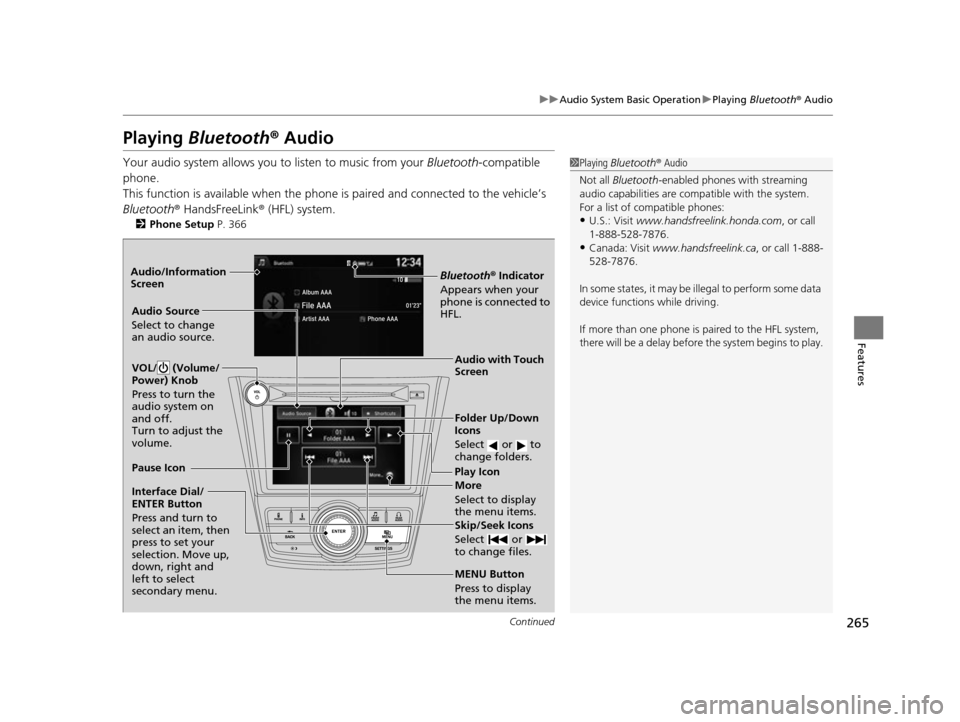
Your audio system allows you to listen to music from your Bluetooth-compatible
phone.
This function is available when the phone is paired an d connected to the vehicle’s
Bluetooth ® HandsFreeLink ® (HFL) system.
2Phone Setup P. 366
1Playing Bluetooth ® Audio
Not all Bluetooth -enabled phones with streaming
audio capabilities are compatible with the system.
For a list of compatible phones:
•U.S.: Visit www.handsfreelink.honda.com , or call
1-888-528-7876.
•Canada: Visit www.handsfreelink.ca , or call 1-888-
528-7876.
In some states, it may be il legal to perform some data
device functions while driving.
If more than one phone is paired to the HFL system,
there will be a delay before the system begins to play.
Bluetooth® Indicator
Appears when your
phone is connected to
HFL.
Play Icon
Pause Icon
More
Select to display
the menu items.
Audio Source
Select to change
an audio source.
VOL/ (Volume/
Power) Knob
Press to turn the
audio system on
and off.
Turn to adjust the
volume.
Interface Dial/
ENTER Button
Press and turn to
select an item, then
press to set your
selection. Move up,
down, right and
left to select
secondary menu.
Skip/Seek Icons
Select or
to change files.
MENU Button
Press to display
the menu items. Folder Up/Down
Icons
Select or to
change folders.
Audio with Touch
Screen
Audio/Information
Screen
17 US ODYSSEY (KA KC)-31TK86600.book 265 ページ 2016年10月24日 月曜日
午後4時2分
Page 325 of 565
324
uuCustomized Features uDefaulting All the Settings
Features
Defaulting All the Settings
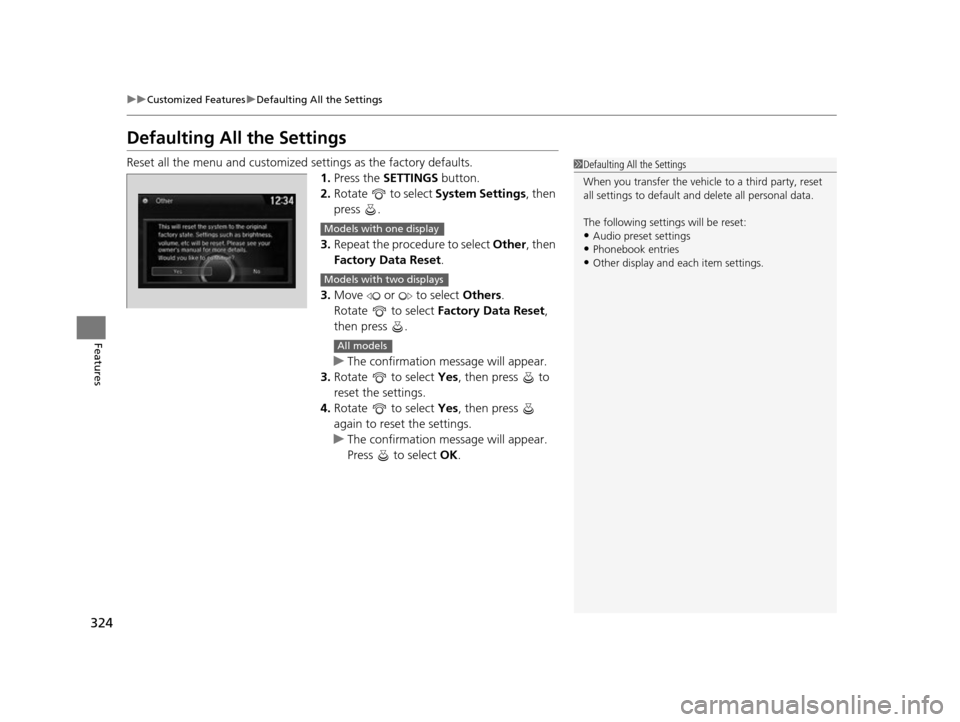
Reset all the menu and customized settings as the factory defaults.
1. Press the SETTINGS button.
2. Rotate to select System Settings, then
press .
3. Repeat the procedure to select Other, then
Factory Data Reset .
3. Move or to select Others.
Rotate to select Factory Data Reset ,
then press .
u The confirmation message will appear.
3. Rotate to select Yes, then press to
reset the settings.
4. Rotate to select Yes, then press
again to reset the settings.
u The confirmation message will appear.
Press to select OK.1Defaulting All the Settings
When you transfer the vehicle to a third party, reset
all settings to default a nd delete all personal data.
The following settin gs will be reset:
•Audio preset settings•Phonebook entries
•Other display and each item settings.
Models with one display
Models with two displays
All models
17 US ODYSSEY (KA KC)-31TK86600.book 324 ページ 2016年10月24日 月曜日 午後4時2分
Page 329 of 565
uuBluetooth ® HandsFreeLink ®u Using HFL
328
Features
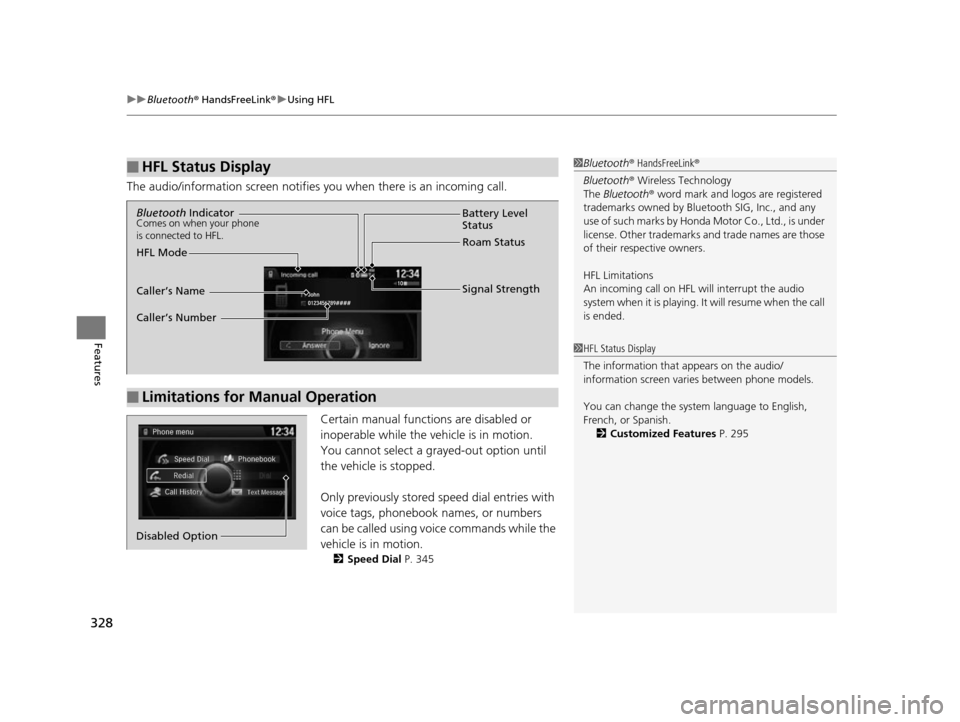
The audio/information screen notifies you when there is an incoming call.
Certain manual functions are disabled or
inoperable while the vehicle is in motion.
You cannot select a grayed-out option until
the vehicle is stopped.
Only previously stored speed dial entries with
voice tags, phonebook names, or numbers
can be called using voice commands while the
vehicle is in motion.
2 Speed Dial P. 345
■HFL Status Display1Bluetooth ® HandsFreeLink ®
Bluetooth ® Wireless Technology
The Bluetooth ® word mark and logos are registered
trademarks owned by Blue tooth SIG, Inc., and any
use of such marks by Honda Motor Co., Ltd., is under
license. Other trademarks and trade names are those
of their respective owners.
HFL Limitations
An incoming call on HFL will interrupt the audio
s y s te m wh e n it is p la y i n g . It wi ll re s u m e w h en t h e c a l l
is ended.
1 HFL Status Display
The information that appears on the audio/
information screen vari es between phone models.
You can change the system language to English,
French, or Spanish. 2 Customized Features P. 295
■Limitations for Manual Operation
Bluetooth IndicatorComes on when your phone
is connected to HFL.
Signal Strength
HFL Mode Battery Level
Status
Roam Status
Caller’s Name
Caller’s Number
Phone menu
Redial
Call History
Text Message
Dial
Phonebook
Speed Dial
Disabled Option
17 US ODYSSEY (KA KC)-31TK86600.book 328 ページ 2016年10月24日 月曜日 午後4時2分
Page 330 of 565
329
uuBluetooth ® HandsFreeLink ®u HFL Menus
Continued
Features
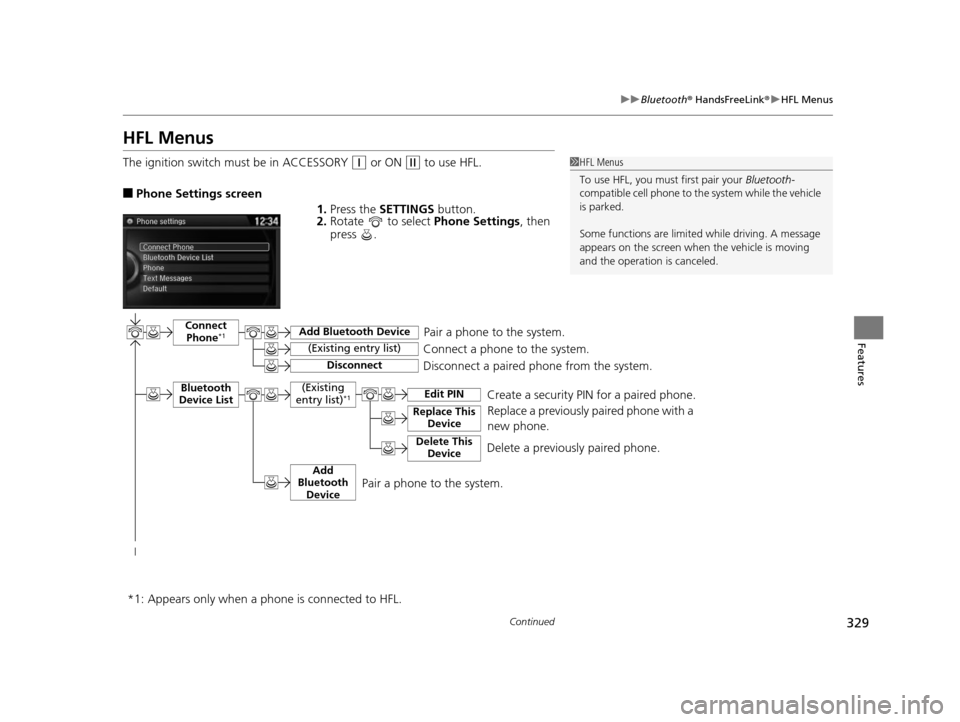
HFL Menus
The ignition switch mu st be in ACCESSORY (q or ON (w to use HFL.
■Phone Settings screen
1.Press the SETTINGS button.
2. Rotate to select Phone Settings, then
press .
1 HFL Menus
To use HFL, you must first pair your Bluetooth-
compatible cell phone to th e system while the vehicle
is parked.
Some functions are limited while driving. A message
appears on the screen when the vehicle is moving
and the operation is canceled.
Pair a phone to the system.
Replace a previously paired phone with a
new phone.Connect Phone*1
Bluetooth
Device List
Add Bluetooth Device
Edit PIN
(Existing entry list)
Disconnect
Connect a phone to the system.
Disconnect a paired phone from the system.
*1:
(Existing
entry list)*1
Replace This Device
Delete This DeviceDelete a previously paired phone.Create a security PIN for a paired phone.
Add
Bluetooth Device
Appears only when a phon e is connected to HFL.
Pair a phone to the system.
17 US ODYSSEY (KA KC)-31TK86600.book 329 ページ 2016年10月24日 月曜日 午後4時2分
Page 331 of 565
330
uuBluetooth ® HandsFreeLink ®u HFL Menus
Features
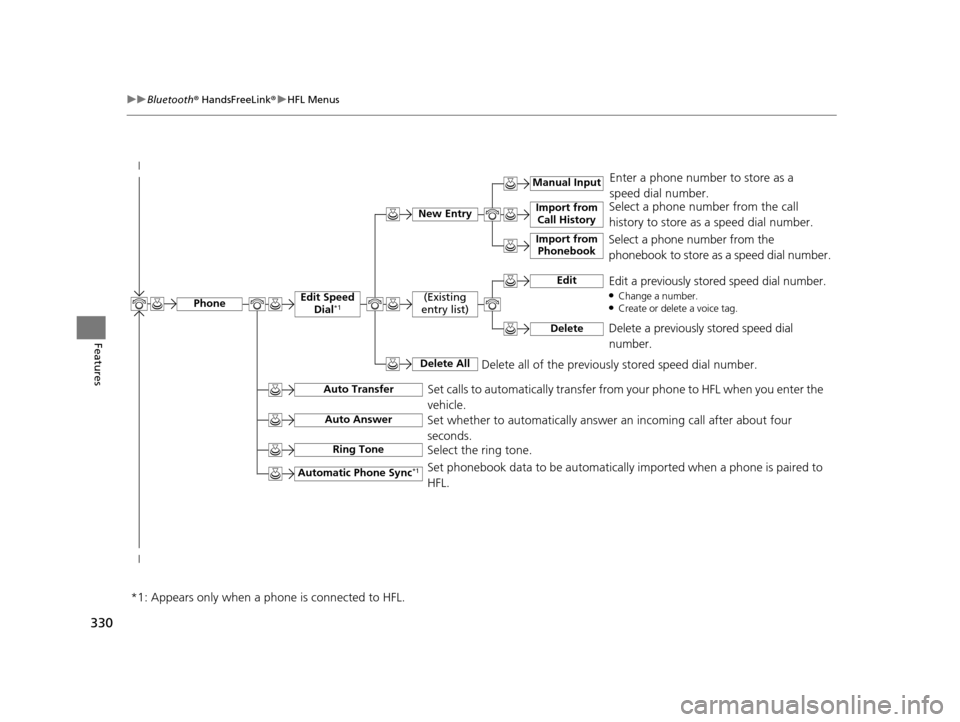
Select a phone number from the call
history to store as a speed dial number.
Manual Input
New Entry Import from
Call History
Import from Phonebook
Enter a phone number to store as a
speed dial number.
Delete all of the previously stored speed dial number.
Select a phone number from the
phonebook to store as a speed dial number.
EditEdit a previously stored speed dial number.●Change a number.●Create or delete a voice tag.
DeleteDelete a previously stored speed dial
number.
(Existing
entry list)
Delete All
Edit Speed Dial*1
Set calls to automatically transfer from your phone to HFL when you enter the
vehicle.Auto Transfer
Auto Answer
Ring Tone
Set whether to automatically answer an incoming call after about four
seconds.
Select the ring tone.
Automatic Phone Sync*1Set phonebook data to be automatically imported when a phone is paired to
HFL.
Phone
*1: Appears only when a phone is connected to HFL.
17 US ODYSSEY (KA KC)-31TK86600.book 330 ページ 2016年10月24日 月曜日 午後4時2分
Page 335 of 565
uuBluetooth ® HandsFreeLink ®u HFL Menus
334
Features
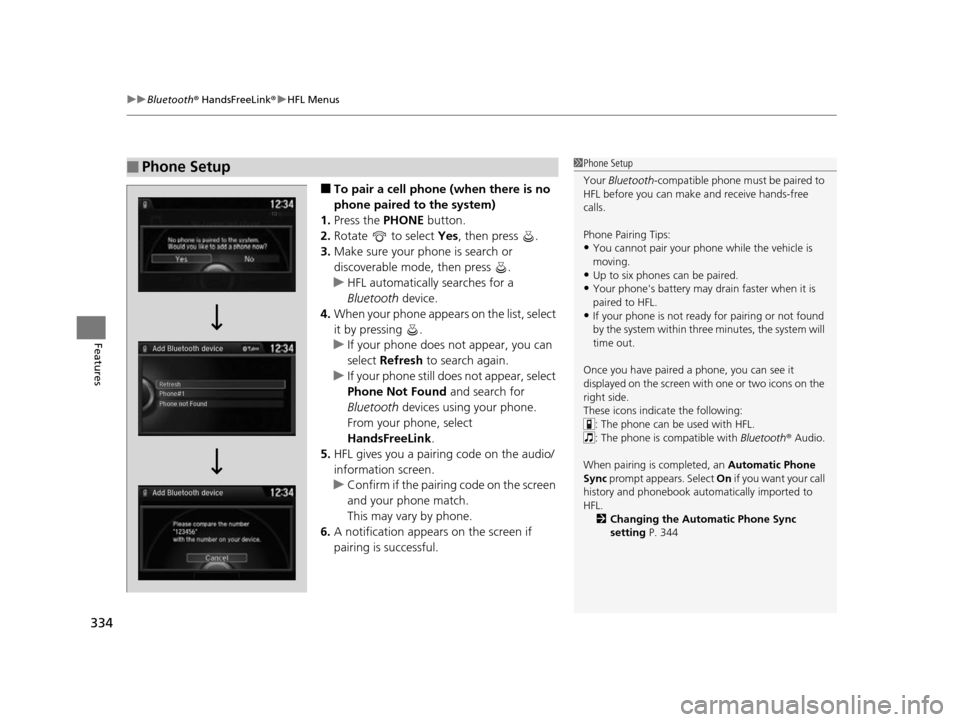
■To pair a cell phone (when there is no
phone paired to the system)
1. Press the PHONE button.
2. Rotate to select Yes, then press .
3. Make sure your phone is search or
discoverable mode, then press .
u HFL automatically searches for a
Bluetooth device.
4. When your phone appears on the list, select
it by pressing .
u If your phone does not appear, you can
select Refresh to search again.
u If your phone still does not appear, select
Phone Not Found and search for
Bluetooth devices using your phone.
From your phone, select
HandsFreeLink .
5. HFL gives you a pairing code on the audio/
information screen.
u Confirm if the pairing code on the screen
and your phone match.
This may vary by phone.
6. A notification appears on the screen if
pairing is successful.
■Phone Setup1Phone Setup
Your Bluetooth -compatible phone must be paired to
HFL before you can make and receive hands-free
calls.
Phone Pairing Tips:
•You cannot pair your phone while the vehicle is
moving.
•Up to six phones can be paired.
•Your phone's battery may dr ain faster when it is
paired to HFL.
•If your phone is not ready for pairing or not found
by the system within three minutes, the system will
time out.
Once you have paired a phone, you can see it
displayed on the screen with one or two icons on the
right side.
These icons indicate the following: : The phone can be used with HFL.
: The phone is compatible with Bluetooth ® Audio.
When pairing is completed, an Automatic Phone
Sync prompt appears. Select On if you want your call
history and phonebook automatically imported to
HFL.
2 Changing the Automatic Phone Sync
setting P. 344
17 US ODYSSEY (KA KC)-31TK86600.book 334 ページ 2016年10月24日 月曜日 午後4時2分
Page 343 of 565
342
uuBluetooth ® HandsFreeLink ®u HFL Menus
Features
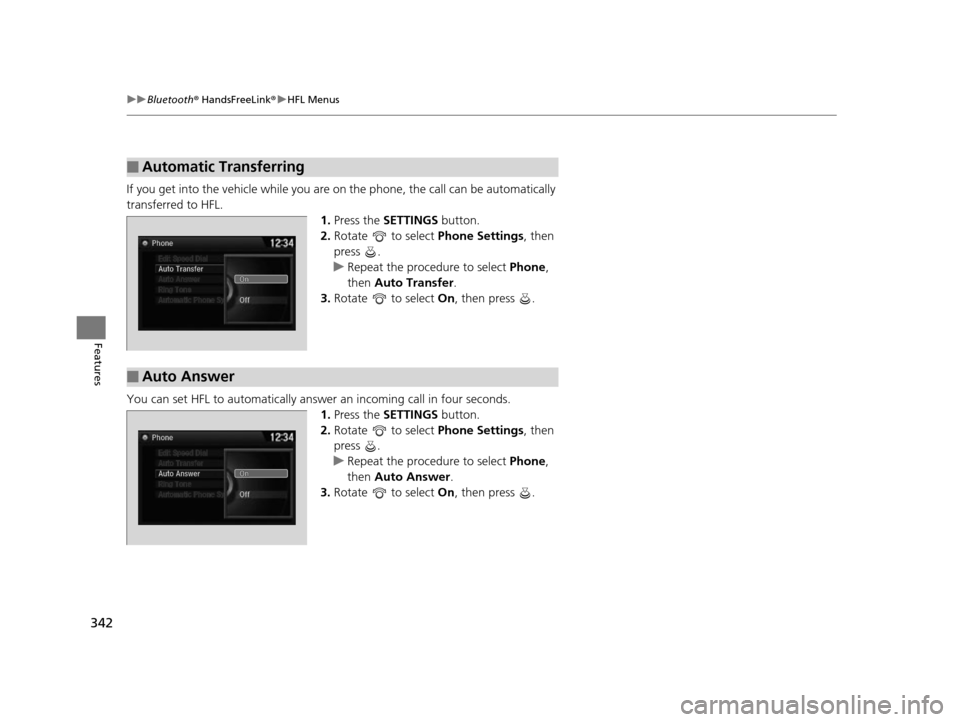
If you get into the vehicle while you are on the phone, the call can be automatically
transferred to HFL. 1.Press the SETTINGS button.
2. Rotate to select Phone Settings, then
press .
u Repeat the procedure to select Phone,
then Auto Transfer .
3. Rotate to select On, then press .
You can set HFL to automatically answer an incoming call in four seconds.
1. Press the SETTINGS button.
2. Rotate to select Phone Settings, then
press .
u Repeat the procedure to select Phone,
then Auto Answer .
3. Rotate to select On, then press .
■Automatic Transferring
■Auto Answer
17 US ODYSSEY (KA KC)-31TK86600.book 342 ページ 2016年10月24日 月曜日 午後4時2分