Page 267 of 565
uuAudio System Basic Operation uPlaying Bluetooth ® Audio
266
Features
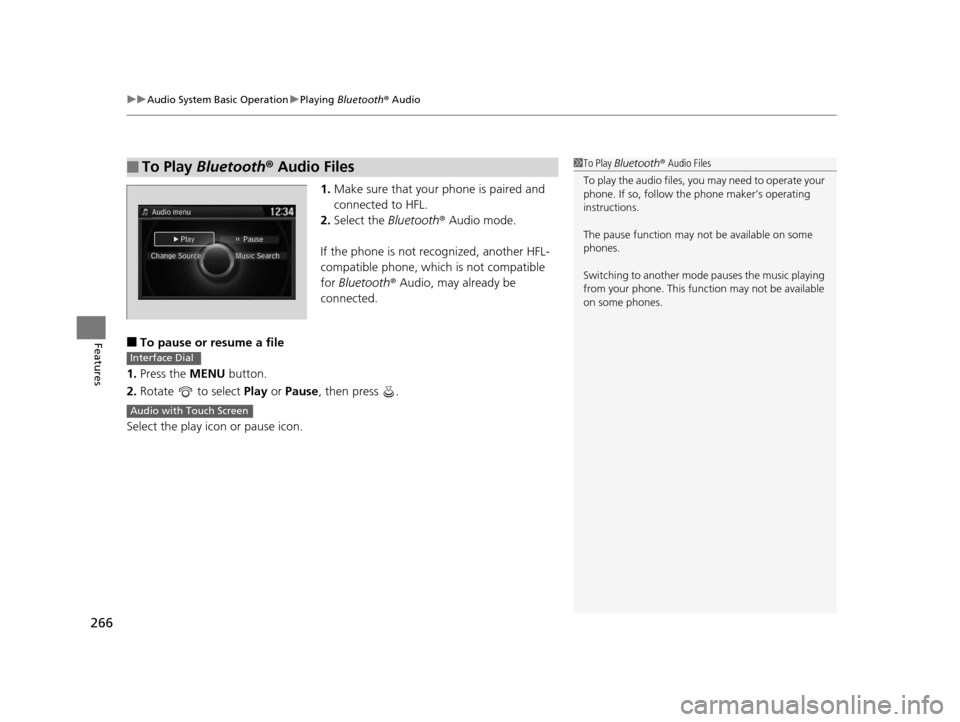
1. Make sure that your phone is paired and
connected to HFL.
2. Select the Bluetooth® Audio mode.
If the phone is not recognized, another HFL-
compatible phone, which is not compatible
for Bluetooth ® Audio, may already be
connected.
■To pause or resume a file
1. Press the MENU button.
2. Rotate to select Play or Pause , then press .
Select the play icon or pause icon.
■To Play Bluetooth® Audio Files1To Play Bluetooth ® Audio Files
To play the audio files, y ou may need to operate your
phone. If so, follow the phone maker’s operating
instructions.
The pause function may no t be available on some
phones.
Switching to another mode pauses the music playing
from your phone. This functi on may not be available
on some phones.
Interface Dial
Audio with Touch Screen
17 US ODYSSEY (KA KC)-31TK86600.book 266 ページ 2016年10月24日 月曜日 午後4時2分
Page 270 of 565
269
uuAudio Error Messages uPandora ®
Continued
Features
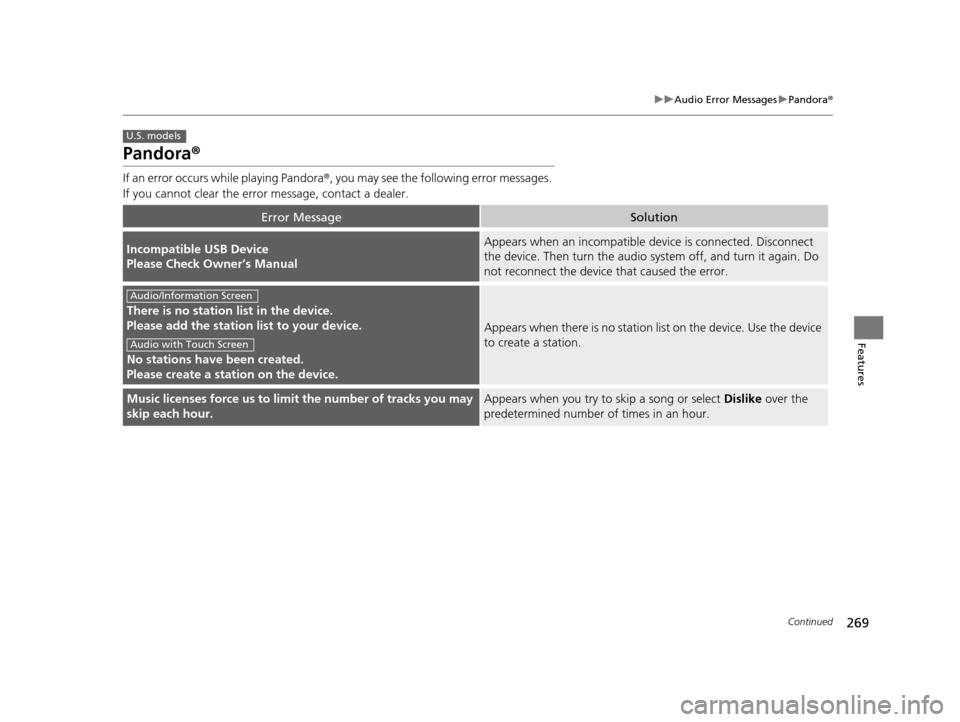
Pandora ®
If an error occurs while playing Pandora ®, you may see the following error messages.
If you cannot clear the error message, contact a dealer.
Error MessageSolution
Incompatible USB Device
Please Check Owner’s ManualAppears when an incompatible de vice is connected. Disconnect
the device. Then turn th e audio system off, and turn it again. Do
not reconnect the device that caused the error.
There is no station list in the device.
Please add the station list to your device.
No stations have been created.
Please create a station on the device.
Appears when there is no station list on the device. Use the device
to create a station.
Music licenses force us to limit the number of tracks you may
skip each hour.Appears when you try to skip a song or select Dislike over the
predetermined number of times in an hour.
U.S. models
Audio/Information Screen
Audio with Touch Screen
17 US ODYSSEY (KA KC)-31TK86600.book 269 ページ 2016年10月24日 月曜日 午後4時2分
Page 272 of 565
271
uuAudio Error Messages uAhaTM Radio*
Features
AhaTM Radio*
If an error occurs while playing AhaTM Radio, you may see the following error
messages.
If you cannot clear the error message, contact a dealer.
Error MessageSolution
Cannot connect to aha. When stopped, make sure aha is
running on the phone.
For iPhone, set connection pr iority to USB and reconnect.
Appears when the AhaTM app is not activated. Check your device.
Incompatible USB Device
Please Check Owner’s ManualAppears when an incompatible de vice is connected. Disconnect
the device. Then turn th e audio system off, and turn it on again.
Do not reconnect the device that caused the error.
* Not available on all models
17 US ODYSSEY (KA KC)-31TK86600.book 271 ページ 2016年10月24日 月曜日 午後4時2分
Page 276 of 565
275
uuGeneral Information on the Audio System uCompatible iPod and USB Flash Drives
Features
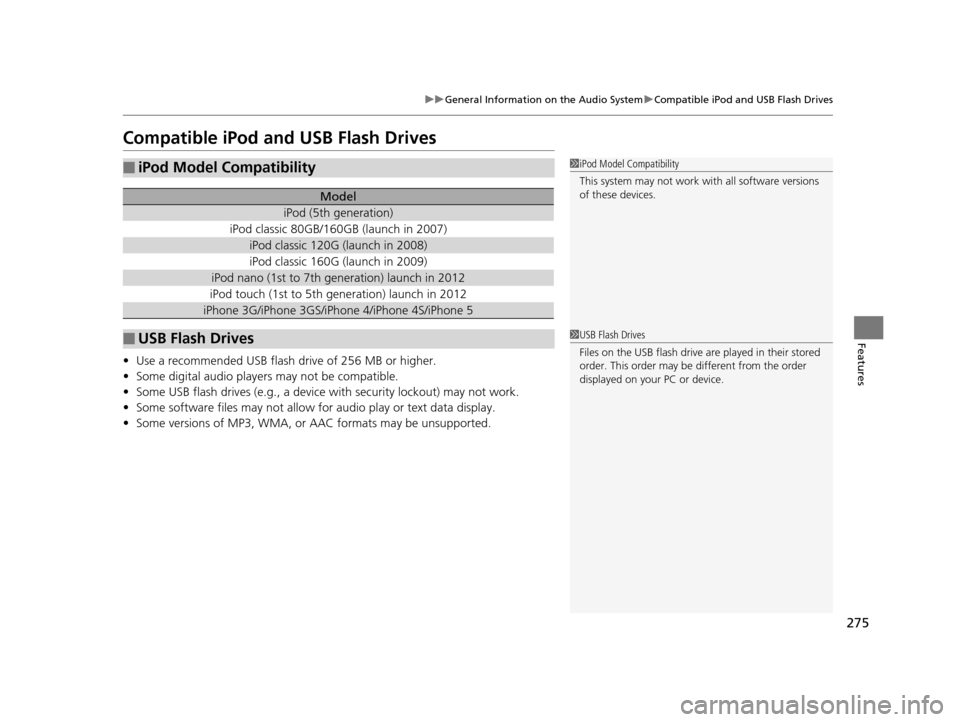
Compatible iPod and USB Flash Drives
• Use a recommended USB flash drive of 256 MB or higher.
• Some digital audio players may not be compatible.
• Some USB flash drives (e.g., a device with security lockout) may not work.
• Some software files may not allow for audio play or text data display.
• Some versions of MP3, WMA, or AAC formats may be unsupported.
■iPod Model Compatibility
Model
iPod (5th generation)
iPod classic 80GB/160GB (launch in 2007)
iPod classic 120G (launch in 2008)
iPod classic 160G (launch in 2009)
iPod nano (1st to 7th generation) launch in 2012
iPod touch (1st to 5th generation) launch in 2012
iPhone 3G/iPhone 3GS/iPhone 4/iPhone 4S/iPhone 5
■USB Flash Drives
1iPod Model Compatibility
This system may not work with all software versions
of these devices.
1USB Flash Drives
Files on the USB flash drive are played in their stored
order. This order may be different from the order
displayed on your PC or device.
17 US ODYSSEY (KA KC)-31TK86600.book 275 ページ 2016年10月24日 月曜日 午後4時2分
Page 278 of 565
Continued277
uuRear Entertainment System*uOperating the System
Features
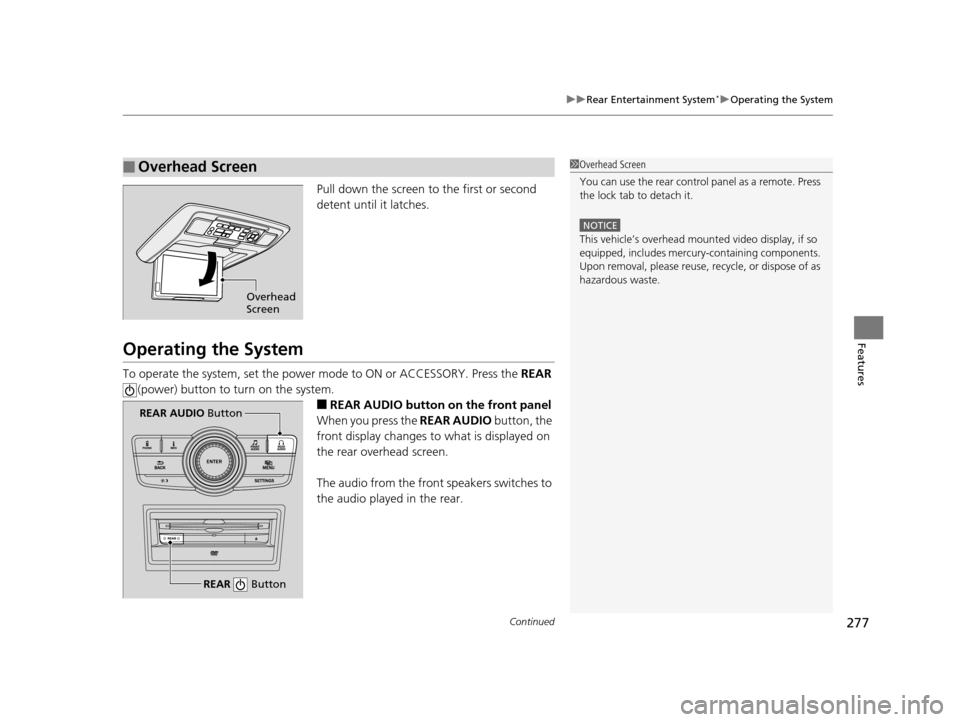
Pull down the screen to the first or second
detent until it latches.
Operating the System
To operate the system, set the power mode to ON or ACCESSORY. Press the REAR
(power) button to turn on the system.
■REAR AUDIO button on the front panel
When you press the REAR AUDIO button, the
front display changes to what is displayed on
the rear overhead screen.
The audio from the front speakers switches to
the audio played in the rear.
■Overhead Screen1 Overhead Screen
You can use the rear control panel as a remote. Press
the lock tab to detach it.
NOTICE
This vehicle’s overhead mount ed video display, if so
equipped, includes mercur y-containing components.
Upon removal, please reuse, recycle, or dispose of as
hazardous waste.
Overhead
Screen
REAR Button
REAR AUDIO Button
17 US ODYSSEY (KA KC)-31TK86600.book 277 ページ 2016年10月24日 月曜日 午後4時2分
Page 279 of 565
278
uuRear Entertainment System*uOperating the System
Features
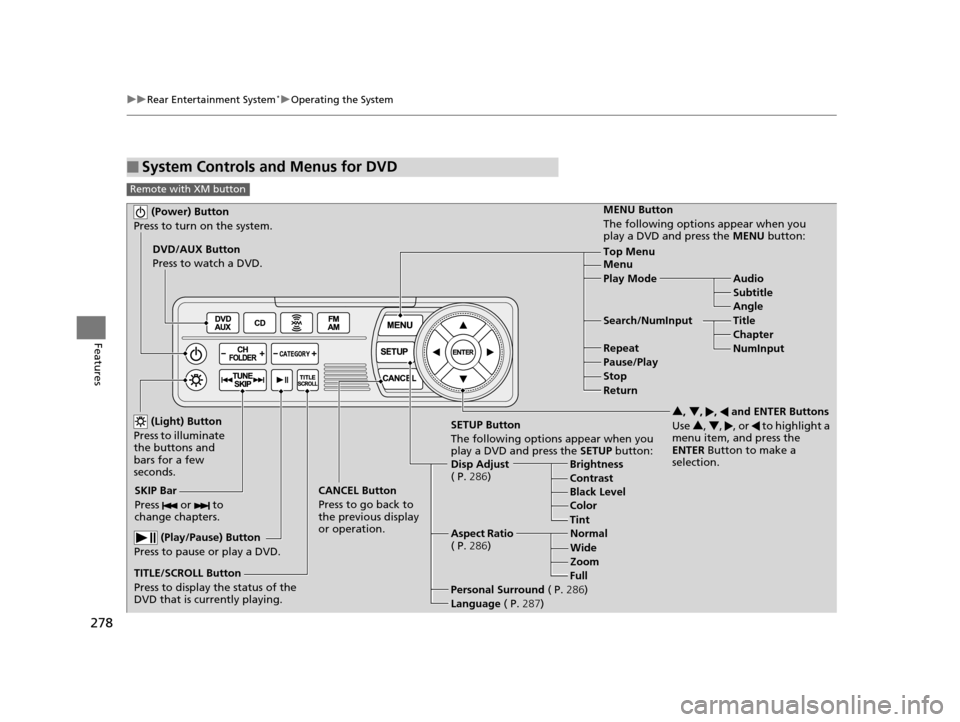
■System Controls and Menus for DVD
Remote with XM button
(Power) Button
Press to turn on the system.
DVD/AUX Button
Press to watch a DVD.
(Light) Button
Press to illuminate
the buttons and
bars for a few
seconds.
SKIP Bar
Press or to
change chapters.
(Play/Pause) Button
Press to pause or play a DVD.
TITLE/SCROLL Button
Press to display the status of the
DVD that is currently playing. MENU Button
The following options appear when you
play a DVD and press the
MENU button:
Top Menu
Menu
Play Mode Audio Subtitle
Angle
Search/NumInput Title Chapter
NumInput
Repeat
Pause/Play
Stop
Return
SETUP Button
The following options appear when you
play a DVD and press the SETUP button:
Disp Adjust
( P. 286) Brightness
Contrast
Black Level
Color
CANCEL Button
Press to go back to
the previous display
or operation. 3
, 4 , , and ENTER Buttons
Use 3, 4 , , or to highlight a
menu item, and press the
ENTER Button to make a
selection.
Tint
Normal
Wide Zoom
Full
Aspect Ratio
( P. 286)
Personal Surround ( P.286)
Language ( P.287)
17 US ODYSSEY (KA KC)-31TK86600.book 278 ページ 2016年10月24日 月曜日 午後4時2分
Page 280 of 565
279
uuRear Entertainment System*uOperating the System
Continued
Features
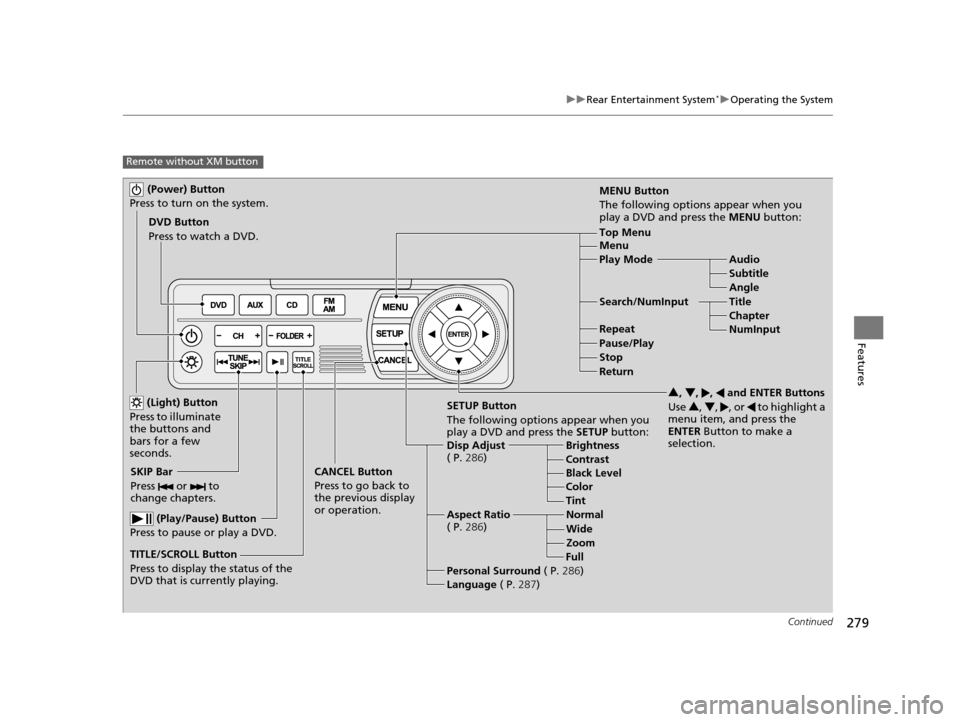
Remote without XM button
(Power) Button
Press to turn on the system.
DVD Button
Press to watch a DVD.
(Light) Button
Press to illuminate
the buttons and
bars for a few
seconds.
SKIP Bar
Press or to
change chapters.
(Play/Pause) Button
Press to pause or play a DVD.
TITLE/SCROLL Button
Press to display the status of the
DVD that is currently playing. MENU Button
The following options appear when you
play a DVD and press the
MENU button:
Top Menu
Menu
Play Mode Audio Subtitle
Angle
Search/NumInput Title Chapter
NumInput
Repeat
Pause/Play
Stop
Return
SETUP Button
The following options appear when you
play a DVD and press the SETUP button:
Disp Adjust
( P. 286) Brightness
Contrast
Black Level
Color
CANCEL Button
Press to go back to
the previous display
or operation. 3
, 4 , , and ENTER Buttons
Use 3, 4 , , or to highlight a
menu item, and press the
ENTER Button to make a
selection.
Tint
Normal
Wide Zoom
Full
Aspect Ratio
( P. 286)
Personal Surround ( P.286)
Language ( P.287)
17 US ODYSSEY (KA KC)-31TK86600.book 279 ページ 2016年10月24日 月曜日 午後4時2分
Page 287 of 565
286
uuRear Entertainment System*uOperating the System
Features
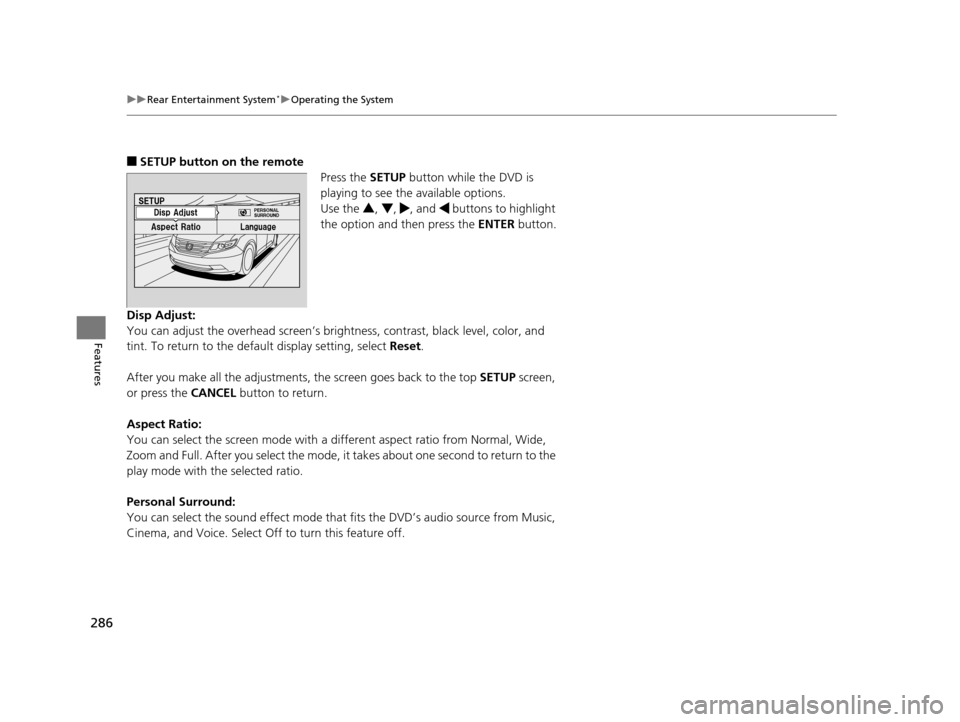
■SETUP button on the remote
Press the SETUP button while the DVD is
playing to see the available options.
Use the 3, 4 , , and buttons to highlight
the option and then press the ENTER button.
Disp Adjust:
You can adjust the overhead screen’s brightness, contrast, black level, color, and
tint. To return to the default display setting, select Reset.
After you make all the adjustments, the screen goes back to the top SETUP screen,
or press the CANCEL button to return.
Aspect Ratio:
You can select the screen mo de with a different aspect ratio from Normal, Wide,
Zoom and Full. After you select the mode, it takes about one second to return to the
play mode with the selected ratio.
Personal Surround:
You can select the sound effect mode that fits the DVD’s audio source from Music,
Cinema, and Voice. Select Off to turn this feature off.
17 US ODYSSEY (KA KC)-31TK86600.book 286 ページ 2016年10月24日 月曜日 午後4時2分