Page 204 of 657

203Continued
Controls
Interior Lights/Interior Convenience Items
Interior Lights
■ON
The interior lights come on regardless of
whether the doors are open or closed.
■Door activated
The interior lights come on in the following
situations:
• When any doors are opened.
• You unlock the driver's door.
• You remove the key from the ignition
switch.
• When the power mode is set to VEHICLE
OFF (LOCK).
■OFF
The interior lights remain off regardless of
whether the doors are open or closed.
■Interior Light Switches1 Interior Light Switches
In the door activated position, the interior lights fade out
and go off about 30 seconds after the doors are closed.
The lights go off after 30 seconds in the following
situations:
•When you unlock the driver's door but do not open it.
•When you remove the key from the ignition switch
but do not open a door.
•When you set the power mode to VEHICLE OFF
(LOCK) but do not open a door.
You can change the interi or lights dimming time.
2 Customized Features P. 335
The interior lights go off i mmediately in the following
situations:
•When you lock the driver's door.
•When you close the driver's door with the key in
the ignition switch.
•When you close the driver’s door in ACCESSORY
mode.
•When you turn the ignition switch to ON ( w*1.
If you leave any doors open in VEHICLE OFF (LOCK)
mode, or without the key in the ignition switch, the
interior lights go off after about 15 minutes.
*1: Models with the smart entry system have an
ENGINE START/STOP button instead of an ignition
switch.
Models without smart entry system
Models with smart entry system
Models without smart entry system
Models with smart entry system
Door
Activated
Position
Off
Front
Front
Models with moonroof
Models with panoramic roof
Door Activated Position
Off
On
Models without smart entry system
Models with smart entry system
17 CR-V-31TLA6000.book 203 ページ 2016年10月11日 火曜日 午後6時37分
Page 207 of 657
206
uuInterior Lights/Interior Convenience Items uInterior Convenience Items
Controls
Interior Convenience Items
Pull the handle to open the glove box. You
can lock the glove box with the master key or
the built-in key.
■Glove Box1Glove Box
3WARNING
An open glove box can cause serious injury
to your passenger in a crash, even if the
passenger is wearing the seat belt.
Always keep the glove box closed while
driving.
Glove Box
17 CR-V-31TLA6000.book 206 ページ 2016年10月11日 火曜日 午後6時37分
Page 209 of 657
208
uuInterior Lights/Interior Convenience Items uInterior Convenience Items
Controls
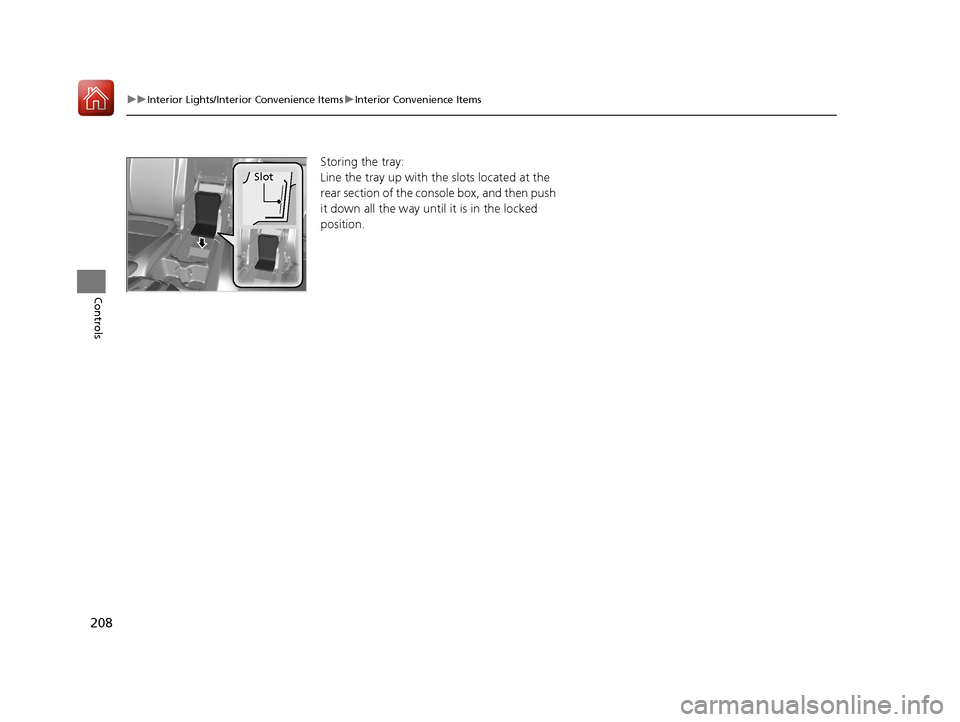
Storing the tray:
Line the tray up with th e slots located at the
rear section of the console box, and then push
it down all the way until it is in the locked
position.
Slot
17 CR-V-31TLA6000.book 208 ページ 2016年10月11日 火曜日 午後6時37分
Page 221 of 657

uuInterior Lights/Interior Convenience Items uInterior Convenience Items
220
Controls
The rear cargo cover can be used to conceal
items in the cargo area and protect them from
direct sunlight.
■To extend:
Slightly lift up on the handle at the center
edge of the cover to unhook each end, then
pull the cover rearward and clip the mounting
rods in the hooks at bo th sides of the tailgate
opening.
■To retract:
Slip the rods out of the hooks, then slowly roll
it back until it is completely retracted.
■To remove:
Push either end of the housing inward, then
lift it out of its position.
■Rear Cargo Cover*1 Rear Cargo Cover*
Do not let anyone access items in the cargo area
while driving. Loose items ca n cause injury if you have
to brake hard.
Do not stack objects higher than the top of the seat
in the cargo area. They could block your view and be
thrown about the vehicle during a sudden stop.
To prevent rear cargo cover damage:
•Do not place items on the rear cargo cover.•Do not put weight on the rear cargo cover.
Be sure that each mounting rod sets in its respective
retention groove when you retract the rear cargo
cover. If they are not set in the grooves, the rods may
rattle as they contac t the surrounding surfaces.
Handle
Mounting Rod
Hook
* Not available on all models
17 CR-V-31TLA6000.book 220 ページ 2016年10月11日 火曜日 午後6時37分
Page 236 of 657

235
Features
Audio System Basic Operation
To use the audio system, the ignition switch must be in ACCESSORY (q or ON (w.
Use the selector knob or MENU/CLOCK
button to access some audio functions.
Press to switch between the normal and
extended display fo r some functions.
Selector knob: Rotate left or right to scroll
through the available ch oices. Press to set
your selection.
MENU/CLOCK button: Press to select any
mode.
The available mode in cludes the wallpaper,
display, clock, language setup, and play
modes. Play modes can be also selected from
scan, random, repeat, and so on.
(Back) button: Press to go back to the previous display.
(Sound) button: Press to select the sound setting mode.
(Day/Night) button: Press to change the audio/information screen
brightness.
Press the button, then adjust the brightness using . u Each time you press the button, the mode switches between the daytime
mode, nighttime mode and off mode.
Models with color audio system1 Audio System Basic Operation
These indications are used to show how to operate
the selector knob.
Rotate to select.
Press to enter.
Menu Items 2 Adjust Clock P. 132
2 Wallpaper Setup P. 238
2 Display Setup P. 241
2 Scan P. 243, 251
2 Play Mode P. 246, 251
2 RDS Settings P. 243
2 Bluetooth P. 252
Press the SOURCE , , , or button on the
steering wheel to cha nge any audio setting.
2 Audio Remote Controls P. 231
(Back)
Button
Selector Knob MENU/
CLOCK
Button
(Day/Night) Button
(Sound) Button
Menu Display
17 CR-V-31TLA6000.book 235 ページ 2016年10月11日 火曜日 午後6時37分
Page 237 of 657
236
uuAudio System Basic Operation uAudio/Information Screen
Features
Audio/Information Screen
Displays the audio status and wallpaper. From this screen, you can go to various
setup options.
■Switching the Display
Audio/Information Screen
Audio
Clock/Wallpaper
17 CR-V-31TLA6000.book 236 ページ 2016年10月11日 火曜日 午後6時37分
Page 238 of 657
237
uuAudio System Basic Operation uAudio/Information Screen
Continued
Features
■Audio
Shows the current audio information.
■Clock/Wallpaper
Shows a clock screen or an image you import.
■Change display
1. Press the MENU/CLOCK button.
2. Rotate to select Settings, then press .
3. Rotate to select Display Change, then press .
4. Rotate to select Wallpaper, then press .
u If you want to return to the audio/information screen, select Audio .
17 CR-V-31TLA6000.book 237 ページ 2016年10月11日 火曜日 午後6時37分
Page 239 of 657

uuAudio System Basic Operation uAudio/Information Screen
238
Features
You can change, store, and delete the wa llpaper on the audio/information screen.
■Import wallpaper
You can import up to three images, one at a time, for wallpaper from a USB flash
drive.
1.Connect the USB flash drive to the USB
port.
2 USB Port(s) P. 229
2.Press the MENU/CLOCK button.
3. Rotate to select Settings, then press
.
4. Rotate to select Wallpaper, then press
.
5. Rotate to select Import, then press .
u The picture name is displayed on the list.
6. Rotate to select a desired picture, then
press .
u The selected picture is displayed.
7. Press to save the picture.
8. Press to select OK.
9. Rotate to select a location to save the
picture, then press .
u The display will return to the wallpaper
setting screen.
■Wallpaper Setup1Wallpaper Setup
•When importing wallpaper files, the image must be
in the USB flash drive’s root directory. Images in a
folder cannot be imported.
•The file name must be fewer than 64 characters.•The file format of the im age that can be imported
is BMP (bmp) or JPEG (jpg).
•The individual file size limit is 2 MB.•The maximum image size is 1,920 x 936 pixels. If
the image size is less than 480 × 234 pixels, the
image is displayed in the middle of the screen with
the extra area appearing in black.
•Up to 255 files can be selected.
•If the USB flash drive doe s not have any pictures,
the error message appears.
•The wallpaper setup is limited while driving.
17 CR-V-31TLA6000.book 238 ページ 2016年10月11日 火曜日 午後6時37分