2017 HONDA ACCORD HYBRID ad blue
[x] Cancel search: ad bluePage 41 of 80

| 7574 | AUDIO AND CONNECTIVITY
Models with touchscreen
Pandora®
Play and operate Pandora from your compatible phone through the vehicle’\
s audio
system.
visit handsfreelink.com
to check phone compatibility. Standard data rates
apply with your phone service provider. Available in the U.S. only.
Connect your phone when the vehicle is stopped.
For iPhone:
•
Connect via Bluetooth HandsFreeLink (see page 82) or USB port (see page 51).
•
A pop-up may appear on your phone requesting you to allow access for Pan\
dora
to be launched.
•
If you cannot operate Pandora through the audio system, it may be stream\
ing
through Bluetooth Audio. Make sure Pandora is selected on the audio system.
•
If a phone is connected via Android Auto, Pandora can only be used withi\
n Android
Auto.
•
If Pandora still does not operate, try rebooting the phone and reconnect\
ing the
cable if necessary.
For other compatible smartphones:
•
Connect via Bluetooth HandsFreeLink (see page 82).
State, provincial, or local laws may prohibit the operation of handheld electronic devices while operating a vehicle.
Only launch streaming audio on your phone when it is safe to do so.
Pandora display
Source: Select
the Pandora icon.
Station: Change
the station. Skip: Go to
the next song.
MENU: Display
menu options,
including the
Station List.
Like/dislike
song
Play/Pause
BLUETOOTH® HANDSFREELINK® (HFL)
Learn how to operate the vehicle’s hands-free calling system.
Models with one display
Basic HFL Operation
Make and receive phone calls using the vehicle’s audio system, without handling
your phone.
visit handsfreelink.com
(U.S.) or handsfreelink.ca (Canada) to check
phone compatibility.
To reduce the potential for driver distraction, certain manual functions \
may be
inoperable or grayed out while the vehicle is moving. Stop or pull over \
to perform
the function.
HFL Controls
Use the controls to enter information and make selections.
Pick-Up button: Answer an incoming call.
Hang-Up/Back button:
end or decline a call, or
cancel an operation.
Talk button:
Make a call using a stored voice tag.
HFL display
Selector knob: rotate and press
to make selections.
BACK button:
Go back to the
previous display. PHONE button:
Display the
phone screen.
BLUETOOTH® HANDSFreeLINK®
BLUETOOTH® HANDSFreeLINK®
Page 42 of 80

76 || 77
Models with one display
Pairing a Phone
To use hands-free phone and streaming audio functions, you must first p\
air your
phone to the system. This can only be done when the vehicle is stopped. \
Use the
selector knob or interface dial to make and enter selections.
1.
Press the SeTTINGS button.
2.
Select Phone Settings.
3.
Select Bluetooth Device List (if no phone has been
paired) or Connect Phone (if pairing an additional
phone).
4.
Select Add Bluetooth Device.
5.
Make sure your phone is in discovery mode.
6.
The system searches for your phone. Select your
phone when it appears on the list.
If your phone does not appear:
Select Phone Not Found and search for
HandsFreeLink from your phone.
7.
The system gives you a pairing code. Compare it to
the code that appears on your phone, and connect
when prompted.
8.
The system asks if you want to enable Automatic
Phone Sync, which imports your phone’s call history
and phonebook. Select
on.
9.
Press the BACK button to exit the menu.
State or local laws may prohibit the operation of
handheld electronic devices while operating a vehicle.
Models with one display
Making a Call
You can make a call using several methods.
Dialing a Number
enter a 10-digit phone number to call.
Using voice commands
Press the Talk button before you say each command.
1.
Say “Dial by number.”
2.
Say the phone number. For example,
“3-1-0-5-5-5-1-2-3-4.”
3.
The system begins to dial.
Using the menu
Use the selector knob or interface dial to make and enter selections. Th\
is method
is inoperable while the vehicle is moving.
1.
Press the PHoNe button.
2.
Press the MeNU button.
3.
Select Dial.
4.
enter the phone number. Select the green phone
icon to call.
Storing Speed Dial Entries
Store up to 20 numbers for quick dialing. Use the selector knob or inter\
face dial to
make and enter selections.
1.
Press the PHoNe button.
2.
Press the MeNU button.
3.
Select Speed Dial, then select New entry.
4.
Select an entry method.
5.
If desired, you can create a voice tag for the
number. Follow the prompts.
When a voice tag is created, you can press the Talk button and say
“Call” and
the stored voice tag to quickly call the number.
Mr.AAA111AAA####
555EEE#### 444DDD#### 333CCC####
222BBB####
Mr.EEE Mr.DDD
Mr.CCC
Mr.BBB
BLUETOOTH® HANDSFreeLINK®BLUETOOTH® HANDSFreeLINK®
Page 43 of 80

78 || 79
Using Speed Dial and Call History
Make calls quickly using stored speed dial entries or call history numbe\
rs.
Using voice commands
Press the Talk button before you say each command.
1.
Say “Call” followed by the stored voice tag name.
For example, “
Call Anthony Smith.”
Using the menu
1.
Press the PHoNe button.
2.
Press the MeNU button.
3.
Select Speed Dial or Call History.
4.
Scroll through the list to find the entry you want
to call, and select it to call.
Mr.AAA111AAA####
555EEE#### 444DDD#### 333CCC####
222BBB####
Mr.EEE Mr.DDD
Mr.CCC
Mr.BBB
Using the Phonebook When your phone is paired, its entire phonebook can be automatically imp\
orted to
the system. Automatic Phone Sync must be turned on.
Using voice commands
Press the Talk button before you say each command.
1.
Say “Dial by name.”
2.
Say the phonebook name and phone type. For
example, “John Smith mobile.”
Using the menu
Use the selector knob or interface dial to make and enter selections. Th\
is method
is inoperable while the vehicle is moving.
1.
Press the PHoNe button.
2.
Press the MeNU button.
3.
Select Phonebook.
4.
Scroll through the list to find the name and
number you want to call, and select it to call.
Models with one display
SMS Text Messaging
receive and send messages from your paired and connected phone. visit
handsfreelink.com (U.S.) or handsfreelink.ca (Canada) to check phone compatibility.
Standard message rates apply. This feature is limited while the vehicle is moving.
Receiving and Responding to Messages
When you receive a new message, a pop-up appears on the display. Use the
selector knob to view the message when the vehicle is stopped. You can also
reply to it using fixed phrases or call the sender.
1.
When the prompt appears, select read.
2.
The message is displayed, and the system reads
it aloud.
To reply: With the message open, press the
selector knob to enter the T
ext Message Menu.
Select
reply, and choose one of the six available
responses. Select Send to send the message. Y
ou
cannot create a new text message.
To call the sender: With the message open, press
the selector knob to enter the T
ext Message
Menu. Select Call.
BLUETOOTH® HANDSFreeLINK®BLUETOOTH® HANDSFreeLINK®
Page 44 of 80
80 || 81
Models with touchscreen
Basic HFL Operation
Make and receive phone calls using the vehicle’s audio system, without handling
your phone.
visit handsfreelink.com
(U.S.) or handsfreelink.ca (Canada) to check
phone compatibility.
If your iPhone is connected to Apple CarPlay or Android Auto, calls can \
only be
made through Apple CarPlay or Android Auto, not through Bluetooth HandsFreeLink.
To reduce the potential for driver distraction, certain manual functions \
may be
inoperable or grayed out while the vehicle is moving. Stop or pull over \
to perform
the function. Voice commands are also available.
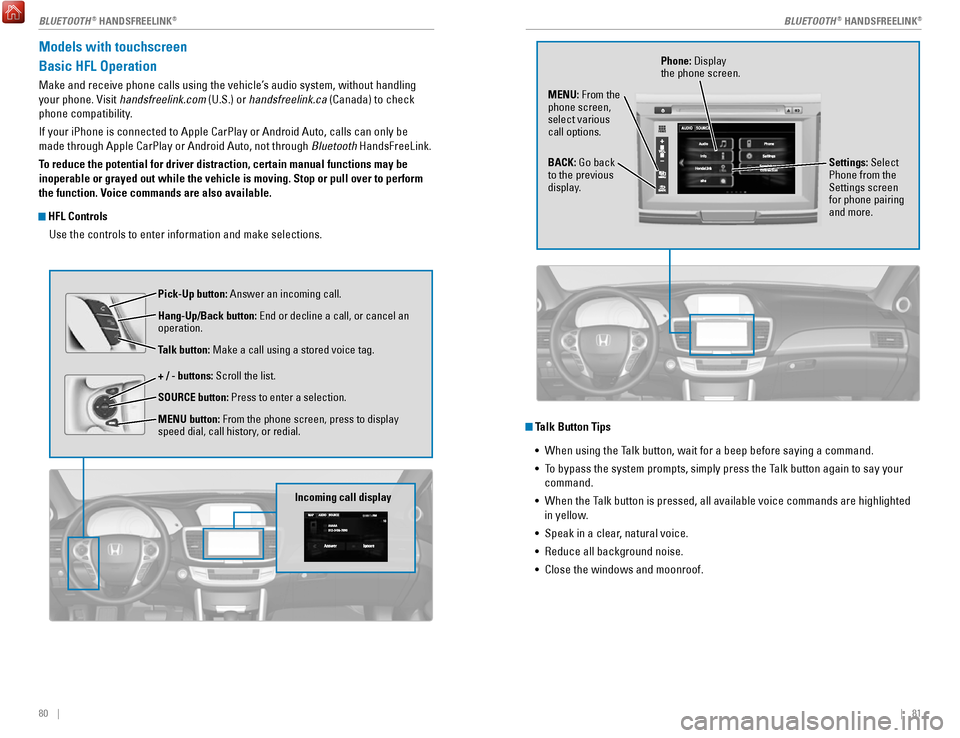
HFL Controls
Use the controls to enter information and make selections.
Pick-Up button: Answer an incoming call.
Hang-Up/Back button:
end or decline a call, or cancel an
operation.
Talk button:
Make a call using a stored voice tag.
+ / - buttons: Scroll the list.
SOURCE button: Press to enter a selection.
MENU button: From the phone screen, press to display
speed dial, call history, or redial.
Incoming call display
Talk Button Tips •
When using the Talk button, wait for a beep before saying a command.
•
To bypass the system prompts, simply press the Talk button again to say your
command.
•
When the Talk button is pressed, all available voice commands are highlighted
in yellow
.
•
Speak in a clear, natural voice.
•
reduce all background noise.
•
Close the windows and moonroof.
Phone: Display
the phone screen.
MENU: From the
phone screen,
select various
call options.
BACK: Go back
to the previous
display. Settings: Select
Phone from the
Settings screen
for phone pairing
and more.
BLUETOOTH® HANDSFreeLINK®BLUETOOTH® HANDSFreeLINK®
Page 45 of 80

82 || 83
Models with touchscreen
Pairing a Phone
To use hands-free phone and streaming audio functions, you must first p\
air your
phone to the system. This can only be done when the vehicle is stopped. \
Use the
touchscreen to make and enter selections.
When there is an active connection to Apple CarPlay (see page 66) or A\
ndroid
Auto (see page 67), pairing of additional Bluetooth-compatible devices is disabled.
1.
From the HoMe screen, select Settings.
2.
Select Phone.
3.
Select Bluetooth Device List
4.
Select Add Bluetooth Device.
5.
Make sure your phone is in discovery mode. Select
oK.
6.
The system searches for your phone. Select your
phone when it appears on the list.
If your phone does not appear:
Select Phone Not Found and search for
HandsFreeLink from your phone.
7.
The system gives you a pairing code. Compare it to
the code that appears on your phone, and connect
when prompted.
8.
The system asks if you want to enable options:
HondaLink Assist: Select
on to enable emergency
collision notification (see page 86).
Automatic Phone Sync: Select
on to automatically
import contacts and call history from your phone.
9.
Press BACK to exit the menu.
State or local laws may prohibit the operation of
handheld electronic devices while operating a vehicle.
Models with touchscreen
Making a Call
You can make a call using several methods.
When there is an active connection with Apple CarPlay, phone calls may be placed
only through CarPlay (see page 66).
Dialing a Number
enter a 10-digit phone number to call.
Using voice commands
Press the Talk button before you say each command.
1.
Say “Call by number.”
2.
Say the phone number. For example,
“3-1-0-5-5-5-1-2-3-4.”
3.
The system begins to dial.
Using the touchscreen
Manual operation is limited while the vehicle is moving.
voice commands are
always available.
1.
From the HoMe screen, select Phone.
2.
Select MeNU.
3.
Select Dial.
4.
enter the phone number. Select the green phone
icon to call.
Storing Speed Dial Entries
Store up to 20 numbers for quick dialing.
1.
From the HoMe screen, select Phone.
2.
Select MeNU.
3.
Select Speed Dial, then select New entry.
4.
Select an entry method.
5.
If desired, you can create a voice tag for the number.
Follow the prompts.
BLUETOOTH® HANDSFreeLINK®BLUETOOTH® HANDSFreeLINK®
Page 46 of 80

84 || 85
Using Speed Dial and Call History
Make calls quickly using stored speed dial entries or call history numbe\
rs.
Using voice commands
Press the Talk button before you say each command.
1.
Say “Dial by name.”
2.
Say the stored voice tag name. For example,
“John Smith.”
Using the touchscreen
1.
From the Home screen, select Phone.
2.
Scroll through the list to find the entry you want
to call, and select it to call.
Using the Phonebook When your phone is paired, its entire phonebook can be automatically imp\
orted to
the system. Automatic Phone Sync must be turned on.
Using voice commands
Press the Talk button before you say each command.
1.
Say “Call by name.”
2.
Say the phonebook name and phone type. For
example, “John Smith mobile.”
Using the touchscreen
Manual operation is limited while the vehicle is moving.
voice commands are
always available.
1.
From the HoMe screen, select Phone.
2.
Select MeNU.
3.
Select Phonebook.
4.
Scroll through the list to find the name and
number you want to call, and select it to call.
Models with touchscreen
SMS Text Messaging and E-Mail
receive and send messages from your paired and connected phone. visit
handsfreelink.honda.com (U.S.) or www .handsfreelink.ca (Canada) to check phone
compatibility. Standard message rates apply. This feature is limited while the vehicle
is moving.
Receiving and Responding to Messages
When you receive a new message, a pop-up appears on the touchscreen. You can
view the message when the vehicle is stopped. You can also reply to it using fixed
phrases or call the sender.
1.
When the prompt appears, select read.
2.
The message is displayed, and the system reads
it aloud.
To reply: With the message open, select reply,
and choose one of the six available responses.
Select Send to send the message. Y
ou cannot
create a new text message.
To call the sender: With the message open, select
Call.
Selecting an Account
If your phone has both text message and e-mail accounts, you can select \
only one
of them at a time to be active and receive notifications.
1.
From the HoMe screen, select Settings.
2.
Select Phone.
3.
Select Select Account.
4.
Select Text Message or an e-mail account.
BLUETOOTH® HANDSFreeLINK®BLUETOOTH® HANDSFreeLINK®
Page 47 of 80

86 || 87
Models with touchscreen
HondaLink® Assist
Automatically attempts to connect and talk to an operator who can locate\
your
vehicle and send emergency help in the event of a collision.
visit www
.hondalink.
com (U.S.) or honda.ca/hondalinkassist (Canada) for more information.
1.
Make sure your phone is on and paired to
Bluetooth® HandsFreeLink® (see page 82).
2.
Select Call Now, or the system automatically
connects after 10 seconds. The vehicle information
and its position are sent to the operator.
3.
Select Talk Now to immediately talk to the operator.
4.
When the call is complete, select Hang Up or press
the Hang Up/Back button on the steering wheel.
For vehicles equipped with HondaLink Assist, owner activation constitute\
s authorization for Honda to
collect information from your vehicle needed to provide the service, and\
agreement to the Terms of
Use at www.hondalink.com/TermsAndConditions. In a crash, HondaLink Assist will attempt to notify
emergency services but NEITHER Honda NOR ITS SERVICE PROVIDERS GUARANTEE\
THAT SUCH
NOTIFICATION WILL OCCUR.
Models with touchscreen
Siri® Eyes Free
Activate Siri through your vehicle when an iPhone is paired to the syste\
m.
visit handsfreelink.honda.com
(U.S.) or honda.ca/siri (Canada) to check phone
compatibility.
(Talk) Button
Press and hold until the display changes as shown.
Press again to cancel Siri.
Appears
when Siri
Eyes Free is
activated.
Here are some examples of Siri commands:
“Call John Smith”
“Read my new text message”
“Find a nearby sushi restaurant”
Notes:
•
Any requests that include visual feedback from Siri on your phone are no\
t
displayed in the vehicle.
•
Certain commands rely on the iPhone’s features and existing apps.
•
To hear turn-by-turn directions or songs through the vehicle, set the aud\
io source
to Bluetooth
Audio.
Siri and iPhone are trademarks of Apple, Inc.
“Remind me to pick up dinner”
“Set up a meeting today at 3 p.m.”
“Play song XYZ”
BLUETOOTH® HANDSFreeLINK®BLUETOOTH® HANDSFreeLINK®
Page 55 of 80

102 || 103
DRIVING
DRIVING
Braking
Slow down or stop your vehicle, and keep it from moving when parked.
Foot Brake
Press the brake pedal to slow down or stop your
vehicle from moving.
Brake Assist System During hard or emergency braking, the system
increases braking force. The brake pedal may move
slightly or make a noise; this is normal. Continue to
hold the brake pedal firmly down.
Anti-Lock Brake System (ABS) During hard or emergency braking, the system
rapidly pumps the brakes to prevent wheel lockup
and help you maintain steering control. The brake
pedal may pulsate slightly during ABS operation;
this is normal. Do not pump the brake pedal, and
continue to hold it firmly down.
Parking BrakeKeep the vehicle from moving when it is parked.
To apply: Pull the lever up fully without pressing the
release button.
To release: Press and hold the release button, then
lower the lever down all the way.
Brake peda l
Brake pedal
The ABS may not function correctly if you use an incorrect tire type and\
size.
NOTICE
release the parking brake fully before driving. The rear brakes and axle \
can be
damaged if you drive with the parking brake applied.
NOTICE
Acoustic Vehicle Alerting System
Alerts people outside your vehicle when it is powered
solely by electricity and is travelling at about 12 mph
(20 km/h) or less.
Canada models
Press the button to turn the system on and off. The
system defaults to on, even if you turned it off the last
time you drove the vehicle.
Eco Assist System
Can help improve fuel economy by adjusting the performance of the power \
system,
transmission, climate control system, and cruise control.
ECON Button
Press the
eCoN button to turn the system on or off.
The
eCoN Mode indicator and a message in the
multi-information display* appear when the system
is turned on.
Ambient Meter
Color-coded bars change based on your driving
style and brake or accelerator pedal operation.
Green: Fuel-efficient driving
Blue green: Moderate acceleration/deceleration
Blue: Spirited acceleration/deceleration
Ambient Meter
Vehicle Stability Assist (VSA®)
Also known as electronic Stability Control (eSC), vSA helps to stabilize the vehicle
during cornering if the vehicle turns more or less than what was intende\
d. It assists
in maintaining traction on slippery surfaces by regulating power system \
output and
selectively applying the brakes.
Turning VSA On or Off
vSA is turned on every time you start the power
system, even if you previously turned it off. If you
turn
vSA off, your vehicle has normal braking and
cornering ability, but
vSA traction and stability
enhancement become less effective.
Press and hold the
vSA oFF button until you hear
a beep to turn
vSA on or off. The vSA oFF indicator
appears when the system is off.
Traction control becomes less effective, which may make it easier when t
rying to
free your vehicle if it is stuck in mud or snow.
VSA OFF indicator