2017 GMC SIERRA 1500 phone
[x] Cancel search: phonePage 177 of 494
GMC Sierra/Sierra Denali Owner Manual (GMNA-Localizing-U.S./Canada/
Mexico-9955992) - 2017 - crc - 5/3/16
176 Infotainment System
Infotainment
System
Introduction
Infotainment . . . . . . . . . . . . . . . . . . 176
Theft-Deterrent Feature . . . . . . 177
Overview (Base Radio withTouchscreen) . . . . . . . . . . . . . . . 178
Overview (Base Radio) . . . . . . . 179
Home Page (Base Radio) . . . . 181
Home Page (Base Radio with Touchscreen) . . . . . . . . . . . . . . . 183
Software Updates . . . . . . . . . . . . 184
Radio
AM-FM Radio (Base Radio) . . . . . . . . . . . . . . . . . . . . . . 184
AM-FM Radio (Base Radio with Touchscreen) . . . . . . . . . . . 186
Satellite Radio (Base Radio) . . . . . . . . . . . . . . . . . . . . . . 188
Satellite Radio (Base Radio with Touchscreen) . . . . . . . . . . . 188
Radio Reception . . . . . . . . . . . . . . 190
Fixed Mast Antenna . . . . . . . . . . 190
Multi-Band Antenna . . . . . . . . . . 190
Audio Players
CD Player . . . . . . . . . . . . . . . . . . . . 191 USB Port (Base Radio) . . . . . . . 193
USB Port (Base Radio with
Touchscreen) . . . . . . . . . . . . . . . 196
Auxiliary Jack . . . . . . . . . . . . . . . . 202
Bluetooth Audio . . . . . . . . . . . . . . 203
Voice Recognition
Voice Recognition . . . . . . . . . . . . 204
Phone
Bluetooth (Overview) . . . . . . . . . 210
Bluetooth (Infotainment Controls - Base Radio) . . . . . . 212
Bluetooth (Voice Recognition - Base Radio) . . . . . . . . . . . . . . . . 216
Bluetooth (Infotainment Controls - Base Radio with
Touchscreen) . . . . . . . . . . . . . . . 220
Apple CarPlay and Android Auto . . . . . . . . . . . . . . . . 224
Trademarks and License
Agreements
Trademarks and LicenseAgreements . . . . . . . . . . . . . . . . . 225
Introduction
Infotainment
Base radio information is included in
this manual. See the infotainment
manual for information on other
available infotainment systems.
Read the following pages to
become familiar with the Base
Radio features.
{Warning
Taking your eyes off the road for
too long or too often while using
any infotainment feature can
cause a crash. You or others
could be injured or killed. Do not
give extended attention to
infotainment tasks while driving.
Limit your glances at the vehicle
displays and focus your attention
on driving. Use voice commands
whenever possible.
The infotainment system has built-in
features intended to help avoid
distraction by disabling some
Page 178 of 494
GMC Sierra/Sierra Denali Owner Manual (GMNA-Localizing-U.S./Canada/
Mexico-9955992) - 2017 - crc - 5/3/16
Infotainment System 177
functions when driving. These
functions may gray out when they
are unavailable. Many infotainment
features are also available through
the instrument cluster and steering
wheel controls.
Before driving:
.Become familiar with the
operation, faceplate buttons, and
screen buttons.
. Set up the audio by presetting
favorite stations, setting the
tone, and adjusting the
speakers.
. Set up phone numbers in
advance so they can be called
easily by pressing a single
button or by using a single voice
command if equipped with
Bluetooth phone capability.
See Defensive Driving 0239.
To play the infotainment system with
the ignition off, see Retained
Accessory Power (RAP) 0262.Theft-Deterrent Feature
TheftLock®is designed to
discourage theft of the vehicle's
radio by learning a portion of the
Vehicle Identification Number (VIN).
The radio does not operate if it is
stolen or moved to a different
vehicle.
Page 180 of 494
GMC Sierra/Sierra Denali Owner Manual (GMNA-Localizing-U.S./Canada/
Mexico-9955992) - 2017 - crc - 5/3/16
Infotainment System 179
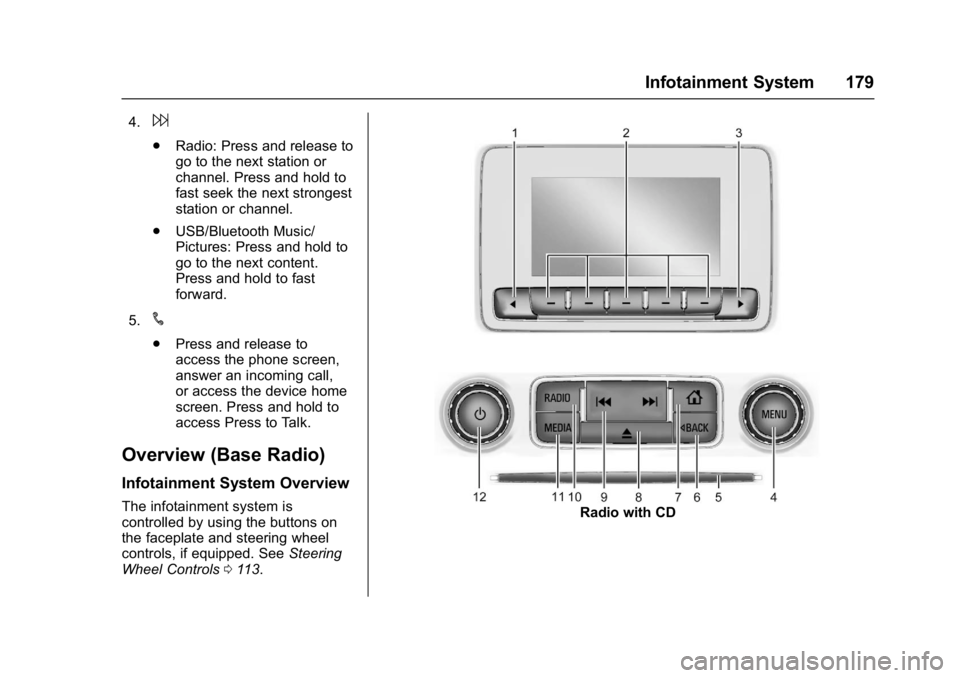
4.6
.Radio: Press and release to
go to the next station or
channel. Press and hold to
fast seek the next strongest
station or channel.
. USB/Bluetooth Music/
Pictures: Press and hold to
go to the next content.
Press and hold to fast
forward.
5.
#
. Press and release to
access the phone screen,
answer an incoming call,
or access the device home
screen. Press and hold to
access Press to Talk.
Overview (Base Radio)
Infotainment System Overview
The infotainment system is
controlled by using the buttons on
the faceplate and steering wheel
controls, if equipped. See Steering
Wheel Controls 0113.Radio with CD
Page 182 of 494
GMC Sierra/Sierra Denali Owner Manual (GMNA-Localizing-U.S./Canada/
Mexico-9955992) - 2017 - crc - 5/3/16
Infotainment System 181
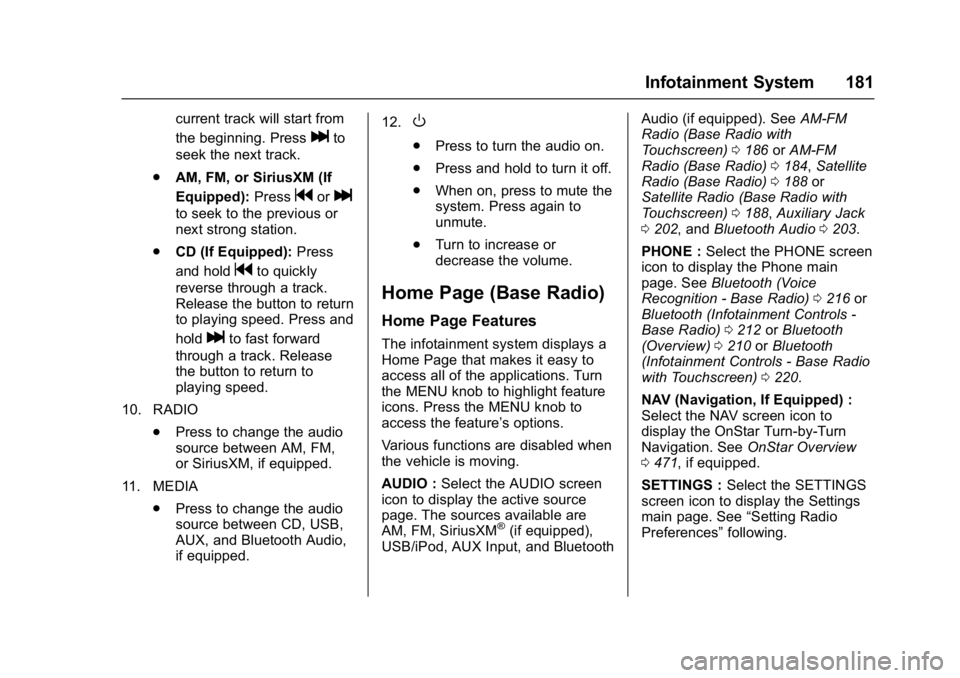
current track will start from
the beginning. Press
lto
seek the next track.
. AM, FM, or SiriusXM (If
Equipped): Press
gorl
to seek to the previous or
next strong station.
. CD (If Equipped): Press
and hold
gto quickly
reverse through a track.
Release the button to return
to playing speed. Press and
hold
lto fast forward
through a track. Release
the button to return to
playing speed.
10. RADIO .Press to change the audio
source between AM, FM,
or SiriusXM, if equipped.
11. MEDIA .Press to change the audio
source between CD, USB,
AUX, and Bluetooth Audio,
if equipped. 12.
O
.
Press to turn the audio on.
. Press and hold to turn it off.
. When on, press to mute the
system. Press again to
unmute.
. Turn to increase or
decrease the volume.
Home Page (Base Radio)
Home Page Features
The infotainment system displays a
Home Page that makes it easy to
access all of the applications. Turn
the MENU knob to highlight feature
icons. Press the MENU knob to
access the feature’s options.
Various functions are disabled when
the vehicle is moving.
AUDIO : Select the AUDIO screen
icon to display the active source
page. The sources available are
AM, FM, SiriusXM
®(if equipped),
USB/iPod, AUX Input, and Bluetooth Audio (if equipped). See
AM-FM
Radio (Base Radio with
Touchscreen) 0186 orAM-FM
Radio (Base Radio) 0184, Satellite
Radio (Base Radio) 0188 or
Satellite Radio (Base Radio with
Touchscreen) 0188, Auxiliary Jack
0 202, and Bluetooth Audio 0203.
PHONE : Select the PHONE screen
icon to display the Phone main
page. See Bluetooth (Voice
Recognition - Base Radio) 0216 or
Bluetooth (Infotainment Controls -
Base Radio) 0212 orBluetooth
(Overview) 0210 orBluetooth
(Infotainment Controls - Base Radio
with Touchscreen) 0220.
NAV (Navigation, If Equipped) :
Select the NAV screen icon to
display the OnStar Turn-by-Turn
Navigation. See OnStar Overview
0 471, if equipped.
SETTINGS : Select the SETTINGS
screen icon to display the Settings
main page. See “Setting Radio
Preferences” following.
Page 185 of 494
GMC Sierra/Sierra Denali Owner Manual (GMNA-Localizing-U.S./Canada/
Mexico-9955992) - 2017 - crc - 5/3/16
184 Infotainment System
Phone :Touch to activate the
phone features (if equipped). See
Bluetooth (Voice Recognition - Base
Radio) 0216 orBluetooth
(Infotainment Controls - Base
Radio) 0212 orBluetooth
(Overview) 0210 orBluetooth
(Infotainment Controls - Base Radio
with Touchscreen) 0220.
Projection : Touch to access
supported devices when connected.
See USB Port (Base Radio) 0193
or USB Port (Base Radio with
Touchscreen) 0196.
Settings : Touch to access the
Personalization menu. See Vehicle
Personalization 0155.
Climate : Touch to access the
Climate menu. See Dual Automatic
Climate Control System 0231.
OnStar : If equipped, touch to
access the OnStar menu. See
OnStar Overview 0471.Software Updates
See the websites for more
information.
Website Information
In the U.S., see www.gmc.com
In Canada, see www.gmc.gm.ca
In Mexico, www.gmc.com.mx
Radio
AM-FM Radio (Base
Radio)
Playing the Radio
While on the audio main page,
press the RADIO button repeatedly
to cycle through the available
sources AM, FM, and SiriusXM
®(if
equipped) or press the MEDIA
button repeatedly to cycle through
the available sources Bluetooth
®
Audio (if equipped), USB, and AUX.
The steering wheel controls can
also be used to adjust the volume.
See Steering Wheel Controls 0113.
AM, FM, or SiriusXM (If Equipped)
To select AM, FM, or SiriusXM (if
equipped), press the RADIO button
to toggle to the desired broadcast
source.
Page 191 of 494
GMC Sierra/Sierra Denali Owner Manual (GMNA-Localizing-U.S./Canada/
Mexico-9955992) - 2017 - crc - 5/3/16
190 Infotainment System
Explicit Content Filter
When on, only a filtered list of
channels will be received. When off,
all regular SXM programming
subscribed to will be received.1. Touch SXM Explicit Filter.
2. Select On or Off.
Radio Reception
Frequency interference and static
can occur during normal radio
reception if items such as phone
chargers, vehicle convenience
accessories, and external electronic
devices are plugged into the
accessory power outlet. If there is
interference or static, unplug the
item from the accessory power
outlet.
FM
FM signals only reach about 16 to
65 km (10 to 40 mi). Although the
radio has a built-in electronic circuit
that automatically works to reduce
interference, some static can occur,
especially around tall buildings or
hills, causing the sound to fade in
and out.
AM
The range for most AM stations is
greater than for FM, especially at
night. The longer range can cause
station frequencies to interfere with
each other. Static can also occur
when things like storms and power
lines interfere with radio reception.
When this happens, try reducing the
treble on the radio.
SiriusXM Satellite Radio
Service
If equipped, SiriusXM Satellite
Radio Service provides digital radio
reception. Tall buildings or hills can
interfere with satellite radio signals,
causing the sound to fade in and
out. In addition, traveling or standing
under heavy foliage, bridges,
garages, or tunnels may cause loss
of the SiriusXM signal for a period
of time.
Cell Phone Usage
Cell phone usage, such as making
or receiving phone calls, charging,
or just having the phone on may cause static interference in the
radio. Unplug the phone or turn it off
if this happens.
Fixed Mast Antenna
The fixed mast antenna will go
through most car washes as long as
it is securely attached. If the
antenna becomes slightly bent,
straighten it out by hand. If it is
badly bent, replace it.
Occasionally check that the antenna
is tight at the base. If tightening is
required, protect the paint from
damage.
Multi-Band Antenna
The multi-band antenna is on the
roof of the vehicle. The antenna is
used for OnStar, the SiriusXM
Satellite Radio Service System, and
GPS (Global Positioning System),
if the vehicle has these features.
Keep the antenna clear of
obstructions for clear reception.
If the vehicle has a sunroof, and it is
open, reception can also be
affected.
Page 195 of 494
GMC Sierra/Sierra Denali Owner Manual (GMNA-Localizing-U.S./Canada/
Mexico-9955992) - 2017 - crc - 5/3/16
194 Infotainment System
The vehicle may have USB ports in
the front of the center console,
armrest, or one in the upper glove
box. SeeCenter Console Storage
0 109 andGlove Box 0108.
USB MP3 Player and USB Drives
. The USB MP3 players and USB
drives connected must comply
with the USB Mass Storage
Class specification (USB MSC).
. Hard disk drives are not
supported.
. Supported file system is FAT32.
To play a USB device:
. Connect the USB.
. Press MEDIA on the faceplate
until the connected device is
shown.
While the USB source is active,
press the corresponding faceplate
button for the icons on the screen to
operate USB function:
.
t
.u
.j/r
.Z
For information on how to use the
screen icons, see “Playing an
Audio CD.”
USB Menu
Press MENU to display the USB
menu and the following may display:
Browse : Select to display the files
and folders on the USB device.
Tone Settings : Select to adjust
Bass, Midrange, Treble, Balance,
Fade, and EQ (Equalizer). See
“Tone Settings” inAM-FM Radio
(Base Radio with Touchscreen)
0 186 orAM-FM Radio (Base
Radio) 0184.
Auto Volume : If equipped, see
“Auto Volume” inAM-FM Radio
(Base Radio with Touchscreen)
0 186 orAM-FM Radio (Base
Radio) 0184.
EQ (Equalizer) : If equipped, this
feature adjusts the equalizer
settings. See “EQ (Equalizer)
Settings” inAM-FM Radio (Base
Radio with Touchscreen) 0186 or
AM-FM Radio (Base Radio) 0184.
Playing from an iPod®/iPad®/
iPhone®
This feature supports the following
devices:
. iPod nano
®(1st, 2nd, 3rd, and
4th generation)
. iPod with video (5.0 and 5.5
generation)
. iPod classic
®(6th generation)
. iPod touch
®(1st and 2nd
generation)
. iPad
. iPhone 3G, iPhone 3GS,
iPhone 4
There may be problems with
operation and function in the
following situations:
. When connecting a device with
a more recent version of the
firmware installed than is
supported by the infotainment
system.
. When connecting a device on
which firmware from other
providers is installed.
Page 198 of 494
GMC Sierra/Sierra Denali Owner Manual (GMNA-Localizing-U.S./Canada/
Mexico-9955992) - 2017 - crc - 5/3/16
Infotainment System 197
USB Supported File and Folder
Structure
The infotainment system supports:
.FAT16.
. FAT32.
. exFAT.
Connecting a USB Storage
Device or iPod/iPhone
To connect a USB storage device,
connect the device to the USB port.
To connect an iPod/iPhone, connect
one end of the device’ s cable to the
iPod/iPhone and the other end to
the USB port.
The iPod/iPhone charges while it is
connected to the vehicle if the
vehicle is in ACC/ACCESSORY or
ON/RUN. See Ignition Positions
0 259. When the vehicle is turned
off, the iPod/iPhone automatically
powers off and will not charge or
draw power from the vehicle's
battery.
For more information on USB
usage, see “Audio System
Information” following.
Audio System Information
The infotainment system can play
the music files contained in the USB
storage device or iPod/iPhone
products.
Using MP3/WMA/OGG/WAV Files
.
Music files with .mp3, .wma,
.ogg, and .wav file name
extensions can be played.
. MP3 files that can be played: Bit
rate: 8 kbps to 320 kbps.
Sampling frequency: 48 kHz,
44.1 kHz, 32 kHz, 24 kHz, 22.05
kHz, and 16 kHz.
. Files with a bit rate above
128 kbps will result in higher
quality sound.
. ID3 Tag information for MP3
files, such as the album name
and the artist, can be played.
. To display album title, track title,
and artist information, the file
should be compatible with the
ID3 Tag V1 and V2 formats. Using USB Storage Devices and
iPod/iPhone
.
Use a USB or flash memory type
storage device. Do not connect
using a USB adaptor.
. Do not connect and reconnect
the USB device repeatedly in a
short time, as this may cause
static electricity and problems
using the device.
. Use a USB device with a metal
connecting terminal.
. Connection with i-Stick Type
USB storage devices may be
faulty due to vehicle vibration.
. Do not touch the USB
connecting terminal.
. Only USB storage devices
formatted in FAT16/32 or exFAT
file systems are recognized.
NTFS and other file systems are
not recognized.
. The time it takes to process files
will depend on the USB storage
device type and capacity, and
the type of files stored.