2017 FORD GT reset
[x] Cancel search: resetPage 241 of 313

Note:
You must enable mobile apps for
each connected device the first time you
select a mobile app using the system.
Note: Ford reserves the right to limit
functionality or deactivate mobile apps at
any time.
Note: Standard data rates apply. Ford is
not responsible for any additional charges
you may receive from your service provider,
when your vehicle sends or receives data
through the connected device. This includes
any additional charges incurred due to
driving in areas when roaming out of a home
network.
You can enable and disable apps through
settings. See Settings (page 238).
App Permissions
The system organizes the App permissions
into groups. You can grant these group
permissions individually. You can change
a permission group status any time when
not driving, by using the settings menu.
While in the settings menu, you can also
see the data included in each group. When you launch an app using SYNC 3,
the system may ask you to grant certain
permissions, for example Vehicle
information, Driving characteristics, GPS
and Speed, and/or Push notifications. You
can enable all groups or none of them
during the initial app permissions prompts.
The settings menu offers individual group
permission control.
Note:
You are only prompted to grant
permissions the first time you use an app
with SYNC 3.
Note: If you disable group permissions,
apps will still be enabled to work with SYNC
3 unless you deactivate All Apps in the
settings menu.
SETTINGS
Under this menu, you can access and
adjust the settings for many of the system
features. To access additional settings,
swipe the screen left or right.
Sound
Pressing this button allows you to adjust
the following: Sound Settings
Returns Treble, Midrange, and Bass sound settings to factory levels.
Reset All
Adjusts the high frequency level.
Treble
Adjusts the middle frequency level.
Midrange
Adjusts the low frequency level.
Bass
Adjusts the sound ratio from side to side.
Balance
Adjusts the amount the audio system volume increases with speed,
or turns the feature off.
Speed
Compensated
Vol.
Optimizes the sound based on the location of the listeners.
Occupancy Mode
238
Ford GT (CGX) Canada/United States of America, enUSA, First Printing SYNC™ 3
(If Equipped)
Page 243 of 313

Clock
To adjust the time, select the up and down
arrows on either side of the screen. The
arrows on the left adjust the hour and
arrows on the right adjust the minute. You
can then select AM or PM.
You can adjust the following features:Action and Description
Menu Item
Select how time displays.
Clock Format
When active, the clock adjusts to time zone changes.
Auto Time Zone
Update This feature is only available in vehicles with navigation.
When selected, the vehicle clock resets to GPS satellite time.
Reset Clock to
GPS Time
The system automatically saves any
updates you make to the settings. Bluetooth
Pressing this button allows you to access
the following: Action
Menu Item
Turning Bluetooth off disconnects all devices and does not permit
new connections.
Bluetooth
You must activate Bluetooth to pair a
Bluetooth-enabled device.
The processes of pairing a Bluetooth
device is the same as pairing a phone. See
Pairing a Device in Phone settings for how
to pair a device and the available options.
Phone
Pair your Bluetooth-enabled phone with
the system before using the functions in
hands-free mode.
Switch on Bluetooth on your device to
begin pairing. See your phone ’s manual if
necessary. To add a phone, select: Menu Item
Add Phone
1. Follow the on-screen instructions.
2. A prompt alerts you to search for the system on your phone.
3. Select your vehicle's make and model as it displays on your phone.
4. Confirm that the six-digit number appearing on your phone matches the
six-digit number on the touchscreen.
5. The touchscreen indicates when the pairing is successful.
240
Ford GT (CGX) Canada/United States of America, enUSA, First Printing SYNC™ 3 (If Equipped)
Page 246 of 313

You can enable and disable the following options as well:
Action and Description
Menu Item
When enabled, vehicle audio (such as radio or apps) is muted for the
duration of the phone call even when the phone call is in privacy.
Mute Audio in
Privacy
When enabled, an alert displays that your phone is roaming when
you attempt to place a call.
Roaming
Warning
When enabled, a message displays when the battery on your phone
is running low.
Low Battery
Notification
911 Assist
Note: This service is only available in the
United States and Canada. Select this button to modify the on or off
setting for this feature. If the mobile
phone
’s contacts have been downloaded,
you can adjust the following option: Action and Description
Menu Item
You can select up to two numbers from your mobile device's phone-
book as emergency contacts for quick access at the end of the 911
Assist call process.
Set Emergency
Contacts
Radio
This button is available if a Radio source
such as AM or FM is the active media
source. Pressing the button allows you to
access the following features: Action and Description
Menu Item
This feature is available when FM Radio is your active media source.
Activate this feature to have the system display radio text.
Radio Text
Refresh
Autoset Presets
(AST)
Selecting this option stores the six strongest stations in your current
location to the last preset bank of the currently tuned source.
Navigation
You can adjust many of the Navigation
preferences by selecting the following
menus.
243
Ford GT (CGX) Canada/United States of America, enUSA, First Printing SYNC™ 3 (If Equipped)
Page 250 of 313

Action and Description
Menu Item
Request Update
Grant or deny permissions to all apps at once.
All Apps
Grant or deny an individual app particular permissions. App permis-
sions are organized into groups. By pressing the info book icon, you
can see which signals are included in each group.
There may also
be SYNC 3
enabled apps
listed under
these options.
Note: Ford is not responsible or liable for
any damages or loss of privacy relating to
usage of an app, or dissemination of any
vehicle data that you approve Ford to
provide to an app. General
Access and adjust the system settings,
voice features, as well as phone, navigation
and wireless settings.Menu Item
Select to have the touchscreen display in English,
Spanish or French.
Language
Select to display units in kilometers or miles.
Distance
Select to display units in Celsius or Fahrenheit.
Temperature
Select to have the system beep to confirm choices
made through the touchscreen.
Touch Screen Beep
When you activate this option, the system automatic-
ally updates when you have an available Internet
connection through a Wi-Fi network or mobile
connection.
Automatic System Updates
Information pertaining to the system and its software.
About
Documentation of the software license for the system.
Software Licenses
Select to restore factory defaults. This erases all
personal settings and personal data.
Master Reset
Wi-Fi
You can adjust the following:
247
Ford GT (CGX) Canada/United States of America, enUSA, First Printing SYNC™ 3 (If Equipped)
Page 253 of 313

Website
owner.ford.com Website
www.syncmyride.ca
www.syncmaroute.ca Cell phone issues
Possible solution
Possible cause
Issue
Refer to your device's manual about audio
adjustments.
The audio control
settings on your cell
phone may be affecting
SYNC 3 performance.
There is back-
ground noise
during a phone
call.
Try switching your cell phone off, resetting
it or removing the battery, then try again.
Possible cell phone
malfunction.
During a call, I
can hear the
other person
but they cannot
hear me.
Make sure that the microphone for SYNC
3 is not set to off. Look for the microphone
icon on the phone screen.
To restart your system, shut down the
engine, open and close the door, and then
lock the door and wait for 2-3 minutes.
Make sure that your SYNC 3 screen is black
and the lighted USB port is off.
The system may need to
be restarted.
During a call, I
cannot hear the
other person
and they cannot
hear me.
Check your cell phone's compatibility.
This is a cell phone-
dependent feature.
SYNC 3 is not
able to down-
load my phone-
book. Make sure you allow SYNC 3 to retrieve
contacts from your phone. Refer to your
cell manual.
Possible cell phone
malfunction. You must switch on your cell phone and
the automatic phonebook download
feature on SYNC 3.
Try switching your cell phone off, resetting
it or removing the battery, then try again.
Make sure you allow SYNC 3 to retrieve
contacts from your phone. Refer to your
cell manual.
Limitations on your cell
phone's capability.
The system
says "Phone-
book down-
loaded" but my
SYNC 3 phone-
book is empty or
is missing
contacts.
If the missing contacts are stored on your
SIM card, move them to your cell phone's
memory.
250
Ford GT (CGX) Canada/United States of America, enUSA, First Printing SYNC™ 3 (If Equipped)
Page 254 of 313
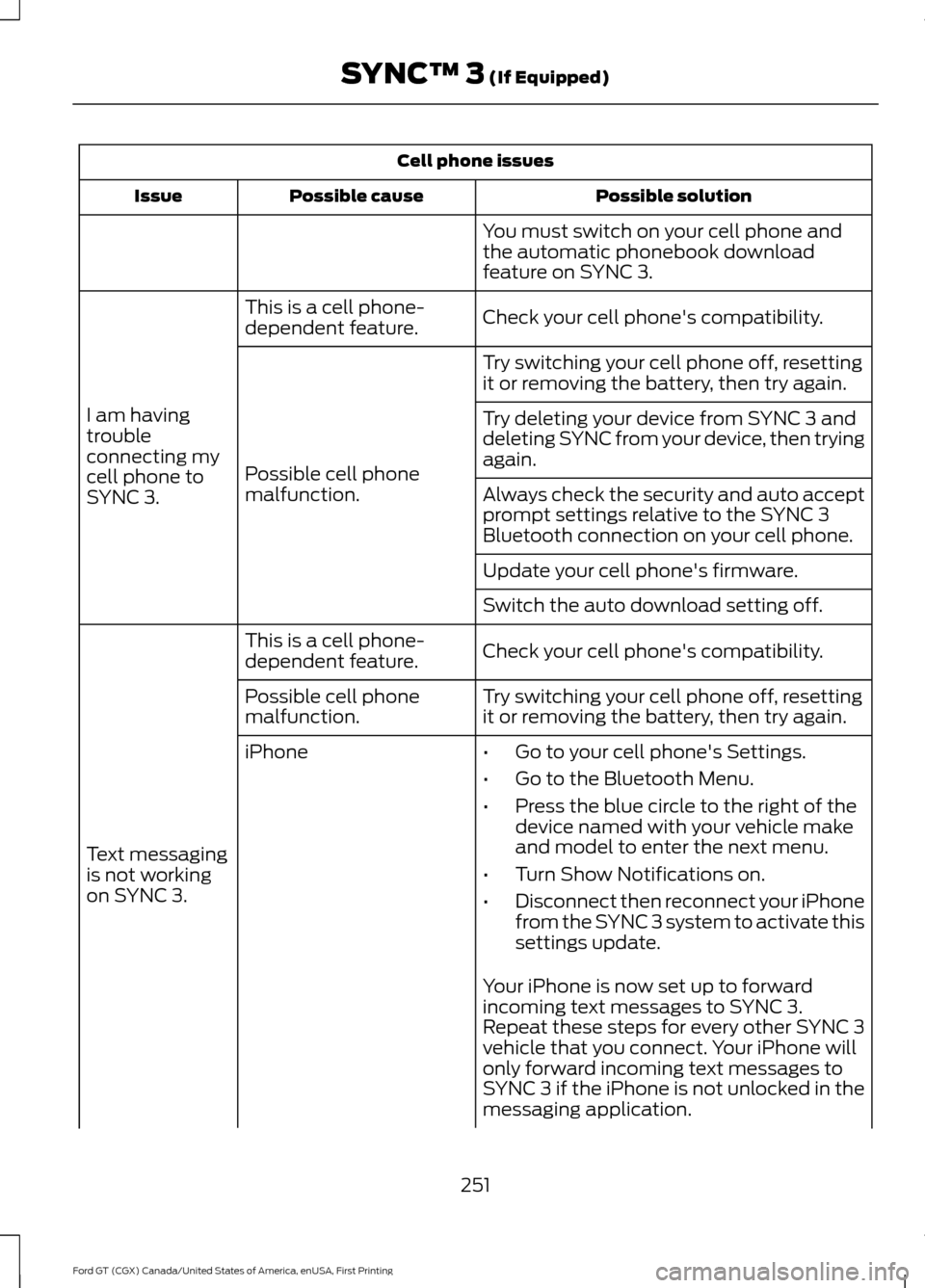
Cell phone issues
Possible solution
Possible cause
Issue
You must switch on your cell phone and
the automatic phonebook download
feature on SYNC 3.
Check your cell phone's compatibility.
This is a cell phone-
dependent feature.
I am having
trouble
connecting my
cell phone to
SYNC 3. Try switching your cell phone off, resetting
it or removing the battery, then try again.
Possible cell phone
malfunction. Try deleting your device from SYNC 3 and
deleting SYNC from your device, then trying
again.
Always check the security and auto accept
prompt settings relative to the SYNC 3
Bluetooth connection on your cell phone.
Update your cell phone's firmware.
Switch the auto download setting off.
Check your cell phone's compatibility.
This is a cell phone-
dependent feature.
Text messaging
is not working
on SYNC 3. Try switching your cell phone off, resetting
it or removing the battery, then try again.
Possible cell phone
malfunction.
iPhone
•Go to your cell phone's Settings.
• Go to the Bluetooth Menu.
• Press the blue circle to the right of the
device named with your vehicle make
and model to enter the next menu.
• Turn Show Notifications on.
• Disconnect then reconnect your iPhone
from the SYNC 3 system to activate this
settings update.
Your iPhone is now set up to forward
incoming text messages to SYNC 3.
Repeat these steps for every other SYNC 3
vehicle that you connect. Your iPhone will
only forward incoming text messages to
SYNC 3 if the iPhone is not unlocked in the
messaging application.
251
Ford GT (CGX) Canada/United States of America, enUSA, First Printing SYNC™ 3 (If Equipped)
Page 255 of 313

Cell phone issues
Possible solution
Possible cause
Issue
Replying to text messages using SYNC 3 is
not supported by iPhone.
Text messages from WhatsApp and Face-
book Messenger are not supported.
Your cell phone must support downloading
text messages through Bluetooth to receive
incoming text messages.
This is a cell phone-
dependent feature.
Audible text
messages do
not work on my
cell phone. Because each cell phone is different, refer
to your device's manual for the specific cell
phone you are pairing. In fact, there can be
differences between cell phones due to
brand, model, service provider and software
version.
This is a cell phone limita-
tion. USB and Bluetooth Stereo issues
Possible solution
Possible cause
Issue
Disconnect the device from SYNC 3. Try
switching your device off, resetting it or
removing the battery, then reconnect it to
SYNC 3.
Possible device malfunc-
tion.
I am having
trouble
connecting my
device. Make sure you are using the manufacturer's
cable.
Make sure to correctly insert the USB cable
into the device and your vehicle's USB port.
Make sure that the device does not have
an auto-install program or active security
settings.
Make sure your device is unlocked before
connecting it to SYNC 3.
The device has a lock
screen enabled.
Make sure you are not leaving the device in
your vehicle during very hot or cold
temperatures.
This is a device limitation.
SYNC 3 does
not recognize
my device when
I start my
vehicle.
252
Ford GT (CGX) Canada/United States of America, enUSA, First Printing SYNC™ 3 (If Equipped)
Page 256 of 313

USB and Bluetooth Stereo issues
Possible solution
Possible cause
Issue
Make sure you connect the device to SYNC
3 and that you have started the media
player on your device.
This is a device-
dependent feature.
Bluetooth audio
does not
stream. The device is not
connected.
Make sure that all song details are popu-
lated.
Your music files may not
contain the correct artist,
song title, album or genre
information.
SYNC 3 does
not recognize
music that is on
my device. Try replacing the corrupt file with a new
version.
The file may be
corrupted.
Some devices require you to change the
USB settings from mass storage to media
transfer protocol class.
The song may have
copyright protection that
does not allow it to play.
Convert the file to a supported format. See
Entertainment (page 220).
The file format is not
supported by SYNC 3.
Update media index. See
Settings (page
238).
The device needs to be
re-indexed.
Make sure your device is unlocked before
connecting it to SYNC 3.
The device has a lock
screen enabled.
Disconnect the device from SYNC 3. Try
switching your device off, resetting it or
removing the battery, then connect it back
to SYNC 3.
This is a device limitation.
When I connect
my device, I
sometimes do
not hear any
sound. To listen to Apple devices through USB,
select AirPlay from the devices Control
Center, then select Dock Connector.
To listen to Apple devices through
Bluetooth Stereo, select AirPlay from the
devices Control Center, then select SYNC.
253
Ford GT (CGX) Canada/United States of America, enUSA, First Printing SYNC™ 3
(If Equipped)