2017 FORD FLEX deactivate
[x] Cancel search: deactivatePage 52 of 496

•
Crash sensors and monitoring system
with readiness indicator. See Crash
Sensors and Airbag Indicator (page
50
).
Note: The passenger sensing system will
deactivate the passenger seat-mounted
side airbag if it detects an empty passenger
seat.
The design and development of the side
airbag system included recommended
testing procedures that were developed
by a group of automotive safety experts
known as the Side Airbag Technical
Working Group. These recommended
testing procedures help reduce the risk of
injuries related to the deployment of side
airbags.
SAFETY CANOPY™ WARNINGS
Do not place objects or mount
equipment on or near the headliner
at the siderail that may come into
contact with a deploying curtain airbag.
Failure to follow these instructions may
increase the risk of personal injury in the
event of a crash. Do not lean your head on the door.
The curtain airbag could injure you
as it deploys from the headliner.
Do not attempt to service, repair, or
modify the curtain airbags, its fuses,
the A, B, C or D pillar trim, or the
headliner on a vehicle containing curtain
airbags as you could be seriously injured
or killed. Contact your authorized dealer
as soon as possible. WARNINGS
All occupants of your vehicle
including the driver should always
wear their safety belts even when an
airbag supplemental restraint system and
curtain airbag is provided. Failure to
properly wear your safety belt could
seriously increase the risk of injury or death. To reduce risk of injury, do not
obstruct or place objects in the
deployment path of the curtain
airbag. If the curtain airbags have deployed,
the curtain airbags will not function
again. The curtain airbags (including
the A, B, C and D pillar trim and headliner)
must be inspected and serviced by an
authorized dealer. If the curtain airbag is
not replaced, the unrepaired area will
increase the risk of injury in a crash. The Safety Canopy will deploy during
significant side crashes or when a certain
likelihood of a rollover event is detected
by the rollover sensor. The Safety Canopy
is mounted to the roof side-rail sheet
metal, behind the headliner, above each
row of seats. In certain sideways crashes
or rollover events, the Safety Canopy will
be activated, regardless of which seats are
occupied. The Safety Canopy is designed
to inflate between the side window area
and occupants to further enhance
protection provided in side impact crashes
and rollover events.
49
Flex (), enUSA, First Printing Supplementary Restraints SystemE67017
Page 182 of 496

Traction Control
The system enhances your vehicle
’s ability
to maintain traction of the wheels by
detecting and controlling wheel spin. See
Using Traction Control (page 177). Vehicle without stability control
skidding off its intended route.
A
Vehicle with stability control
maintaining control on a slippery
surface.
B
USING STABILITY CONTROL
The system automatically turns on each
time you switch the ignition on.
You cannot switch the stability control and
roll stability control systems off, but when
you shift into reverse (R), the systems
deactivate.
You can switch the traction control system
off or on. See
Using Traction Control
(page 177).
179
Flex (), enUSA, First Printing Stability ControlE72903A
AA
B
BB
B
Page 186 of 496

Note:
Active park assist may not detect
vehicles with overhanging loads (a bus or a
truck), street furniture and other items. You
must make sure the selected space is
suitable for parking.
Note: You should drive your vehicle within
5 ft (1.5 m) and as parallel to the other
vehicles as possible while passing a parking
space.
Note: The system always offers the last
detected parking space (for example, if your
vehicle detects multiple spaces while you
are driving, it offers the last one).
Note: If driven above approximately 22 mph
(35 km/h)
, the display screen shows a
message to alert you to reduce your vehicle
speed. Automatic Steering into Parking
Space
Note:
If vehicle speed exceeds
6 mph
(10 km/h) or the maneuver is interrupted
(driver input is detected), the system
switches off and you need to take full
control of your vehicle.
Note: If a maneuver is interrupted before
completion, the system switches off. The
steering wheel position will not indicate the
actualy position of the steering and you have
to take full control of your vehicle.
When you shift the transmission into
reverse (R), with your hands off the wheel
(and nothing obstructing its movement),
your vehicle steers itself into the space.
The system displays instructions to move
your vehicle back and forth in the space. When you think your vehicle has enough
space in front and behind it, or you hear a
solid tone from the parking aid
(accompanied by a touchscreen display
message and a chime), bring your vehicle
to a complete stop.
When automatic steering is complete, the
system displays a message and a chime
sounds, indicating that the active park
assist process is finished. The driver is
responsible for checking the parking job
and making any necessary corrections
before leaving your vehicle.
Deactivating the Park Assist
Feature
Manually deactivate the system by:
•
Pressing the active park assist button
during an active maneuver.
• Grabbing the steering wheel during an
active maneuver.
• Driving above approximately
22 mph
(35 km/h) for 30 seconds during an
active park search.
• Driving above 6 mph (10 km/h) during
automatic steering.
• Turning off the traction control system.
183
Flex (), enUSA, First Printing Parking AidsE130108
Page 187 of 496

Certain vehicle conditions can also
deactivate the system, such as:
•
Traction control has activated on a
slippery or loose surface.
• There is an anti-lock brake system
activation or failure.
• Something touches the steering wheel. If a problem occurs with the system, a
warning message is displayed, followed
by a chime. Occasional system messages
may occur in normal operation. For
recurring or frequent system faults, contact
an authorized dealer to have your vehicle
serviced.
Troubleshooting the System The system does not look for a space
The traction control system may be off.
The transmission is in reverse (R); your vehicle must be moving forward to detect a
parking space. The system does not offer a particular space
The sensors may be covered (for example, snow, ice or dirt buildup). Covered sensors
can affect the system's functionality
There is not enough room in the parking space for your vehicle to safely park.
There is not enough space for the parking maneuver on the opposite side of the parking
space.
The parking space is farther than 5 ft (1.5 m) or closer than 16 in (40 cm) away.
Your vehicle is going faster than
22 mph (35 km/h).
You may have recently disconnected or replaced the battery. After a battery disconnect,
the vehicle must be driven on a straight road at a speed greater than 12 mph (20 km/h)
for up to 30 seconds. The system does not position your vehicle where I want in the space
Your vehicle is rolling in the opposite direction of the transmission (rolling forward when
reverse [R] is selected).
An irregular curb along the parking space prevents the system from aligning your vehicle
properly.
Vehicles or objects bordering the space may not be positioned correctly.
Your vehicle was pulled too far past the parking space.
184
Flex (), enUSA, First Printing Parking Aids
Page 196 of 496
Detection Issues
WARNING
On rare occasions, detection issues
can occur due to the road
infrastructures, for example bridges,
tunnels and safety barriers. In these cases,
the system may brake late or
unexpectedly. At all times, you are
responsible for controlling your vehicle,
supervising the system and intervening, if
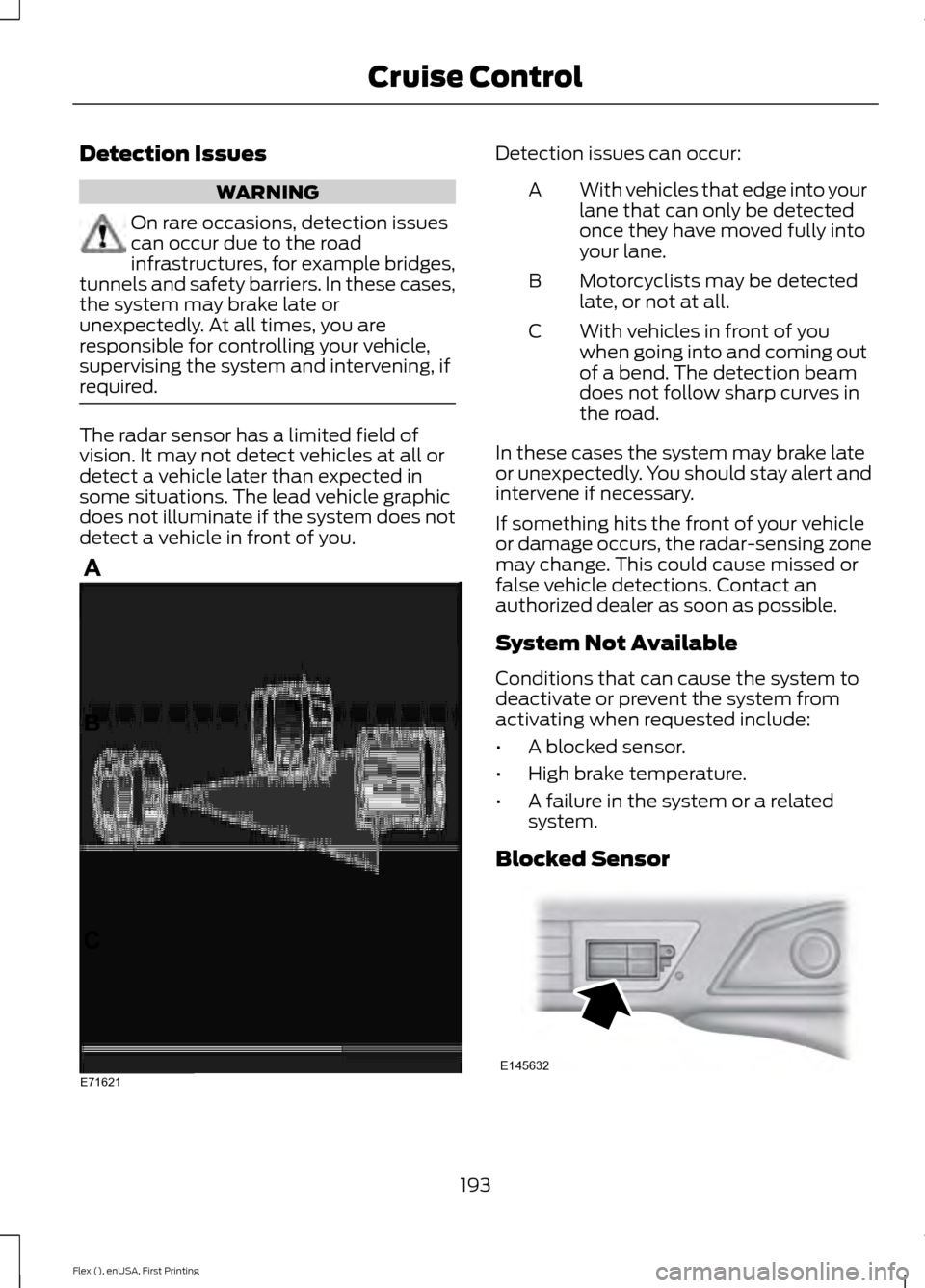
required. The radar sensor has a limited field of
vision. It may not detect vehicles at all or
detect a vehicle later than expected in
some situations. The lead vehicle graphic
does not illuminate if the system does not
detect a vehicle in front of you. Detection issues can occur:
With vehicles that edge into your
lane that can only be detected
once they have moved fully into
your lane.
A
Motorcyclists may be detected
late, or not at all.
B
With vehicles in front of you
when going into and coming out
of a bend. The detection beam
does not follow sharp curves in
the road.
C
In these cases the system may brake late
or unexpectedly. You should stay alert and
intervene if necessary.
If something hits the front of your vehicle
or damage occurs, the radar-sensing zone
may change. This could cause missed or
false vehicle detections. Contact an
authorized dealer as soon as possible.
System Not Available
Conditions that can cause the system to
deactivate or prevent the system from
activating when requested include:
• A blocked sensor.
• High brake temperature.
• A failure in the system or a related
system.
Blocked Sensor 193
Flex (), enUSA, First Printing Cruise ControlE71621 E145632
Page 340 of 496

Action and Description
Message
Press OK and scroll to toggle between On and Off. When the
desired selection is chosen, press OK.
Setting Bluetooth to off disconnects all Bluetooth devices
and turns off all Bluetooth features.
Delete a paired cell phone.
DEL DEVICE
Press the OK button and scroll to select the device. Press OK
to confirm.
Delete all previously paired phones (and all information
originally saved with those phones).
DELETE ALL
Press
OK to select.
Exit the current menu.
RETURN
1 This is a speed-dependent feature. It is only available when your vehicle is traveling at
3 mph (5 km/h) or less.
2 You can only connect one device at a time. When another cell phone is connected, the
previous one is disconnected.
3 SYNC attempts to connect with the primary phone at every ignition cycle. When a phone
is selected as primary, it appears first in the list and is marked with an asterisk (*).
4 Turning Bluetooth off disconnects all Bluetooth devices and deactivates all Bluetooth
features.
Advanced
The Advanced menu allows you to access
and set prompts, languages, defaults,
perform a master reset, install an
application and view system information.
To access the advanced menu, press the phone button to enter the Phone Menu,
the scroll to: Action and Description
Message
Press
OK.
SYS SETTINGS
Press
OK.
ADVANCED
Select one of the following:
Get help from SYNC by using questions, helpful hints or asking you for
a specific action. To turn these prompts on or off:
PROMPTS
337
Flex (), enUSA, First Printing SYNC™
Page 411 of 496

Note:
AppLink is a native SYNC system
feature. Accessing mobile apps through
AppLink is only possible when Android Auto
or Apple CarPlay are disabled. Some apps
may only be accessible in the car through
Applink and others only through Android
Auto or Apple CarPlay. Please refer to the
Smartphone Connectivity information to
disable Android Auto or Apple CarPlay.
Note: In order to use an app with SYNC 3,
the App needs to be running in the
background of your phone. If you shut down
the app on your phone, it shuts down the
app on SYNC 3 as well.
Note: If a SYNC 3 AppLink compatible app
is not shown in the Apps Domain, make sure
the required app is running on the mobile
device. Action and Descrip-
tion
Menu Item
SYNC 3 will search
and connect to
compatible app(s)
running on your
mobile device.
Connect Mobile
Apps
Enabling SYNC 3 Mobile Apps
In order to enable mobile apps, SYNC 3
requires user consent to send and receive
app authorization information and updates
using the data plan associated with the
connected device.
The connected device sends data to Ford
in the United States. The information is
encrypted and includes your VIN, SYNC 3
module number, odometer, usage
statistics and debugging information. We
retain this data for only as long as
necessary to provide this service,
troubleshoot, and improve products and
services and to offer you products and
services that may interest you where
allowed by law. Note:
You must enable mobile apps for
each connected device the first time you
select a mobile app using the system.
Note: Ford reserves the right to limit
functionality or deactivate mobile apps at
any time.
Note: Standard data rates apply. Ford is
not responsible for any additional charges
you may receive from your service provider,
when your vehicle sends or receives data
through the connected device. This includes
any additional charges incurred due to
driving in areas when roaming out of a home
network.
You can enable and disable apps through
settings. See Settings (page 410).
App Permissions
The system organizes the App permissions
into groups. You can grant these group
permissions individually. You can change
a permission group status any time when
not driving, by using the settings menu.
While in the settings menu, you can also
see the data included in each group.
When you launch an app using SYNC 3,
the system may ask you to grant certain
permissions, for example Vehicle
information, Driving characteristics, GPS
and Speed, and/or Push notifications. You
can enable all groups or none of them
during the initial app permissions prompts.
The settings menu offers individual group
permission control.
Note: You are only prompted to grant
permissions the first time you use an app
with SYNC 3.
Note: If you disable group permissions,
apps will still be enabled to work with SYNC
3 unless you deactivate All Apps in the
settings menu.
408
Flex (), enUSA, First Printing SYNC™ 3